 By Leaha
Last updated on January 28th, 2026 at 07:42
In this guide, we will walk through how to patch a HPE Synergy Blade Chassis including all the shared infrastructure components
Important – By continuing you are agreeing to the disclaimer here
1 – Pre Checks
The recommended order for an upgrade is
- Composer
- Shared Infrastructure
- Blade Infrastructure
- Blade Software – This will depend on the OS
Here is a list of the currently support Composer and its recommended firmware version by HPE
We’ll walk through getting this path below, but here is what I got my system
The current version was
- Composer 7.2
- Firmware 2022.08.01
And the target version is
- Composer 10.0 – Milestone
- Firmware 2025.10.01
The full path is
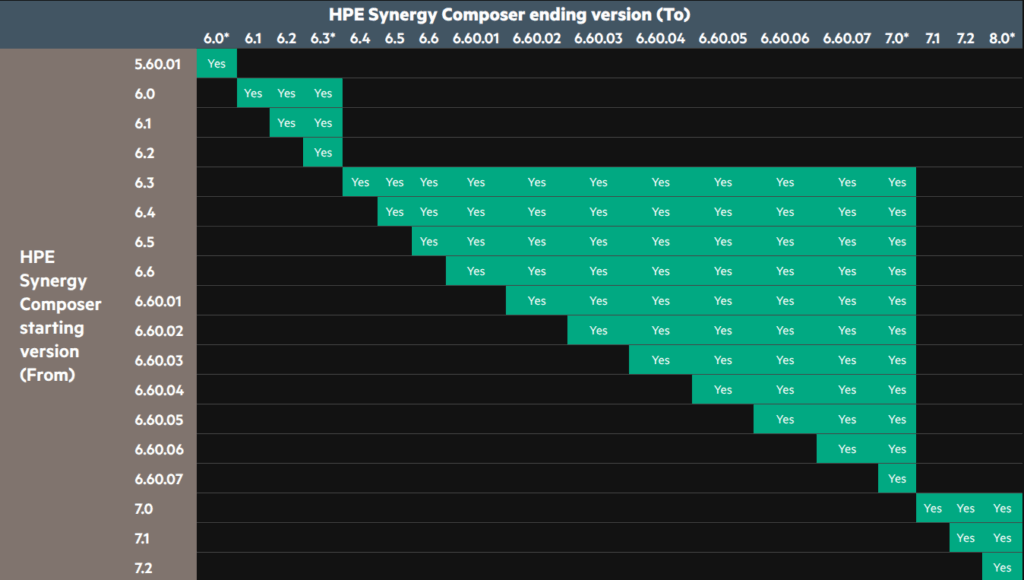
- Composer 7.2 –> 8.00.01 –> 8.30.01
- SPP 2022.08.01 –> 2023.05.01
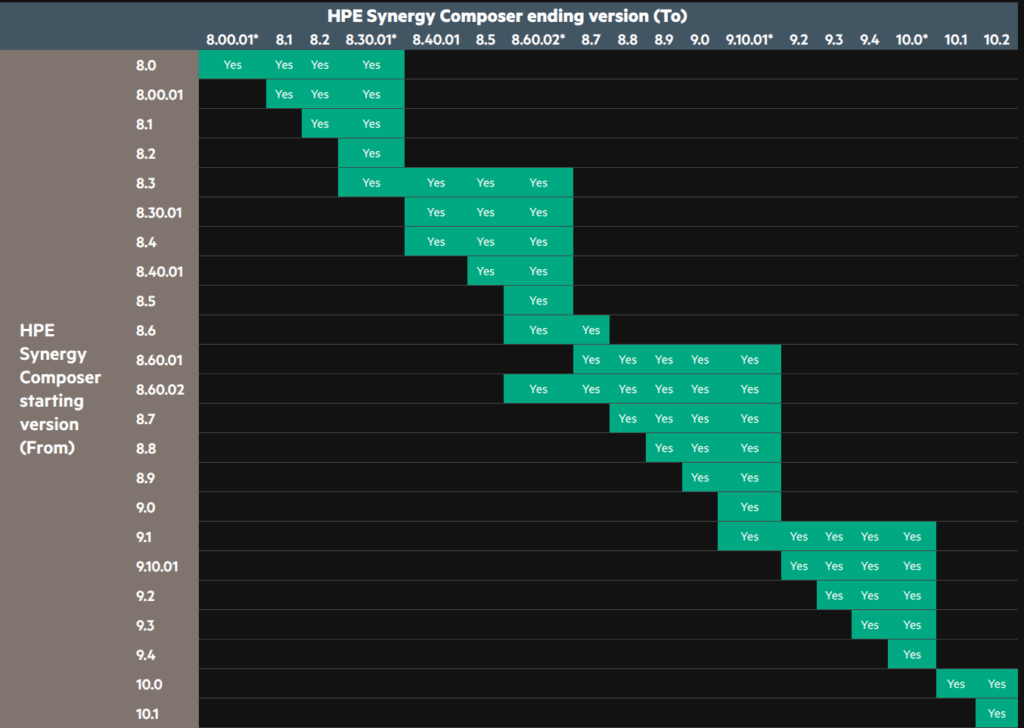
- Composer 8.30.01 –> 8.60.02
- SPP 2023.05.01 –> 2024.01.02
- Composer 8.60.02 –> 9.10.01
- SPP 2024.01.02 –> 2024.11.02
- Composer 9.10.01–> 10.0
- SPP 2024.11.02 –> 2025.10.01
1.1 – Building An Upgrade Path
We need to check the version you are currently on and plan a path, for example, if you are a few years out of date, you may not be able to make a large jump on the composer/firmware while maintaining a supported firmware, which is key
If you take a system on Composer 7.2 and firmware 2022.08.01 and you want to move to the latest LTS Composer on 10.0 with firmware 2025.10.01
The upgrade paths for HPE Synergy for the newer versions of the Composer can be found here with older releases here
Here are some screenshots of these paths, incase the links dont work in the future
Its worth noting the Image Streaming is EOL as of Composer 6.60.x and will need to be decommissioned before upgrading beyond 6.60.x, I wont be covering it as I have not seen one in a deployment
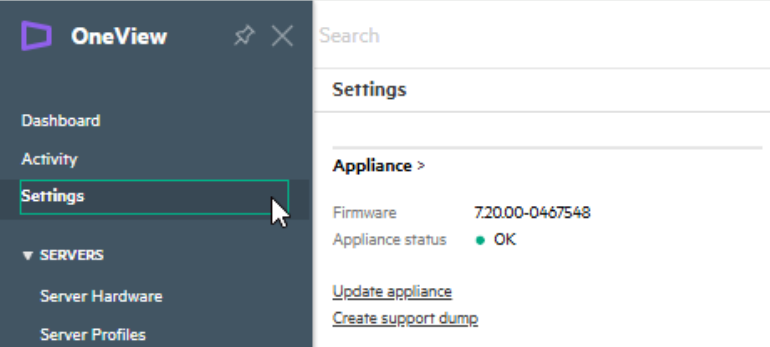
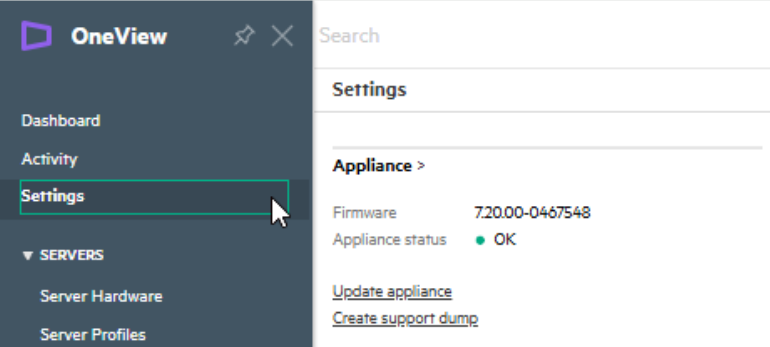
To check your composer version, log into the OneView UI and click the OneView icon in the top left

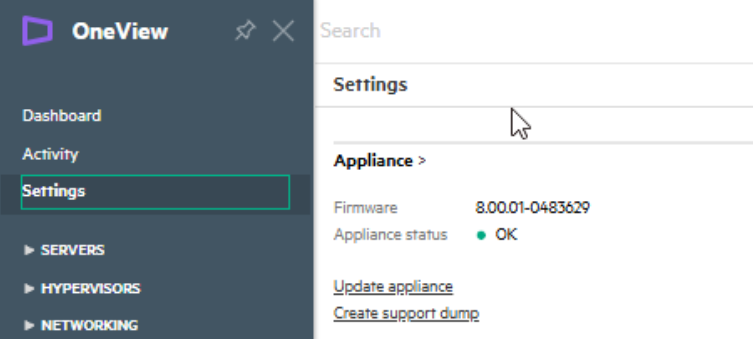
Click Settings and under appliance, we can see the Composer firmware
1.2 – Firmware
Update the firmware, the best order here is shared infrastructure then blade firmware
You can update the firmware together or separately as well as in serial and parallel updates
HPE recommend, for a non disruptive update of interconnects, choosing Orchestrated as the type of firmware activation for Interconnect Activation
You should take care here with the shared infrastructure, this will update various chassis firmware shared by all blades, so there is a risk of taking the chassis offline if not done correctly
Firmware on this list includes the interconnects, so make sure everything is wired with redundancy in mind and that you have at least 2 interconnects, as if it isnt redundant, or you have 1 interconnect, it will get rebooted as part of an update, and it will take the networking out for the blades underneath
In the multi chassis setup this guide is based on, my customer has 3 chassis, with 2 100GbE ToR uplink interconnects, in one in two of the chassis, and a second interconnect per chassis which is a 50Gb satellite interconnect which interlinks all three chassis providing full redundancy
When planning an upgrade path, you must ensure the composer release explicitly states the firmware as supported, you can find a list for the interoperability here
For example, I am on Composer 7.2 and firmware 2022.08.01
Checking 8.00.01 we see 2022.08.01 on the list, so thats interoperable
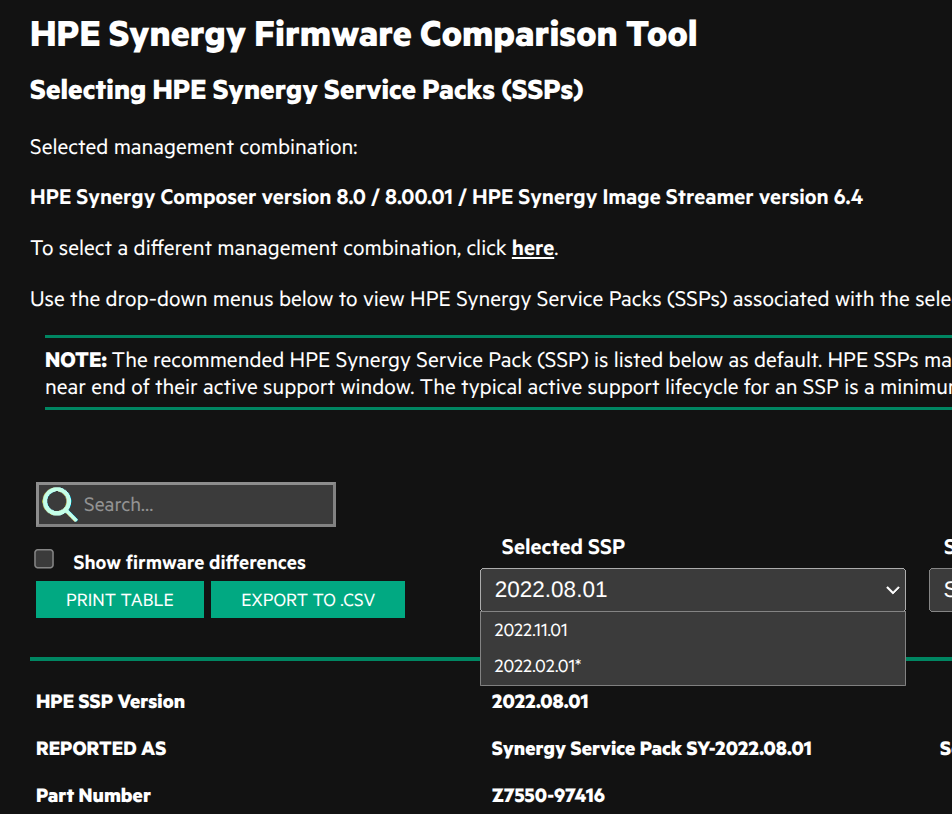
We can jump to 8.30.01, we see 2022.08.01 is supported, and the latest is 2023.05.01, so after upgrading to Composer 8.30.01 we can upgrade the firmware to 2023.05.01
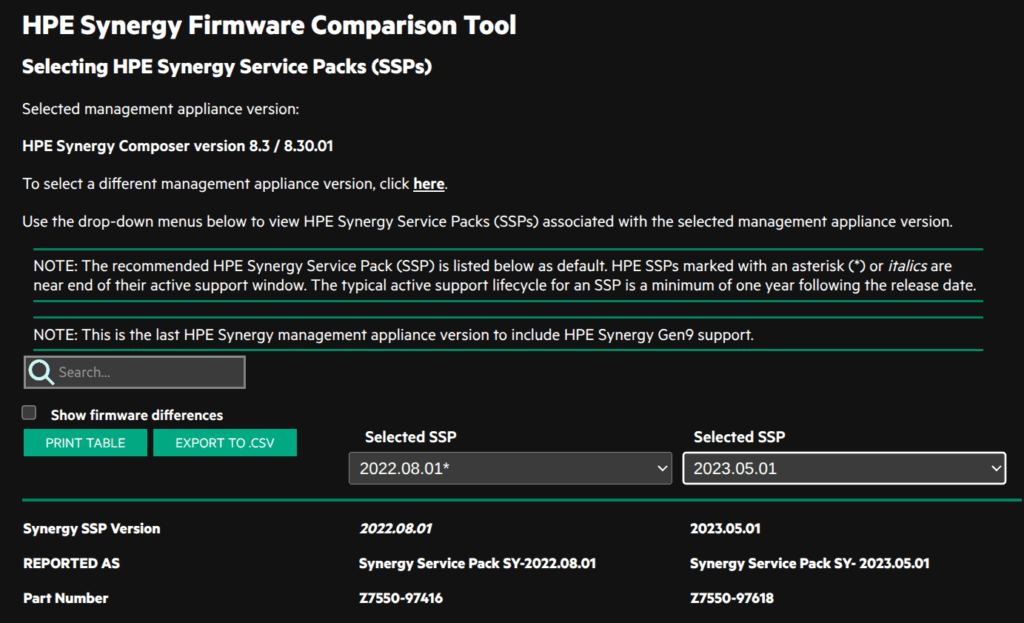
The firmware uses the same SPP for shared and blade infrastructure
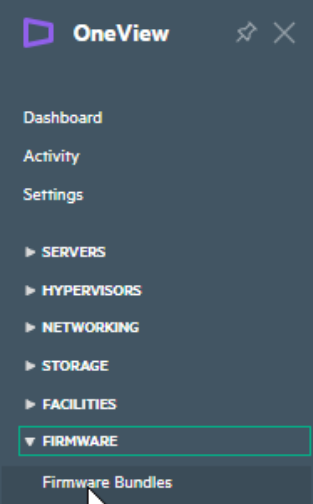
To see the current firmware bundle, click OneView in the topleft and click Firmware/Firmware Bundles
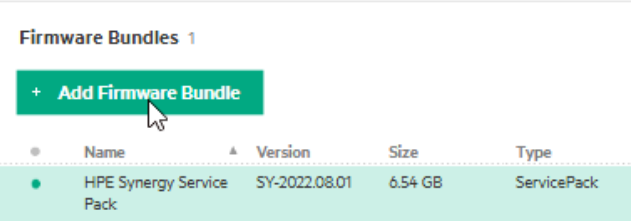
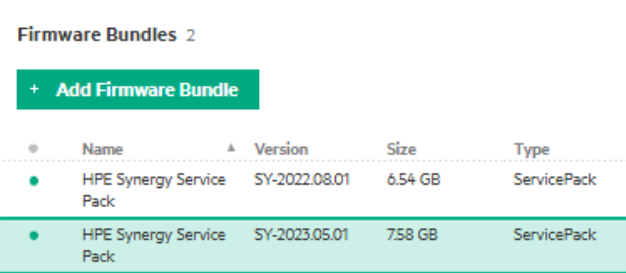
And we should see a bundle attached
Otherwise, should show it on the logical enclosure
2 – Composer
The first thing we need is the software for the composer, newer versions can be found here, as of November 2025, this lists 8.5 to 10.2
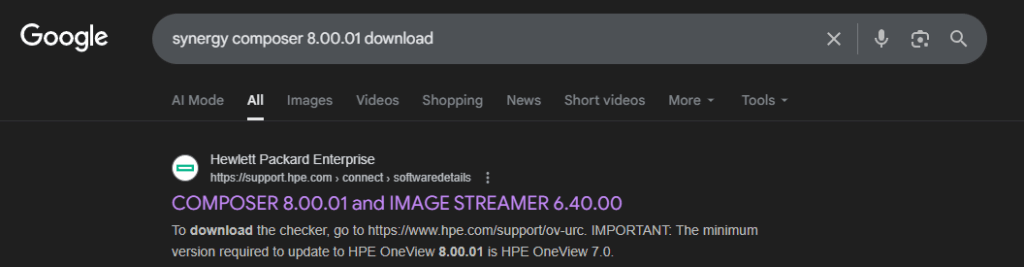
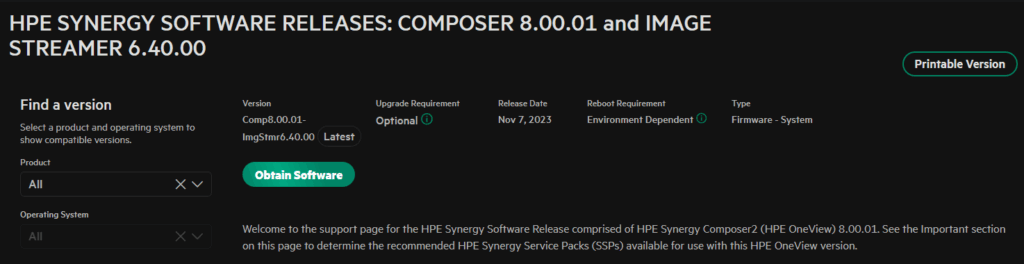
For my composer upgrade path, I am going from 7.2 –> 8.00.01, and this isnt on the list, we can easily find the software by googling it, for example
Click Obtain Software, you will need a HPE login for this
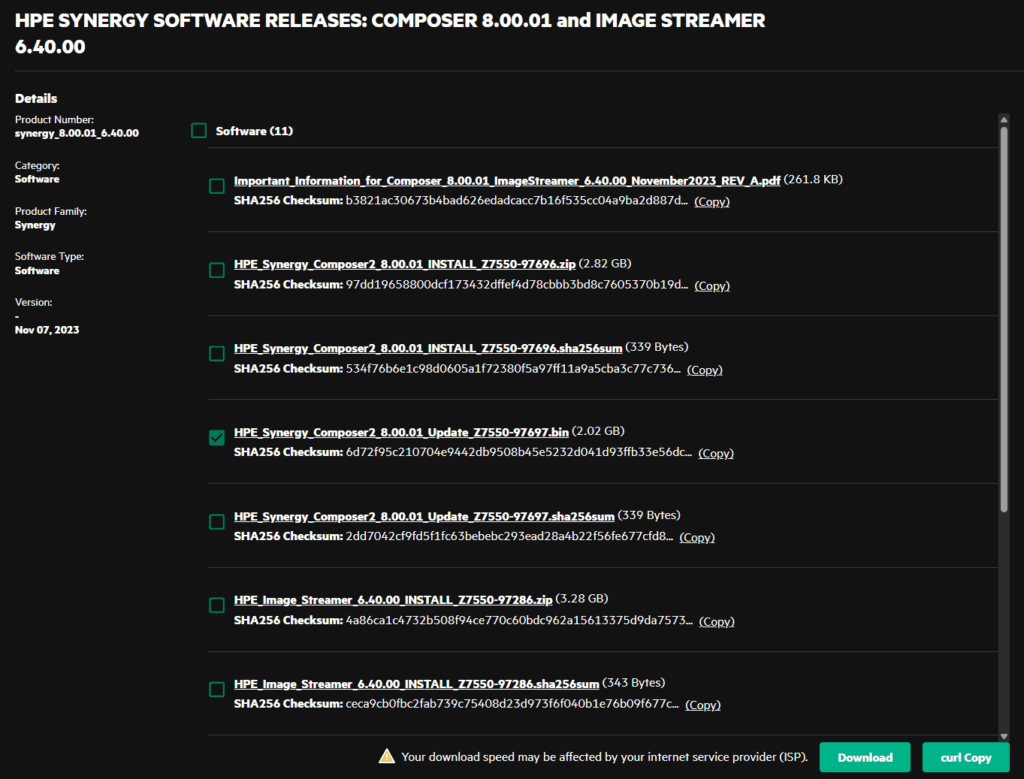
We need to then select the .bin file for the composer and click Download
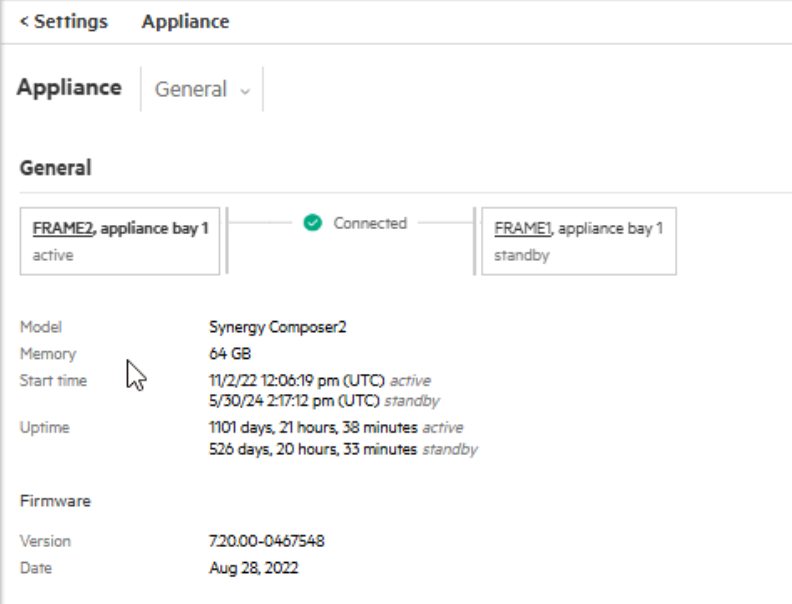
We now want to double check we have redundant composer modules, in a single chassis setup they will all be in the chassis you have, if you have multiple linked together, they should be spread over two chassis
Log into the OneView UI and click the OneView icon in the top left

Click Settings and then click Appliance
Here we can see our composer modules and the chassis they are installed in
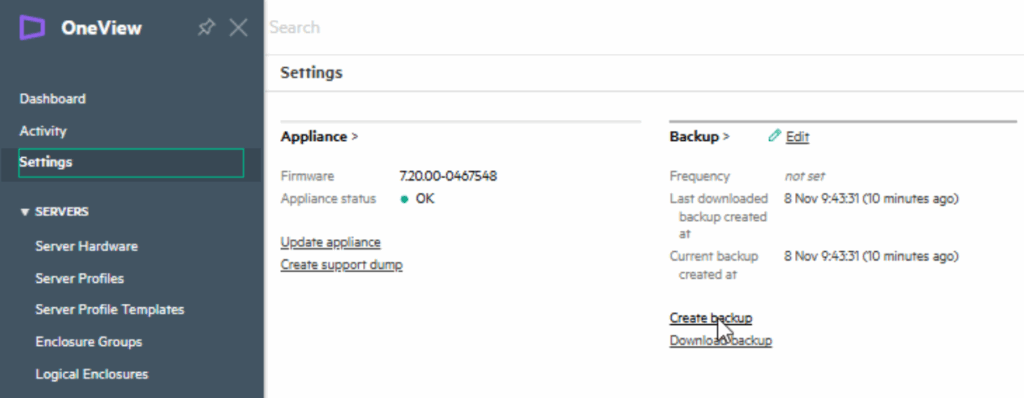
Next we need to take a backup, click Settings and then Create Backup under the backup tab
Select Download Backup In The Browser and click ok
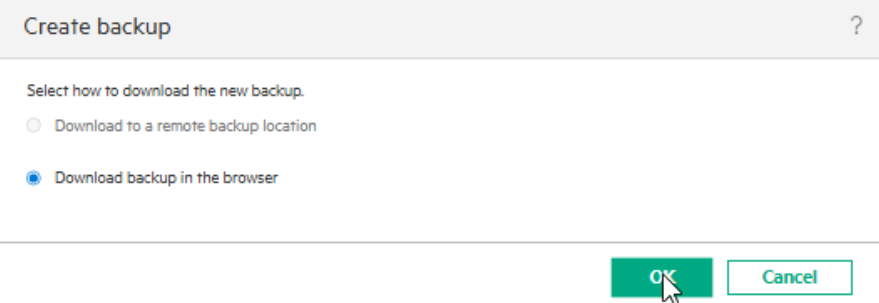
This will create a backup job, and when thats run, download the backup file

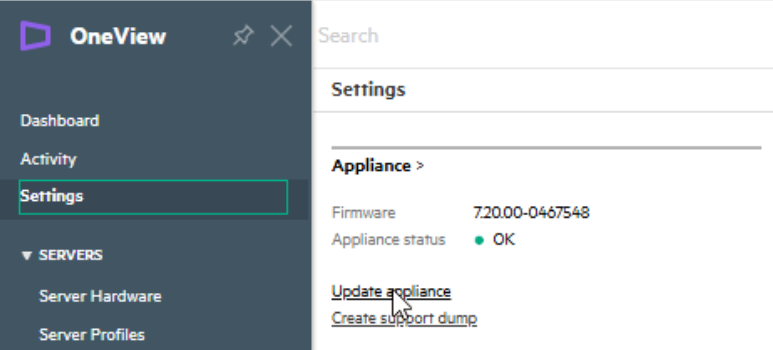
Then back under Settings, on the Appliance tab, click Update Appliance
Click Browse
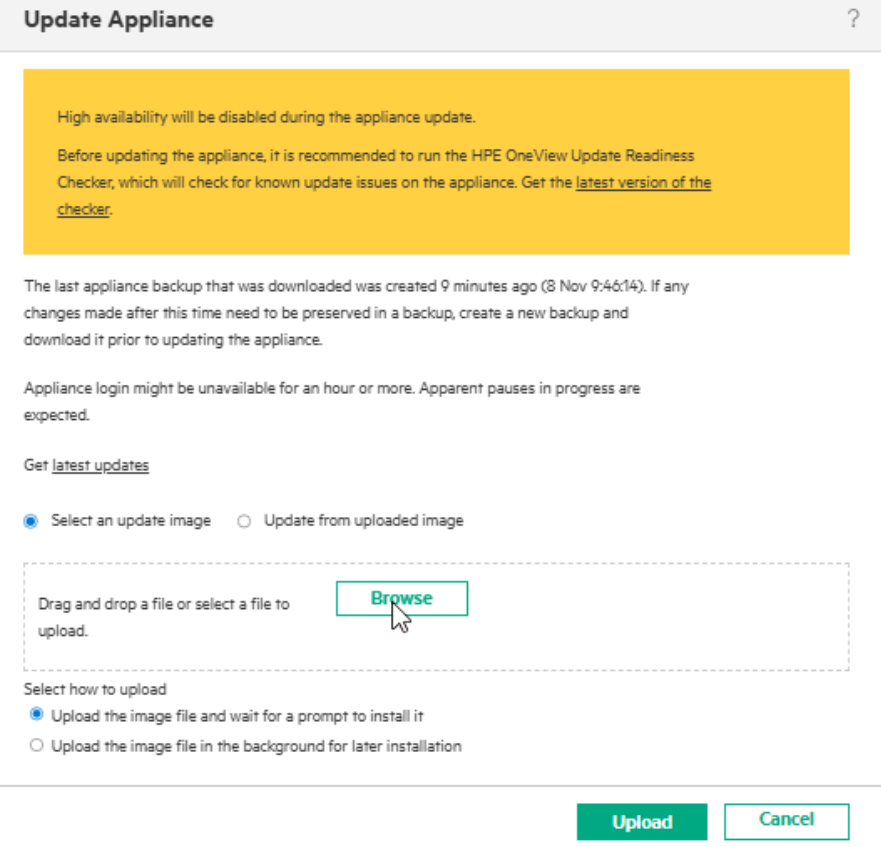
And double click the downloaded BIN file

Then click Upload
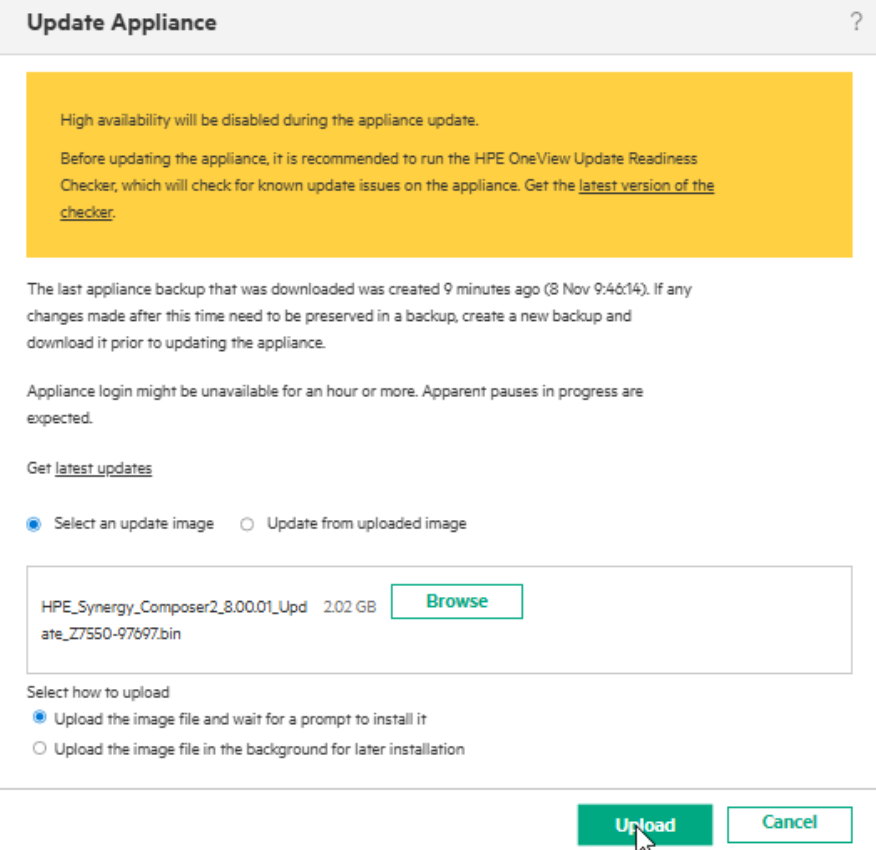
Wait for the upload to complete
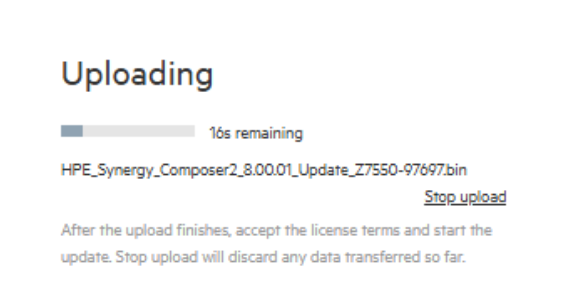
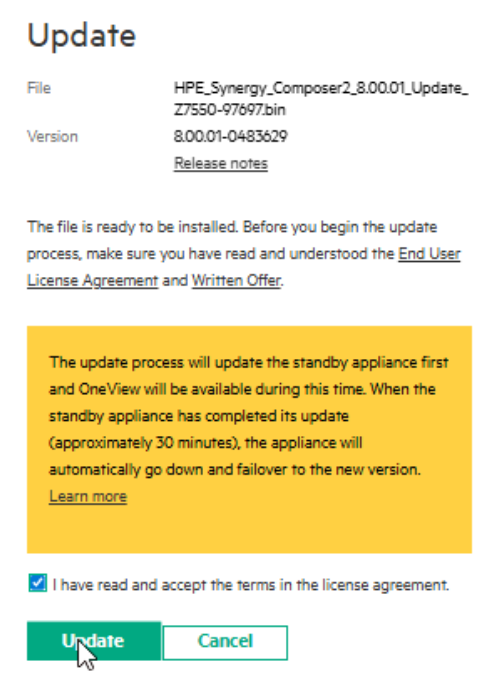
Once thats completed we will get a prompt to start the upgrade
This will update the standby composer, then fail over to it, and upgrade the remaining, now standby, composer
When you are happy, check the box to accept the EULA and click Update
Click Yes, Update
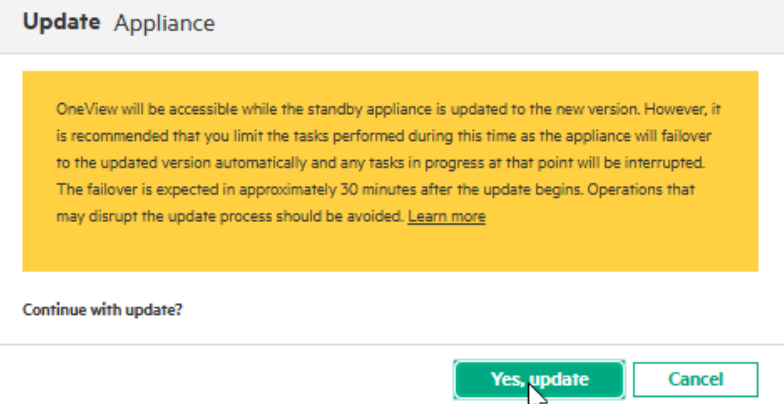
We can then expand the update job and click details to see the progress
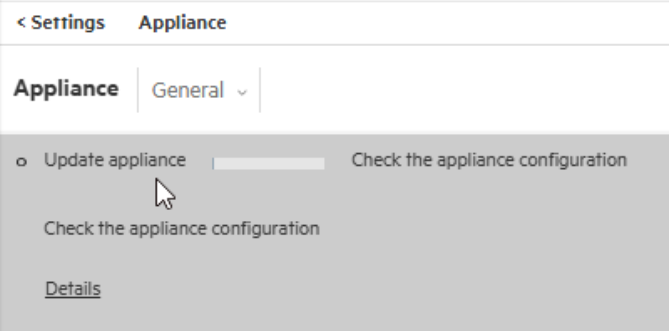
And here we can expand the activity job

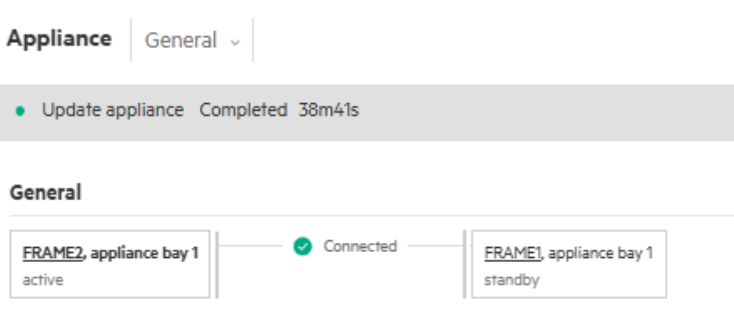
After ~1 hour it should be all done, and we can see this from Settings under the Appliance tab
3 – Shared Infrastructure
Updating the shared Infrastructure consists of the Frame Link Modules, Interconnect Modules/IOMs, and drive enclosures, if you have them, as they are common to all of the blades
HPE recommend Orchestrated as the type of firmware activation for Interconnect Activation but take care to check for any warnings under the Logical Enclosures Screen
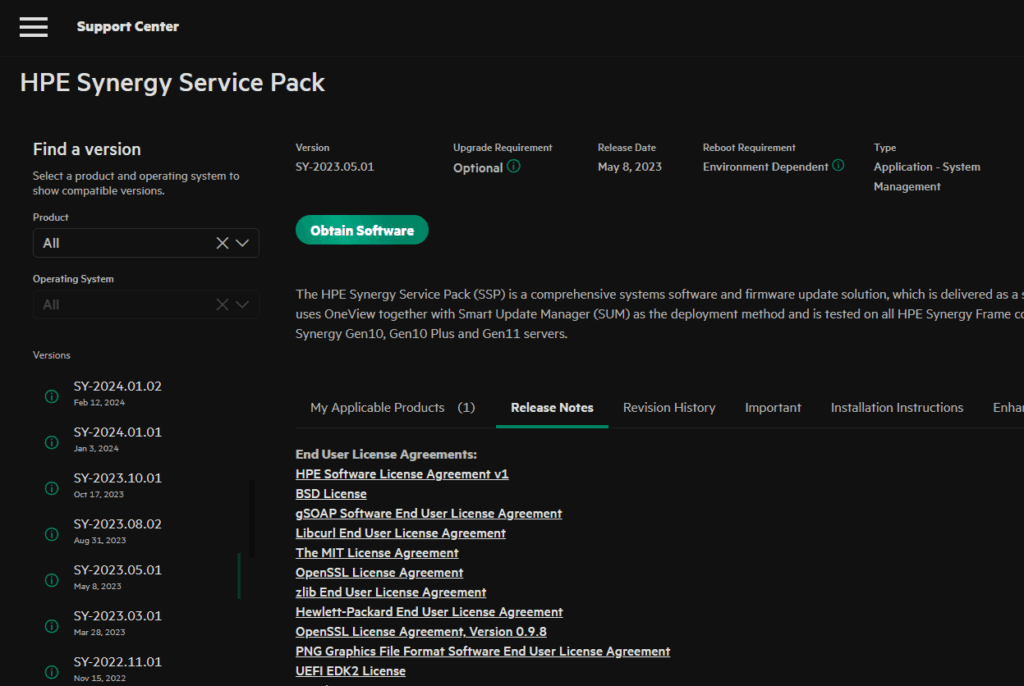
First we need the SPP, we can get a link for the recommended on the Synergy software releases here
If you cant get those, we can find the SPPs here as well
We then need to select our version and click Obtain Software, you will need a HPE account for this
Then select the ISO and click Download
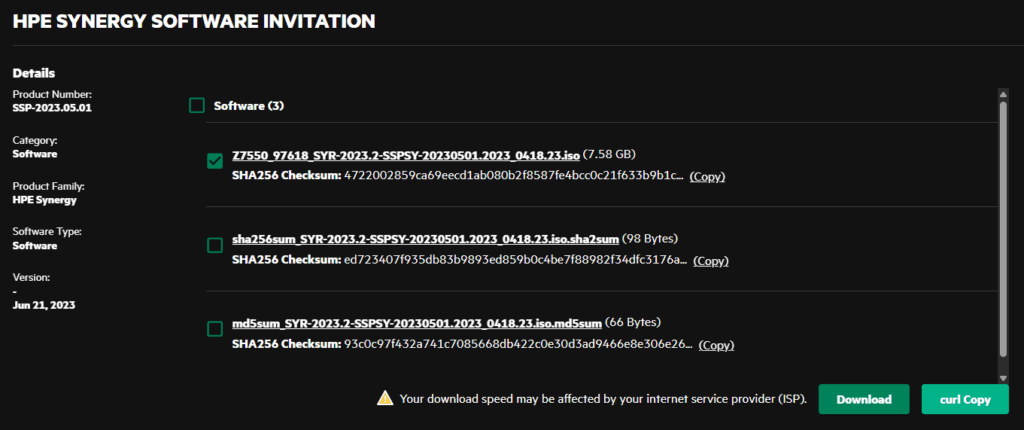
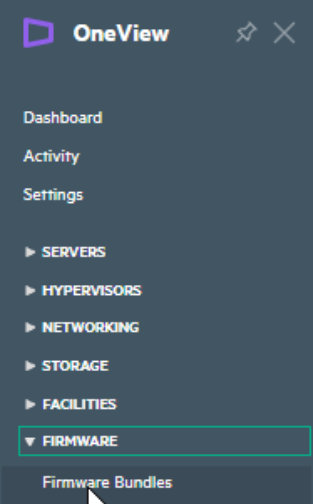
We then need to upload SPP to the Composer, click the OneView icon in the top left and click Firmware/Firmware Bundles
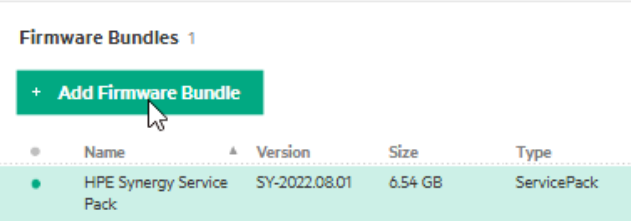
Click Add Firmware Bundle
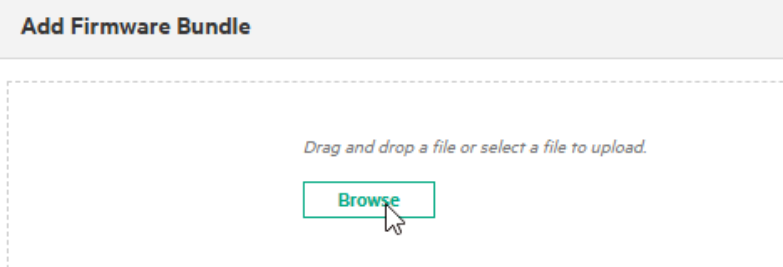
Click Browse
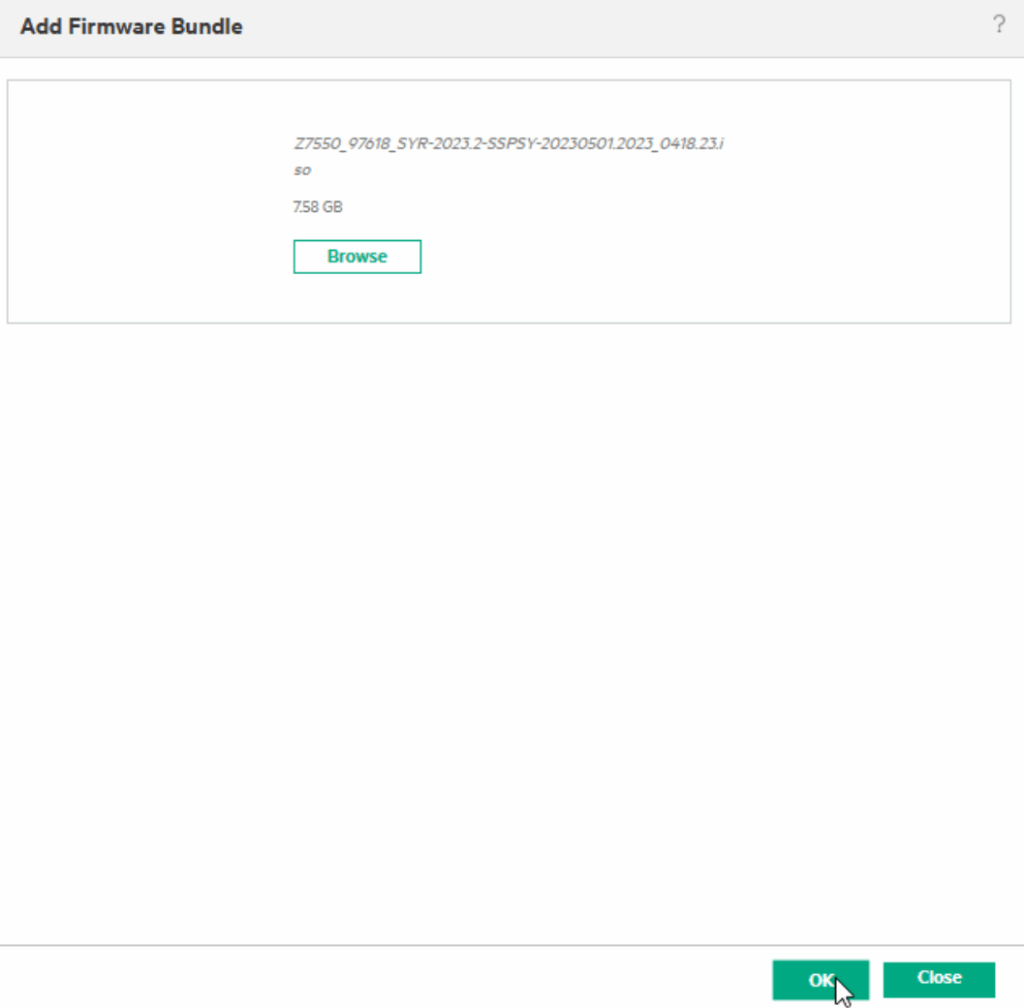
Double click the SPP

Then click ok
We should then see the new Service Pack uploaded and added after ~5-10 mins, depending on the upload speed to the composer
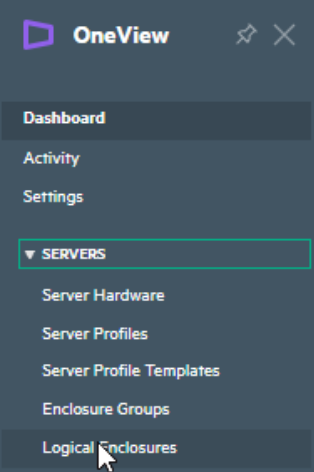
To start the shared infrastructure firmware update click the OneView icon in the top left and click Servers/Logical Enclosures
Here we can see the state and all frames in the logical system, oddly my Frame1 has a red alert
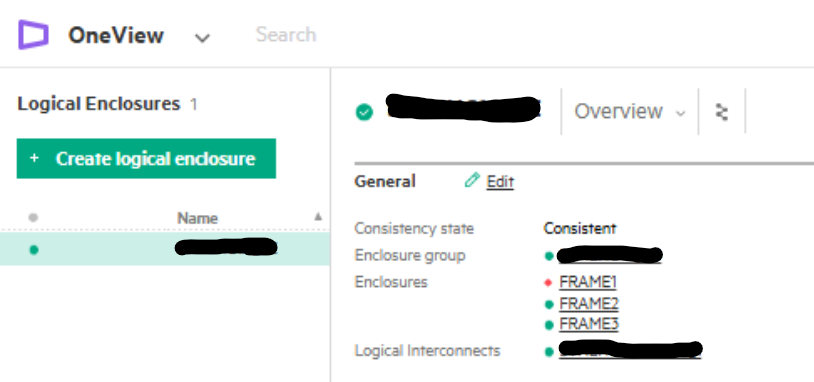
If we click Frame1 we can see what this is, which seems to be an issue with the composer

We can check the Composer status from Settings/Appliance
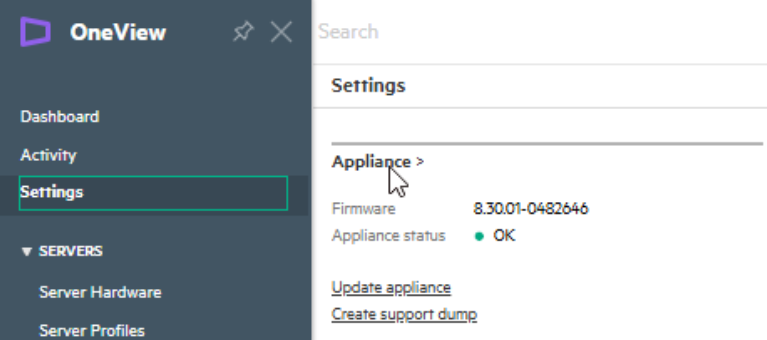
And they are looking fine, so this looks to be from the update when it wasnt reachable, and can be ignored
On the right hand side, click Actions/Update Firmware
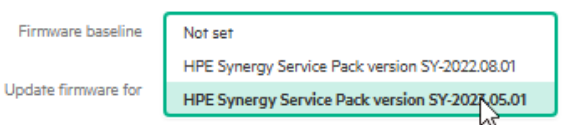
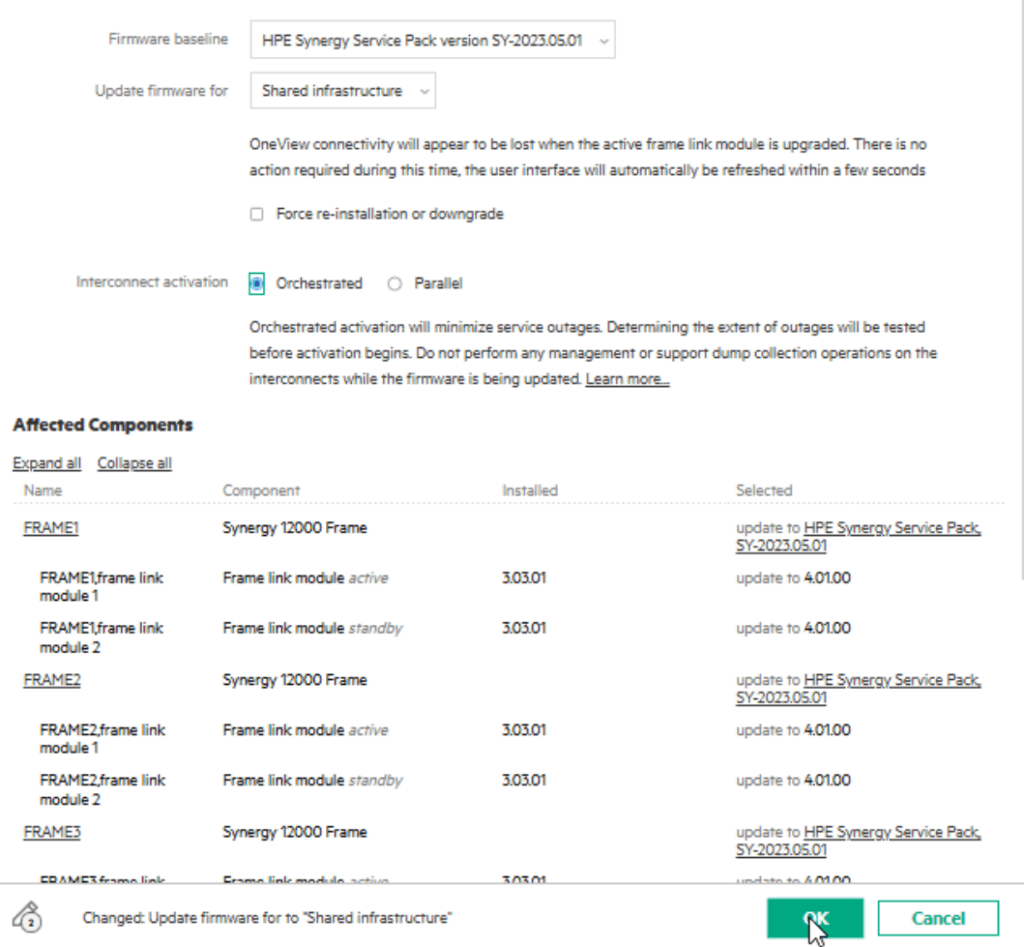
For the Firmware Baseline, use the drop down and select the service pack for the version you just uploaded, in my case 2023.05.01
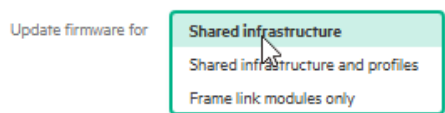
For the second drop down box select Shared Infrastructure, we dont want to do the blades, which is the profiles, this is VERY important
Ensure Orchestrated is set for the interconnect activation, this means they are done sequentially, if you do parallel they will reboot together and it WILL take the chassis networking out
When you are happy, click ok
The system will run an analysis for any possible outages

I got this warning, the system cant tell if the chassis networking will remain up during the upgrade, so we need to verify this manually
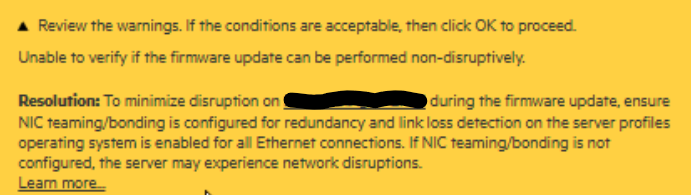
For my 3 frame system, there are 2x100GbE switches that uplink to the ToR switches, and 4x50GbE modules that interlink the chassis
Each 100GbE switch is connected to both ToR switches will multiple links, and those 100GbE switches are spread over two frames for external access
The 50GbE modules allow the frames to communicate between each other, and Frame1 is connected to Frame2/3 with its 50GbE modules, Frame2 connects to Frame1/3 with its 50GbE modules and Frame3 connects to Frame1/2 with its own modules
Therefore we know the system is redundant and will be fine, when you are happy with this, click ok
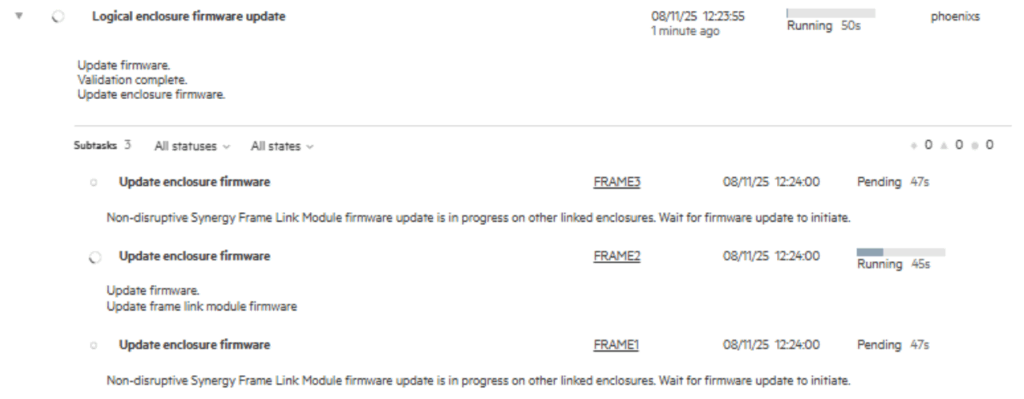
It will then generate jobs and updates the frames sequentially
4 – Blade Infrastructure
Now, we have the SP and the shared infrastructure is done, so we need to edit our server templates to use the new SPP
We can find the templates by clicking the OneView icon in the top left then click Servers/Server Profile Templates
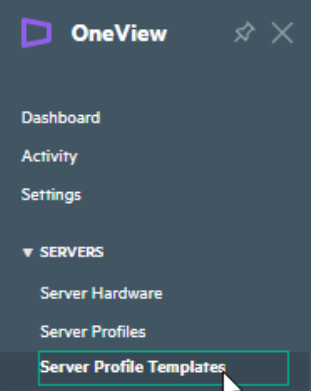
Select a template, lets start with the one for the Citrix Xen hypervisors
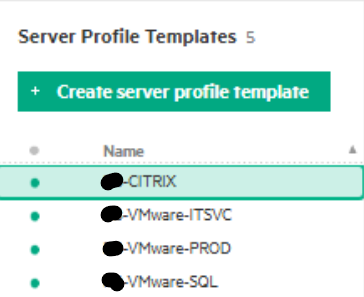
Then in the top right, click Actions/Edit
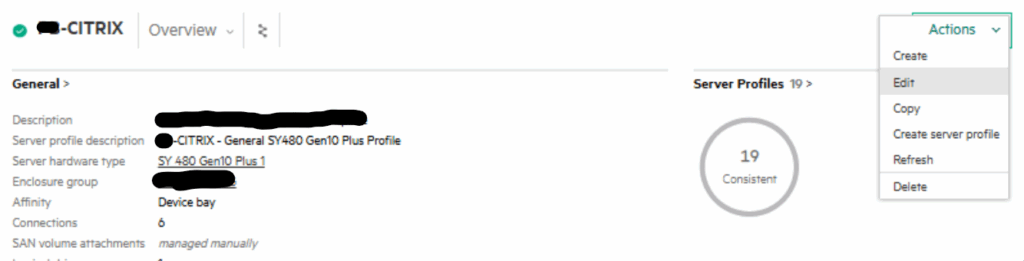
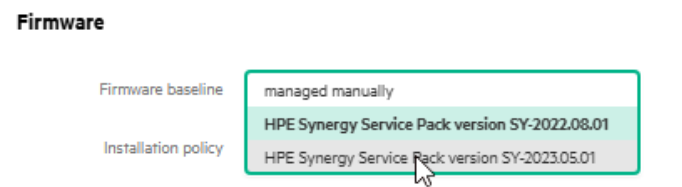
Scroll down to the firmware baseline section and use the drop down to change the service pack to the latest one we uploaded
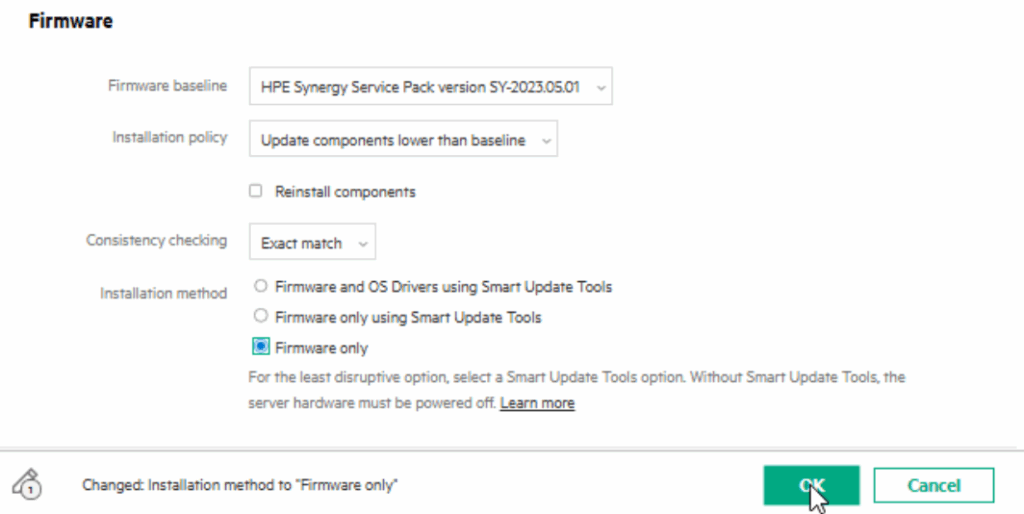
There is an installation method for with or without Smart Update Tools, personally, I dont like SUT, its not on all operating systems, like the Citrix Xen hypervisors this setup has, meaning we cant get the benefit of OS driver updates anyway, and for systems like ESX, the cluster image should have the Synergy addon anyway, which contains OS drivers
With this in mind, I will se using the Firmware Only so this works properly on systems that dont have SUT on them, the only OS what will really benefit from this is Windows and maybe native Linux
When you are happy, click ok on the baseline
We can see now the blades are now inconsistent
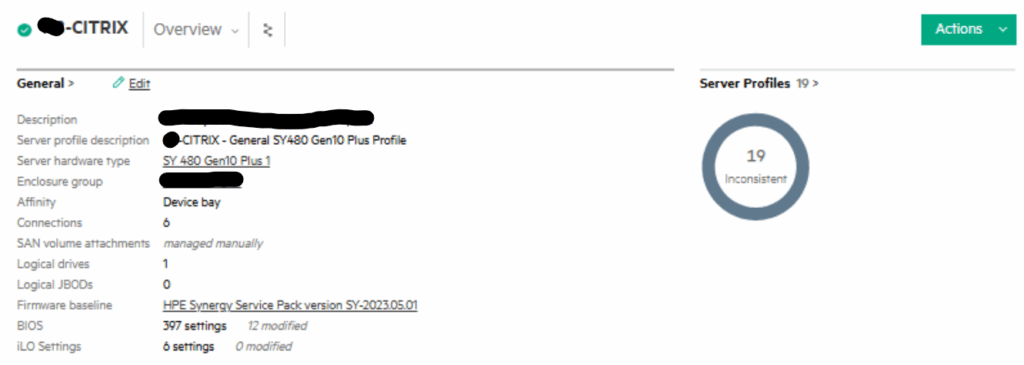
This will need repeating for any additional profiles you might have
From the OneView menu head to Servers/Server Profiles
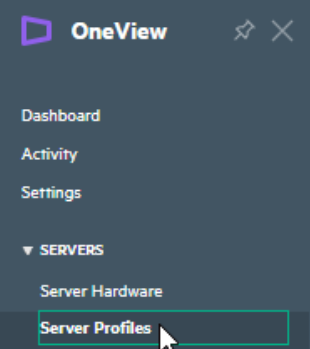
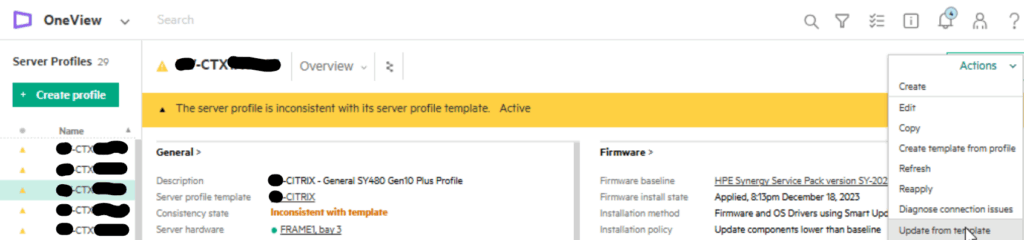
On the left you’ll see all the server profiles, one for each blade, pick a blade to start with, I am using one of my Cirtix nodes
Its at this point the server should be in maintenance mode and switched off before continuing any further
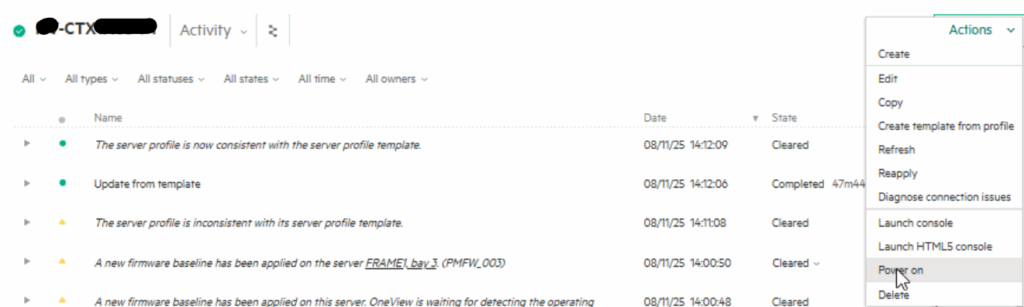
When it is, on the right, click Actions/Update From Template
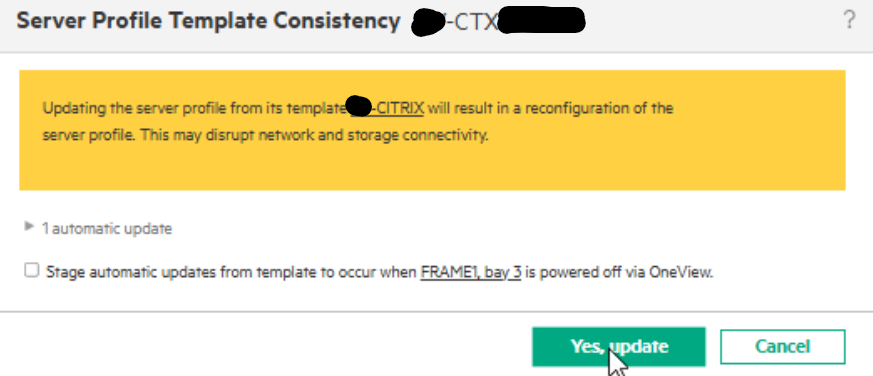
It will warn you the server isnt switched off, but on the actiosn tab, it should say Power On, which also indicates the blade is off
Then click Yes, Update
This will then create an update job which will boot the server into the utility to update the firmware automatically
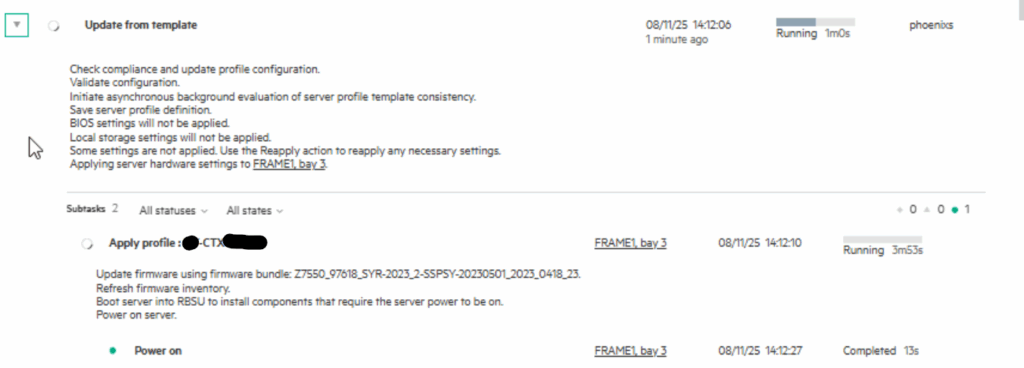
It will then stage and install the components automatically
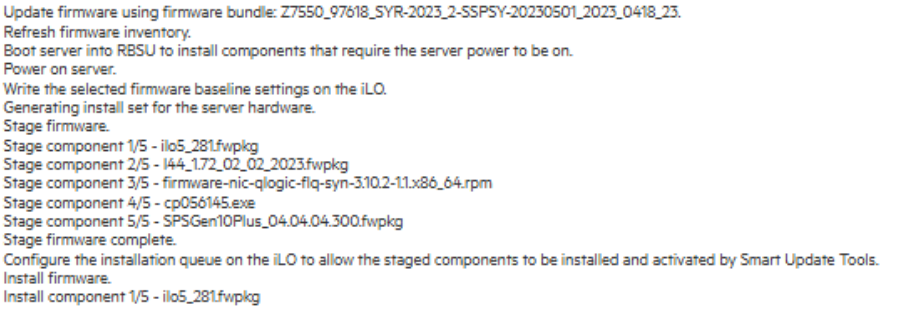
This took me ~90 mins
When its done click Actions/Power On as the blade will be left shutdown after the firmware upgrade
5 – Errors
Symantec Class 3 Secure Server Certificate Expired
If you have this error on your Synergy then you can remove the certificates as they are no longer needed
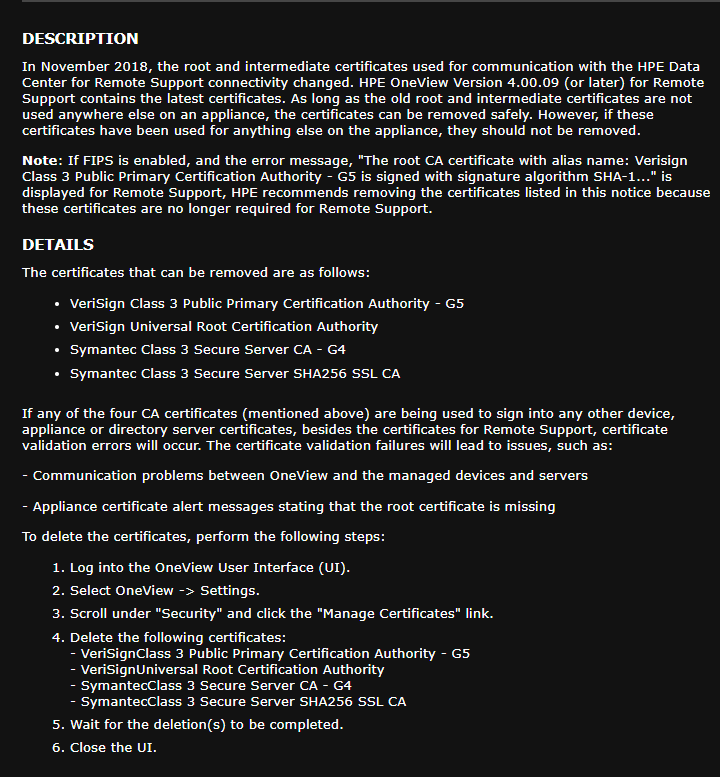
HPE have some more information here

Thanks for this – so good to see images etc and know you are on the right track.
I’m following the Composer upgrade paths https://support.hpe.com/docs/display/public/synergy-sw-release/EOS_Upgrade_Paths.html but HPE support gave me that impression that I can just do composer right up to the level I want and then the SPP that matches (9.10.1 and SPP 2024.11.02 – as we are vsphere 7 u3).
I’m running the readyness checker each time so hopefully that would indicate issues?
Glad its been helpful, these are a monster to update, but not too bad when you get your head round it all
If you are going to take the composer right up to 9.10.1, Id make sure HPE support confirm it in writing, least if it breaks you can hand it back to them to fix
I stayed firmly within what the matrix said you could upgrade to as I was doing this for a customer, and given it was production systems, stability was really important, so I didnt take any chances, especially, since, unlike rack servers, when breaking one is a server out of the pool, the chassis can take up to 12 blades with it, maybe not with the composer, but any issues with the frame networking definitely will