 By Leaha
Last updated on January 28th, 2026 at 07:38
In this article we go over resetting the vSphere certificates, particularly around the vCenter including the main process, best practices, checking certificates and what errors you might encounter while trying to do this, as a one stop shot for everything vSphere Certificate issues to help get your systems back up and running
This guide assumes you have a vCenter backup schedule setup to back the configuration up every 24 hours, this has been best practice since vCenter 7 and should already be set up
This can be used as a last resort restore if you cant change the certificates or restoring from the snapshot fails for some reason
The restore process its self is not covered
Important – By continuing you are agreeing to the disclaimer here
1 – Checking Certificates
Depending on your environment, you will need either section 1.1 or 1.2, depending on if you have a VCF with SDDC Manager style environment
1.1 – VCF
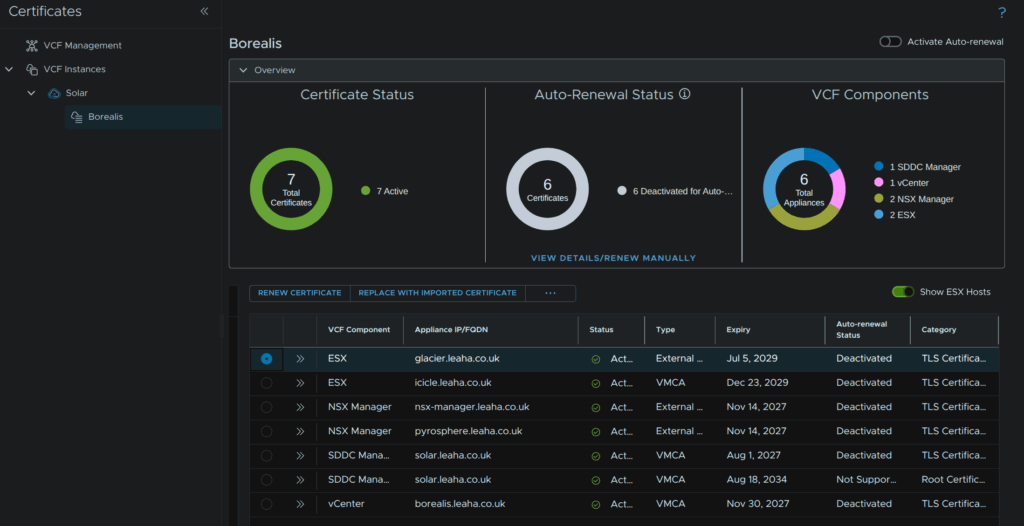
We can view the machine SSL cert directly from VCF Operations, head to Fleet Management/Certificates, expand VCF Instances, expand the VCF instance and select the workload domain, in my case Borealis
Here we can see our certificates
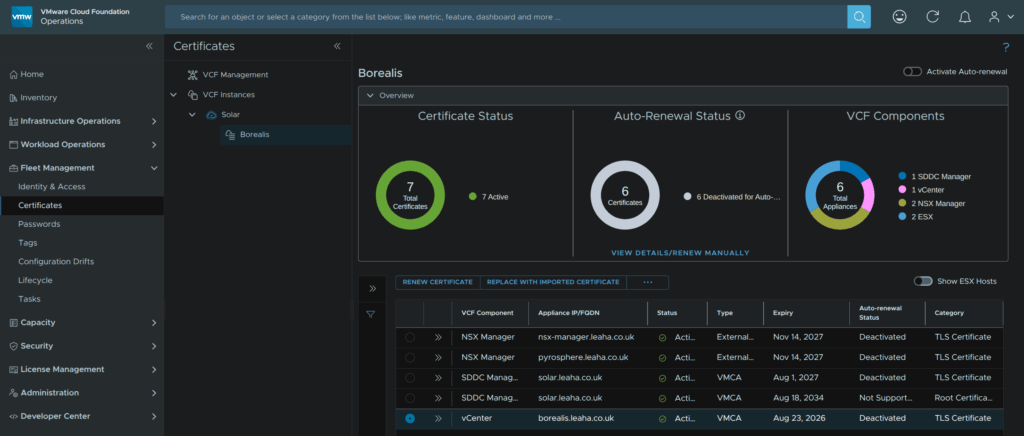
This doesnt show all the internal ones or the STS signing certificate, which are always worth checking
Broadcom have a very nice script for everything you need certificate wise here
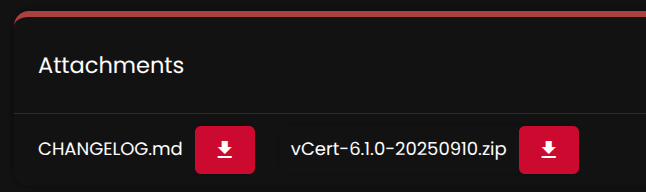
Download the vCert zip at the bottom
You then need to transfer this to the vCenter with a tool like WinSCP or FileZilla
You get the error Received too large (1433299822 B) SFTP packet if the default shell is the appliance shell rather than bash
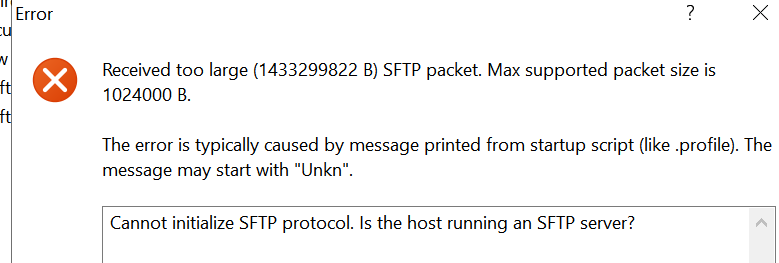
For FileZilla you will see something like this

To fix this, SSH into the vCenter and run the following to change the default shell to bash by running
shellThen run
chsh -s /bin/bash rootTo go back to the appliance shell use
chsh -s /bin/applianceshWhen you have it on the vCenter, run
unzip <zip-folder-name>I ran
unzip vCert-6.1.0-20250910.zipThen run
cd <folder-name>I ran
cd vCert-6.1.0-20250910.zipTo run the scrip run
python vCert.pyWe will see the main menu like this
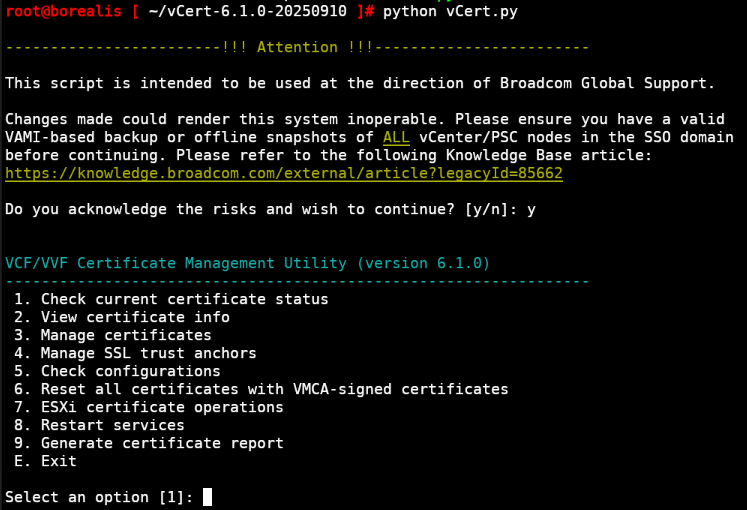
To view the certificates menu, press 1, then press Enter
You will need an administrator account, usually [email protected], mine was [email protected] as I changed the SSO domain name
This will check the status of all certs we need and mark if they are expired or not
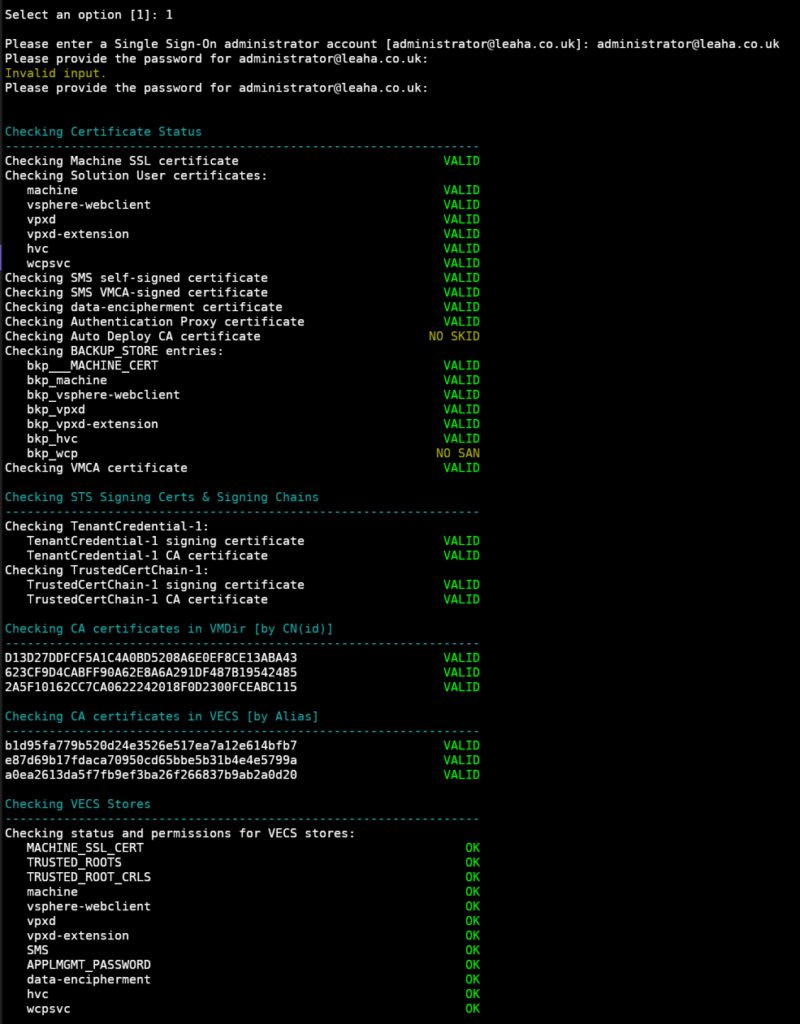
We can then use option 2 for view certificate details and get the exact expiring details
We can then use option 1 for the machine SSL certificate, which is in VCF Operations
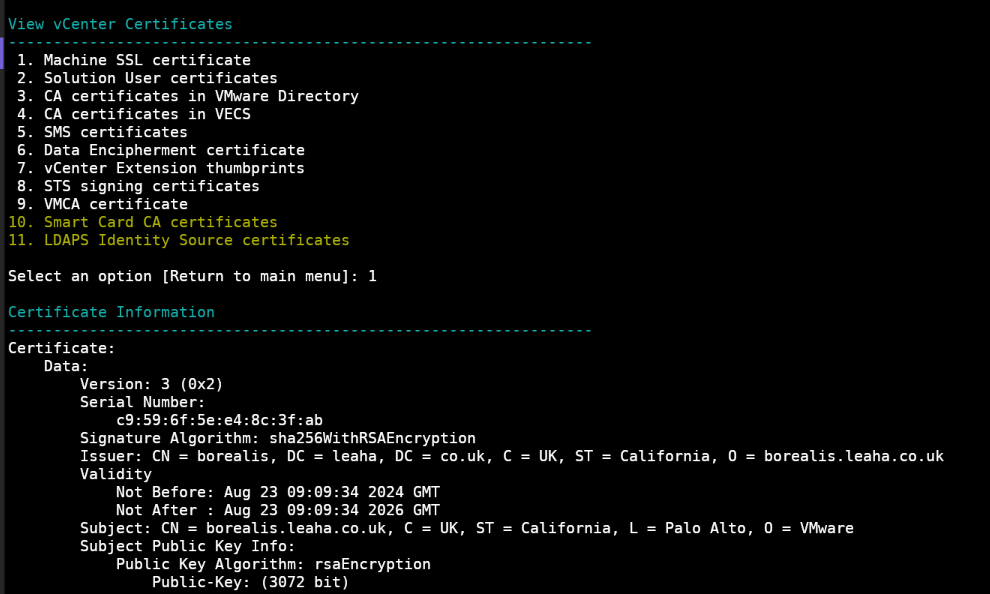
We can use other options to check other certificates
1.2 – Non VCF
Broadcom have a very nice script for everything you need certificate wise here
Download the vCert zip at the bottom
You then need to transfer this to the vCenter with a tool like WinSCP or FileZilla
You get the error Received too large (1433299822 B) SFTP packet if the default shell is the appliance shell rather than bash
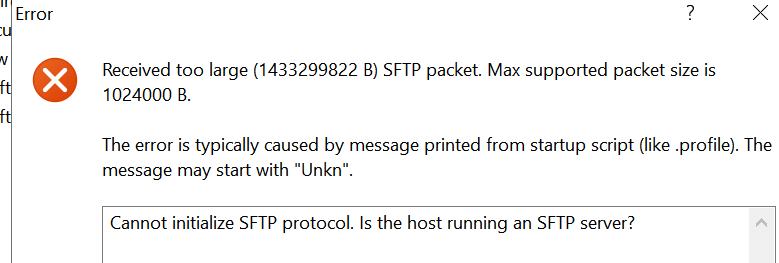
For FileZilla you will see something like this

To fix this, SSH into the vCenter and run the following to change the default shell to bash by running
shellThen run
chsh -s /bin/bash rootTo go back to the appliance shell use
chsh -s /bin/applianceshWhen you have it on the vCenter, run
unzip <zip-folder-name>I ran
unzip vCert-6.1.0-20250910.zipThen run
cd <folder-name>I ran
cd vCert-6.1.0-20250910.zipTo run the scrip run
python vCert.pyWe will see the main menu like this
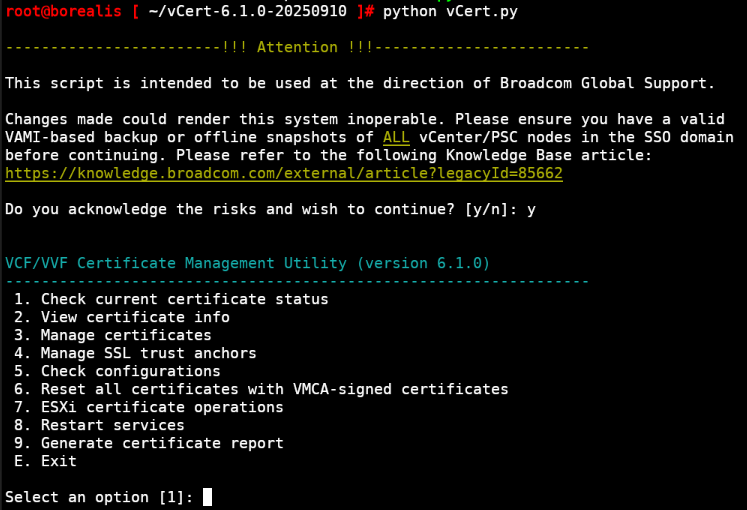
To view the certificates menu, press 1, then press Enter
You will need an administrator account, usually [email protected], mine was [email protected] as I changed the SSO domain name
This will check the status of all certs we need and mark if they are expired or not
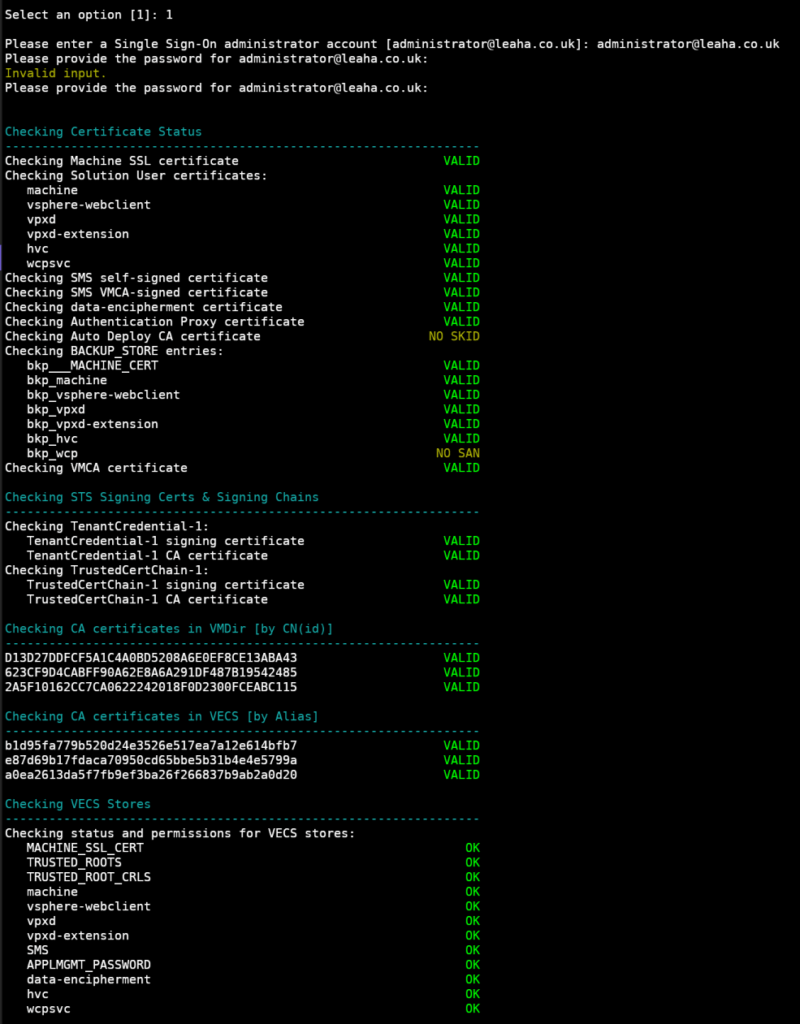
We can then use option 2 for view certificate details and get the exact expiring details
We can then use option 1 for the machine SSL certificate, which is in VCF Operations
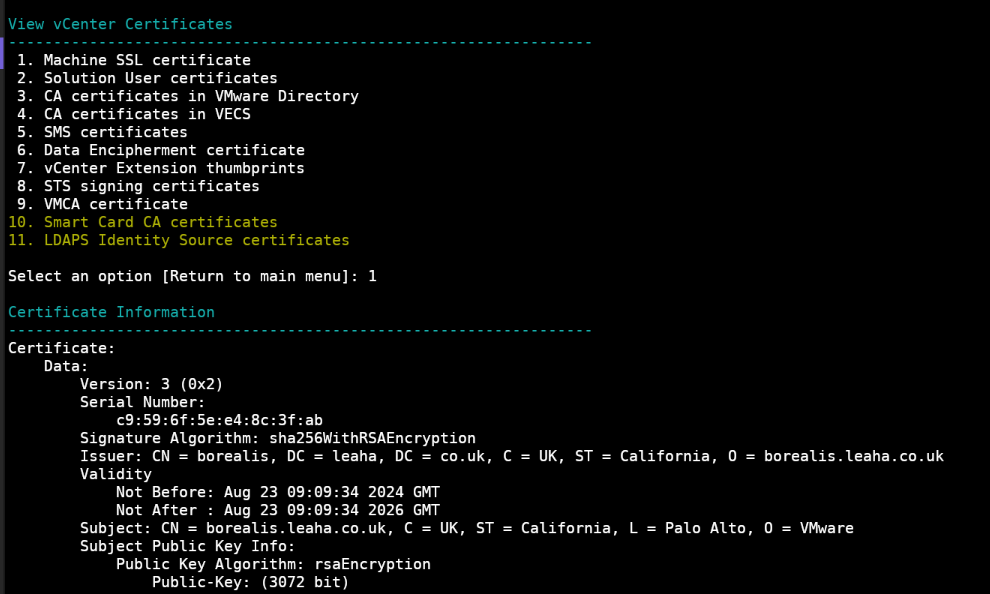
We can use other options to check other certificates, you will want to use this section to check anything that is marked as expired from earlier in the vCert script
2 – Renewing Certificates
Depending on your environment, you will need either section 2.1 or 2.2, depending on if you have a VCF with SDDC Manager style environment
2.1 – VCF
Before proceeding, ensure you have a powered off snapshot of the vCenter
In VCF 9 you should not have ELM, however on earlier versions you may, and in ELM all members need to be shutdown and snapshot at the same time, if you need to restore all ELM members must be restored
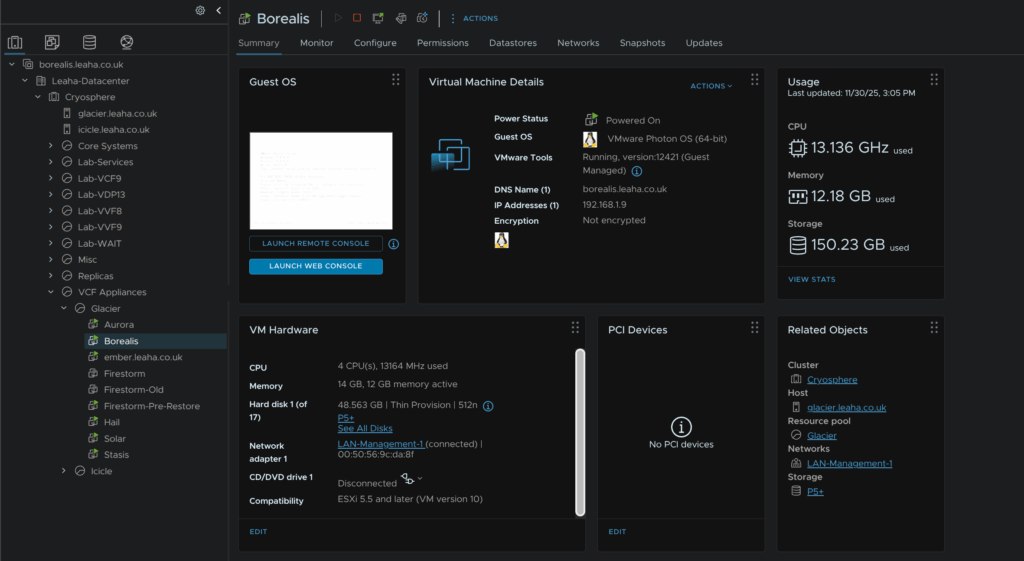
In vSphere search and select the vCenter VM, we can see the host the vCenter is running on from the Related Objects box, note that host, then press the red stop button to shit the machine down gracefully
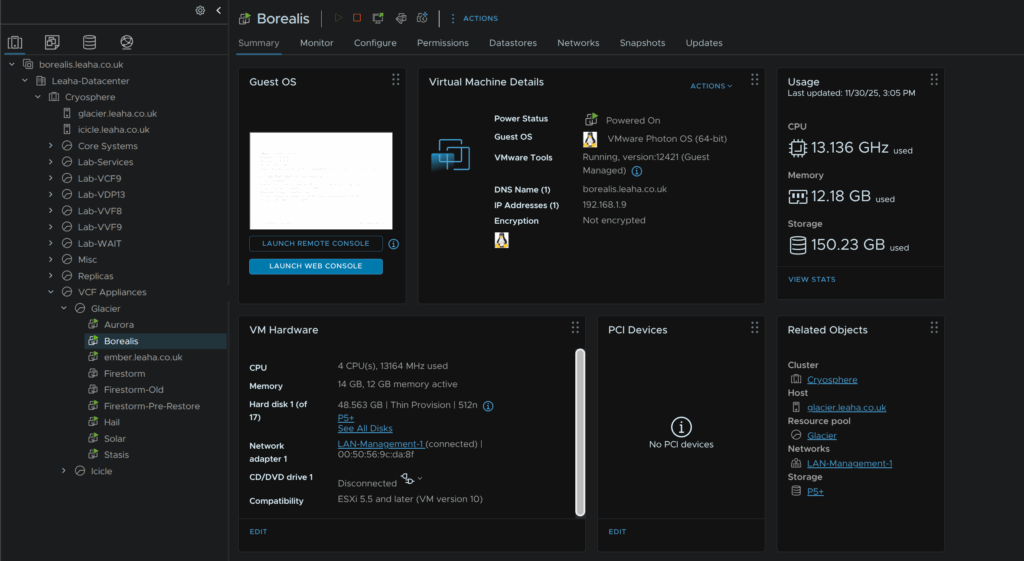
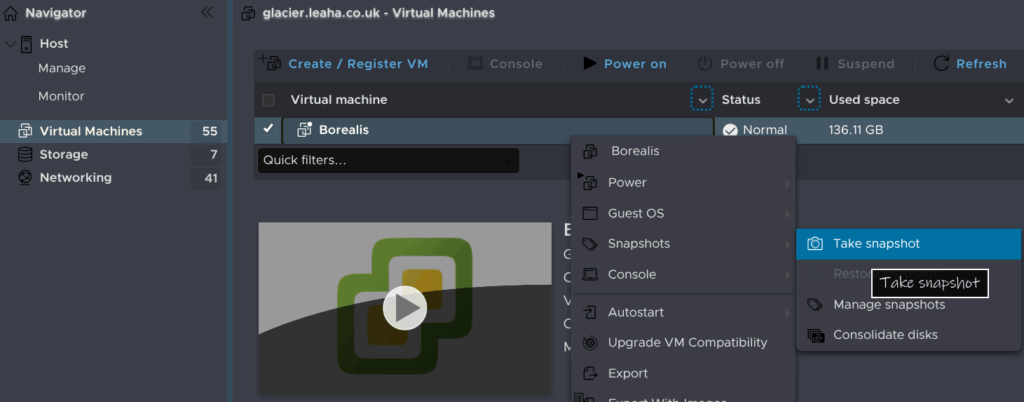
Log into the ESX UI, click Virtual machines, search for and find the vCenter VM, right click it and click Snapshots/Take Snapshot
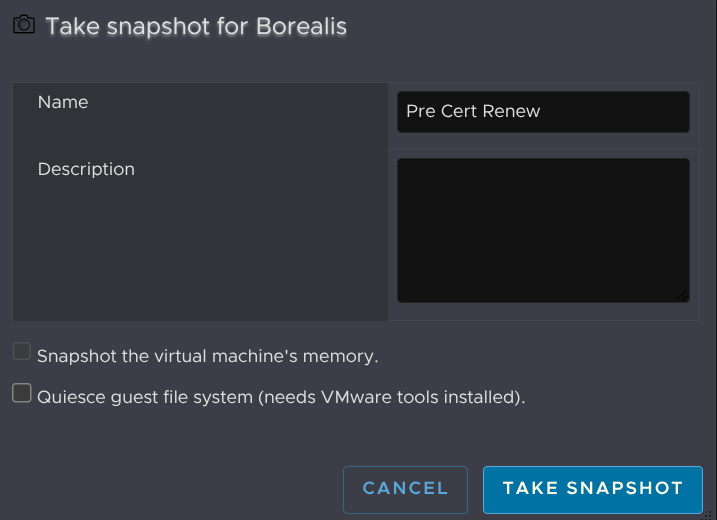
Give it a name and click Take Snapshot
Then click Power On

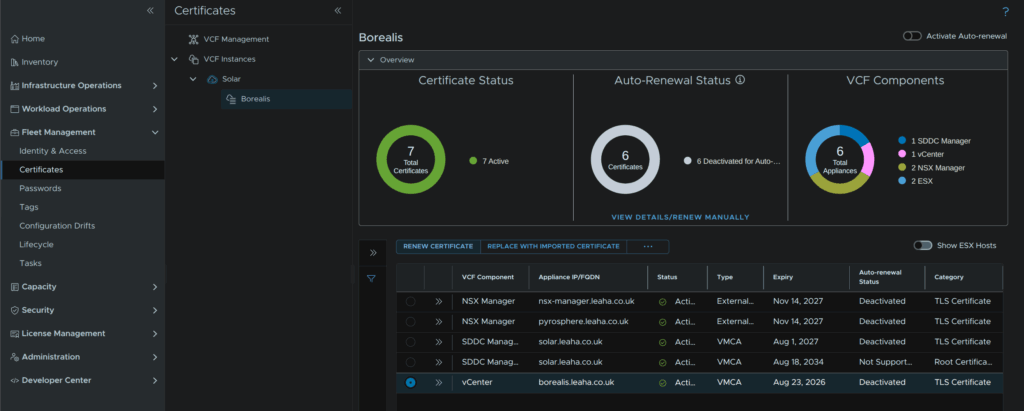
Log into VCF Operations and click Fleet Management/Certificates, expand your VCF instances and select the workload domain the vCenter belongs to, use the radio button to select the vCenter component and click Renew Certificate
Click Yes
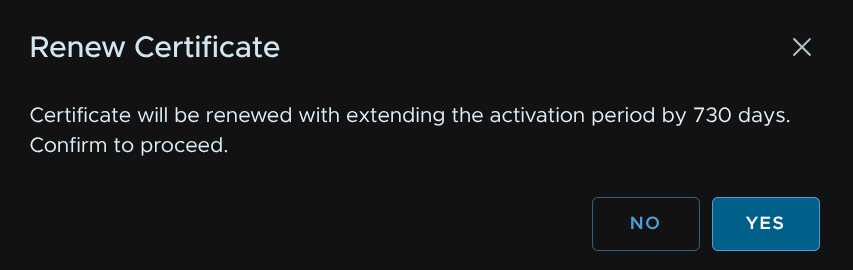
This will generate a certificate renewal task, this will take a little while

Part way through you will see this in the vSphere UI
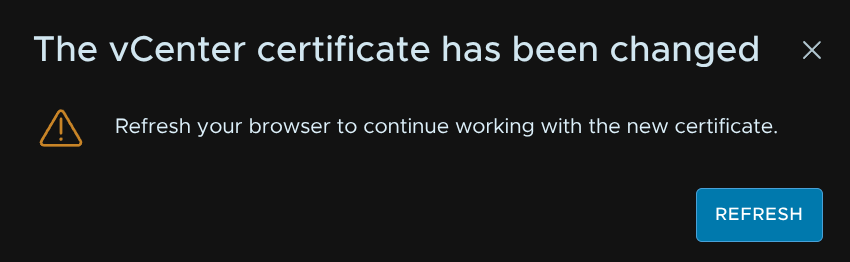
When its done VCF Ops should show this

When checking manually, I can see a bunch of underlying certs were changed, so this should fix everything in Operations
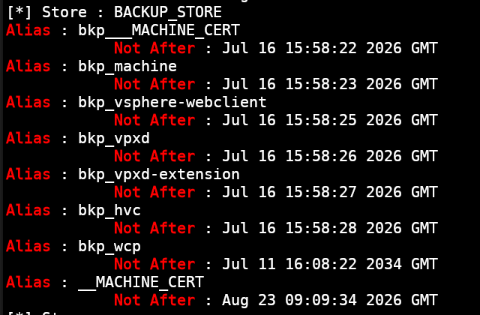
I dont think the STS signing certificate was changed with this, however mine is valid for over 5 years, so I expect this to outlive the vCenter appliance is its unlikely to be an issue
If your certificates have already expired and renewing within VCF Operations doesnt work, open a ticket with Broadcom support, the SDDC Manager uses a lot of bits in the backend, like certificates, and its very easy to break VCF when you do things outside of the expected workflows and I am not 100% on the impact if you do manually change them
ESX certificates should be auto renewed from the vCenter and shouldnt need manually updating
However if they do, in VCF Operations check the toggle on the right to show ESX hosts, select the host and click Renew Certificate
Again, like with the vCenter, if this does fail, do not try and manually update it, log a support ticket with Broadcom to verify the correct method as this is not something I am 100% sure on, and when the SDDC Manager breaks connection its usually very painful to fix
Once its all done you may see some alerts like this in vCenter

This is almost always caused by the vCenter services not being restarted, as VCF Ops doesnt do this automatically
To resolve this either reboot the vCenter from VAMI, or ssh as root and run
service-control --stop --all ; service-control --start --all2.2 – Non VCF
Before proceeding, ensure you have a powered off snapshot of the vCenter
If you have ELM, all members need to be shutdown and snapshot at the same time, if you need to restore all ELM members must be restored
In vSphere search and select the vCenter VM, we can see the host the vCenter is running on from the Related Objects box, note that host, then press the red stop button to shit the machine down gracefully
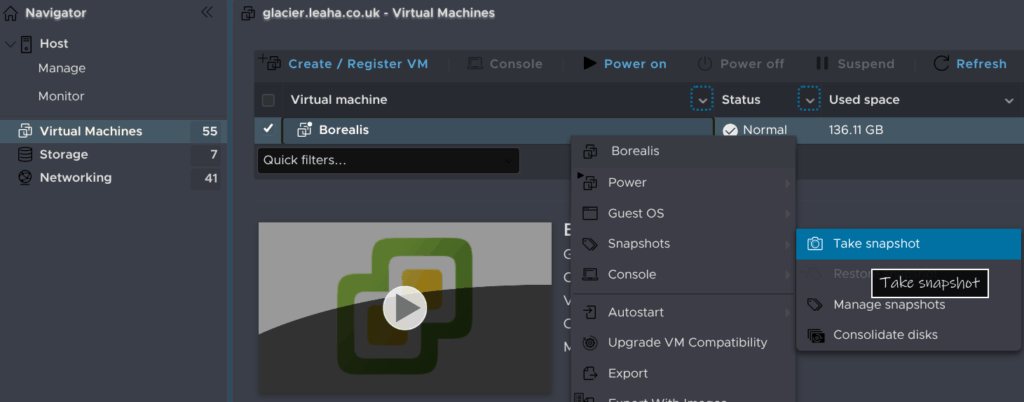
Log into the ESX UI, click Virtual machines, search for and find the vCenter VM, right click it and click Snapshots/Take Snapshot
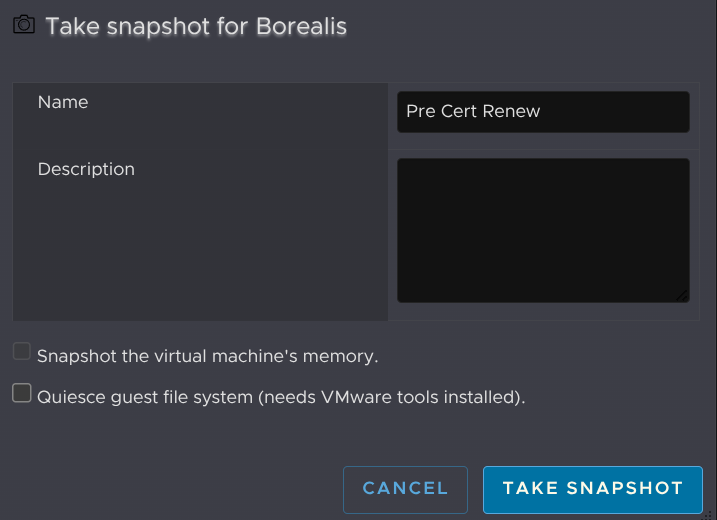
Give it a name and click Take Snapshot
Then click Power On

The easiest way to refresh certificates is to regenerate them all, you can use option 3 at the main menu to do individual ones
Generally, you want to be using the self signed certificates, I find custom CA certs add a lot of extra complexity and dont offer anything, so since everything is self signed, there isnt really a reason not to regenerate them all
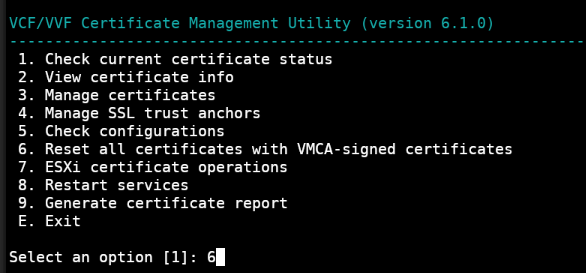
At the main menu select option 6
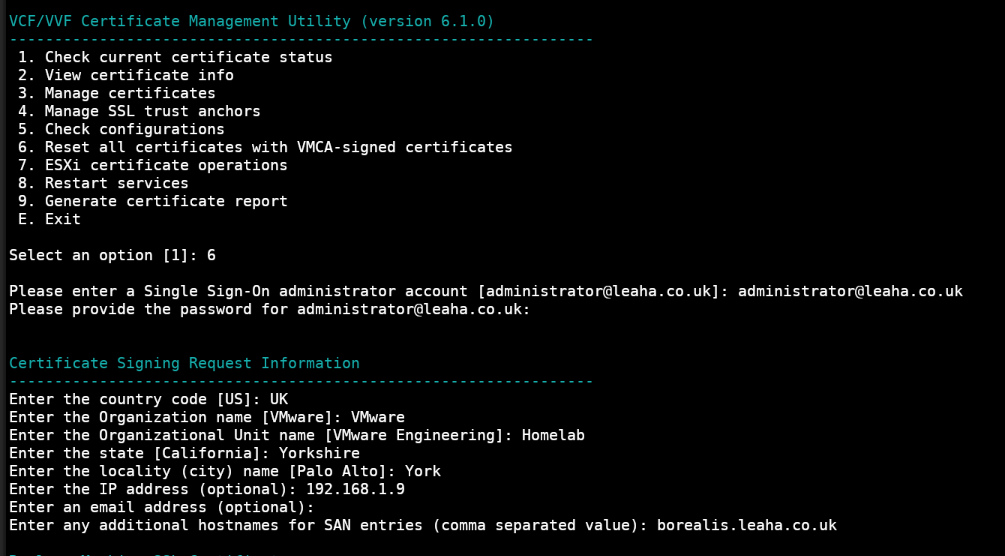
We then need to enter vSphere administrator credentials, this is usually the [email protected] account, in my case it was [email protected] since I changed the SSO domain when I setup the vCenter
We then need to fill out the info, generally, most of this information doesnt matter, but the bits that do are the the following
- IP Address
- Hostname
IP address does say optional, and hostnames are laballed as additional, so I am not sure if the script it adding the base values that you need on its own, however the IP address and hostname have always been very important so I highly recommend adding in the correct bits here
IP address should be the vCenter IP and the hostname the vCenter FQDN
You will then see this indicating everything has been changed, and at the bottom a prompt for the STS signing certificate, as there are no running tasks I dont need to worry, if there are you should let them finish and enter Y
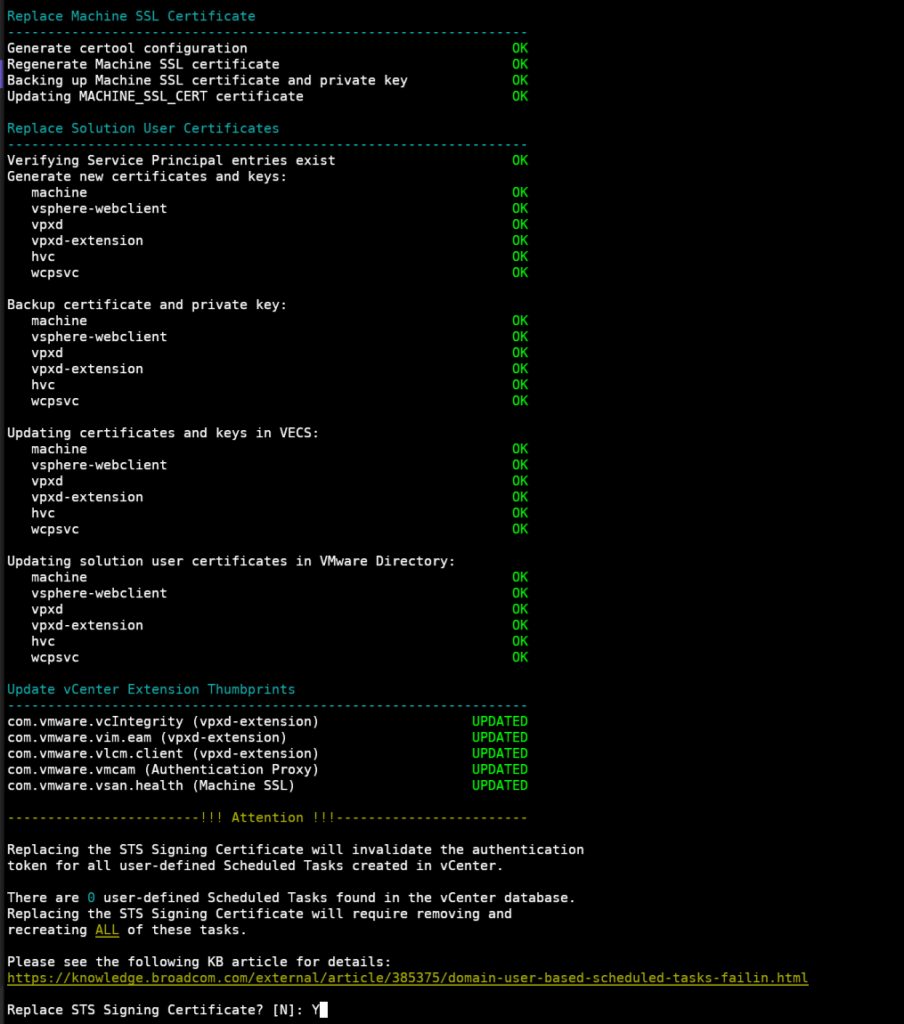
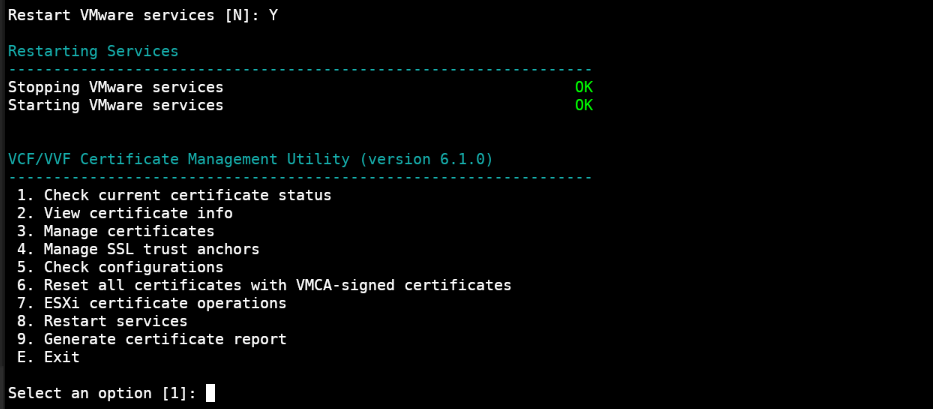
The STS signing certificate will then be renewed, trust anchors will be updated, and then we need to enter Y to restart all the services for the new certificates to take effect
This will take a little while to restart them all, but when its done you will be back on the main menu
If you are having issues where certificates arent renewing with 2 years, your VMCA certificate is likely stuck on that date, in that case follow, from the top menu level of the script, 3 then 9 and option 2 for Replace VMCA certificate with a self-signed certificate and regenerate all certificates
ESX certificates should be auto renewed from the vCenter and shouldnt need manually updating
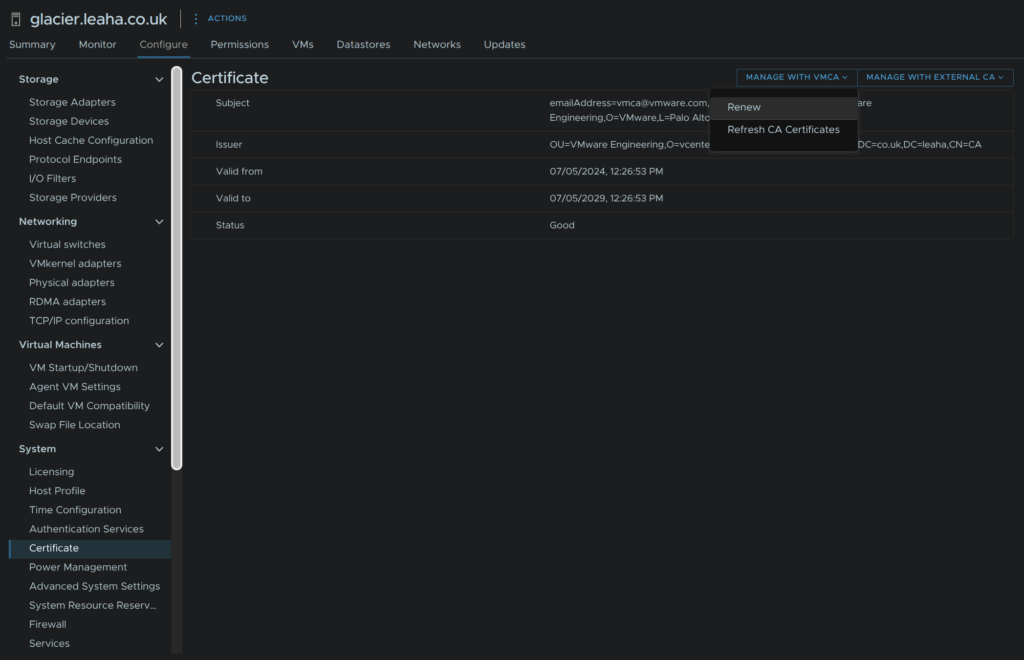
However if they do need refreshing you can select the host and click System/Certificate/Manage With VMCA/Renew and get a new one from the vCenter
3 – Restoring After A Failure
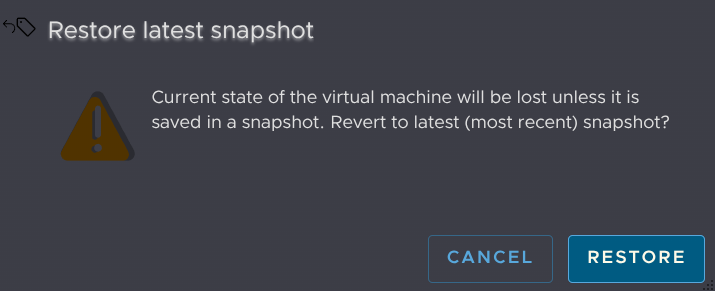
If something goes unexpectedly wrong you can revert the snapshot by powering off the vCenter and logging into the ESX host, right clicking the VM and click Snapshots/Revert Snapshot
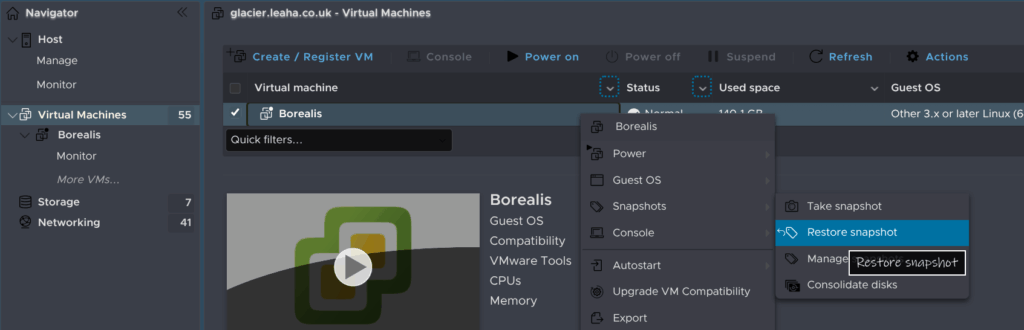
Click Restore Snapshot
And click Power On

4 – Editing Remote Components
After certificate changes, anything that uses vCenter will need to have its certificate updated
In my example I will be changing Veeam, I can select the vCenter and click Edit

And click Finish
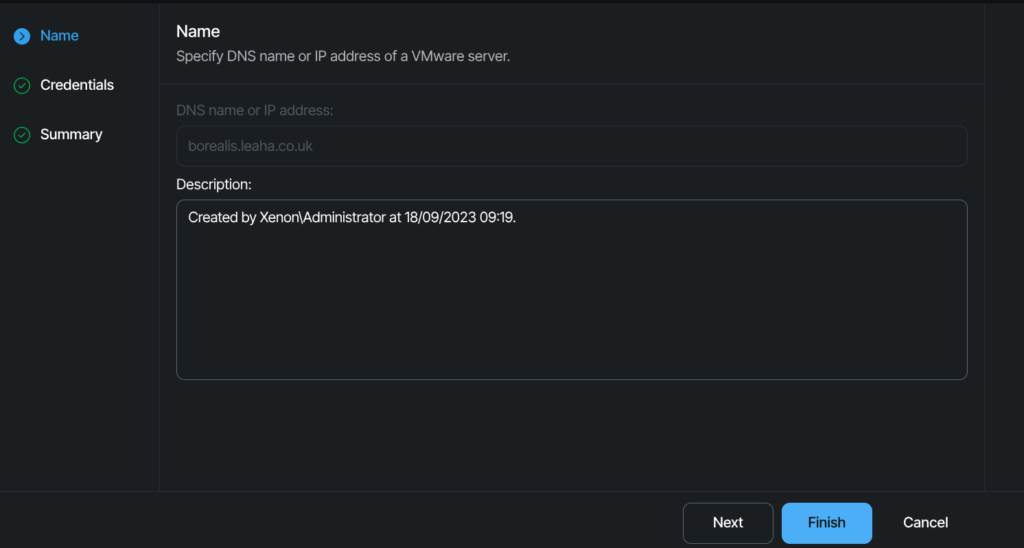
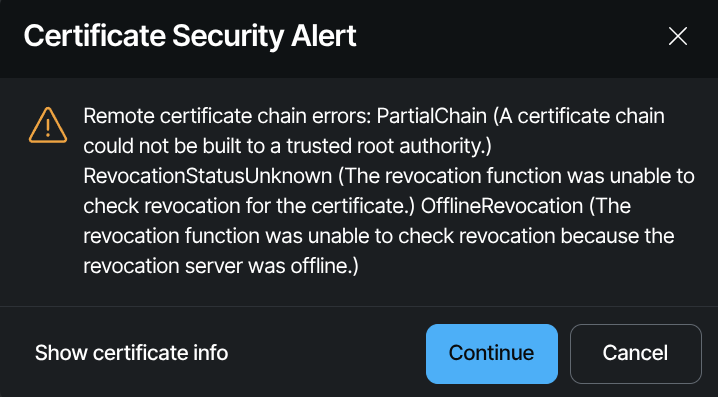
This will generate a certificate warning, which I can accept by clicking Continue

Hi.
Nicely explained.
To be even better only if you could show how to replace the certificates with ones signed from a certificate authority.
Yes, it would be a nice addition for sure, but I have left it out as almost all of my customers use self signed certificates, they are significantly easier to manage
Due to that, I personally dont do my own certificate management either, making it much harder to showcase
Thank you for this. I followed your process, but even after regenerating the certificates, the expiration date is still only 22 days from now (02/16/2026). Do you know any reason why that would happen and how I can extend it longer?
What exactly did you regenerate, vCenter or ESX?
If its ESX then the vCenter certs need doing, if you did vCenter, you may have a root certificate somewhere with that expiry which is causing the new ones to be only 22 days later, though its a little difficult for me to say without looking at the vCenter its self
JR’s issue is likely that their VMCA is expiring too, so choosing root menu item 6, just regenerates certs with the expiring CA’s cert end date. They probably want to choose root menu item 3, then 9, then 2; which will “Replace VMCA certificate with a self-signed certificate and regenerate all certificates”.
Your process here only works if the root CA isn’t also expiring in the next year or two.
Thats a good catch, thank you, I’ll need to add some notes for this <3