 By Leaha
Last updated on January 28th, 2026 at 07:35
Broadcom have recently changed the way you get downloads for VMware products, their article covering this can be found here
What you need to know is as of April 23rd 2025, vCenter will no longer pull updates automatically like it used to
This impacts vCenters ability to update its self in the VAMI portal, or ESXi updates, and for VCF customers, the SDDC managers ability to get downloads from Bundle Management
Broadcom have a handy script for sorting this which has worked a treat in both my labs we will walk through using this to try and make this change as easy as possible
Important – By continuing you are agreeing to the disclaimer here
Preparation
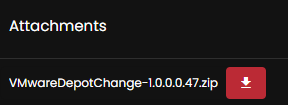
Download the script in this Broadcom KB here at the bottom and extract the zip folder
Broadcom require PowerShell 7, which isnt the default on Server 2022/2025/W11
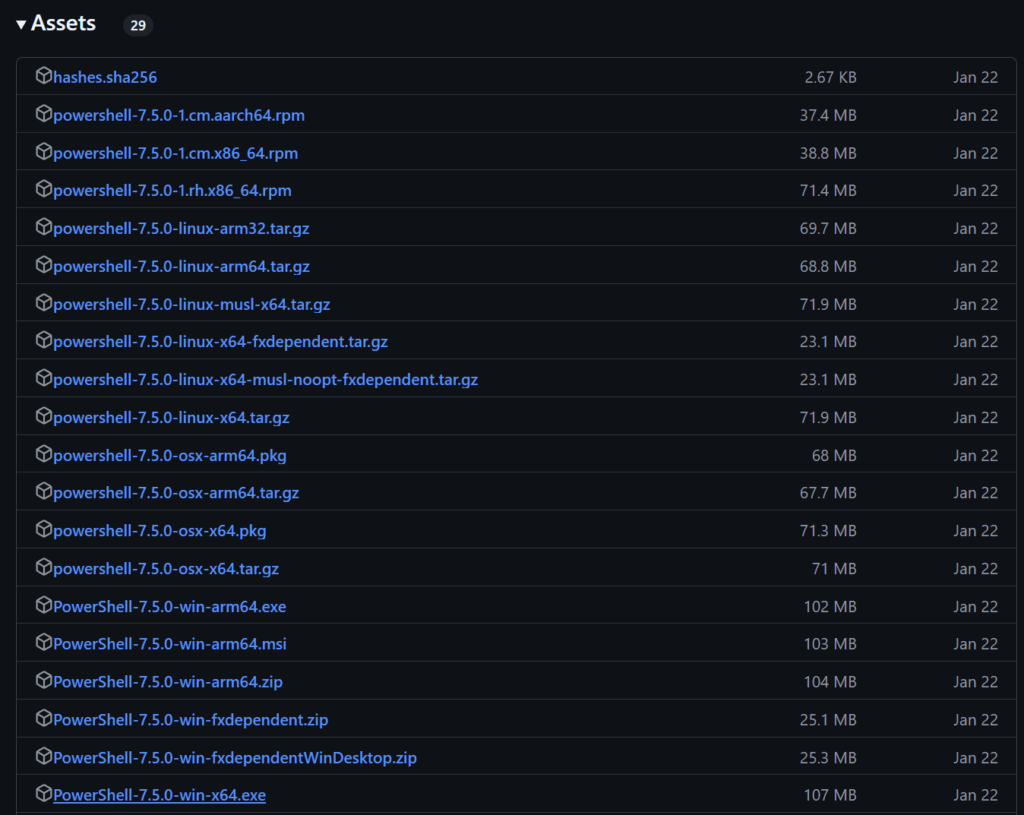
We can download this here
Scroll down to the assets of the current version and click the Win64.exe, you may need to click Show more as some of the downloads are hidden due to the number
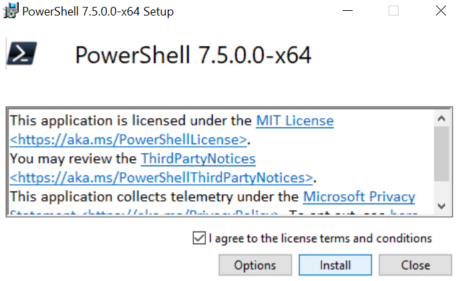
Then double click the exe to install it
Accept the EULA and click install
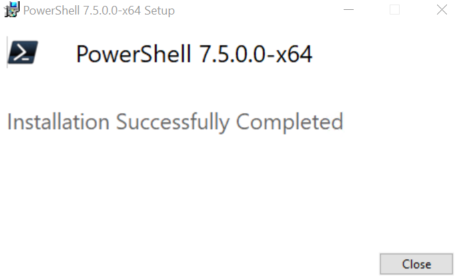
And click close when its done
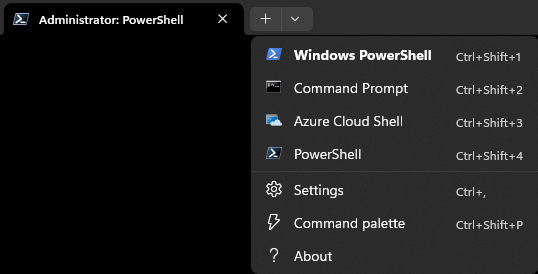
On Server 2025/W11 it will appear in the terminal drop down
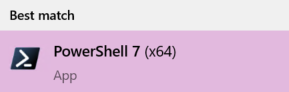
On Server 2022 and older or W10 you can search for it and the app will now show
We can check our version with
$PSVersionTable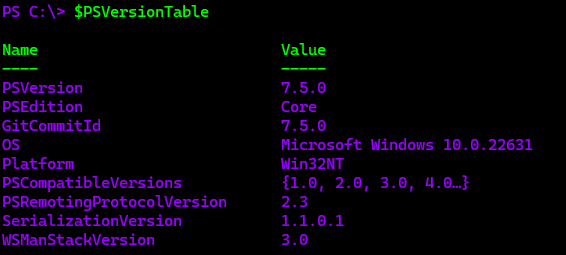
We will need PowerCLI installing with
Install-Module VMware.PowerCLI -Scope CurrentUserYou may get this prompt, enter Y and press Enter

And enter A and press Enter here

We can then check its installed with
Get-Module -Name VMware.PowerCLI -ListAvailableIt should look like this

Set the execution policy to be unrestricted with
Set-ExecutionPolicy UnrestrictedAnd ignore SSL certificates that arent trusted
Set-PowerCLIConfiguration -InvalidCertificateAction Ignore -Confirm:$falseAnd allow multiple vCenter connections with
Set-PowerCLIConfiguration -DefaultVIServerMode MultipleAnd enter A

Which should output this

Head to the location of the folder with
cd <folder path>I used
cd D:\Downloads\VMwareDepotChange-1.0.0.0.47And run the script with
.\VMwareDepotChange.ps1Press R to run once

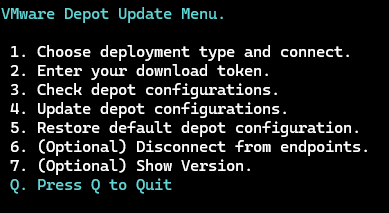
We will then need to feed the info it needs for the script
Head to the Broadcom Portal here and click Login in the top right

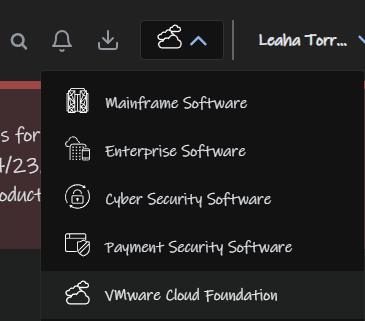
Make sure VMware Cloud Foundation is selected from the drop down
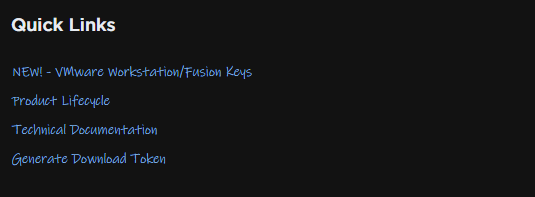
On the right there should be a Quick Links and click Generate Download Token
Make sure your site ID is selected if you have multiple, mine is redacted out hence the box looks blank, and click Generate Token

And click Submit

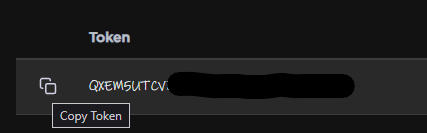
We can then copy our token
Now thats done the next steps differ slightly depending on your setup, for vSphere Standard for VVF users, we just need to do vCenter as we dont have a SDDC Manager, but for VCF we’ll need to update everything by the SDDC Manager
VVF/vSphere Standard
Back in our script window, type 1 and press Enter
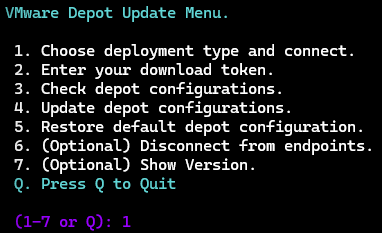
Press N as this does not use SDDC Manager

Enter the vCenter FQDN, SSO administrator username, this will likely be [email protected], I changed my SSO domain to leaha.co.uk so its different, and the password

Once thats connected you should see this

Enter N unless you have more vCenters to do this on

Press Enter again

Enter option 2
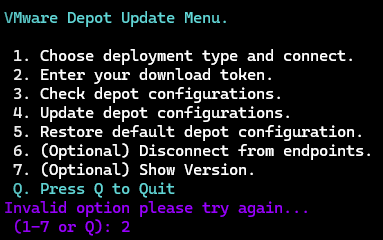
Enter the token we got earlier

This should then validate the token, and press Enter

We can then enter option 4 to update the depot configuration
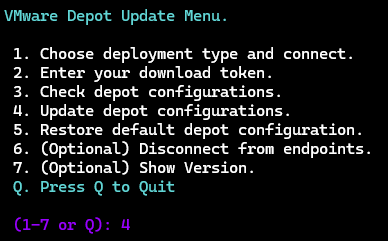
It should look like this
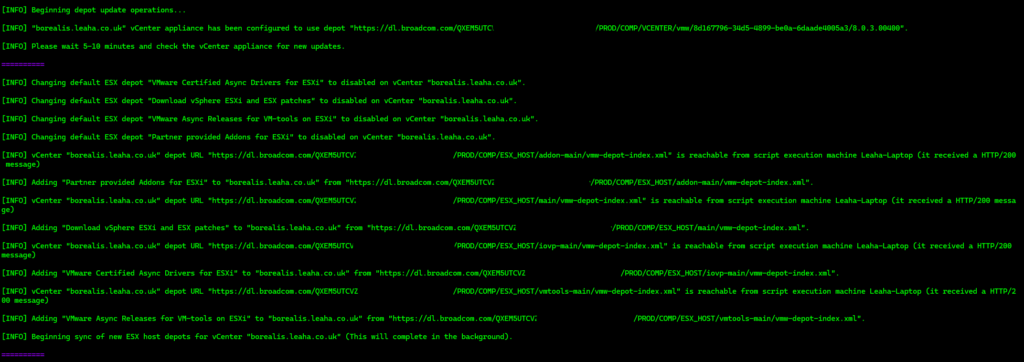
And then press Enter

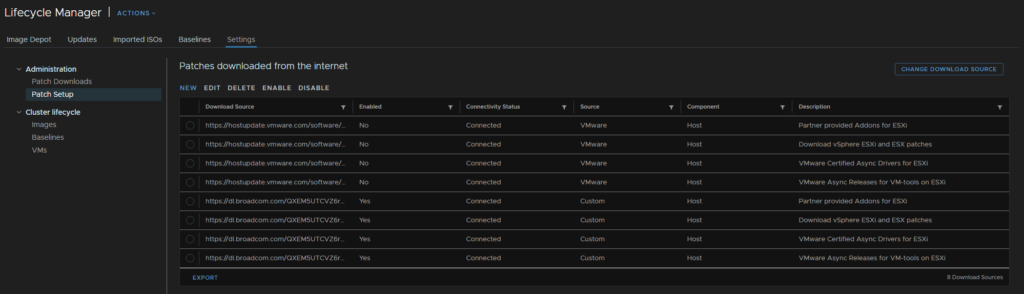
If we then head into the vSphere UI and click the three lines in the top left and then Lifecycle Manager
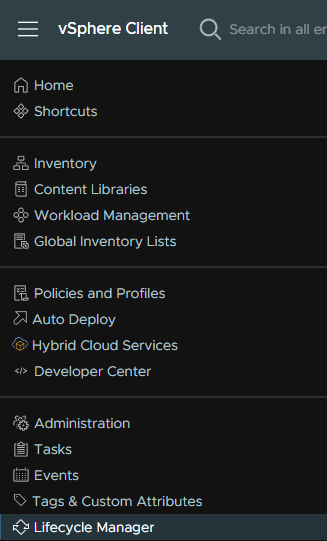
We can then see the old repositories have been disabled and the new ones enabled
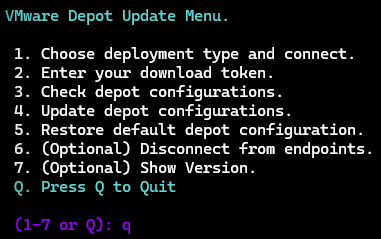
In the terminal, enter Q to quit
And re enable the execution policy restrictions with
Set-ExecutionPolicy RemoteSignedVCF
If you have a VCF environment and have the SDDC Manager you will need to follow this part, if you have VCF but not the SDDC manager, then you can use the VVF/vSphere Standard section above
In our script window, type 1 and press Enter
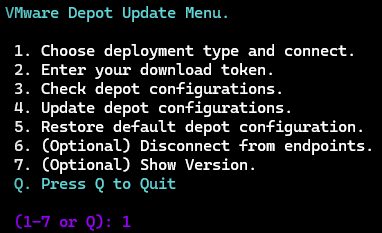
Enter Y

We will then need the SDDC manager FQDN, a vSphere SSO SSDC administrator account, [email protected] will work here, the password for the SSO account and the local root account
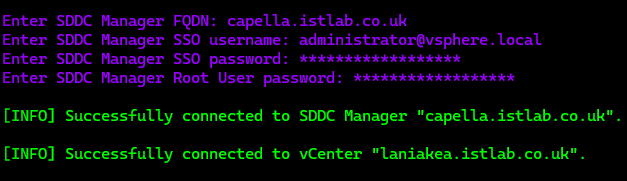
Then press Enter

Enter option 2
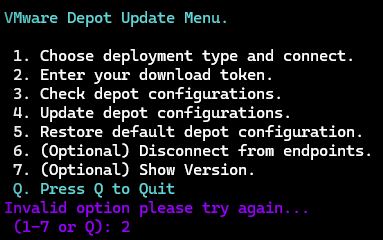
Enter the token we got earlier

This should then validate the token, and press Enter

We can then enter option 4 to update the depot configuration
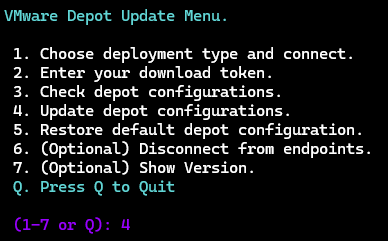
It should look like this
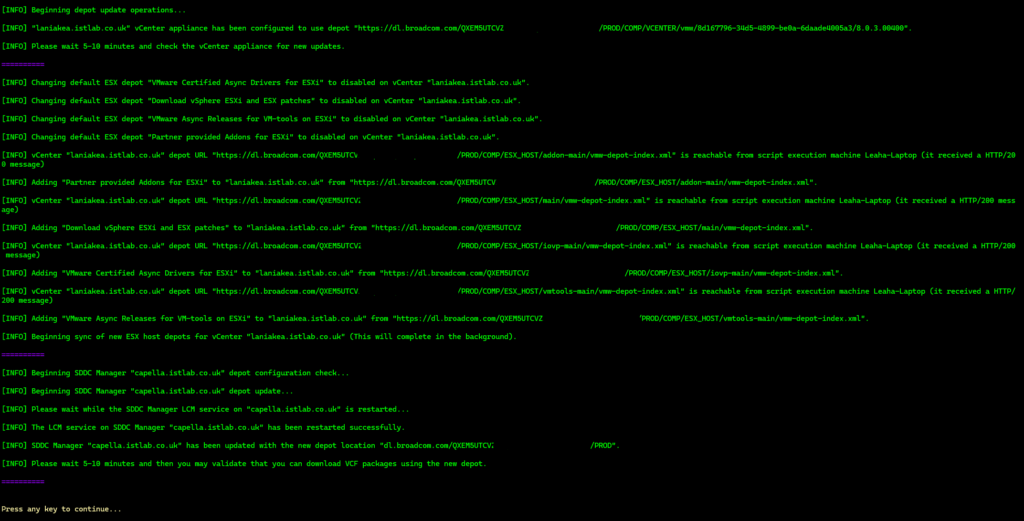
Now when I ran this initially it ended with this error, however the password was 100% correct

Going in via SSH and switching to root gave me this error, seems the password expired

However you cant SSH as root, so you must login via the Console
Make sure you snapshot the VM including VM memory before trying to change this via the console, and be careful of characters that differ from US keyboards if you are not in the US
I then ran option 6 to disconnect all sessions
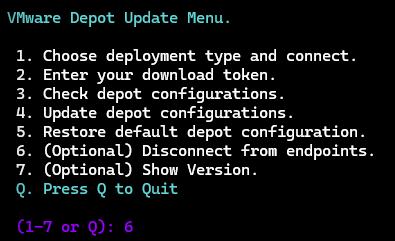
And retried from the start with option 1
We can press Enter to continue and Q to quit when its all done
Testing in SDDC, with an ESXi build, it is downloading packages ok

And re enable the execution policy restrictions with
Set-ExecutionPolicy RemoteSigned
I seriously love your blog.. Pleasant colors &theme.
Did you build thiss web site yourself? Please reply back as I’m planning to create my very own site and want to learn where you got this from or just what the theme is named.
Kudos! http://Boyarka-inform.com/
Its just a theme in WordPress, its called Blogier
Here is a link – https://themeansar.com/themes/blogier-pro-minimal-blog-magazine-wordpress-theme/
I have the paid version, its $60/year, but the free version has a lot of it so you can get started for free, which is what I did
Hi Leaha,
Your walkthrough really helped me get this done. Tanks a lot!
Hi Leaha, thanks for the blog it is very helpful. I was wondering if you have tried the non-interactive way? I have been trying to make it work from a linux with powershell and powercli installed but I was only able to connect to the vCenter using the json file. After that any other command that I run gets me this: [ERROR] Not connected to vCenter(s) and/or SDDC Manager, please reconnect.
Any ideas how to make it work?
I havent, though when I created this article for automated ESX config backups
https://blog.leaha.co.uk/2025/03/21/automated-esxi-config-backups/
This does work and runs on one of my Ubuntu servers
Not sure what the JSON is, and the script should work in Linux PowerShell
Alternatively, as you have a VMware environment you could spin up a Windows server to get this sorted
Hi Leaha, Can you help me download https://dl.broadcom.com/%5Byour_download_token%5D/PROD/COMP/ESX_HOST/main/esx/vmw/vib20/esx-base/VMware_bootbank_esx-base_8.0.3-0.73.24784735.vib ?
If you need to get downloads, you’ll need to log into the portal and download it
If you dont have an active entitlement, you’ll need to get a new subscription
Unfortunately, it would be against T&Cs to supply downloads so I cant sent you it