By Leaha
Last updated on January 17th, 2026 at 17:59
Calculating exactly what you need for a new or existing VMware environment can be a little tricky, especially when vSAN is involved with the per TiB addon
Thankfully, Broadcom have a script to help with calculating the number of cores of VVF/VCF and any TiB addons for vSAN in this article here, download it
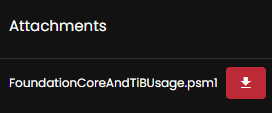
Important – By continuing you are agreeing to the disclaimer here
We will need PowerShell 7 for this, and its not included on Windows systems
Broadcom require PowerShell 7, which isnt the default on Server 2022/2025/W11
We can download this here
Scroll down to the assets of the current version and click the Win64.exe, you may need to click Show more as some of the downloads are hidden due to the number
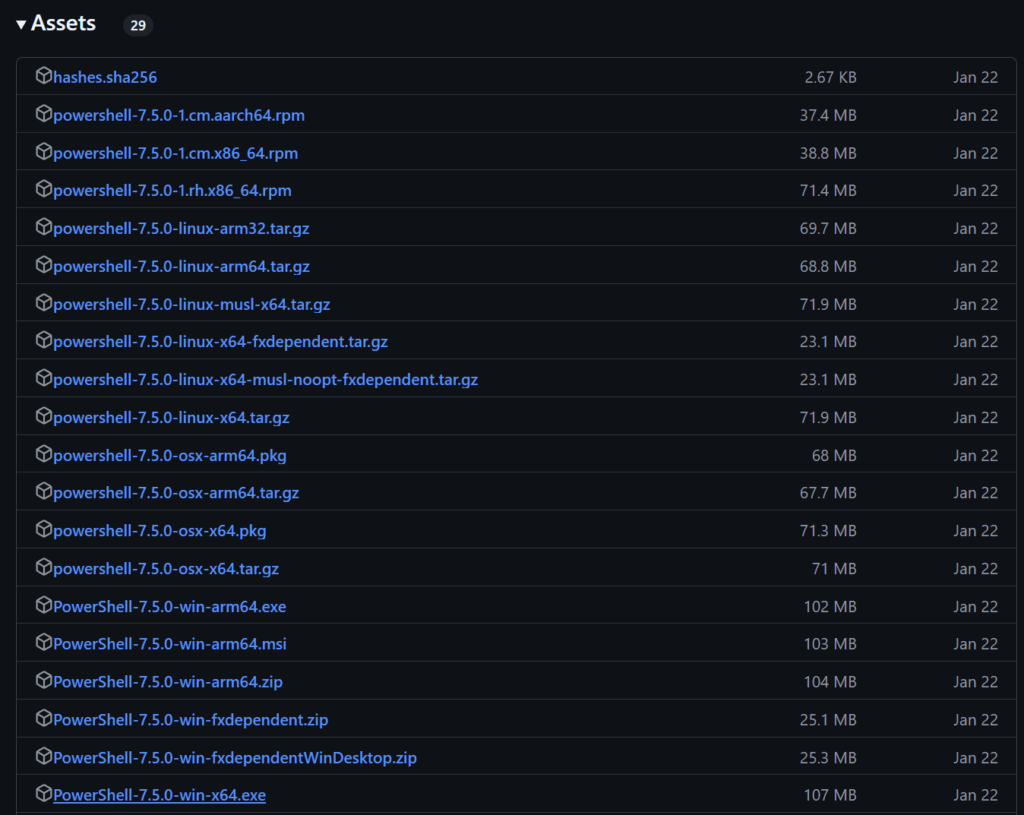
Then double click the exe to install it
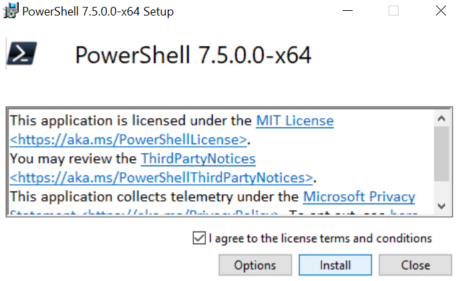
Accept the EULA and click install
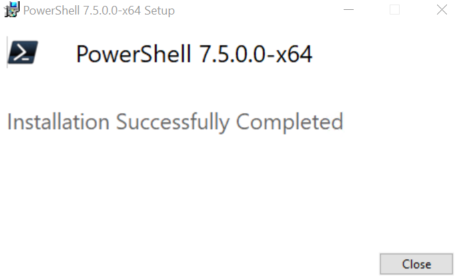
And click close when its done
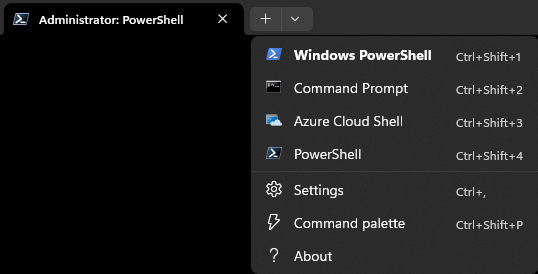
On Server 2025/W11 it will appear in the terminal drop down
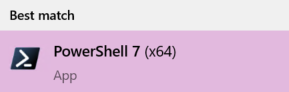
On Server 2022 and older or W10 you can search for it and the app will now show
We can check our version with
$PSVersionTable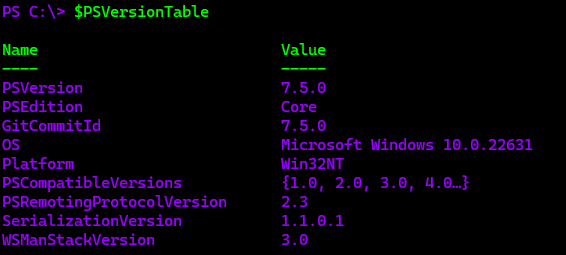
We will need PowerCLI installing with
Install-Module VMware.PowerCLI -Scope CurrentUserYou may get this prompt, enter Y and press Enter

And enter A and press Enter here

We can then check its installed with
Get-Module -Name VMware.PowerCLI -ListAvailableIt should look like this

Set the execution policy to be unrestricted with
Set-ExecutionPolicy UnrestrictedAnd ignore SSL certificates that arent trusted
Set-PowerCLIConfiguration -InvalidCertificateAction Ignore -Confirm:$falseIn Powershell 7 up and navigate to the directory where you downloaded it
The Windows default is C:\users\<username>\downloads, so you would run
cd C:\users\<username>\downloadsMine is stored in D:\Downloads, so I ran
cd D:\DownloadsThen import the downloaded module with
Import-Module .\FoundationCoreAndTiBUsage.psm1Then press R here and hit Enter

Now we need to connect to our vCenter server, to do this we can run
Connect-VIServer -Server <vCenter FQDN>For for my vCenter, laniakea.istlab.co.uk I ran
Connect-VIServer -Server laniakea.istlab.co.ukEnter the username for the [email protected] account then provide the password and hit Enter
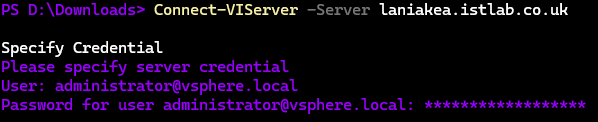
It should show this, now PowerCLI is connected to the vCenter

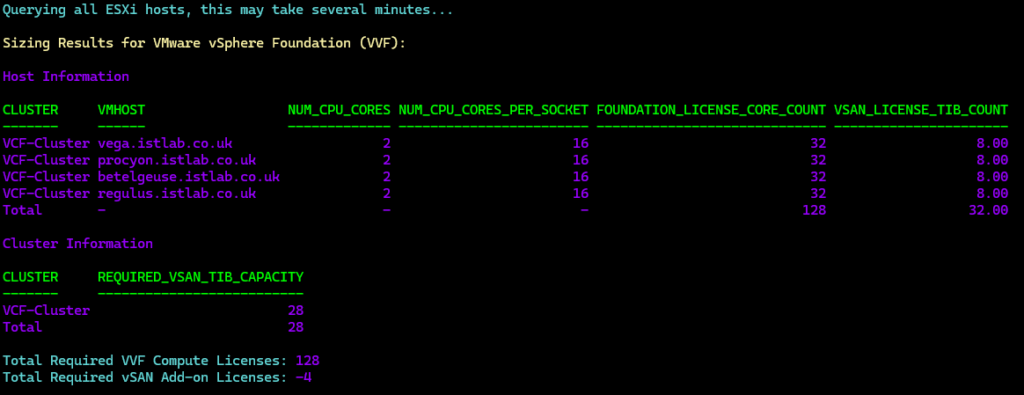
If you are looking at a VVF subscription run
Get-FoundationCoreAndTiBUsage -DeploymentType VVFIt will take a little while to query the hosts, but when it is finished you will get an output like this
For a VCF environment run
Get-FoundationCoreAndTiBUsage -DeploymentType VCFAnd when thats done you will see the same, but the vSAN license TiB count will be higher
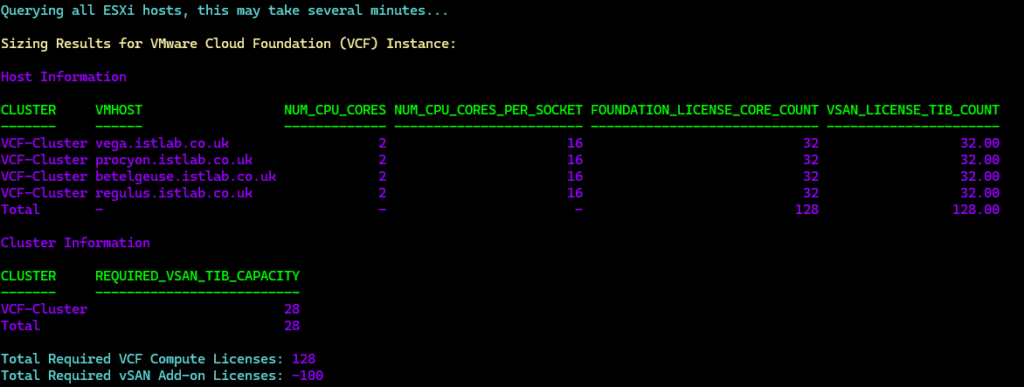
Now, this has all clusters in, and you might only be renewing for a certain cluster so you dont want other clusters factoring into the vSAN licensing as your calculation will be incorrect
You can specify a specific cluster for VCF with
Get-FoundationCoreAndTiBUsage -ClusterName "Cluster_Name" –DeploymentType VCFAnd for VVF with
Get-FoundationCoreAndTiBUsage -ClusterName "Cluster_Name" –DeploymentType VVF