 By Leaha
Last updated on April 5th, 2026 at 19:50
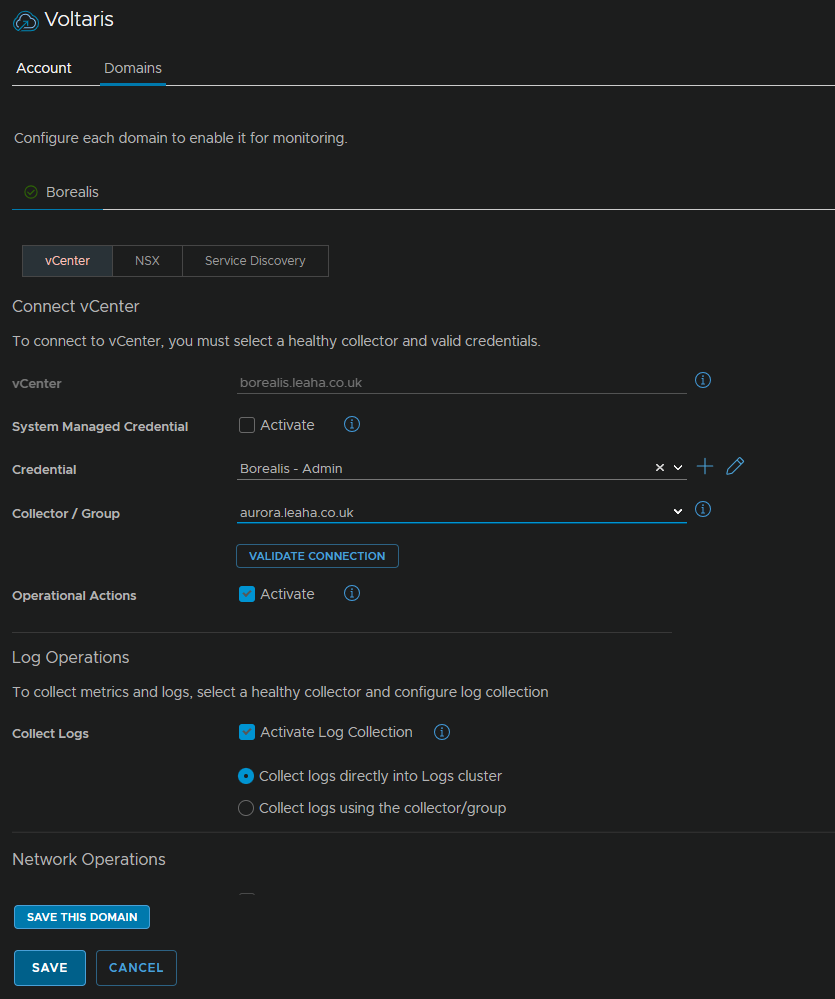
VCF 9 is finally out, so the big question is, how do we upgrade our existing environment to take advantage of the new features
The upgrade for this is significantly more complicated than a vSphere 7 –> 8 upgrade normally is and we need to take care in the order we do things
There will also be three main upgrade scenarios
First is VCF 5.2 –> VCF 9, in this type of environment you will already have an SDDC Manager and the full VCF 5.2 stack deployed, this is arguably the simplest upgrade path
Second is where you have most of the VCF components, but never did a greenfield deployment with the cloud builder and so you dont have an SDDC Manager, but do have NSX, Aria Operations being optional
And lastly, you probably had vSphere Enterprise plus, so vCenter, ESX and maybe vSAN, and now have VCF in the new licensing world, need to upgrade to VCF 9 and want to take full advantage of everything on offer, this means there is a lot of new appliances will need to be added
This guide will be split into three sections covering each of these upgrade scenarios to help you find the path that best fits your environment for the upgrade
Section 4 is reserved for importing additional workload domains
There are some things to be aware of when upgrading, this list is not exhaustive but is the main points of concern, the full list can be found here
- vCenters in ELM wont be supported for long term running, vCenters must be split, this is easier to do in vCenter 9 so I would upgrade to 9 then split the vCenter, this will need to be done before the convergence – more info here
- vCenter grouping replaces ELM giving the same functionality without all the ELM headaches, more info on setting that up can be found here for now with additional guides for that coming later
- VxRail is currently not supported for upgrade, as of 9.0.1
- Clusters must be migrated to cluster images if using baselines before starting the upgrade, information can be found here, in section 8.1
- vCenter must be hosted internally, mine wasnt, so a way to fix this is addressed in the vCenter upgrade
- You will need to have your vCenter updated with the download token for your organisation, info on how to do this can be found here
- Aria has been rebranded to VCF Operations, so we have VCF Operations, and VCF Operations For Logs
- VCF Automation must have NSX clusters added in Policy Mode, Manager Mode will break the upgrade – more info will be shown in the VCF automation upgrade sections
Things of note with this release are
- vCenter ELM is deprecated and will be removed
- vCenter upgrade using the installer UI is deprecated
- vSAN is no longer required for the management domain and VMFS can be used
- vCLS is deprecated and will be put in retreat mode – covered in the post deployment steps section
- Aria Operations For Logs has no upgrade path to VCF Ops For Logs, a new appliance will need to be installed and the config migrated manually, you can run the old in parallel, for log retention, or migrate the logs to VCF Ops For Logs, and if you have agents point them to the new log server
- Aria LCM has no upgrade path and can be removed after the upgrade, it is replaced by the fleet management appliance
- The Data Protection appliance, used for vSAN snapshots on the ESA architecture has been moved to the live recovery appliance, which is free, I am working on adding this documentation
Important – By continuing you are agreeing to the disclaimer here
1 – Full VCF 5.x
To help with planning I have added a table of all required appliances and their FQDNs as an example, its important everything is registered with DNS before proceeding
| FQDN | IP Address | Purpose |
| capricorn.istlab.co.uk | 10.1.252.17 | Fleet Management Server |
| leo.istlab.co.uk | 10.1.252.18 | VCF Operations Collector |
1.1 – Aria LCM
First we need to download the patch for LCM so we can get VCF Operations upgraded to version 9, you can find this here
And download the patch

We then need to upload the patch to Aria LCM
Connect to it with the root account using WinSCP
Double click the bar here
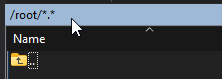
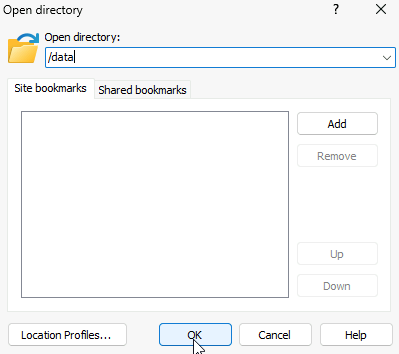
And navigate to /data and click ok
On the right panel head to where ever you have the patch downloaded and drag it over to the root of /data
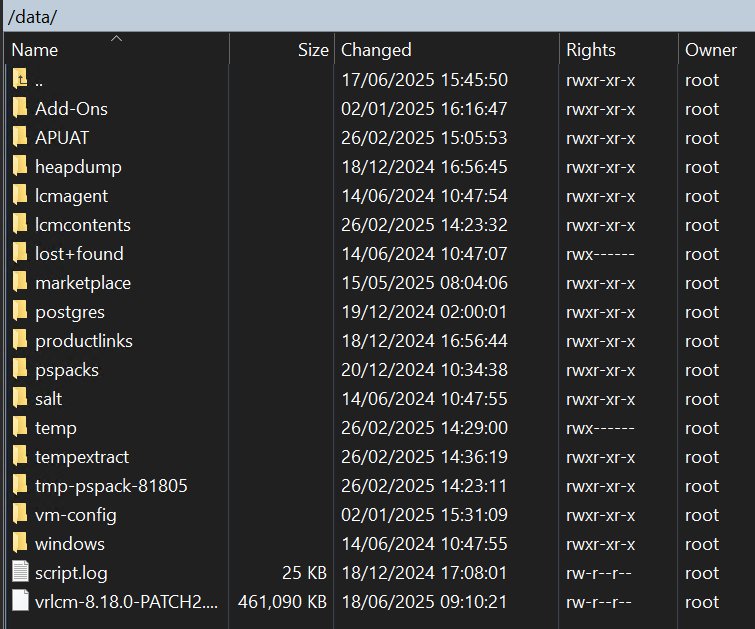
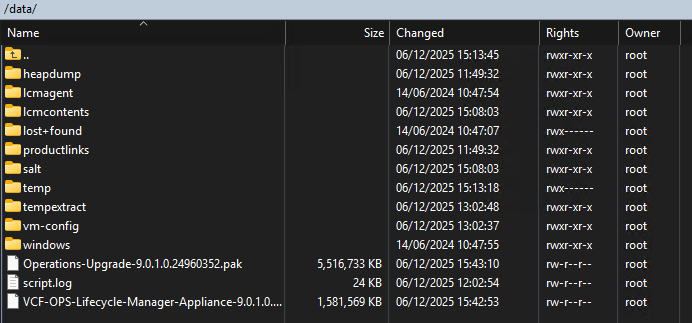
It should look like this, the folders in /data may be different, the important thing is that the upgrade file is under /data
Head to the Aria LCM WebUI on
https://fqdn
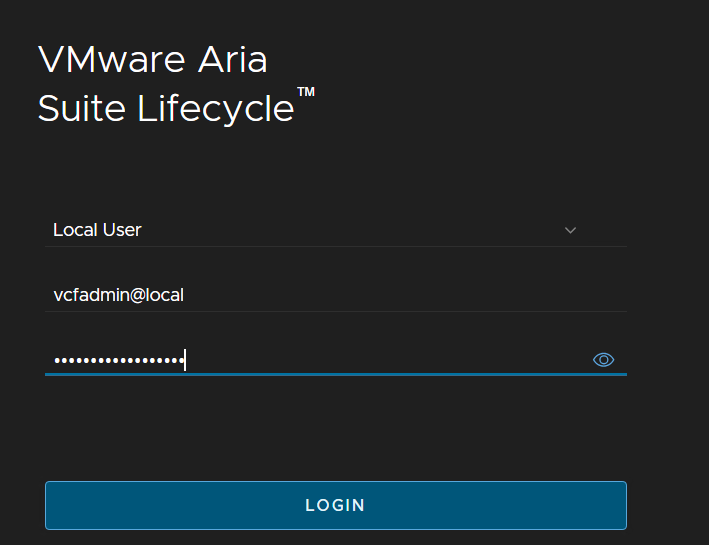
And log in with the vcfadmin@local credentials
We will want to ensure we have a valid vCenter SSO admin account added in here, eg a service account, I have had issues using the pre generated ones, so we will be adding a custom one
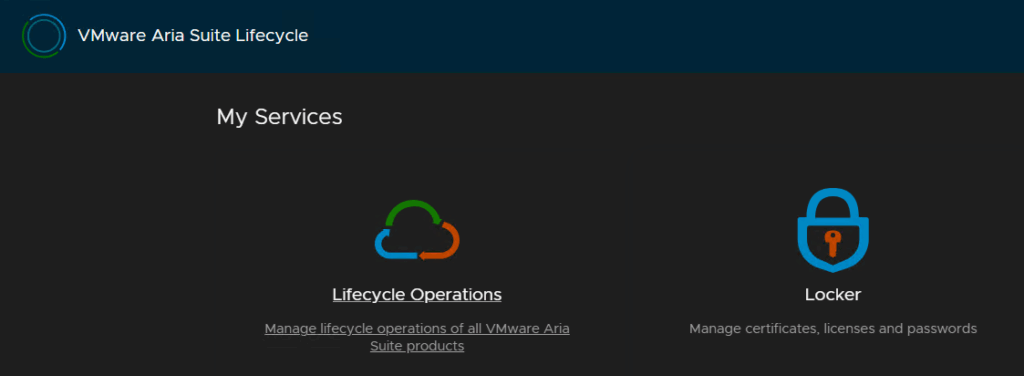
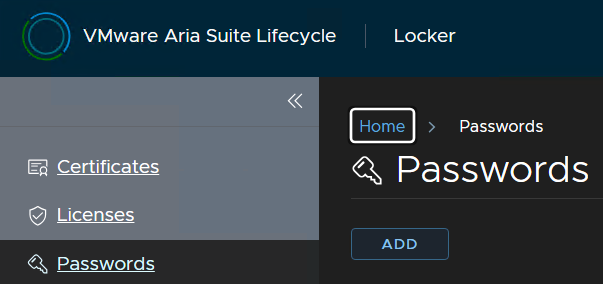
Click Locker
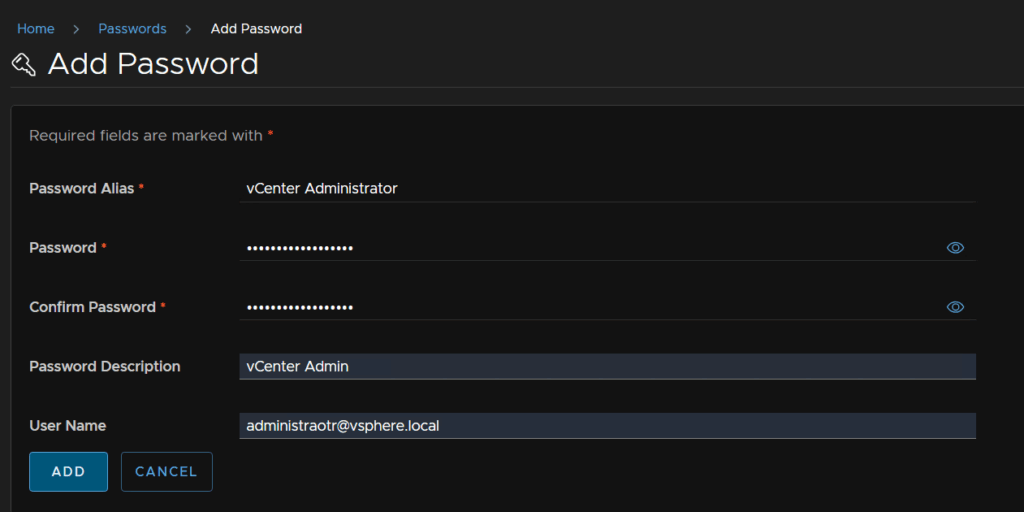
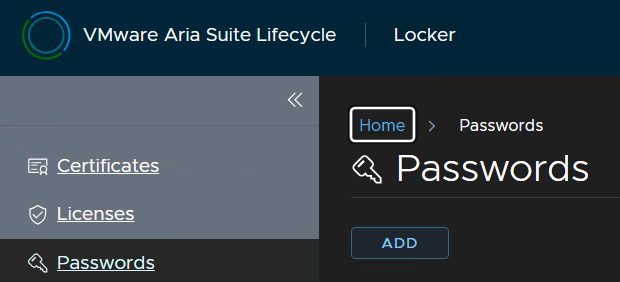
Click Passwords/Add
And add the credentials of a vCenter admin, this can be the administrator account, or a service account you added in vCenter and click Add
You may already have done this, and it can be skipped
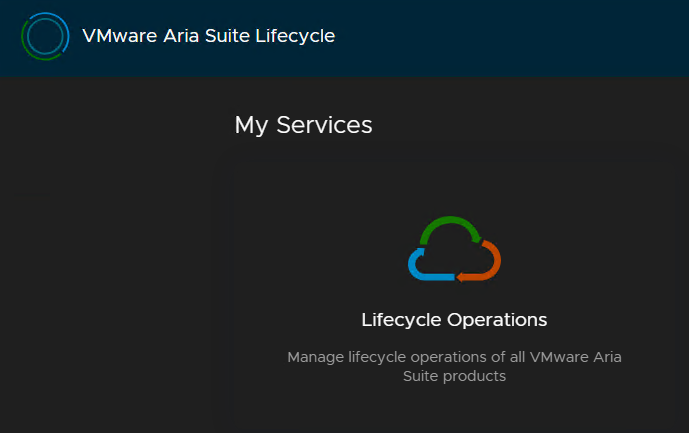
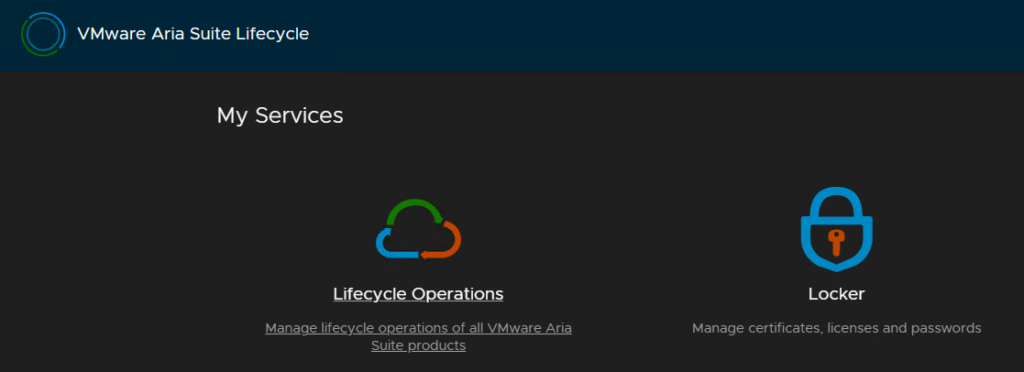
Click Aria Suite Lifecycle in the top left to return to the main menu

Then head to Lifecycle Operations
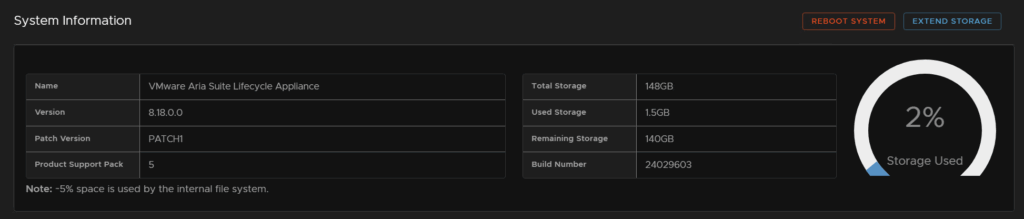
First lets ensure we have enough storage space, we will want ~30GB free
Click Settings/System Details
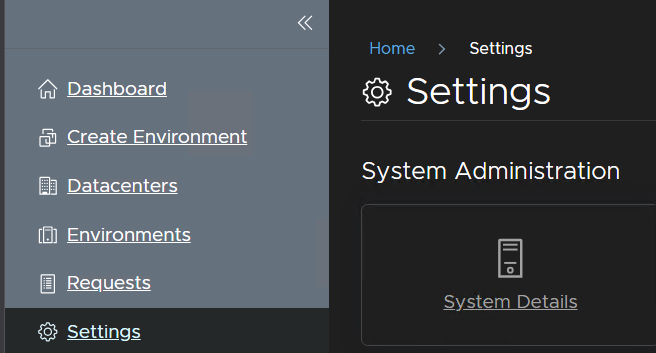
And wait for the to populate, I have plenty of storage, but you can extend it here if needed on the right
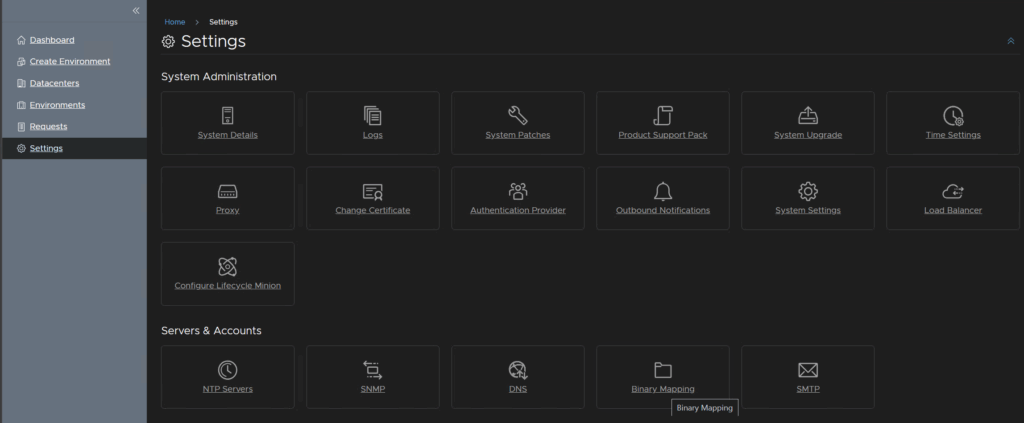
Now click into Settings/Binary Mapping
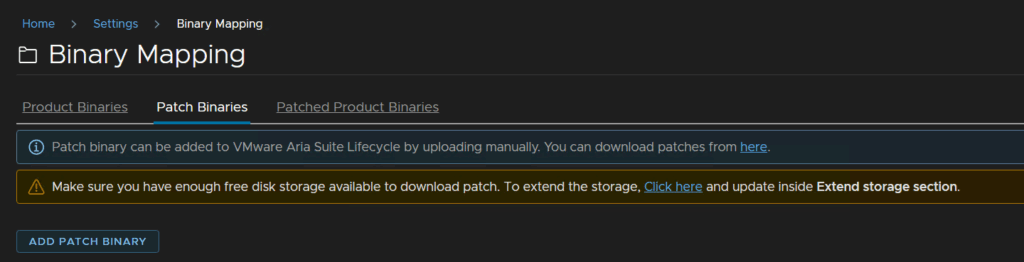
Click Patch Binaries/Add Patch Binary
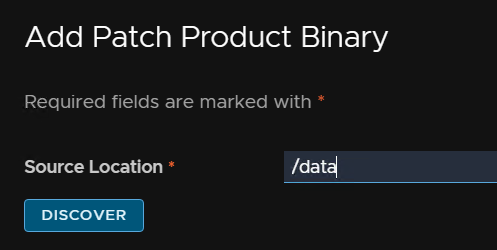
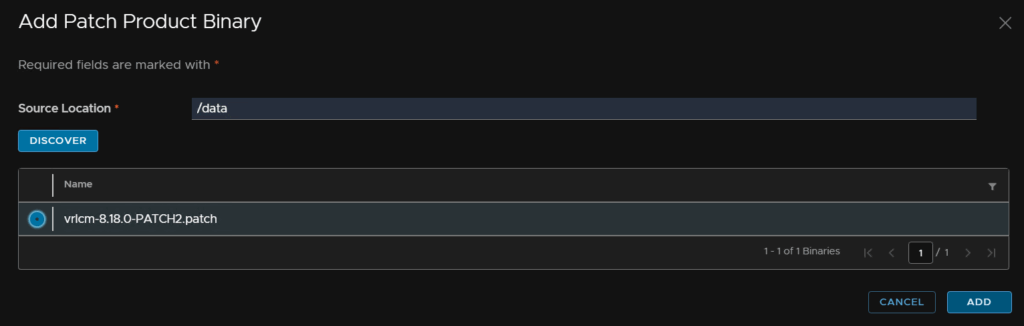
Enter /data for the base location and click Discover
Select the patch and click Add
We can also track the request from the link here
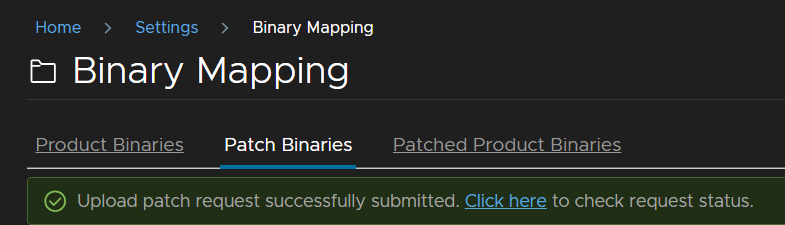
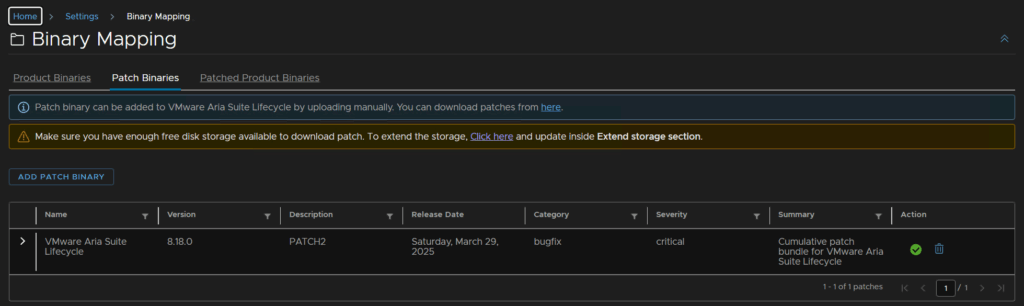
You’ll need to reload the web page, and it should appear when the request is done
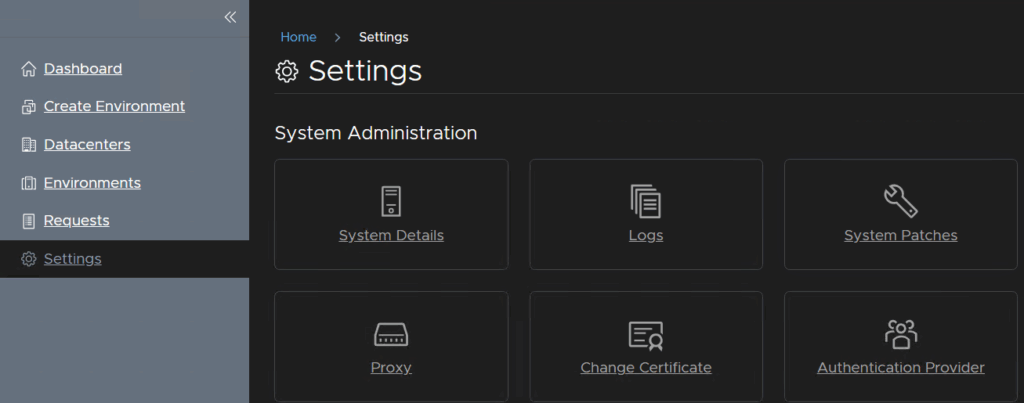
Click into Settings/System Patches
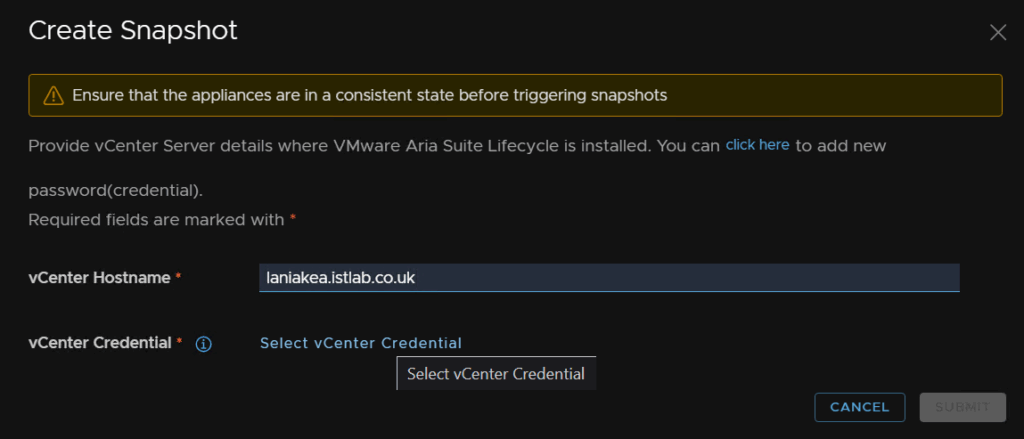
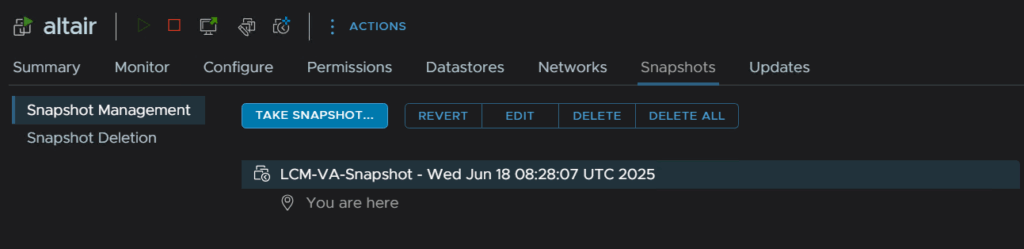
Click Create Snapshot

Now we should have vCenter credentials in here for the account we just added, enter the vCenter FQDN then click Select vCenter Credential
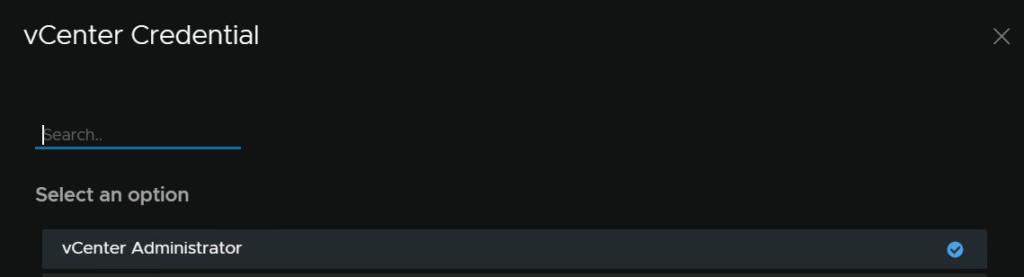
Then select the account we added earlier
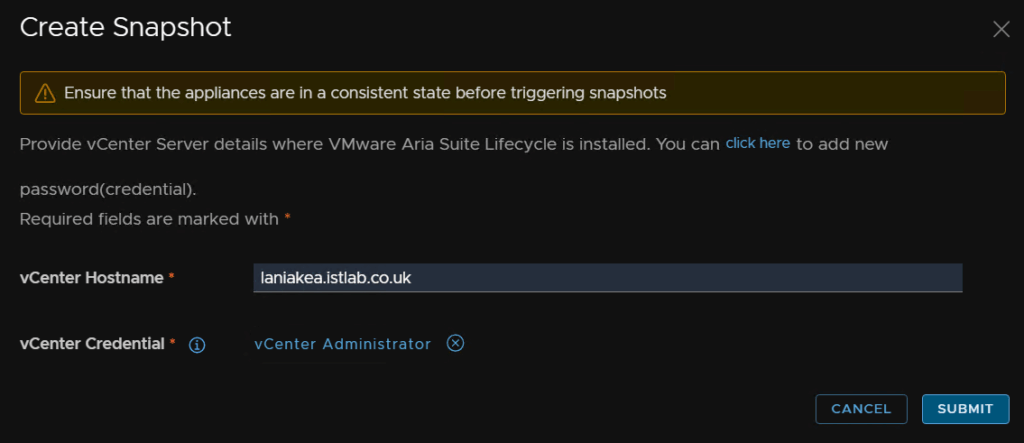
And click Submit
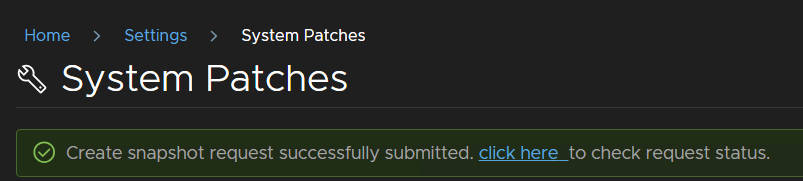
We can click the link to check the progress
If we check the VM in vSphere we can see thats been applied too
Now in Aria LCM click New Patch

Select the patch and click Next
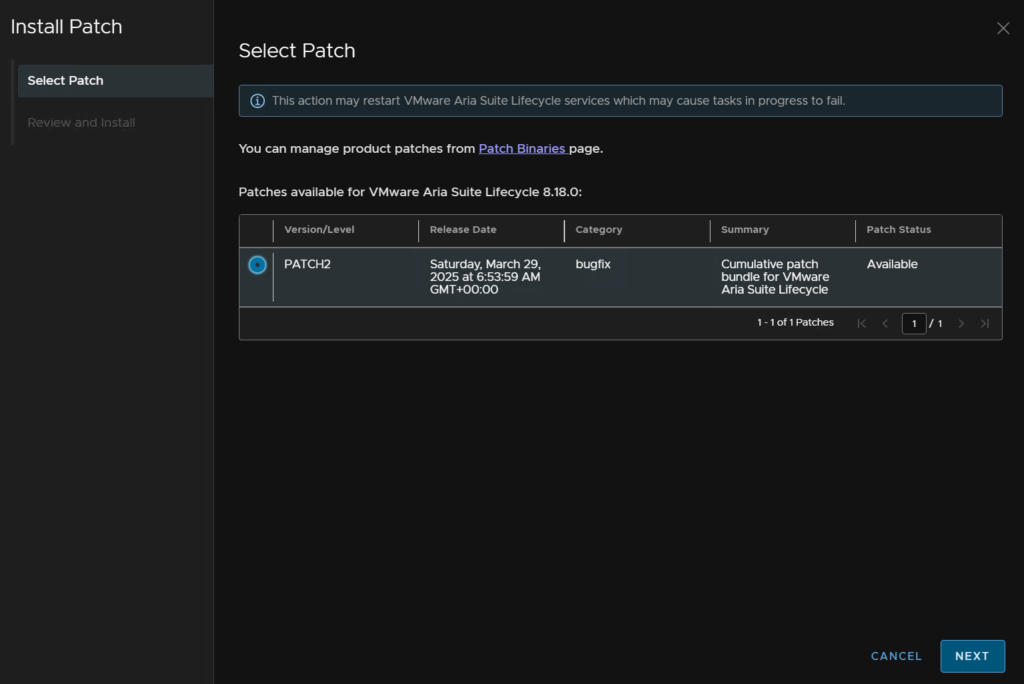
Then click Install
The WebUI will show this as services restart, this is expected
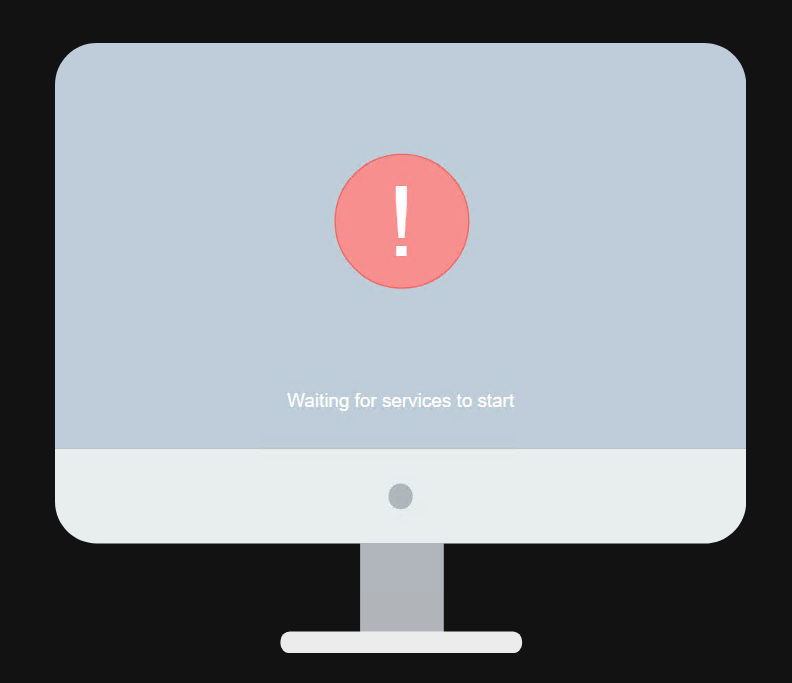
When thats applied log back in
1.2 – VCF Operations Collector Prep
If you have a cloud proxy in Aria Operations you will need to make sure SSH is prepped first else the product inventory will fail
This is only relevant if you have a cloud proxy, if you dont then this can be skipped
We need to make sure SSH is enabled on the cloud proxy
To activate it, open the VM console and login as root, you dont set a password on deployment so it will prompt you to set one if this is your first time logging in
Then run
systemctl start sshdNow we need to add the password into Aria LCM
From the main menu, which you can get back to by clicking Aria Suit Lifecycle at the top, and click Locker
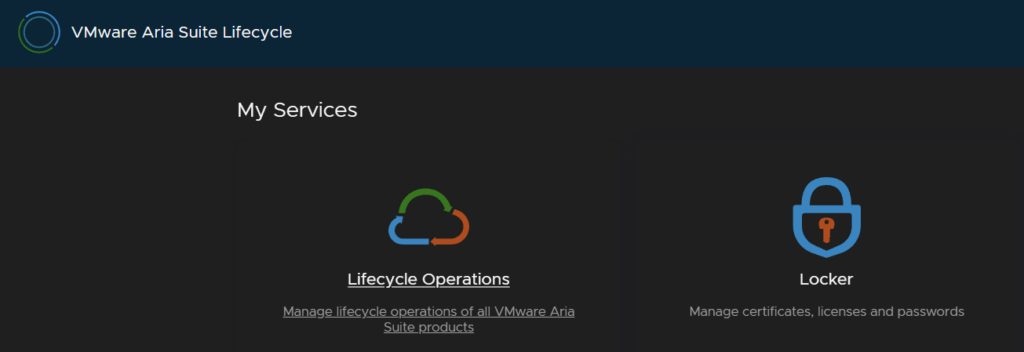
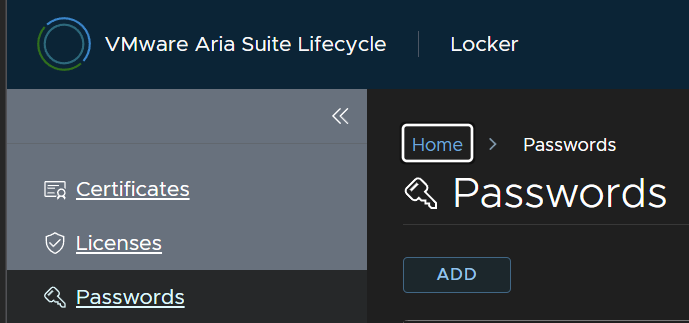
Click Passwords/Add
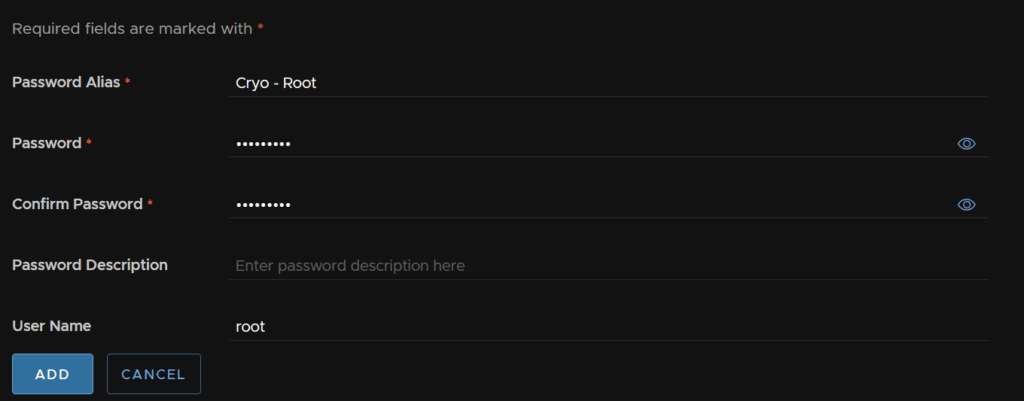
Enter the root details and click Add
1.3 – VCF Operations/Fleet Management
We first need the upgrade pak file from the Broadcom portal
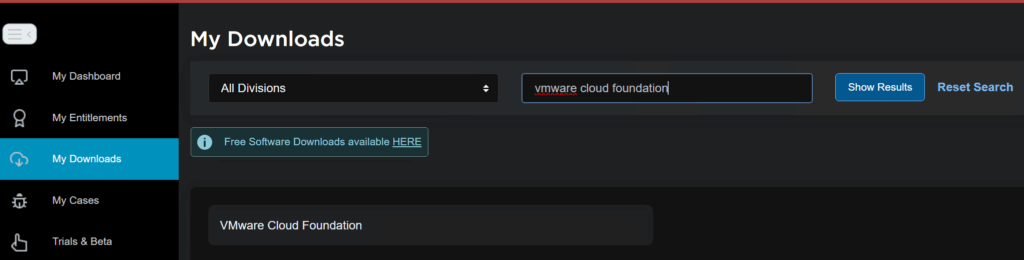
Click My Downloads/VMware Cloud Foundation
Expand VCF 9 and click the latest release

Find Cloud Foundations Operations and click View Group

And download the upgrade pak file download here

Head back up one level and click View Group on VMware Cloud Foundation Operations Fleet Management

And download that OVA
Heading back to our WinSCP session on Aria LCM in the /data directory, we need to drag those two downloaded files over, it should look like this
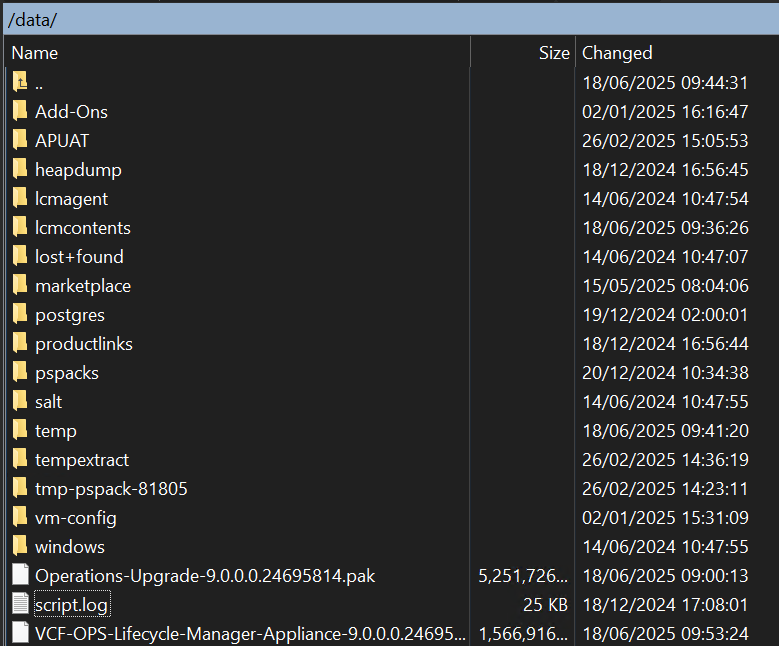
Now, the fleet management is a separate appliance, so we need an FQDN assigning in your DNS server, this needs to resolve histname to IP and IP to hostname, an IP address on the same network as the VCF Operations appliance, and 15 character or longer password for the root and admin@local passwords
Logging back into Aria LCM, click Locker
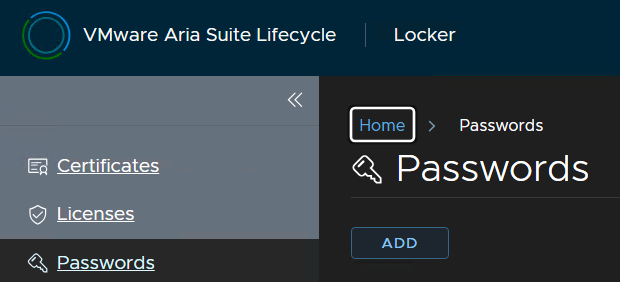
Under passwords click Add
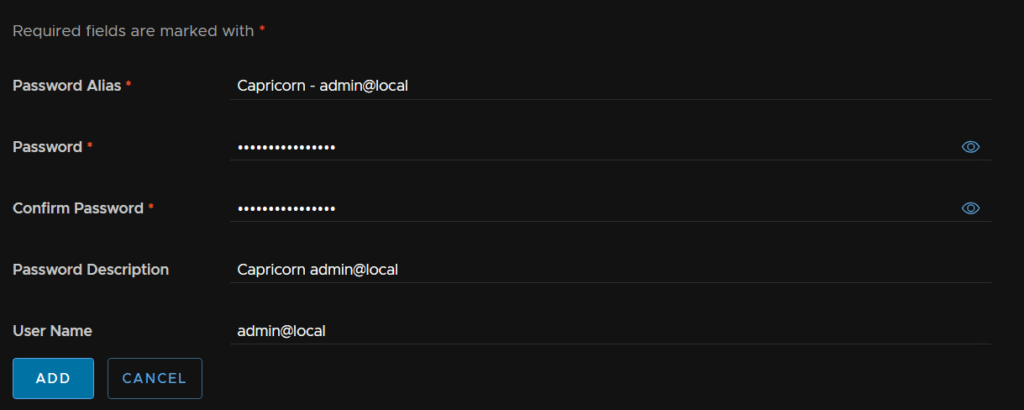
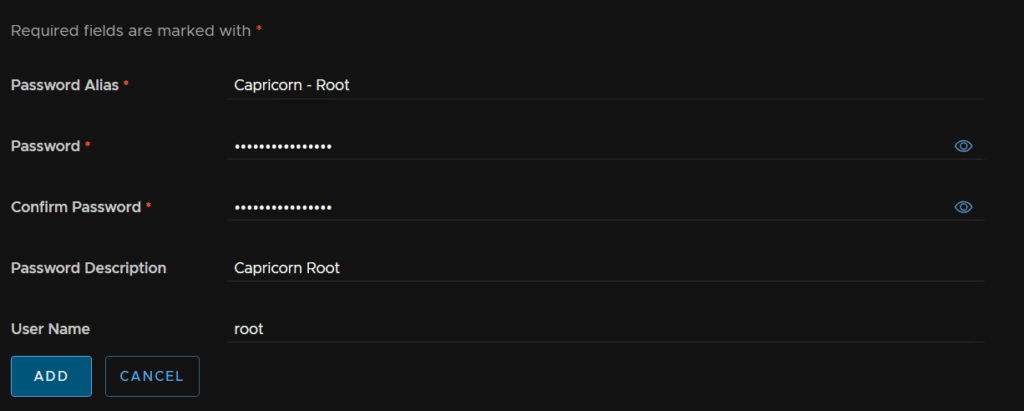
Add the details for the admin@local credential for the fleet management appliance, making sure the username is admin@local, then click Add
This needs to be 15 characters long, the only allows special characters are !@#$%^&*
And repeating for the root account
This needs to be 15 characters long, the only allows special characters are !@#$%^&*
Then click VMware Aria Suite Lifecycle in the top left to head back to the main menu
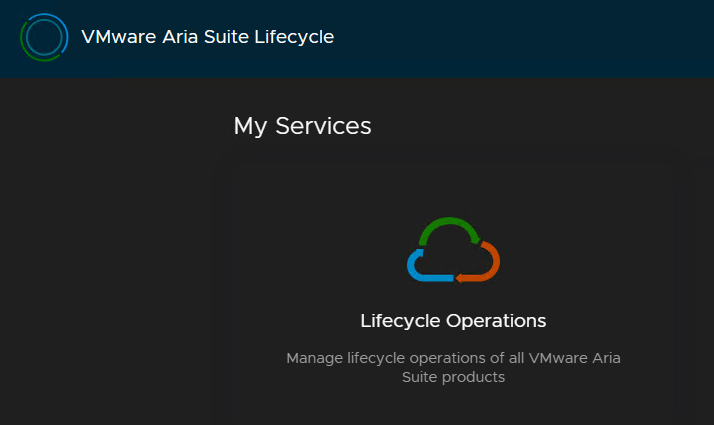
Click Lifecycle Operations
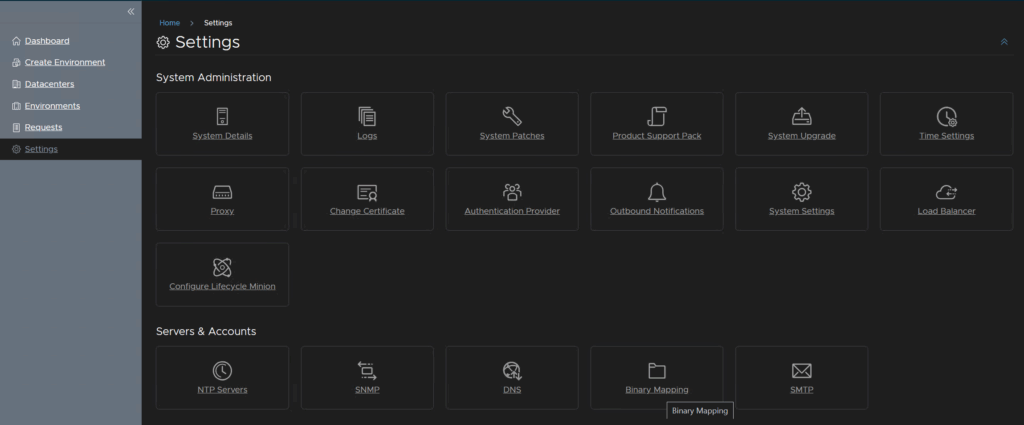
Then click Settings/Binary Mapping
And click Add Binaries
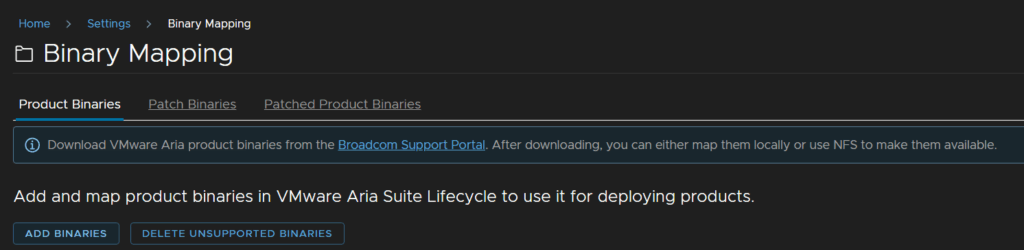
Fill /data in for the base location and click Discover
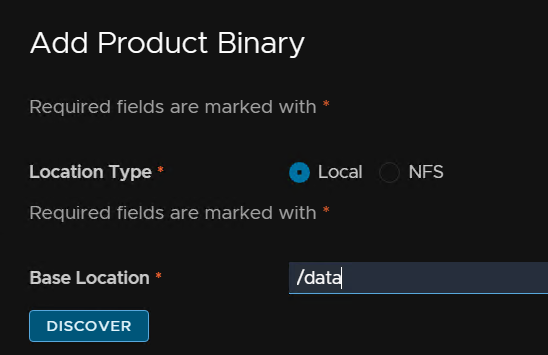
Check both of the new binaries and click Add
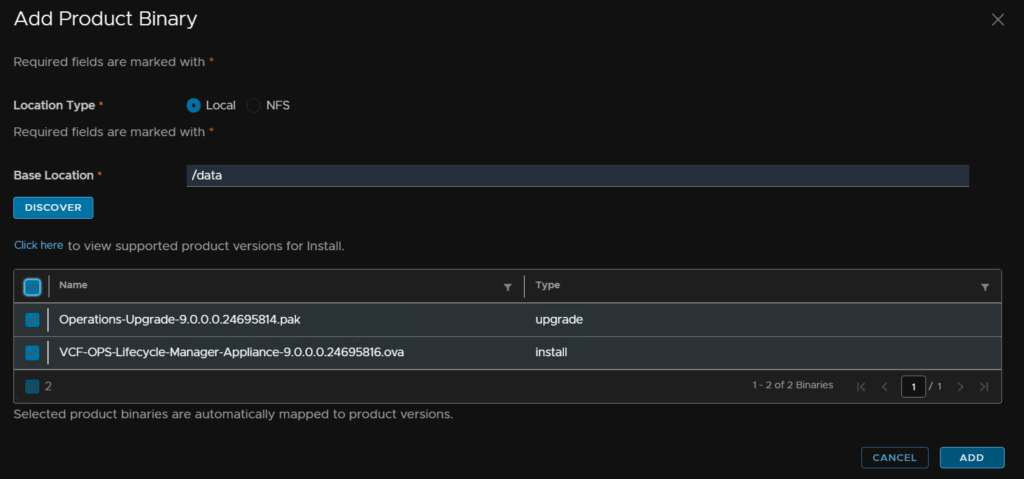
We can check the progress from this link

When thats done you will need to refresh the page on the Product Binaries and it should look like this
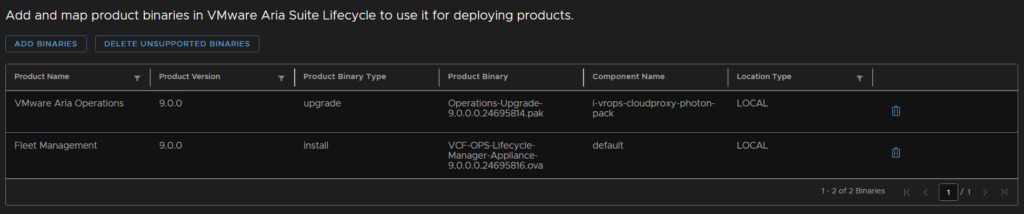
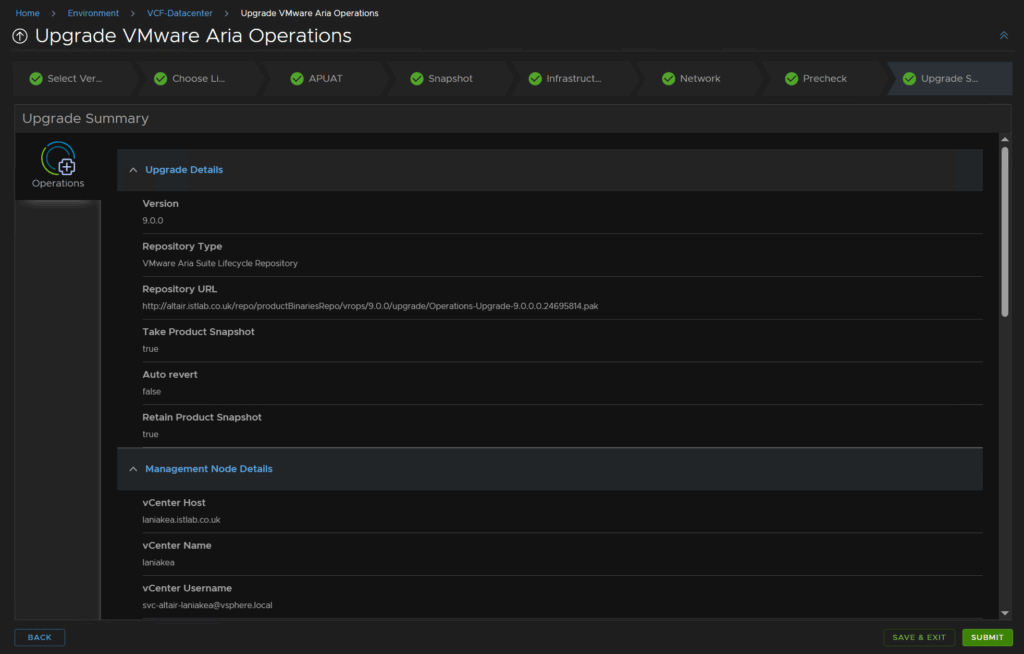
Now we can head to Environments and click View Details on the environment with Aria Operations listed
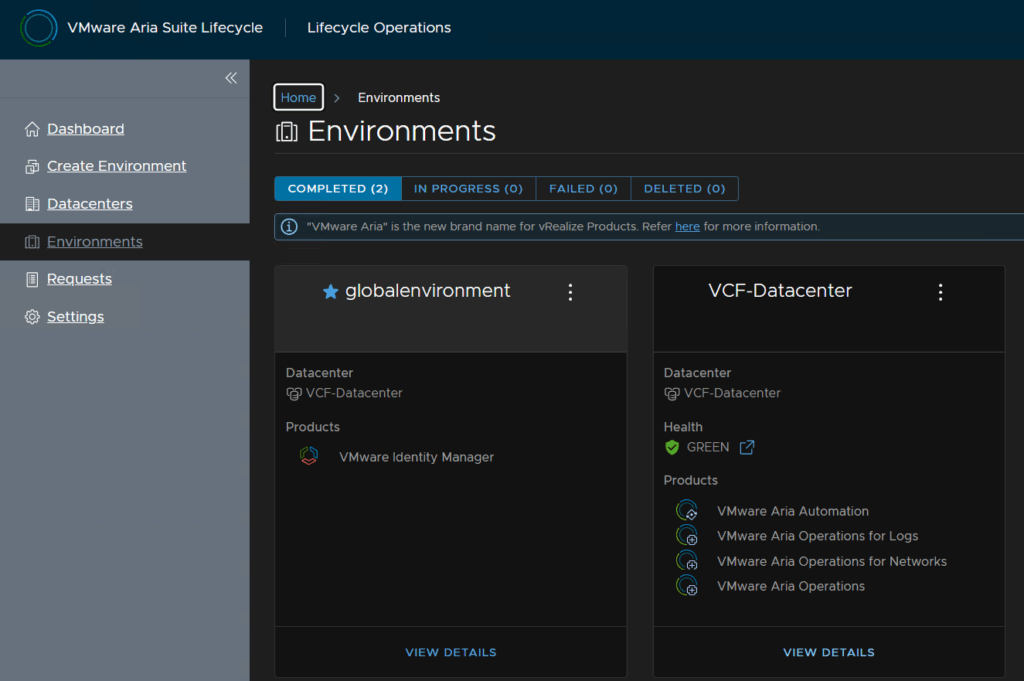
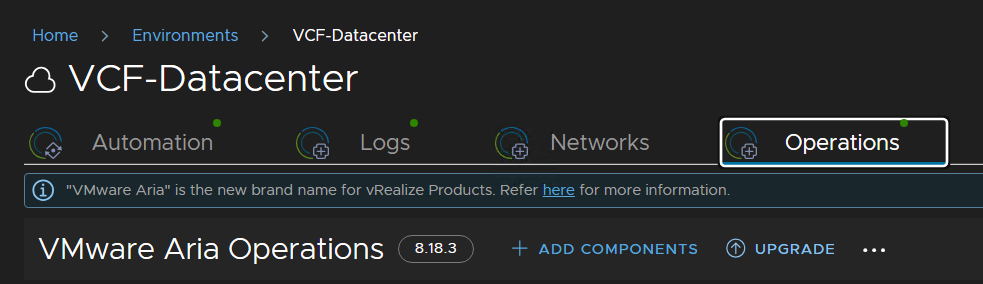
Click the Operations tab then click Upgrade
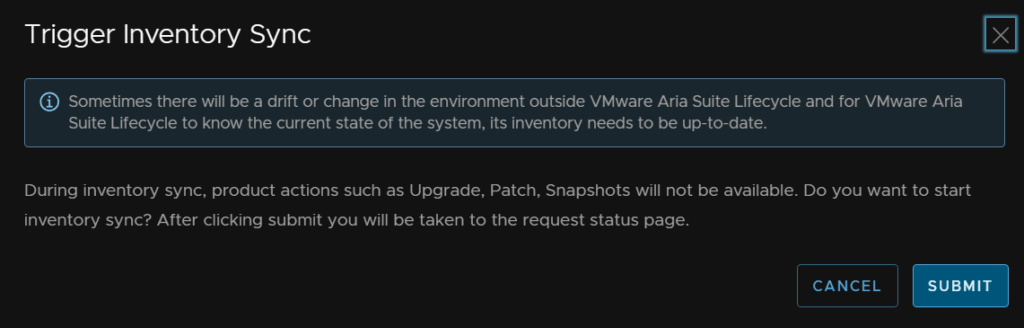
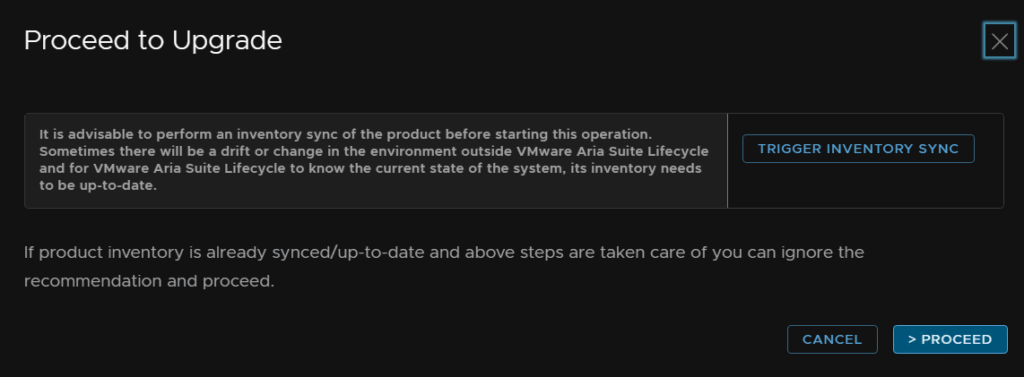
Now click trigger Inventory Sync
Then submit and wait for the request to finish
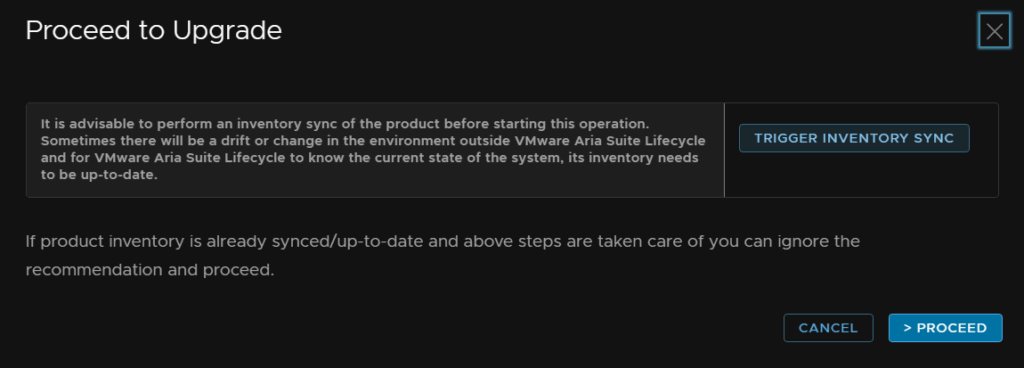
Then head back and click Upgrade again, bit this time then click Proceed
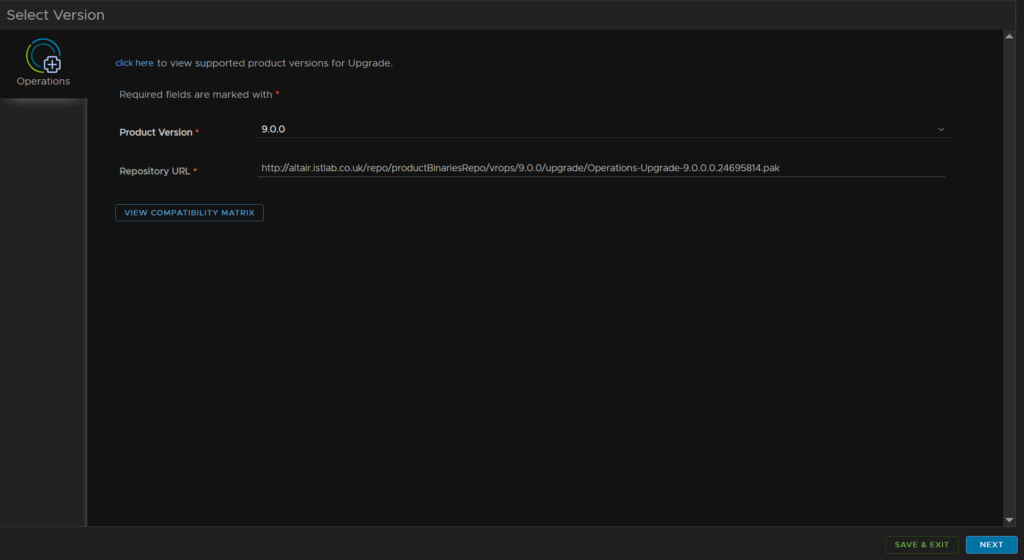
The version should be automatically populated, click Next
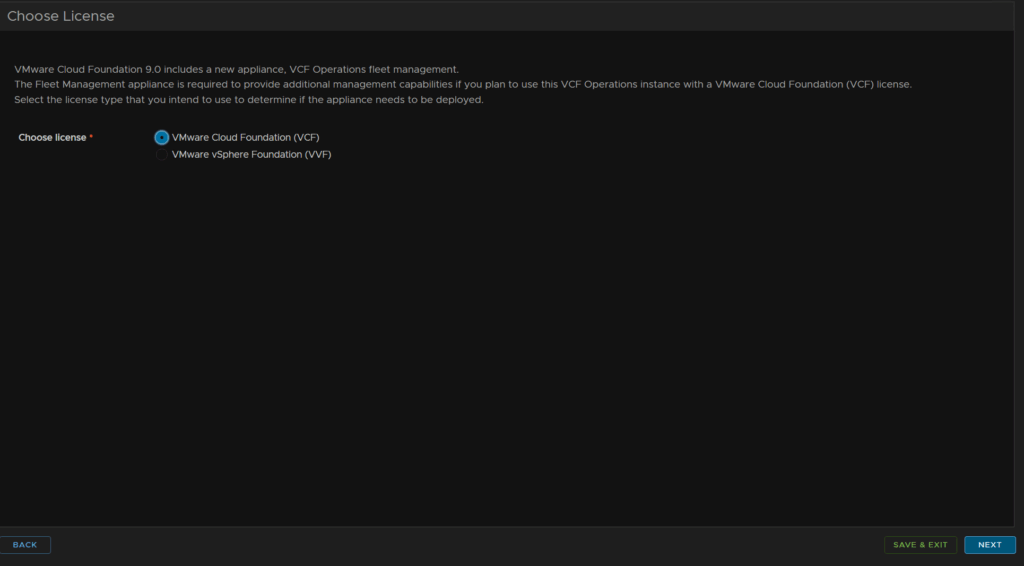
We are using VCF, so we will select that licensing type and click Next
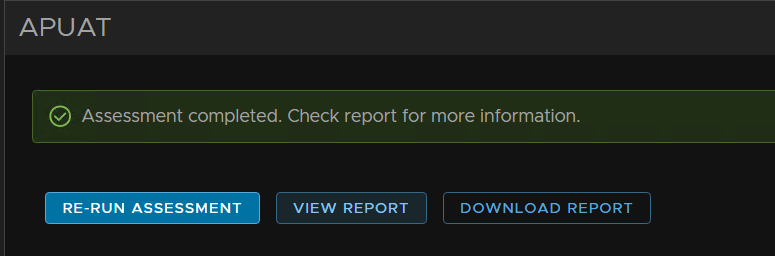
Click Run Assessment
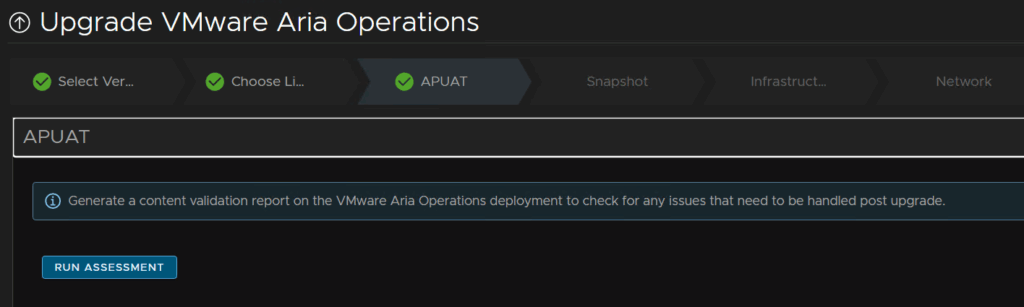
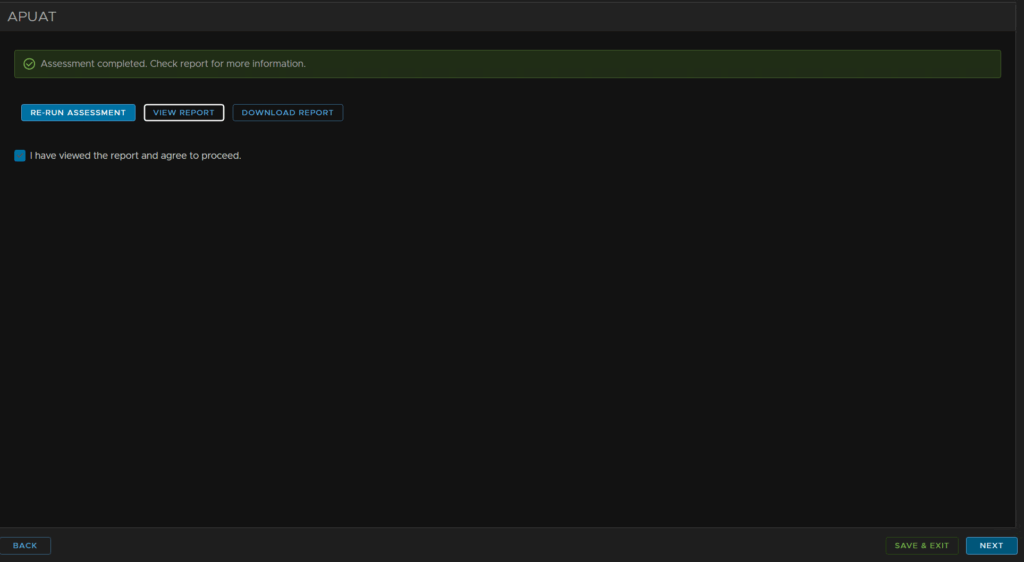
Click View Report
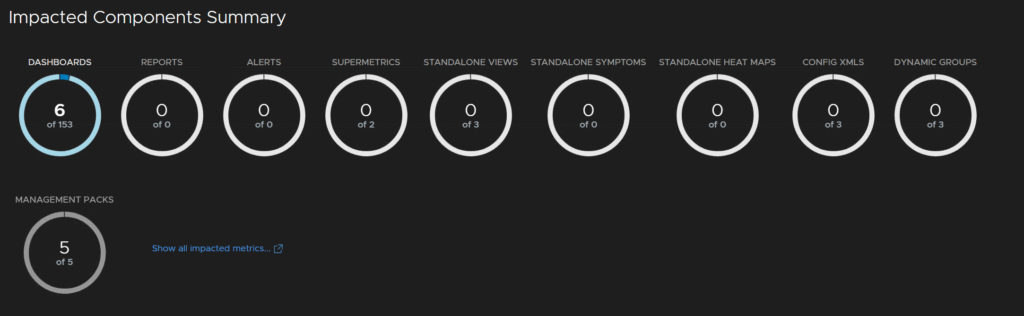
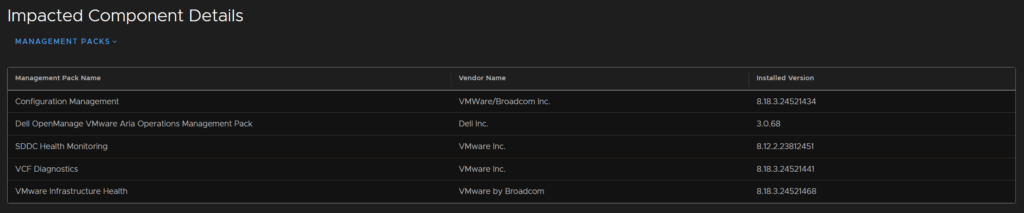
Six of my dashboards are impacted and 5 management packs
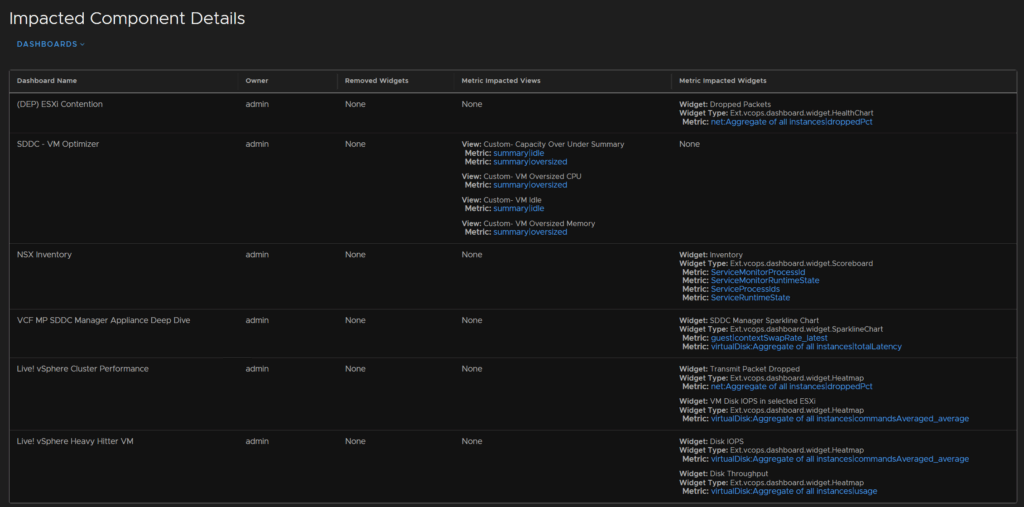
For the dashboards, none of these are my custom one, so thats fine
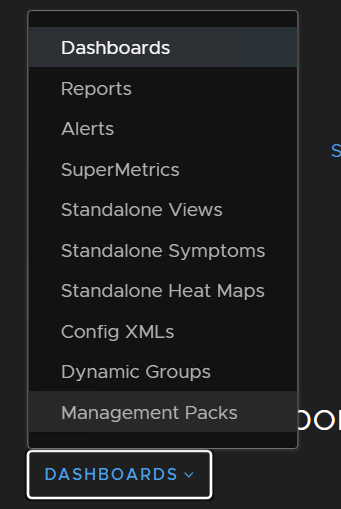
Using the Dashboards drop down selector I can change this to management packs
Which seems to be these, I am going to continue with the upgrade, with the exception of the Dell OpenManage pack the rest are VMware ones so they should be fine, the Dell one hasnt been configured so I am not bothered if it breaks
Now I am happy, I will check the box and click next back in Aria LCM
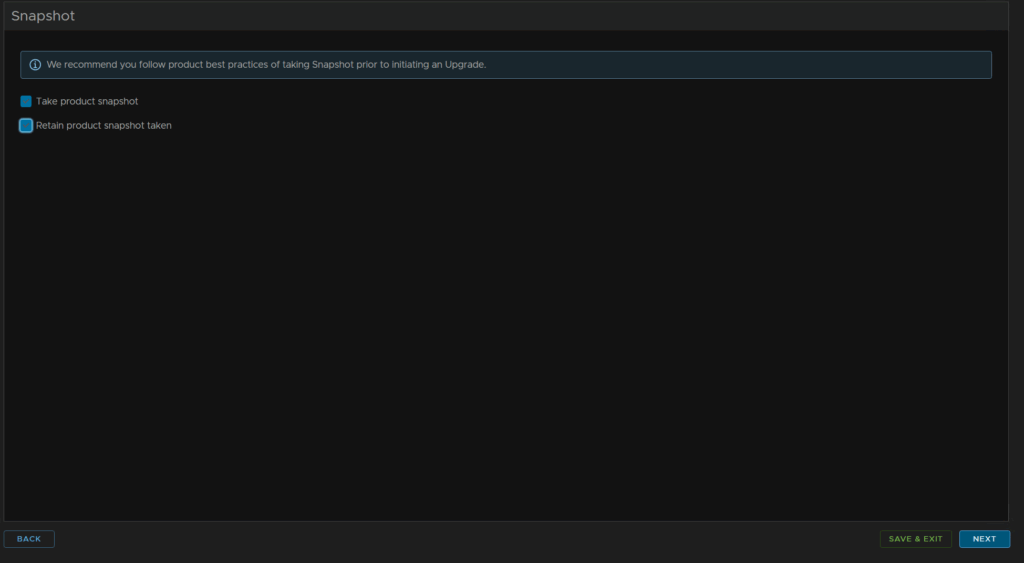
We will check both boxes to take and retain the product snapshots in case we need to roll back and click Next
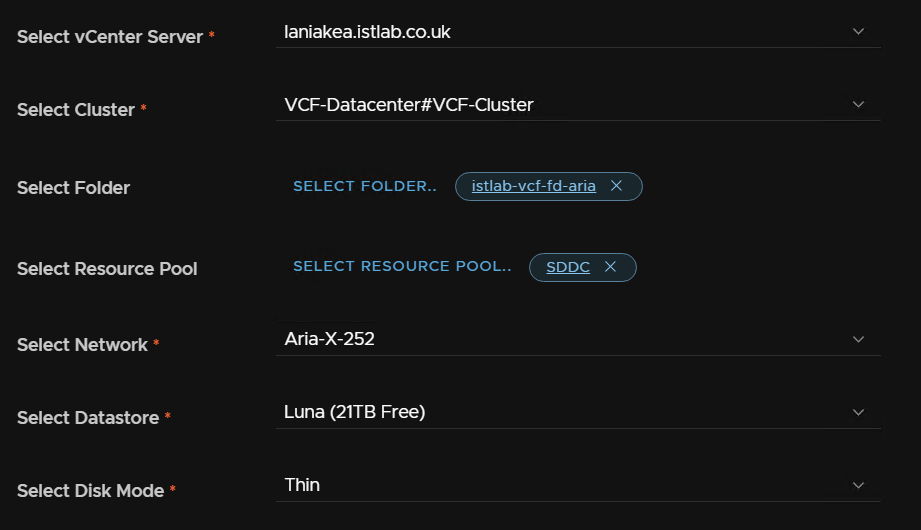
Now we need to setup the infrastructure for the fleet management appliance
Select your vCenter, cluster, optionally a folder and resource pool, then select the network, this should match the Aira operations appliance you already have, the data store, this is my vSAN datastore, and thin provisioning mode
Add the VM name, FQDN and IP address then click Select Admin Password
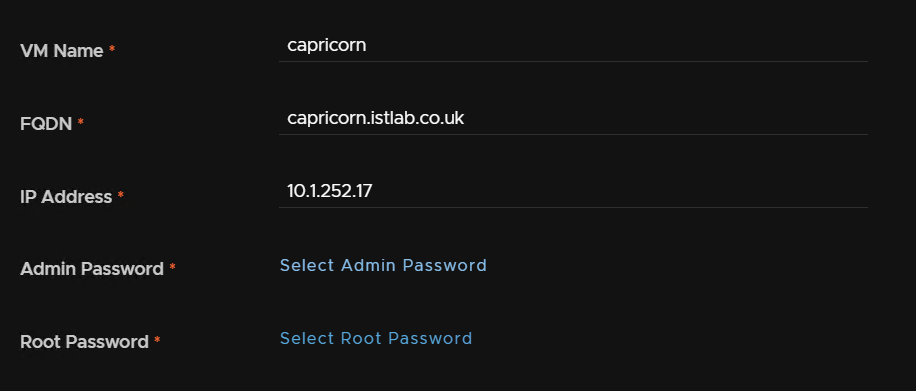
And select the admin@local credential we setup earlier

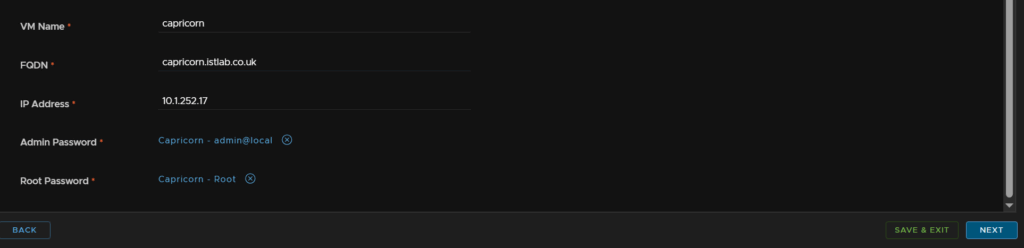
And repeat for the root account

It should look like this, then click Next
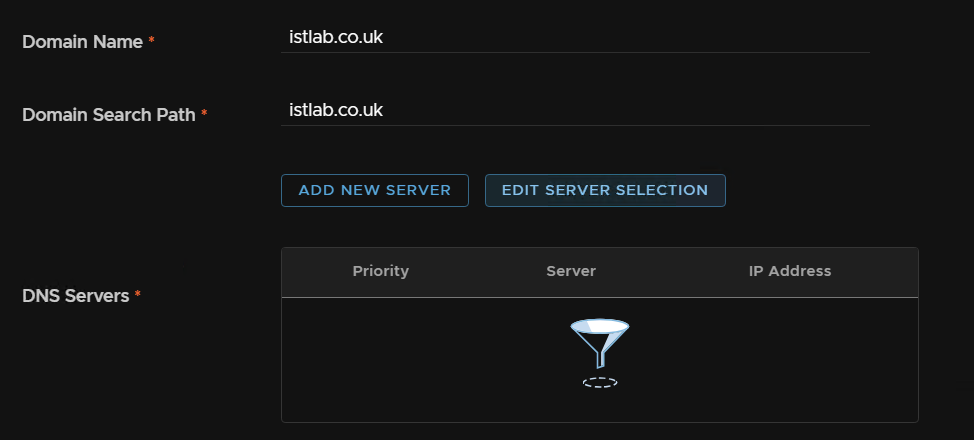
Enter our domain and search domain, and click Edit Selection to select our DNS servers
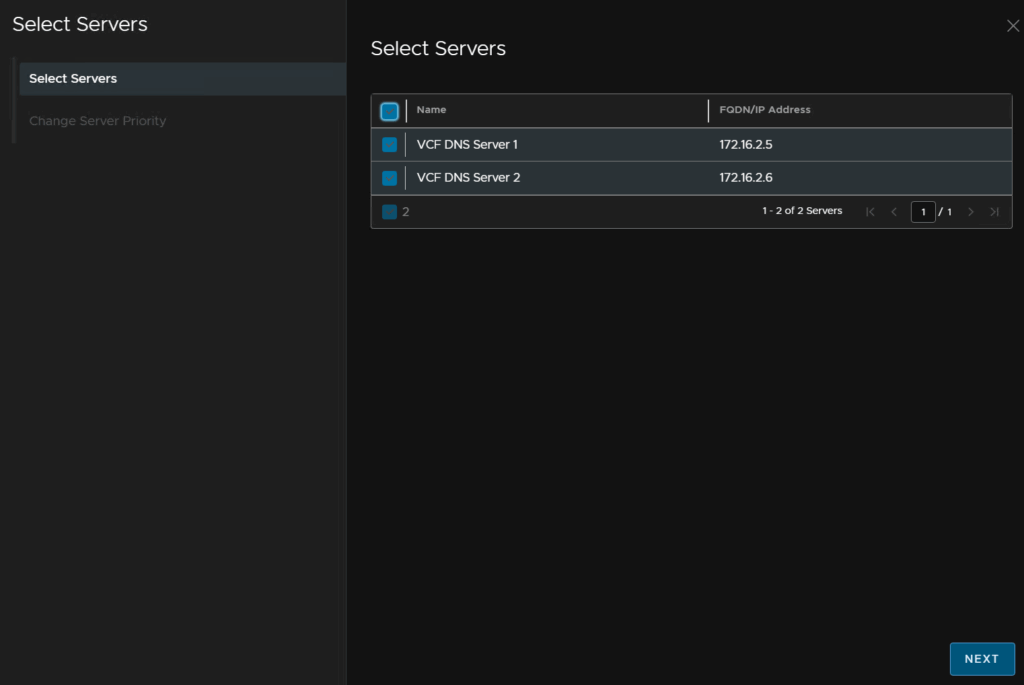
Select both and click Next
And then Finish
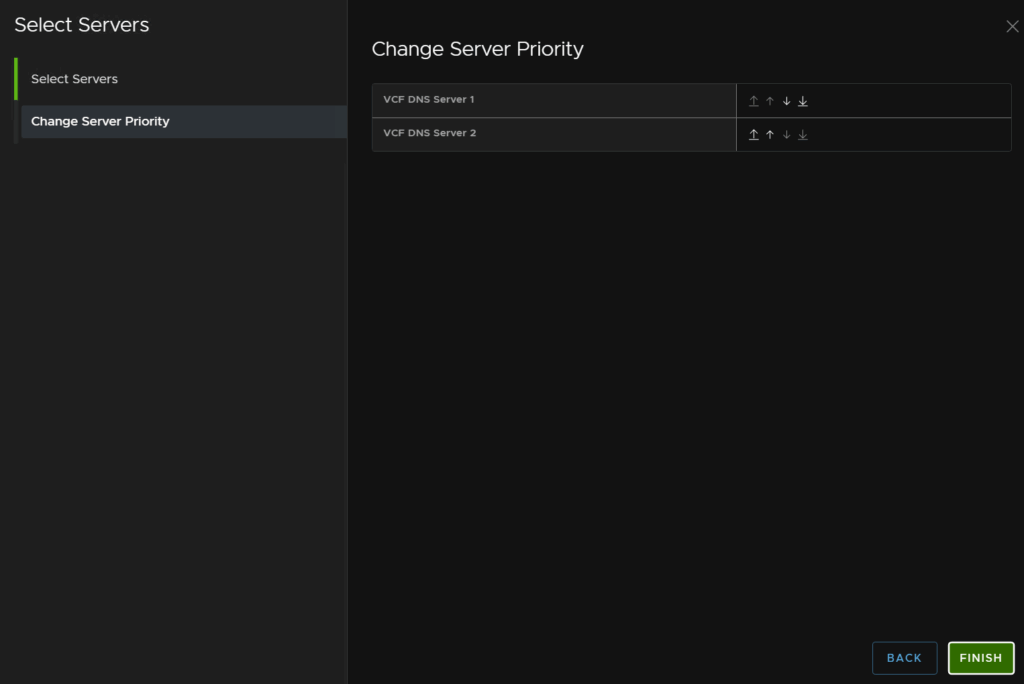
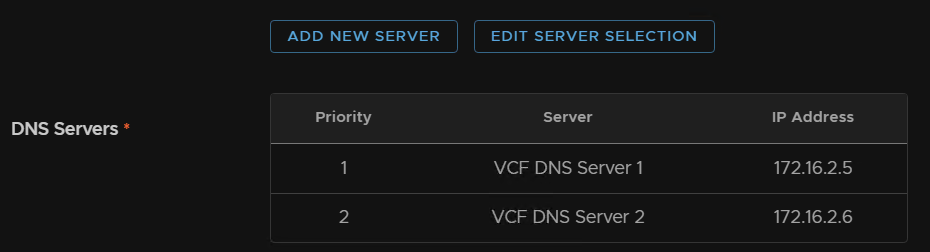
It should look like this
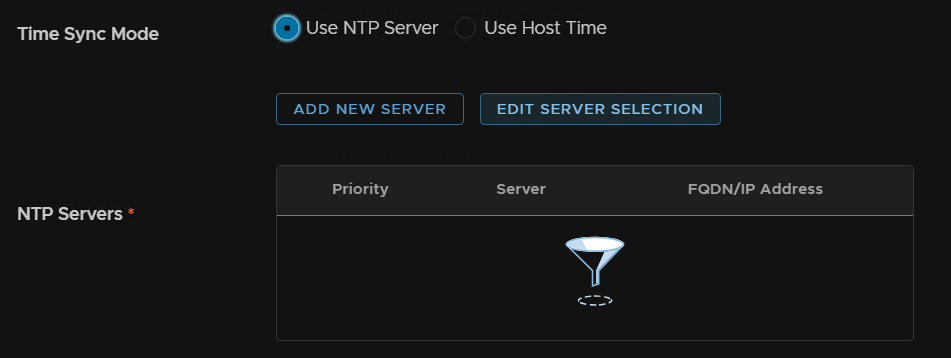
For NTP I have an NTP server, so I will select that over hoist time and click Edit Selection
Select the NTP server and click Next
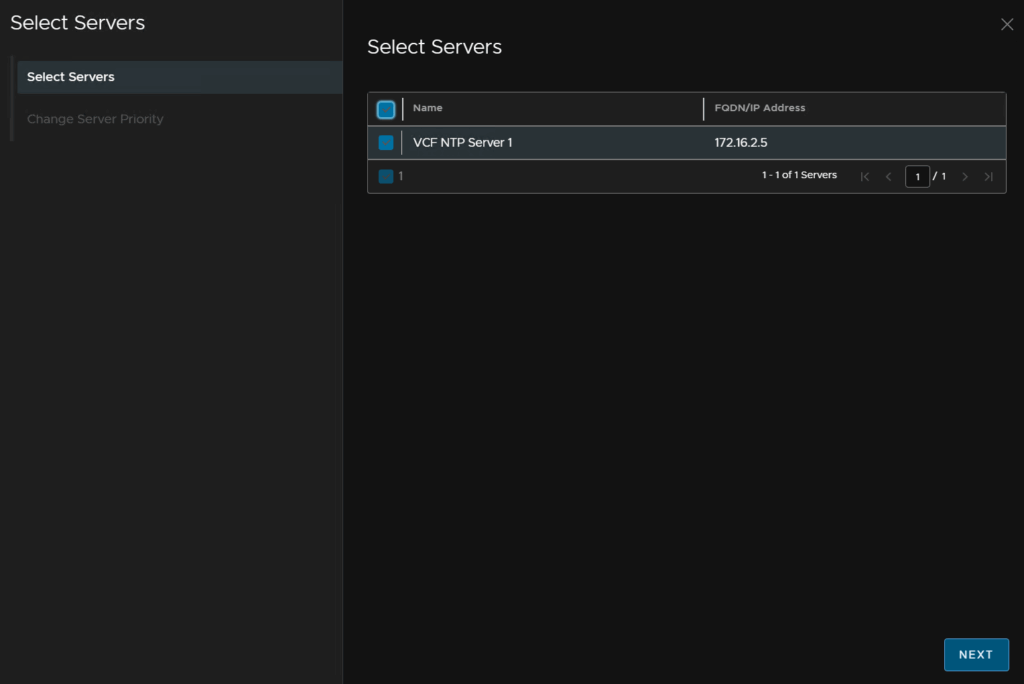
Then Finish
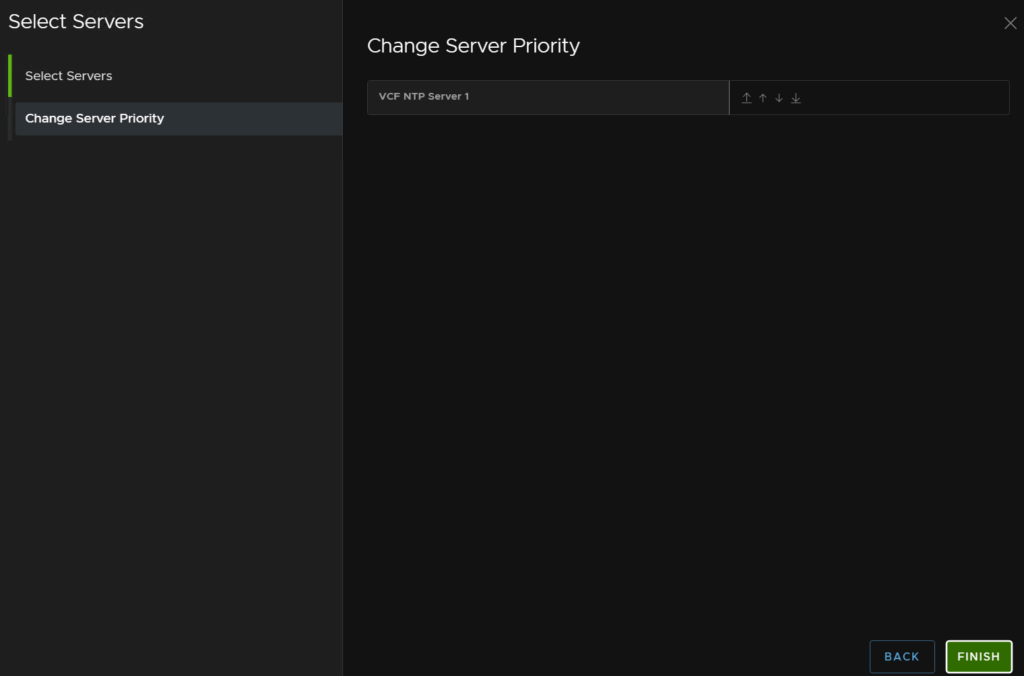
It should look like this
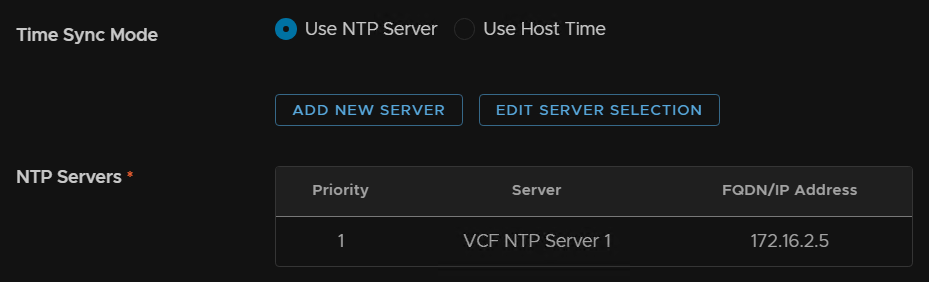
And lastly add the gateway for the network the appliance is on and the subnet mask and click Next

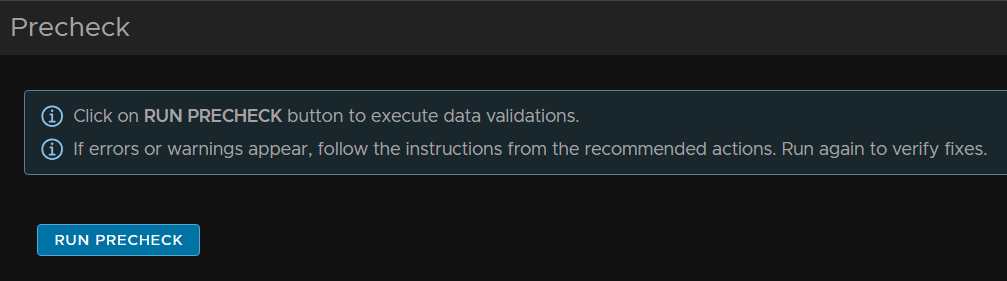
Now click Run Precheck
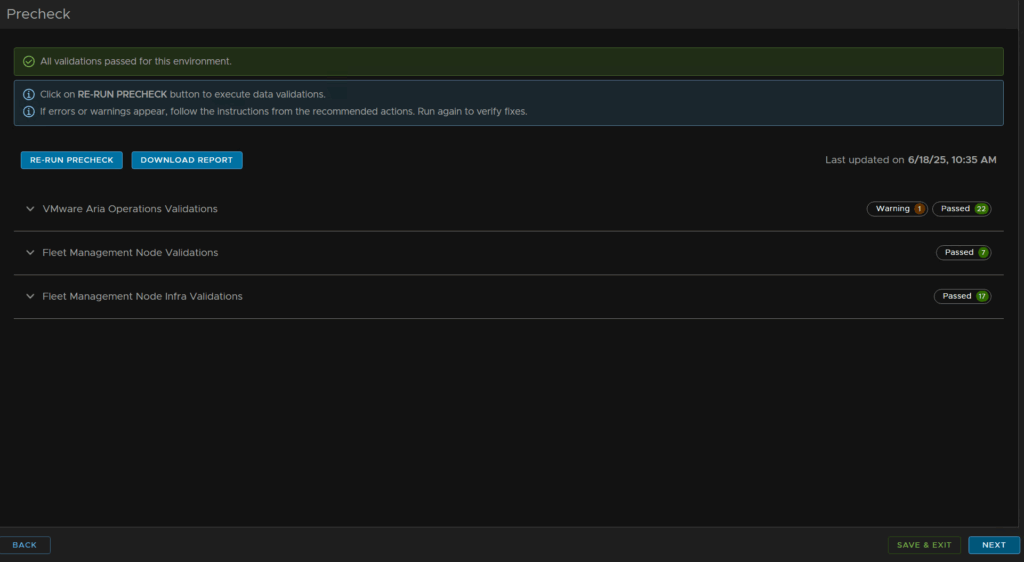
I only got one warning about the VCF Operations node size, but the 4vCPU and 16GB it has is plenty, so I will ignore this

Once you are happy click Next
And then click Submit
1.4 – VCF Automation
Now we have VCF Operations upgraded to version 9 and the fleet management appliance deployed we can import the old Aria Automation 8.18 appliance into the fleet management, removing it from Aria LCM and then do the upgrade process
Log into VCF Operations and head to Fleet Management/Lifecycle and on the VCF Management tab we will get options for product components, on the Automation tab, click Add
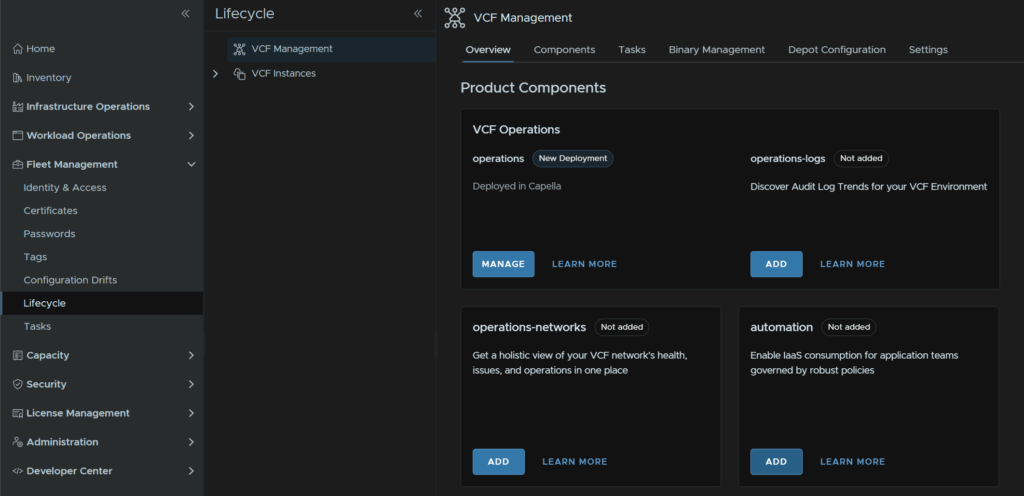
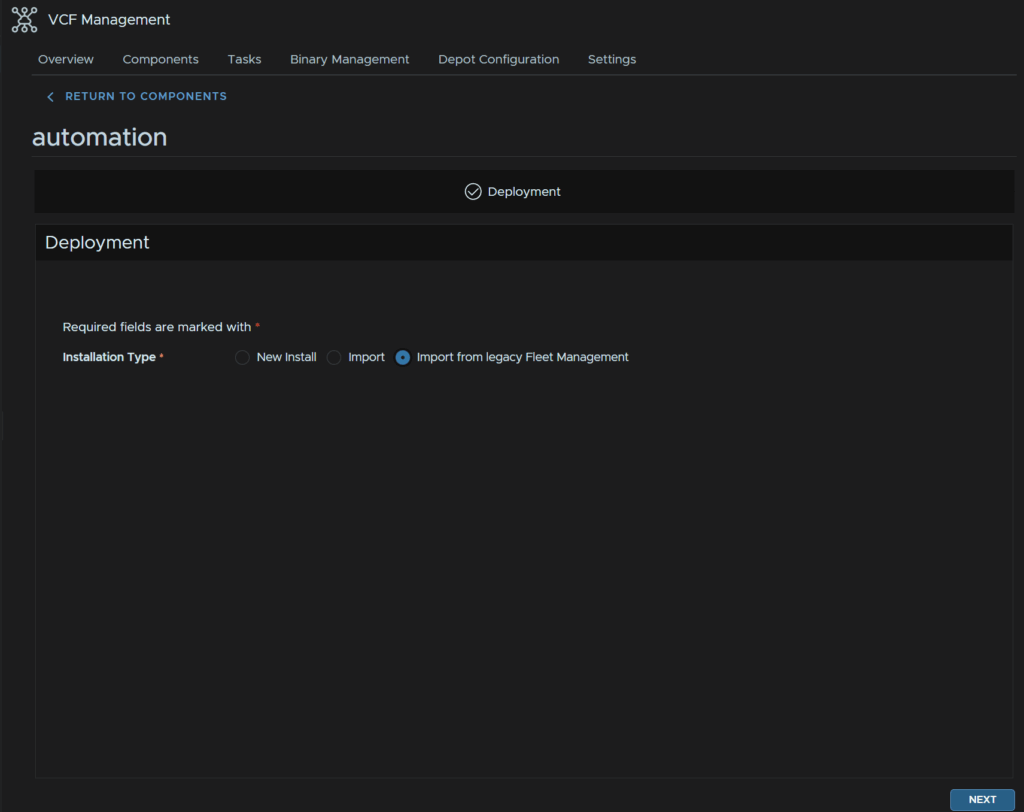
Click Import From legacy Fleet Management and click Next
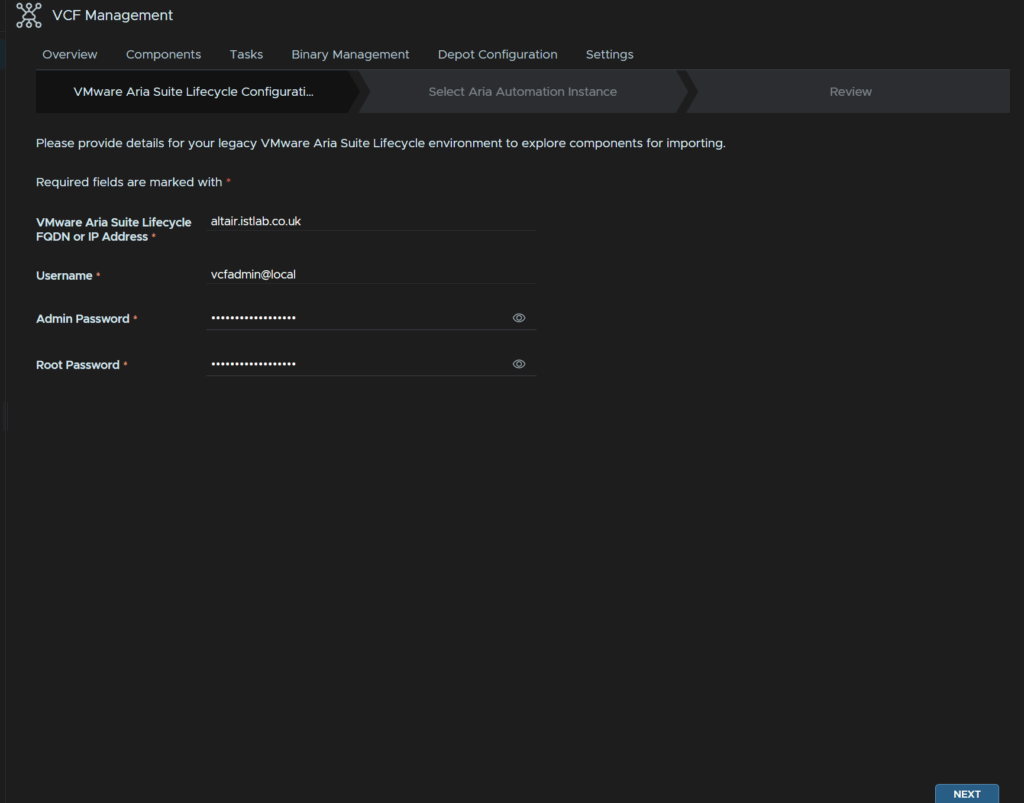
Add the FQDN of the Aria LCM appliance, and the vcfadmin@local username, on the Admin password field add the password for the vcfadmin@local account, and add the root password as well, then click Next
Select the component, it has picked my appliance up from the environment, then click Next
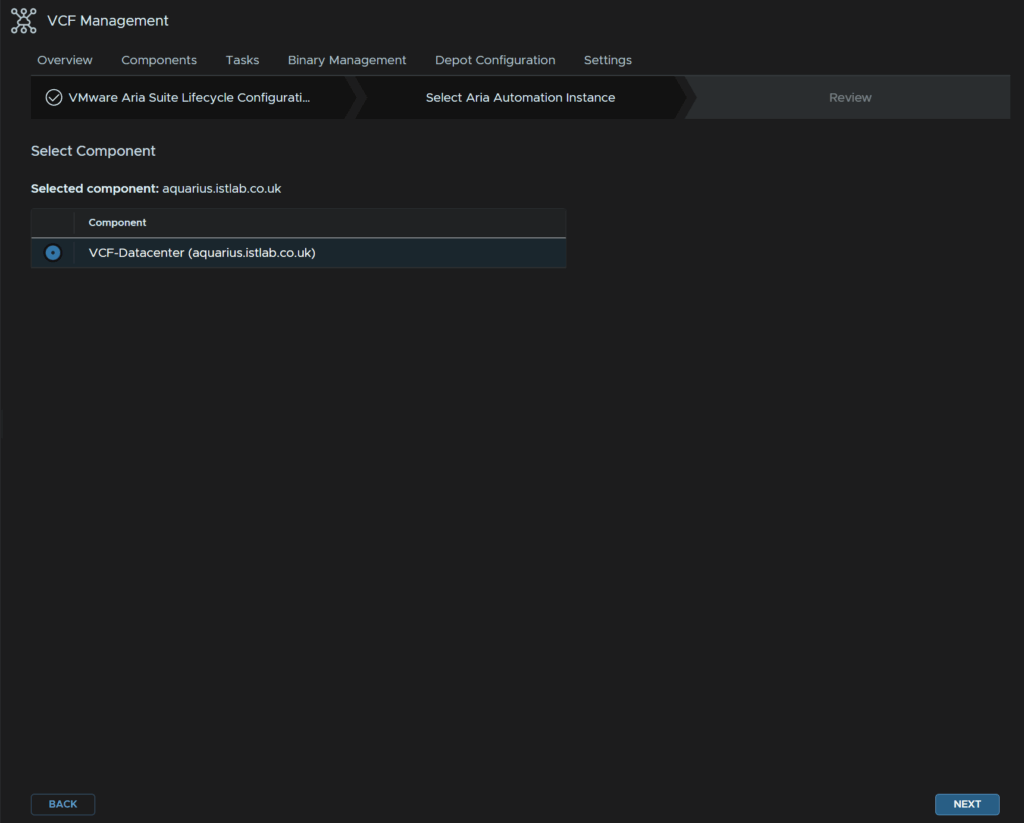
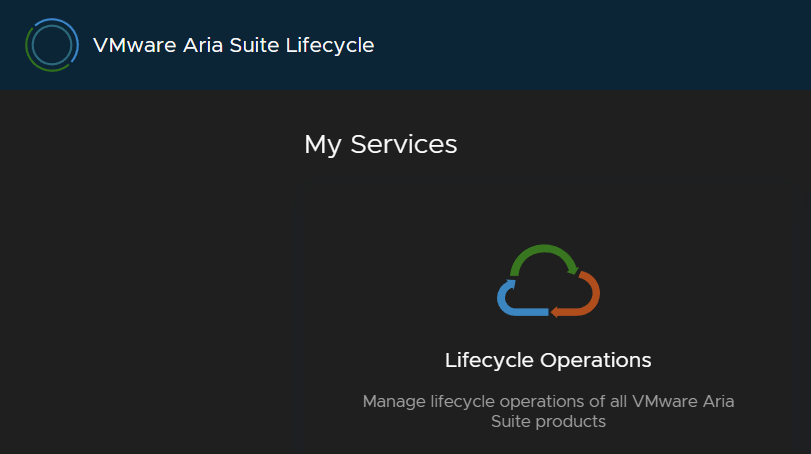
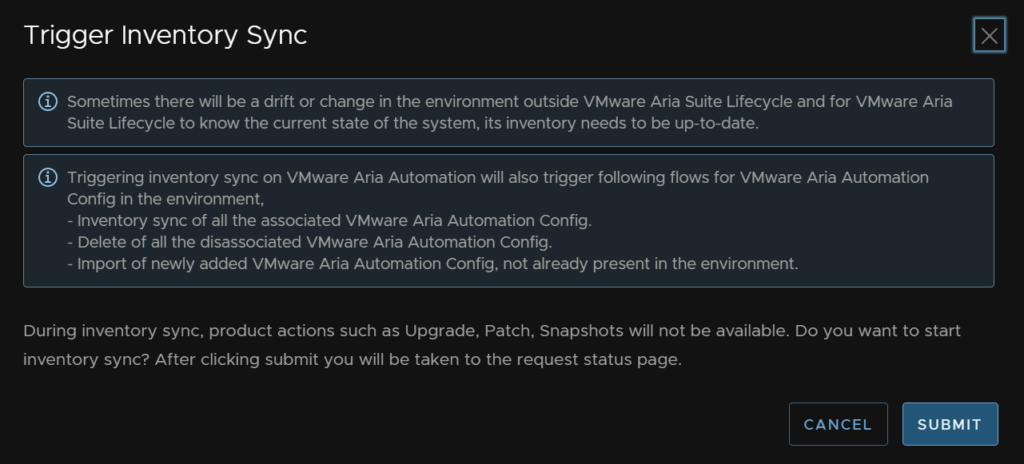
Now we want to run an inventory sync from Aria LCM, log in and click Lifecycle Operations
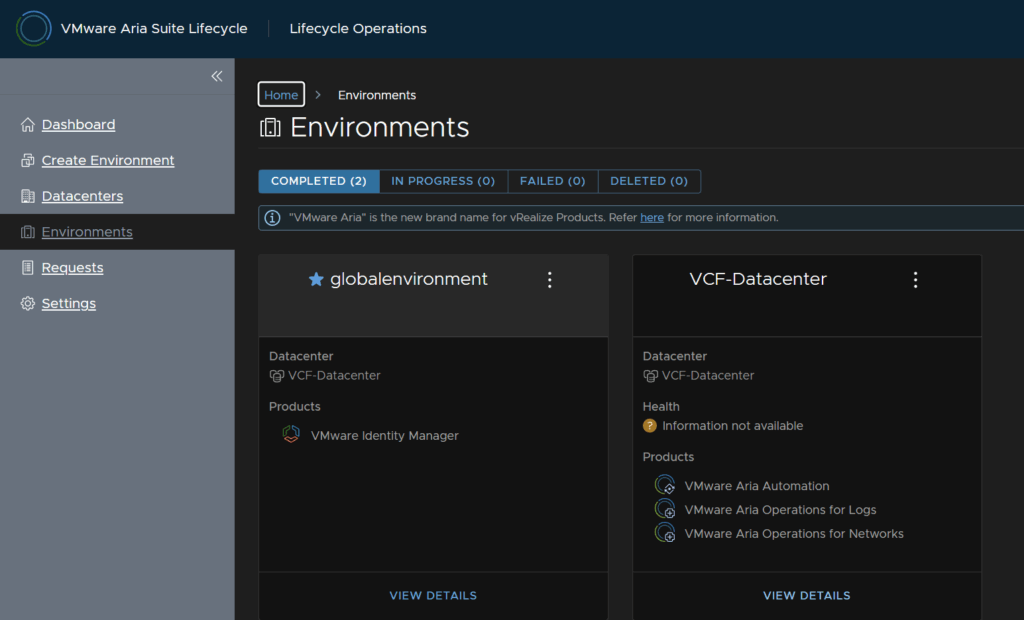
Click Environments and then click View Details on the environment which has the Aria Automation Appliance
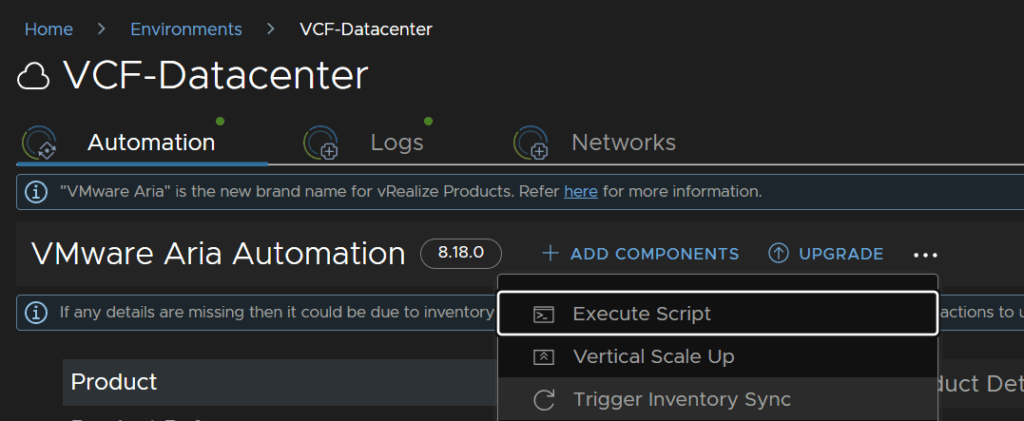
Make sure the Automation tab is selected, click the three dots then click Trigger Inventory Sync
Then click Submit and wait for the request to finish
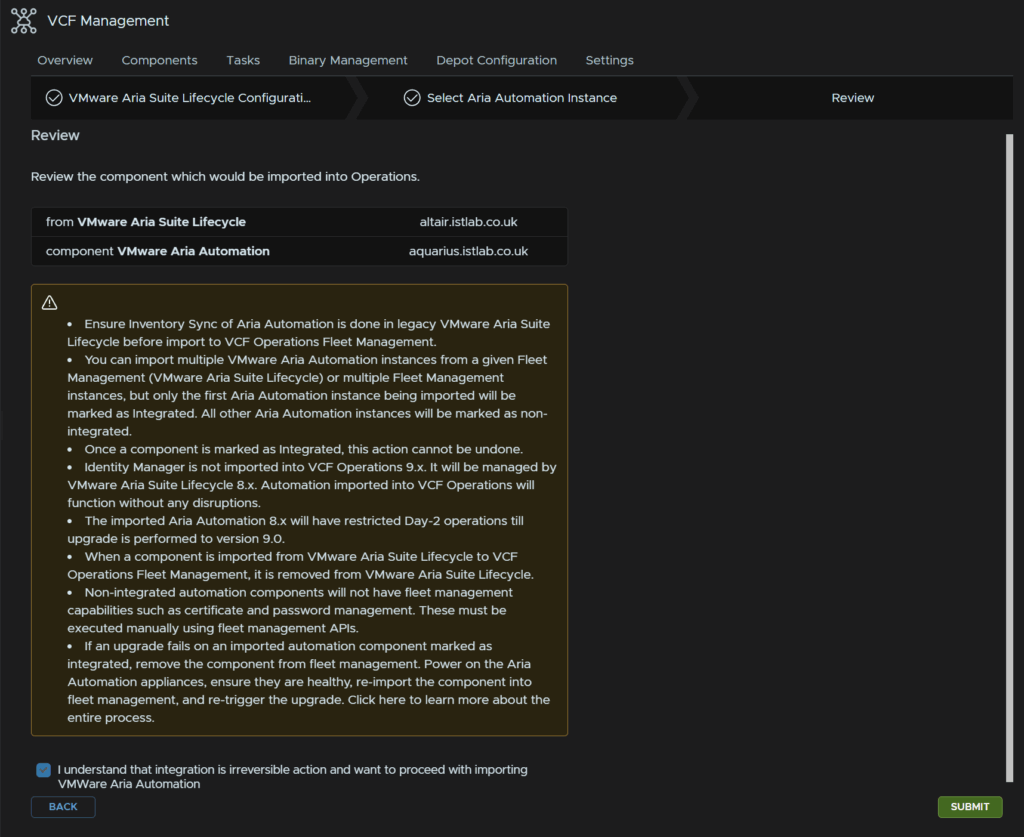
Back in VCF Operations, review the warnings, we have done the inventory sync, but its important to understand this is a one way process and cannot be undone, when you are happy, check the box to acknowledge this and click Submit
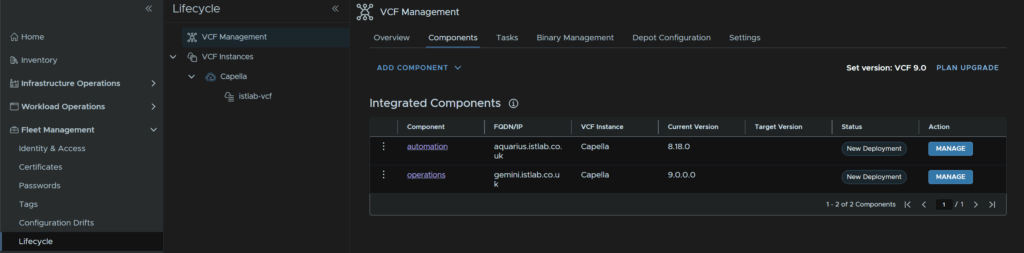
Then wait for the task to complete
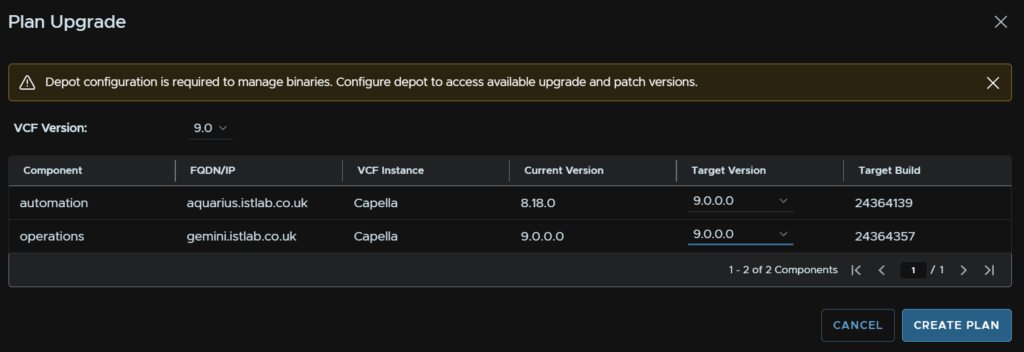
From Fleet Management/Lifecycle/VCF Management/Components click Plan Upgrade in the top right
Under Automation select the target version as 9, and do the same for operations as all components need to be filled out and click Create Plan
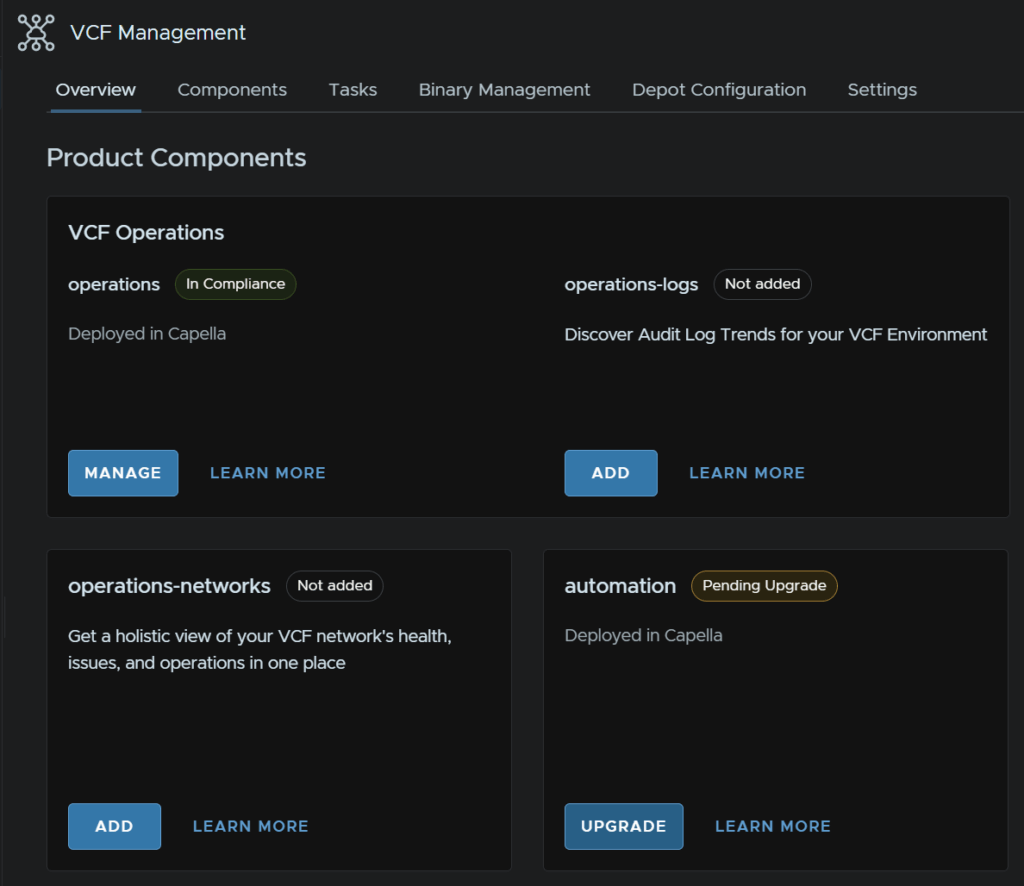
Automation now switches to Pending Upgrade
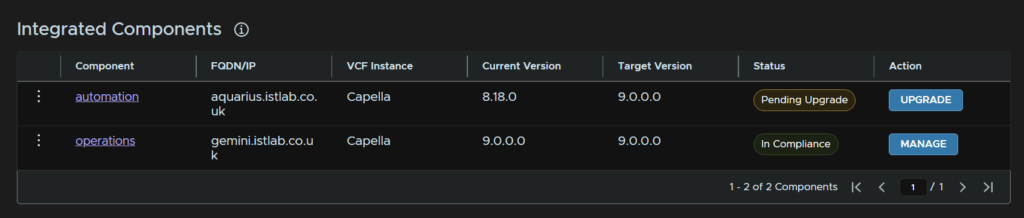
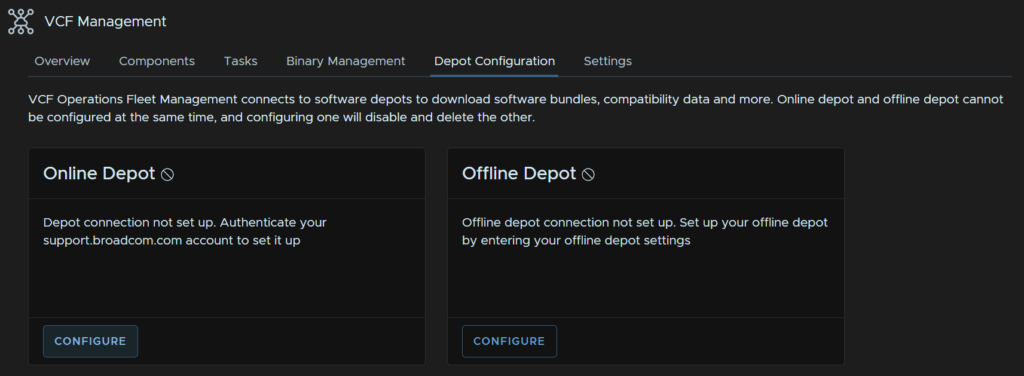
Now we need to set the depot up, click the Depot Configuration tab and click Configure under Online Depot
Click the + to add an account to login to the Broadcom portal
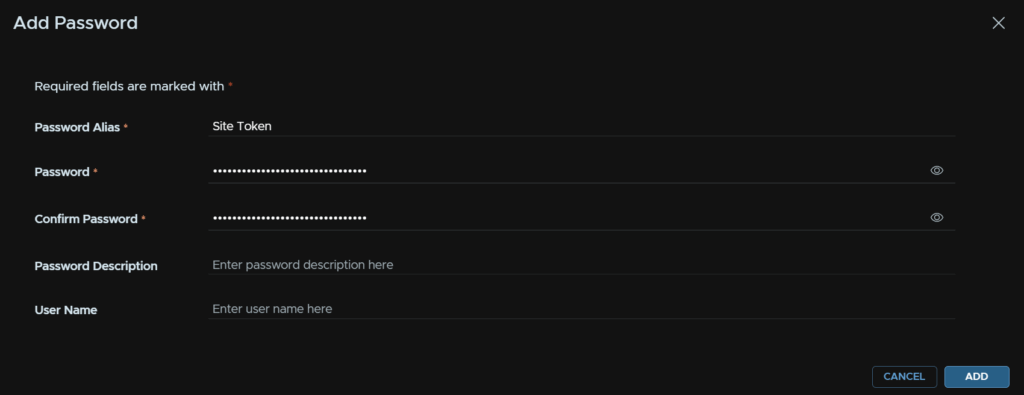
Then add an alias, and put the token in the password fields and click Add
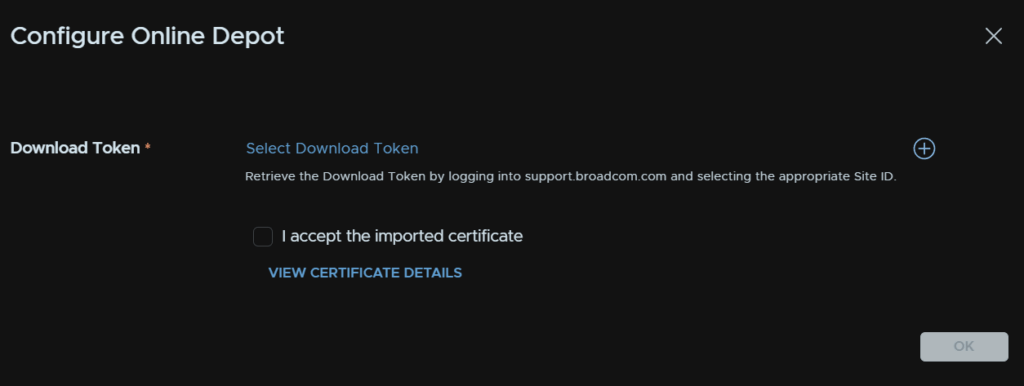
Now click Select Download Token
And select the token alias

Accept the certificate and click ok
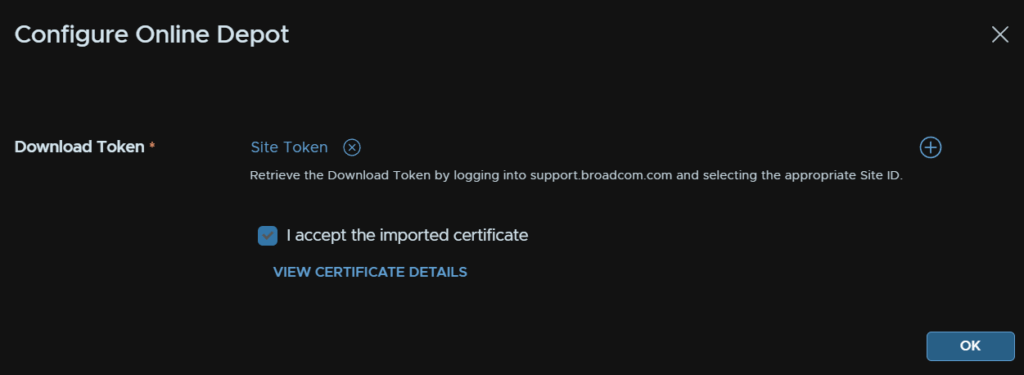
The depot will then show as connected
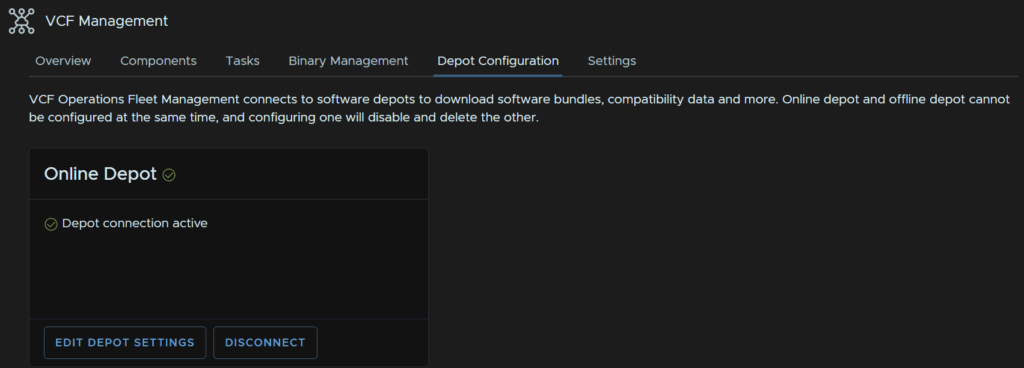
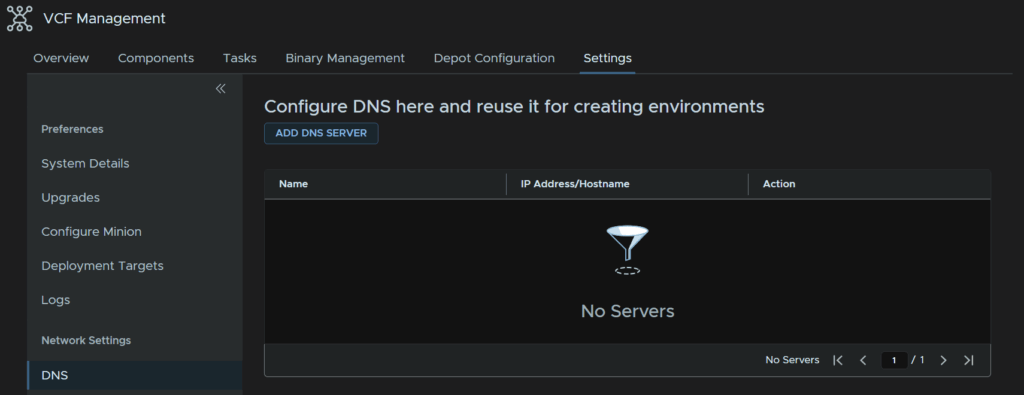
While we are here, lets set the default DNS/NTP servers, click the Settings tab then Networking Settings/DNS and click Add DNS Server
Enter the server name and IP address and click Add
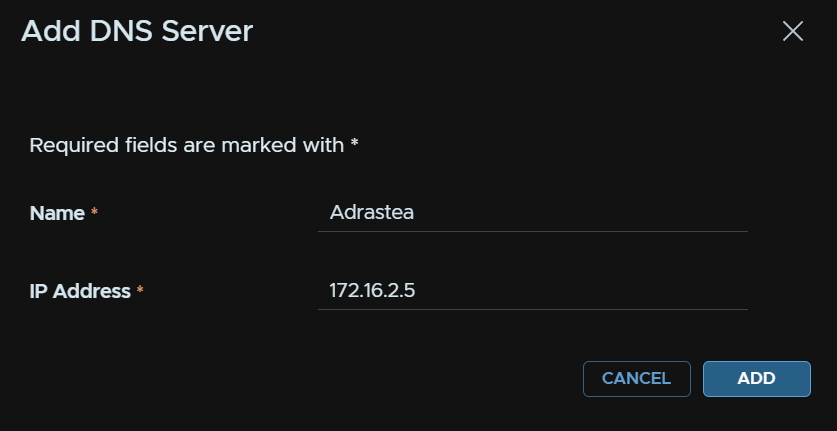
And repeat for any additional DNS servers, it should look like this
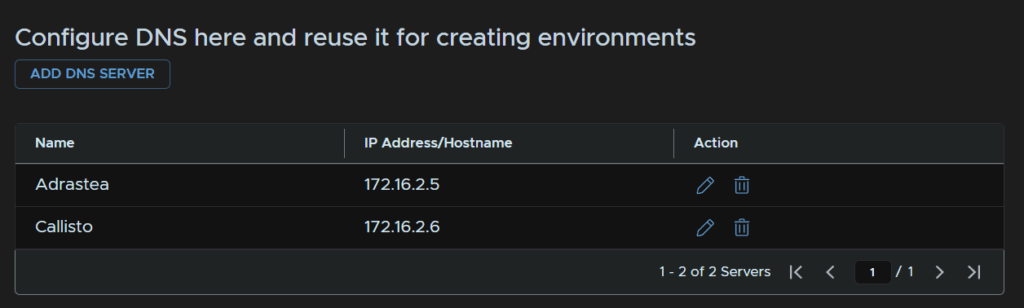
Then click Network Settings/NTP Servers and click Add NTP Server
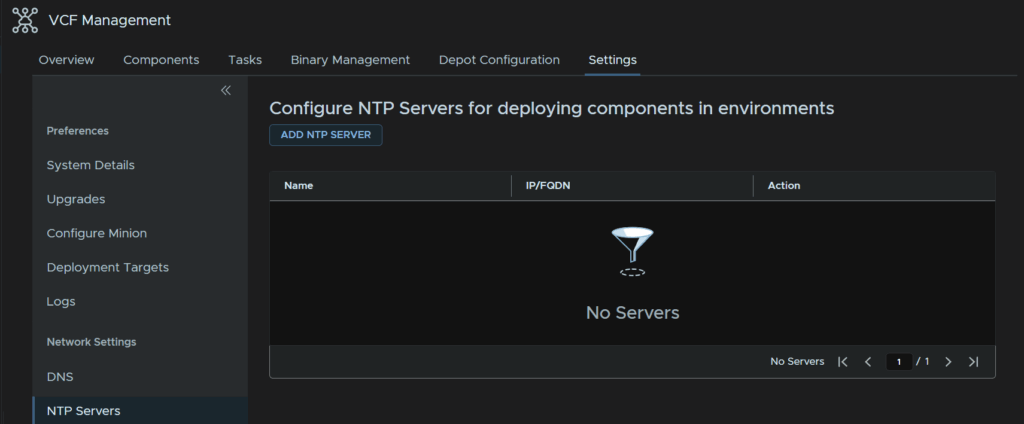
And add your NTP server, I was using a local one on the same server as my primary DNS, but after a few issues, I switched everything over to Cloudflare
When thats filled out click Add
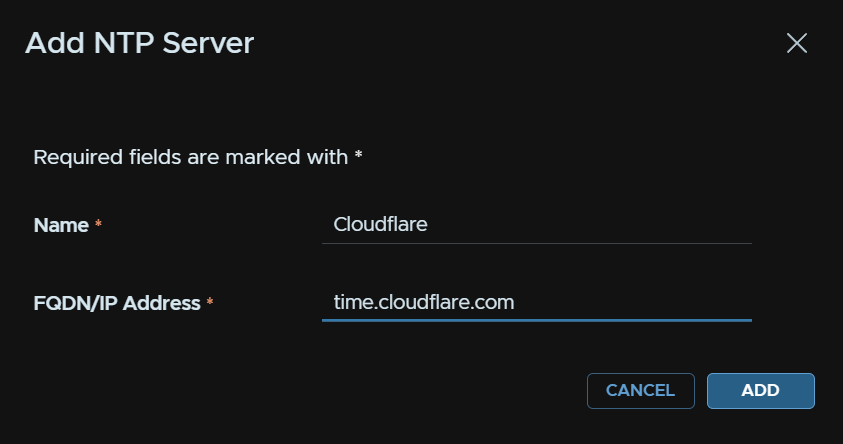
It should look like this

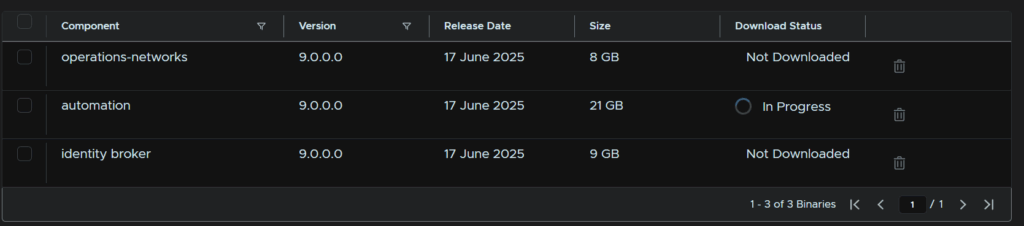
Now we can download the binary we need for this, head to Binary Management, click Automation and click Download
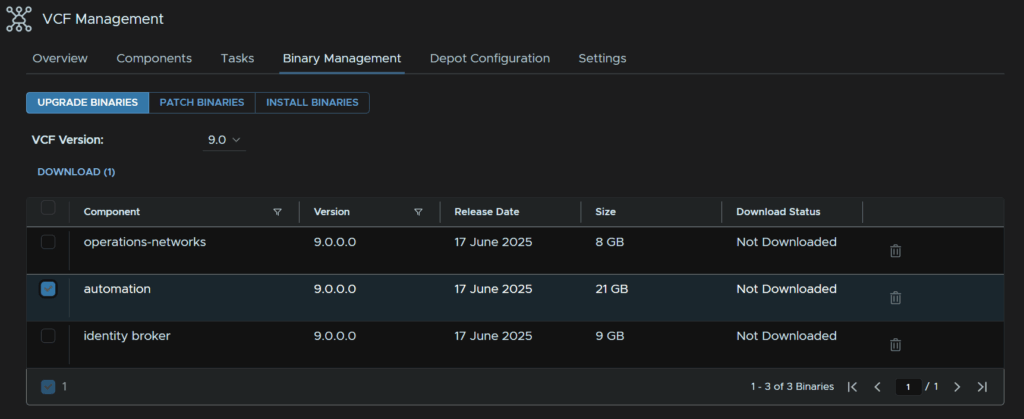
Then wait while its in progress, until it says Downloaded
Then, back under the Overview tab we can now click Upgrade on the Automation tab
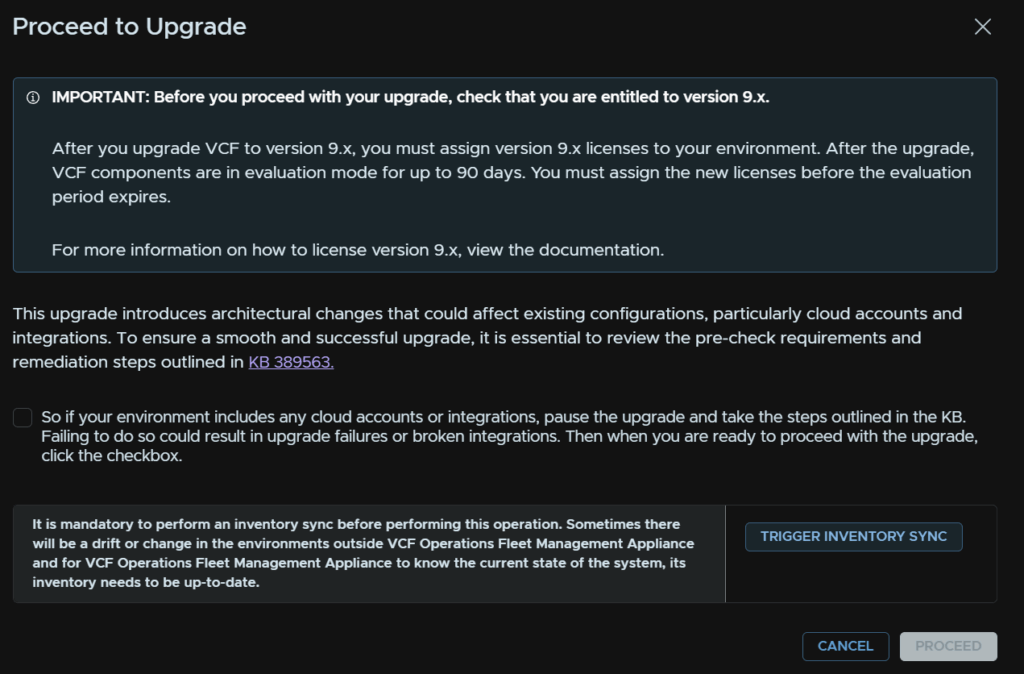
And click Run Trigger Sync
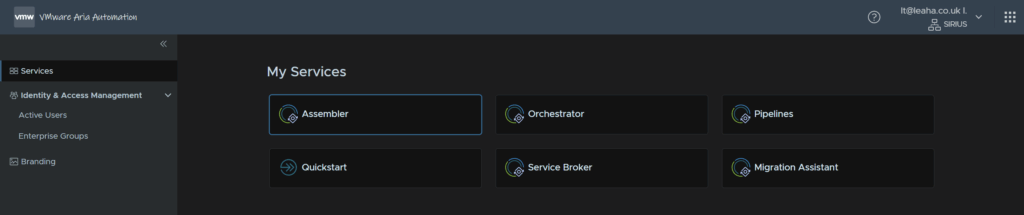
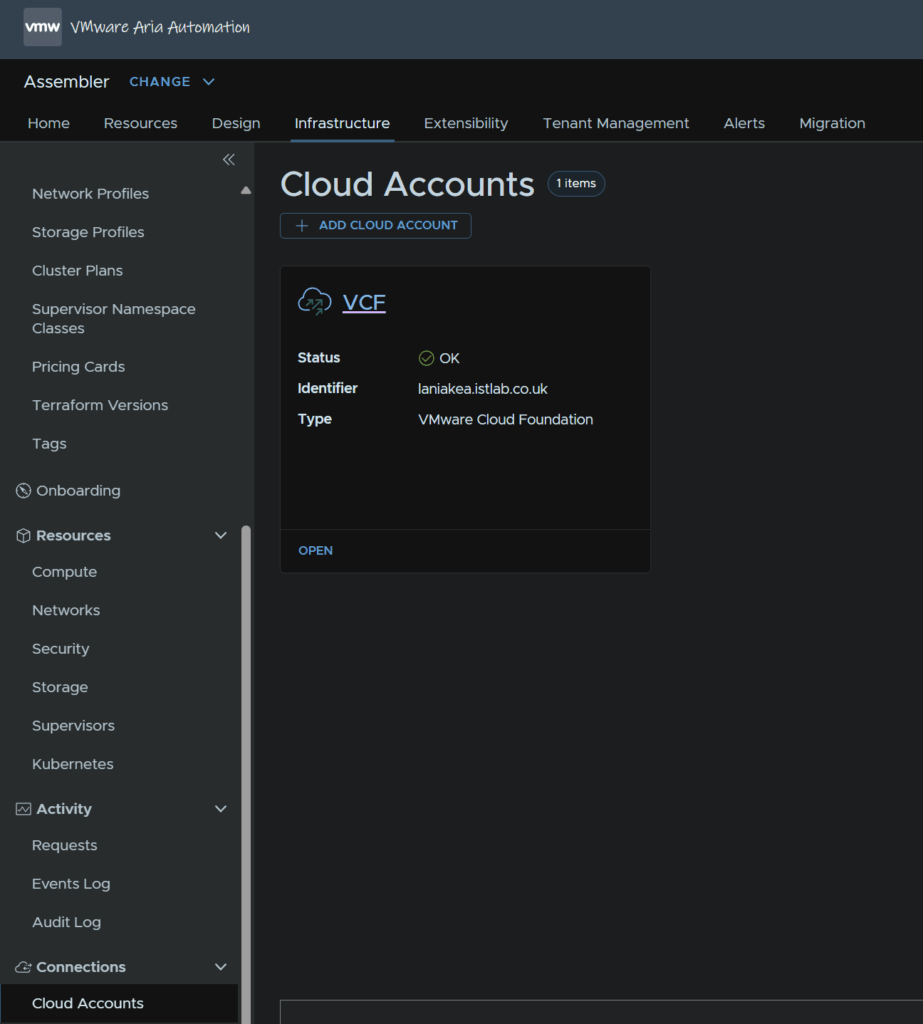
Before proceeding, we need to ensure NSX isnt added into Aria Automation in Manager mode, it must be policy mode, if you log into Aria Automation as ad admin and head to the Assembler
Head to infrastructure/Connections/Cloud Accounts and click on your cloud account
And if we scroll down we can see it is using Manager mode
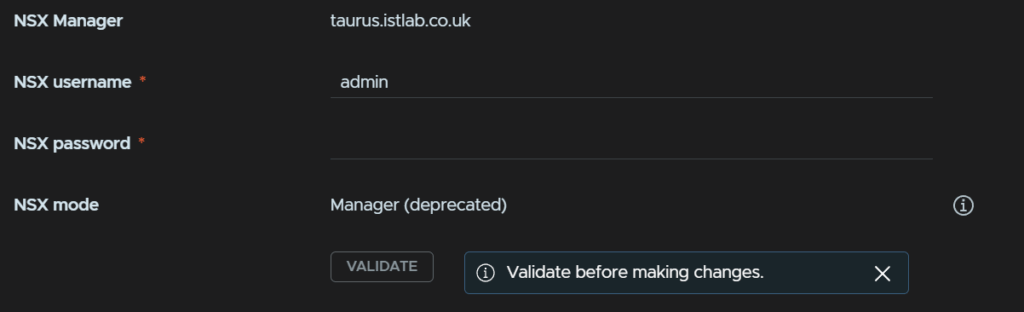
This cannot be changed and must be addressed
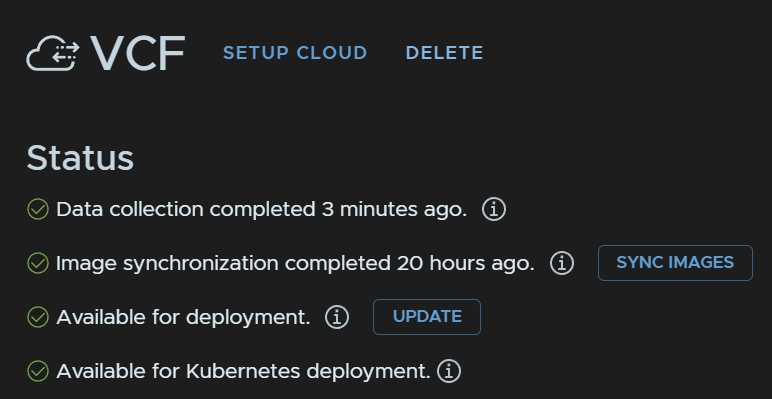
Unfortunately for me, this is a full VCF account, not just NSX, so I will have to delete the entire account and start again, and this will likely remove a lot of config so ensure you have all your policies, templates and mappings backed up and noted down
If you are like me and have a full VCF account in the entire thing must be removed, and this included all associated projects so this is basically a full rebuild, if you cannot do this, do not start the upgrade
I had to remove everything and start from scratch basically
It may also be worth powering the appliance off and snapshotting it in case you want to roll back, but I am going to just click Delete again
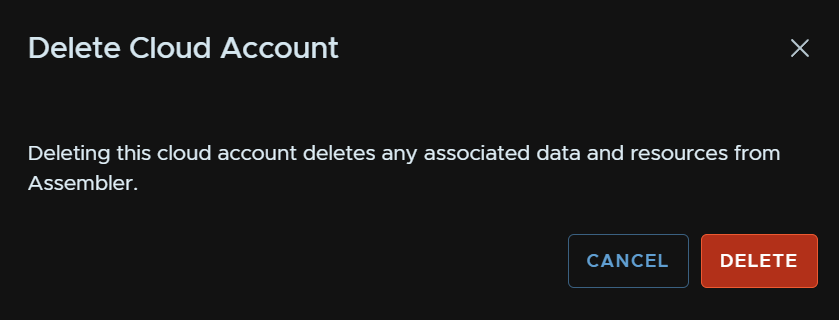
I then left the account removed and will reconfigure it all after the upgrade to ensure there are no compatibility issues
And remain on this window without closing it

Do check the linked KB before proceeding, this has the NSX Manager mode listed for example, and when you are happy check the box to acknowledge this and click Proceed
This should then be auto populated correctly, click Next
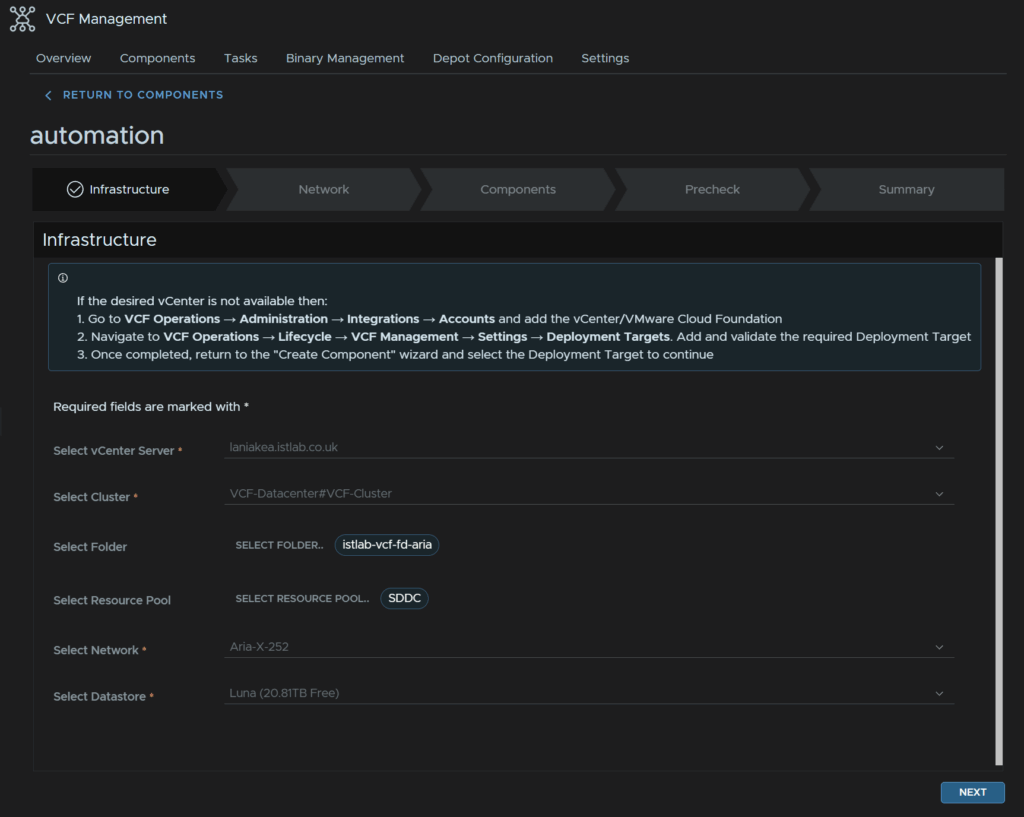
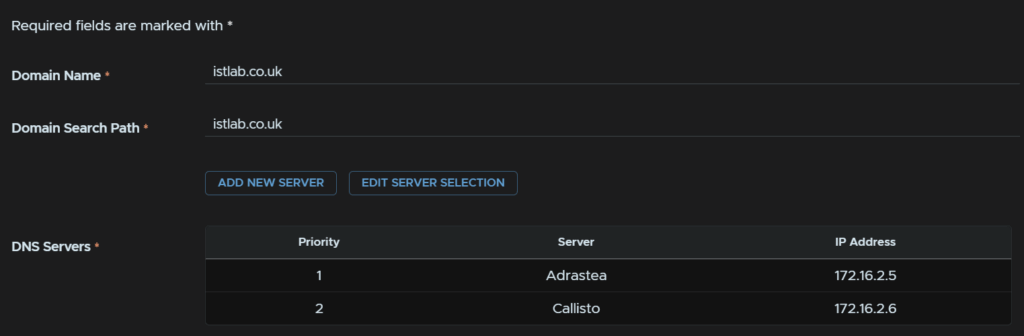
Ensure the Domain and search domain and DNS are populated
For NTP we can either click Edit Server Selection to use the one we setup earlier
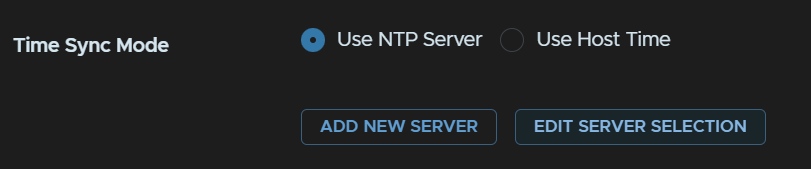
Like so
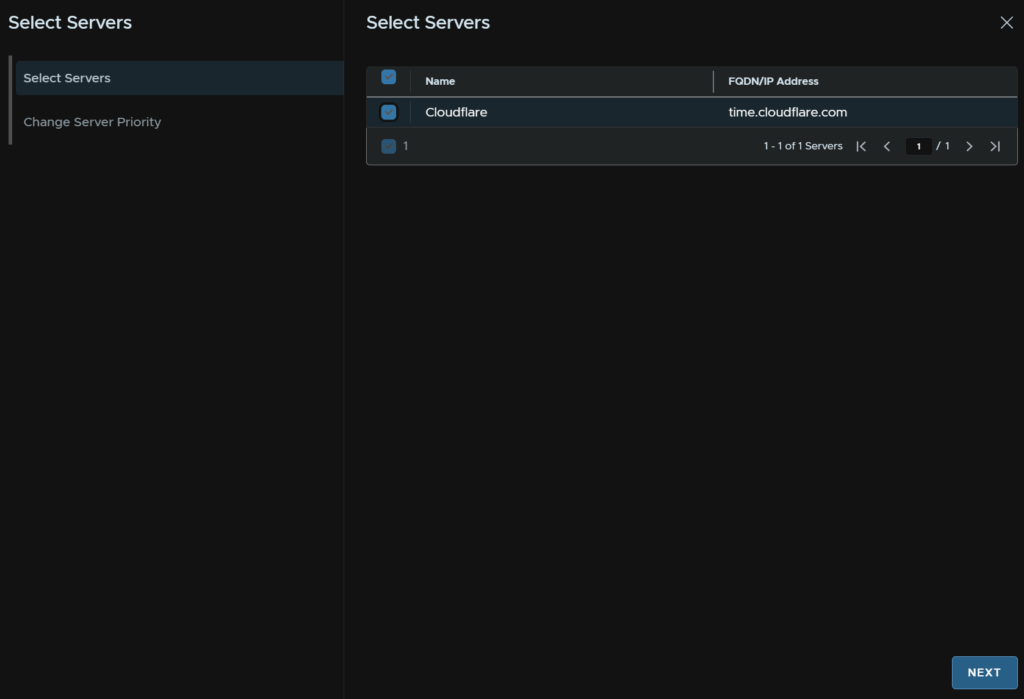
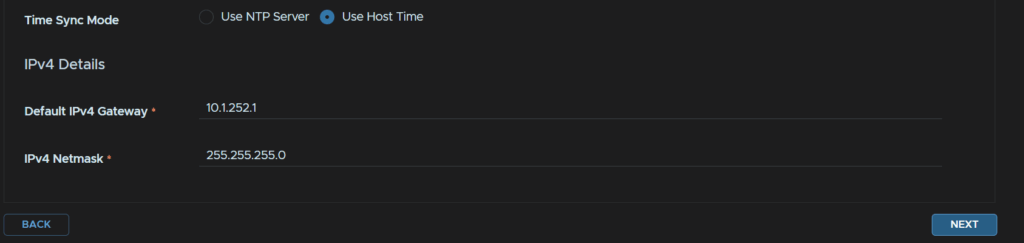
Or we can use host time, as they all point to the same thing, I am going to keep it on host time, as the NTP server is external
Then make sure the default gateway and subnet mask is correct and click Next
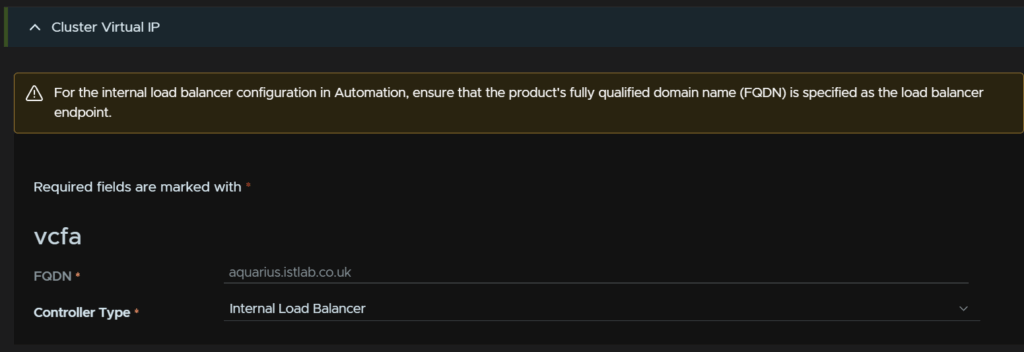
Now for the certificate and password it should have pulled these from Aria LCM, click the certificate drop down and select the right one
Oddly I have two, I suspect this is due to the Ops/Automation being imported into the fleet management server has caused the two with the GUID, so I will use that
Which should look like this

Click Add password at the top

Enter an alias and a complex 15 character password for the admin/root accounts, then click Add
Its worth noting we need the same special character requirements so we can only use !@#$%^&*

Click the cross on the password under the certificate

Then click Select Component Password
And select the one we just created

It should look like this

I then left this at the default setting
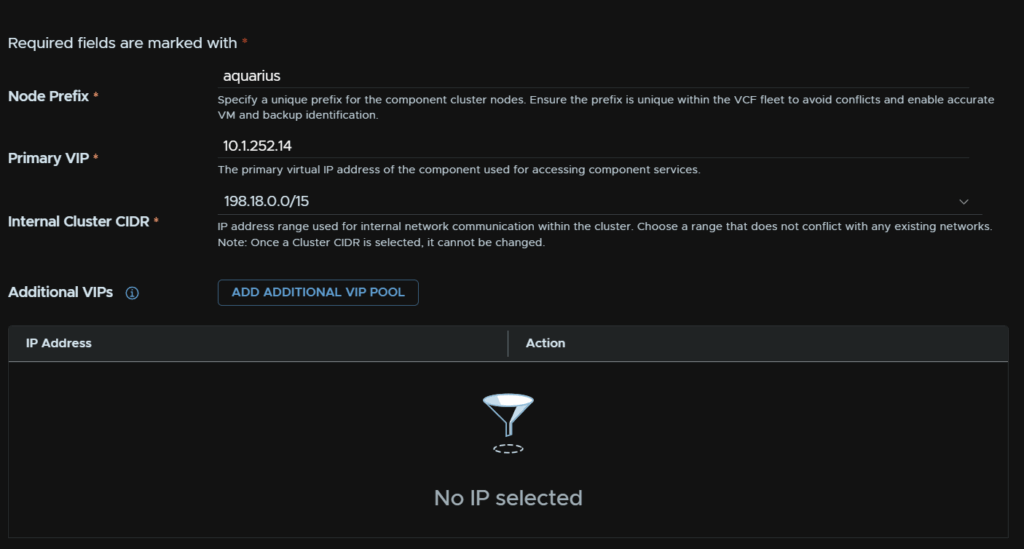
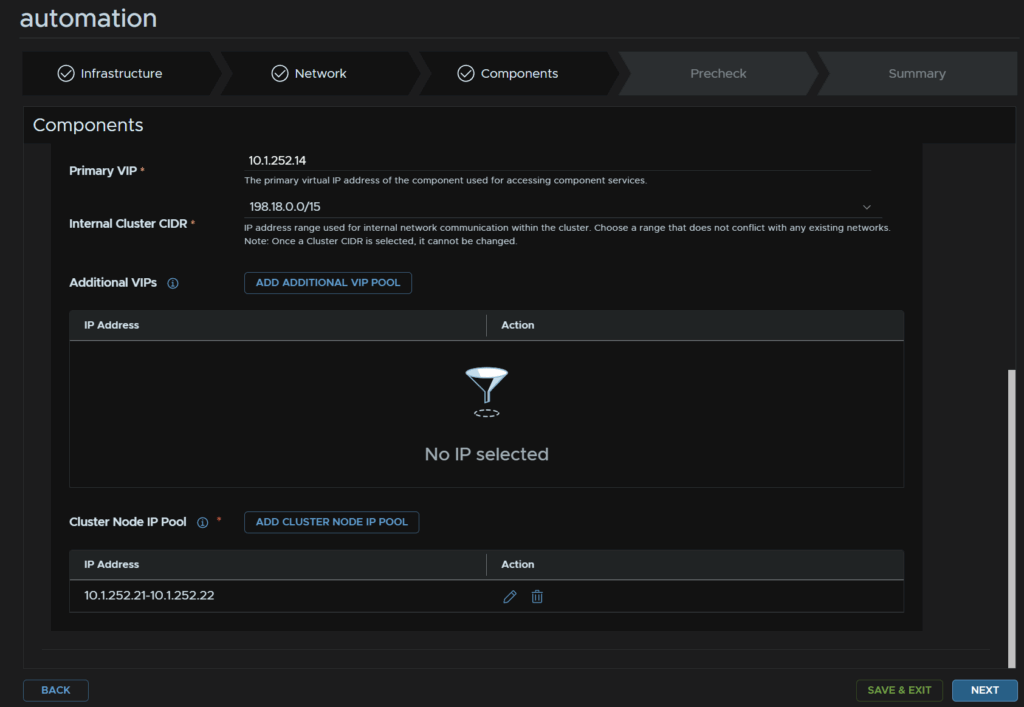
Add a node prefix, this upgrade is more of a migration to a new appliance, prefix wise as I have one node I just used the server name as the prefix, the primary VIP should be auto populated so we will use that, its the old FQDN in my case as I have a single node deployment, and leave the internal cluster CIDR
Additional VIPs are optional so I will leave them as is
Now we need a cluster node IP Pool, click Add Cluster Node IP Pool
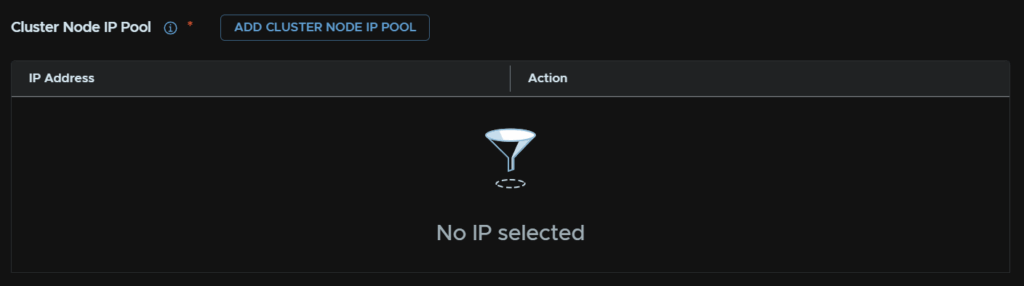
Broadcoms upgrade guide here, shows the sizing recommendations, but the idea is if you have a single node medium Aria Automation 8.x appliance, the 12 vCPU 54GB node, add two IPs here, for everything else, add four IP Addresses
I opted for two additional IP addresses on the same subnet that arent in use, like so, when you are done click Add

Then click Next in the bottom right
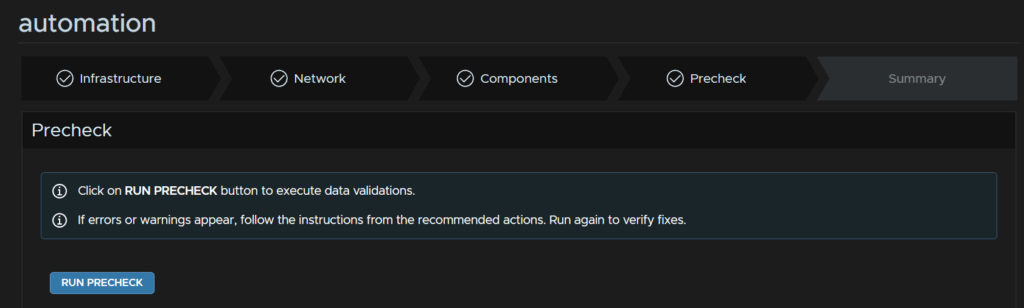
Then click Run Precheck
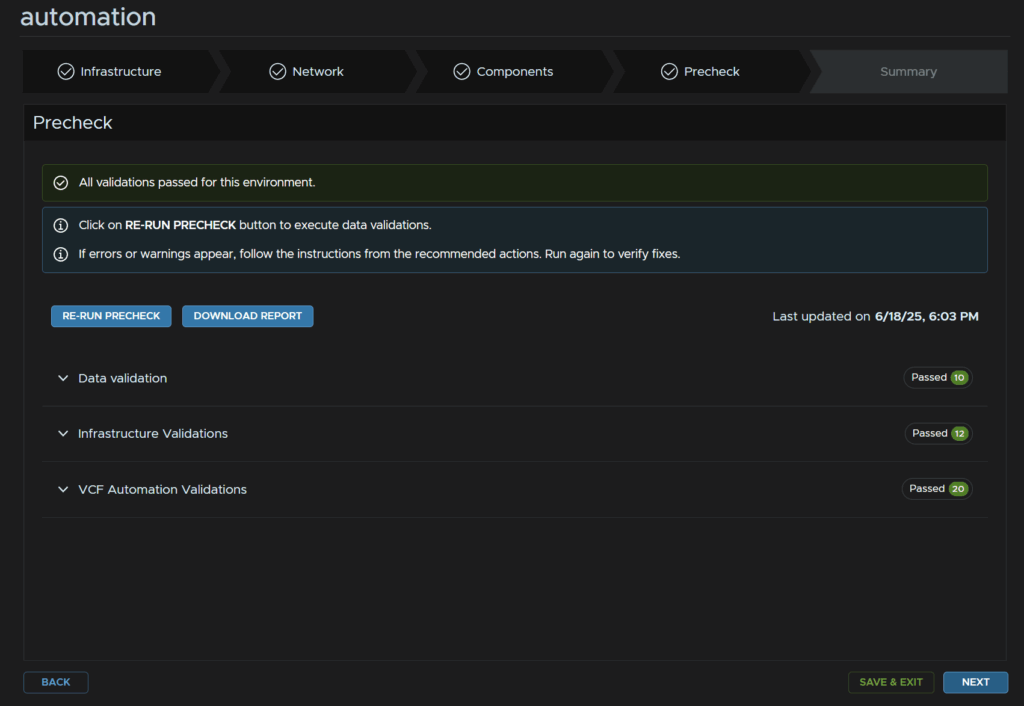
When thats come back all clear click Next
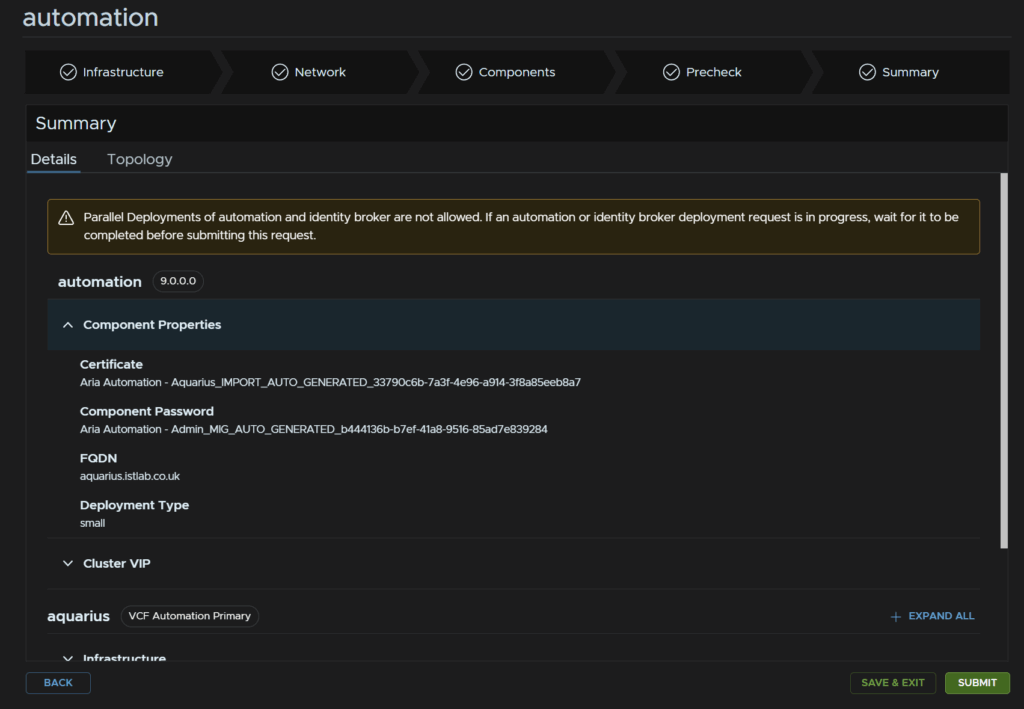
When you are ready, click submit, this will take ~60-90 mins
1.5 – VCF Operations For Networks
Now we have VCF Automation added and upgraded we need to do the same for Aria Operations For networks
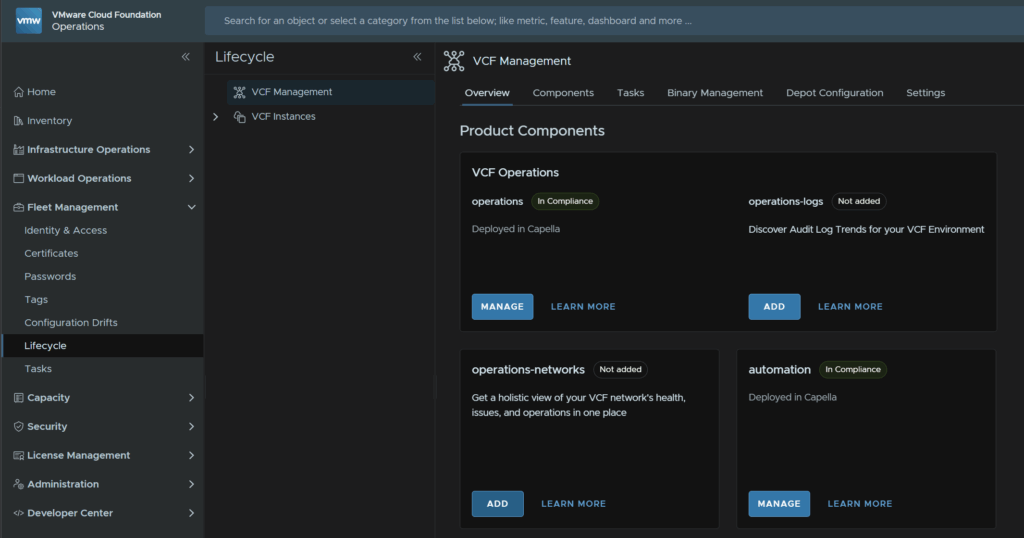
In VCF Operations head to Fleet Management/Lifecycle/VCF Management/Overview, then on the operations-Networks tab, click Add
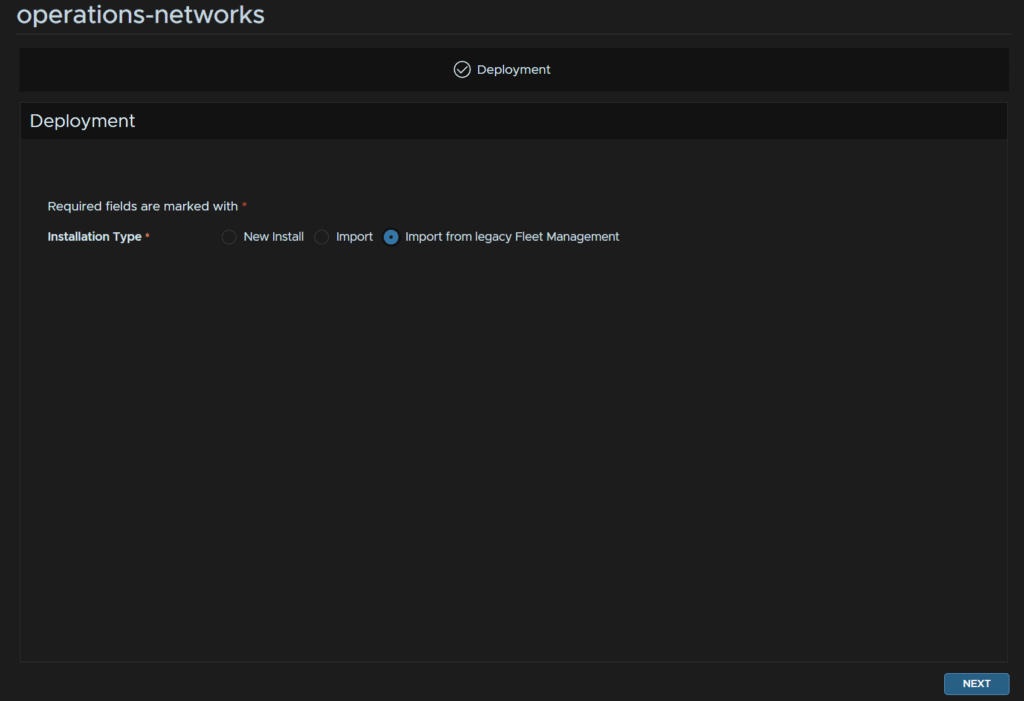
Select Import from Legacy Fleet Management and click Next
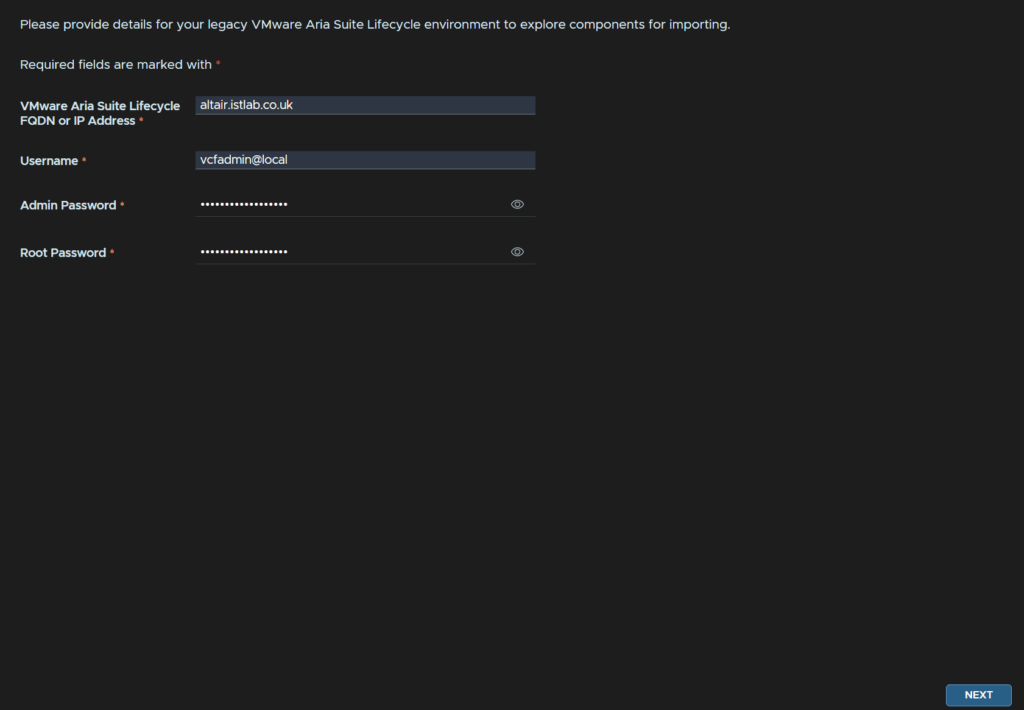
Add the Aria LCM FQDN, for the username use vcfadmin@local, add the password for thata ccount and the root account, and click Next
Select the component, it should automatically detect it and list the environment, then click Next
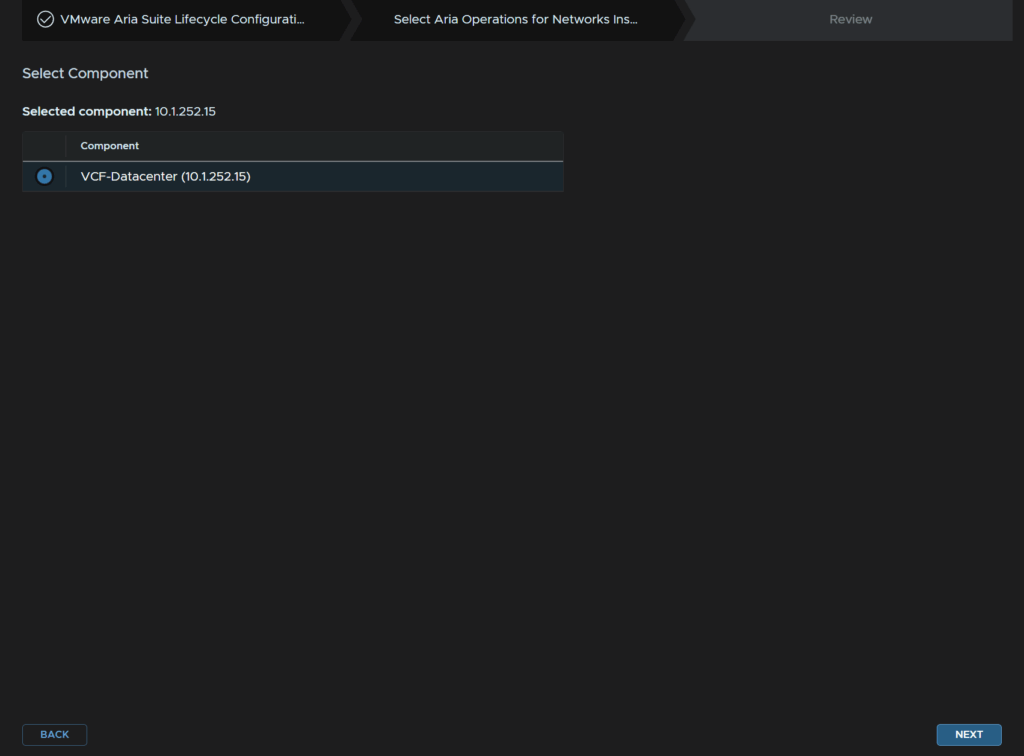
Now log into Aria LCM and click Lifecycle Operations
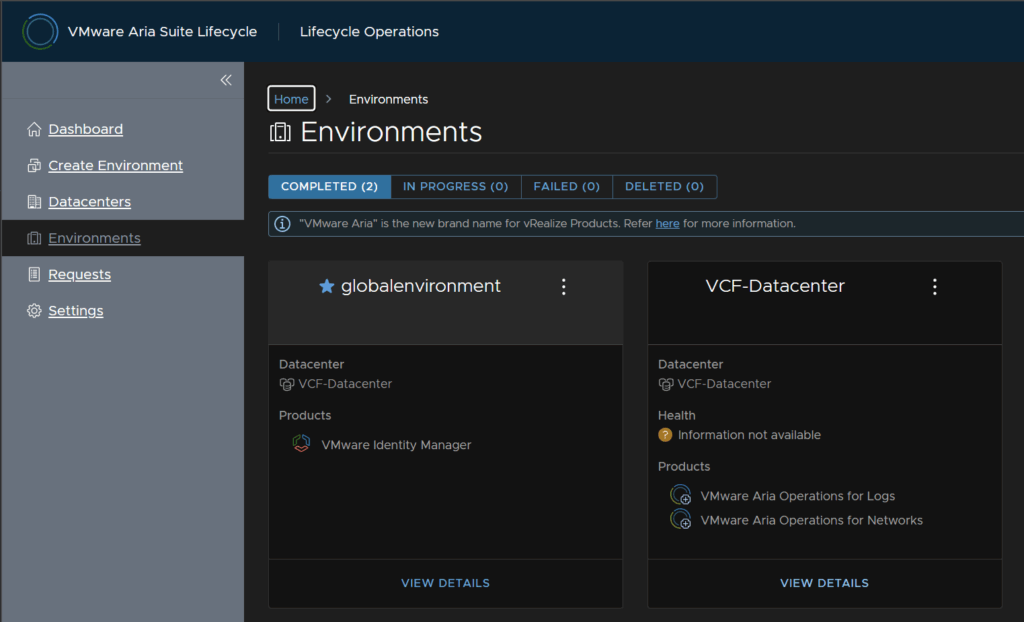
Click View Details on the environment you selected before
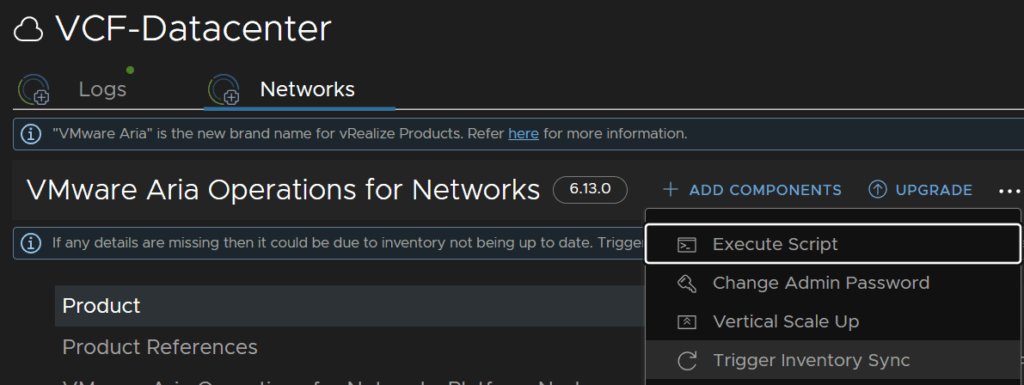
Click the Networks tab, then the three dots and click trigger Inventory Sync
And click Submit

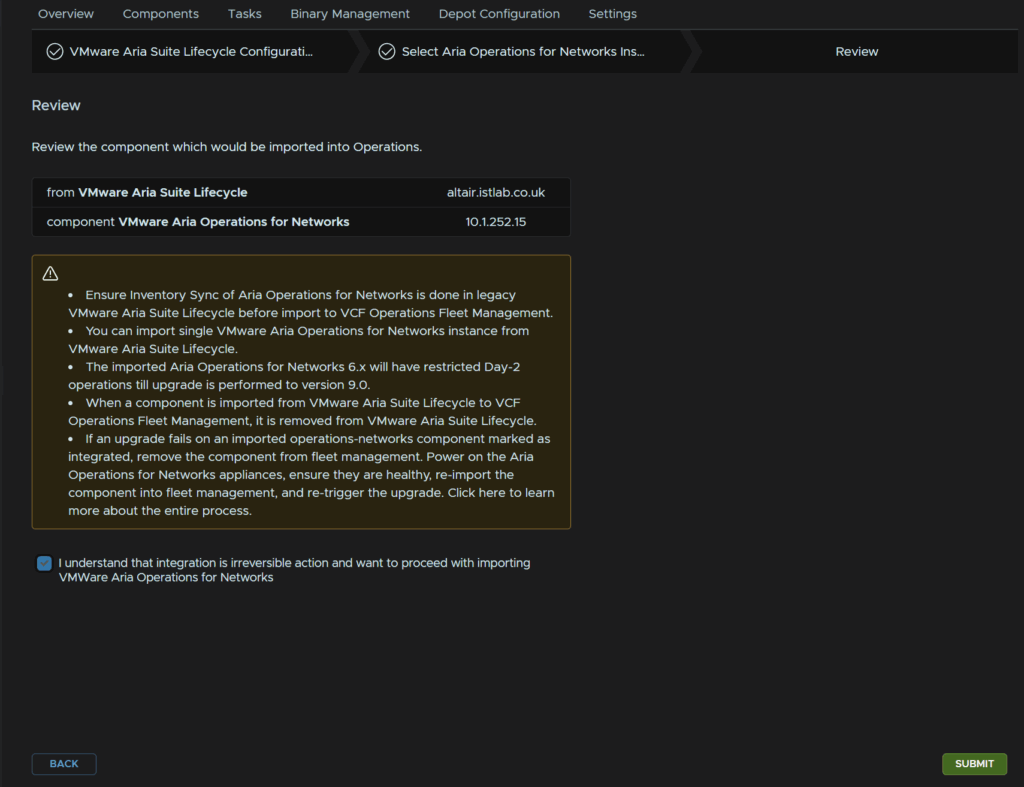
When thats done head back to VCF Operations, click the check box and then click Submit, this is one way action
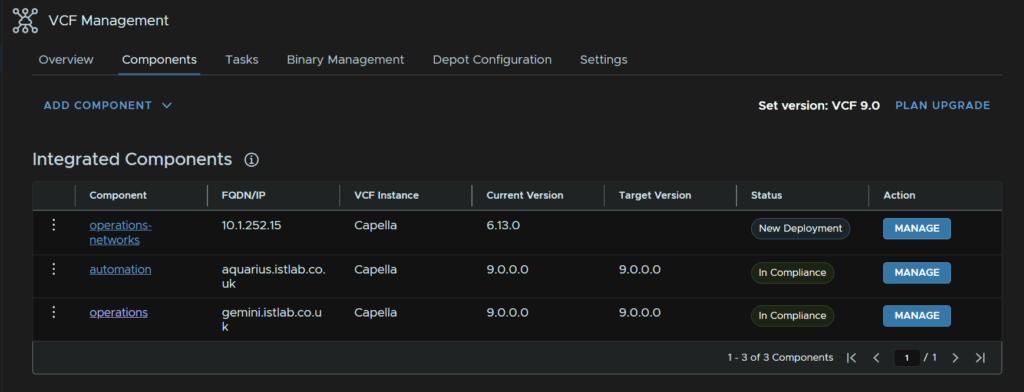
When thats imported successfully we should see it listed under Components
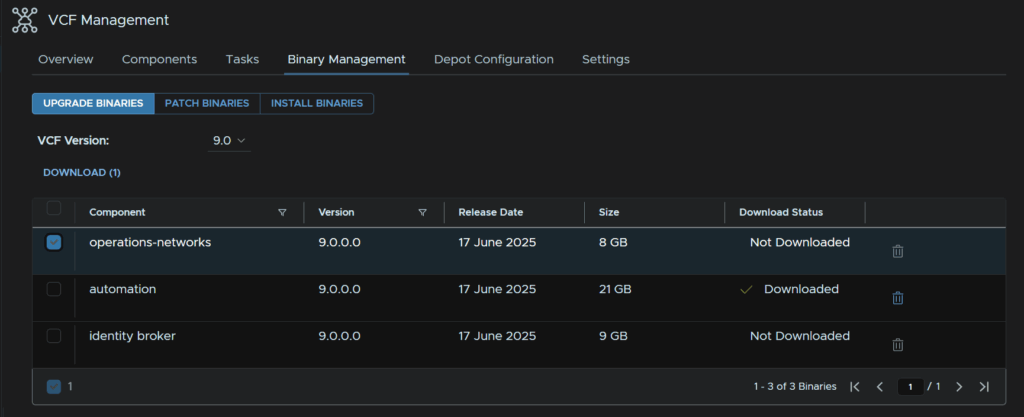
Now click Binary Management, check the Operations Networks package and click Download
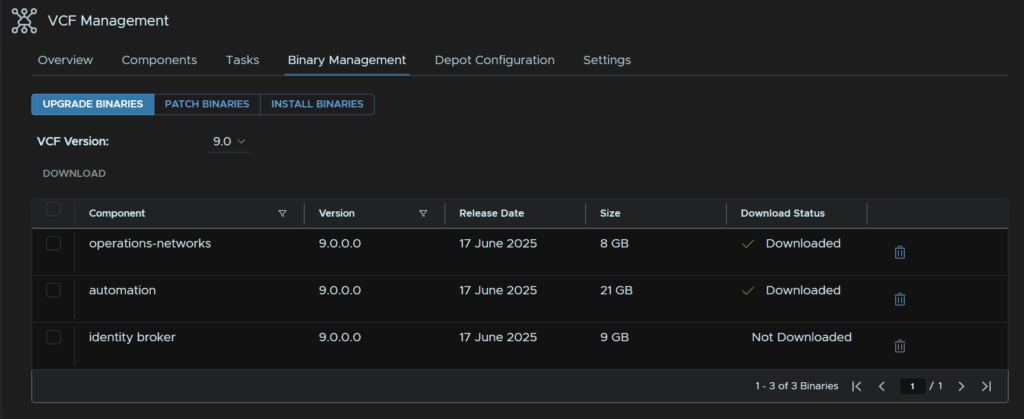
When thats done the status will change to Downloaded
Now head to the components tab and click Plan Upgrade
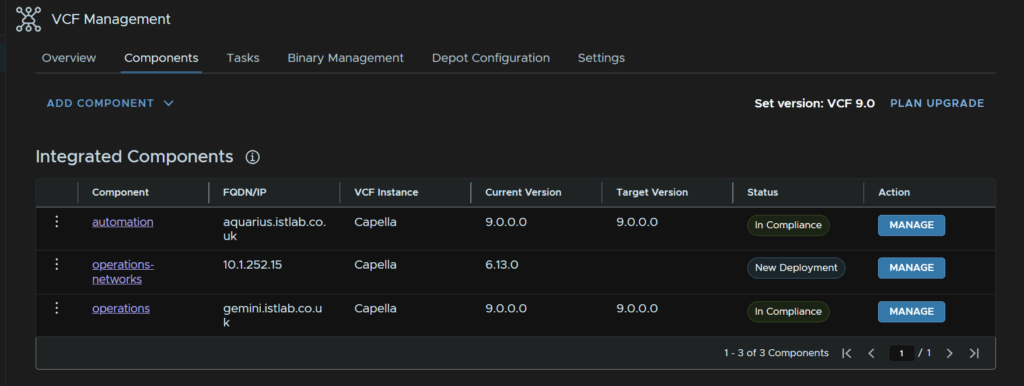
Select the target version to 9.0.0.0 for Operations-Networks then click Create Plan
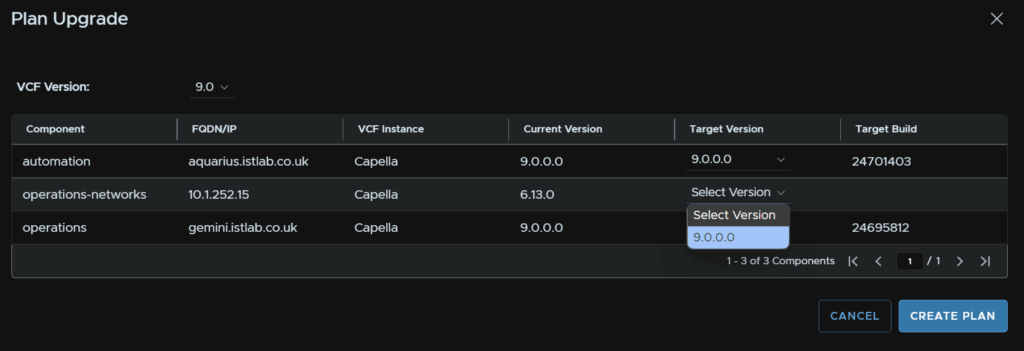
It should look like this, then click Upgrade on the right for the operations-Networks component
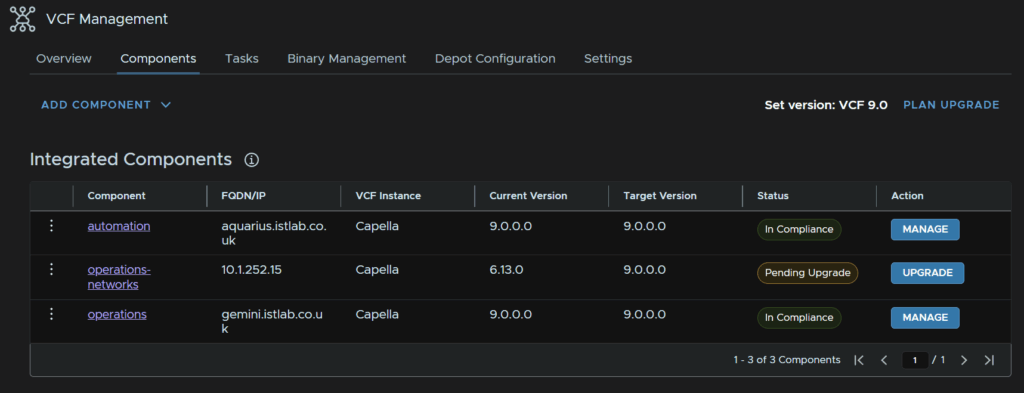
Click Trigger Inventory Sync
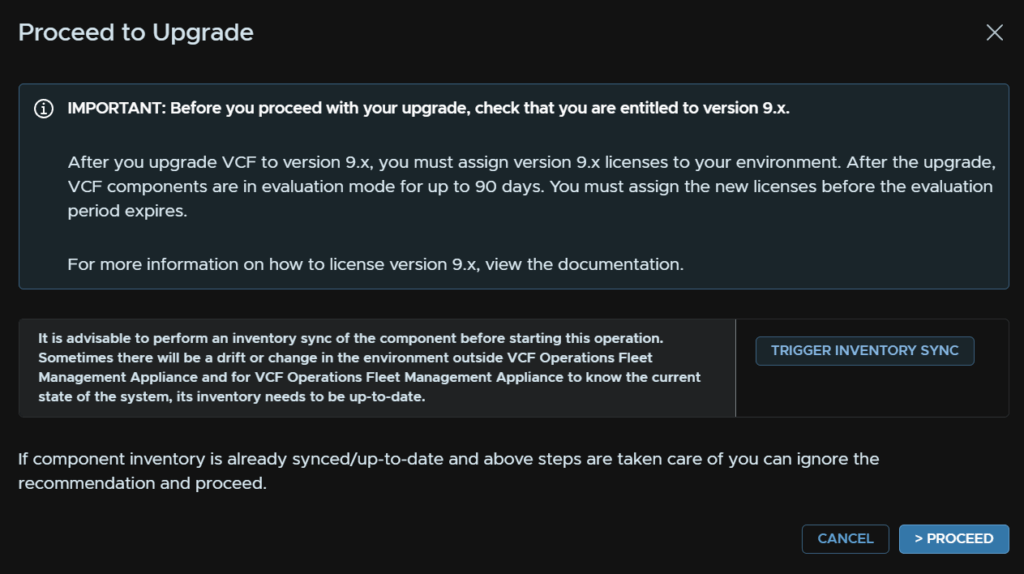
Then Submit
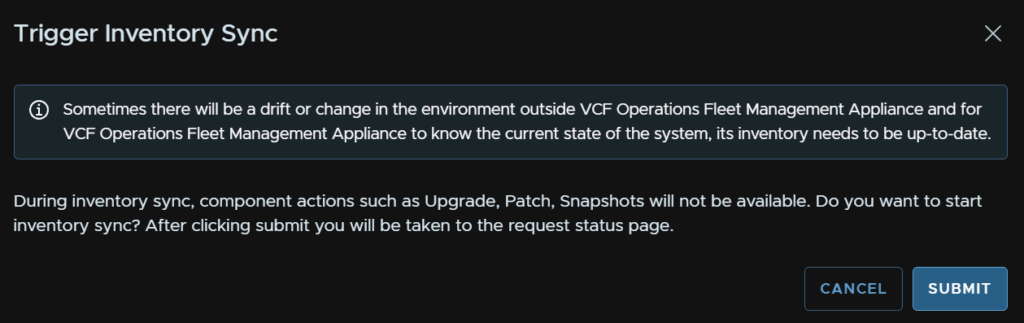
This will bring you too the tasks tab, when thats run head back to Components and click Upgrade again, this time click Proceed
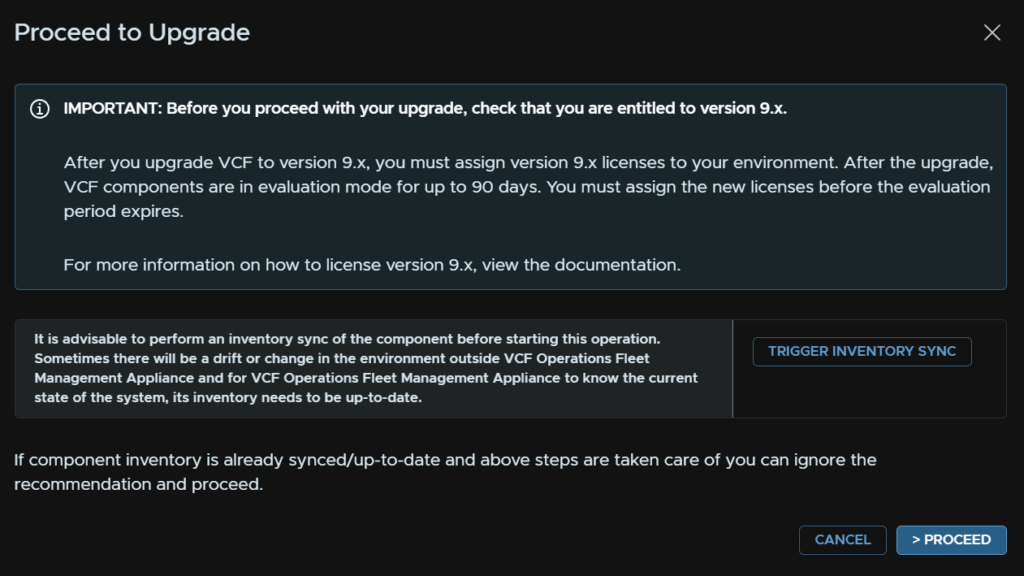
This field should be auto populated, I did have it bug where it couldnt find the repository URL, if you get that return and go back through clicking Upgrade to reload it
Then click Next
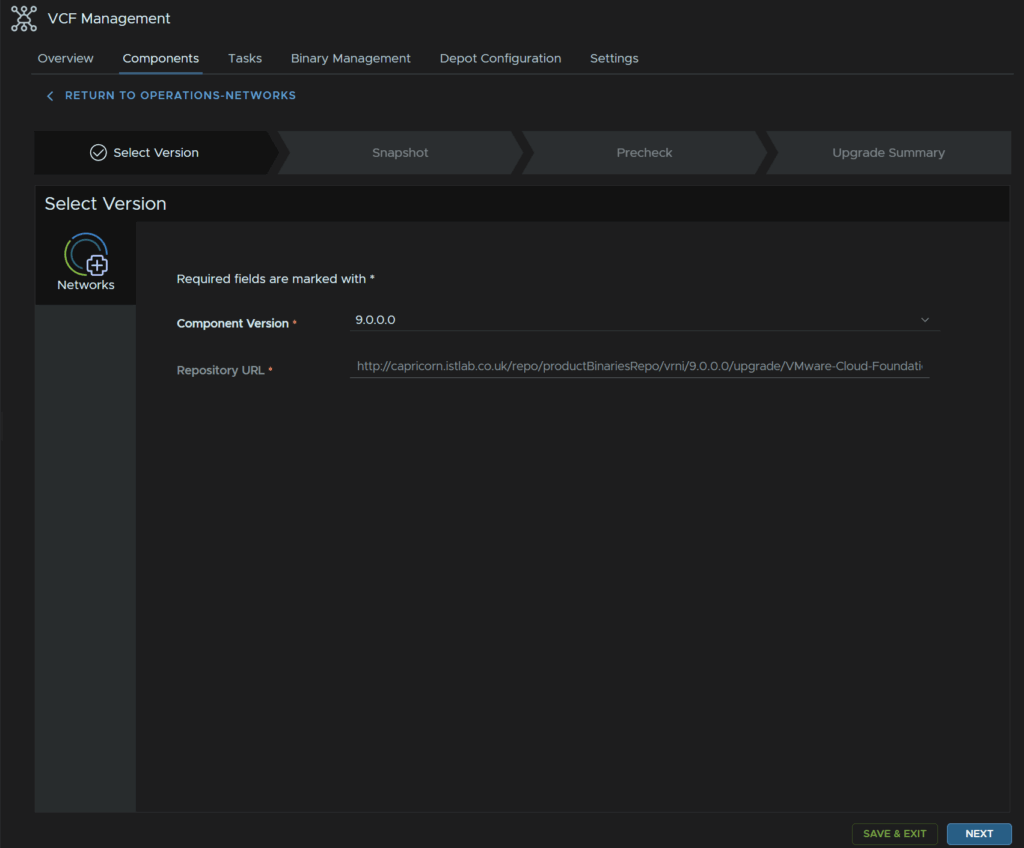
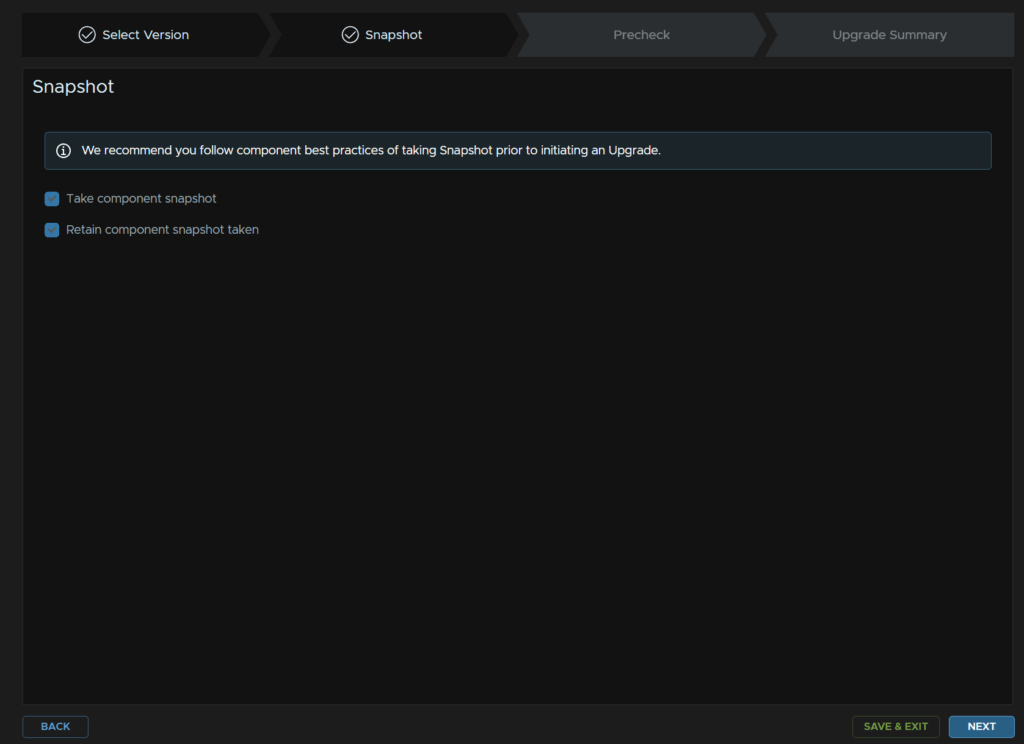
Check both boxes to take and retain a snapshot then click Next
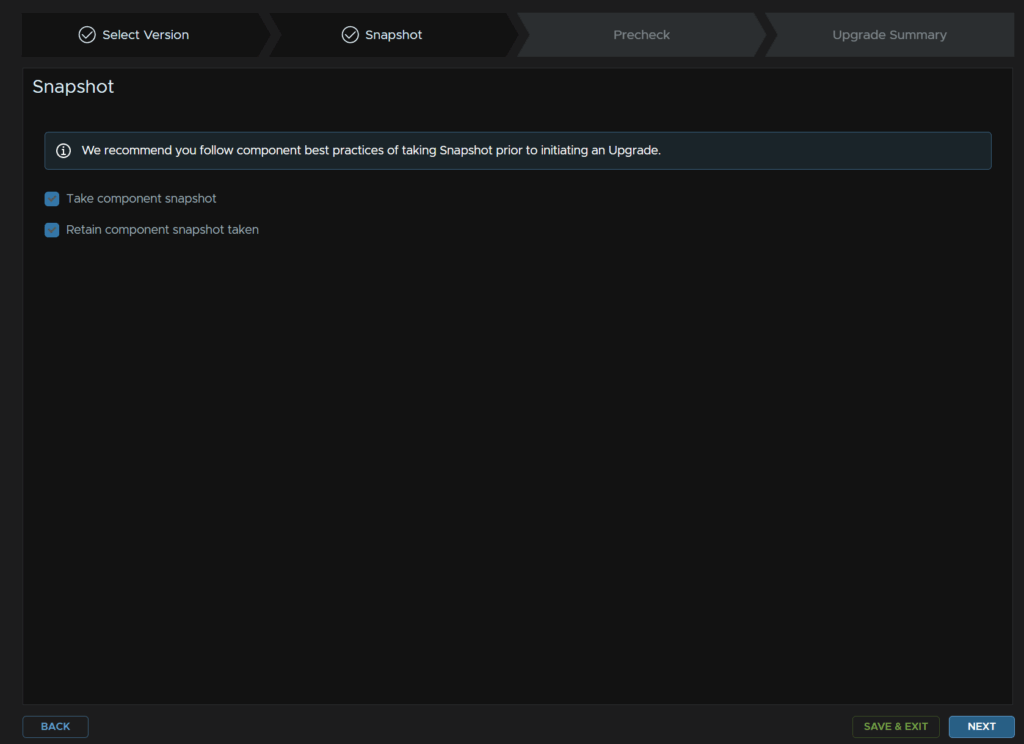
Click Run Pre Check
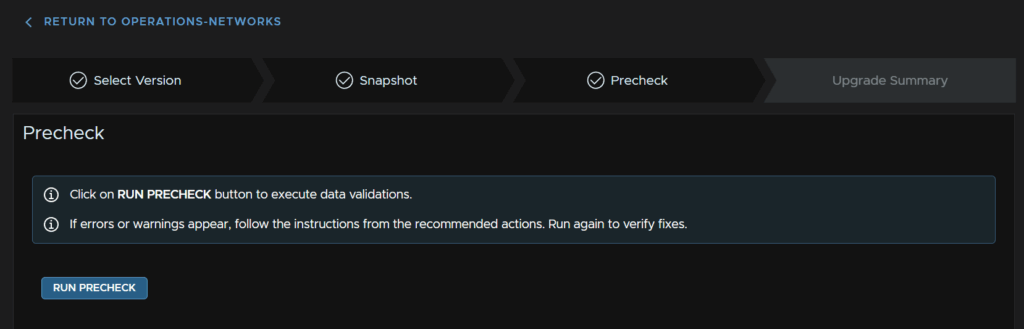
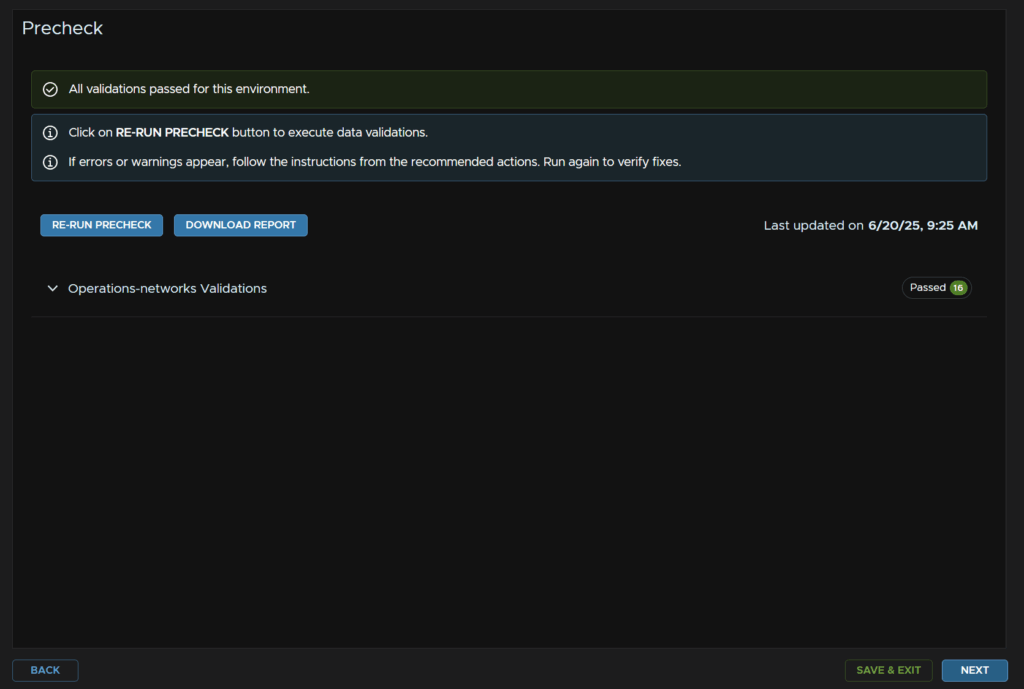
When thats passed click Next, if anything flags up it will need addressing
When you are happy click Submit
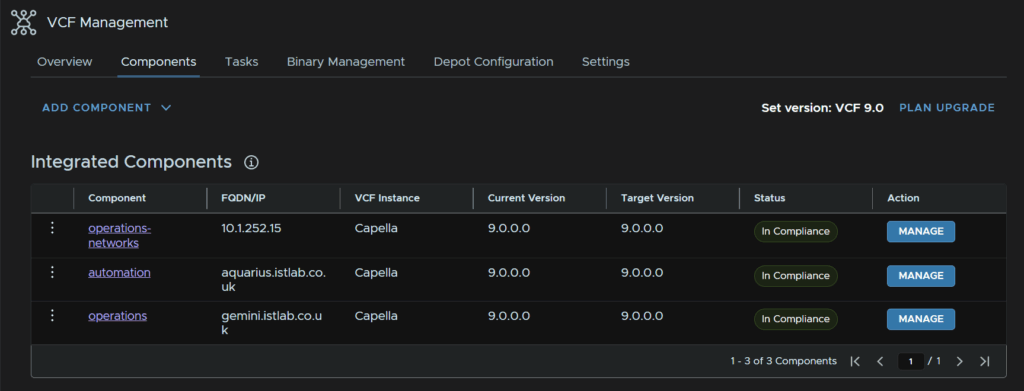
This will take ~90-120 mins to complete, though took two and a half hours so this can be a long one
When its done the Components section will look like this
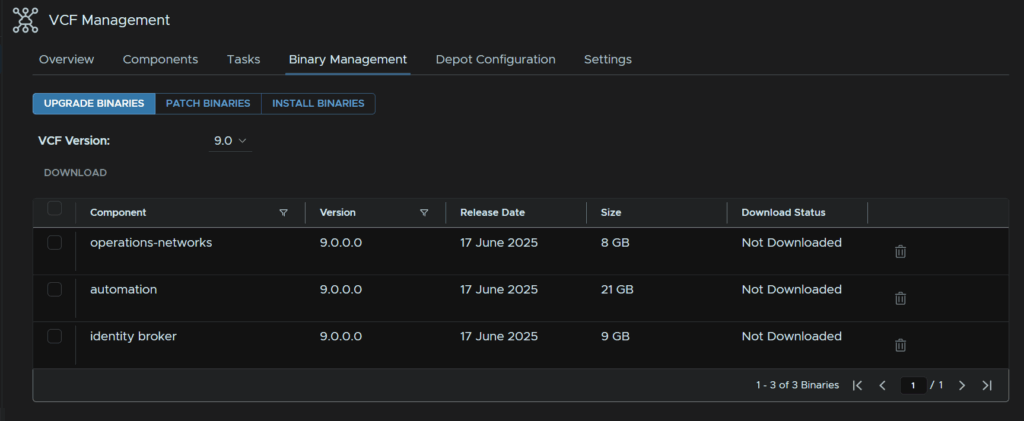
Now thats done, lets clean up our binaries, head to the Binary Management tab and click the Bin icon on Operations Networks and Automation to remove the binaries
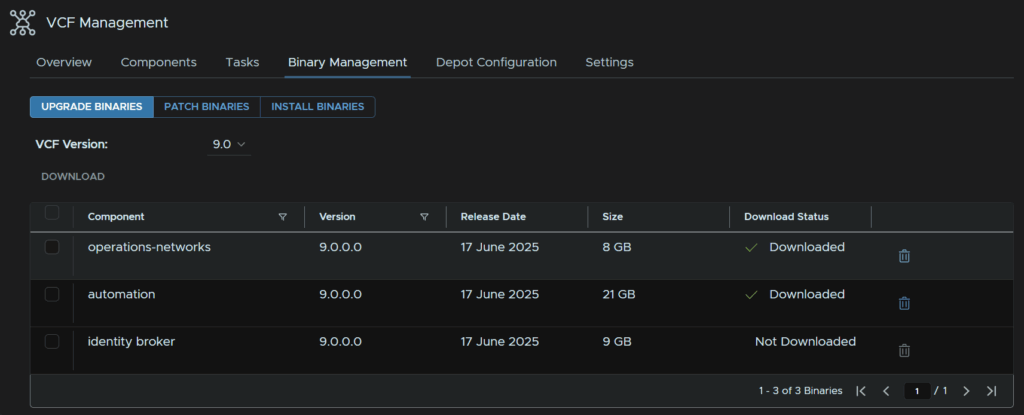
Give it a minute and when you refresh the screen they will not show as downloaded anymore
1.6 – SDDC Manager
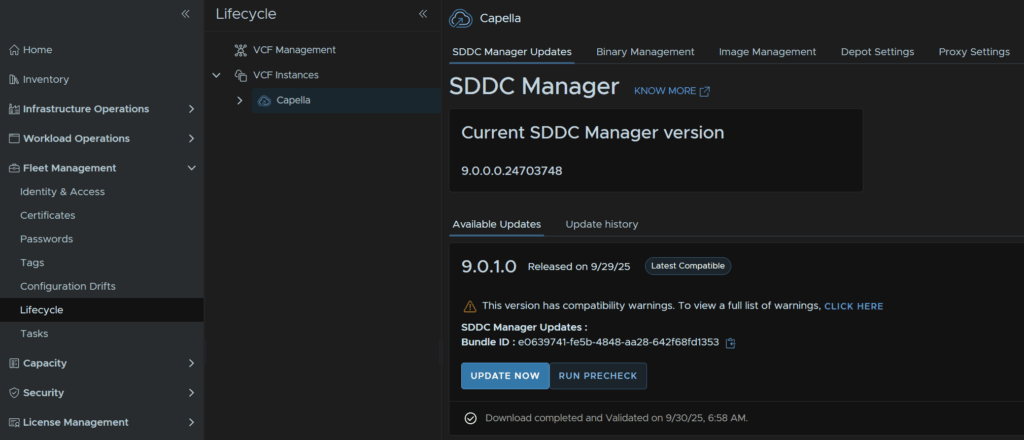
Log into VCF Operations and head to Fleet Management/Lifecycle, click the VCF Instance, and under SDDC Manager Updates, click Download on Available Updates
In my case I am going from 9.0.0.0 to 9.0.1.0 as my upgrade got halted from 5.2 to 9 at NSX due to NSX 4.2.2 being incompatible with NSX 9 as an upgrade path, however the process is the same
Its also worth noting a depot connection for the SDDC Manager is already configured and you have done the depot change with download tokens for VCF outlined here
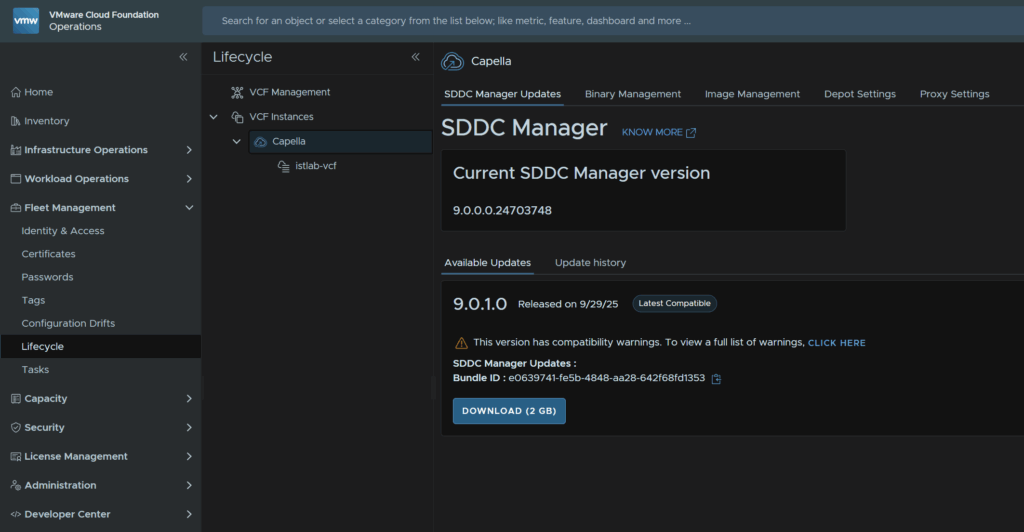
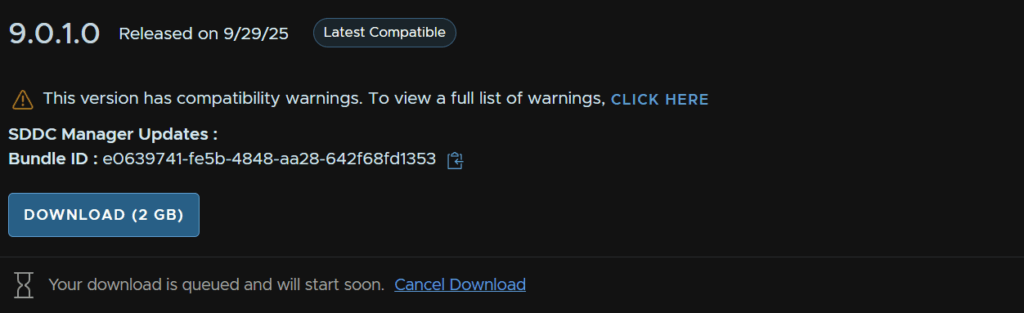
This will queue the download
Then, ensure you have a backup taken in the last 24 hours should anything go wrong, head to Administration/SDDC Manager/Backup Settings and ensure its successful
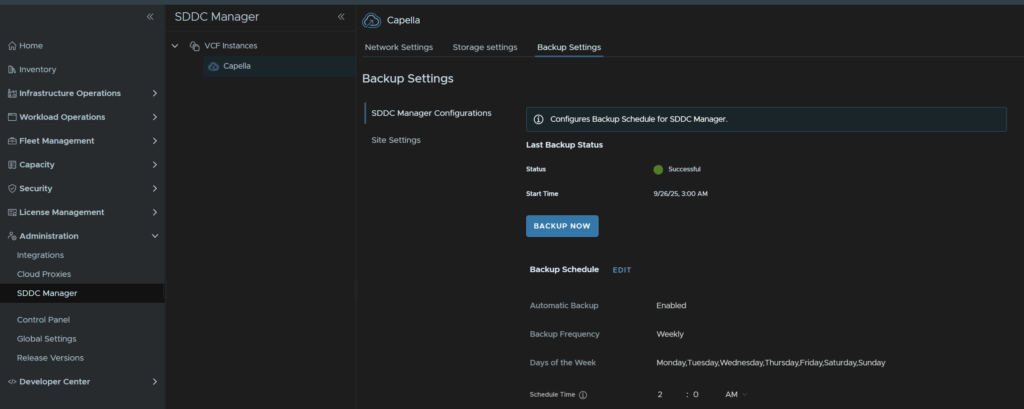
When thats done it will validate it

Then click run Pre Check back under Fleet Management/Lifecycle/VCF Instances from your selected SDDC Manager
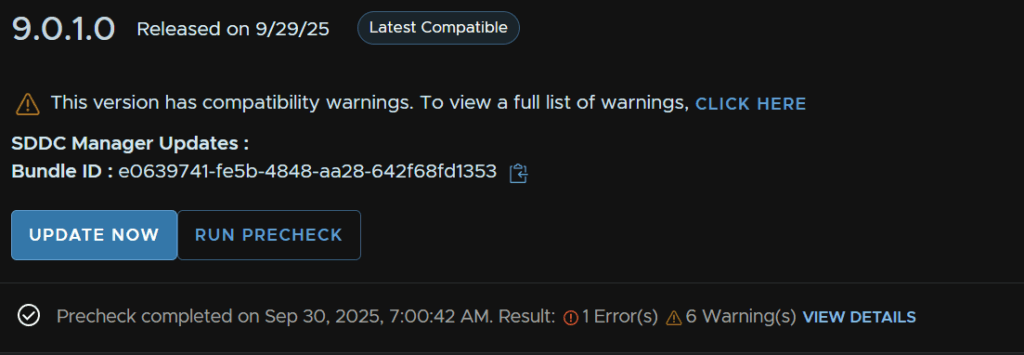
Click View Details once its done, I have a few warnings and an error I need to check on
My root password seems to have expired
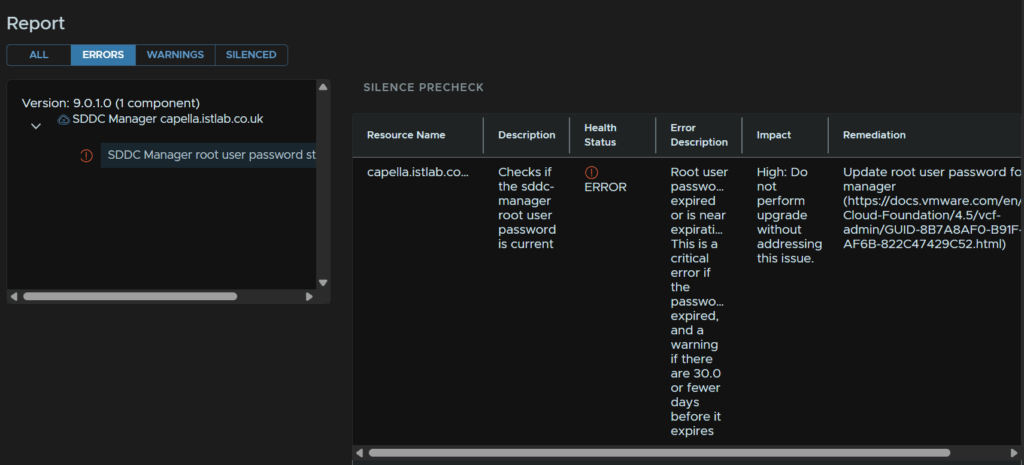
Unfortunately you can only change this from the console, log in as root and set a new password, it must have 15 characters, and the only special characters you can use are !@#$%^&*
Then re run the pre check
The error has disappeared, and my warnings are just for licensing so I can ignore those as my licensing is all sorted
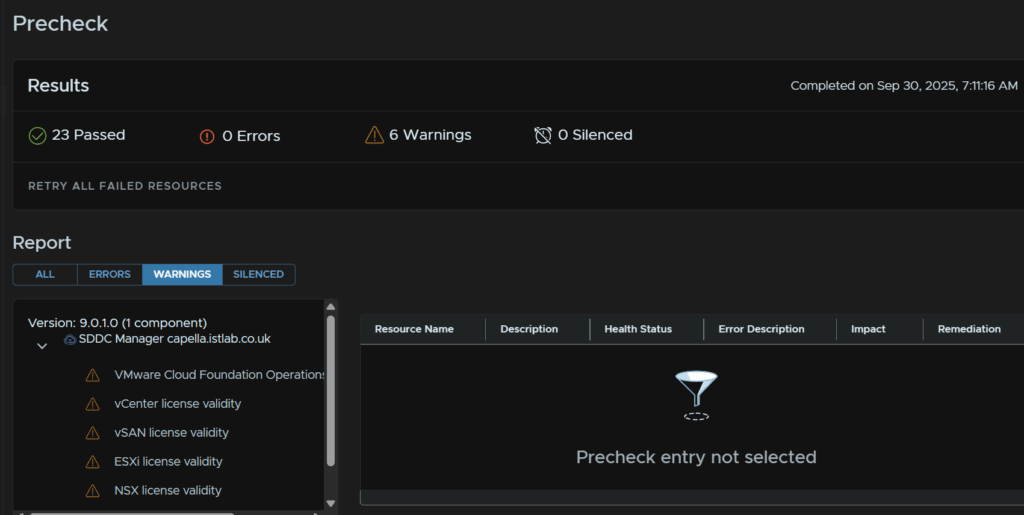
When you are ready click Update Now
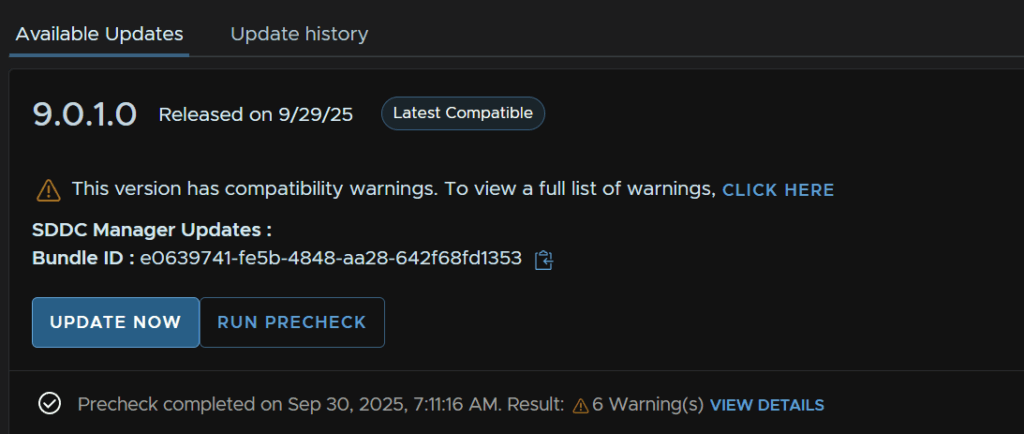
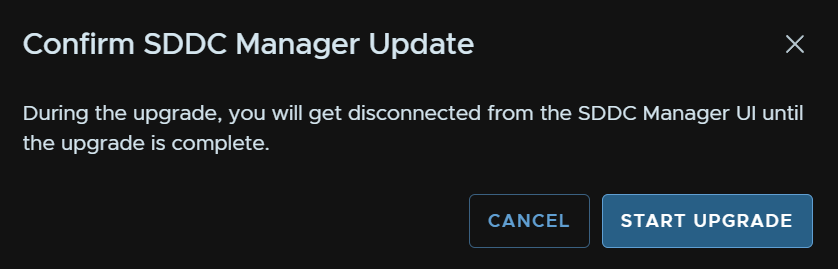
And click Start Upgrade
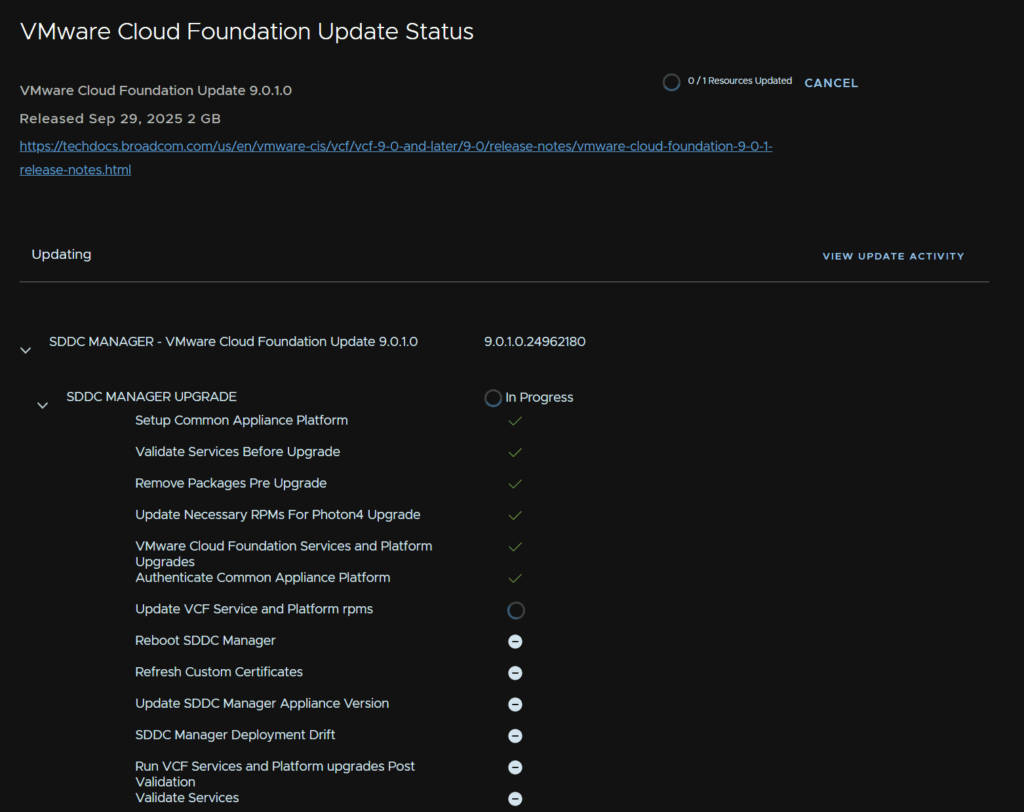
We will then see the upgrade progress
We then want to check if their are any available configuration updates under Fleet Management/Lifecycle, select your workload domain, mine is istlab-vcf
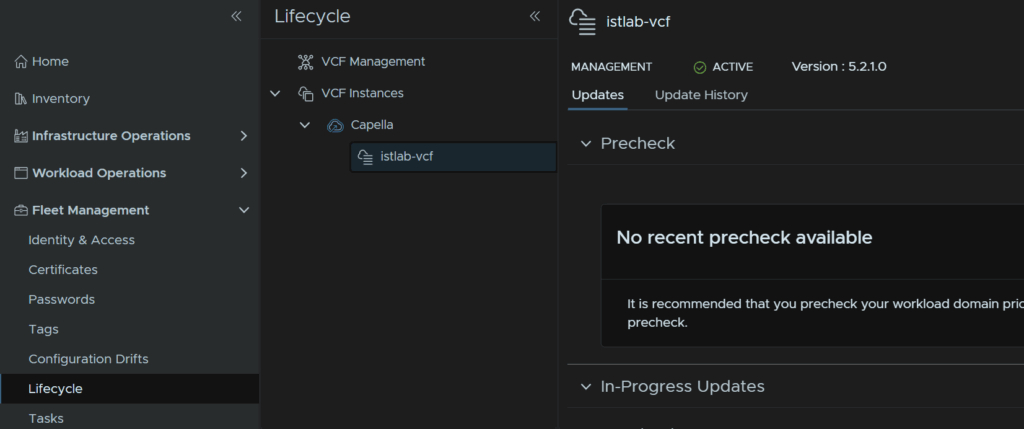
If there are any available configuration updates click Apply All

Give it a few mins and refresh the page, it should now show no more updates

1.7 – NSX
Next up is NSX, log into VCF Operations and head to Fleet Management/Lifecycle, expand VCF Instances, then expand the SDDC Manager, and then select your workload domain, starting with the management domain
Scroll down to Available Updates, this should be part way through a patching plan, and click Download now, as the NSX upgrade will be already loaded as the next step
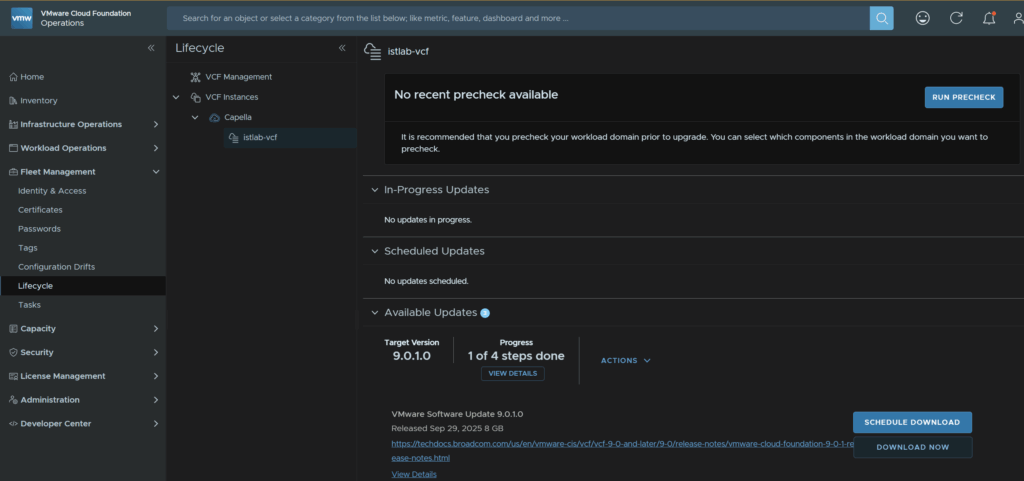
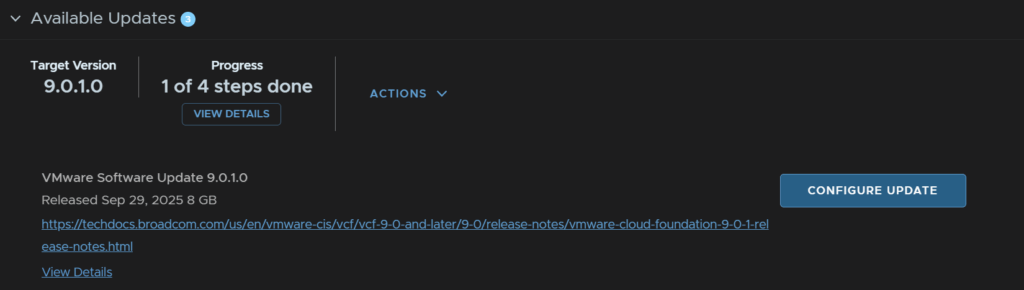
Then click Configure Upgrade
Click Next
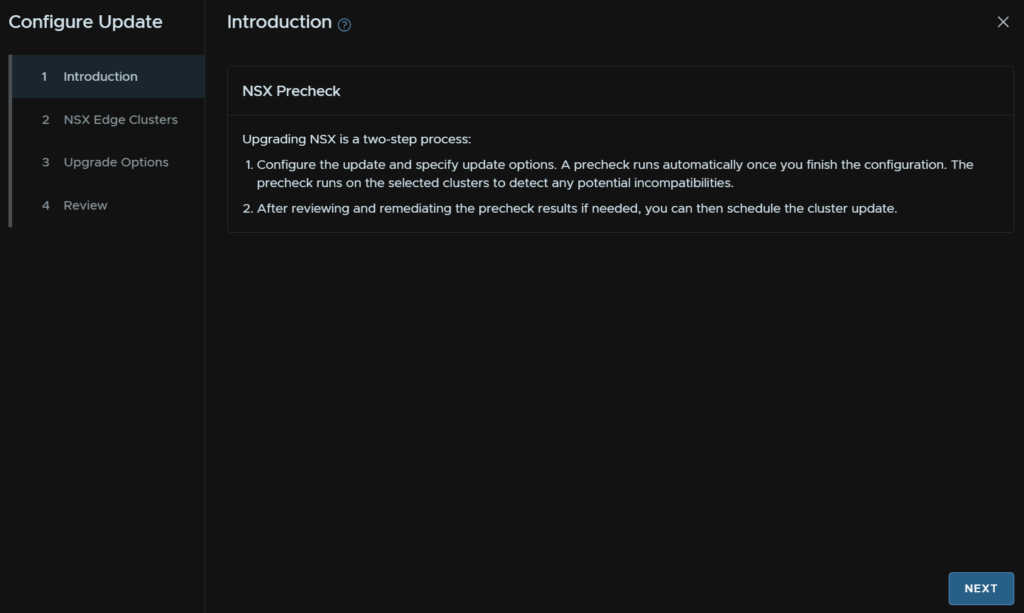
Click Next again, it will upgrade all Edge clusters
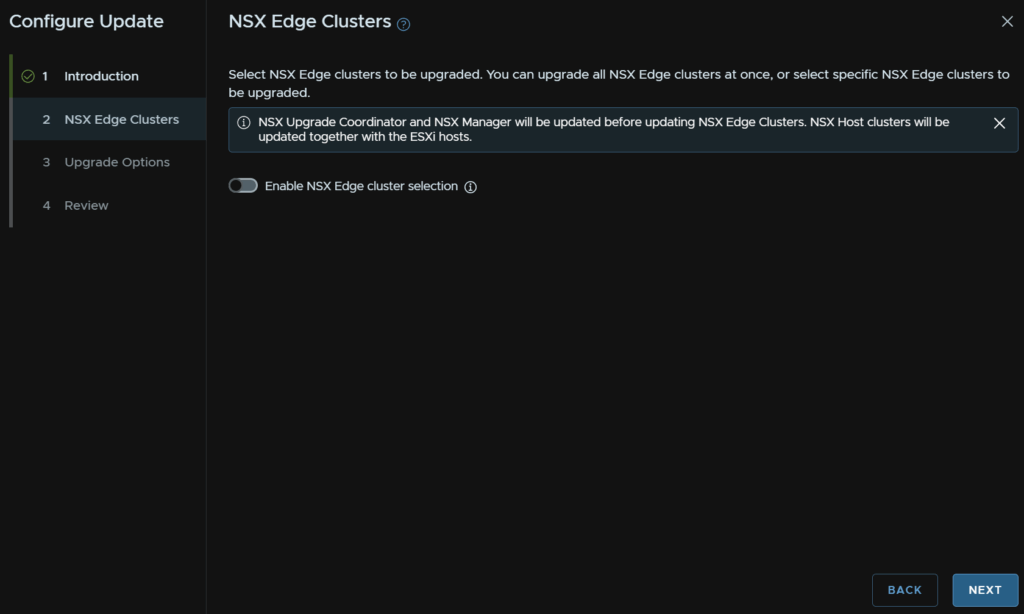
Click Next again, the default of cluster in parallel, but hosts within a cluster sequentially is fine
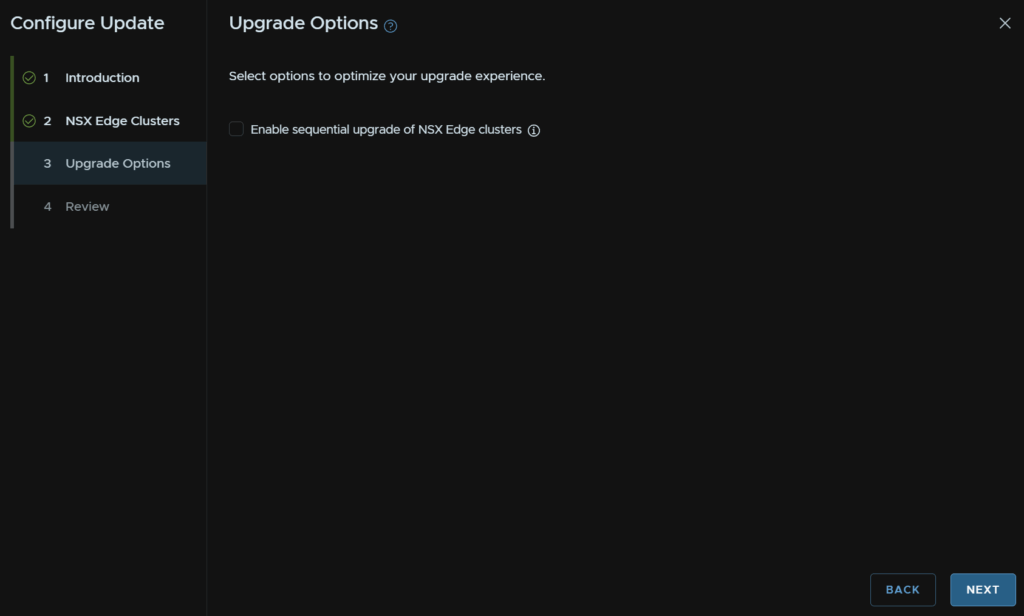
Then click Run Pre Check
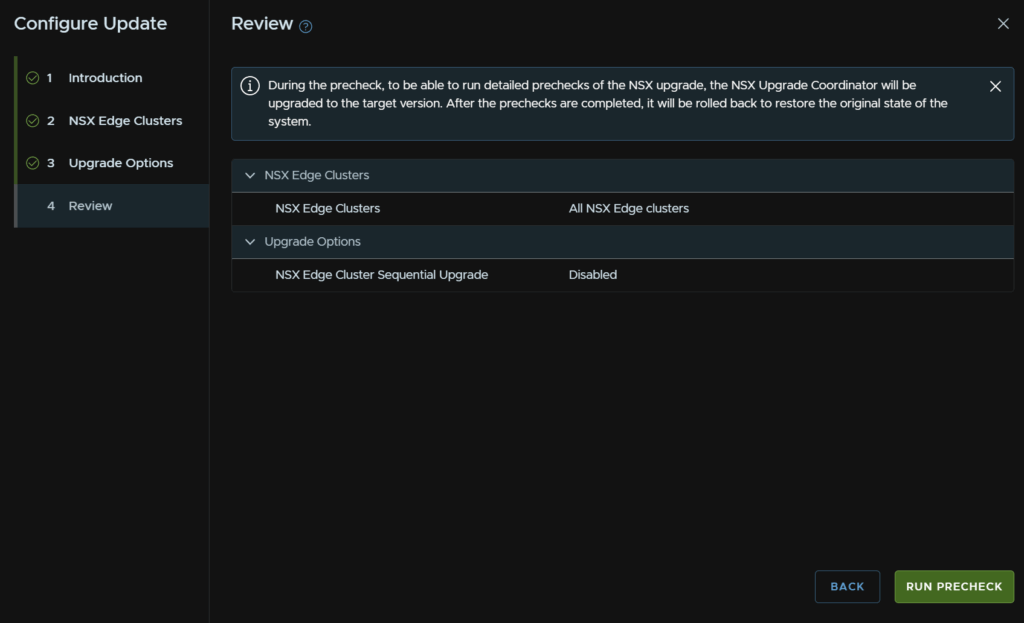
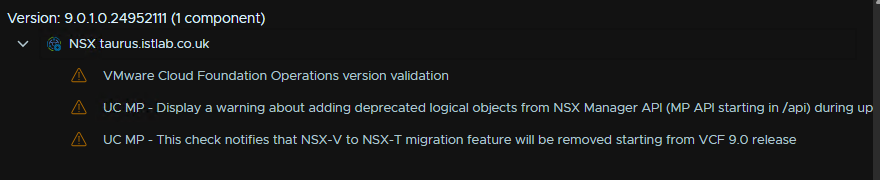
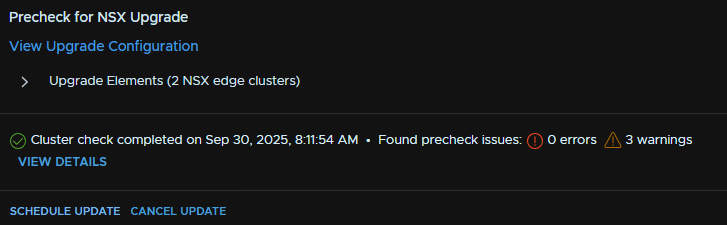
If you have any warnings click View Details
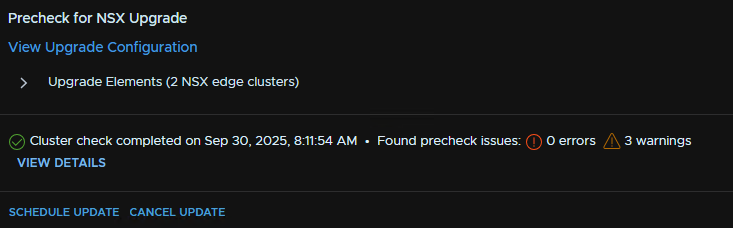
These I can ignore, I dont use the API, NSX-V migration is irrelevant and the Operations version validation I can manually check
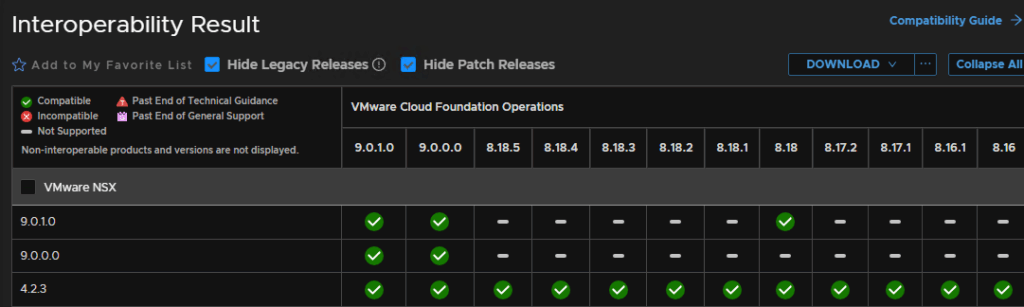
NSX 9.0.1.0 is interoperable with my VCF operations version, 9.0.0.0
Now click Schedule Update
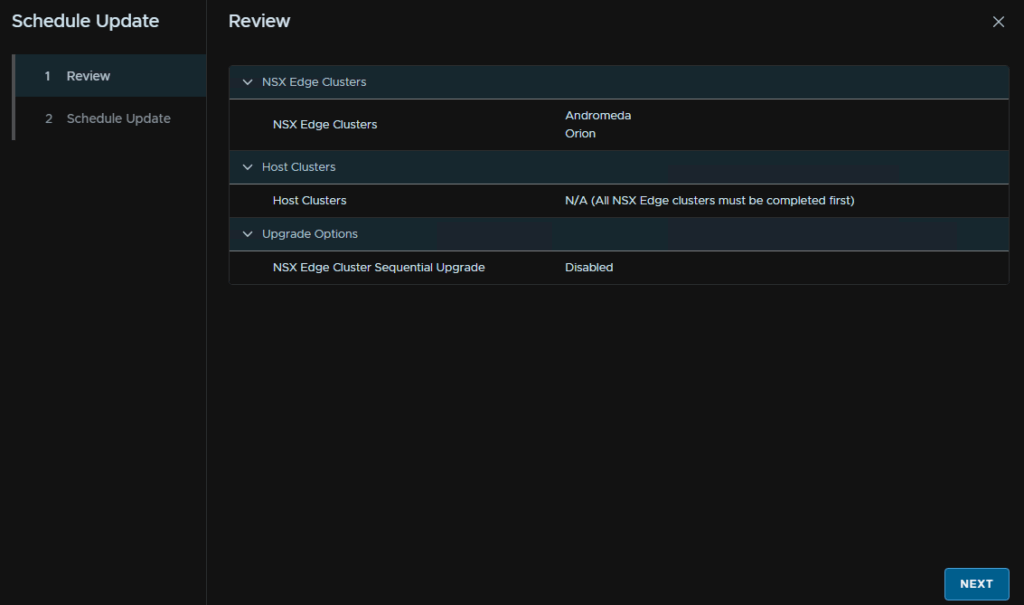
Click Next
Select your maintenance window, you can schedule it for overnight, or apply now,. I will be opting for now, and check the box to say you have reviewed the pre check findings and click Finish
This will take ~2 hours depending on your setup, hosts are not remediated
If we click View Status we can see its progress over the upgrade
And we can expand the components
When its done it will look like this
1.8 – vCenter
As this will cause a small outage windows for vCenter, you should make sure no backup jobs using it are scheduled to run for a couple hours while the upgrade completes
Back at the management domain upgrade section, click Download Now to get the vCenter upgrade files
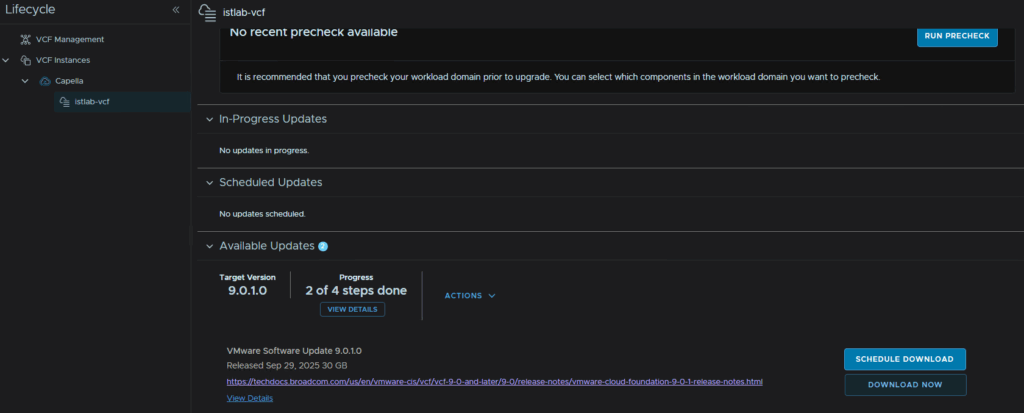
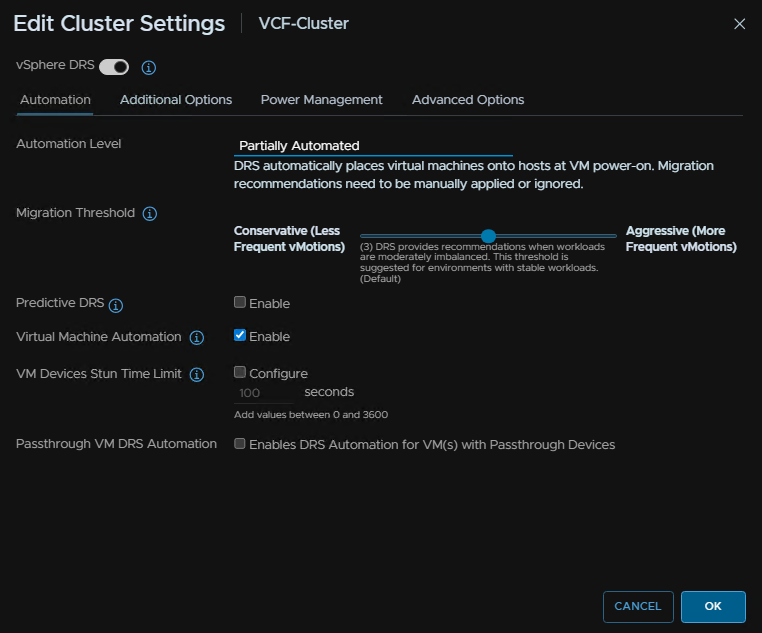
Before continuing, log into vSphere, click the cluster and click Configure/Services/vSphere DRS and then click Edit on the right

Then change the automation level to Partially Automated
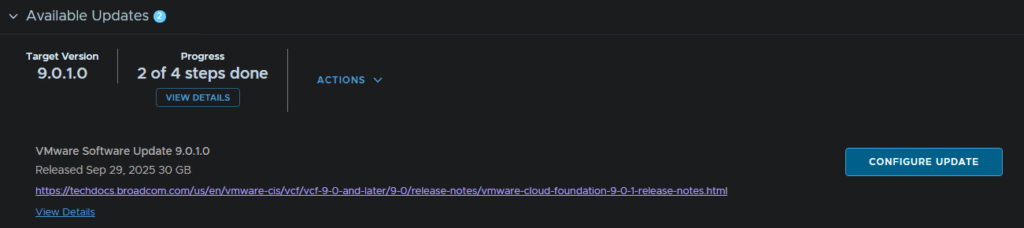
When thats downloaded, click Configure Update
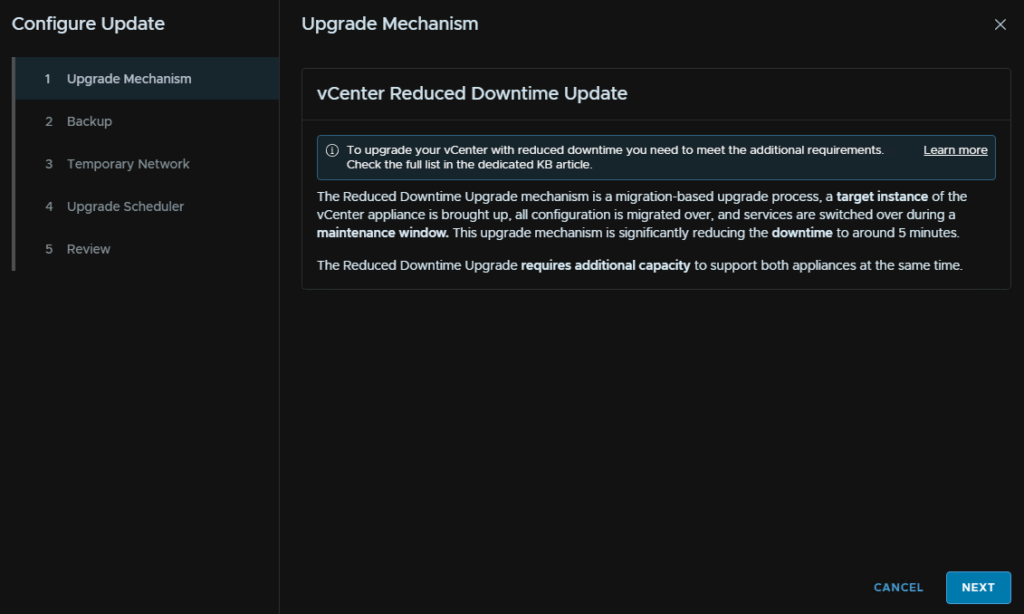
Click Next, reduced downtime upgrade is required for this
Log into the vCenter VAMI on
https://fqdn:5480
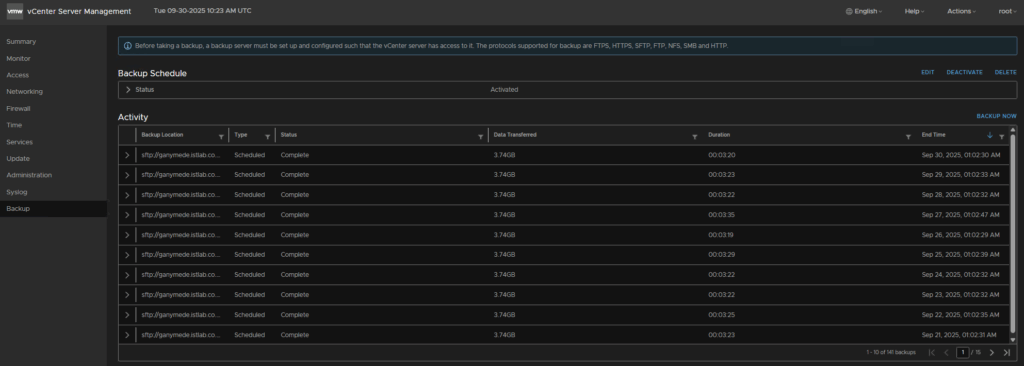
And confirm under Backup that one has run in the last 24 hours, if one hasnt, manually run one
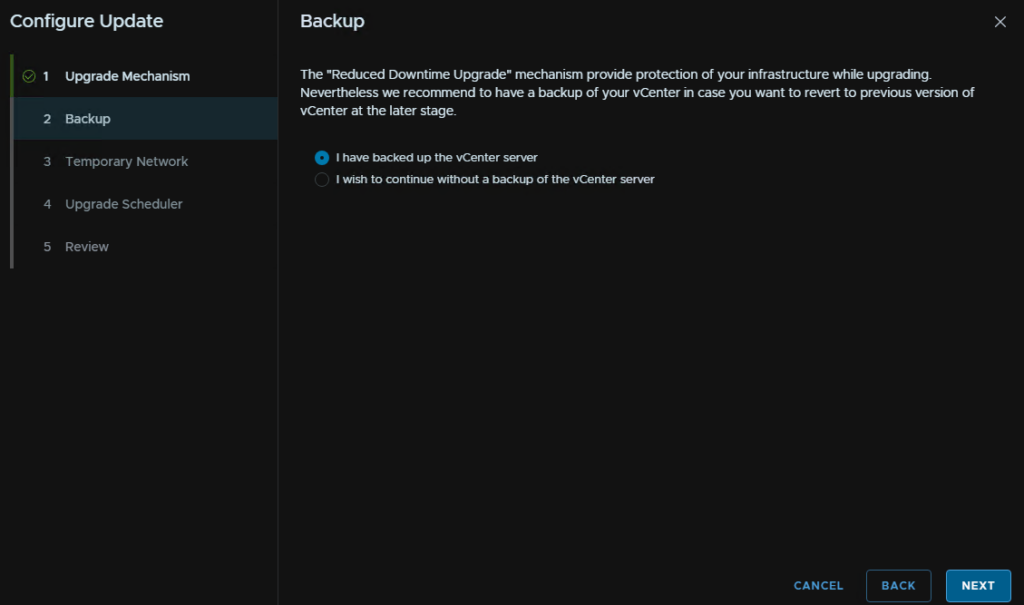
Then check the radio button to say you have backed up vCenter and click Next
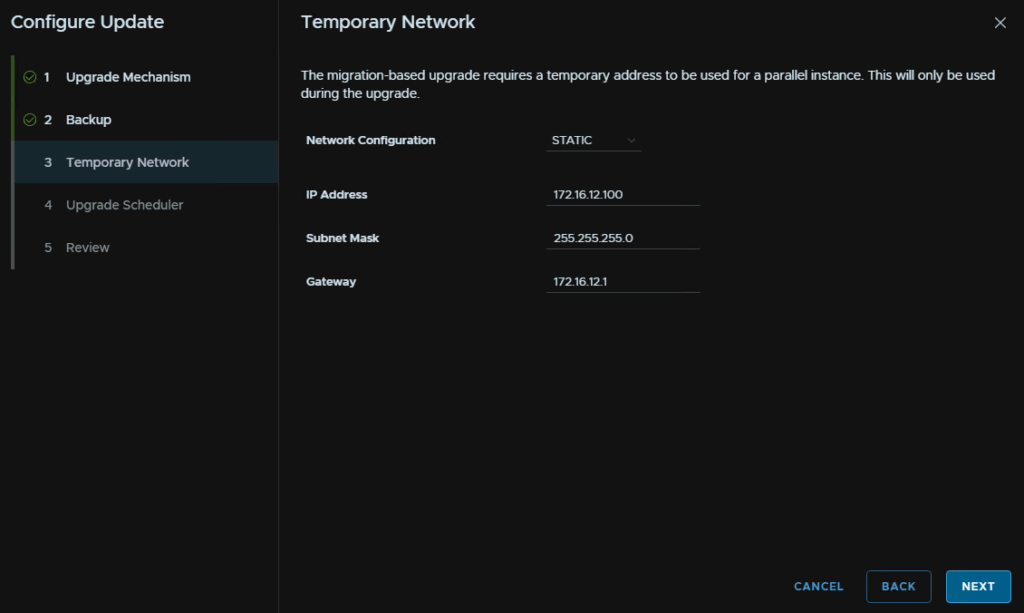
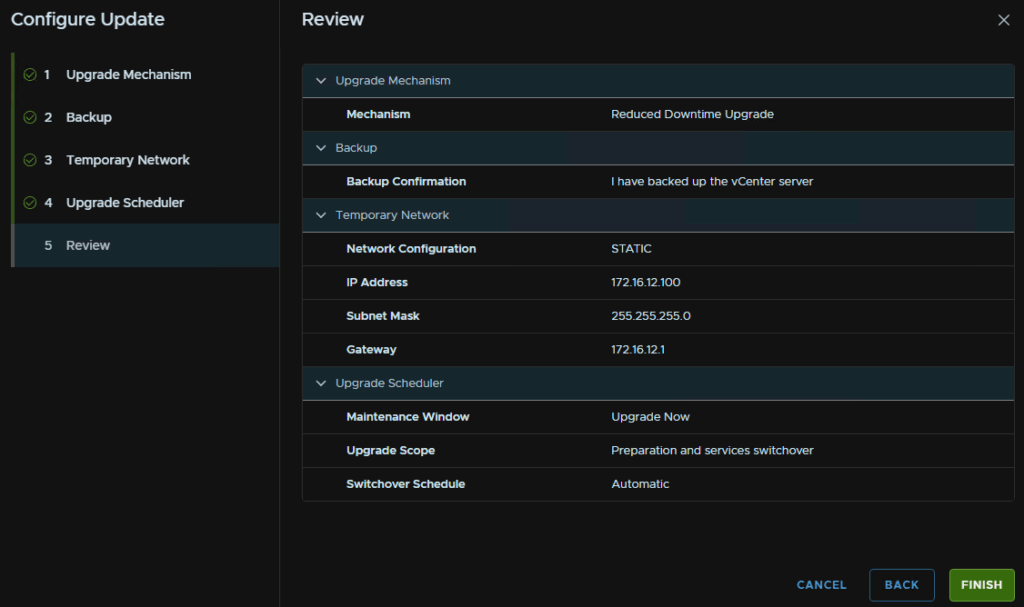
For Network Configuration, click static, enter a free IP on the subnet for the new vCenter to use, then add the subnet mask and gateway in and click Next
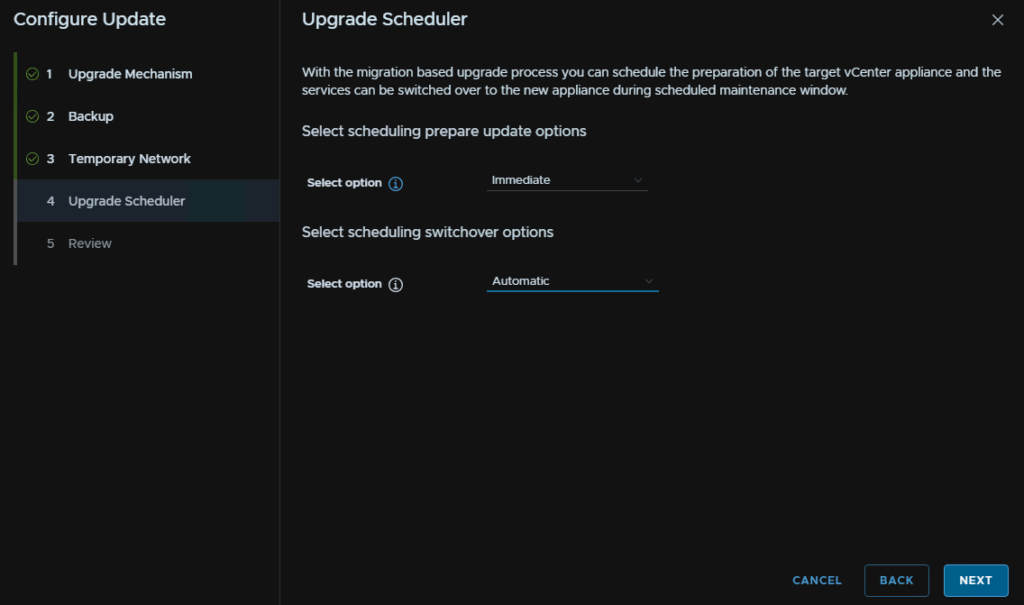
We can the select our schedule option, to deploy the vCenter at a time, and the switch over automatically or at a set time, I want to do this now so I used Immediate and Automatic
Then click Next
Check you are happy with everything and click Next
We can click View Status under In-Progress Updates to see where it is
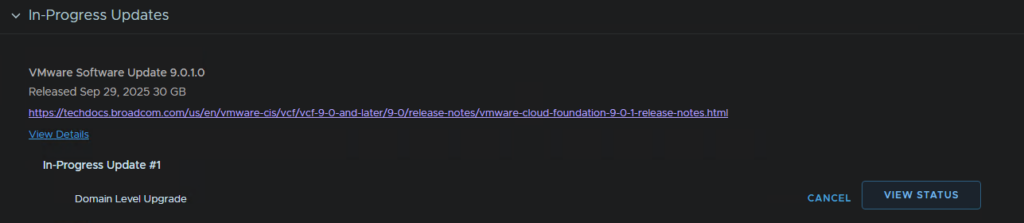
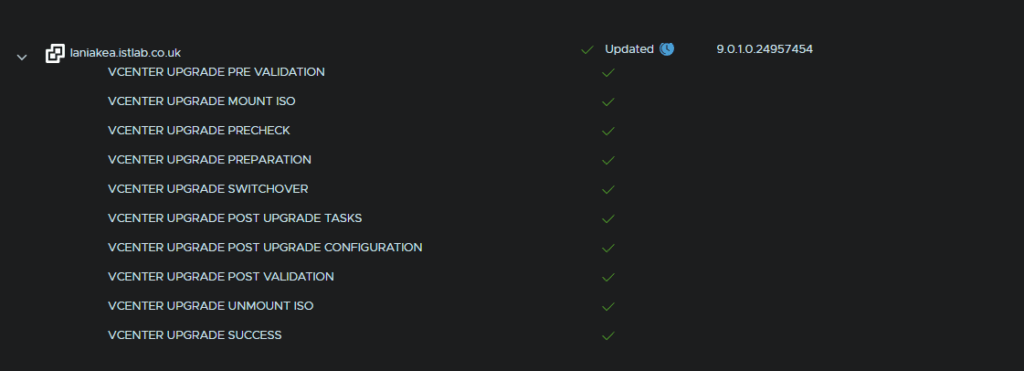
This will take ~1 hour, but the total downtime in services was 8 mins during the switchover and will look like this
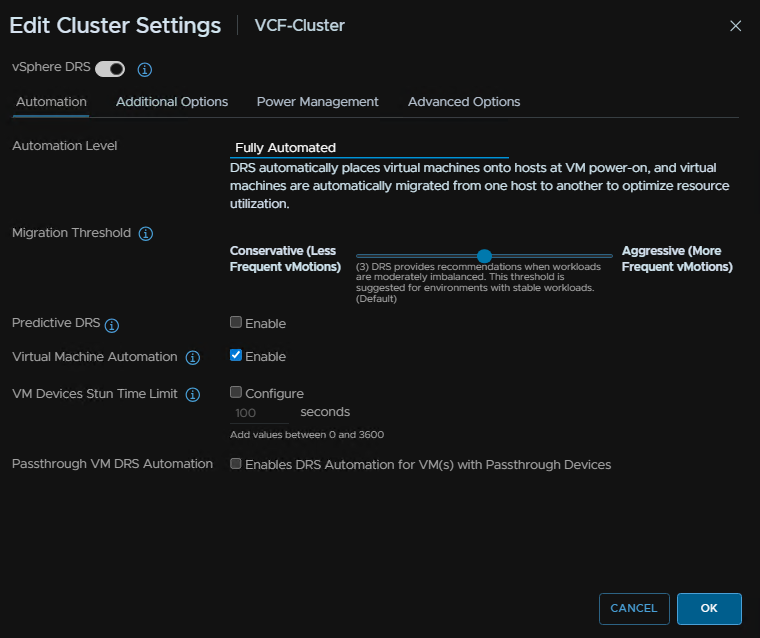
And when you are done, log back into vSphere, click the cluster then Configure/Services/vSphere DRS and click Edit on the right again

Then change the automation level back to Fully Automated and click ok
1.9 – Supervisor/Services
1.9.1 – Supervisor
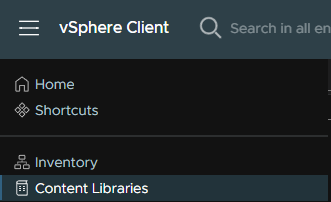
Before we do ESX we need to do the Supervisor, this needs to be done from vCenter, but first we need a content library, click the three lines in the top left of vSphere and click Content Libraries
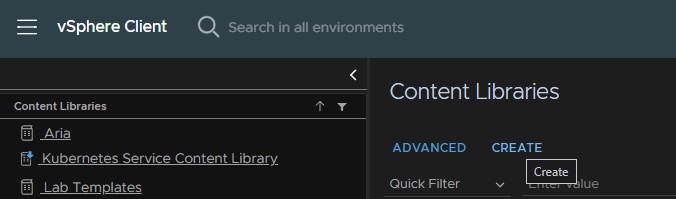
Click Create
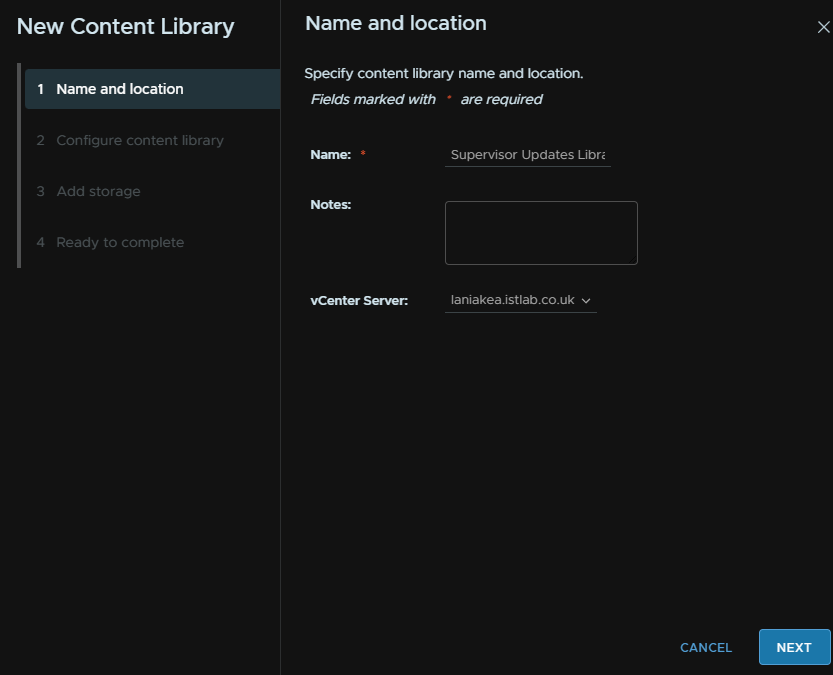
Call it Supervisor Updates Library and click Next
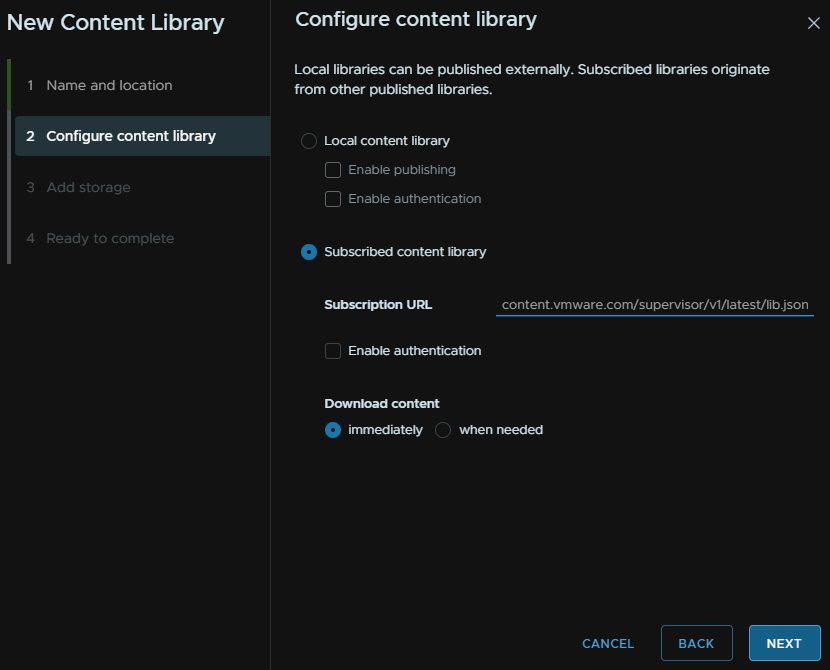
Click Subscribed Content Library with this URL, and click Next
https://wp-content.vmware.com/supervisor/v1/latest/lib.json
Click Yes to accept the SSL certificate
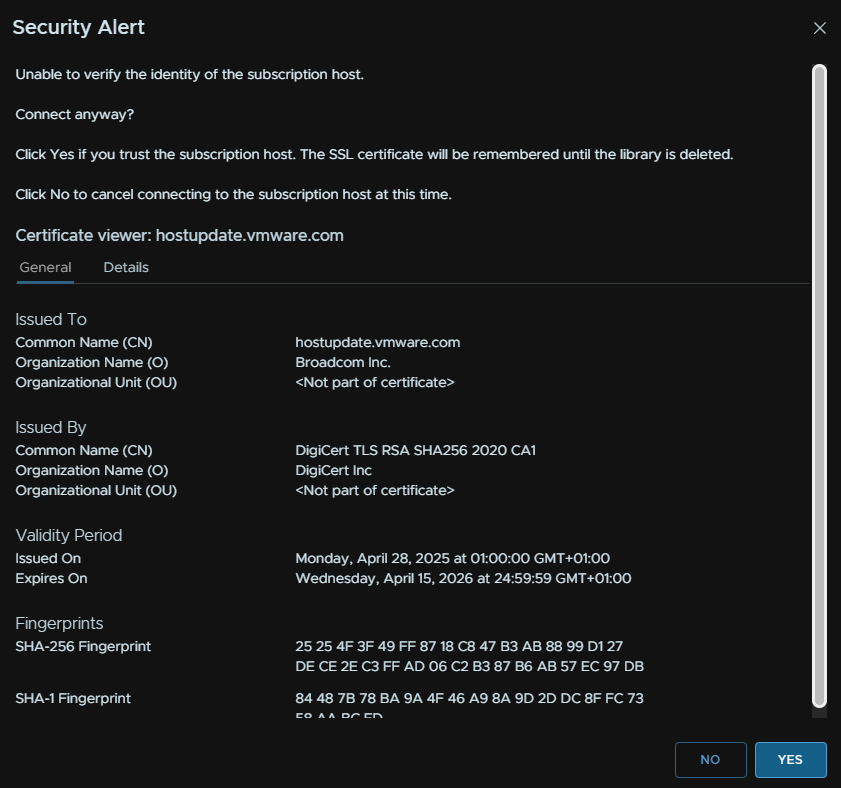
Click Next here
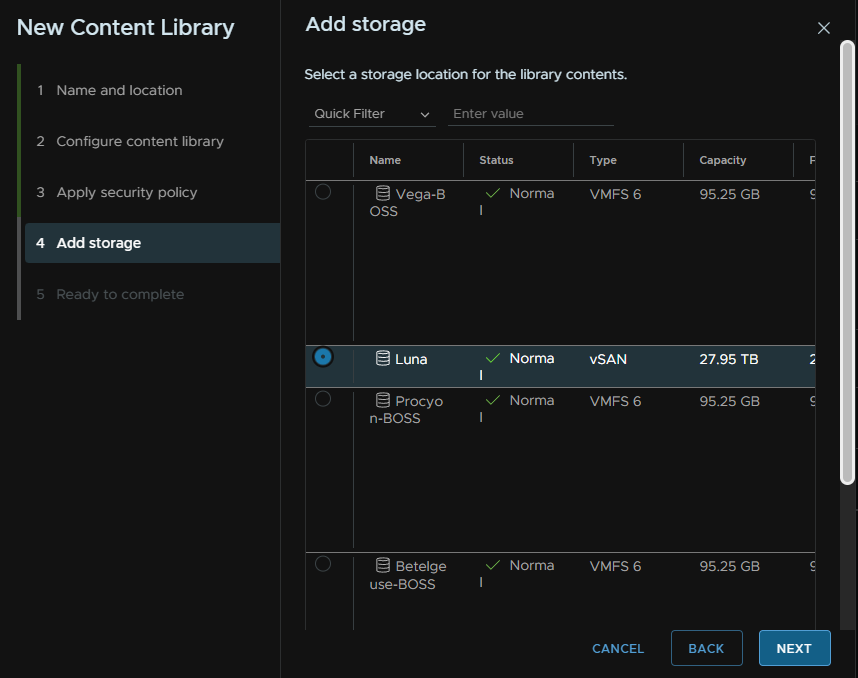
Select a datastore, I used my vSAN datastore, then click Next
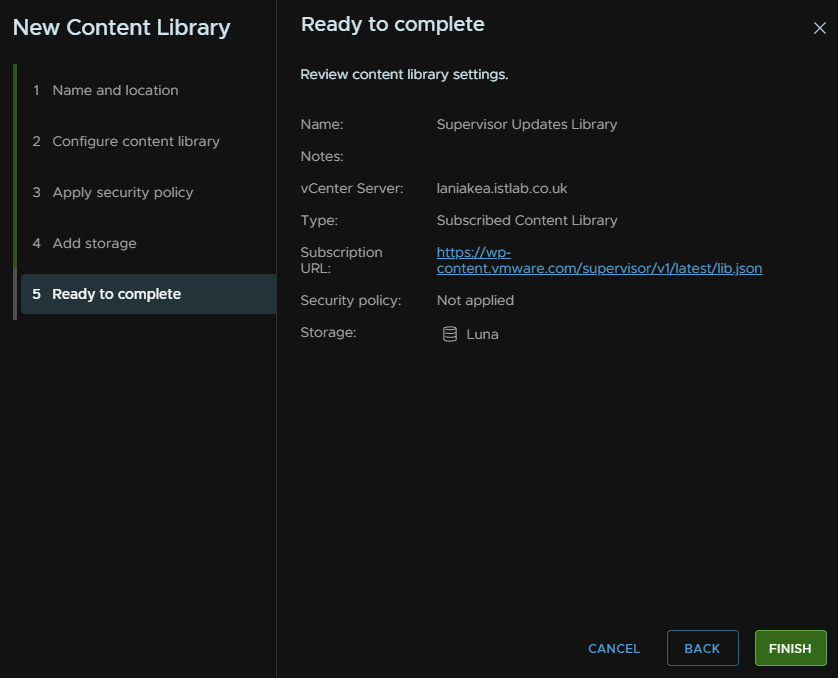
And click Finish
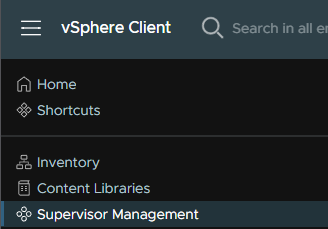
To upgrade the supervisor, click the three lines in the top left of vSphere and click Supervisor Management
Click Content Distribution and click Assign on the Supervisor Images Library
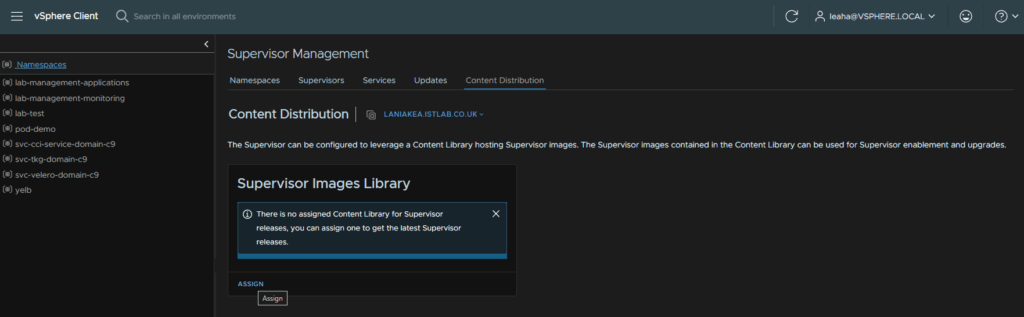
Select the Supervisor Updates Library and click Assign

We can refresh the page and a sync should be in progress
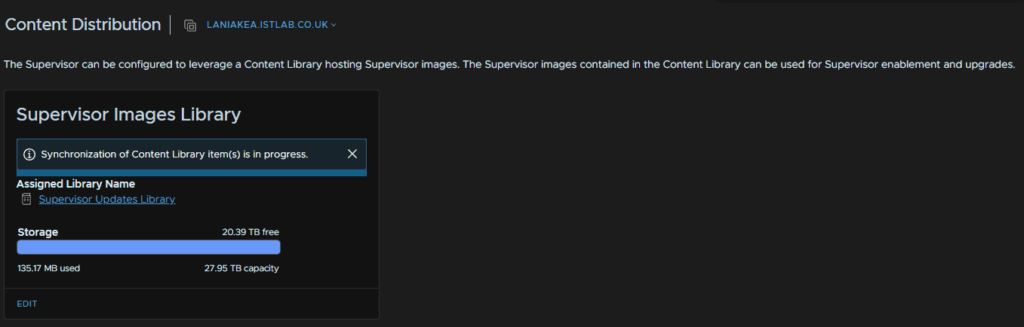
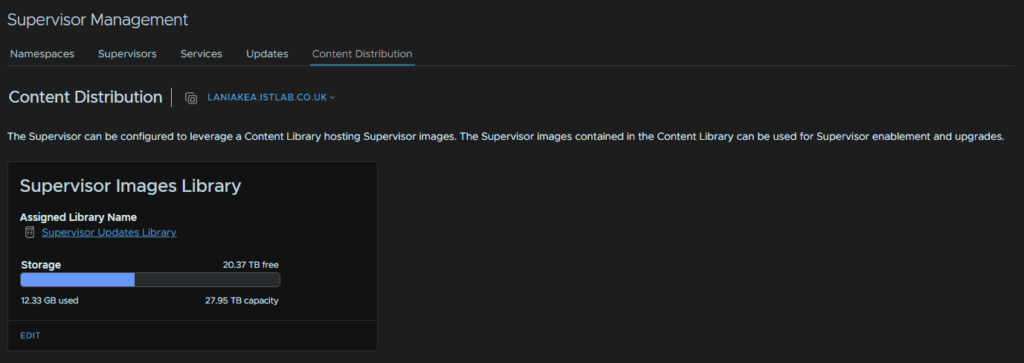
When thats done it should look like this
Click Updates and we can expand the Latest Updates to see what we can upgrade too
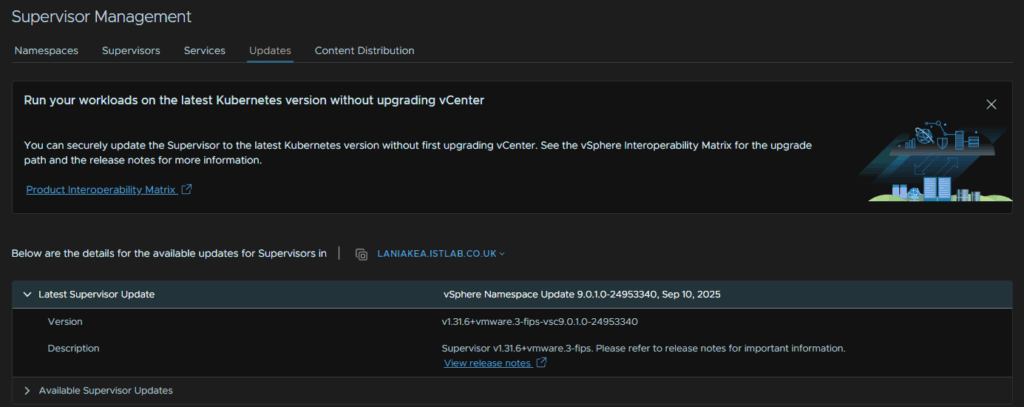
The supervisor only supports upgrading the K8S version by 1 each time, it supports the latest and two older versions, so in this case 1.31.x, 1.30.x and 1.29.x
At the bottom we can select our supervisor and select the next upgrade option on the latest, so you see the version name at the end has 9.0.1, which is important
I want to do go 1.31.6, the latest, so I will upgrade to 1.30.10 then upgrade again to 1.31.6
When you are happy with your target version, click Apply Updates

Then click Proceed
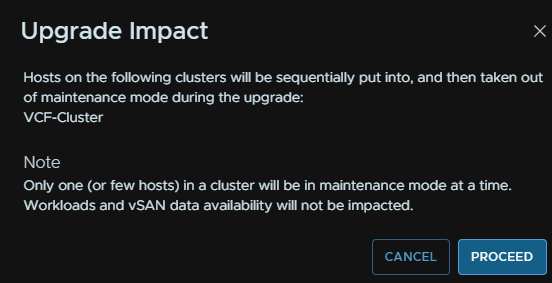
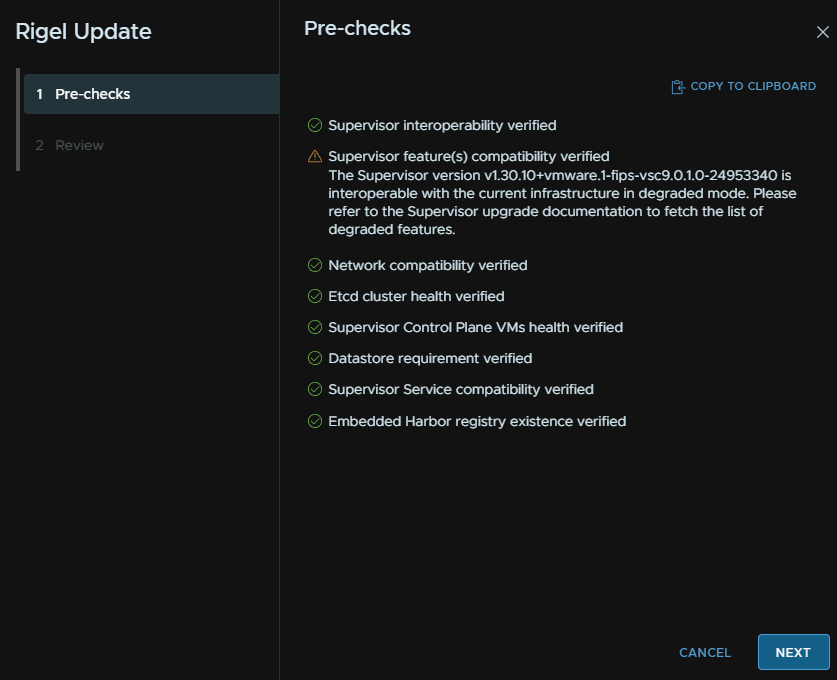
The supervisor feature compatibility always seems to show up as a warning, but I cant find any info to say why, I dont think this will cause any issues, but if you have production critical services running in the supervisor, its always best to check in with Broadcom first
When you are happy, click Next
Click Proceed
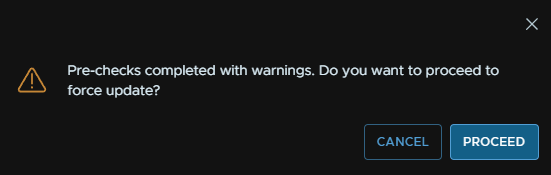
Then Finish
This will take a good 2-3 hours while it redeploys the control plane nodes and switches everything over
When thats done I can apply the next update the same way
1.9.2 – Consumption Interface Service
First, we need to get the service files from the Broadcom portal, head to My Downloads and click the HERE button for Free Software Downloads

Search and click vSphere Supervisor Services
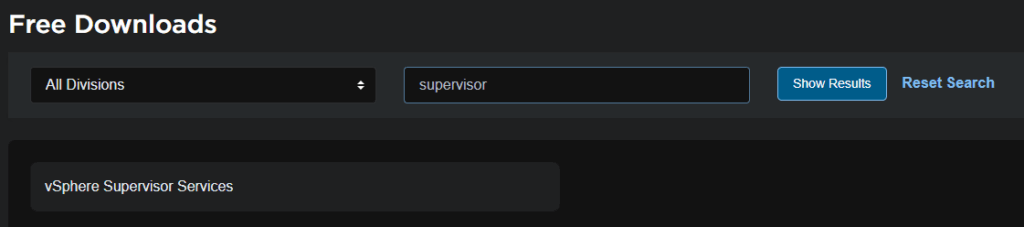
Expand Local Consumption Interface and click on the latest release, eg 9.0.1
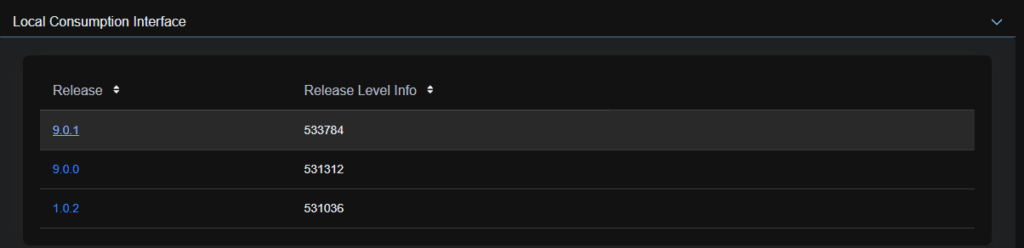
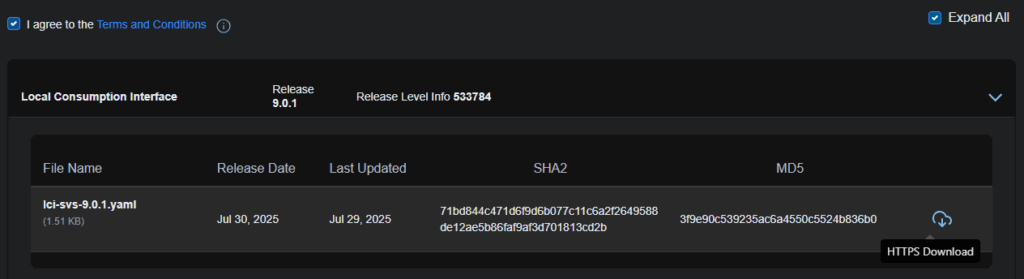
Click the Terms And Conditions like to enable the check box, then click the download icon on the right for the YAML file
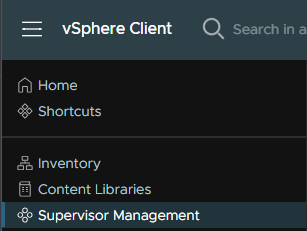
In vSphere click the three lines in the top left and click Supervisor Management
Click Services, and click Add
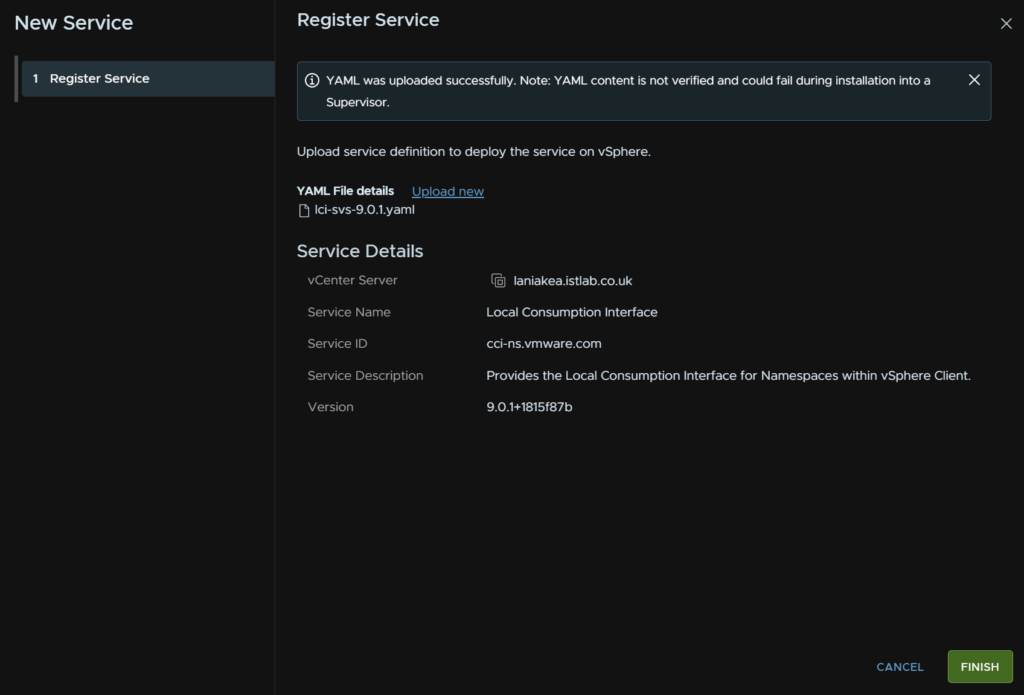
This is because the Consumption Interface, and the new v9 Local Consumption Interface are technically two different services
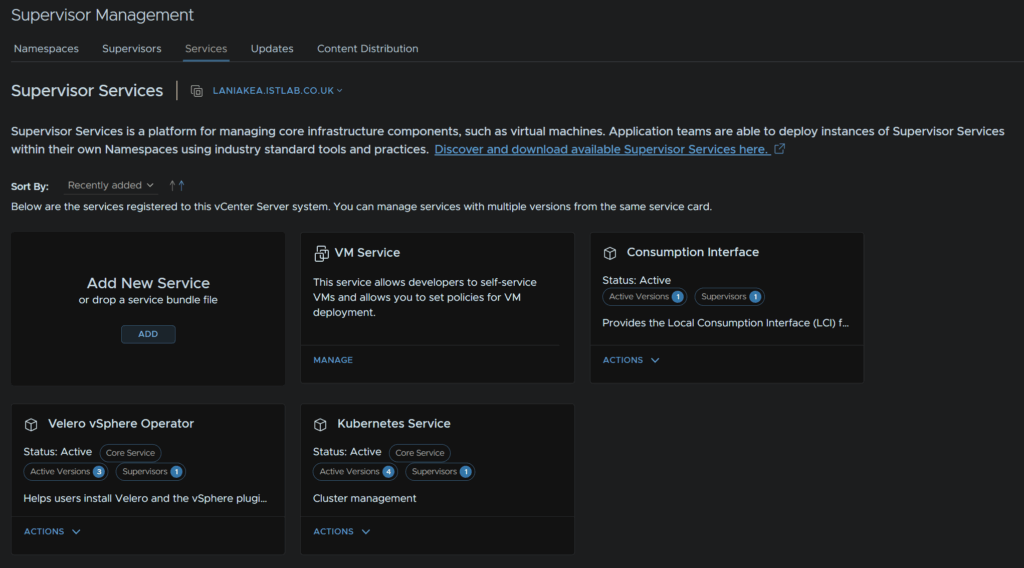
Then click Upload
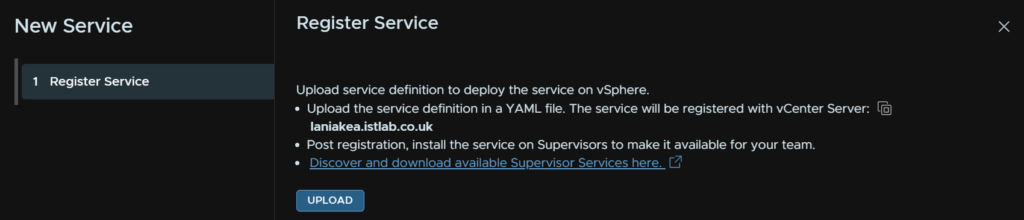
And click Finish
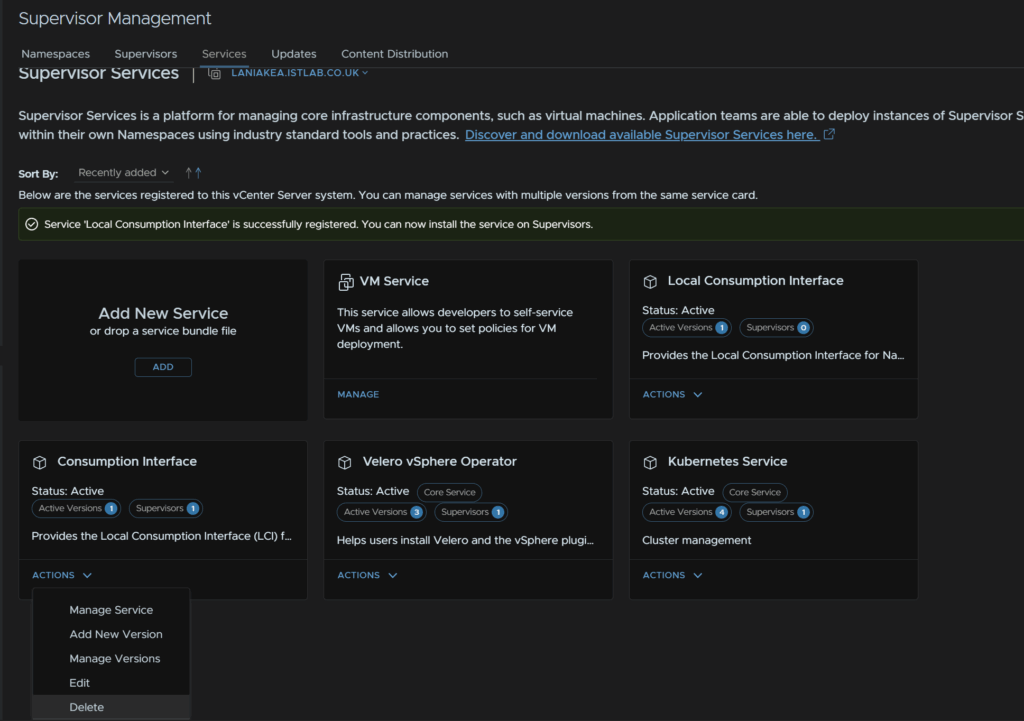
We then need to remove the old service, on the Consumption Interface widget click Actions/Delete
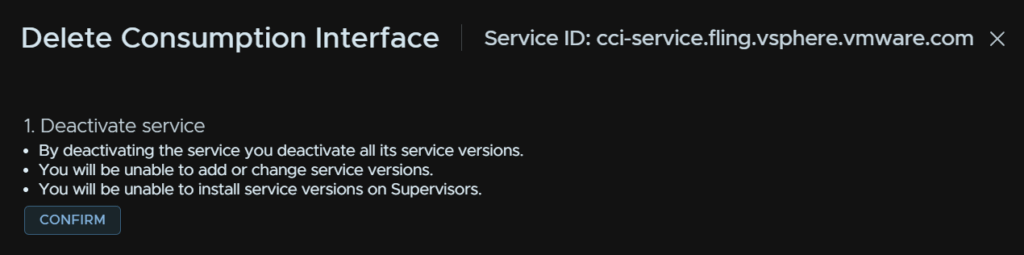
Click Confirm to deactivate the service
Click Confirm again under section two to remove it from all supervisors
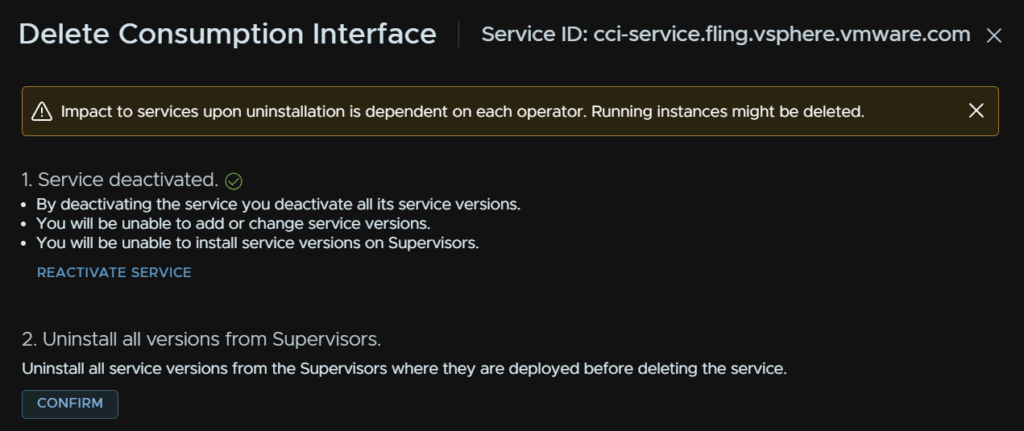
This will change the status to removing
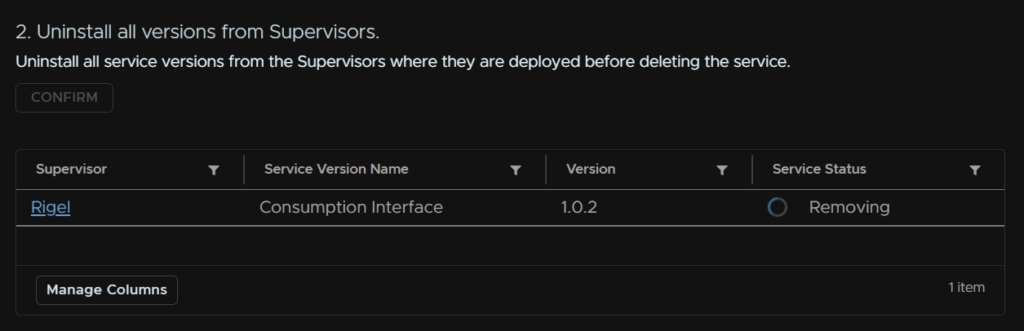
Then click Confirm to delete it
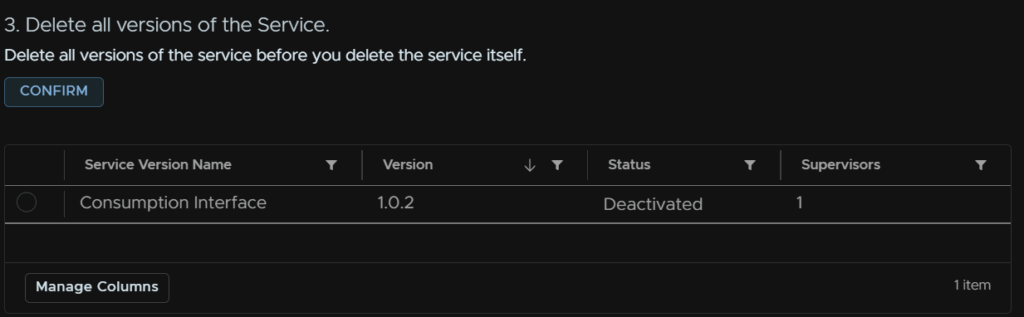
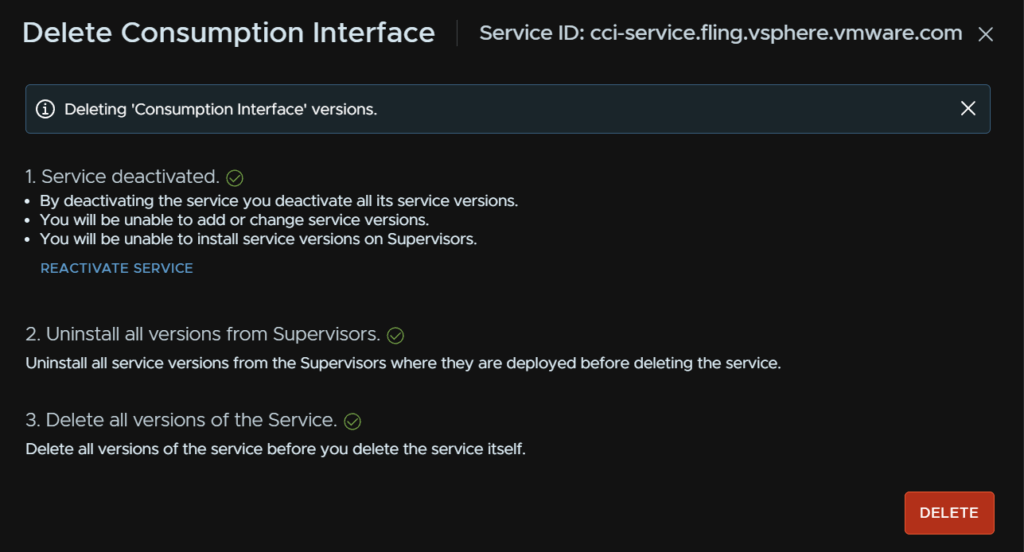
And click Delete
Under the new Local Consumption Interface widget, click Actions/Manage Service
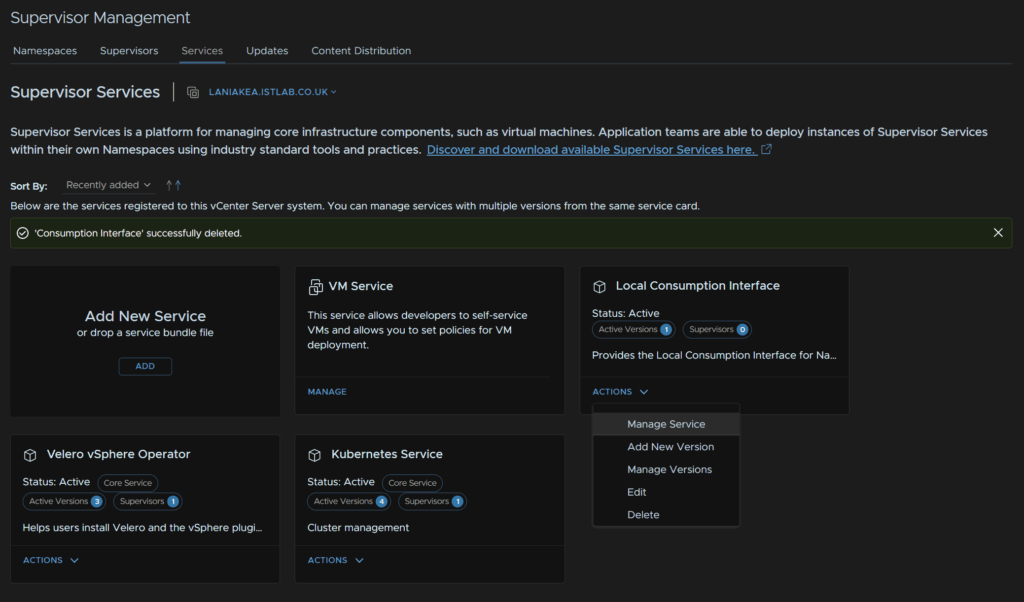
The install version should be what the YAML we uploaded has, select the supervisor and click Next
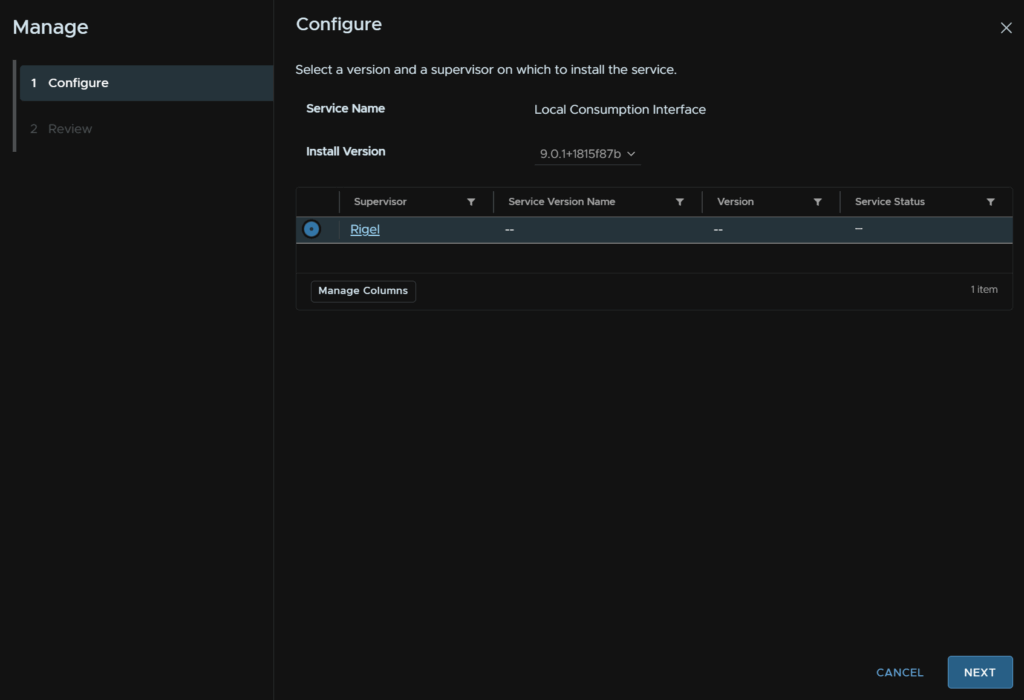
A compatibility message should pop up, click Next again
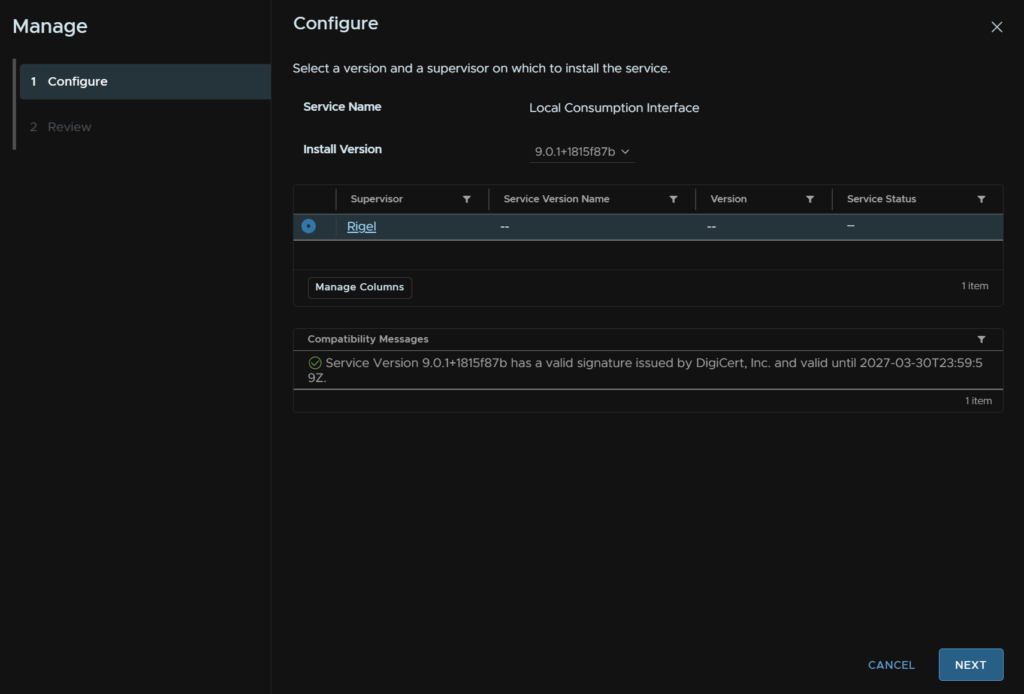
And click Finish
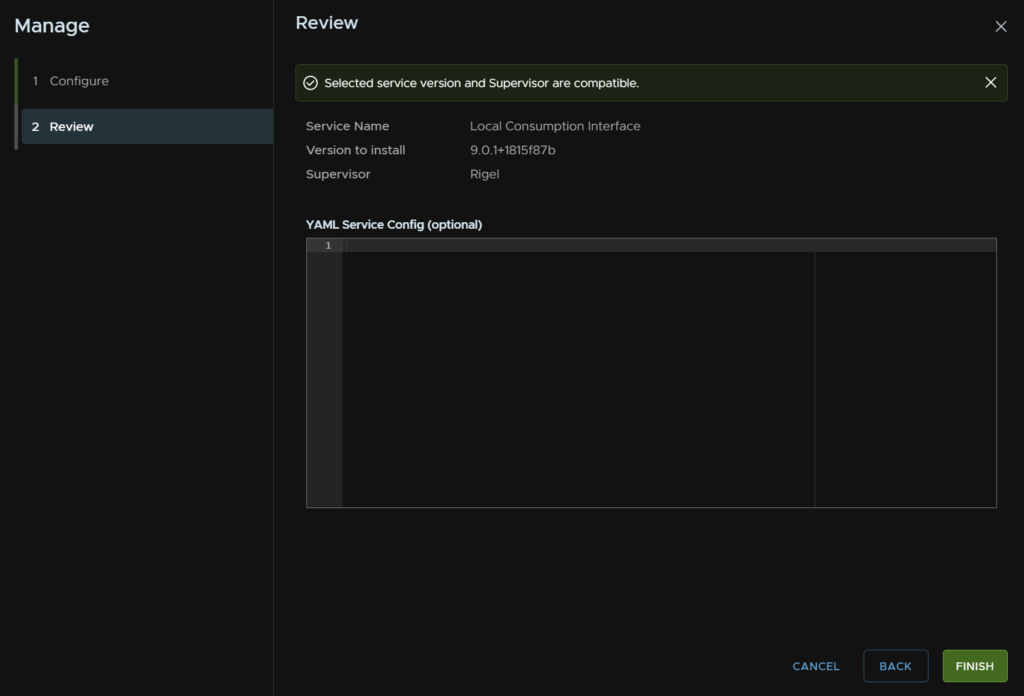
You should get a pop up for the new plugin being deployed and its ready to use
1.9.3 – Kubernetes Service
In vSphere click the three lines in the top left and click Supervisor Management
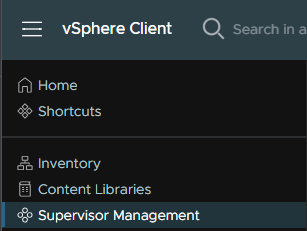
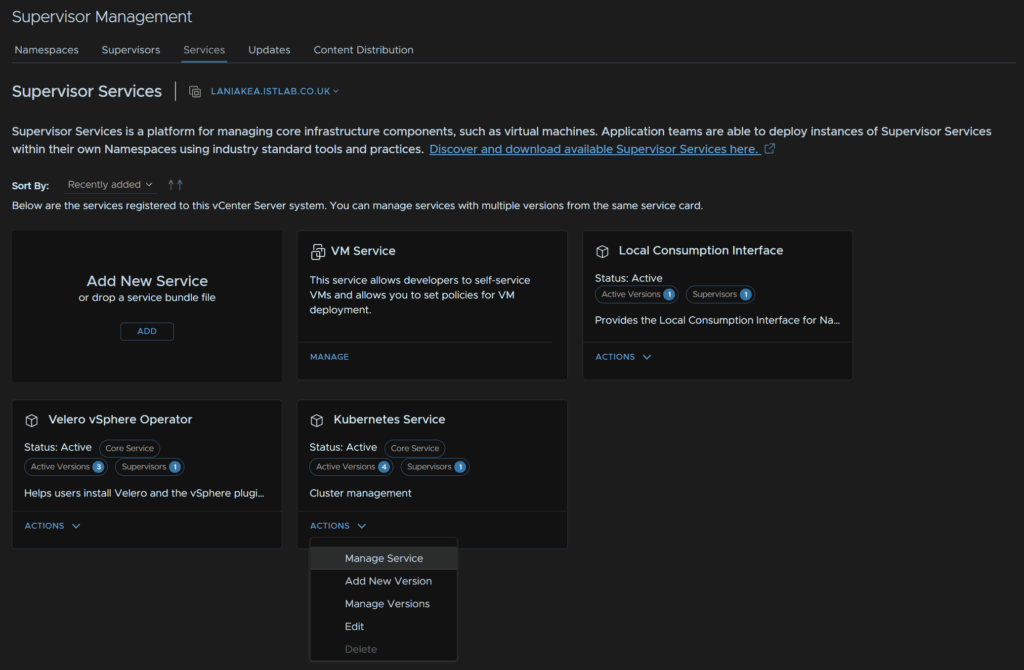
Click Services, on the Kubernetes Service Widget click Actions/Manage Service
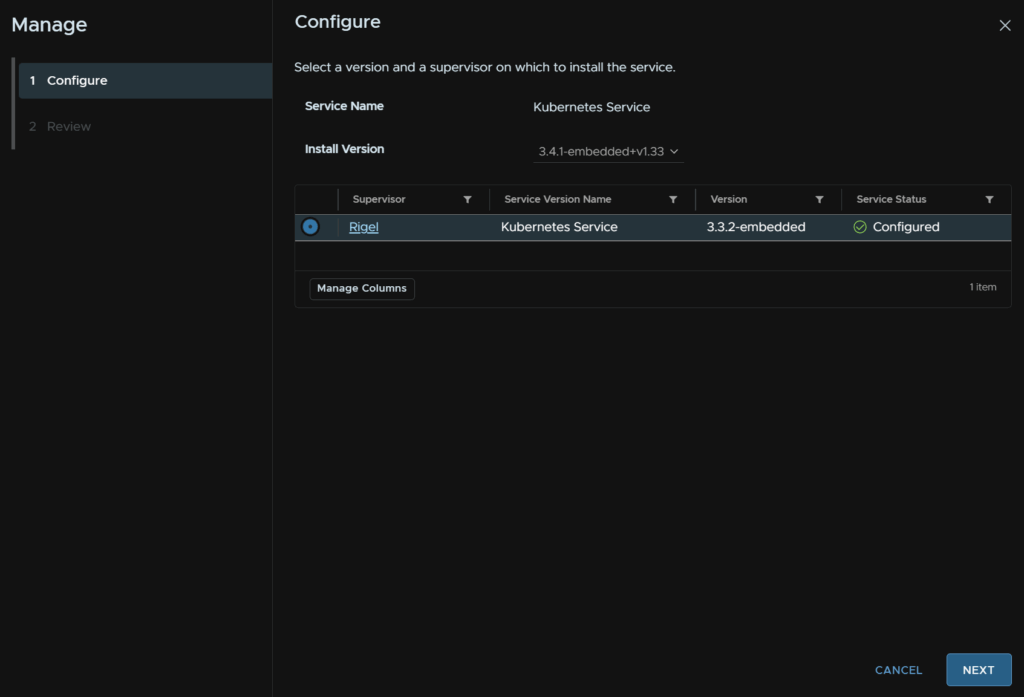
Under Install Version, make sure the latest is selected, then select your supervisor and click Next
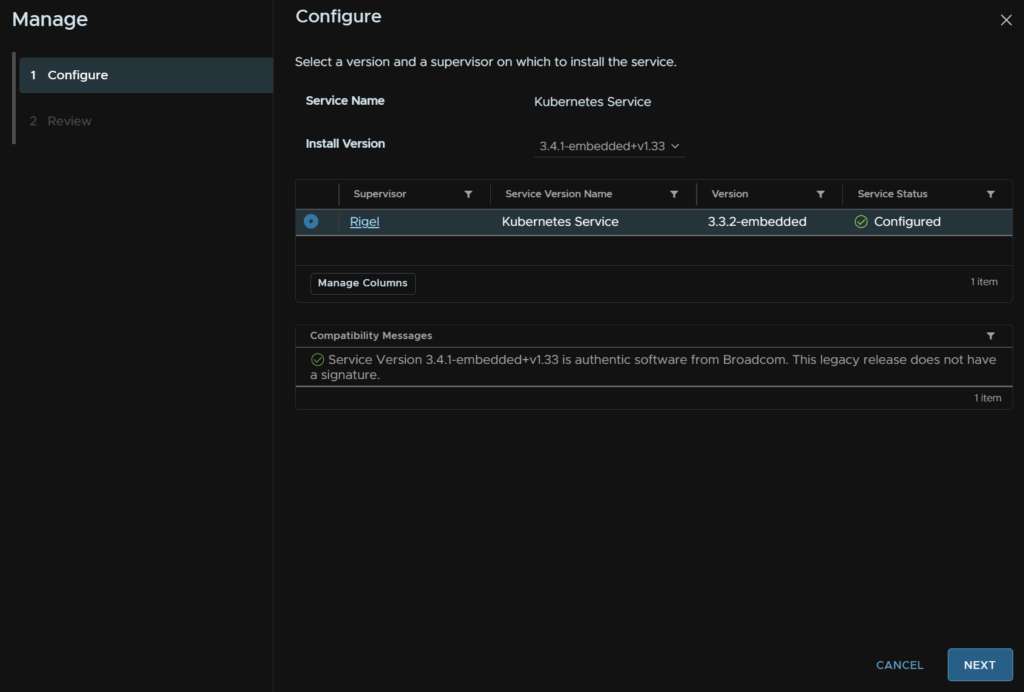
A compatibility message will pop up, click Next again
Then click Finish
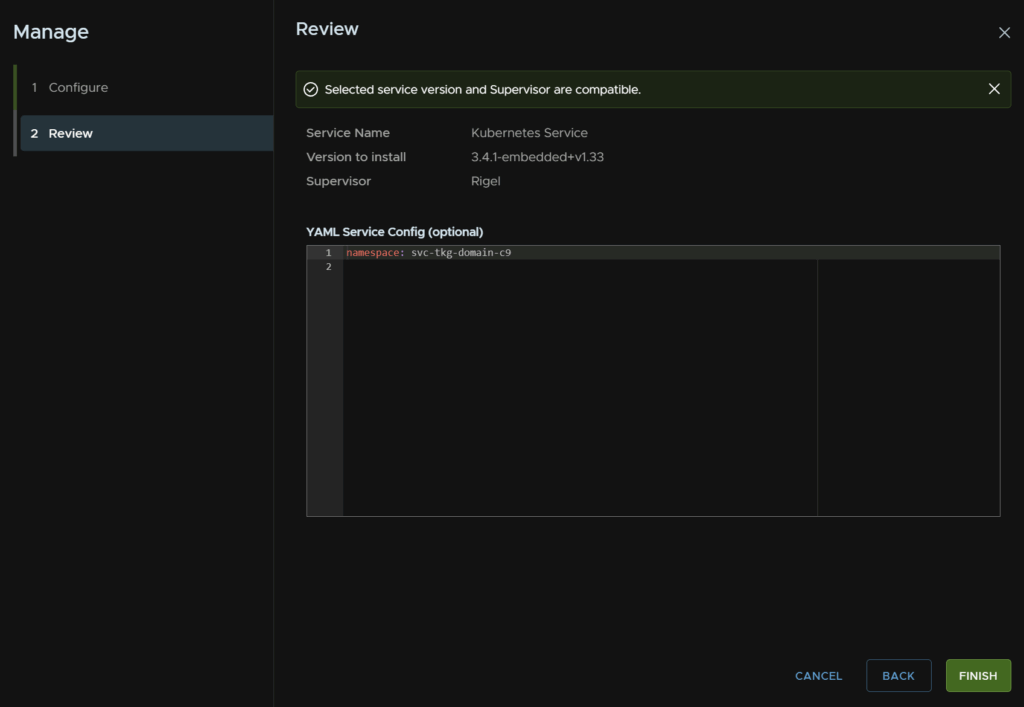
1.9.4 – Velero
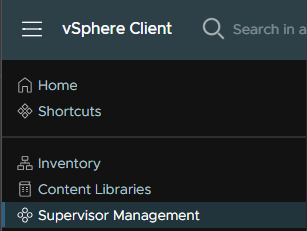
In vSphere click the three lines in the top left and click Supervisor Management
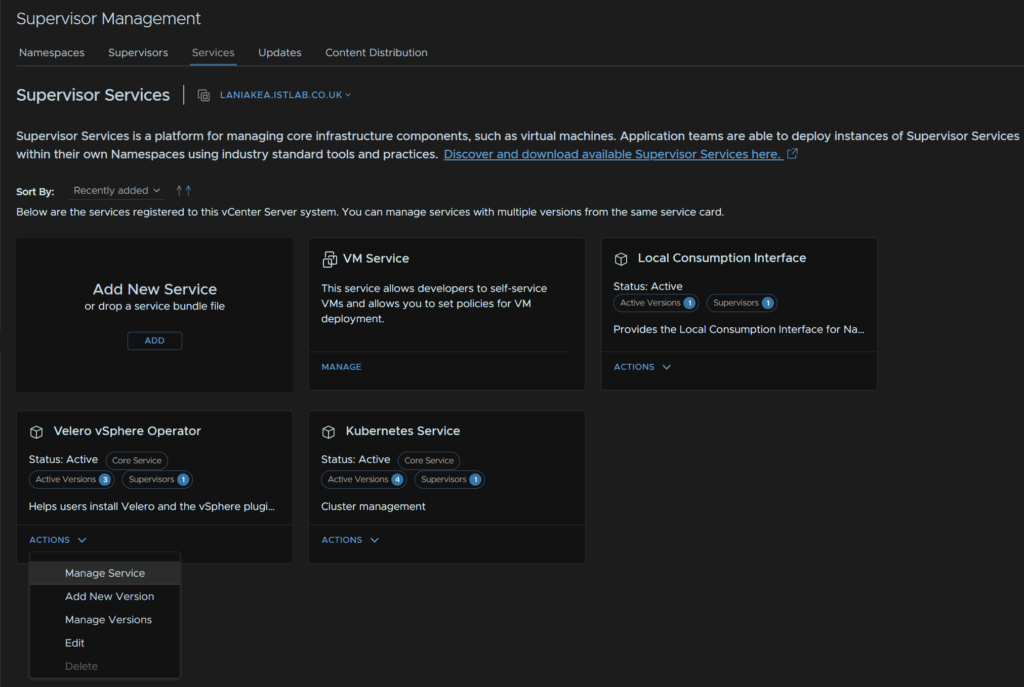
Click Services, on the Velero vSphere Operator Widget click Actions/Manage Service
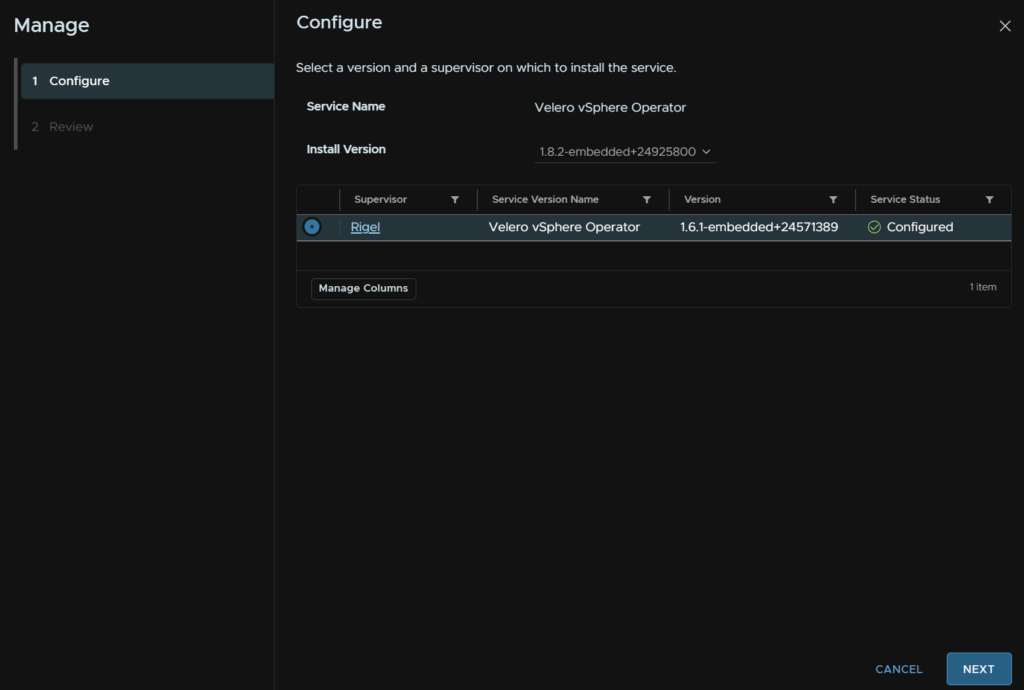
Under Install Version, make sure the latest is selected, then select your supervisor and click Next
A compatibility message will pop up, click Next again
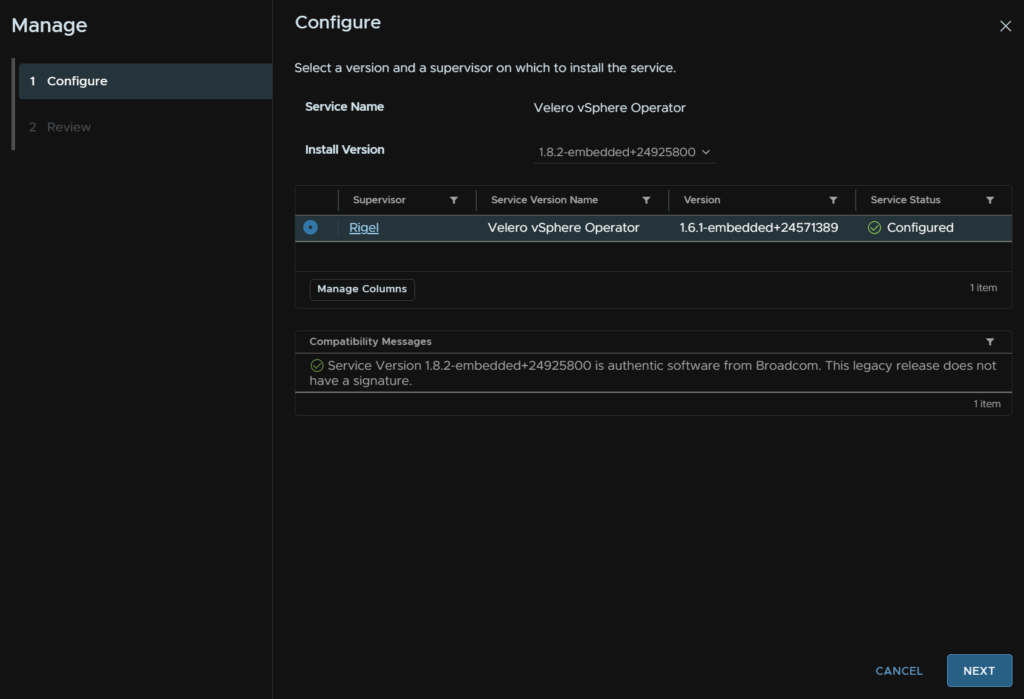
Then click Finish
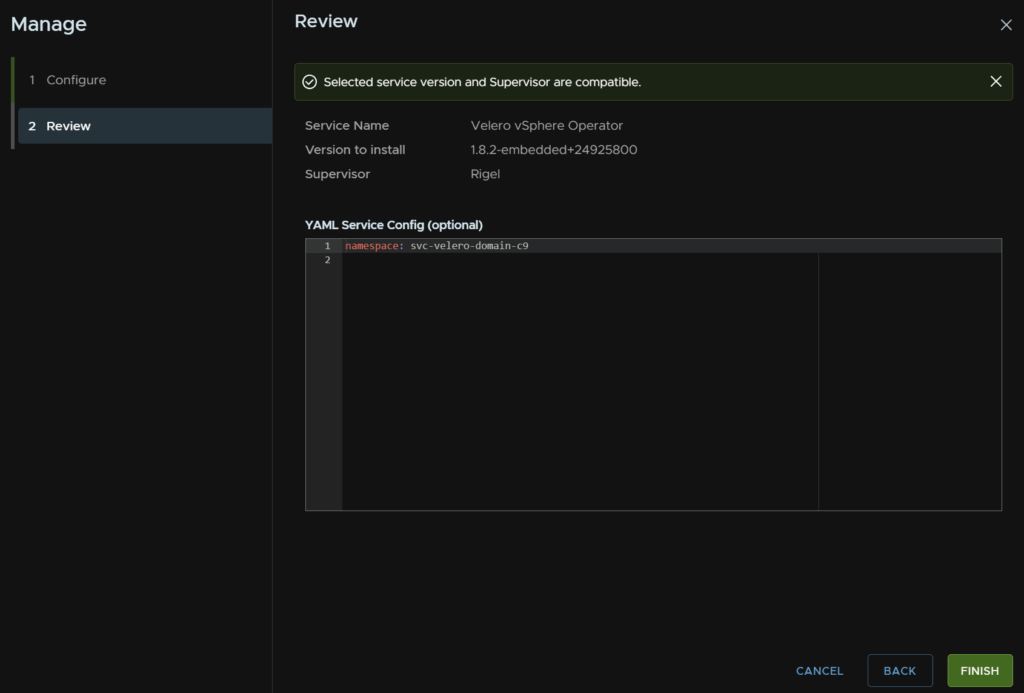
1.10 – Firmware
1.10.1 – Preparation
First, take a backup of ESXi, if the host is an ESXi host on the off chance something goes wrong, we’ll need SSH enabling for this
Select the host and head to Configure/System/Services, click SSH and then click Start, we can leave it enabled as when the host is rebooted, it will stay disabled on reboot
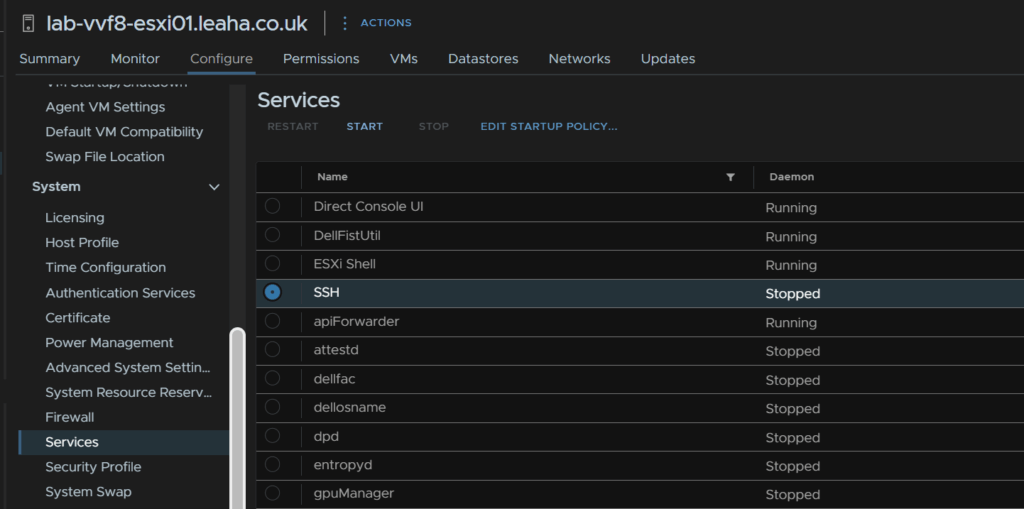
SSH into the host and run
vim-cmd hostsvc/firmware/sync_config
vim-cmd hostsvc/firmware/backup_config
This will give an out put of a URL like this

Take the link and edit the ‘*’ for the hostname/IP
So my URL would be
http://lab-vvf8-esxi01/downloads/52d067b1-1d69-2bd2-318b-b90ca6f0a521/configBundle-Lab-VVF8-ESXi01.leaha.co.uk.tgz
If you have an DRS rules that prevent hosts from being put into maintenance, then you may need to disable them
Then place the host thats having the firmware update in maintenance mode to do this right click the host and click Maintenance Mode/Enter Maintenance Mode
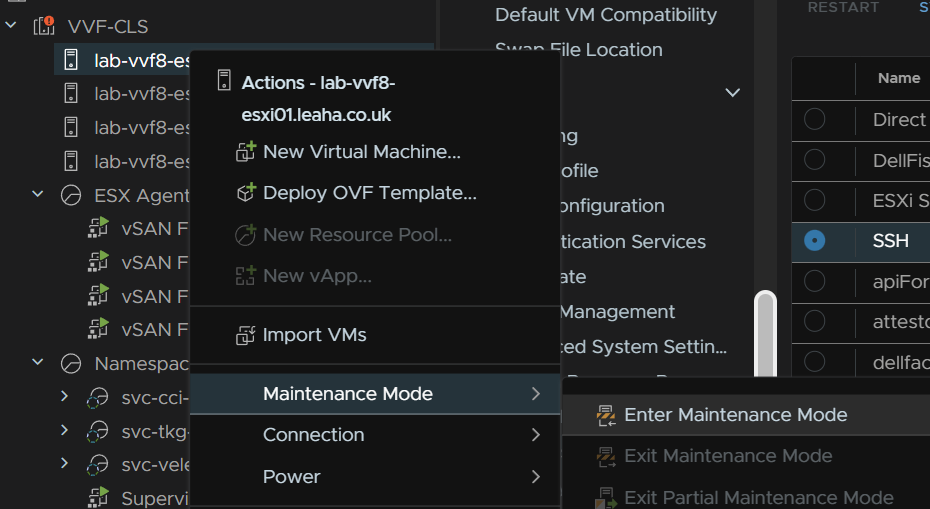
For vSAN click Go To Pre Check, this wont be available on a cluster with out vSAN
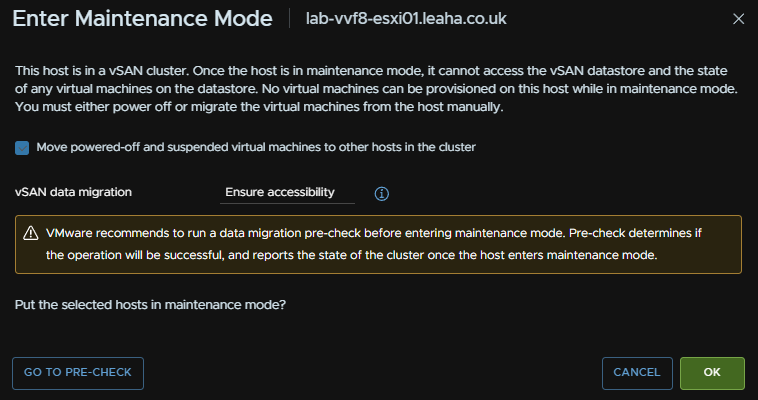
Then click Pre Check
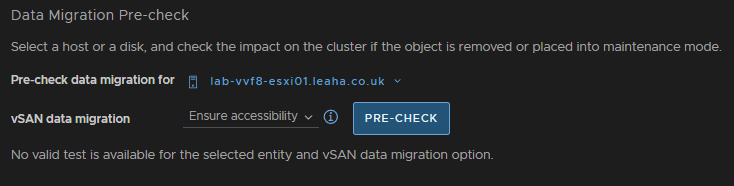
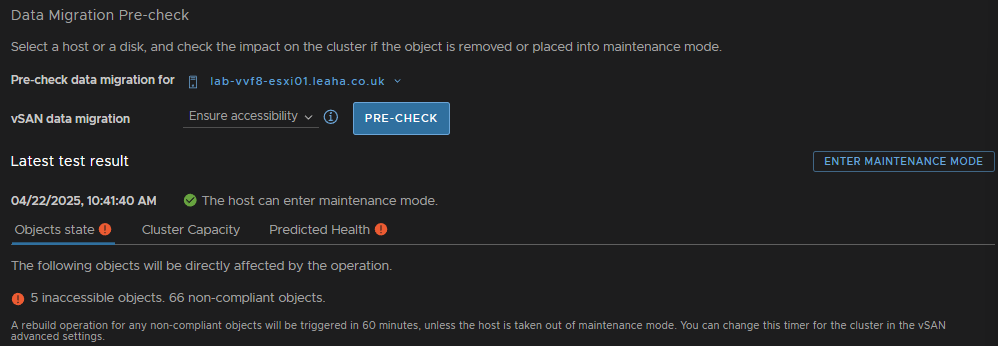
Ensure the check says the host can enter maintenance mode, there may be errors, but thats fine, then click Enter Maintenance Mode
Ensure the box to migrate powered off and suspended VMs is checked and click ok
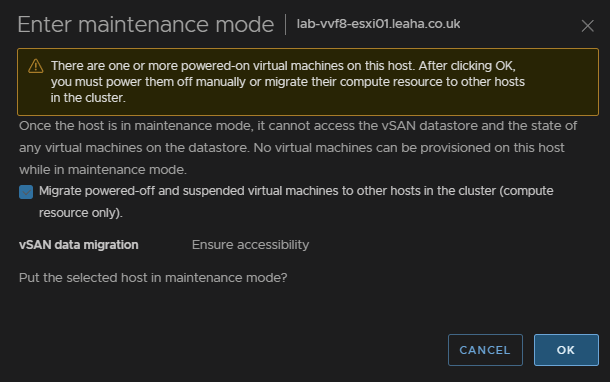
For Non vSAN it will just look like this, also ensure the box is checked and click ok
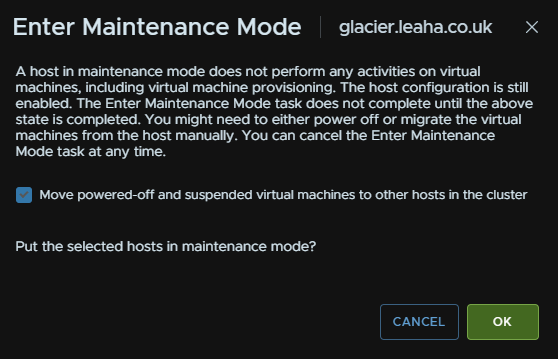
If you have Veeam replication jobs running to DR, this shouldnt cause any issues we powered off VMs are also moved, but you can always wait for running jobs to finish and disable them while patching
1.10.2 – Dell
Its important Dell patches are applied in the right order
- iDRAC
- CPLD – (If Available)
- BIOS
- Everything Else
In OpenManage go to Configuration/Firmware/Driver Compliance
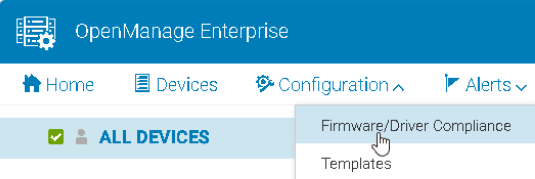
Click Catalog Management
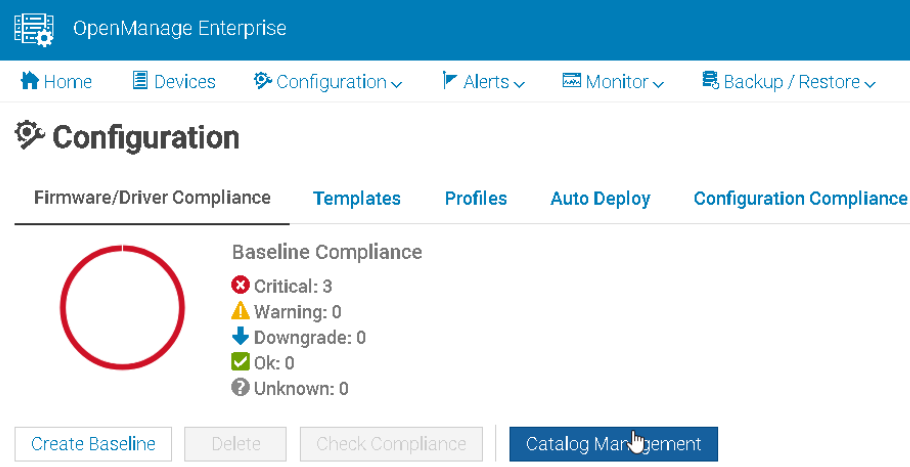
Select your catalog and Check For Update
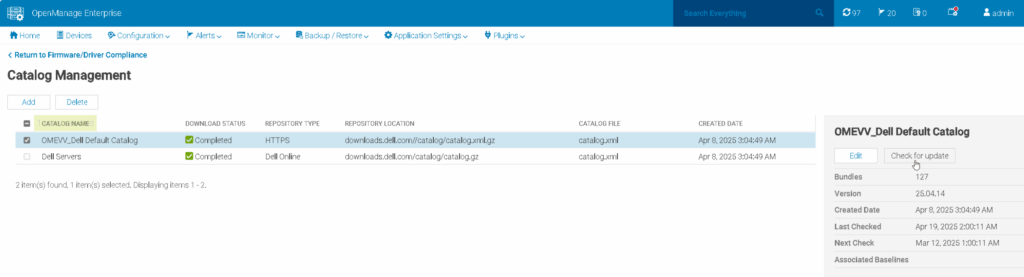
Ensure any host being updated is in maintenance mode with no active VMs running as reboots are needed for most firmware updates from section 7.1
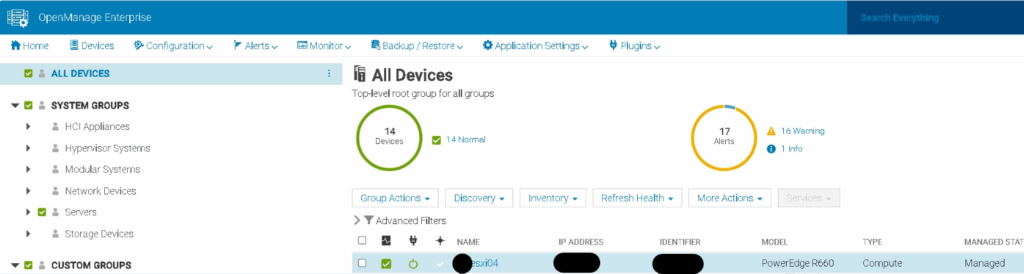
Go to Devices
Find your host in the list and click it, the IPs are for the iDRAC not the host
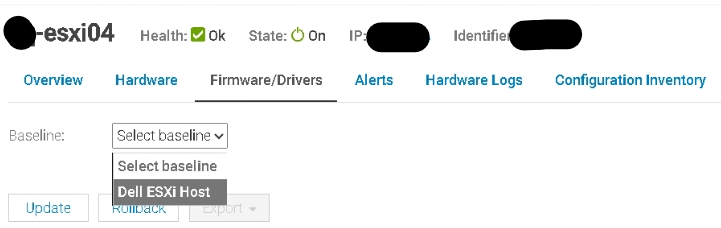
Going into Firmware/Drivers we can select the base line for this host using the drop down, ESXi01 and see whats available
Fist, we want to do the iDRAC, so make sure only that is selected and click update like this
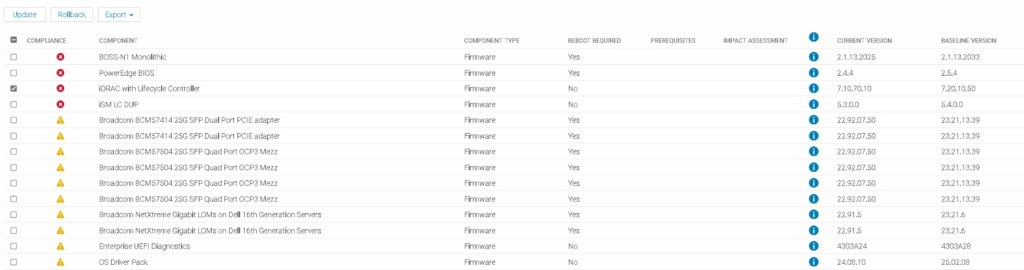
Then click Update
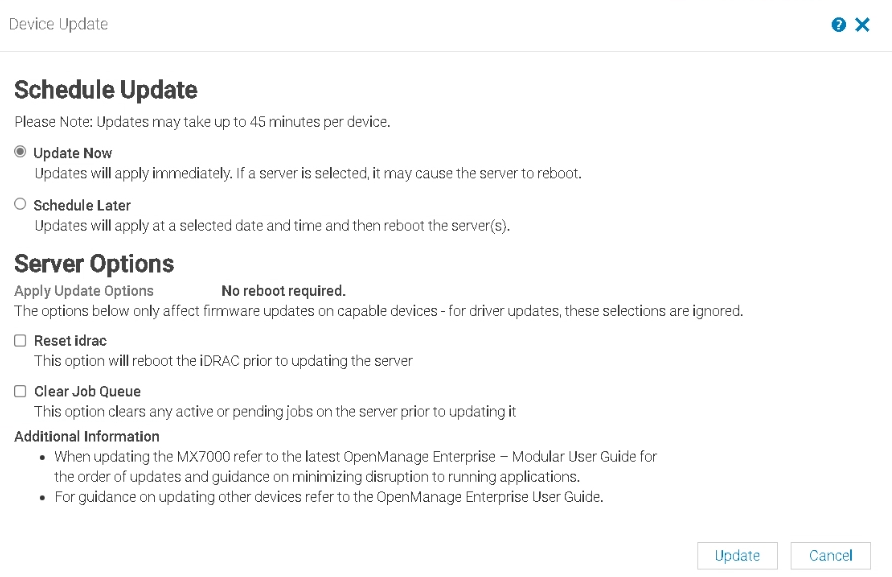
You can check running jobs from this icon in the right of OpenManage

This can take 15-20 mins to update, when its done
Then we want to check the CPLD version, OpenManage will not pick up any updates for this, but it will list the version at the bottom

Here we can see my R660 has CPLD 1.2.6
To check the active version Google ‘Dell <Server-Name> Drivers’ and you should see the support page as the first link
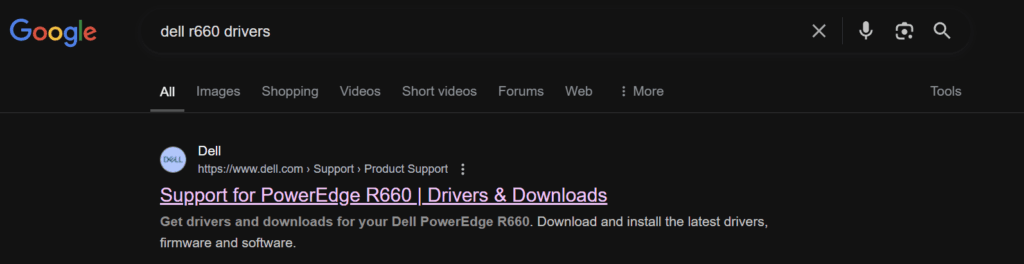
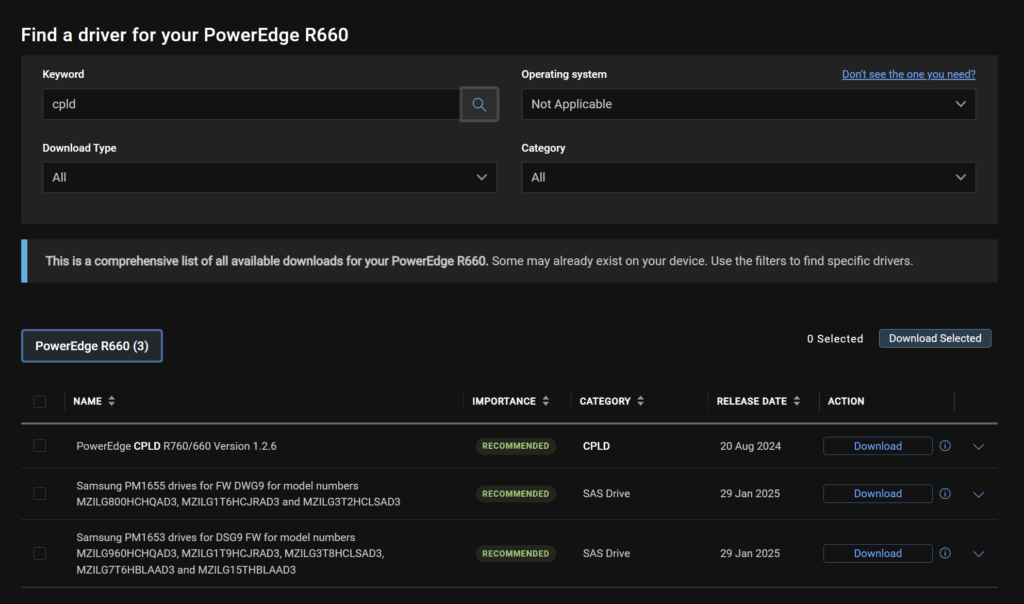
Change the OS to Not Applicable, and search for ‘CPLD’, here we can se the latest is 1.2.6, so we dont have one to do
However, if you did have a newer version, you need to log into the iDRAC
This is under Maintenance/System Update, you can upload the CPLD file here by clicking Choose File
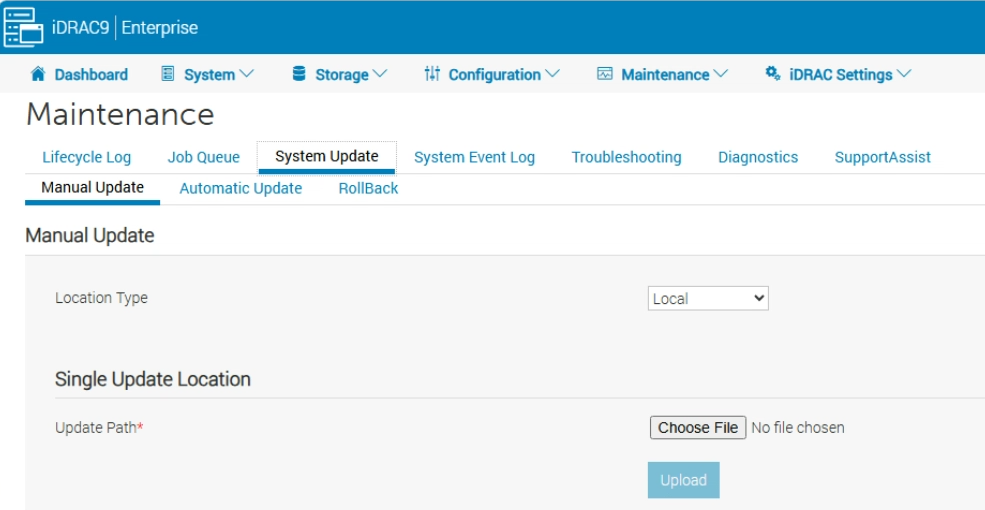
Then click Upload

Select the package and click Install And Reboot

In OME, we repeat for the BIOS and click Update
This will reboot the host

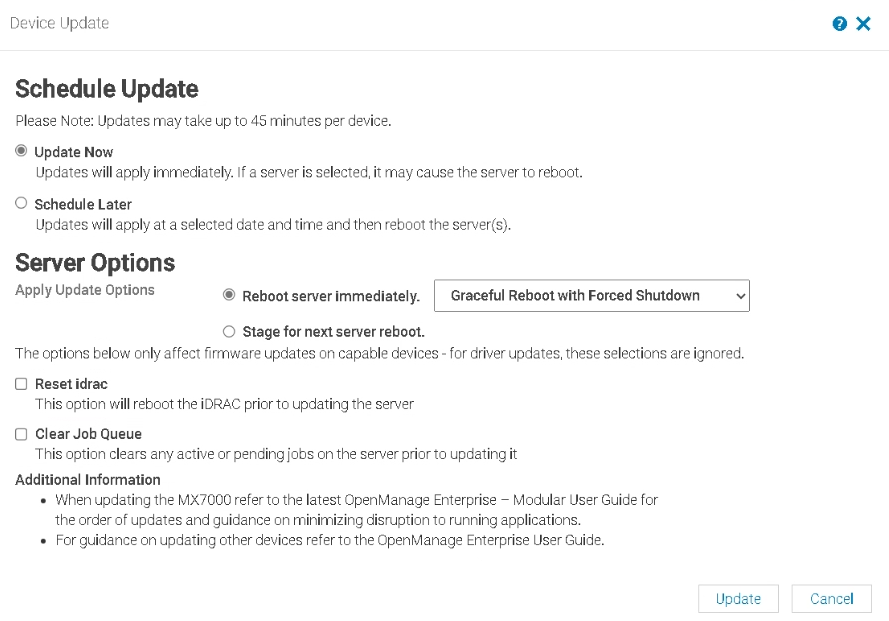
Then select the rest and click Update
1.10.3 – HPE
Ensure any host being updated is in maintenance mode with no active VMs running as reboots are needed for most firmware updates from section 7.1
We then need the HPE SPP, we can find this here
We can also search for the server generation and click the link to it
Eg
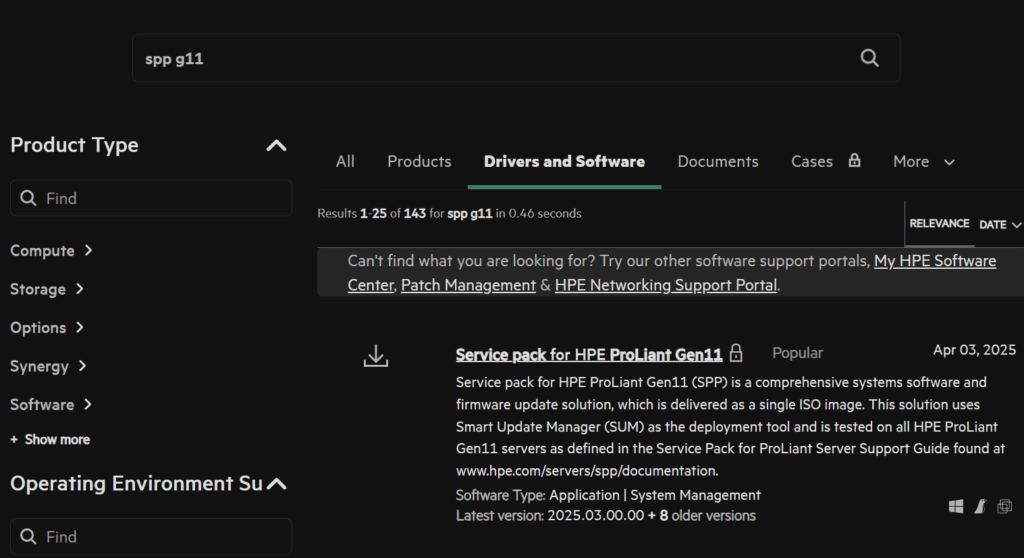
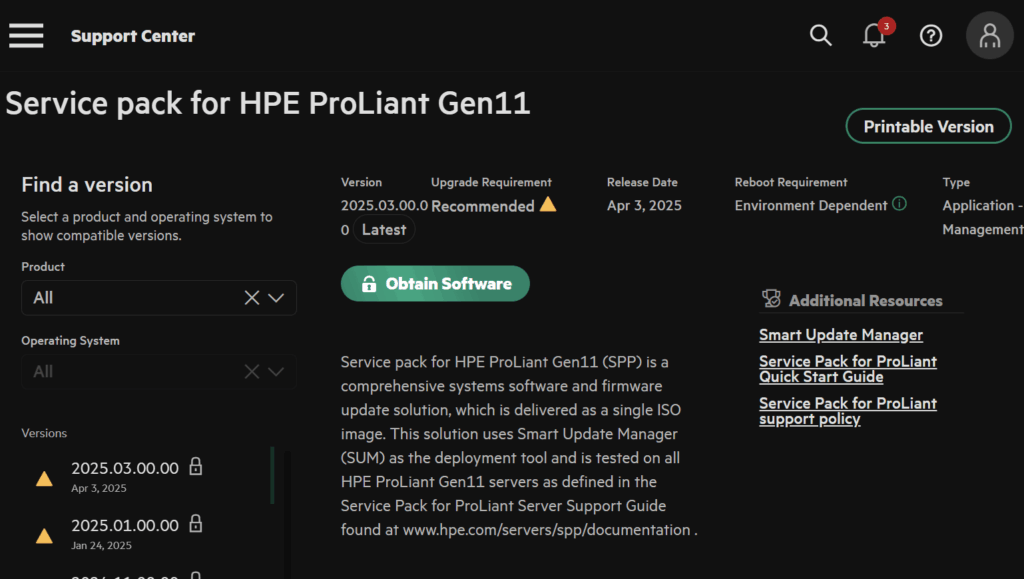
Click Obtain Software
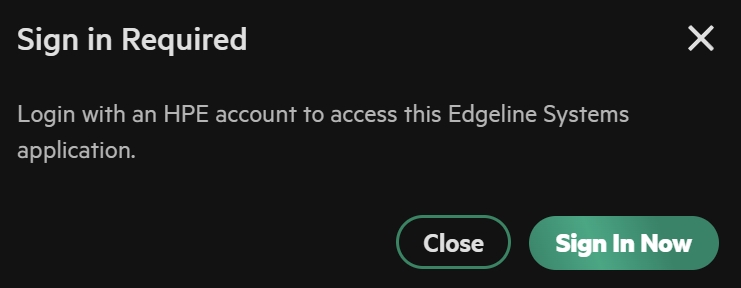
And sign in with your HPE account
Open the web console in iLO, click the CD icon then CD/DVD/Local *.iso File
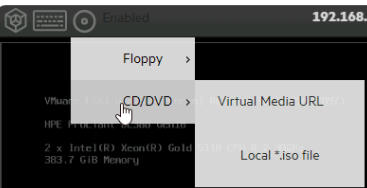
And double click the ISO file
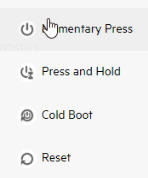
Reboot the host OS, momentary press will do this from the left mot icon in the web console, or you can reboot the server from the guest OS
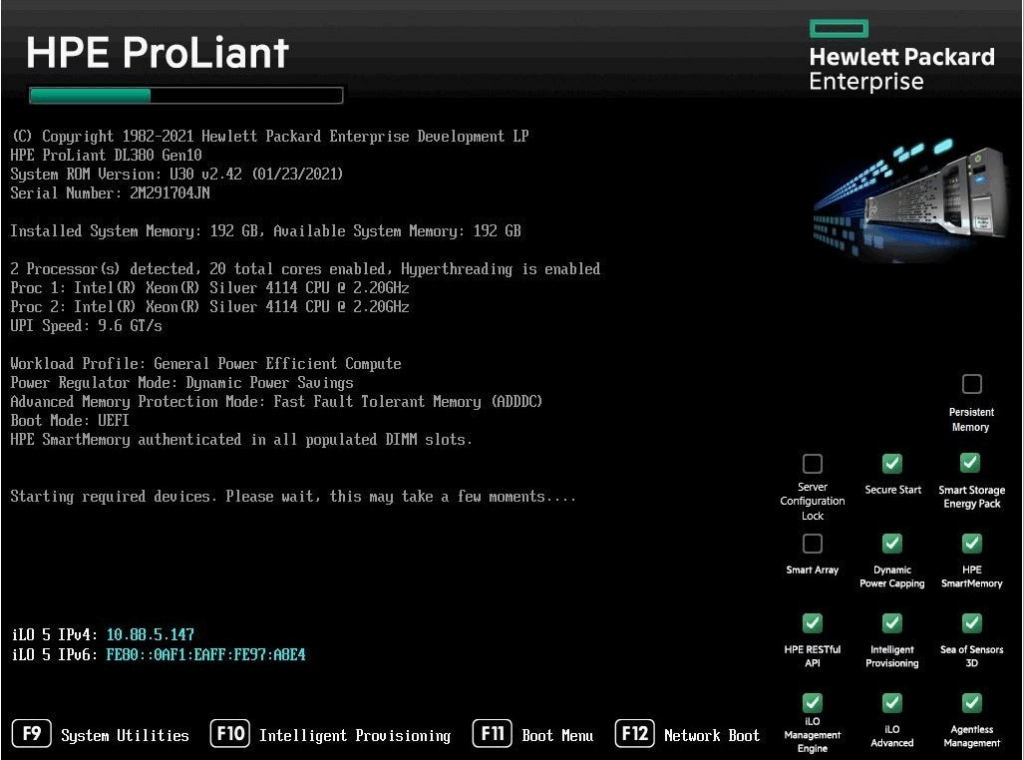
Press F11 here to enter the one time boot menu
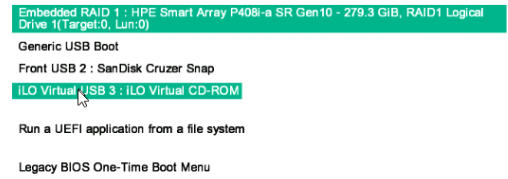
Select the iLO virtual Media
Then automatic updates

This can often take ~90 mins to complete and do not interrupt the server, when its done, your host OS will be booted
1.11 – ESX
For ESX we again need to click Download Now under Available Updates for the management domain
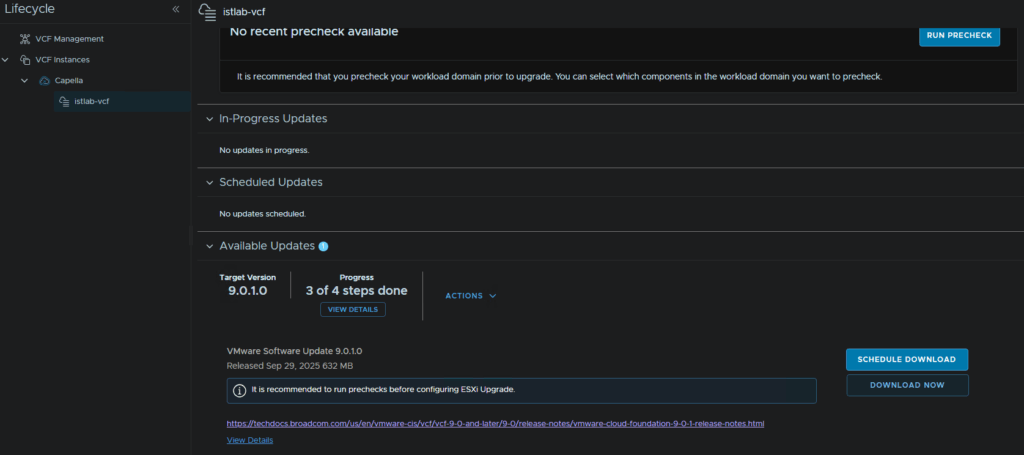
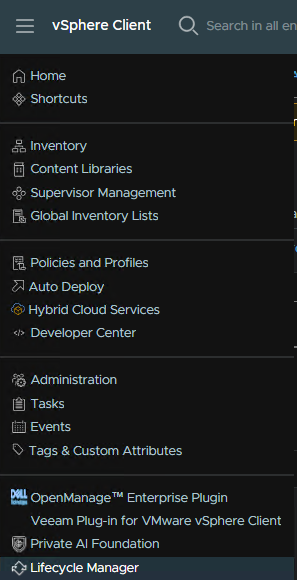
While thats downloading we need to create a cluster image, in vSphere, click the three lines in the top left and click LifeCycle Manager
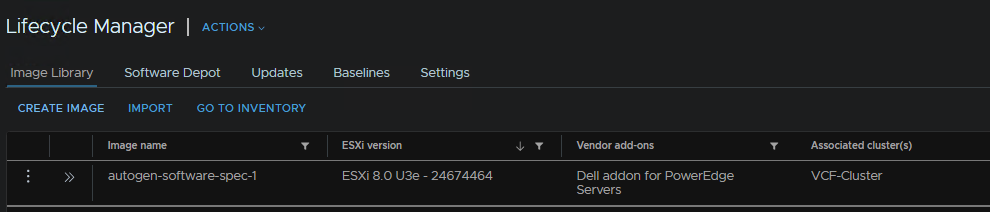
Under Image Library, click Create Image
Give it a name, I name it in the format ESX-<Version>-<Vendor> and select the target ESX build from the upgrade plan, in my case, 9.0.1.0
Then click Select under Vendor Addon
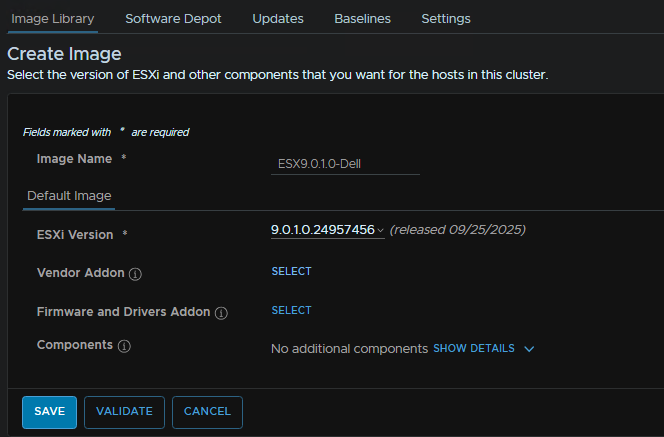
And select the addon that matches your vendor, in my case Dell, then click Select
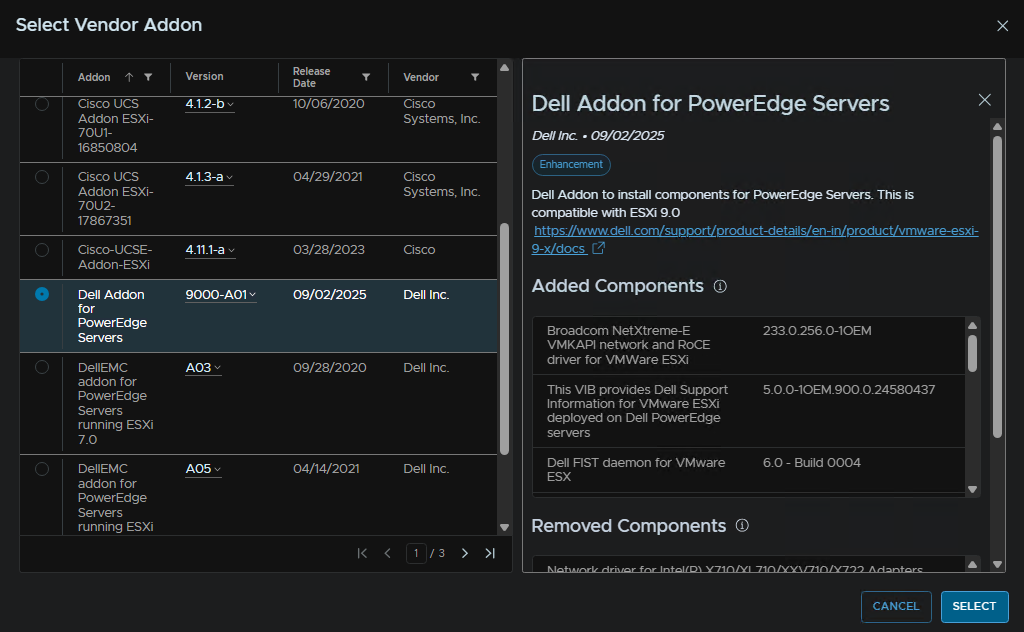
Optionally, we can add the async VMware tools, to add this click Show Details on Components, then click Add Components

The latest 13.0.5 is included in ESX 9.0.1.0 so we dont need to do this for our upgrade path, when you are happy with your image click Validate
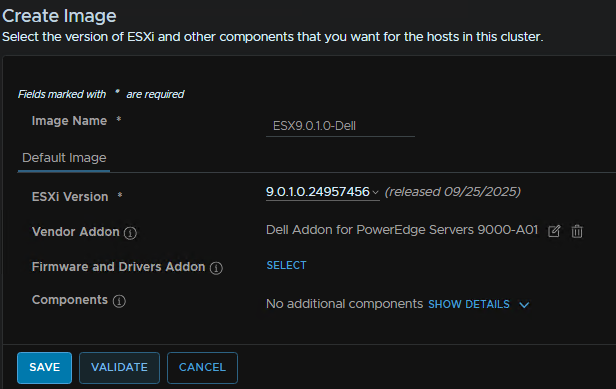
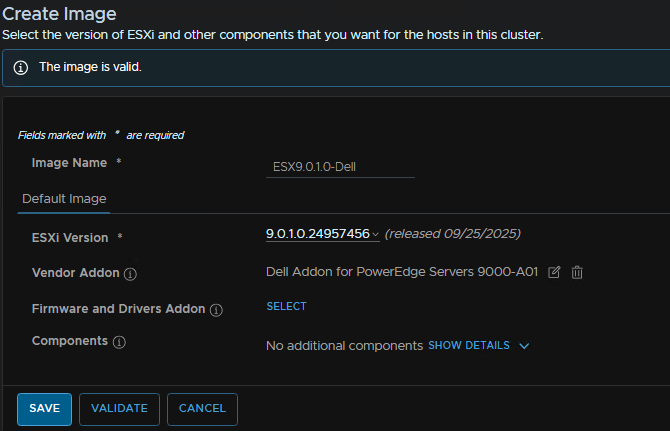
If the image is valid, click Save
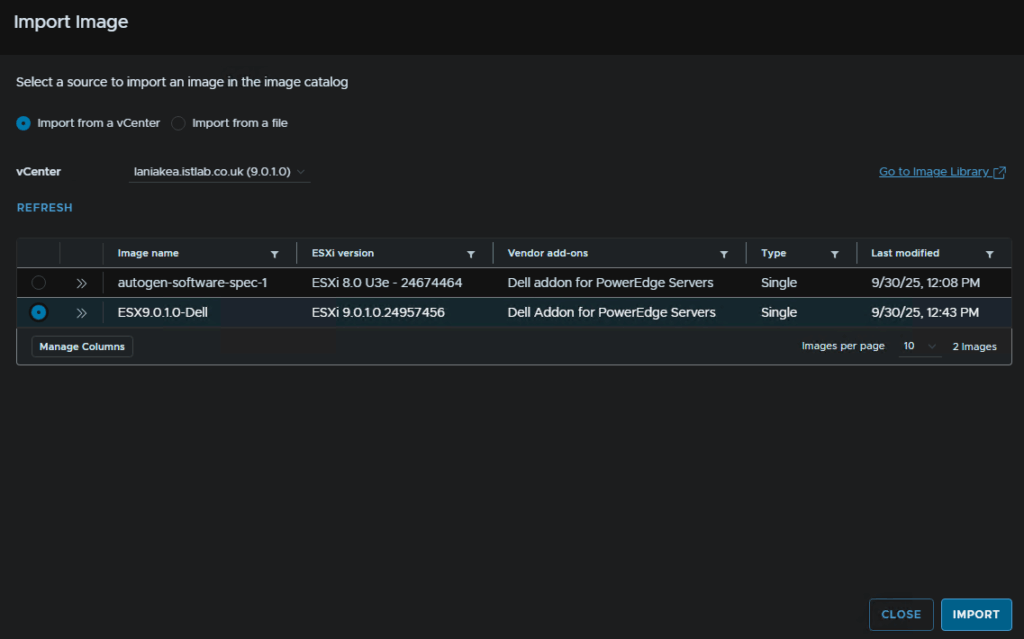
Now we need to import the image through VCF Operations, click Fleet Management/Lifecycle and click your VCF Instance, mine is Capella, then click Image Management/Import Image
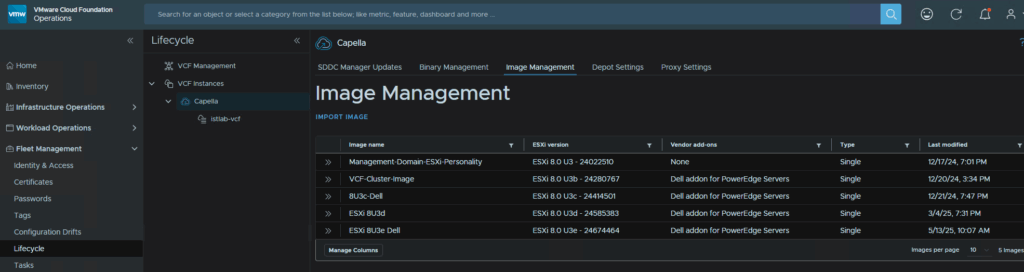
I only have one workload domain, the management domain, so the vCenter is automatically selected, but we should see our new image, click that and click Import
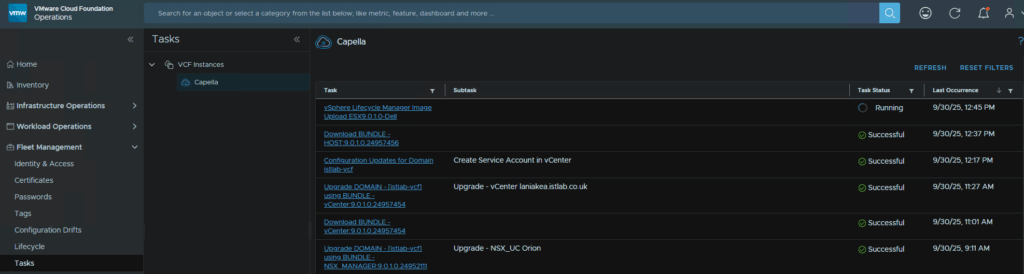
We can see the progress from Fleet Management/Tasks under our VCF instance if needed
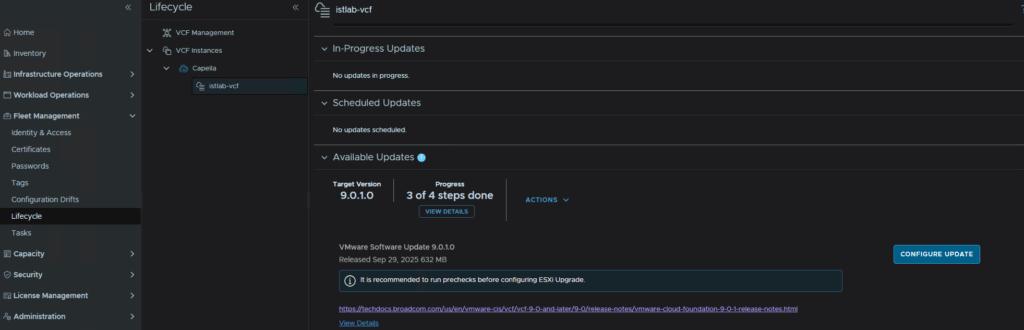
When thats done we can head back to Fleet Management/Lifecycle, select our management Domain and click Configure Update
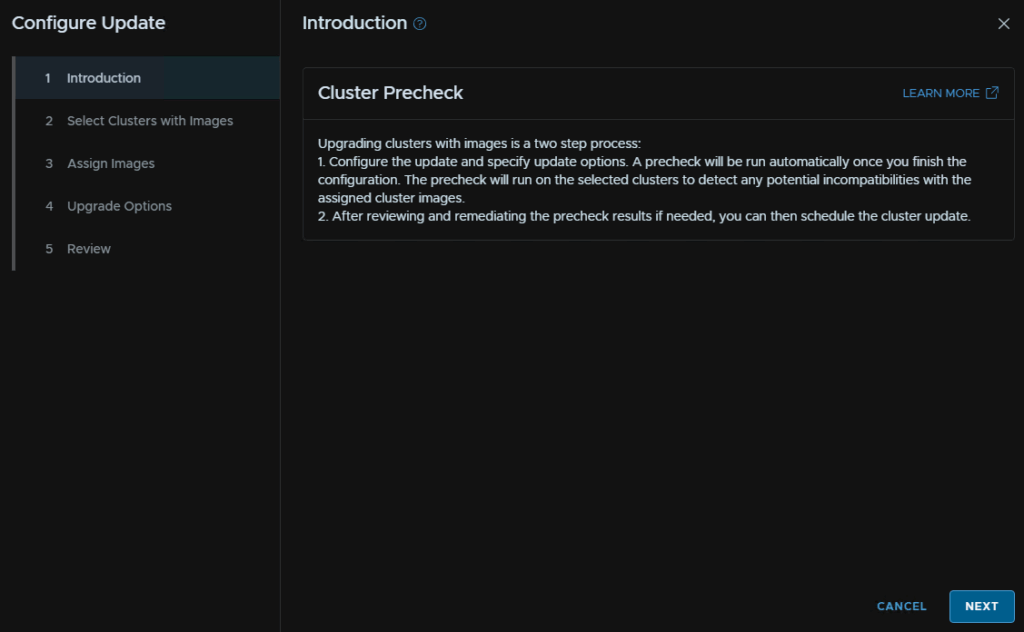
Click Next
We will want all cluster selected, then click Next
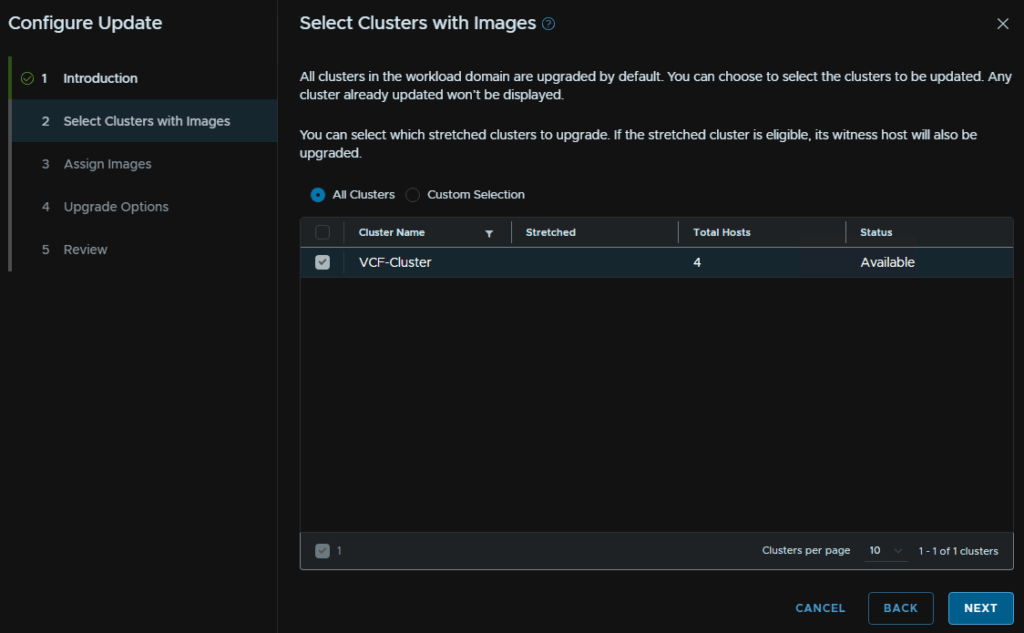
Select your cluster and click Assign Image
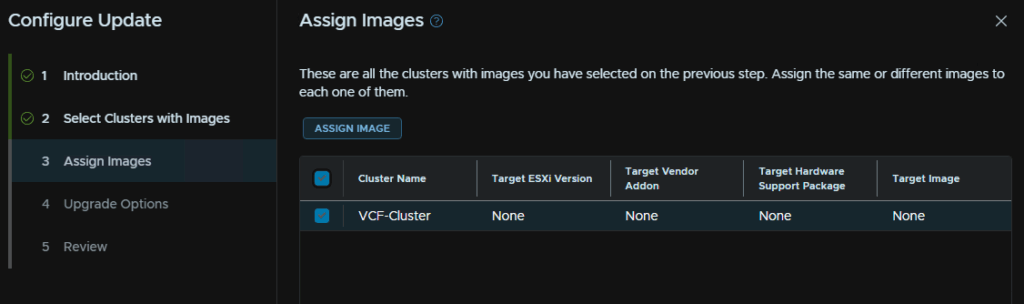
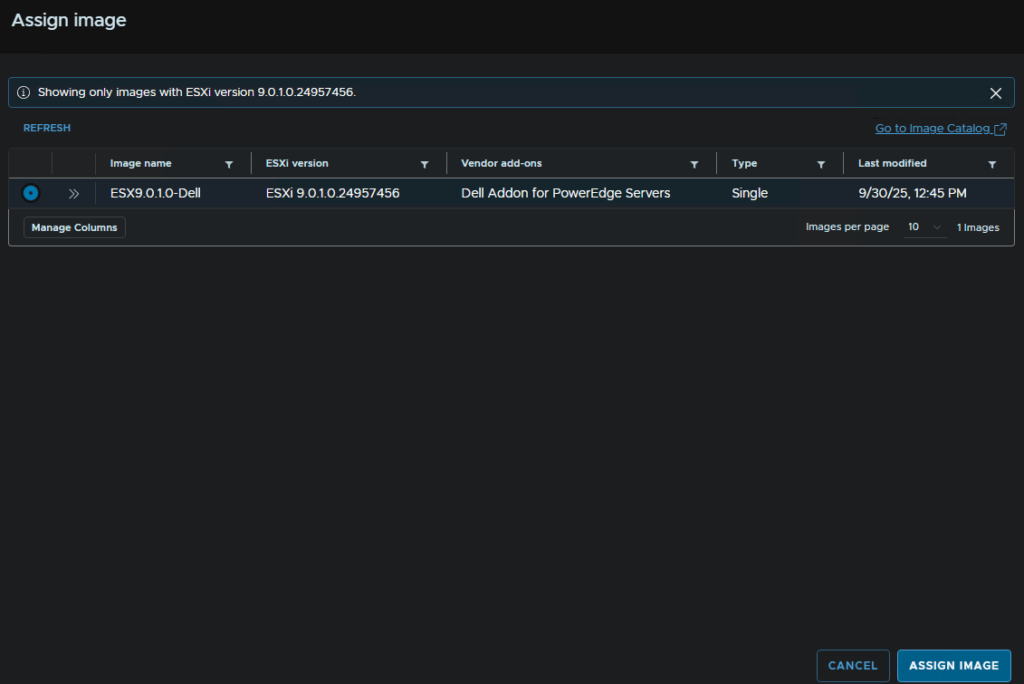
Select our image and click Assign Image
Then click Next
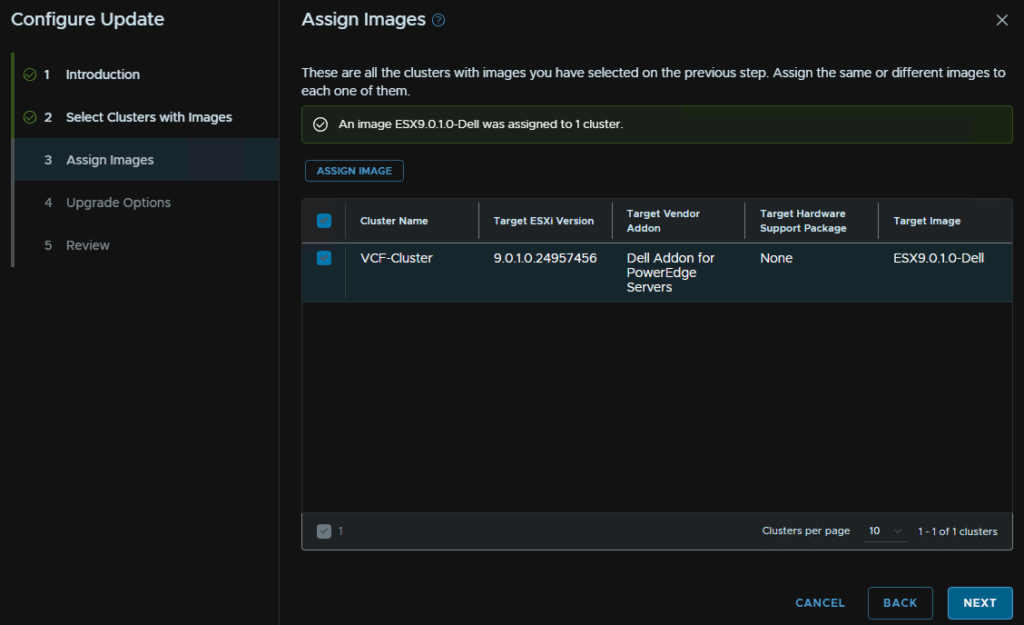
As ESX 9.0.1.0 is not Live Patch eligible, ensure Enforce Live Patch is not checked, and click Next
For upgrades, even if the version is live patch eligible I dont recommend using them for 8 –> 9
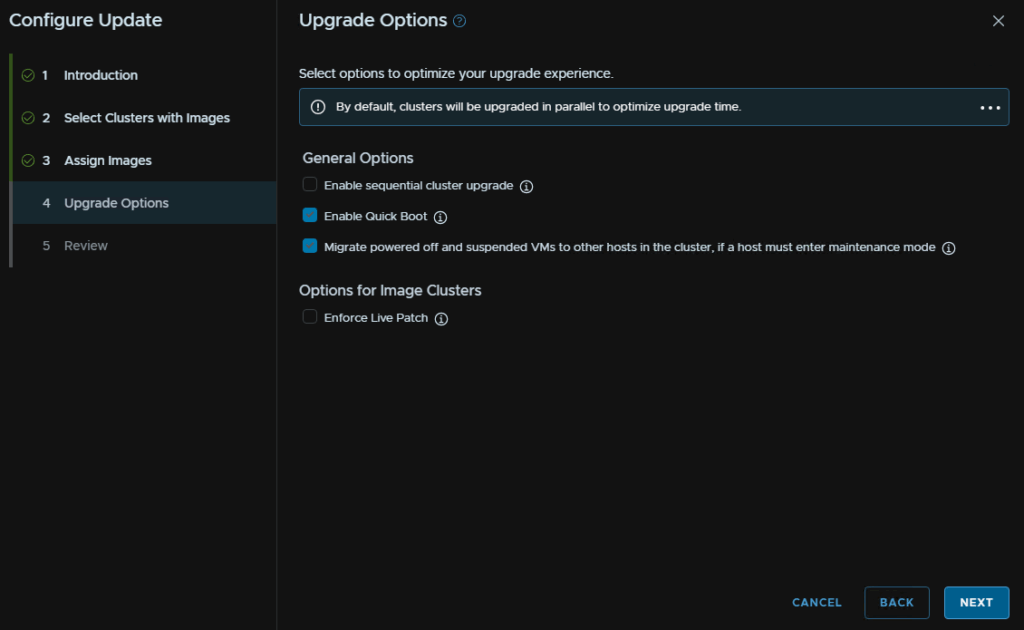
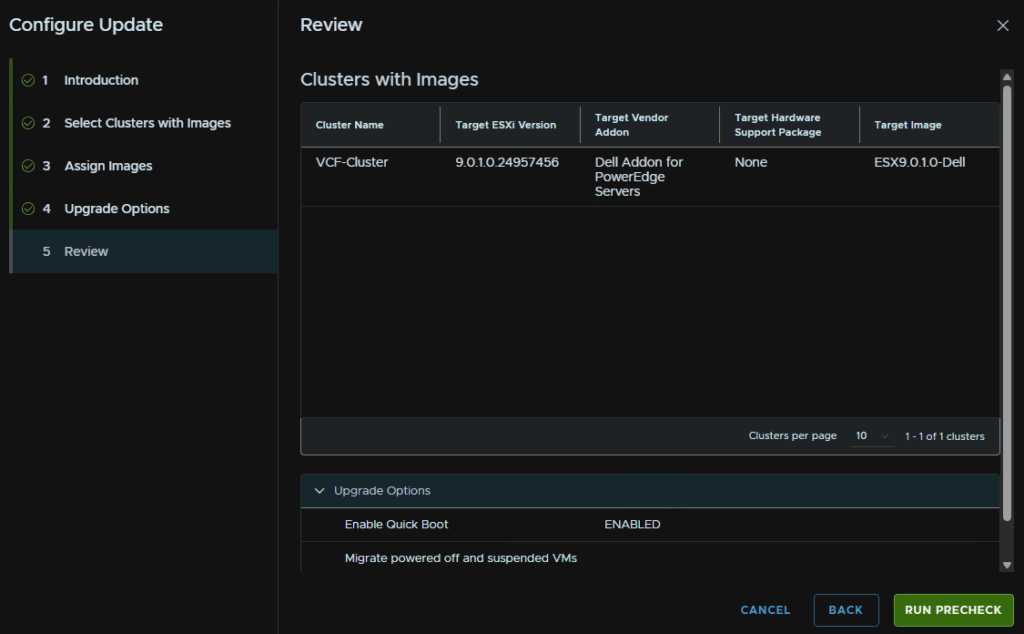
Then click Run Precheck
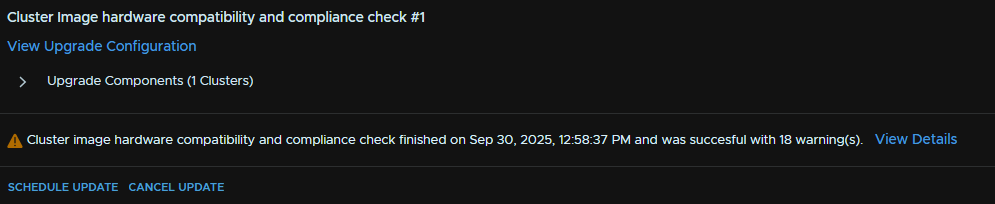
Click View Details to see any warnings, I got quite a lot
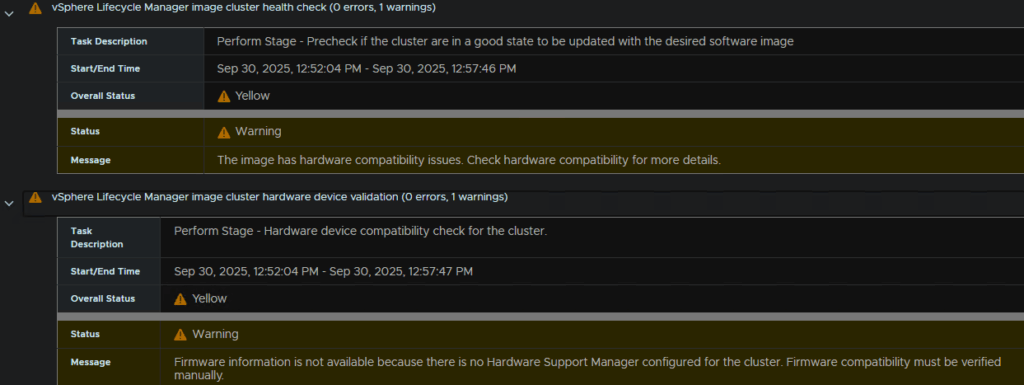
The first two were for hardware compatibility issues, I am running 3xR640 and 1xR740 in this cluster which doesnt officially support VCF 9 so that explains that, and another for firmware, I dont have vendor firmware integration licenses for Dell OME so thats fine, I can manually check this
All 4 hosts then generated the same 4 errors
I have a CPU support error, 1st Gen Xeon Scalable isnt officially supported, only 2nd gen and later, it will work so for my lab I can ignore this
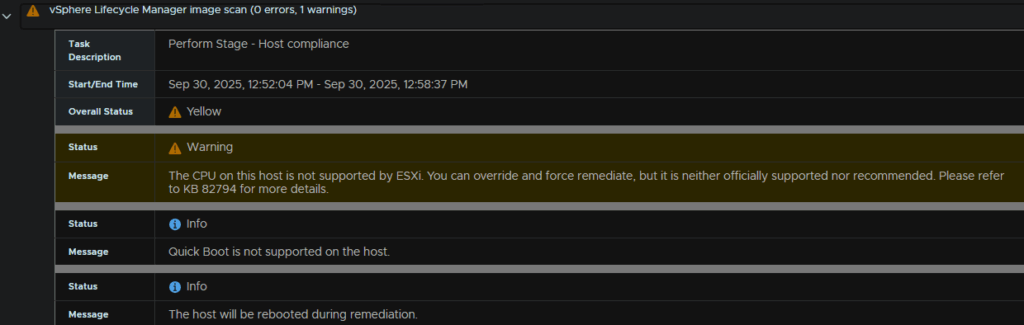
Not too sure what the baseOS warning is for, this is expected and can be ignored
Same for the vendor addon, as you should upgrade this, so this can also be ignored
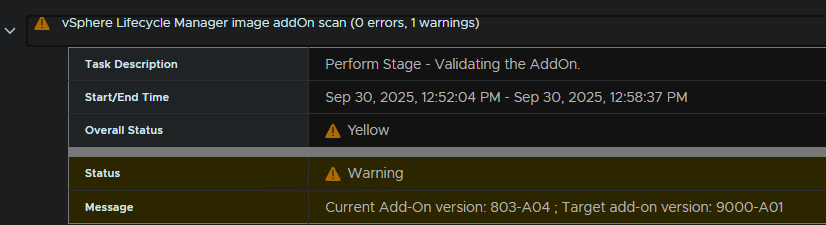
The last one is more of an issue, the H330 does have drivers in VCF 9 and when testing with the ESX 9 ISO my vSAN disks are detected so for my lab I am ignoring this, for production you should not upgrade

Click Exit Details in the top left when you are happy

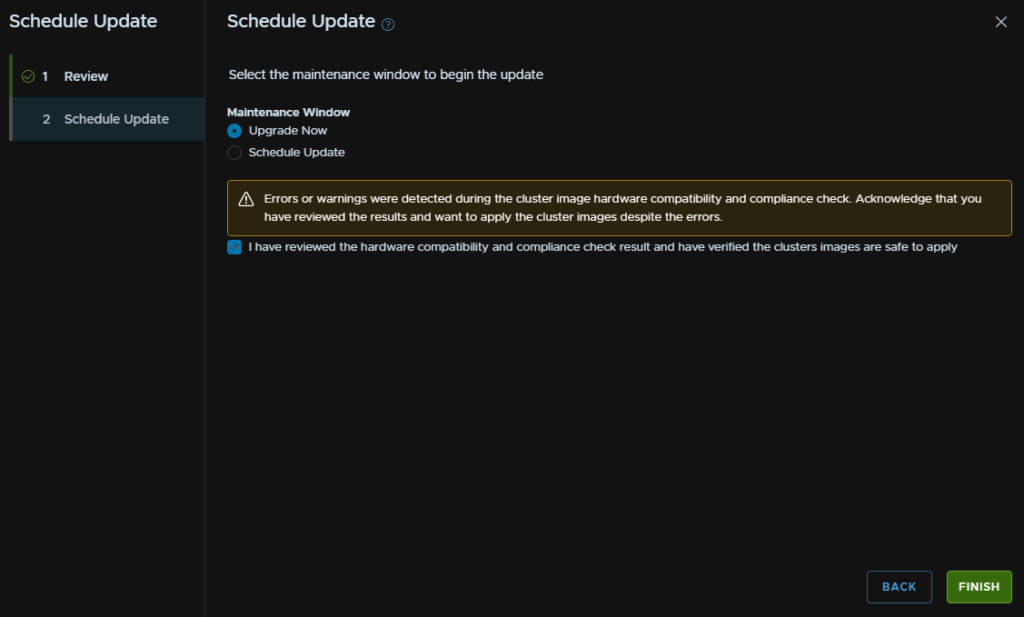
Now that I have checked these and am happy to proceed, I am going to click Schedule Update
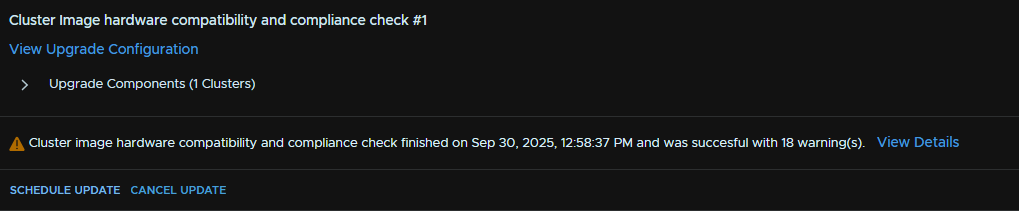
Click Next
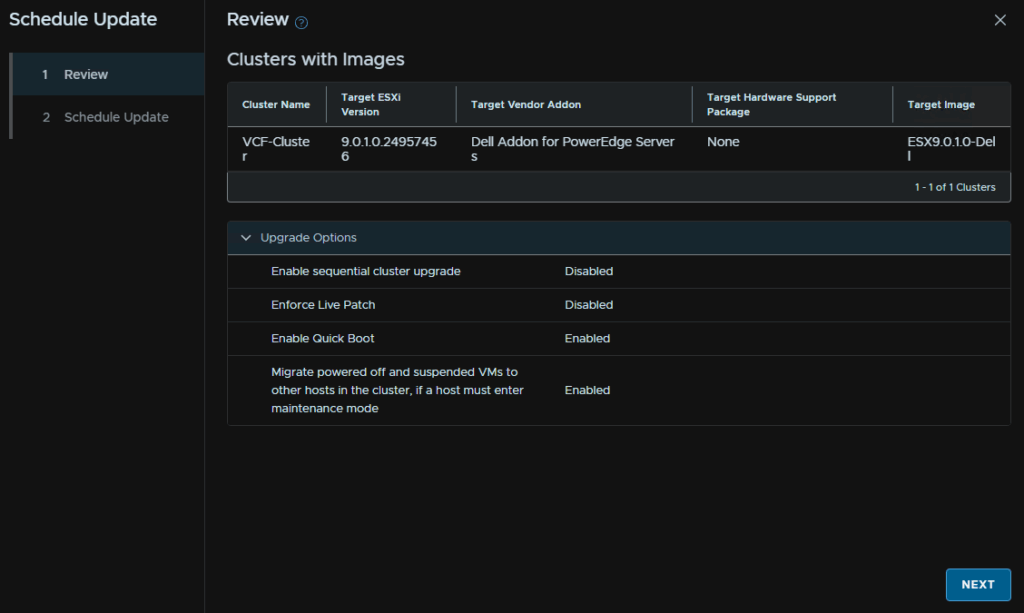
Then select to run the upgrade now or schedule it, and in my case as I have warnings I need to accept the box to acknowledge them and click Finish
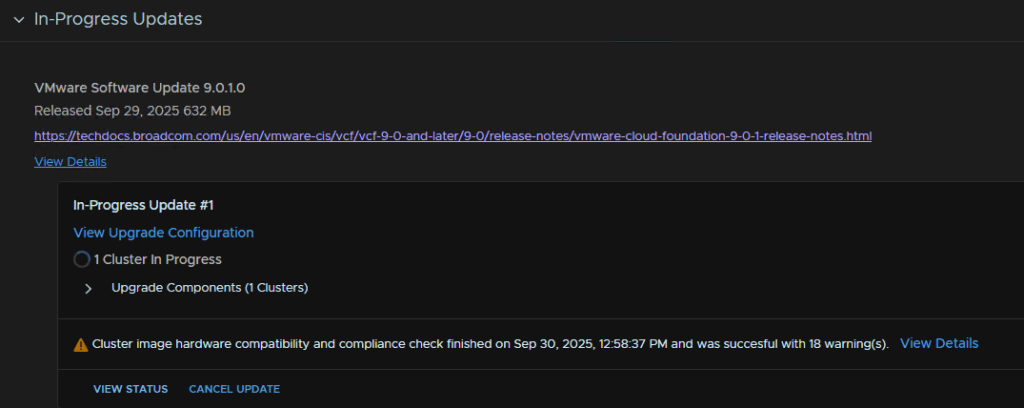
We can view the status on the In-Progress section, you may need to refresh the page, by clicking View Status
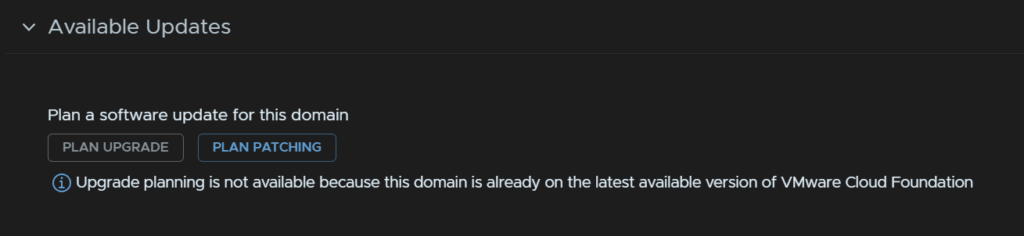
When its done it should look like this
1.12 – vSAN
1.12.1 – Disk Format Upgrade
In vSphere click the Cluster, then head to Configure/vSAN/Services and click Pre Check Upgrade on the right
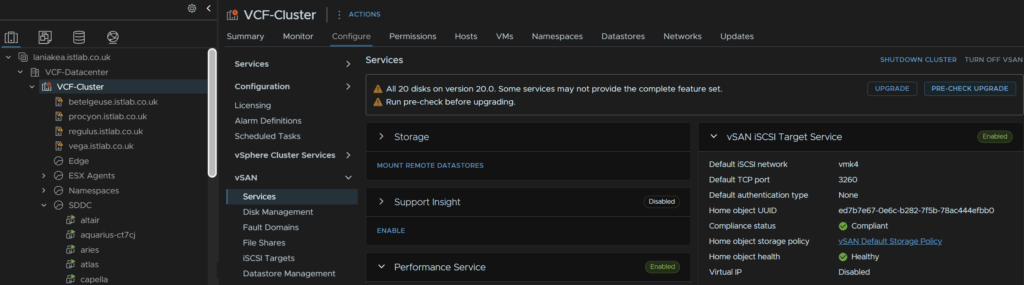
When it says ready to upgrade, click Upgrade

Then click Upgrade
Its worth noting, you cannot roll ESX back after starting this
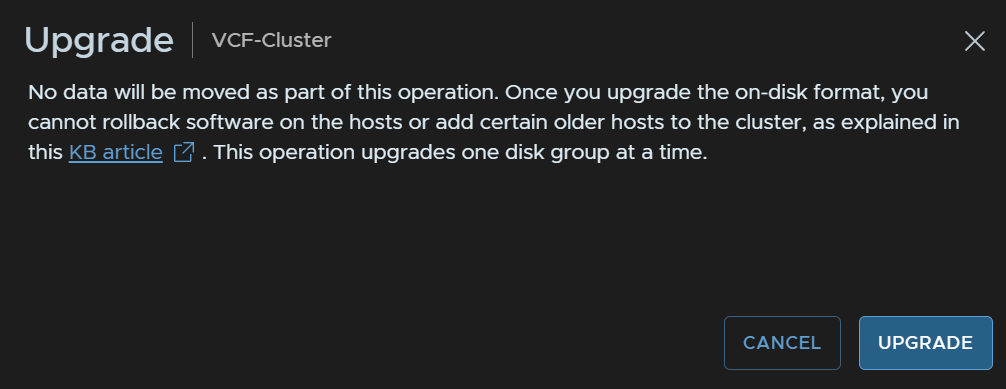
We can see the progress here and we just need to wait for it to finish

1.12.2 – File Services Upgrade
When I tried to check to updates automatically, this fails, I am not sure why, so we will be downloading and uploading the files manually for this
In the Broadcom portal, search and click VMware Cloud Foundation
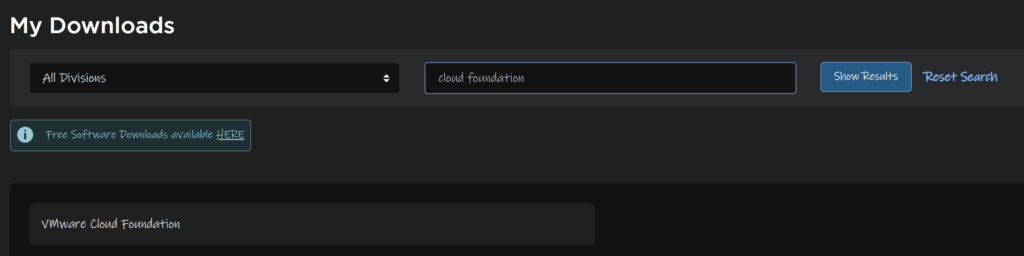
Expand VCF 9 and select the release you are upgrading to, I am upgrading to 9.0.1 so I selected that

Click View Group under VMware vSAN

Click Drivers And Tools, then expand the files services section
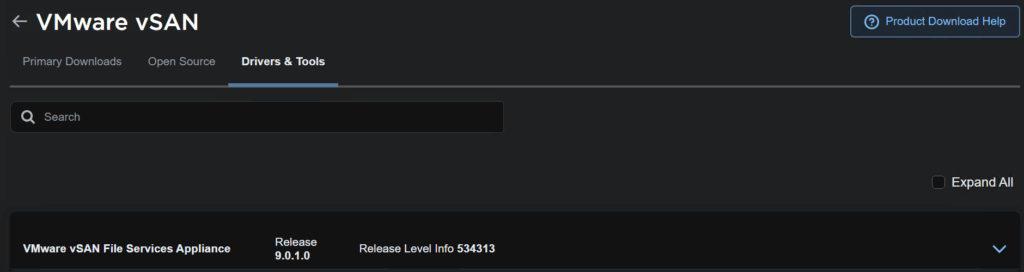
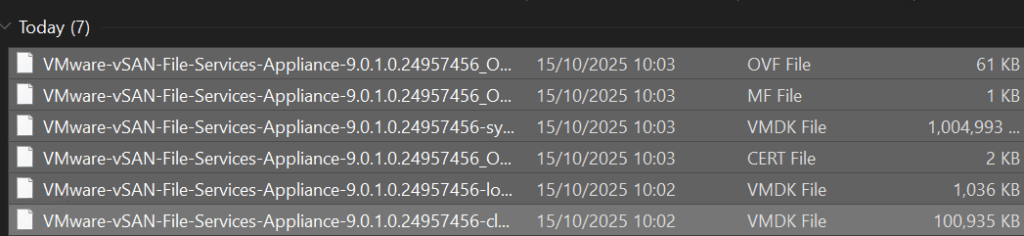
We then need to download all the files here
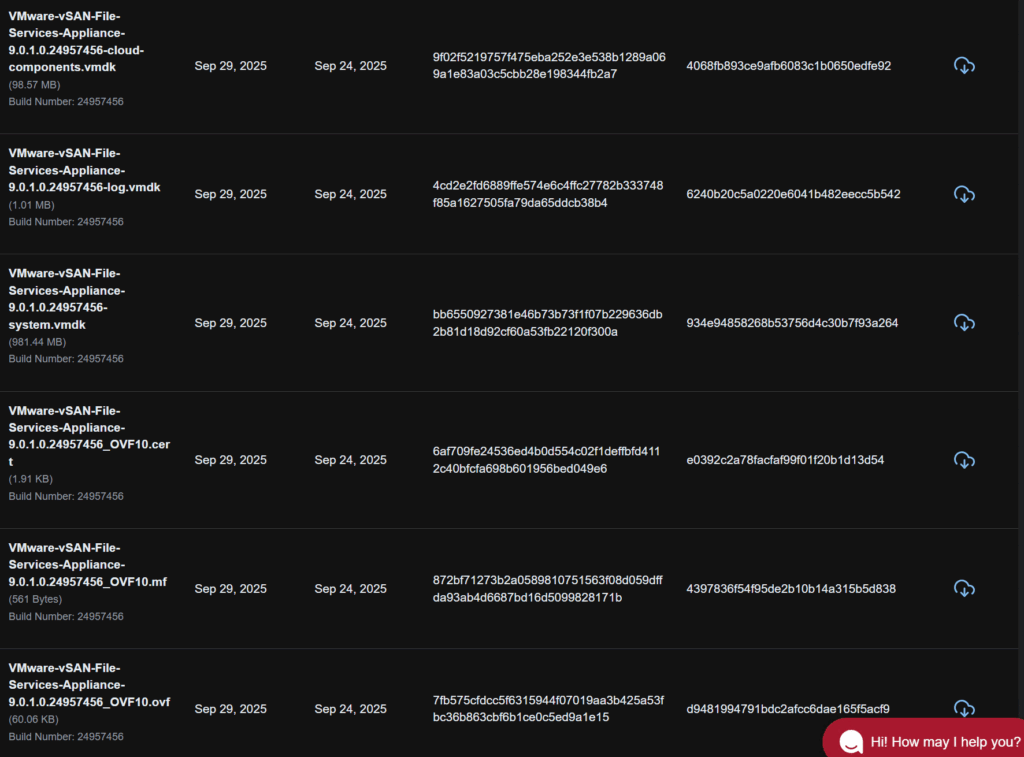
In vSphere, click the cluster, then head to Configure/vSAN/Services and under the File Services widget click Edit/Check For Upgrade
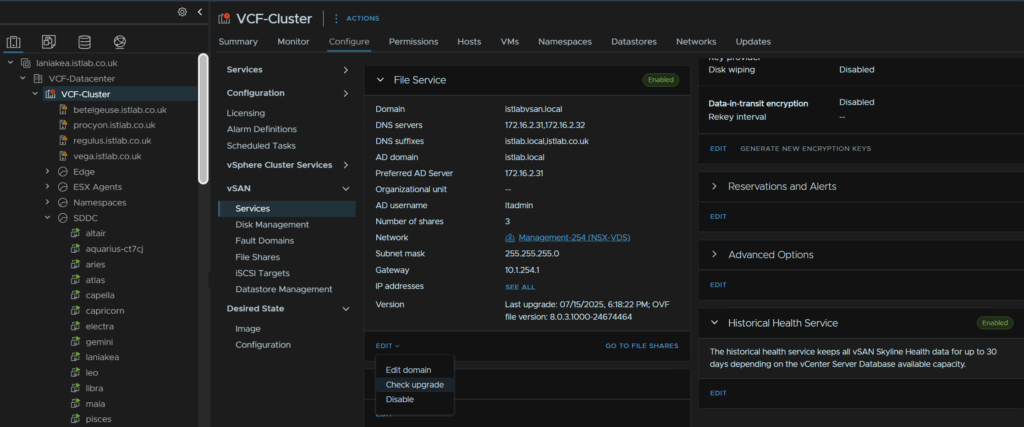
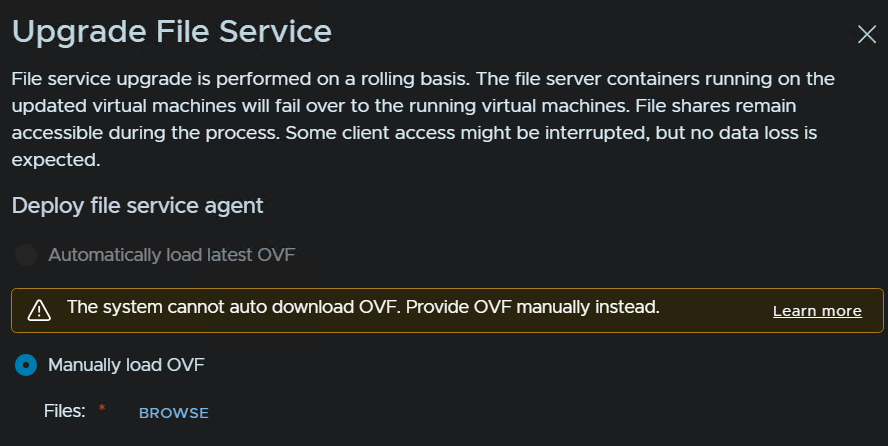
Wait for it to fail to detect the files online, I do have the Broadcom token so this is odd
Manually load OVF will be checked, then click Browse
Select all the files and click open in the bottom right of the pop up
Then click Upgrade
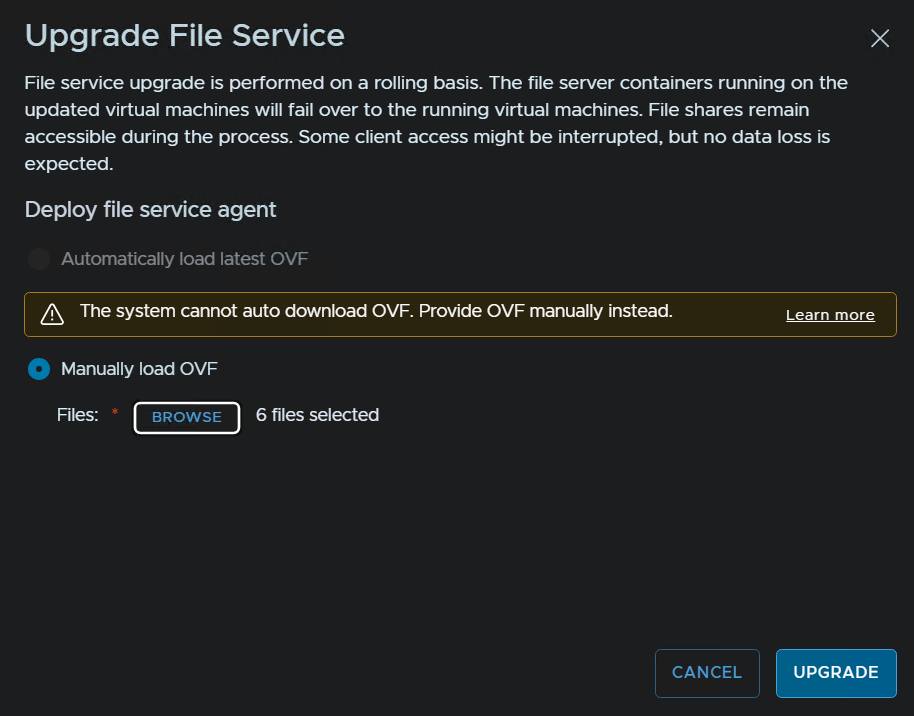
This will automatically move the files shares around so they remain accessible and new file services VMs will be deployed to replace the other ones
1.13 – VCF Operations Collector
This part is only needed if you didnt have an Operations Collector orginally, which I didnt, its worth noting this you do need one, the Supervisor can only collect metrics through it and I would recommend having one for everything else
In the Broadcom portal, search and click VMware Cloud Foundation
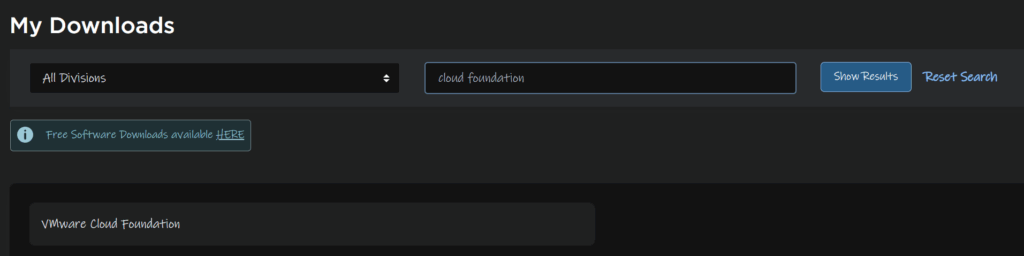
Expand VCF 9 and select the release you are upgrading to, I am upgrading to 9.0.1 so I selected that

On VCF Operations Collector, click View Group

And download the appliance

Right click the cluster and click Deploy OVF Template
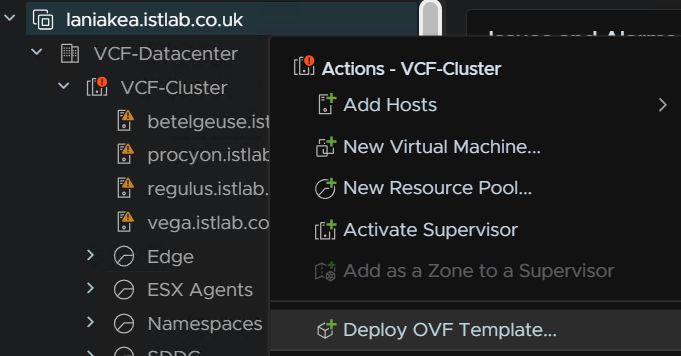
Click Local File and then Upload Files
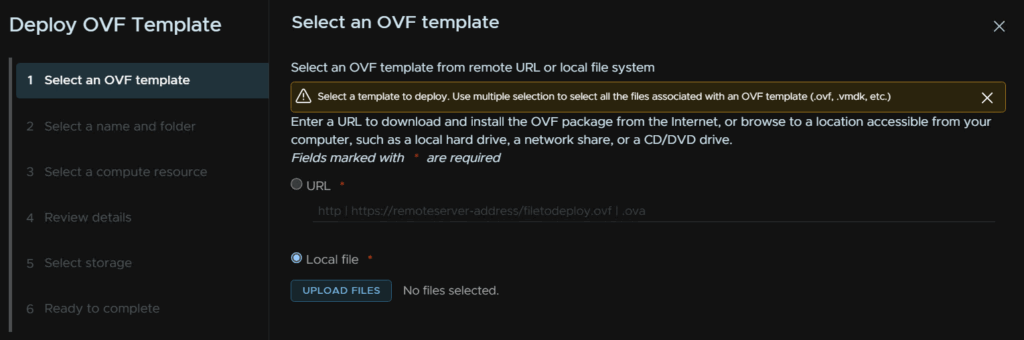
Double click the OVF file

And click Next
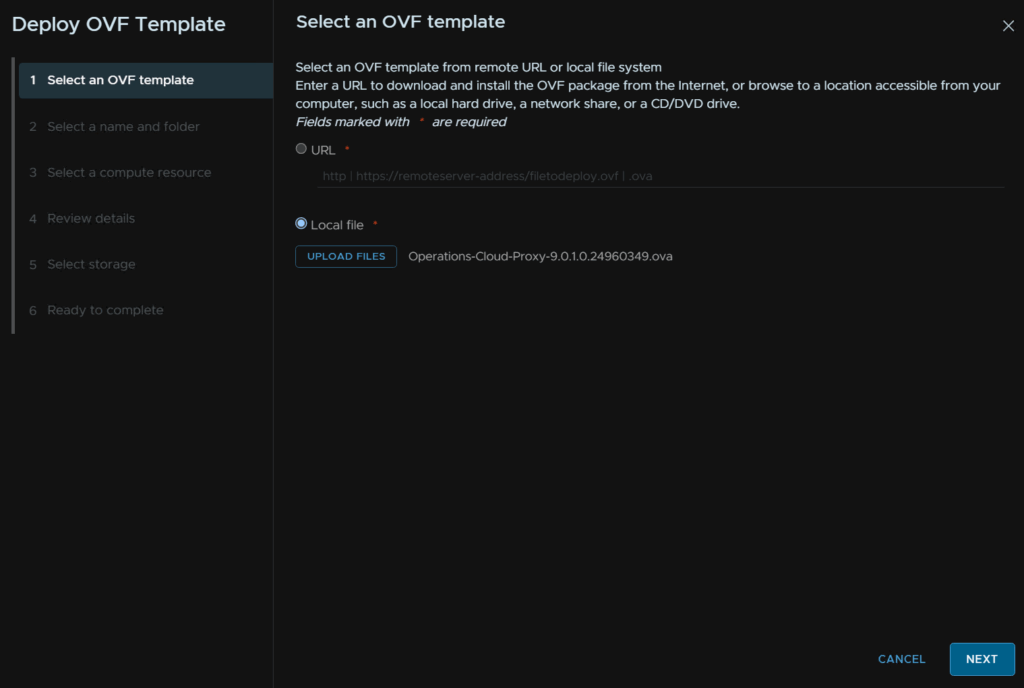
Give the VM a name, optionally select a folder and click Next
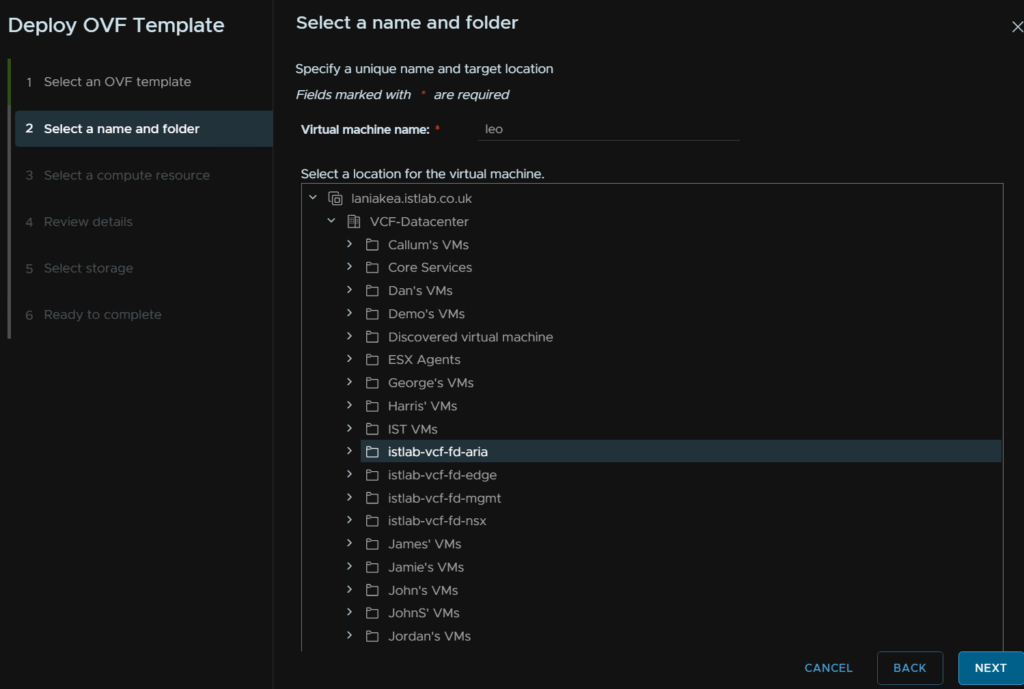
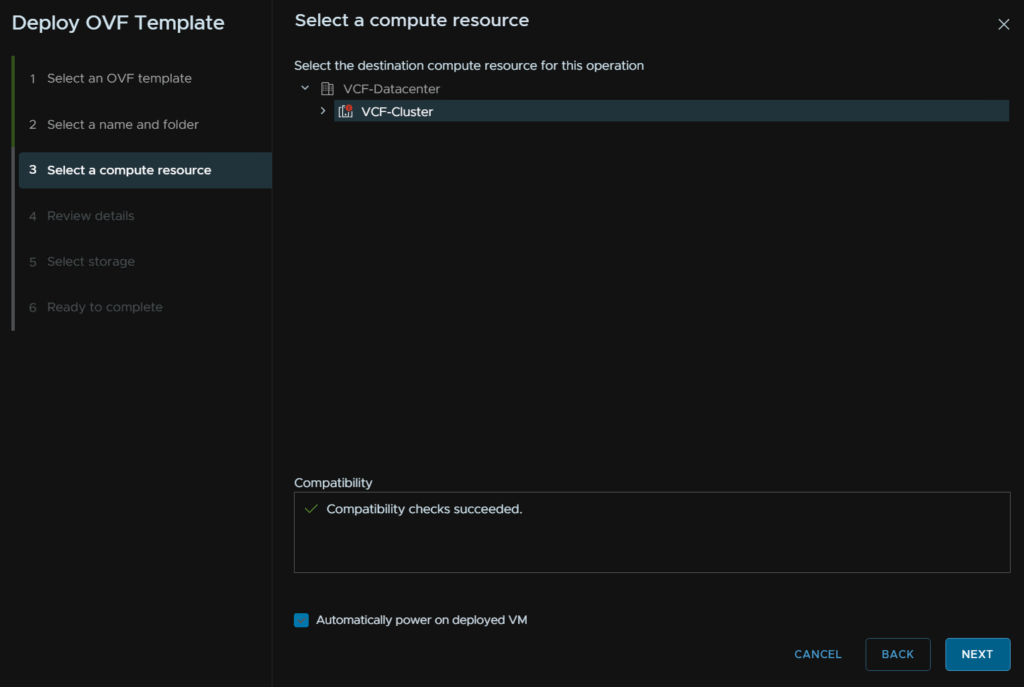
Select the cluster for compute and check the box to automatically power on the VM, then click Next
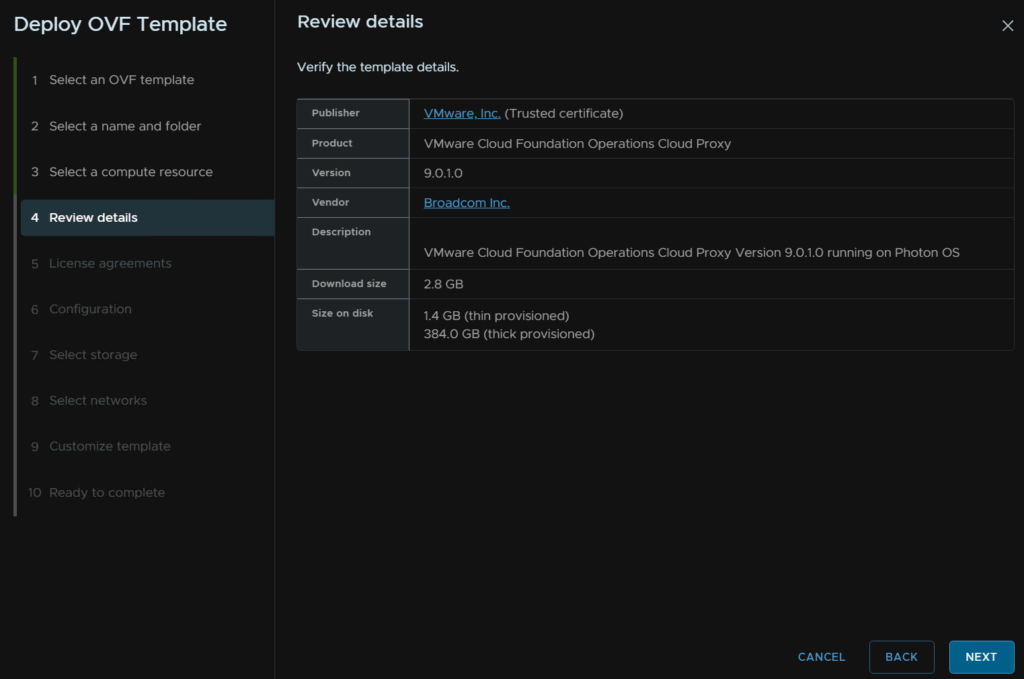
Click Next here
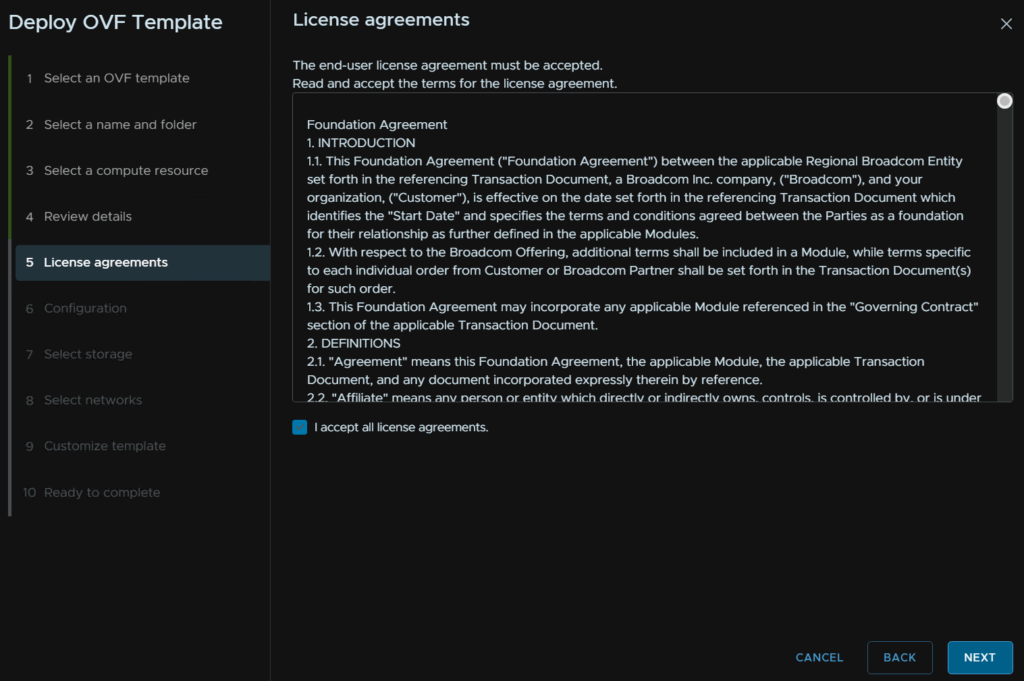
Accept the EULA and click Next
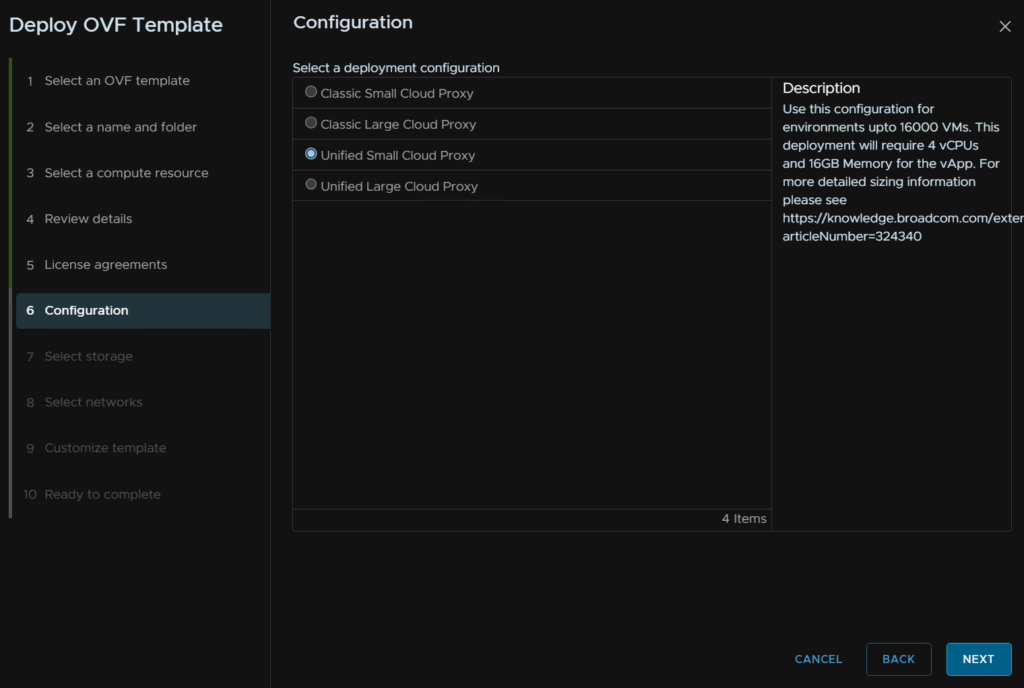
We will want to select a Small Unified Proxy and click Next
The large proxy can do up to 80000 VMs for larger environments
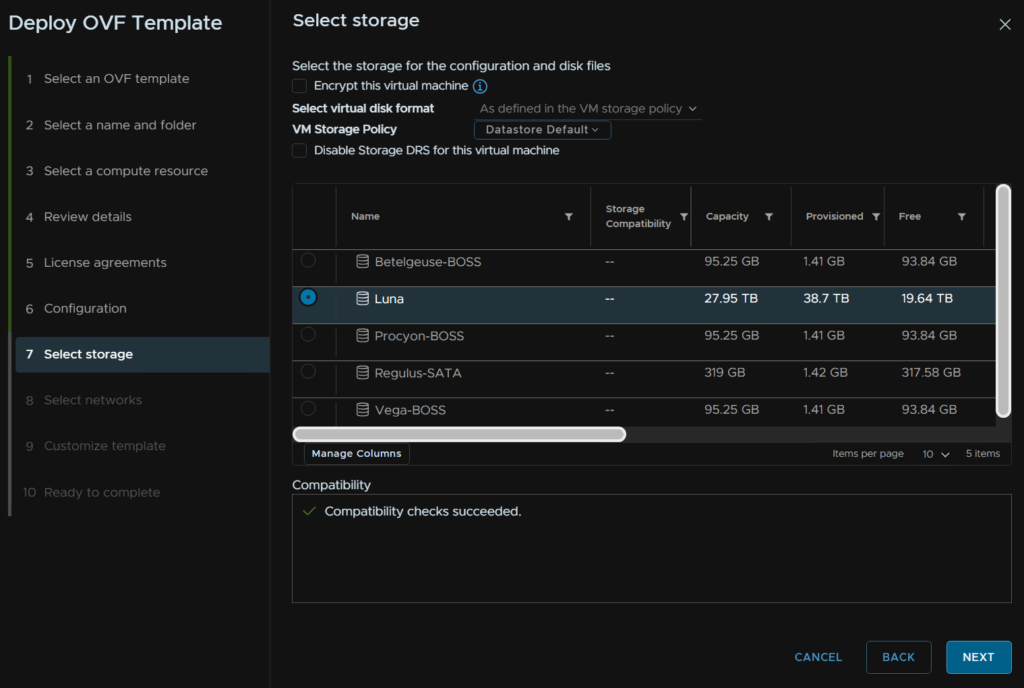
Select a datastore and click Next, I am using my vSAN datastore
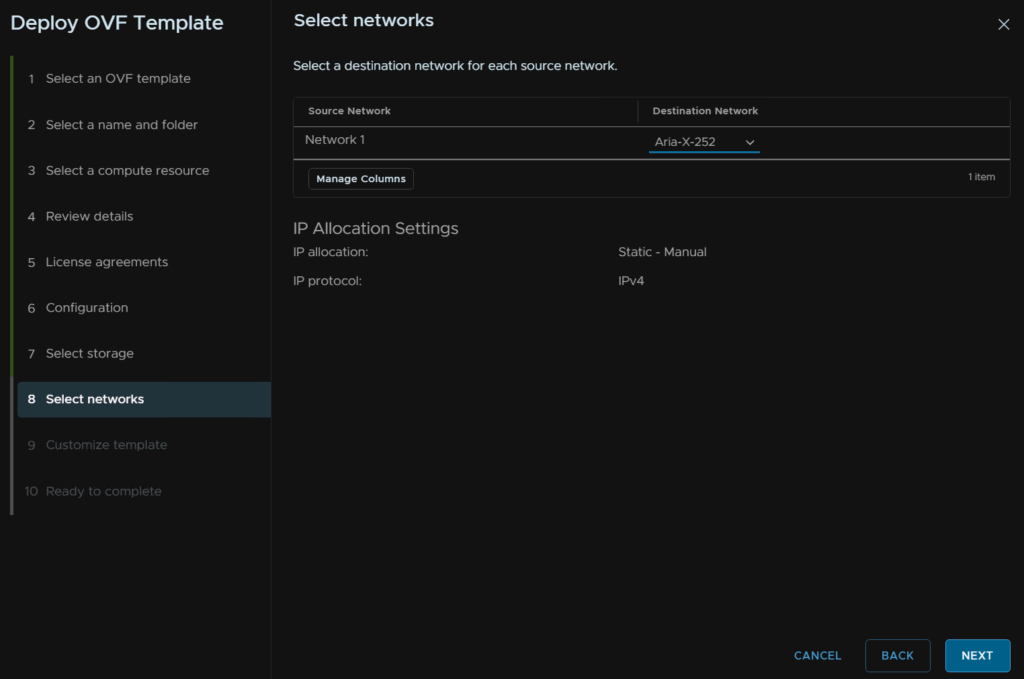
Select the same network as VCF Operations, as this is the domain that contains VCF Operations, and click Next
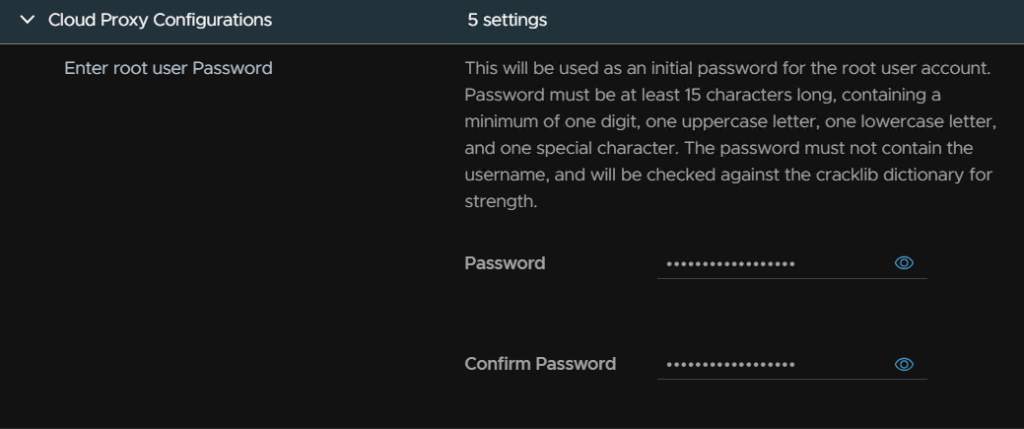
We need a root password, this must be 15 characters and the only allowed special characters are !@#$%^&*
We then need to log into VCF Operations and head to Administration/Cloud Proxies and click Add
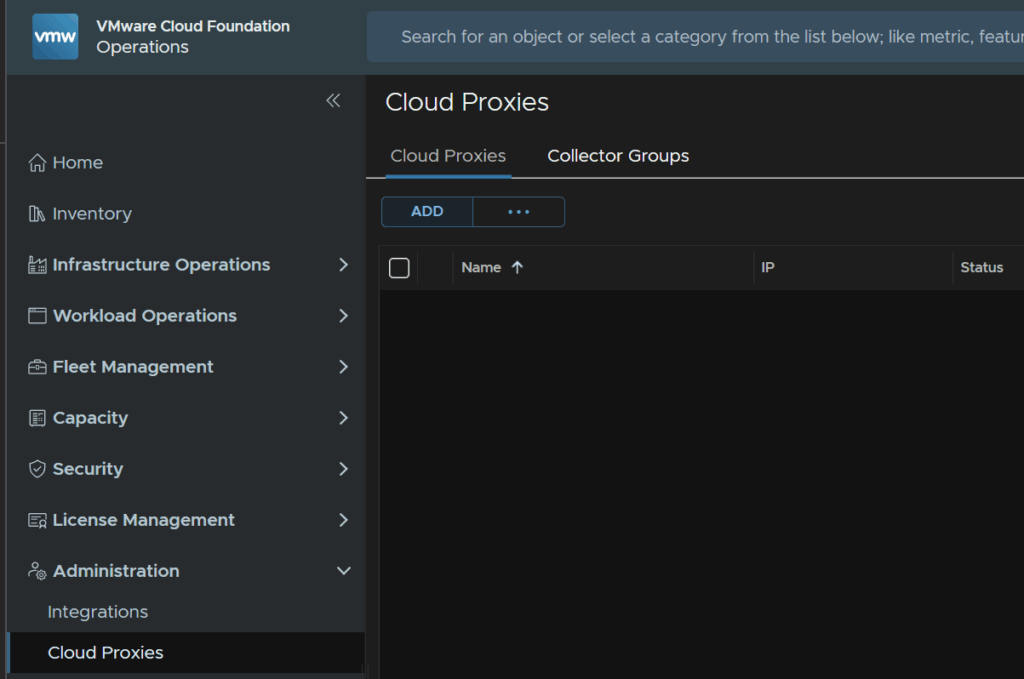
We then need to copy this large registration key
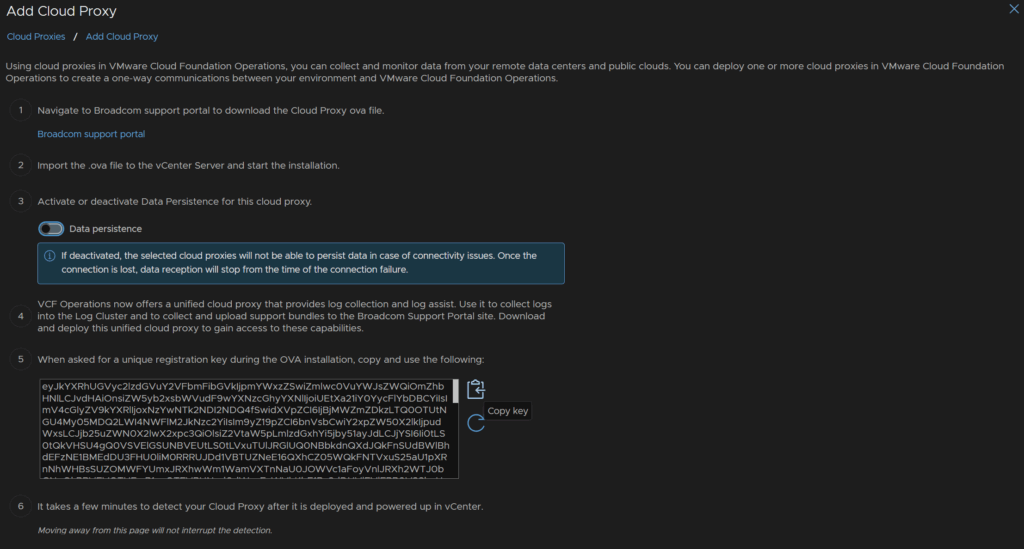
Enter the registration key into the OVF deployment page, enter a friendly name, I am using the VM name, and add an NTP server
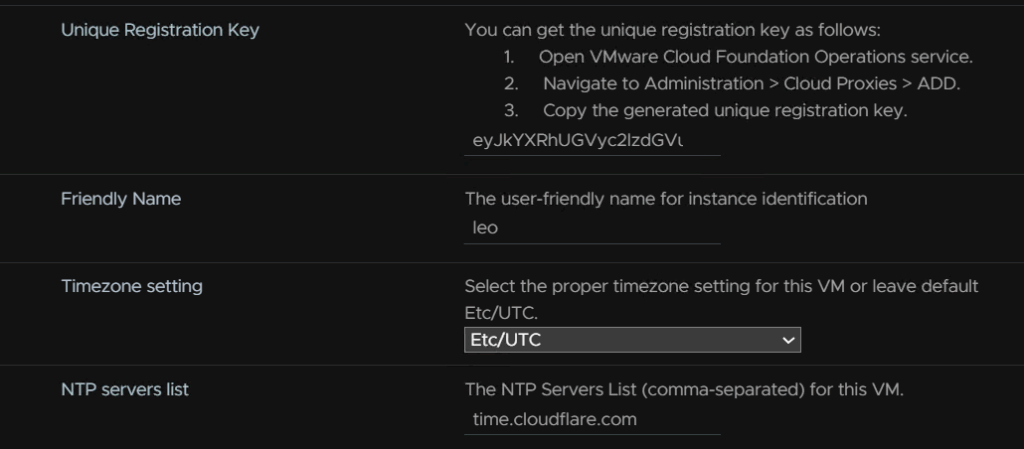
This can be left blank unless you explicitly need it
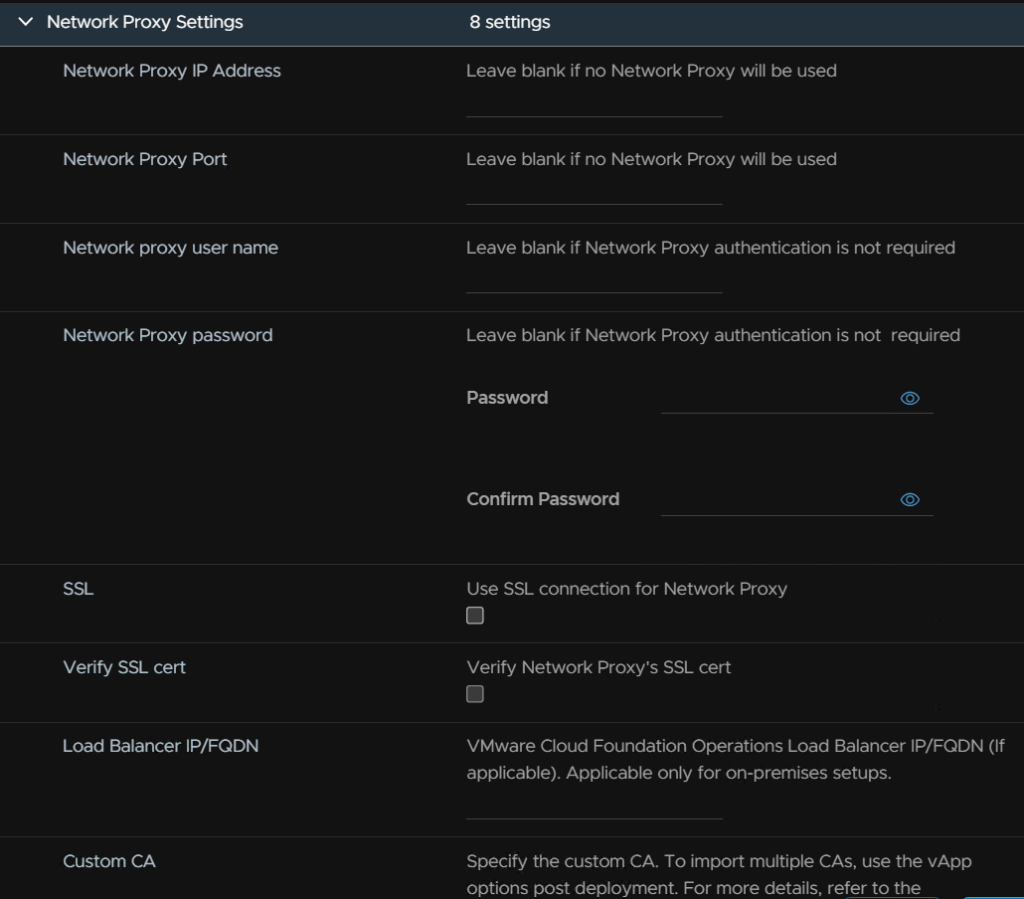
Enter the domain name, search domain and comma separated DNS servers
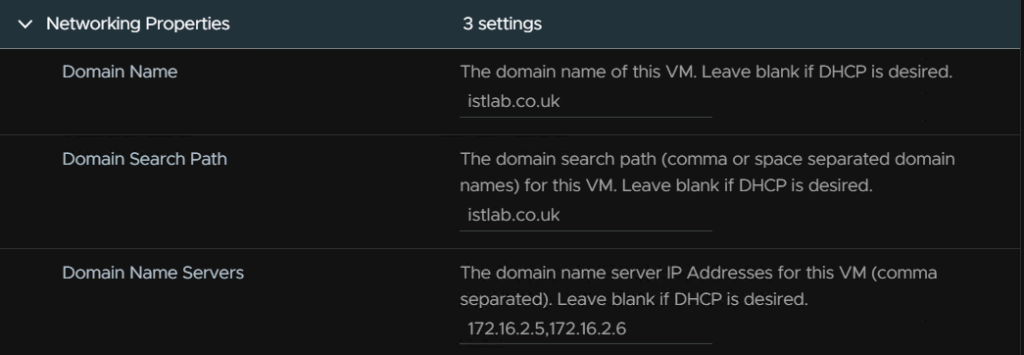
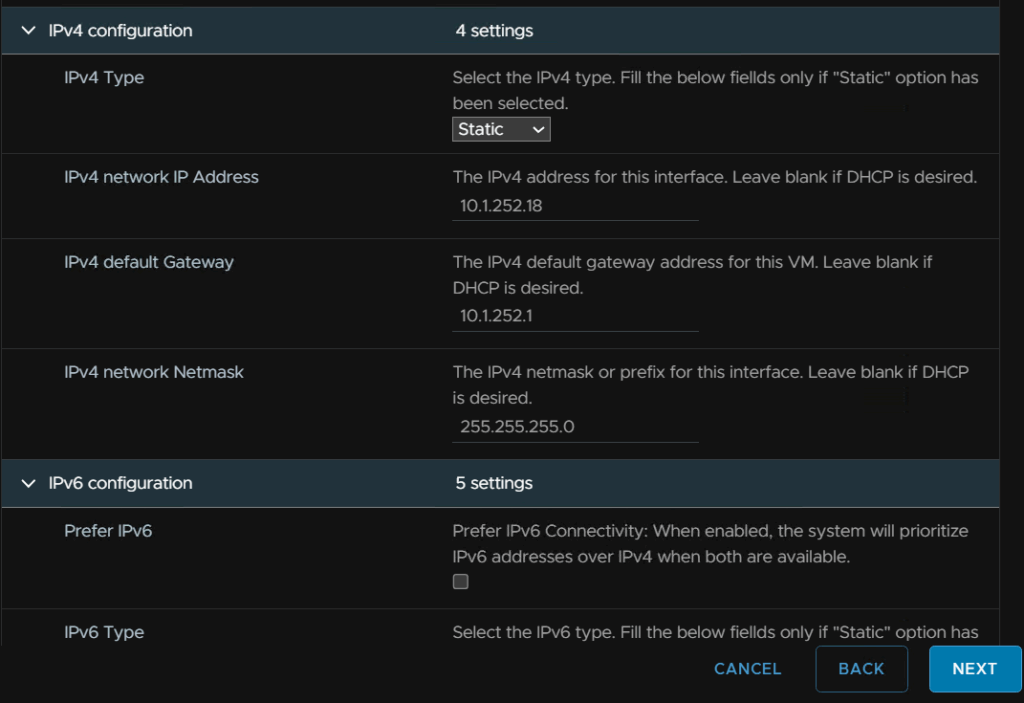
Set the IPv4 type to static and add the VM IP, gateway and subnet mask, we can leave IPv6 blank unless we explicitly need it and click Next
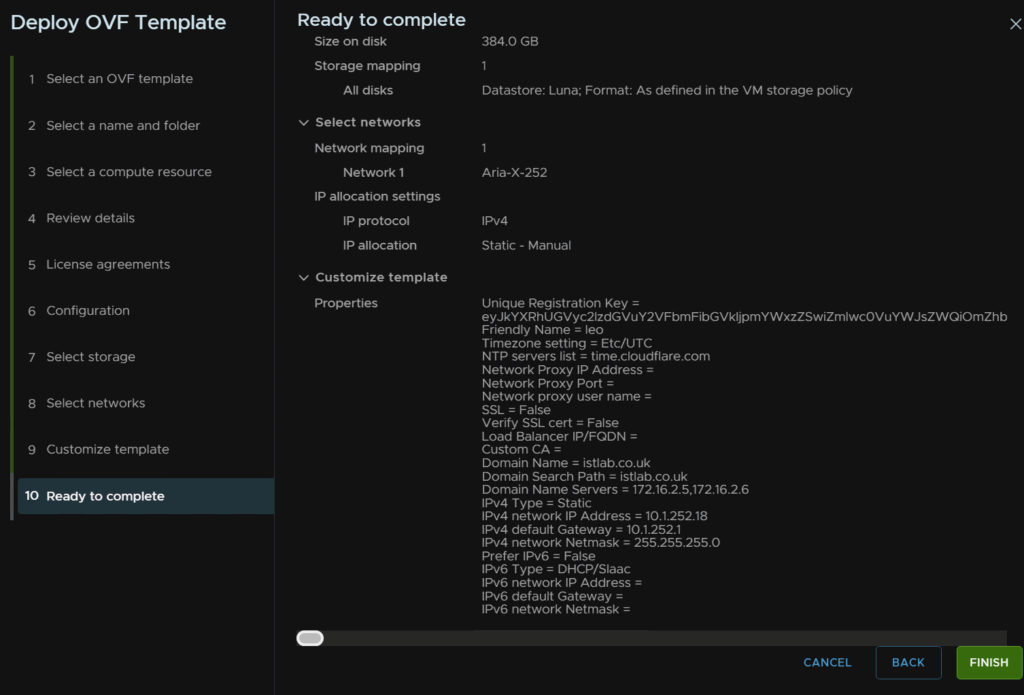
When you are happy, click Finish
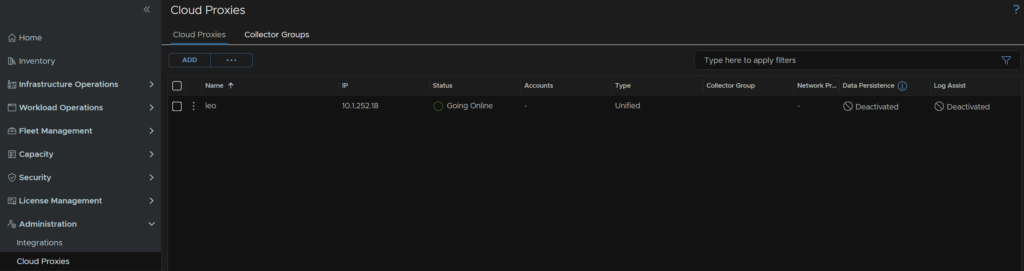
After ~15 mins the cloud proxy should appear in VCF Operations and be in the Going Online state
We then need to move our integrations to the new collector, head to Administration/Integrations and expand the VCF instance, click the three dots and click Edit
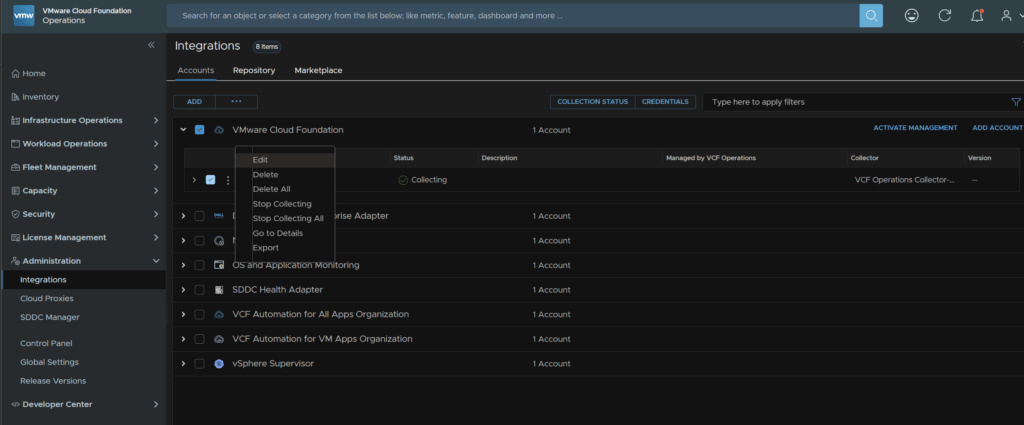
Change the collector to the new cloud proxy we deployed and click Validate Connection
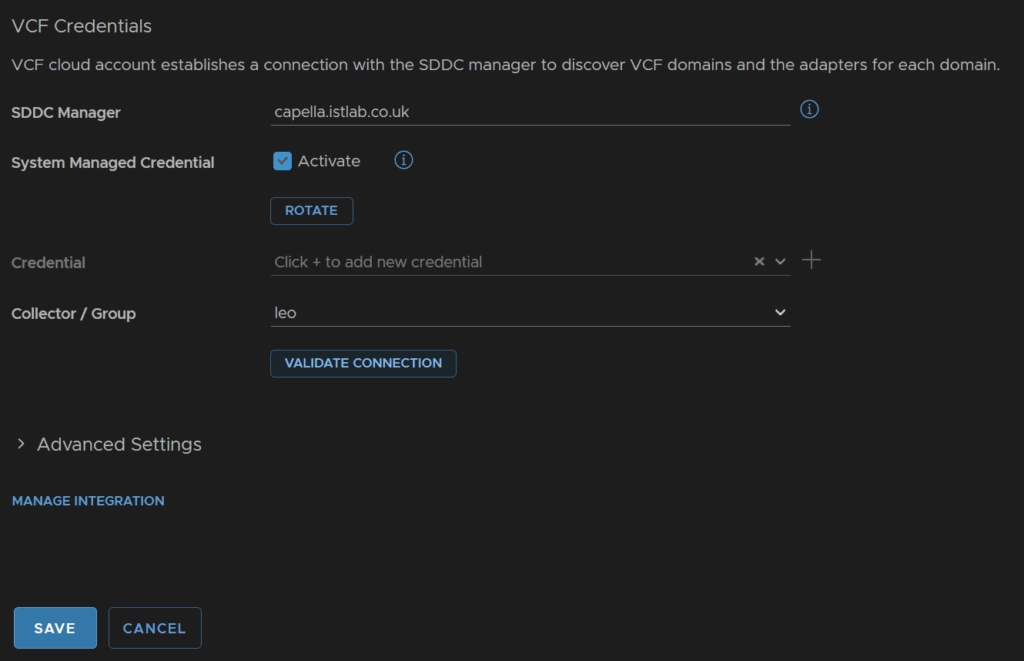
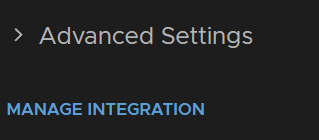
At the bottom under Advanced Settings click Manage Integration
Enable the toggle so that we can license the vCenter and click Save
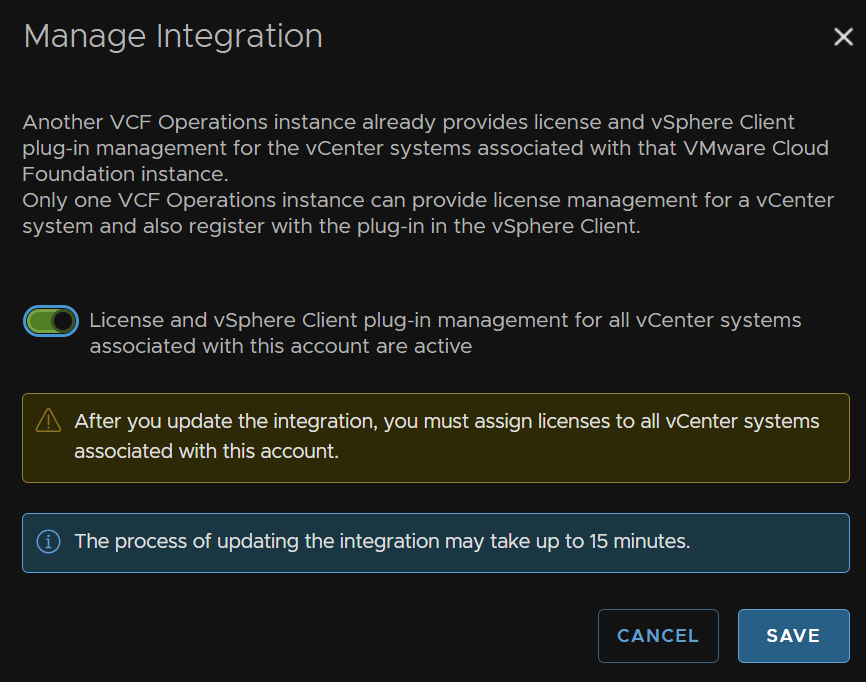
Then click Save
We need to repeat this for all other integrations, but the important one is the supervisor as this requires it as well
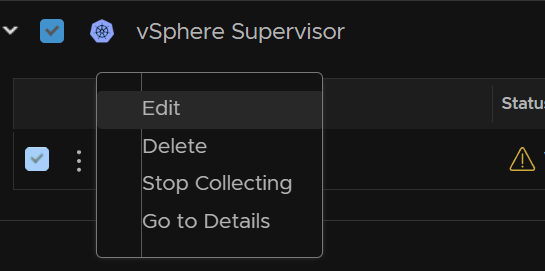
Expand the supervisor, click the three dots and click Edit
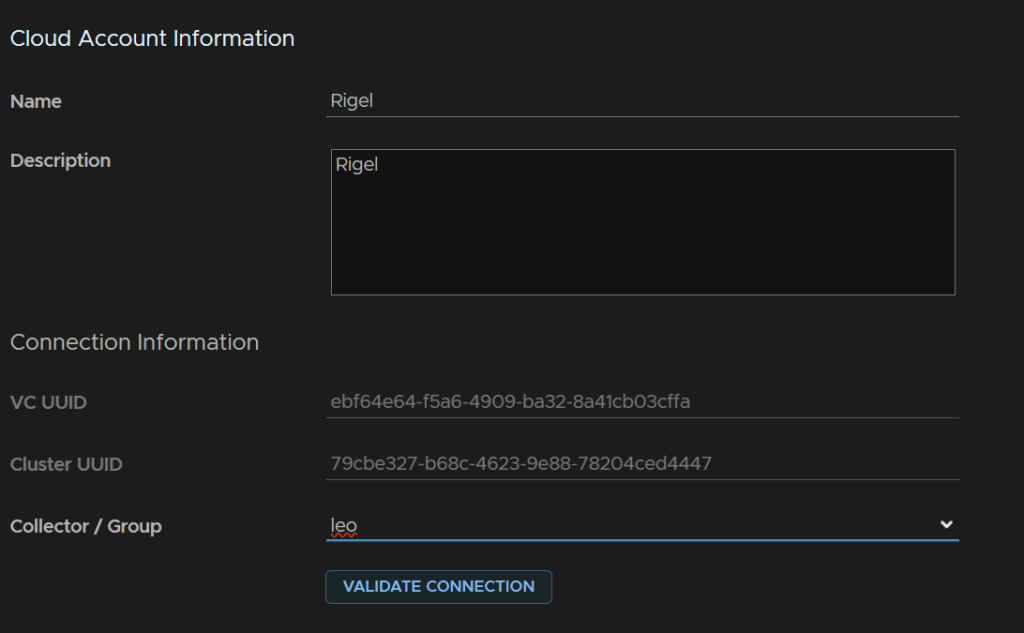
Change the collector to the proxy VM and click Validate Connection
Then Save in the bottom left
1.14 – VCF Operations For Logs
We have a couple of options here, we can deploy a new appliance with a new IP and migrate the data, or we can do the option I will be using since I am not worries about loosing the log data, and power off the old appliance and rename it, then re use the IP/FQDN as everything is already pointing to it
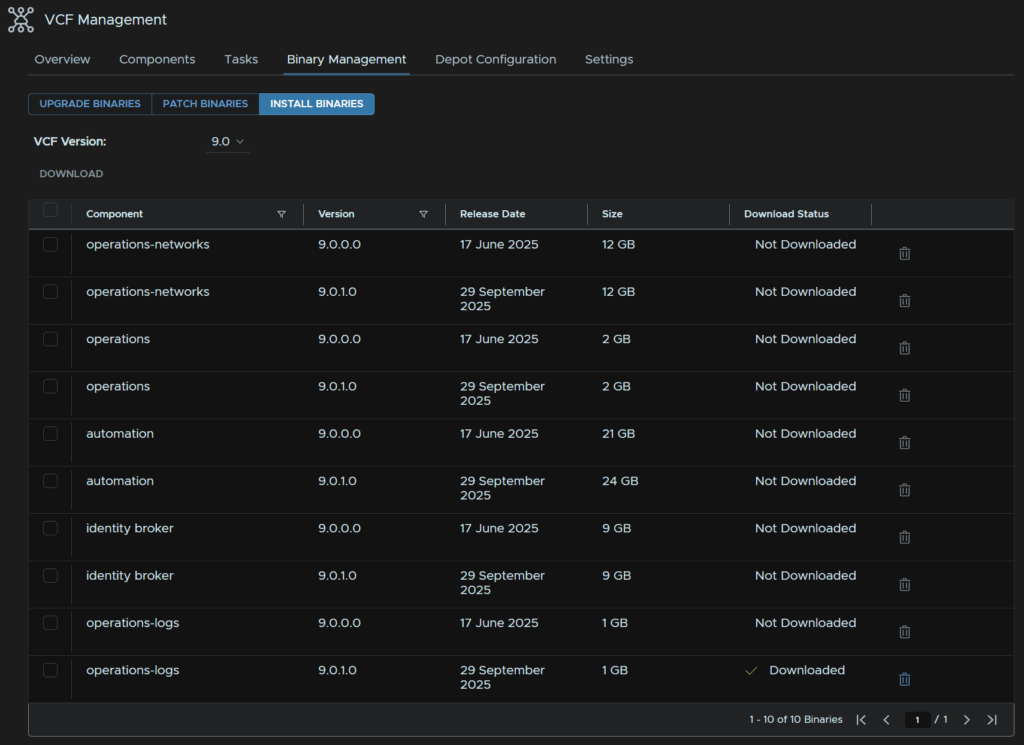
From VCF Ops heat to Fleet Management/Lifecycle/VCF Management/Binary Management/Install Binaries, select the operations-logs binary, on 9.0.1, then click Download
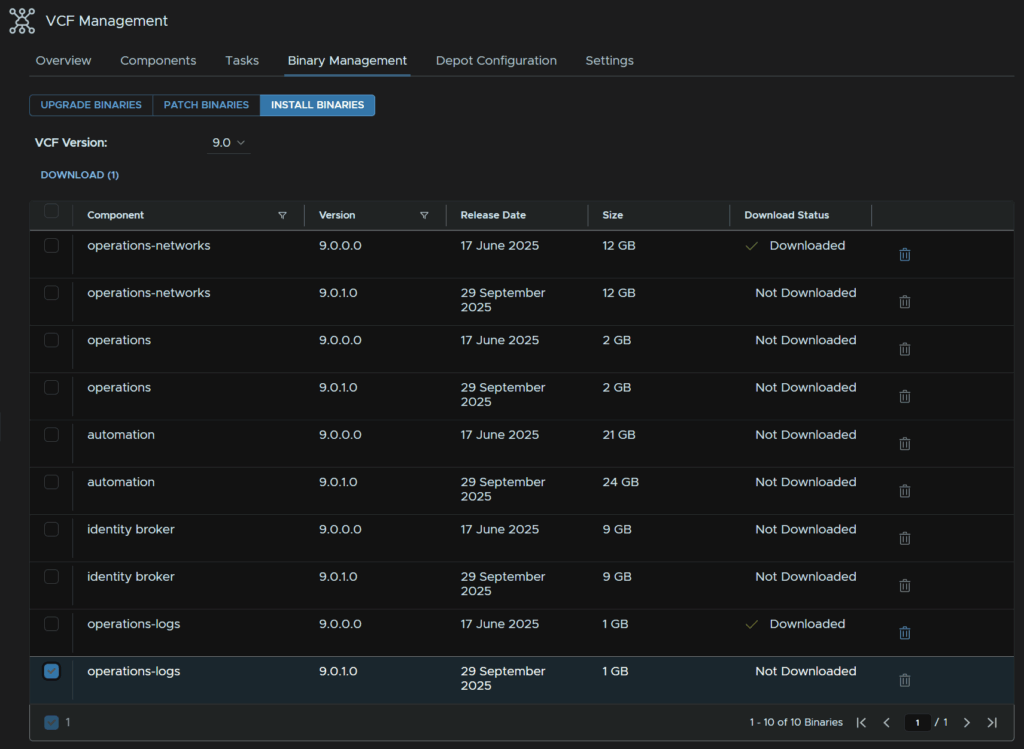
When its done it will say Downloaded
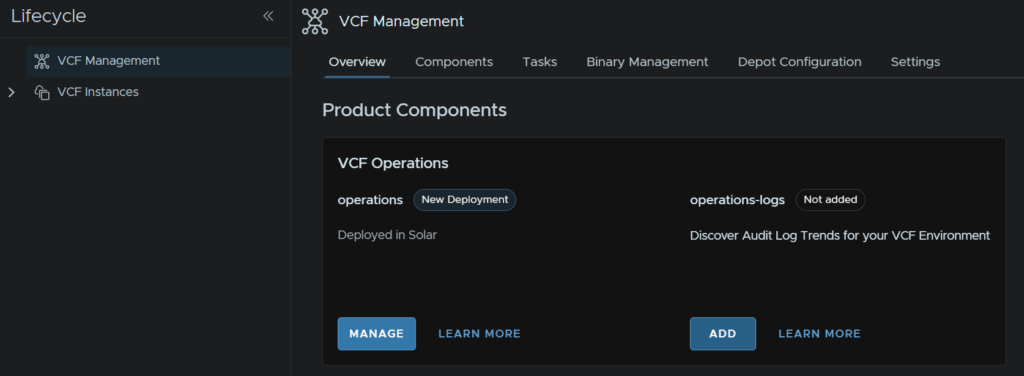
Click Overview, and under operations-logs, click Add
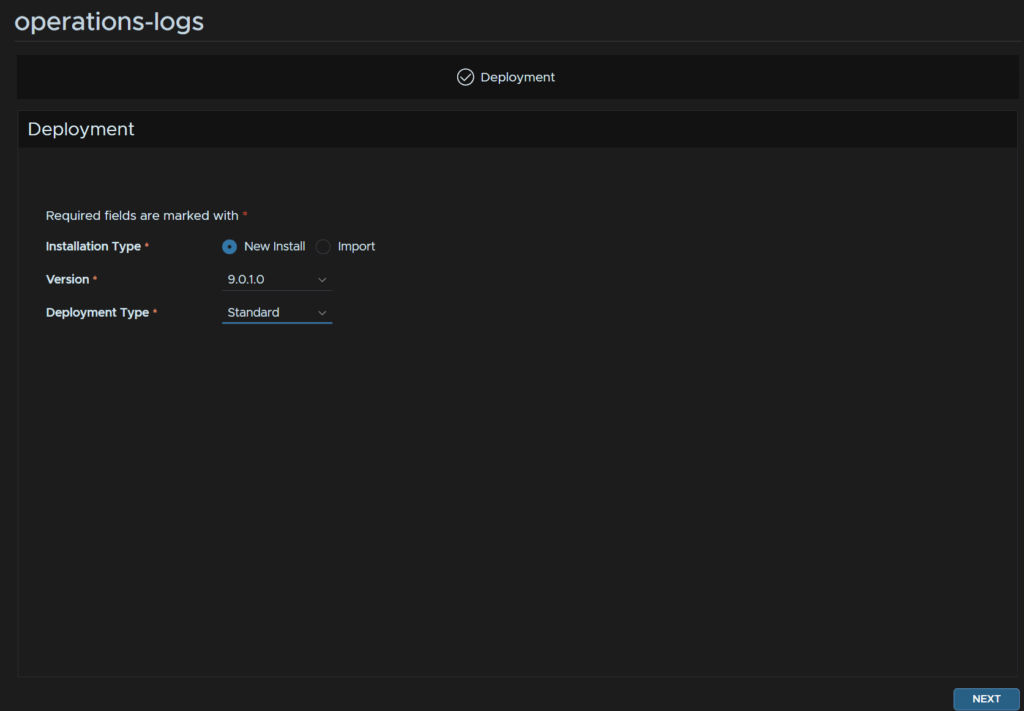
Click New Install, and then for the deployment, unless you have a very large environment, Standard will be fine, then click Next
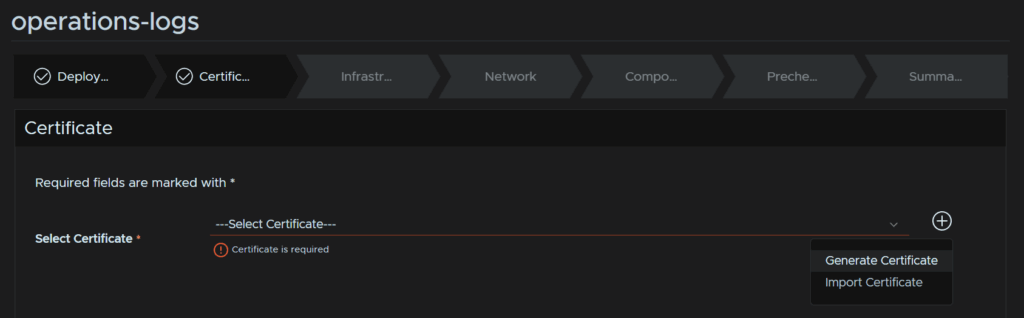
We then need a certificate, its important we have the hostname registered in DNS
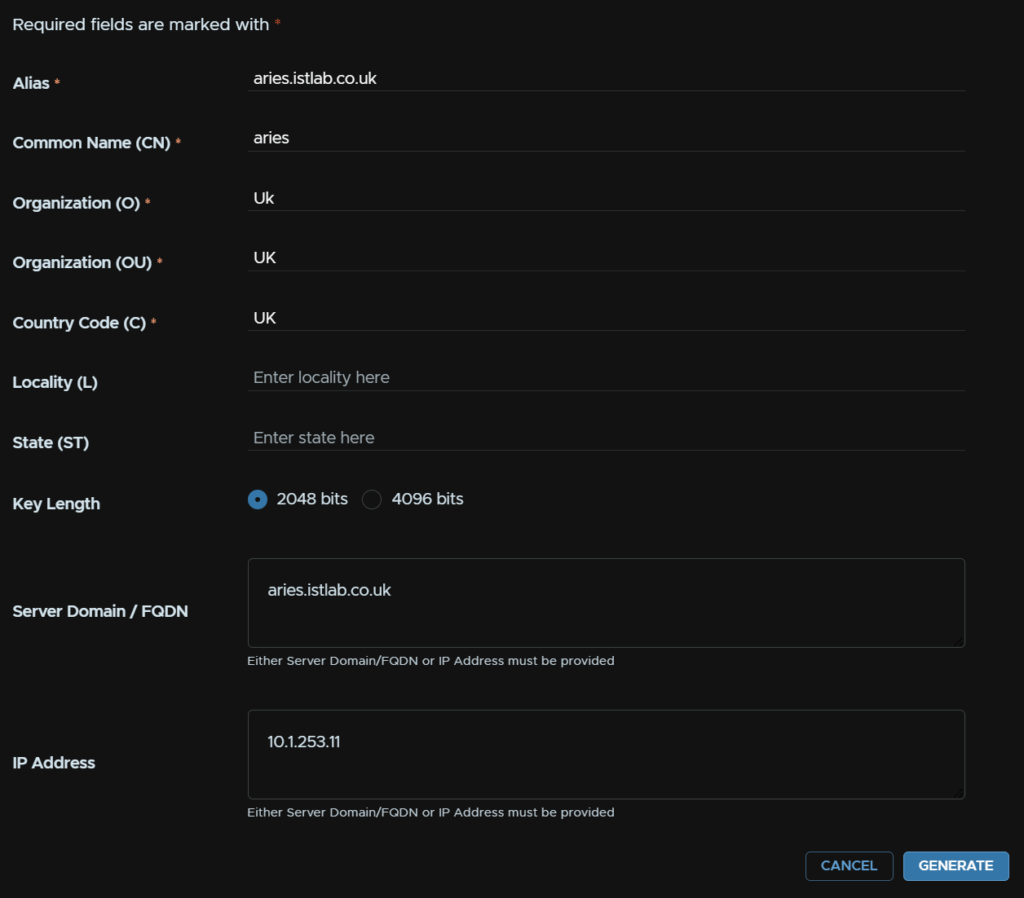
Click the + then Generate certificate
Enter an Alias, this is a friendly name, the CN, O, OU and C dont matter for self signed certificates, what is important is the server FQDN and IP which need to match this server, then click Generate
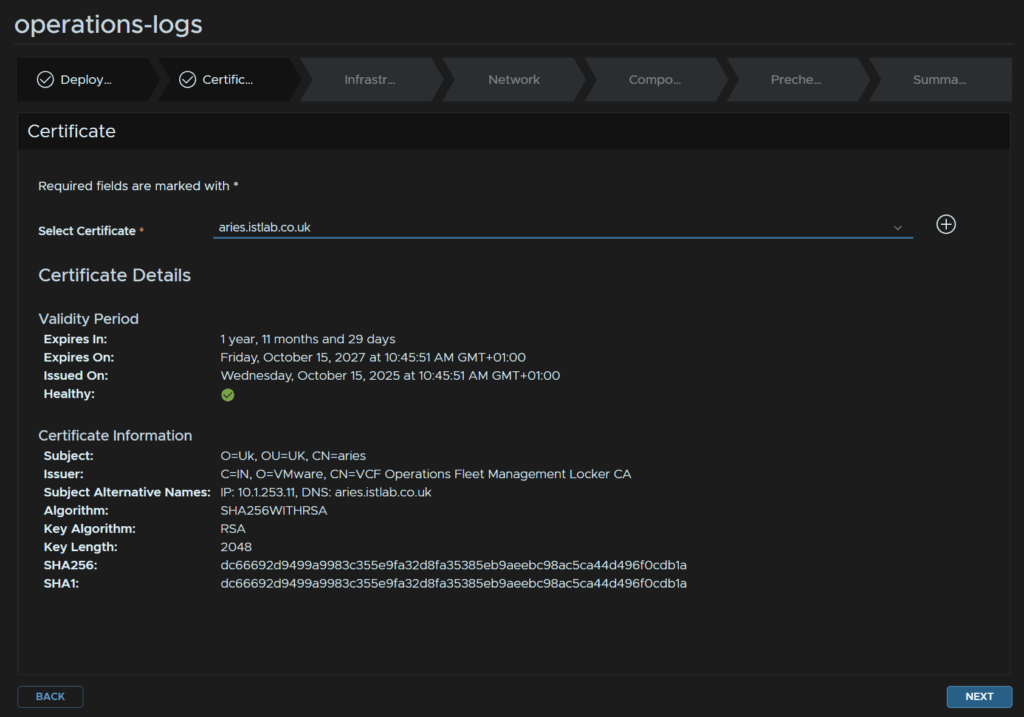
Select the certificate from the drop down and click Next
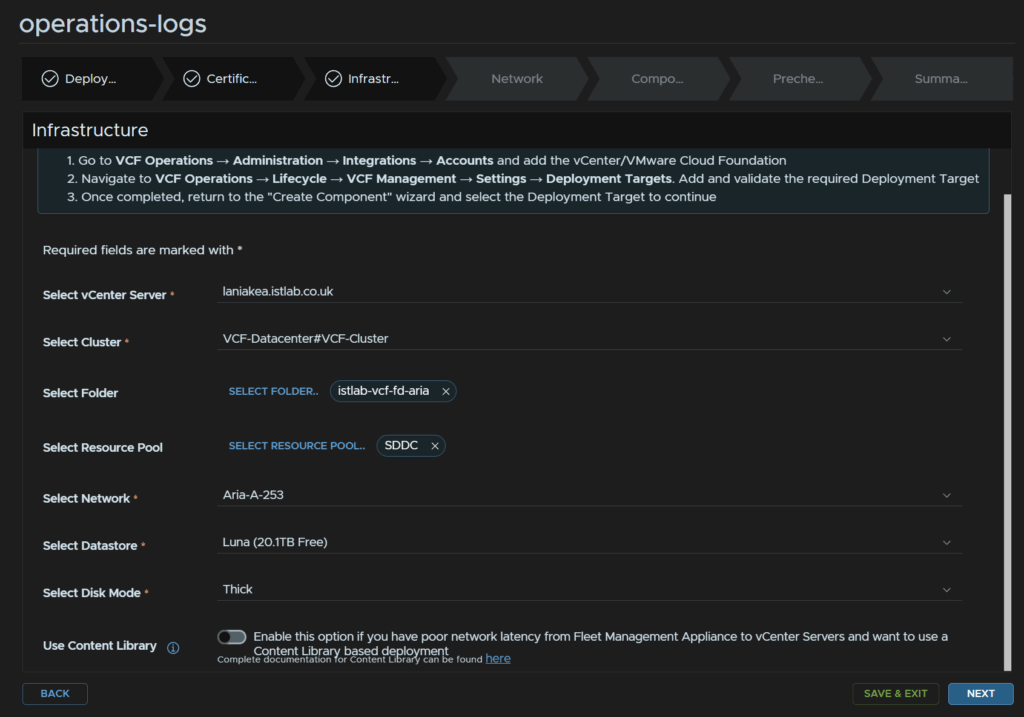
Select the vCenter server, cluster, optionally and folder and resource pool, then the network, datastore and disk mode which wants to be thick, then click Next
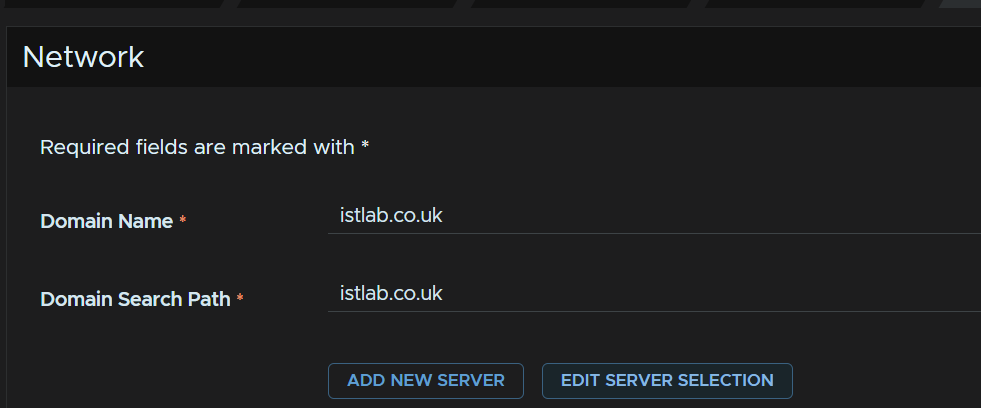
Enter the domain and search domain name then click Edit Server Selection
Select the DNS servers and click Next
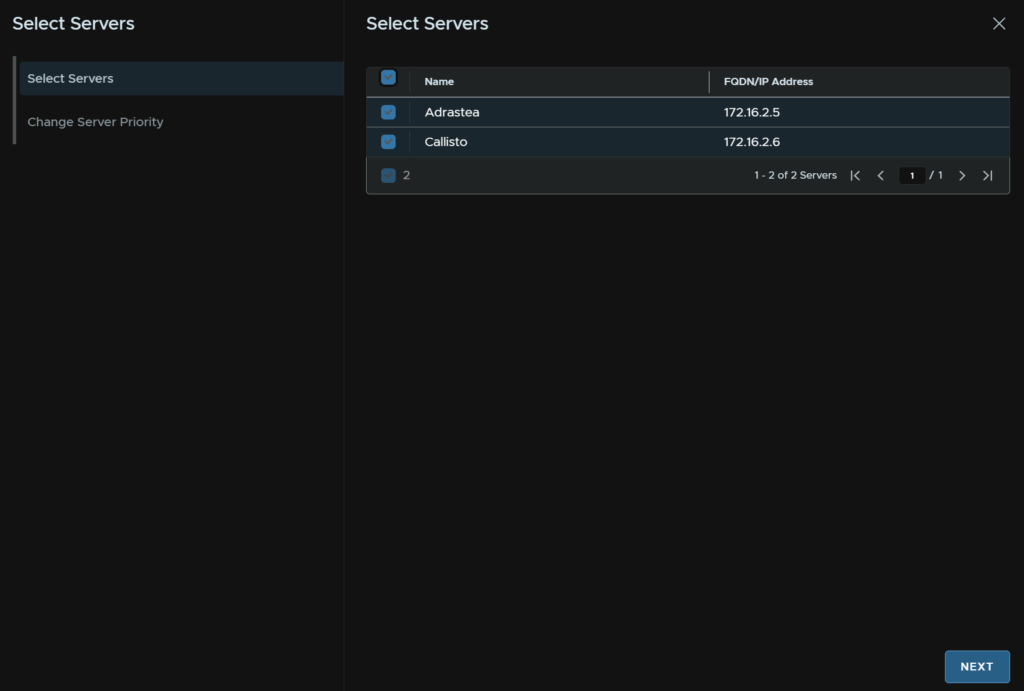
Then click Finish
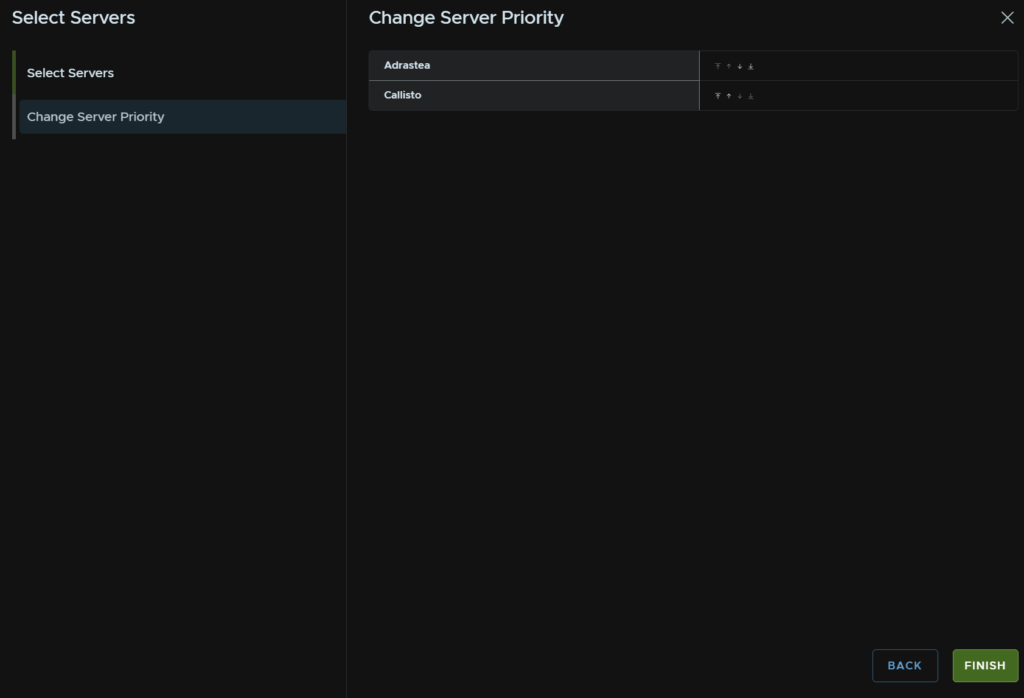
For NTP you can use host time, or an NTP server, I select the latter, if so, click Edit Server Selection

Select the server and click Next
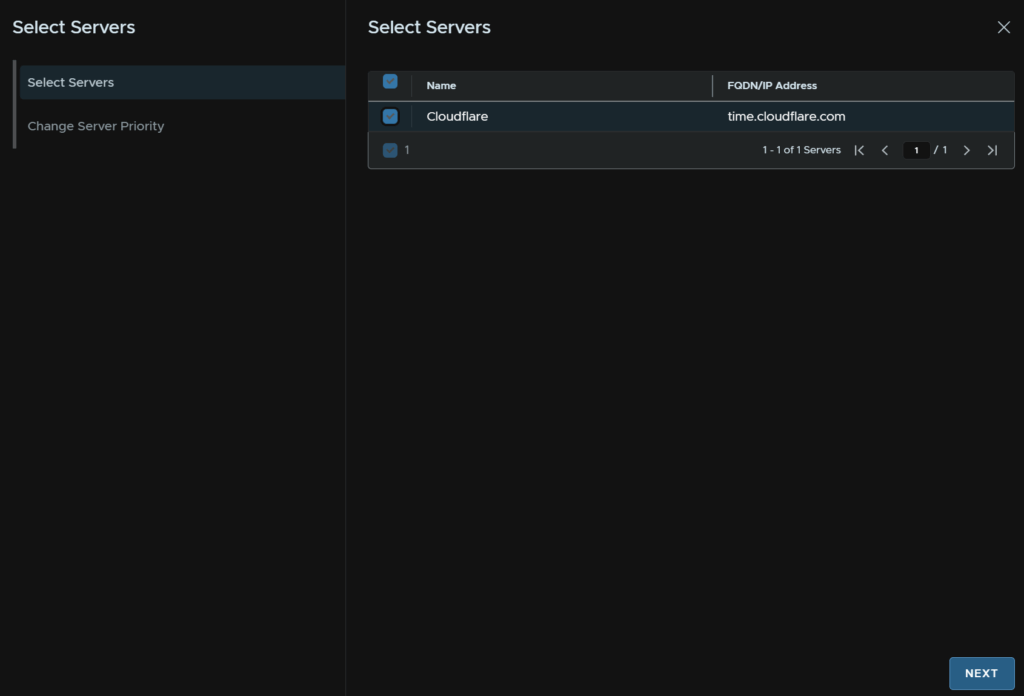
And click Finish
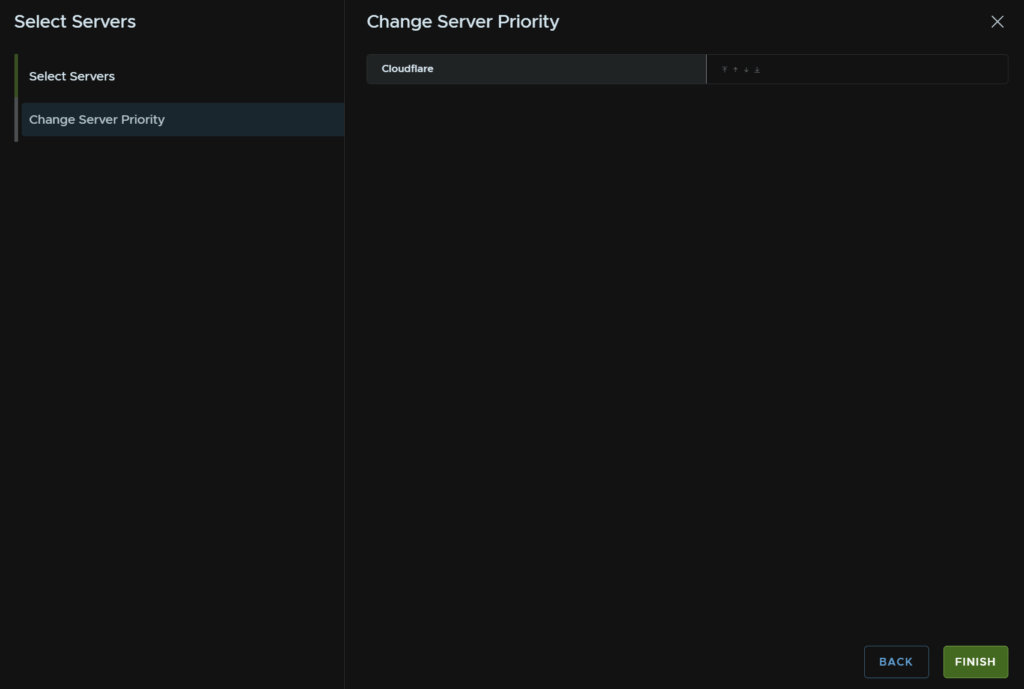
Then enter the gateway and subnet mask and click Next

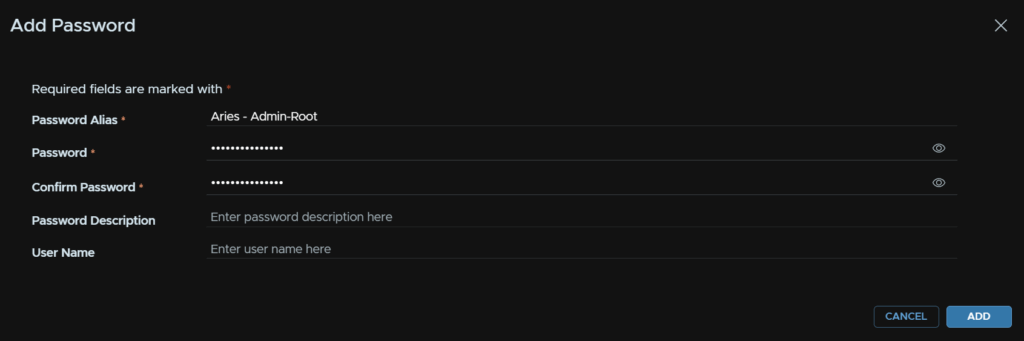
Click Add Password

And add the admin/root password, it should be 15 characters, the only allowed special characters are !@#$%^&*
Then click Add
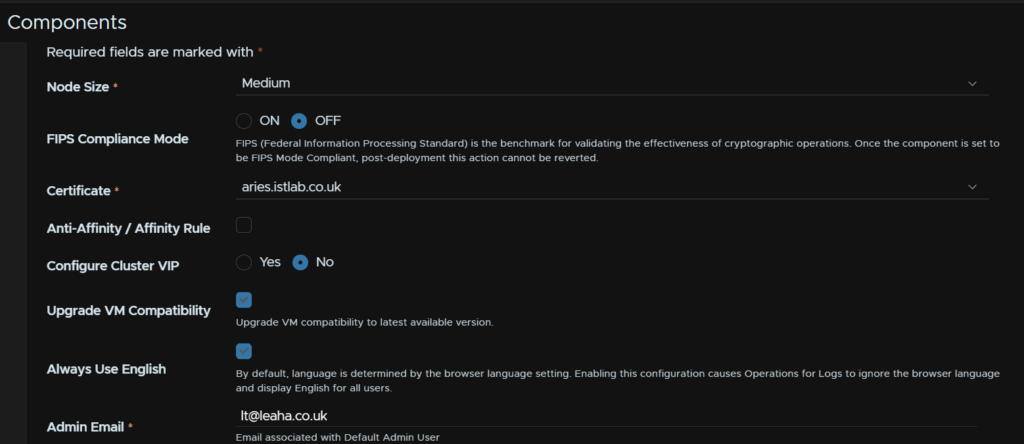
Select the node size, small is ok for me, but medium is a good production fit, I disabled FIPS, the certificate should be auto populated, we can then leave the affinity rules, as we are not doing a cluster select No for a VIP, upgrading VM compatibility isnt needed but can be checked, check the box to always use English, and add an admin email
Click Select Component Password, this will be both the admin and root password

And select the password we just added

NTP should also be pre populated

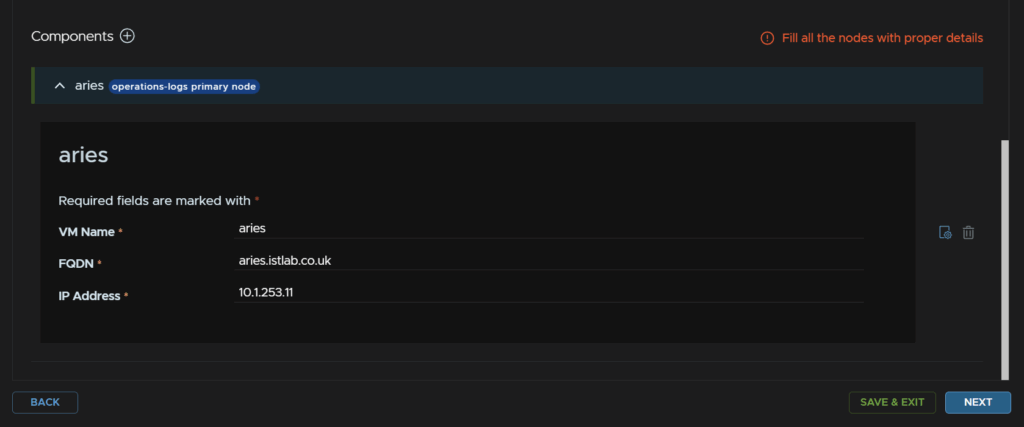
Then at the bottom, enter the VM name, FQDN and IP address and click Next
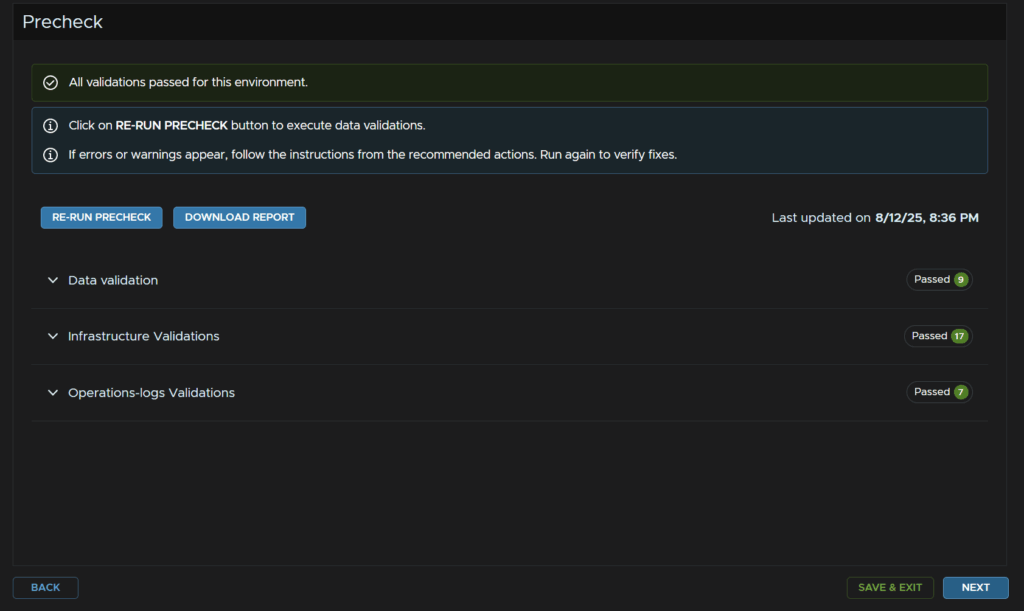
Then click Run Precheck

When thats passed click Next
When you are happy, click Submit
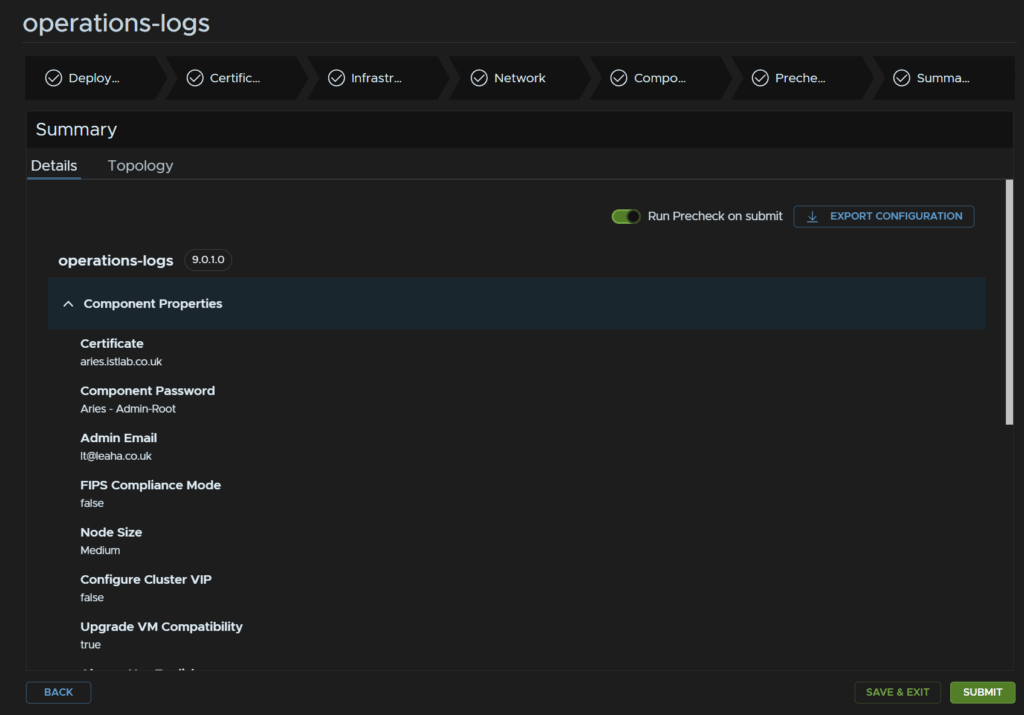
When thats done it should look like this
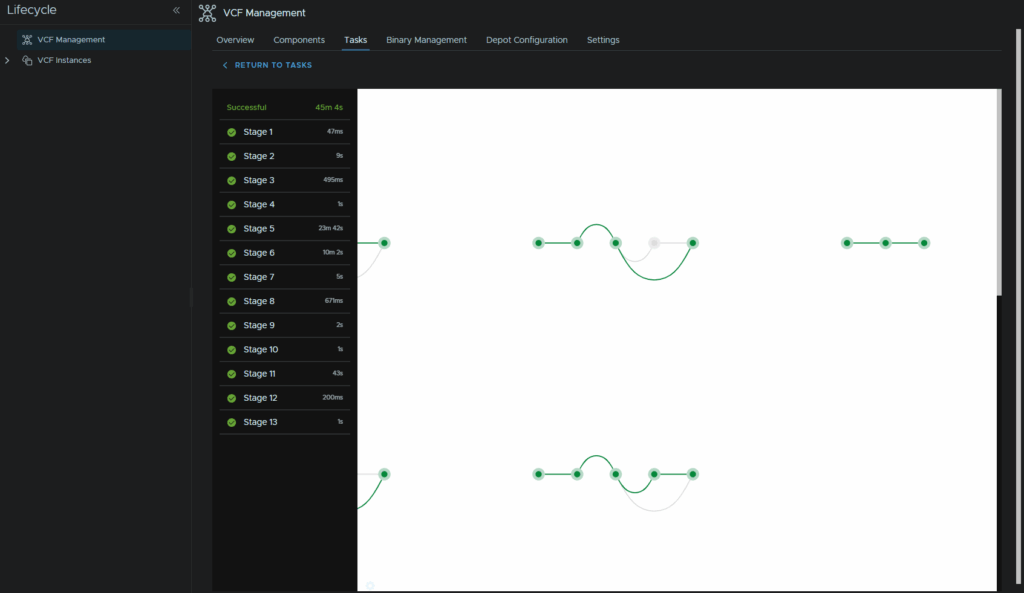
The last little bit is updating the agents if you have any
Click Management/Agents
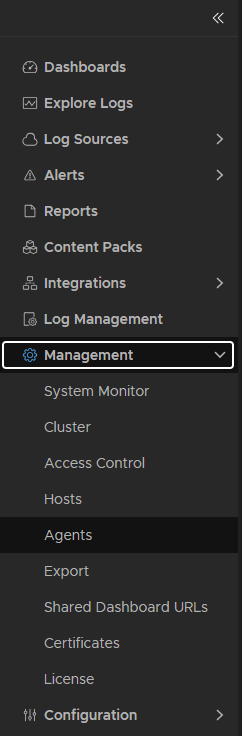
Then enable the toggle for auto updating all agents

This doesnt seem to update Windows agents, older 8.18.x agents will work with Logs 9, but you’ll need to manually run the new agent on those machines to upgrade them
This doesnt register the vCenter directly into VCF Ops For Logs as a source, this means while all logs are coming in, it will be stuck in evaluation mode
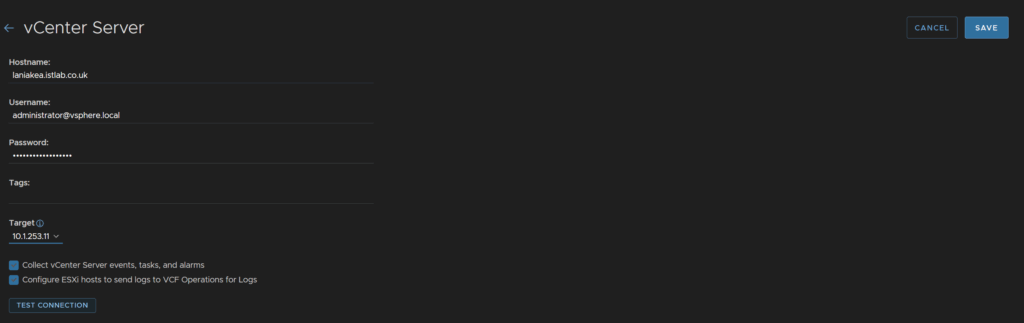
In the VCF Ops For Logs GUI click Integrations/vSphere and click Add vCenter Server
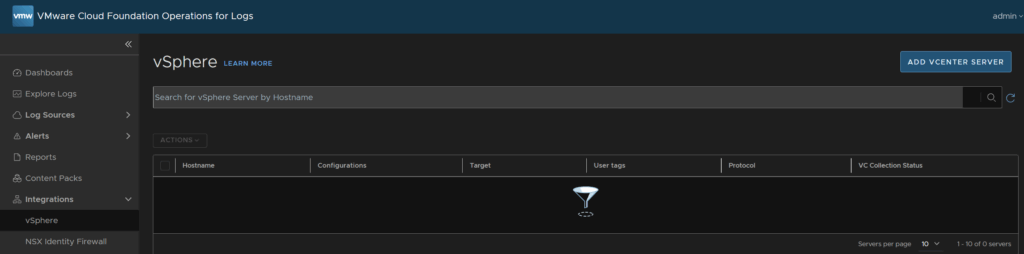
Enter your hostname for the vCenter and an administrator account, I recommend a service account, but I am using the default administrator account, I changed my SSO domain from vsphere.local to leaha.co.uk, so thats why its different
Select the target from the drop down, which is the Log server, make sure both boxes are checked and click Test Connection
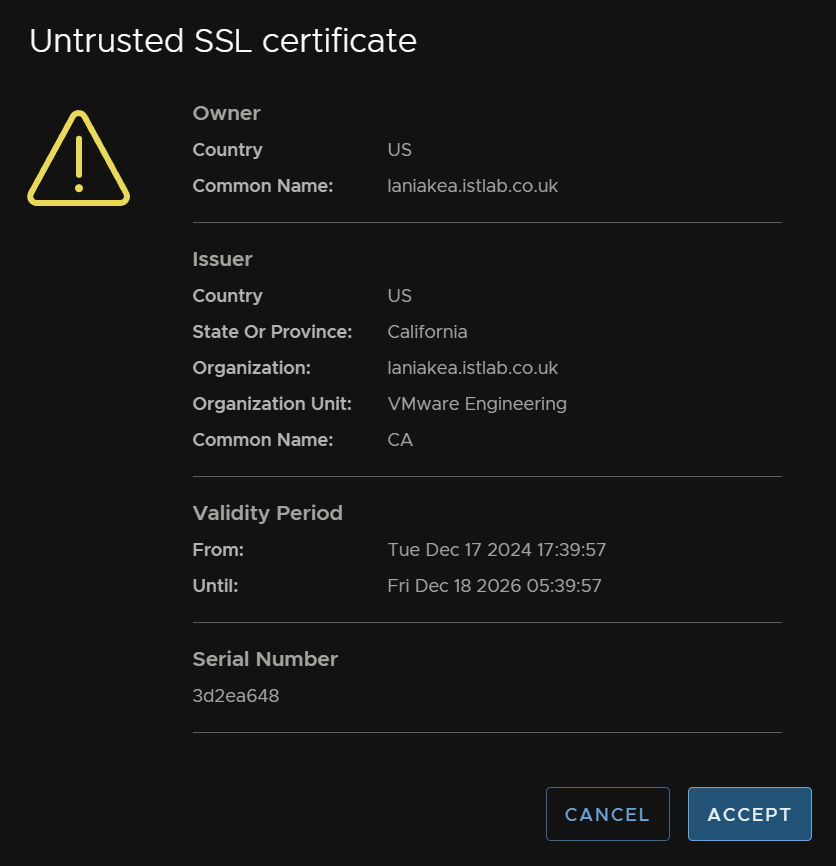
Click Accept on the SSL certificate
Then click Save
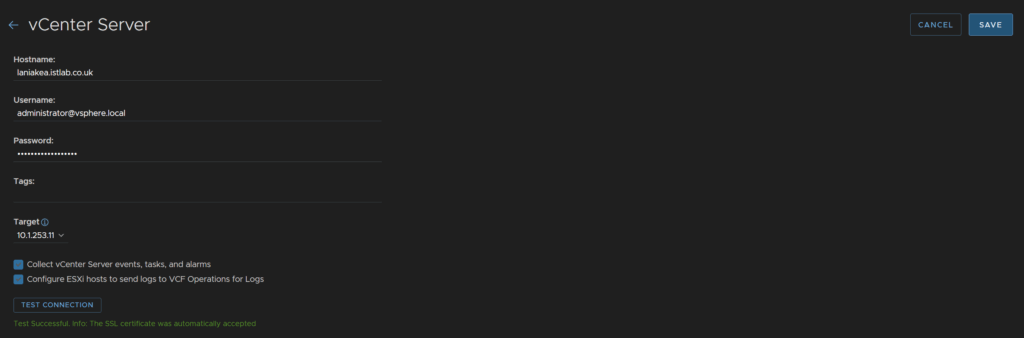
This removes the evaluation licensing mode from the server
Back in VCF Operations head back to Administration/Integrations, expand the VCF integration and on your VCF instance click the three dots and click Edit
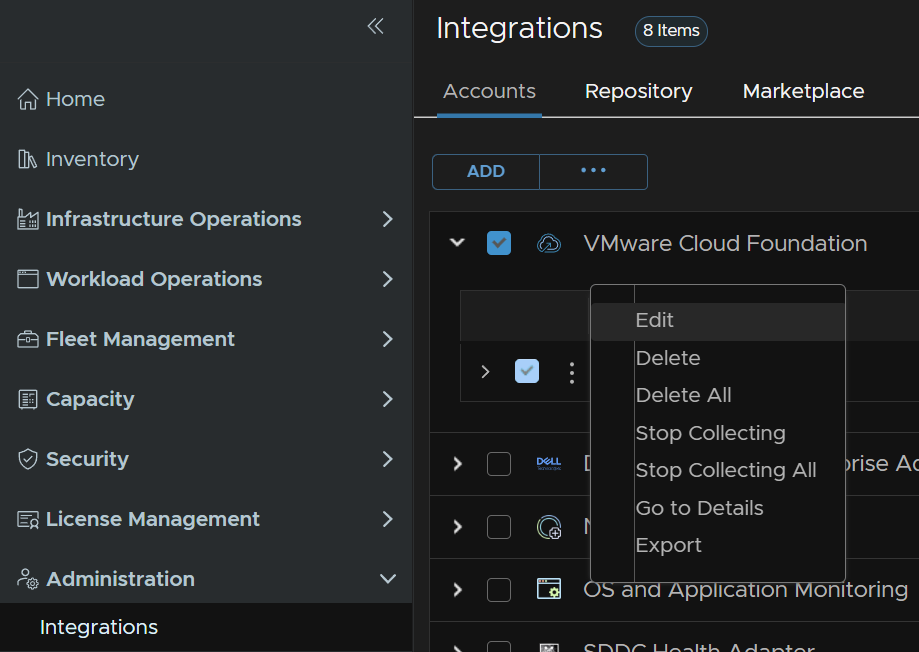
Select the domain and check the box to enable log collection, repeat for additional workload domains and click Save
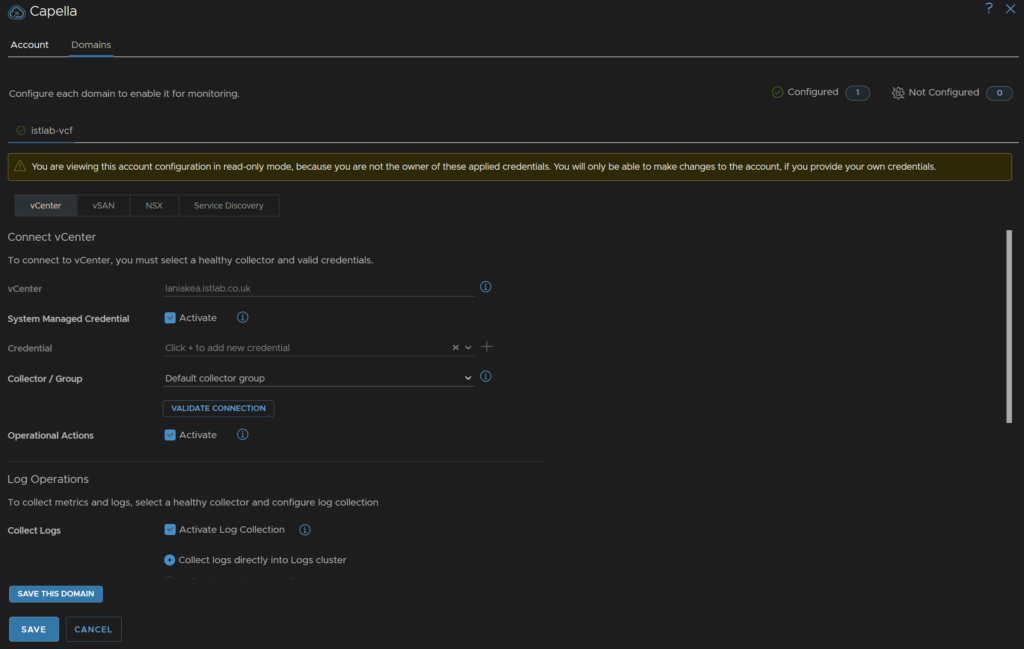
2 – vSphere 8 + NSX 4
For this section you must have NSX 4 already deployed, Aria Operations is included here, but if you dont have it you can skip over the upgrade steps and deploy it during the convergence, section three will have this in if you need more information
Here is a table of everything required that you may not have in your environment, the only things missing are items you will have for this path which is vSphere and a 3 node NSX cluster, its important everything is registered in DNS and this will help with planning
Some things like automation and ops for logs are not in the table as they are optional
| FQDN | IP Address | Purpose |
| snow.leaha.co.uk | 192.168.1.38 | VCF Operations |
| aurora.leaha.co.uk | 192.168.1.31 | VCF Operations Collector |
| scorch.leaha.co.uk | 192.168.1.28 | VCF Fleet Management |
| voltaris.leaha.co.uk | 192.168.1.29 | SDDC Manager |
2.1 – Aria LCM
First we need to download the patch for LCM so we can get VCF Operations upgraded to version 9, we need Patch 5 for VCF 9.0.1, we can find this from the Broadcom portal downloads and then search and select Aria Suite
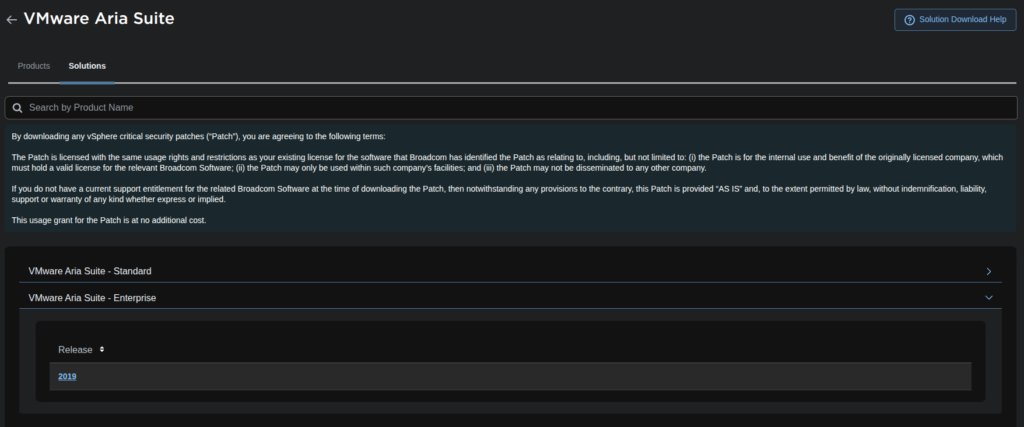
Click Solutions at the top, expand Enterprise and click the 2019 release
We then need to find and click the Patch5 link

And download the patch

We then need to upload the patch to Aria LCM
Connect to it with the root account using WinSCP
Double click the bar here
And navigate to /data and click ok
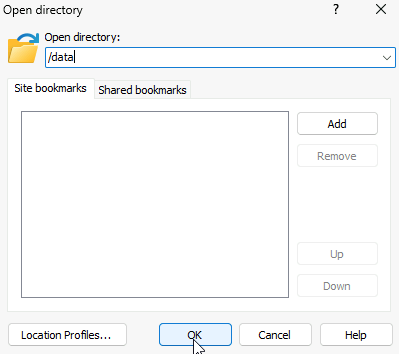
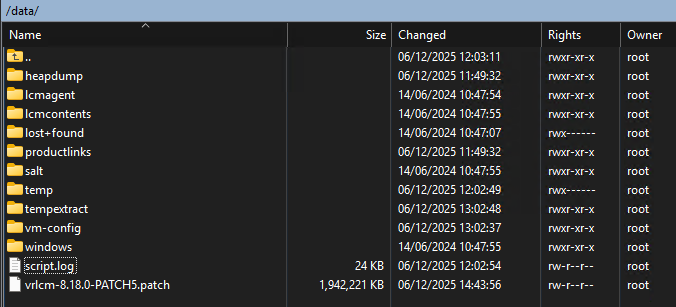
On the right panel head to where ever you have the patch downloaded and drag it over to the root of /data
It should look like this, the folders in /data may be different, the important thing is that the upgrade file is under /data
Head to the Aria LCM WebUI on
https://fqdn
And log in with the admin@local credentials
We will want to ensure we have a valid vCenter SSO admin account added in here, eg a service account, I have had issues using the pre generated ones, so we will be adding a custom one
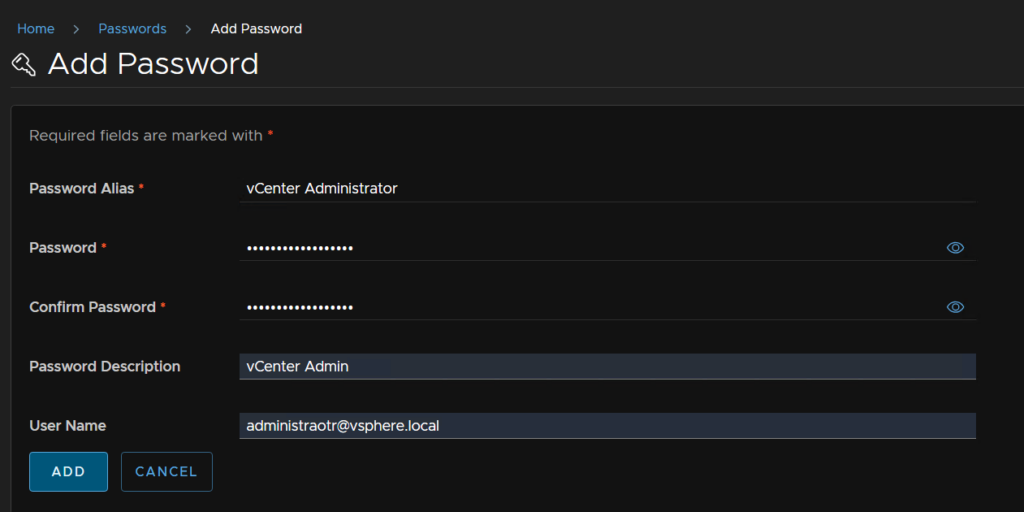
Click Locker
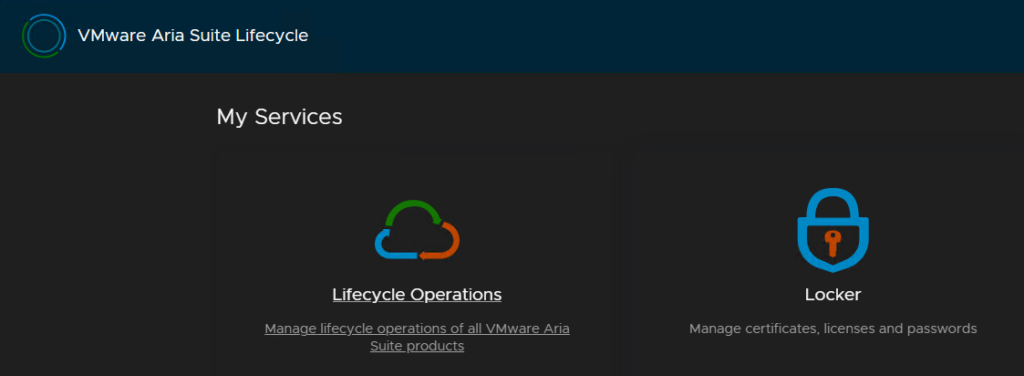
Click Passwords/Add
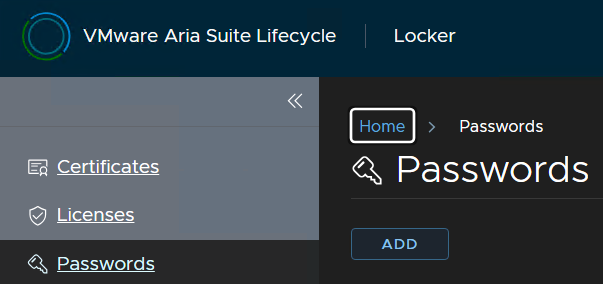
And add the credentials of a vCenter admin, this can be the administrator account, or a service account you added in vCenter and click Add
You may already have done this, and it can be skipped
Click Aria Suite Lifecycle in the top left to return to the main menu

Then head to Lifecycle Operations
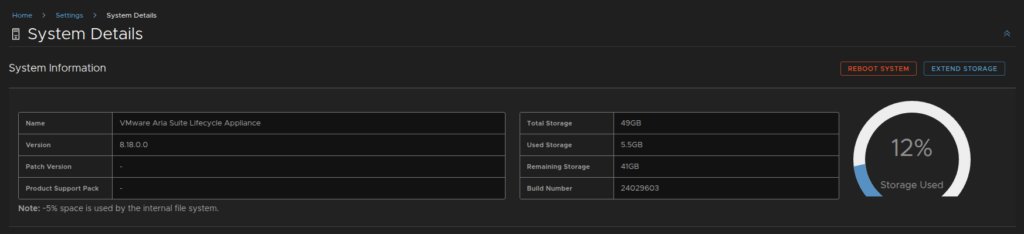
First lets ensure we have enough storage space, we will want ~30GB free
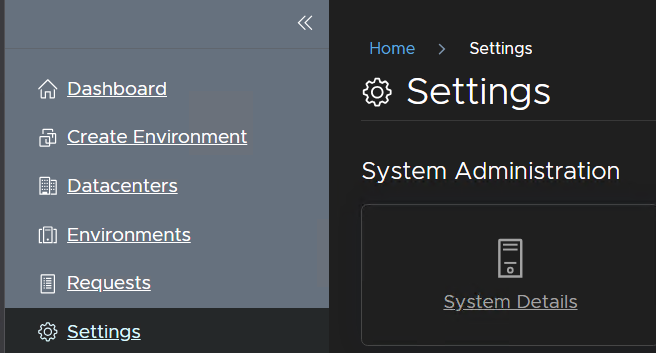
Click Settings/System Details
And wait for the to populate, I have plenty of storage, but you can extend it here if needed on the right
Now click into Settings/Binary Mapping
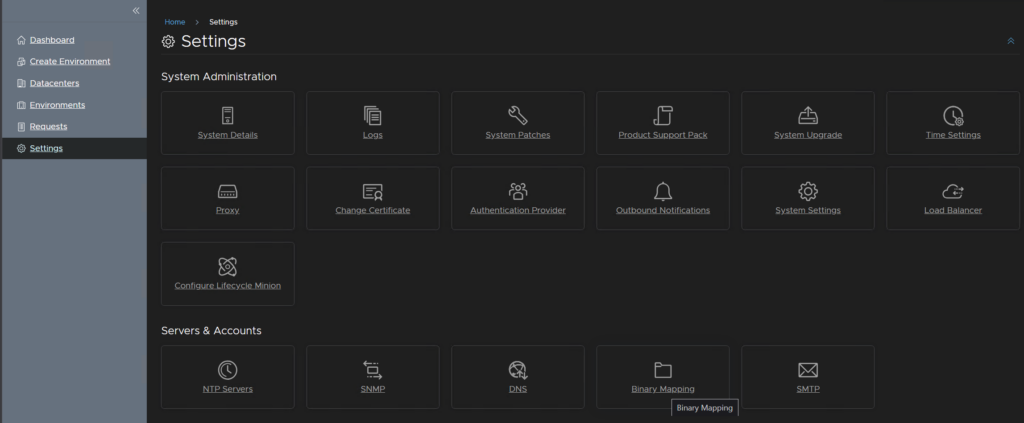
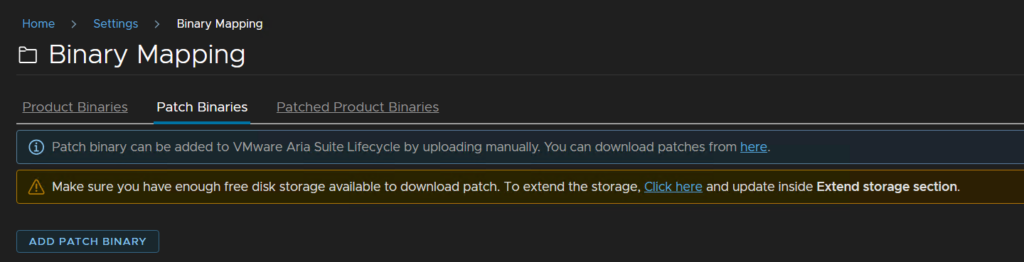
Click Patch Binaries/Add Patch Binary
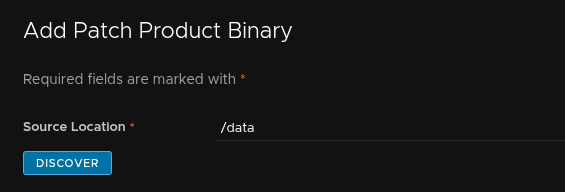
Enter /data for the base location and click Discover
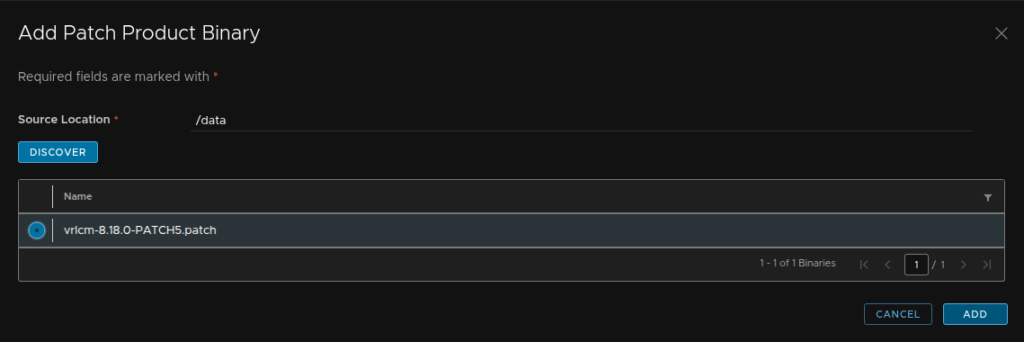
Select the patch and click Add
We can also track the request from the link here
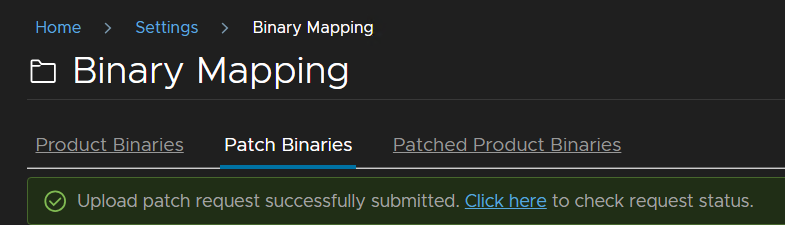
You’ll need to reload the web page, and it should appear when the request is done
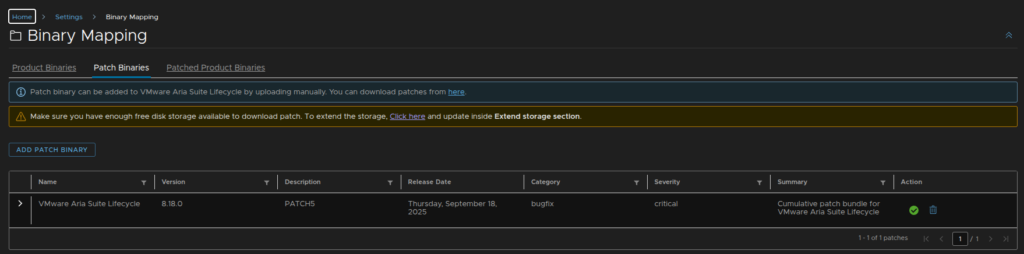
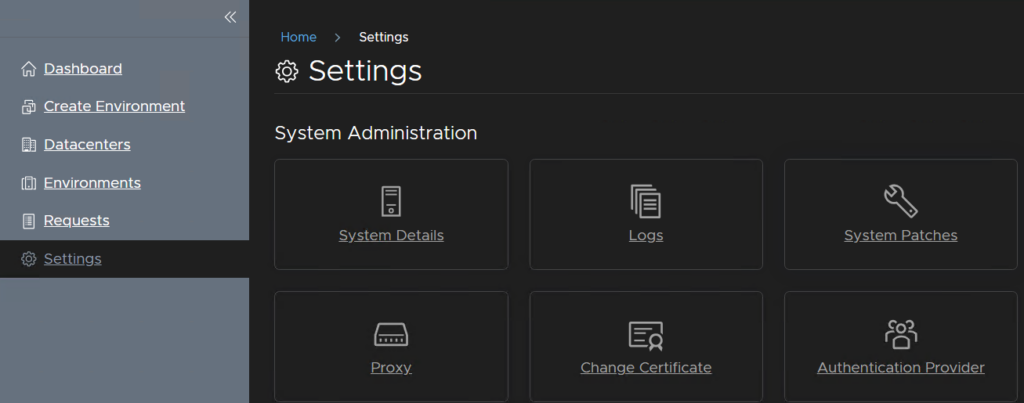
Click into Settings/System Patches
Click Create Snapshot

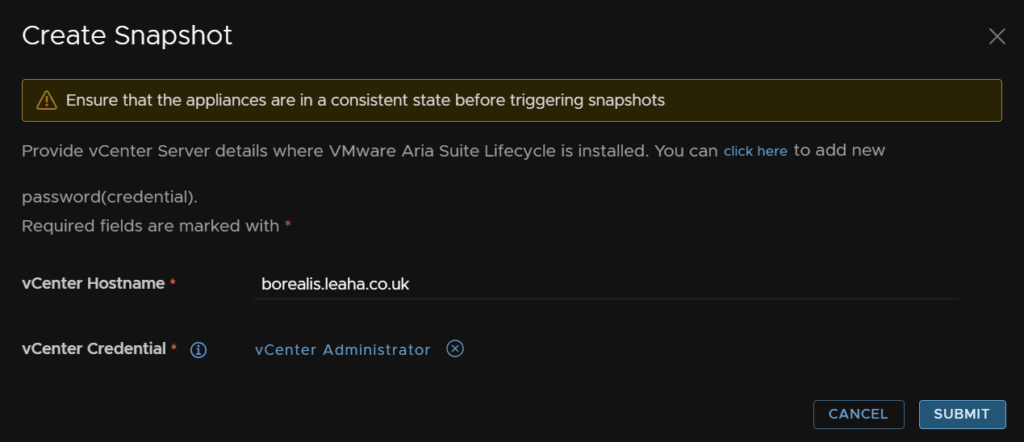
Now we should have vCenter credentials in here for the account we just added, enter the vCenter FQDN then click Select vCenter Credential
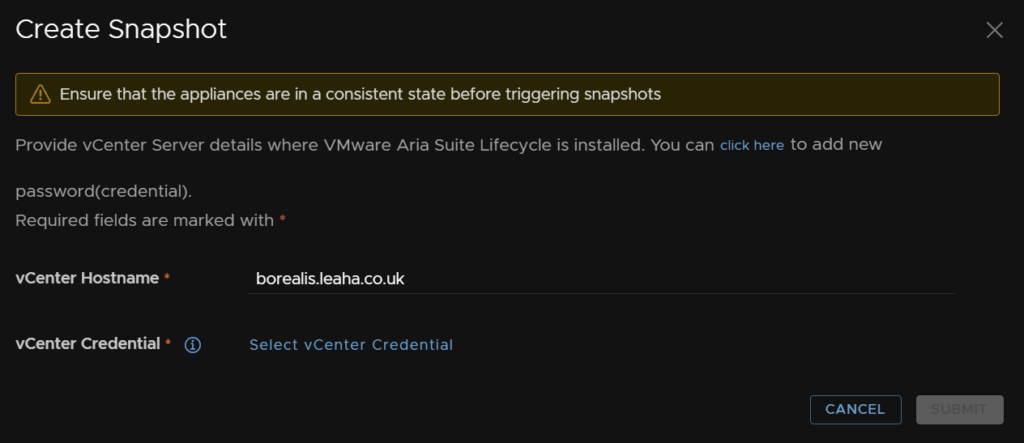
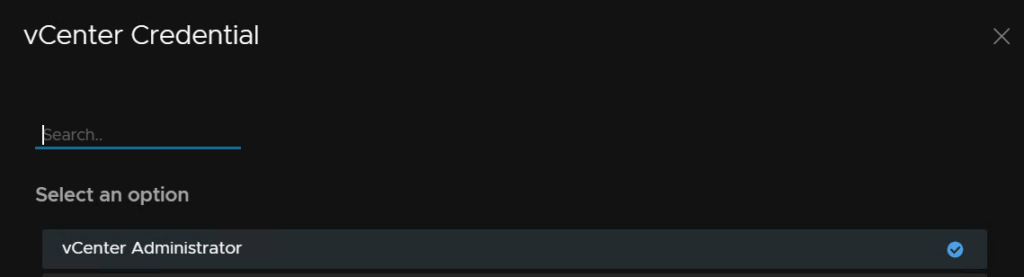
Then select the account we added earlier
And click Submit
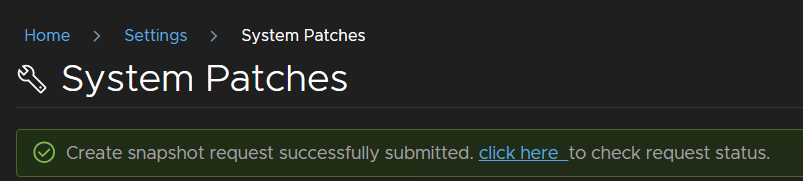
We can click the link to check the progress
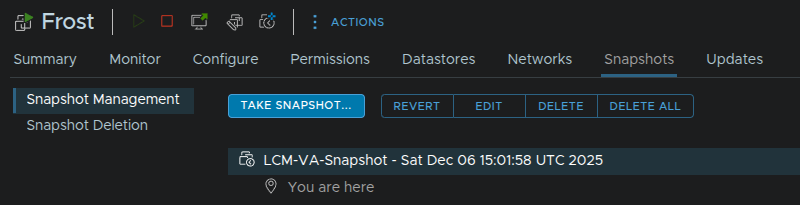
If we check the VM in vSphere we can see thats been applied too
Now in Aria LCM click New Patch

Select the patch and click Next
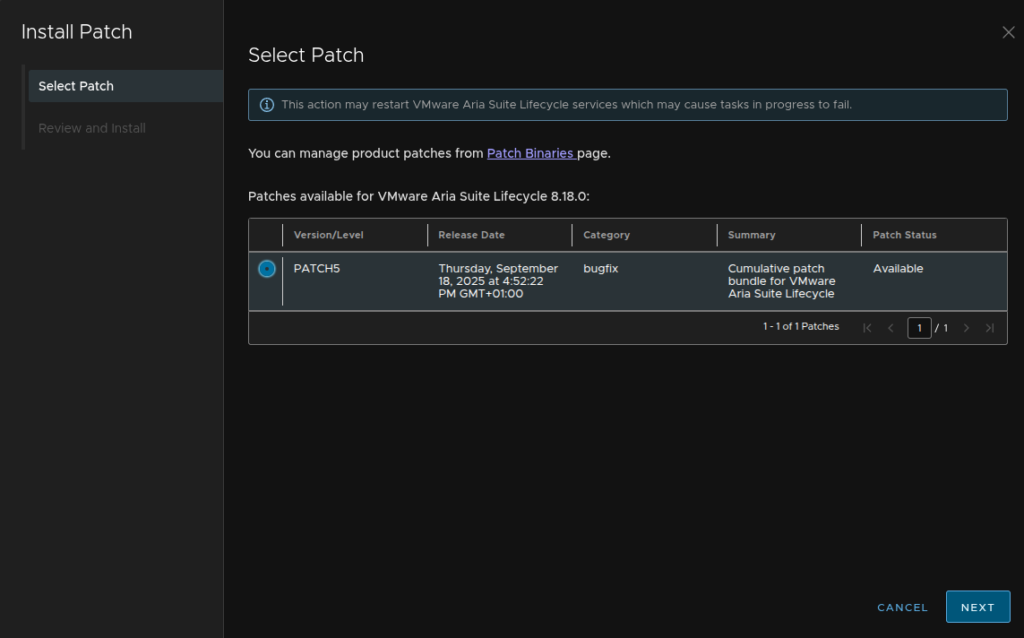
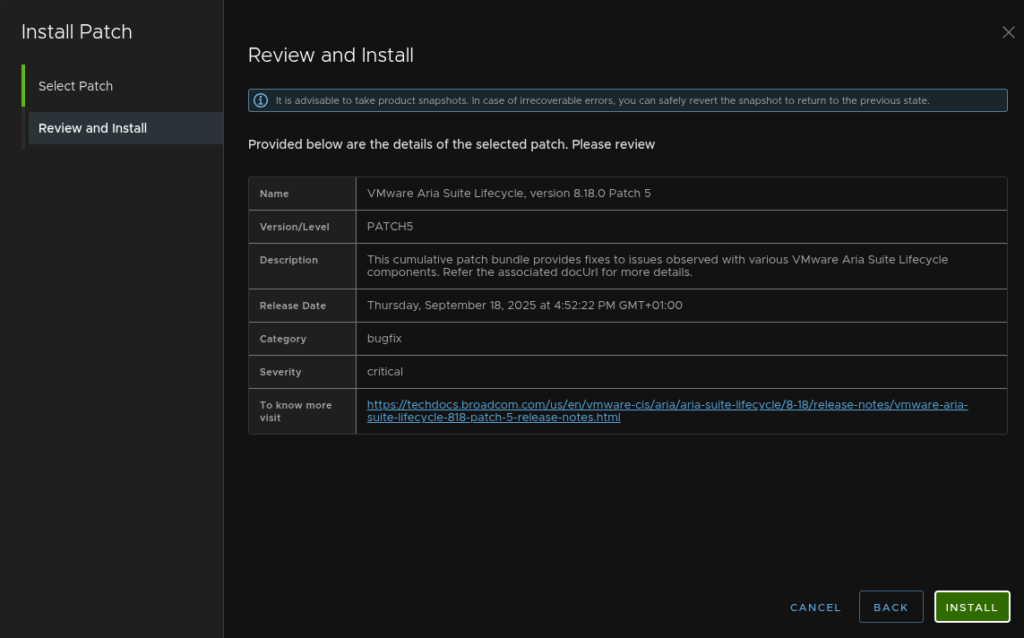
Then click Install
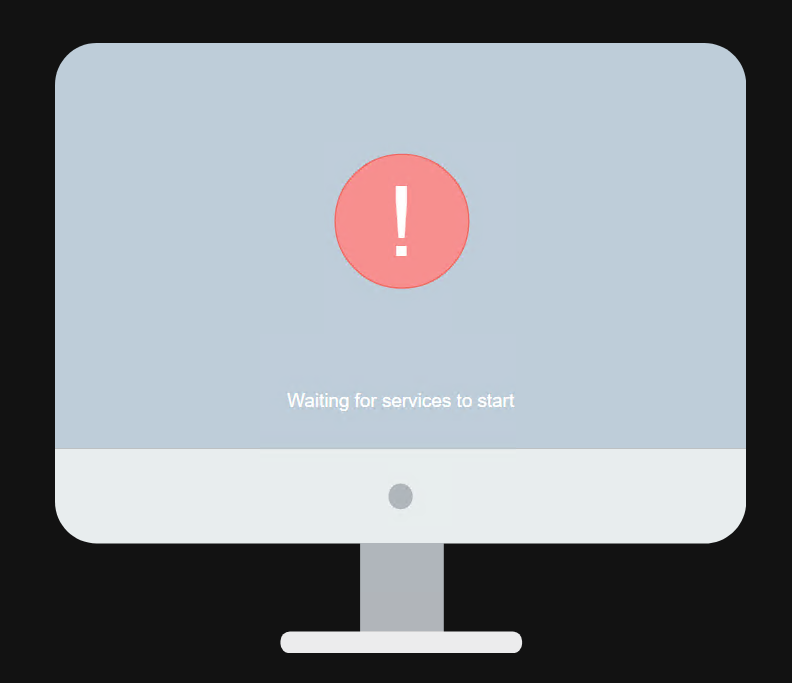
The WebUI will show this as services restart, this is expected
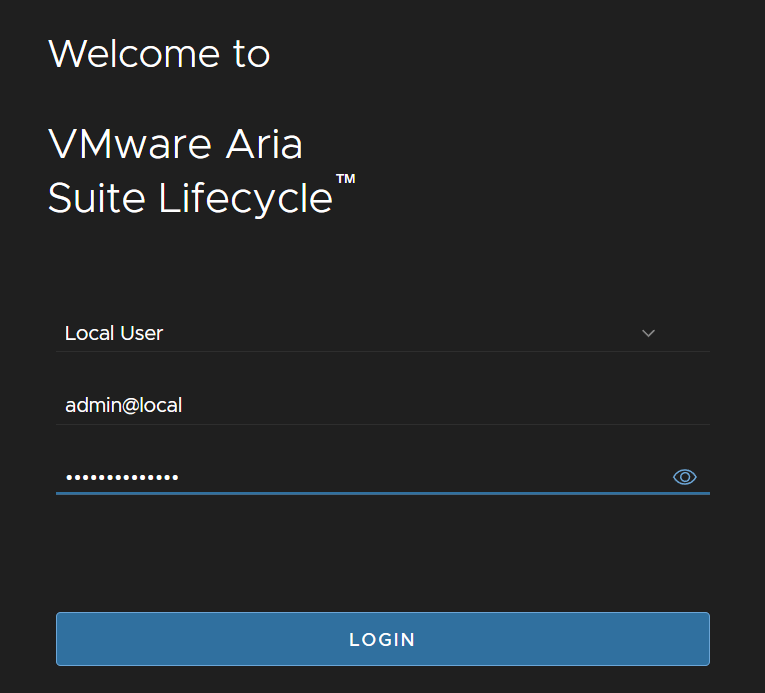
When thats applied log back in
2.2 – VCF Operations Collector Prep
If you have a cloud proxy in Aria Operations you will need to make sure SSH is prepped first else the product inventory will fail
This is only relevant if you have a cloud proxy, if you dont then this can be skipped
We need to make sure SSH is enabled on the cloud proxy
To activate it, open the VM console and login as root, you dont set a password on deployment so it will prompt you to set one if this is your first time logging in
Then run
systemctl start sshd
Now we need to add the password into Aria LCM
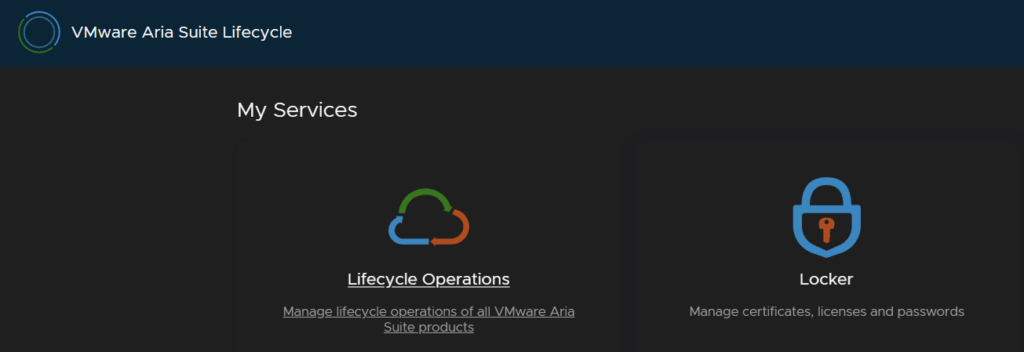
From the main menu, which you can get back to by clicking Aria Suit Lifecycle at the top, and click Locker
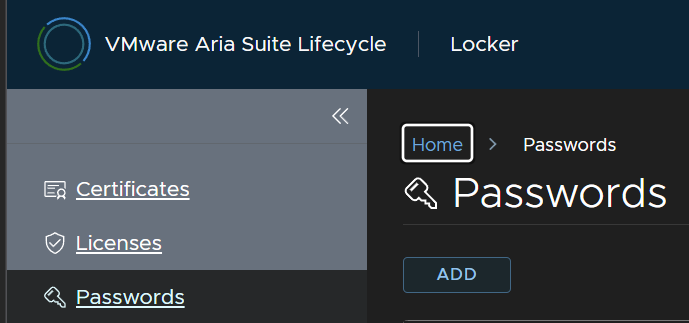
Click Passwords/Add
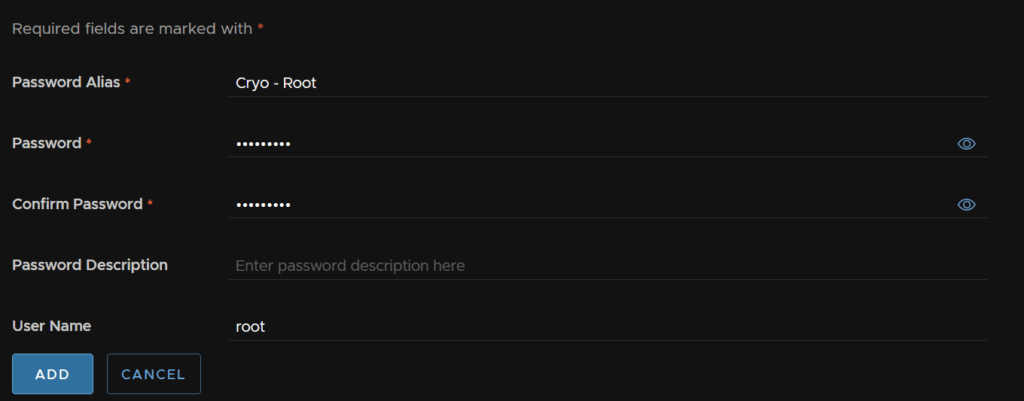
Enter the root details and click Add
2.3 – VCF Operations/Fleet Management
We first need the upgrade pak file from the Broadcom portal
Click My Downloads/VMware Cloud Foundation
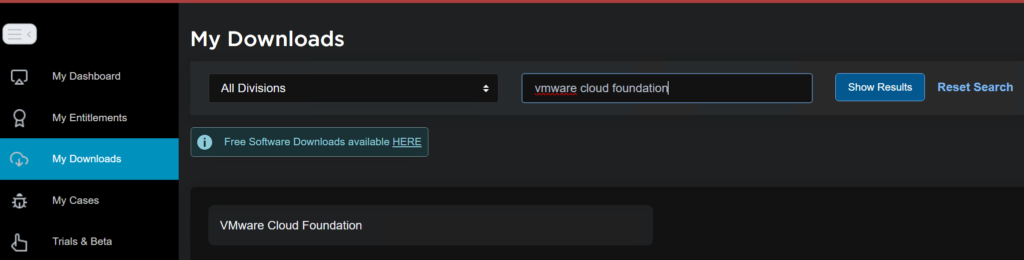
Expand VCF 9 and click the latest release
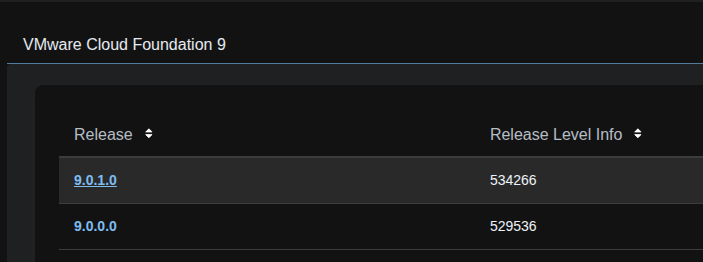
Find Cloud Foundations Operations and click View Group

And download the upgrade pak file download here

Head back up one level and click View Group on VMware Cloud Foundation Operations Fleet Management

And download that OVA

Heading back to our WinSCP session on Aria LCM in the /data directory, we need to drag those two downloaded files over, it should look like this
Now, the fleet management is a separate appliance, so we need an FQDN assigning in your DNS server, this needs to resolve hostname to IP and IP to hostname, an IP address on the same network as the VCF Operations appliance, and 15 character or longer password for the root and admin@local passwords
Logging back into Aria LCM, click Locker
Under passwords click Add
Add the details for the admin@local credential for the fleet management appliance, then click Add, my server will be called scorch, so thats what it refers to
This needs to be 15 characters long, the only allowed special characters are !@#$%^&*
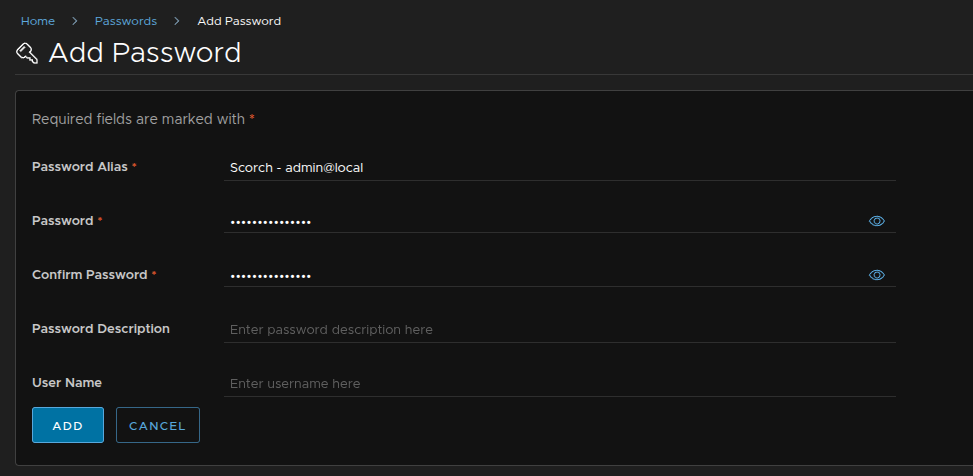
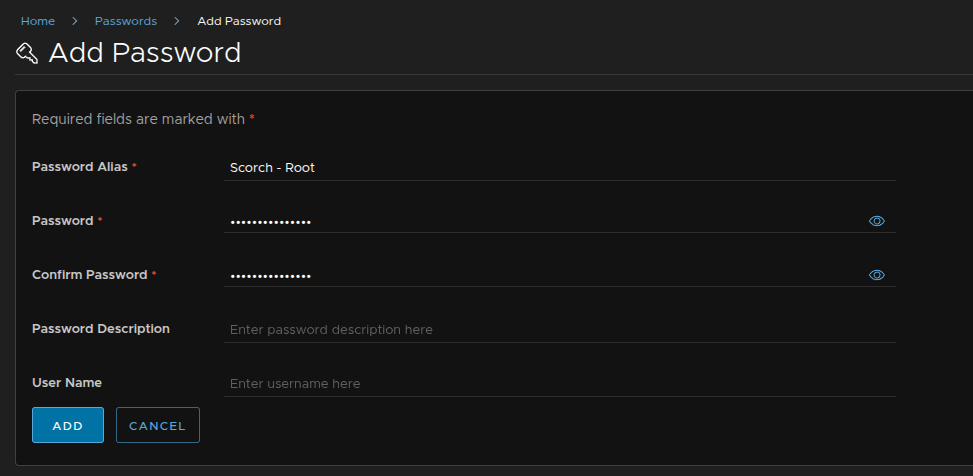
And repeating for the root account
This needs to be 15 characters long, the only allows special characters are !@#$%^&*
Then click VMware Aria Suite Lifecycle in the top left to head back to the main menu
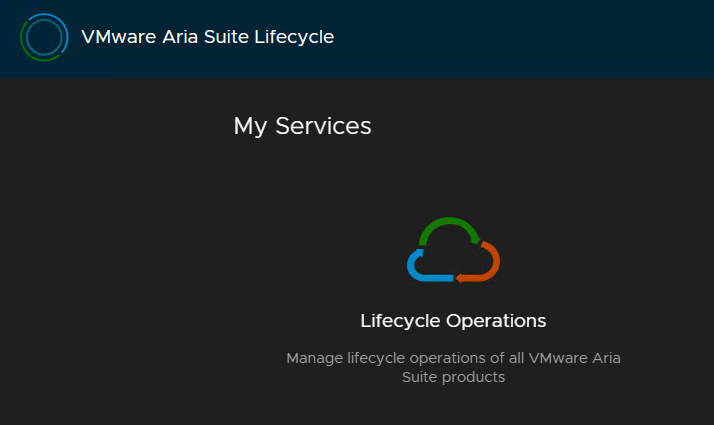
Click Lifecycle Operations
Then click Settings/Binary Mapping
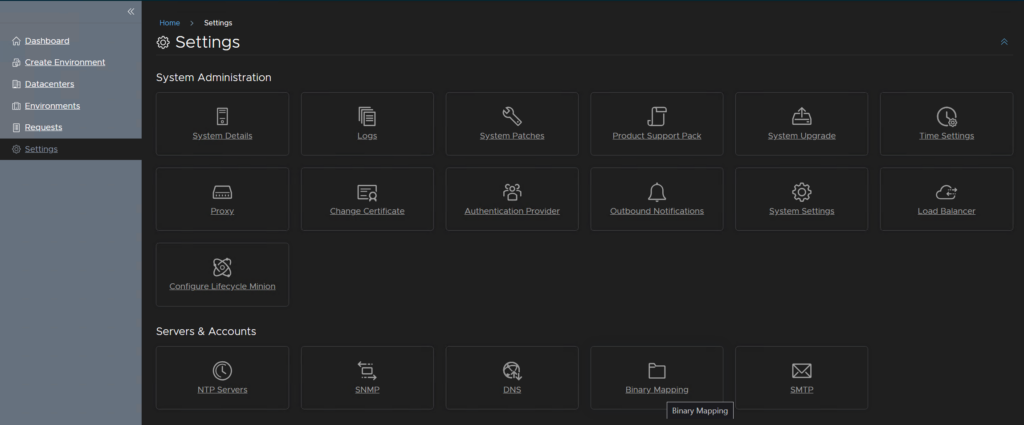
And click Add Binaries
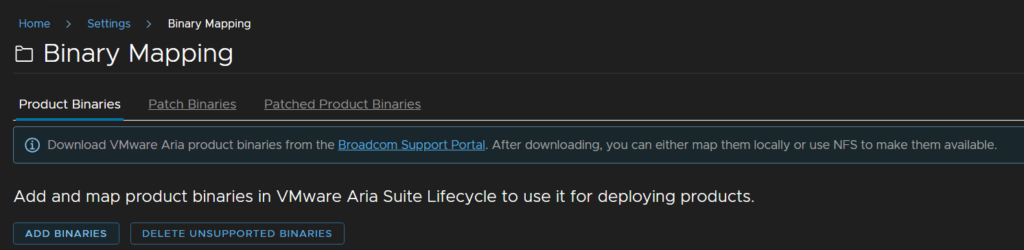
Fill /data in for the base location and click Discover
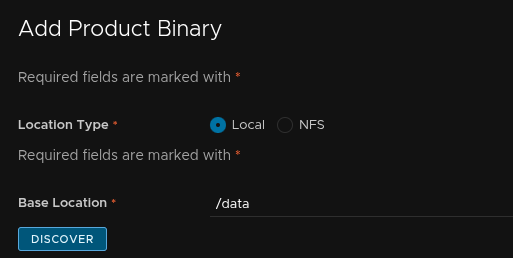
Check both of the new binaries and click Add
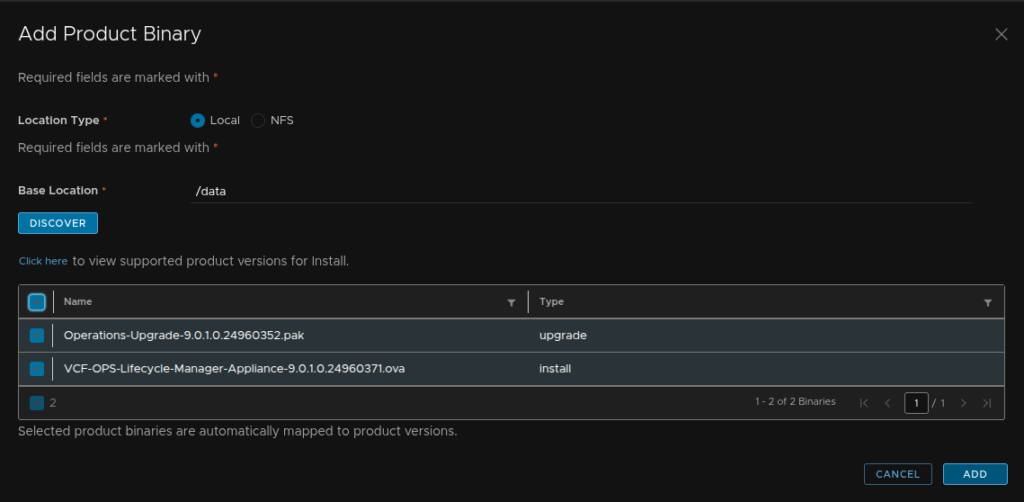
We can check the progress from this link

When thats done you will need to refresh the page on the Product Binaries and it should look like this

Now we can head to Environments and click View Details on the environment with Aria Operations listed
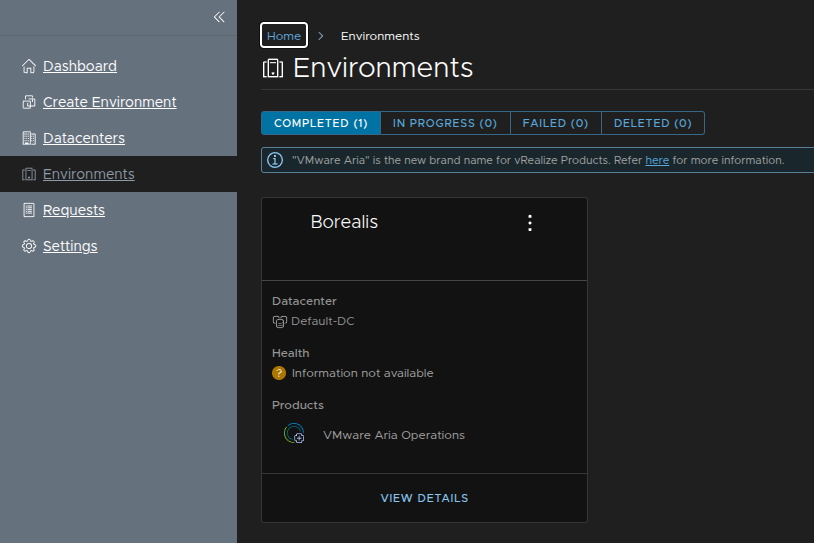
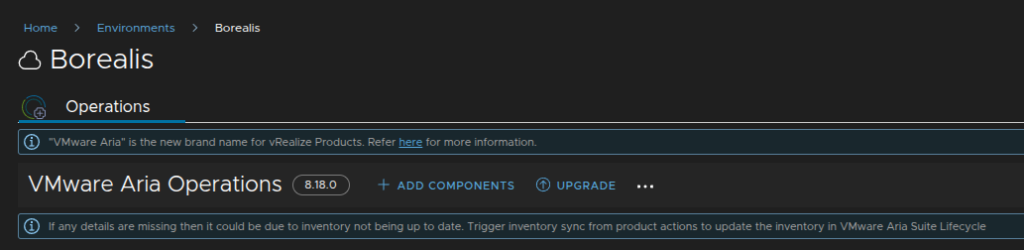
Click the Operations tab then click Upgrade
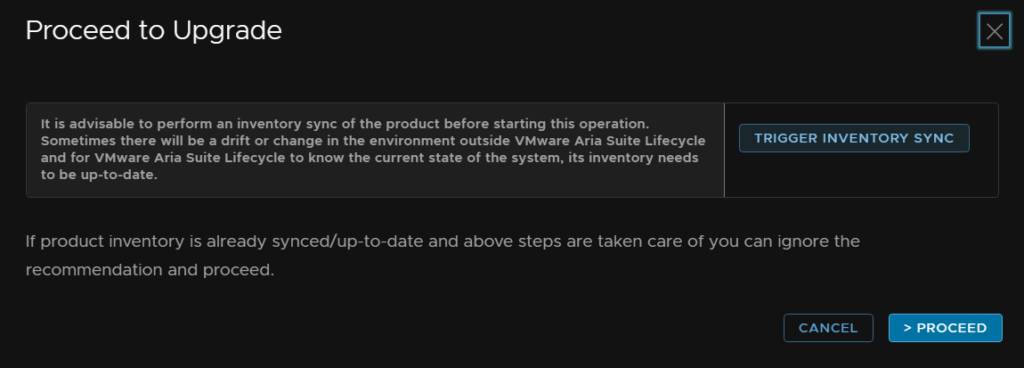
Now click trigger Inventory Sync
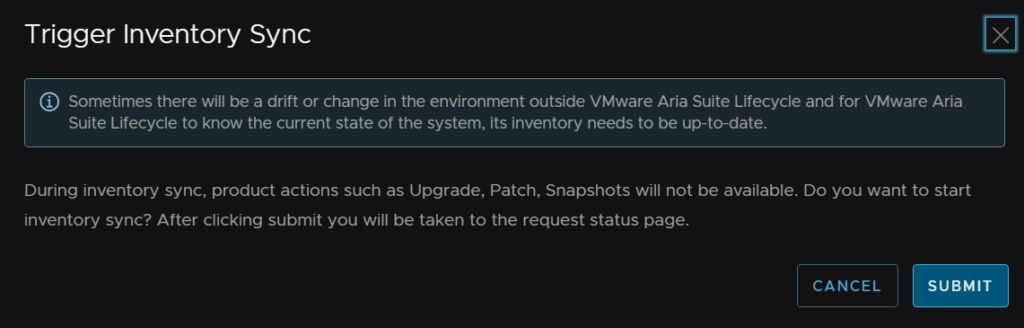
Then submit and wait for the request to finish
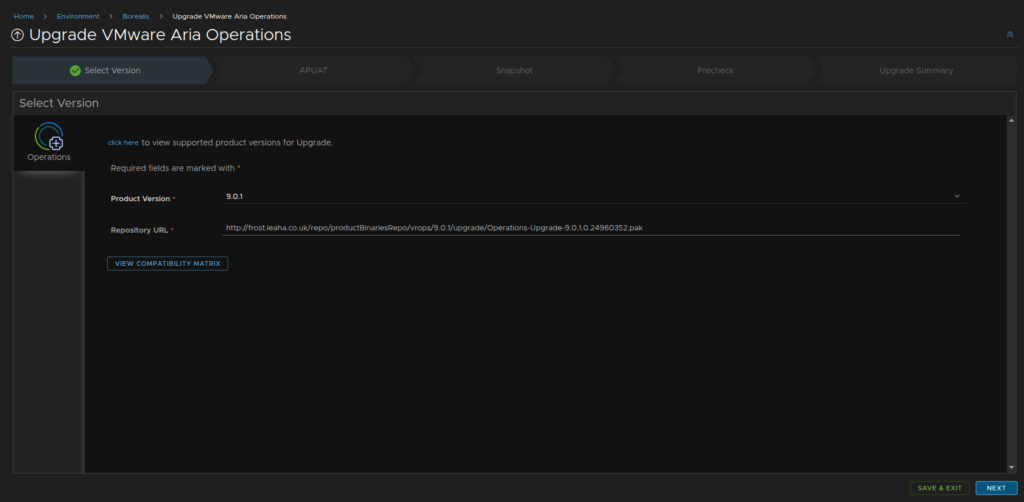
The version should be automatically populated, click Next
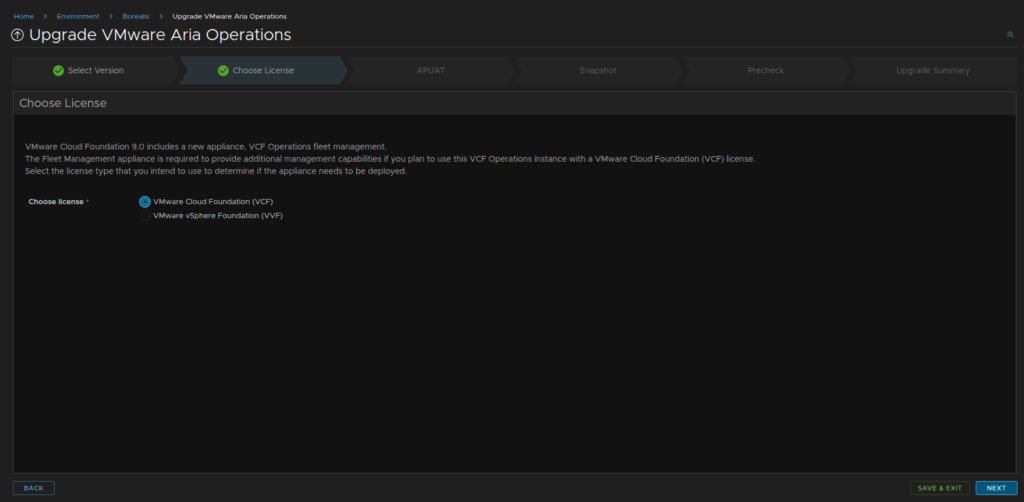
We are using VCF, so we will select that licensing type and click Next
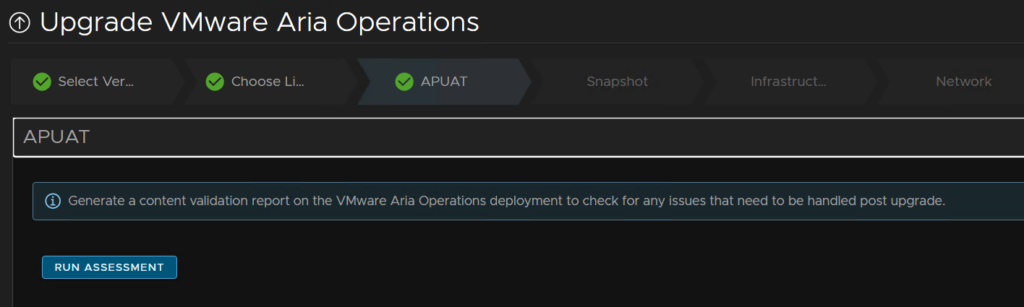
Click Run Assessment
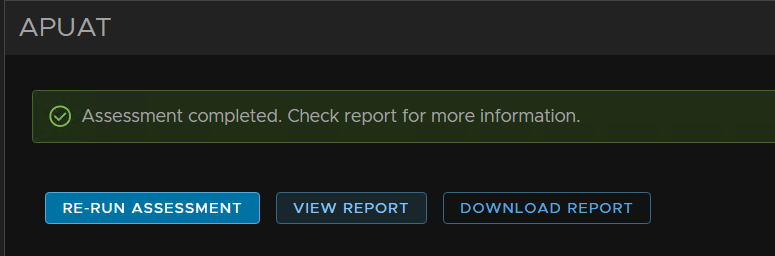
Click View Report
Six of my dashboards are impacted and 5 management packs
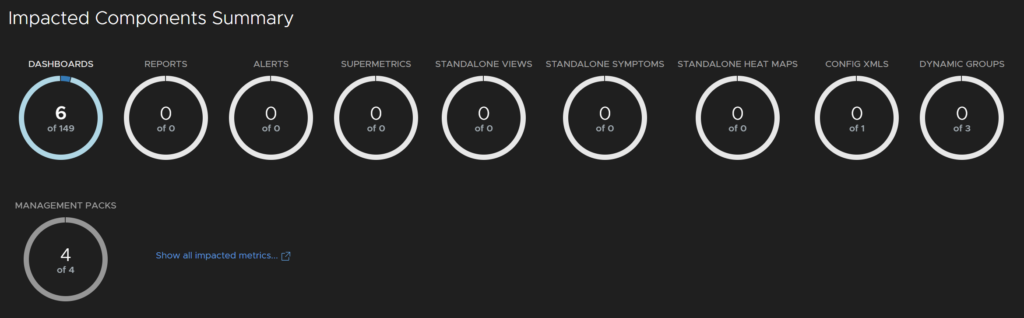
For the dashboards, none of these are my custom one, so thats fine
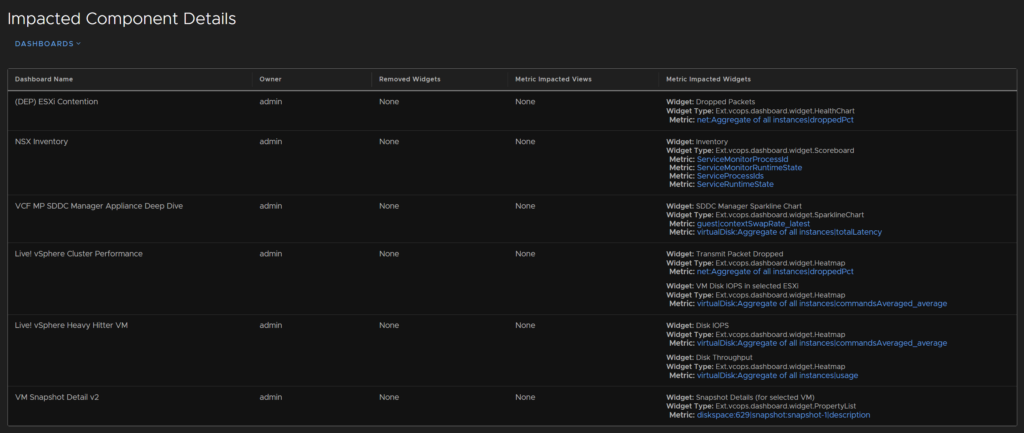
Using the Dashboards drop down selector I can change this to management packs
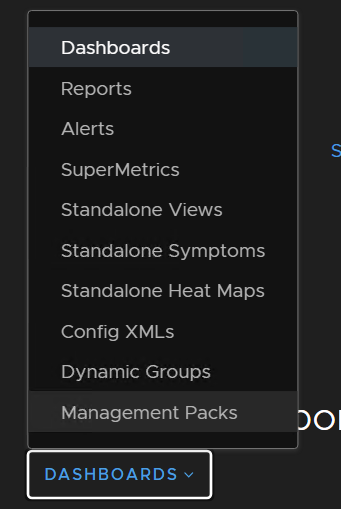
Which seems to be these, I am going to continue with the upgrade, with the exception of the SNMP pack the rest are VMware ones so they should be fine, the SNMP one hasnt been configured so I am not bothered if it breaks

Now I am happy, I will check the box and click next back in Aria LCM
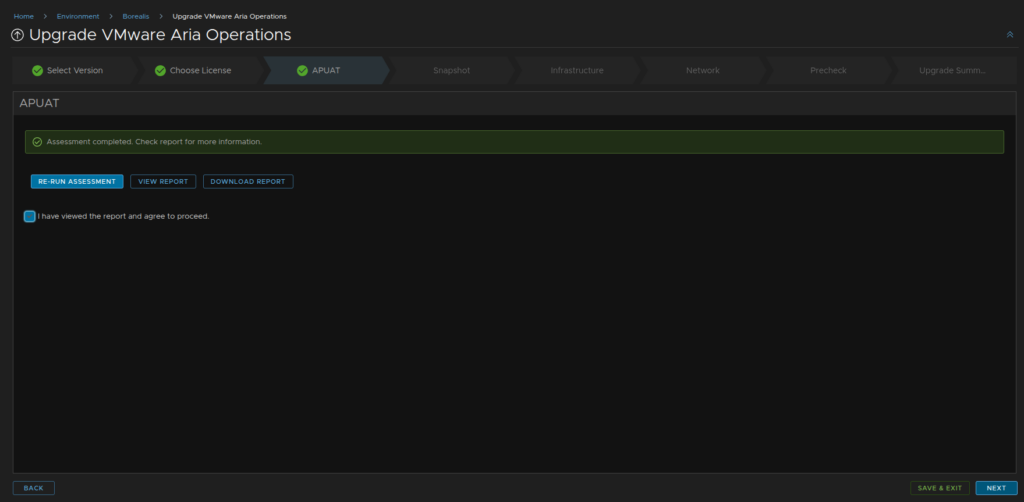
We will check both boxes to take and retain the product snapshots in case we need to roll back and click Next
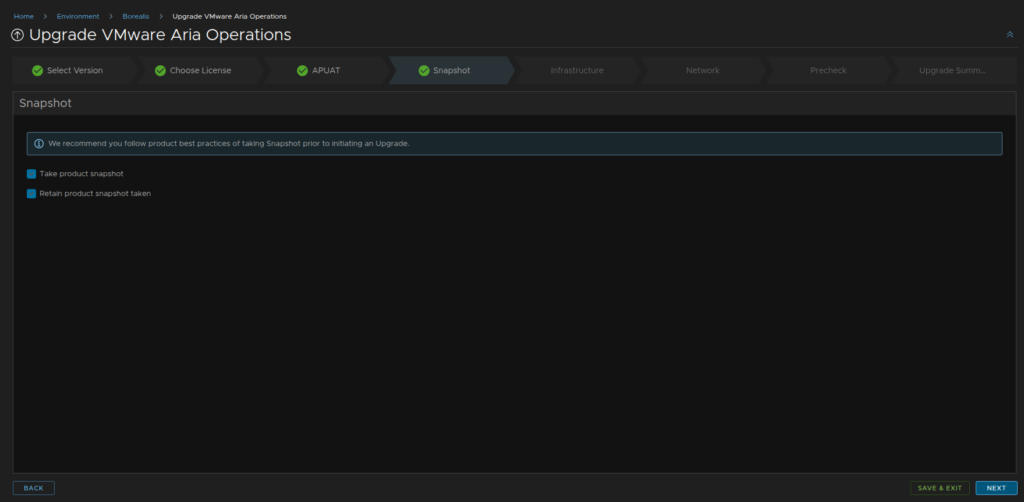
Now we need to setup the infrastructure for the fleet management appliance
Select your vCenter, cluster, optionally a folder and resource pool, then select the network, this should match the Aria operations appliance you already have, the datastore, and thin provisioning mode
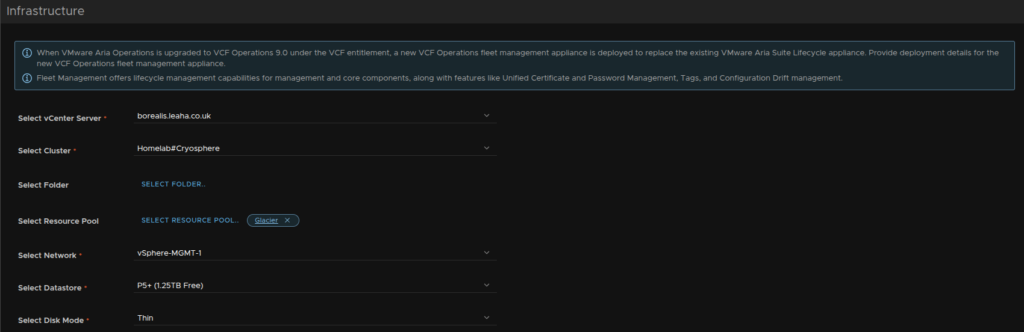
Add the VM name, FQDN and IP address then click Select Admin Password
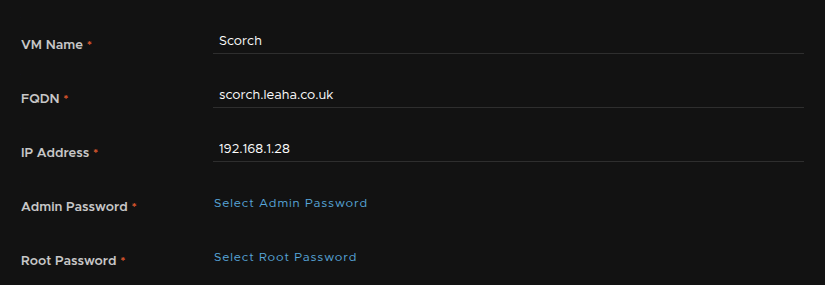
And select the admin@local credential we setup earlier

And repeat for the root account

It should look like this, then click Next

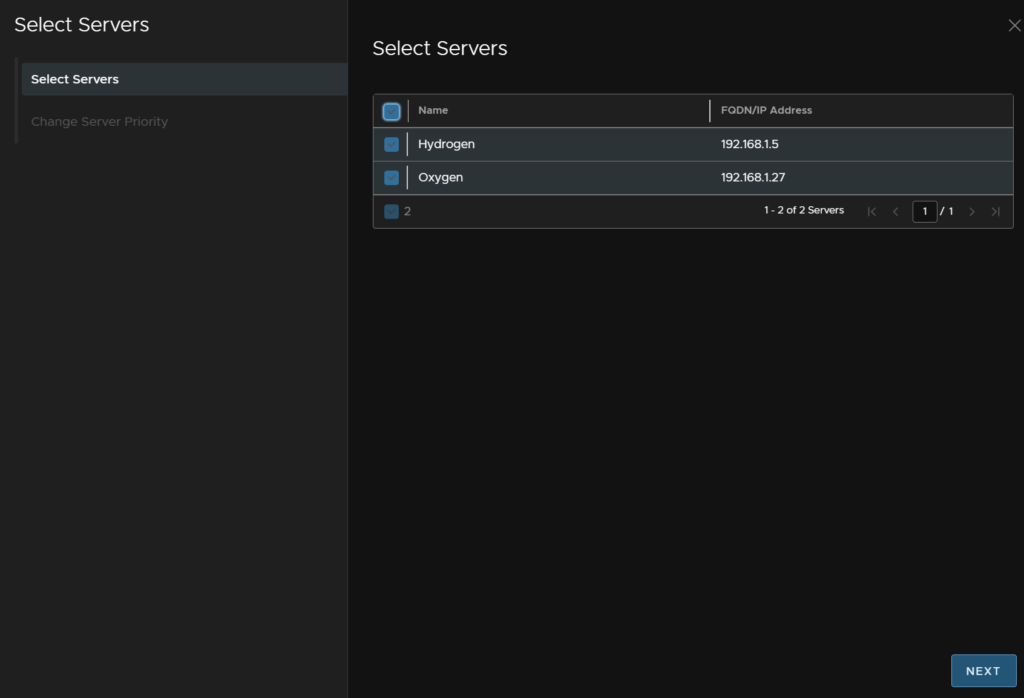
Enter our domain and search domain, and click Edit Selection to select our DNS servers
If when you notice you have no DNS servers you can add a new server if needed
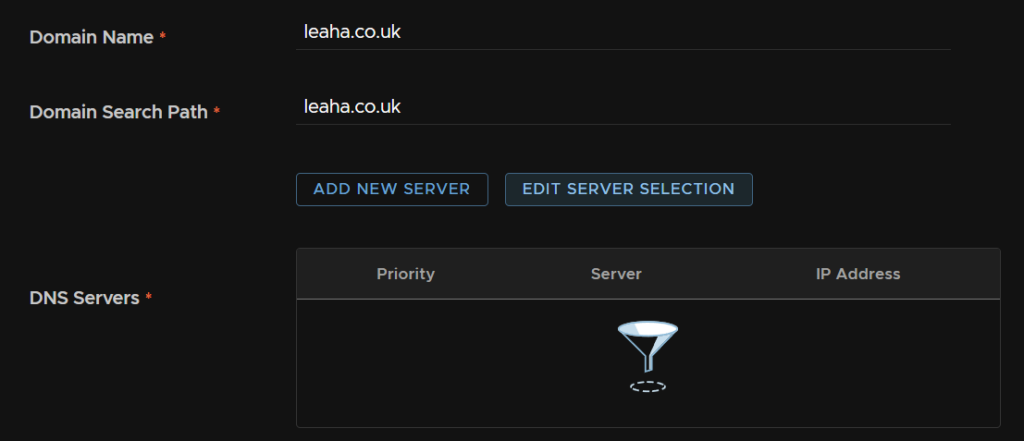
Select both and click Next
And then Finish
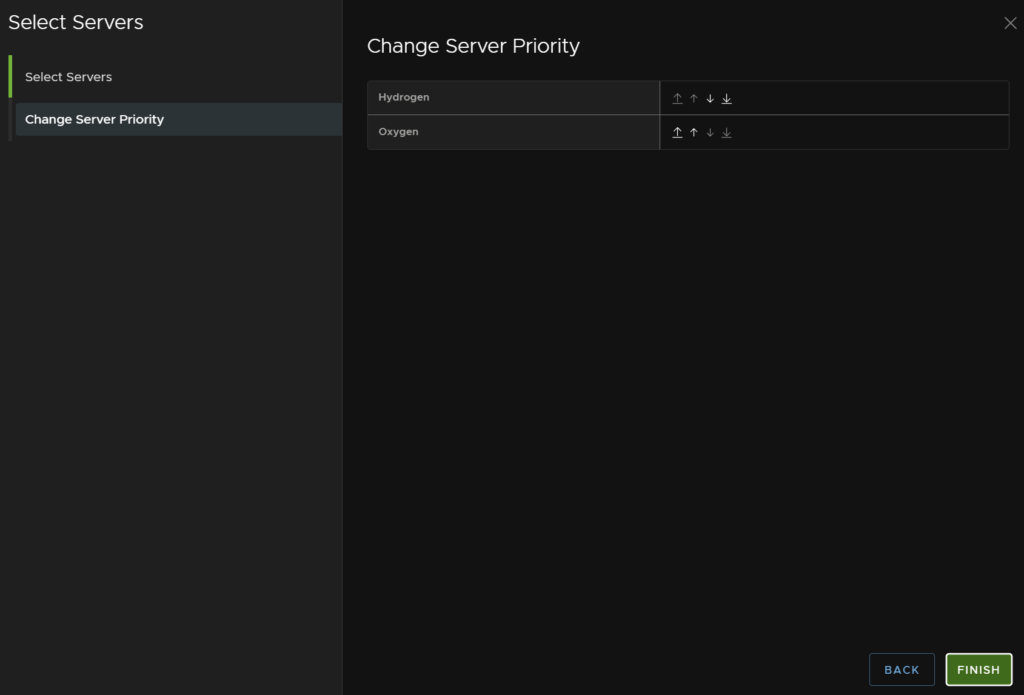
It should look like this
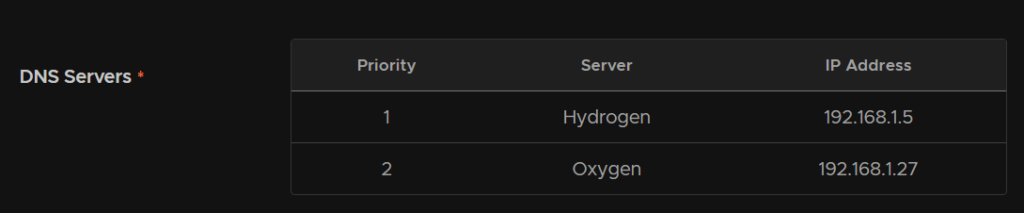
For NTP I have an NTP server, so I will select that over hoist time and click Edit Selection
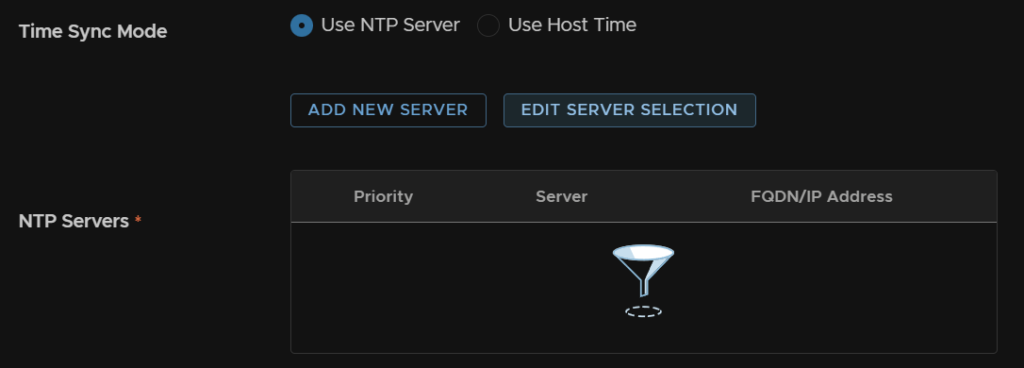
Select the NTP server and click Next, I am using Cloudflare
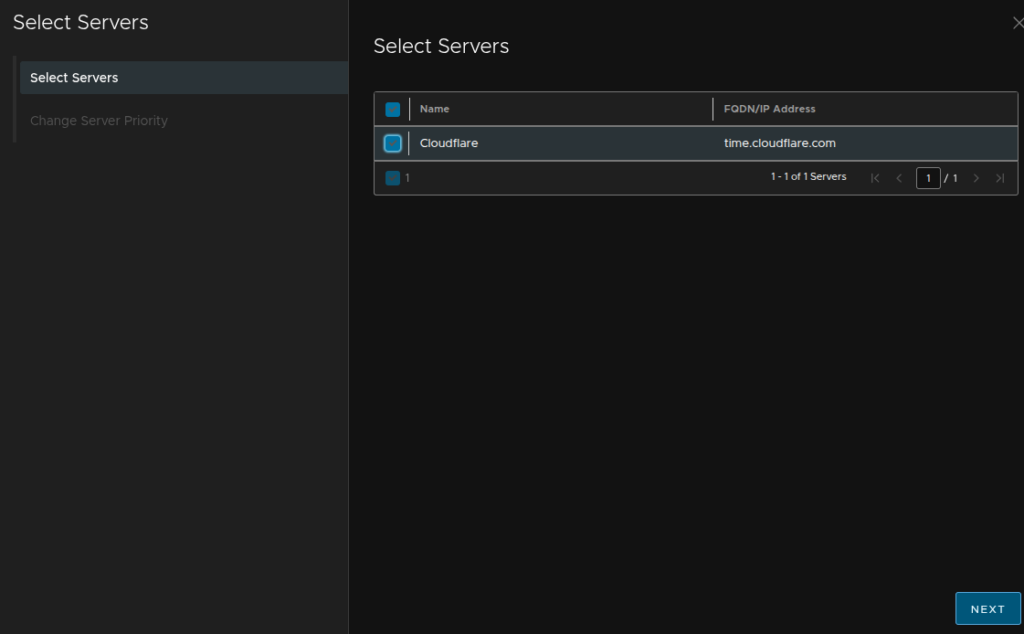
Then Finish
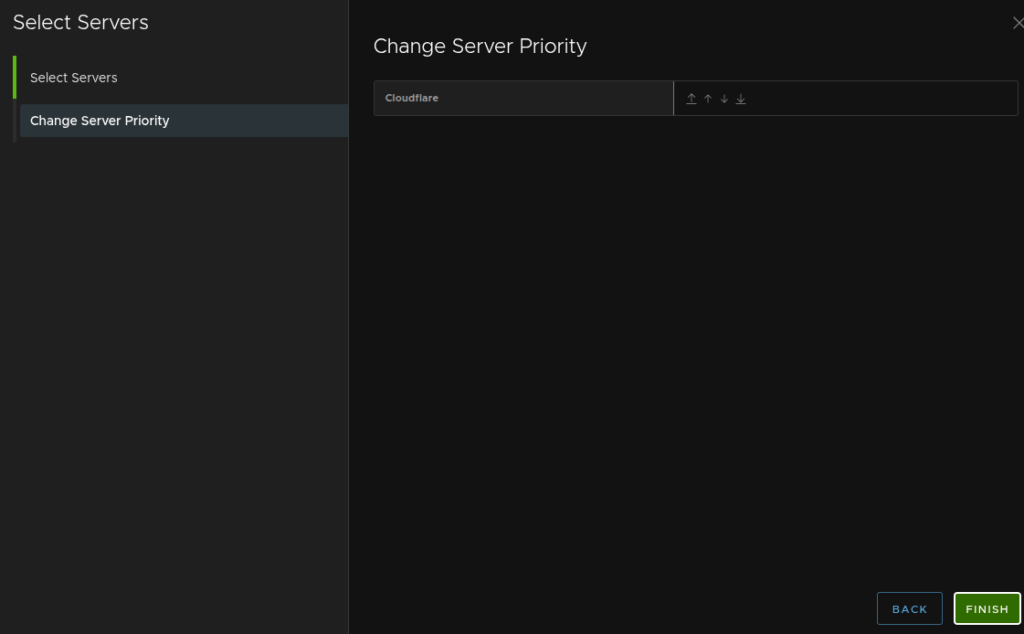
It should look like this

And add the IPv4 gateway and subnet details at the bottom and click Next

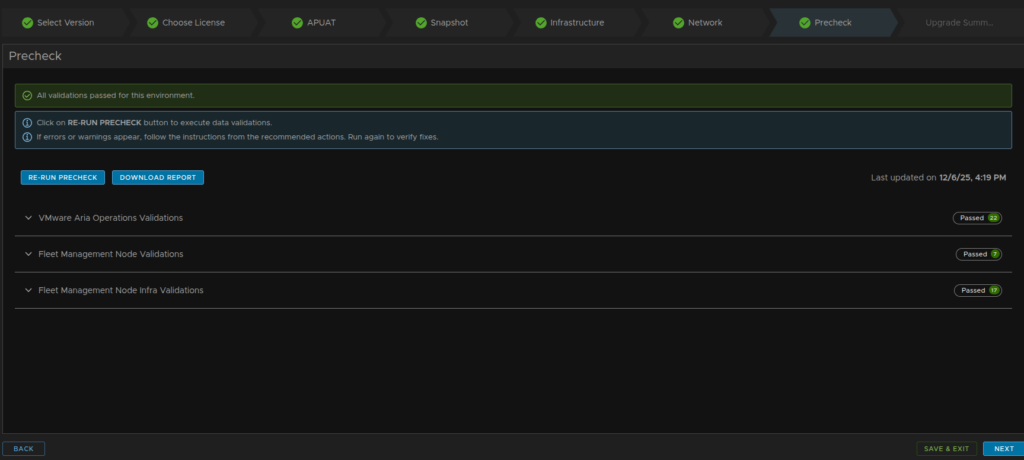
Now click Run Precheck
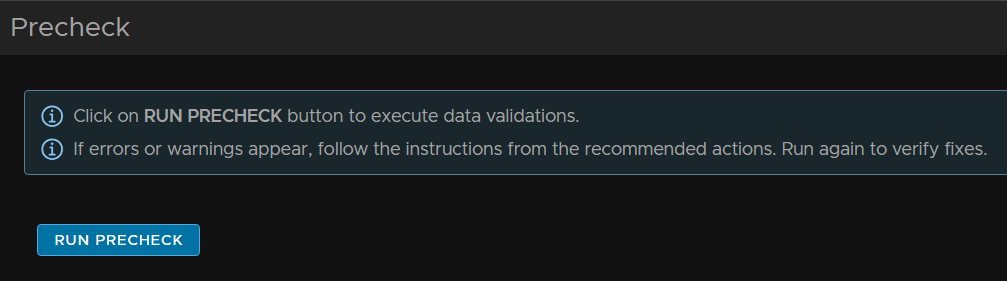
I only got one warning about the VCF Operations node size during an upgrade, which I ignored as I knew it was correctly sized, this time though, I didnt get it
When you are happy, click Next
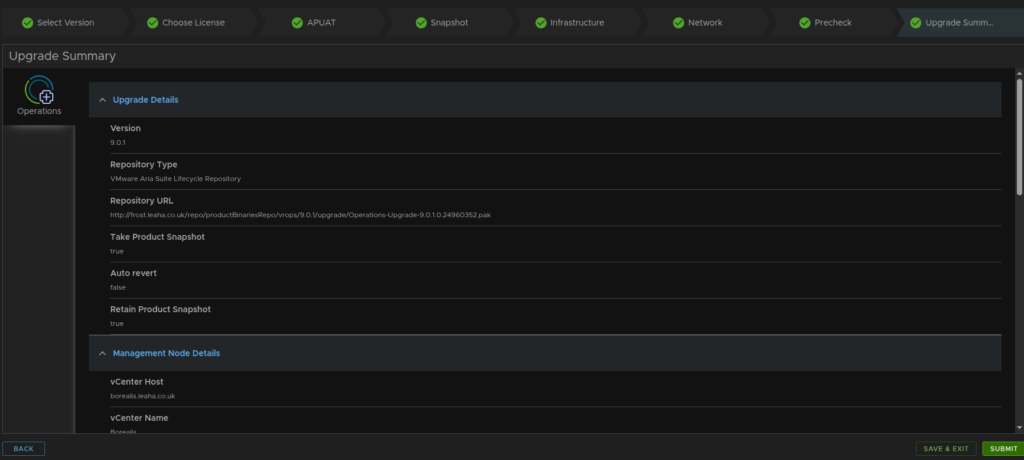
And then click Submit
2.4 – VCF Automation
I didnt have VCF Automation in this environment, but you can check out section 1.4 for the process, its the same
2.5 – VCF Operations For Networks
I didnt have VCF Operations For Networks in this environment, but you can check out section 1.5 for the process, its the same
2.6 – SDDC Manager Convergence
2.6.1 – Appliance Deployment
Now we have the VCF Fleet sorted we need to get the SDDC Manager deployed and converge the environment into a VCF environment
We need to get the SDDC Manager from the Broadcom portal, click into VMware Cloud Foundation

Click Cloud Foundation 9 and select the release
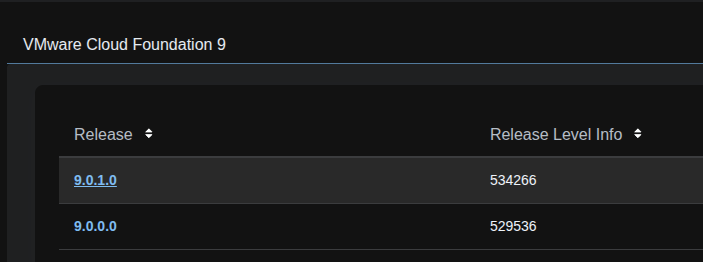
Click View Group on the VMware Cloud Foundation Installer

And download the appliance

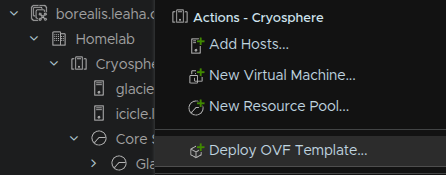
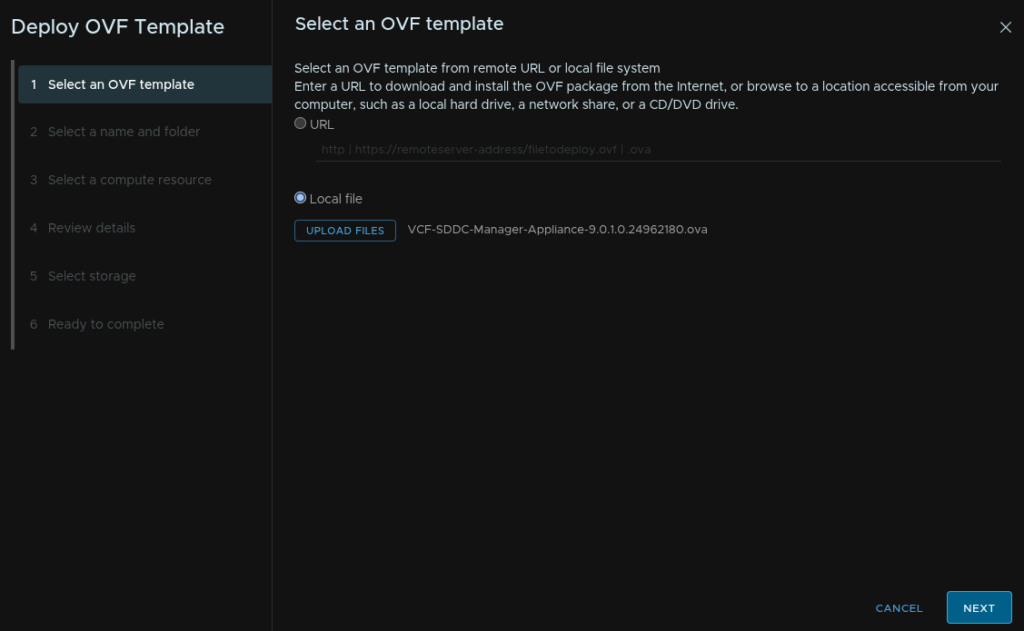
In vSphere, right click the cluster and click Deploy OVF Template
Select Local File then click Upload Files
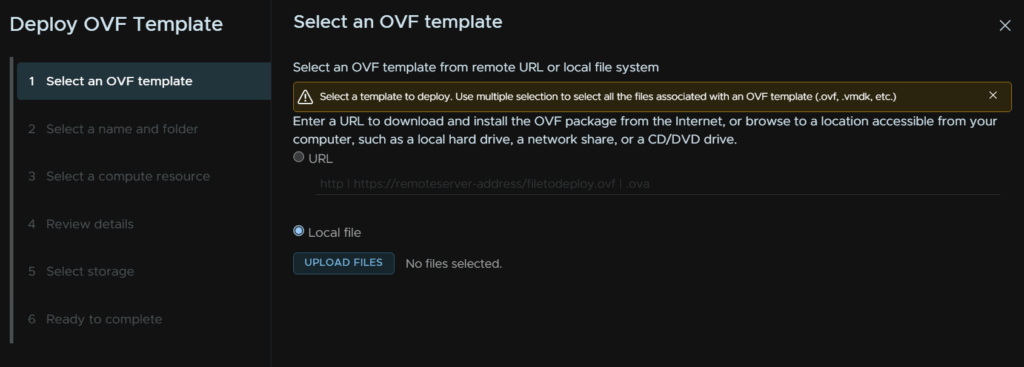
Then double click the SDDC Manager OVA file

Now click Next
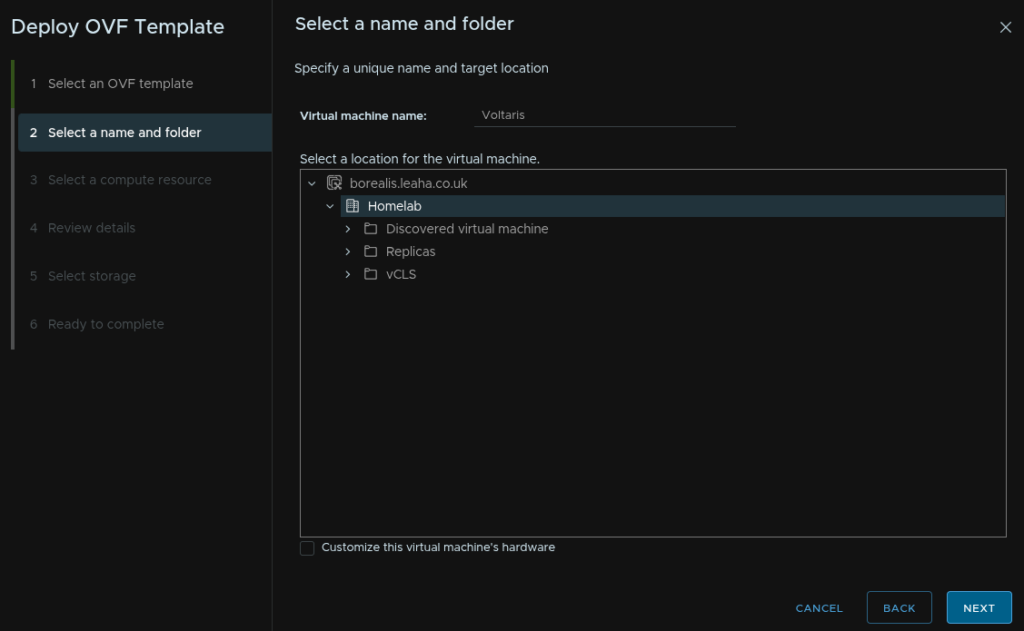
Give the VM a name, and optionally a folder, then click Next
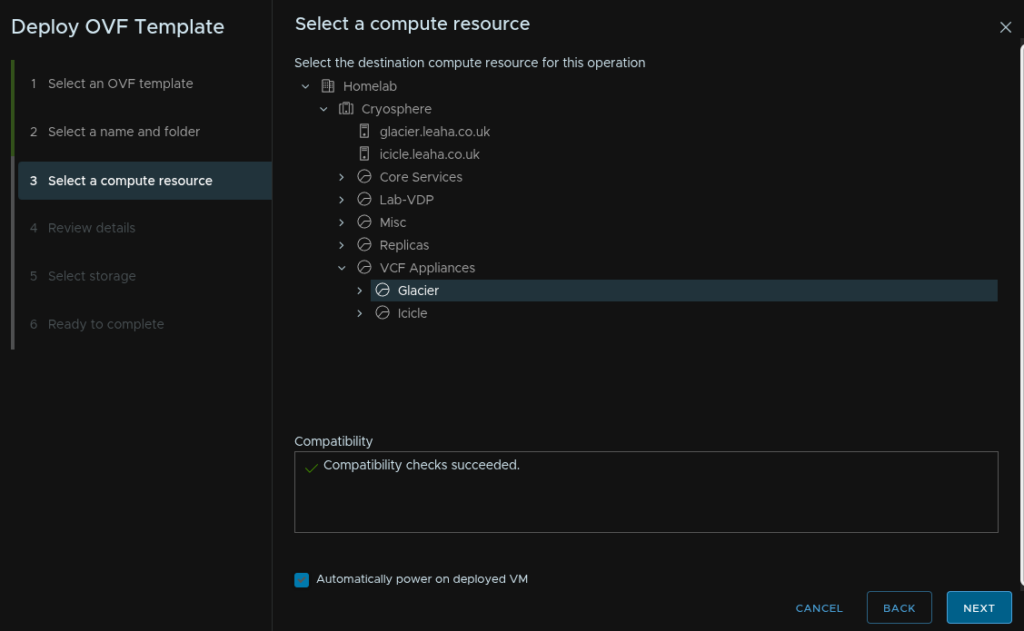
Compute should be populated with our cluster, check the box to automatically power the VM on and click Next
Click next here
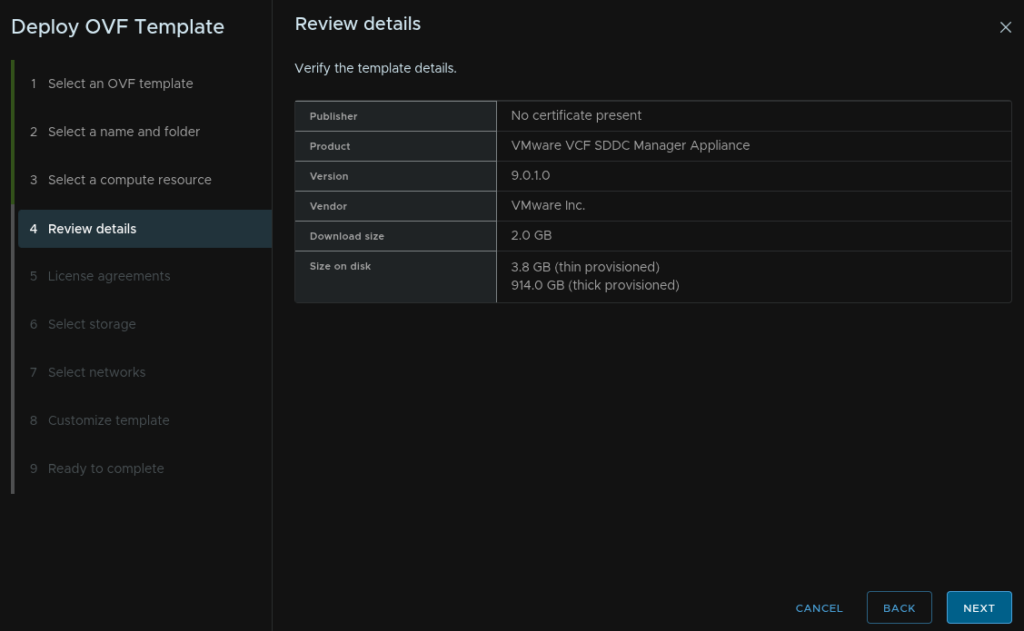
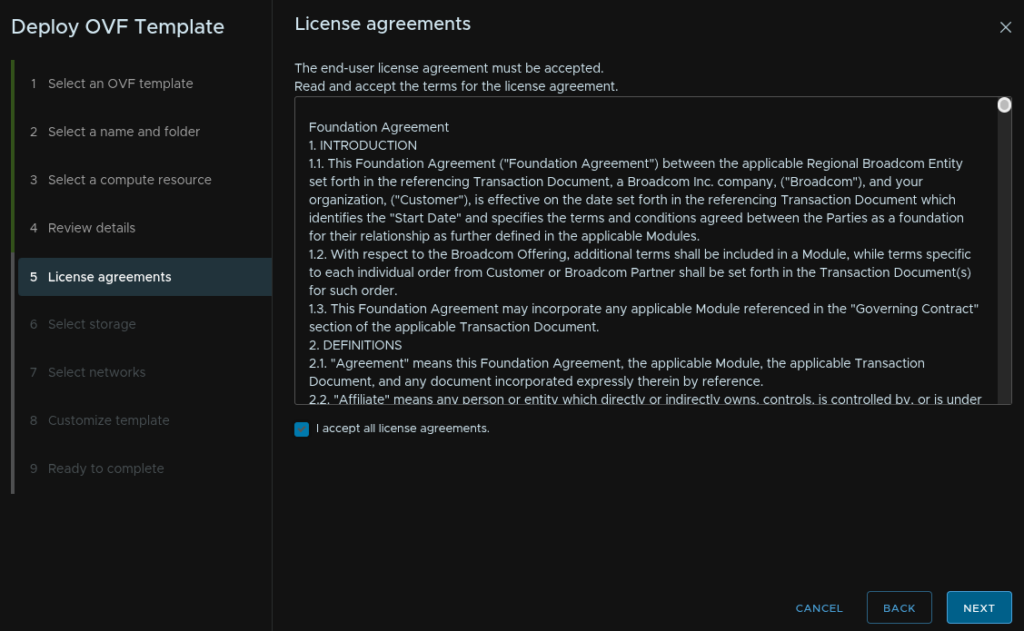
Accept the EULA
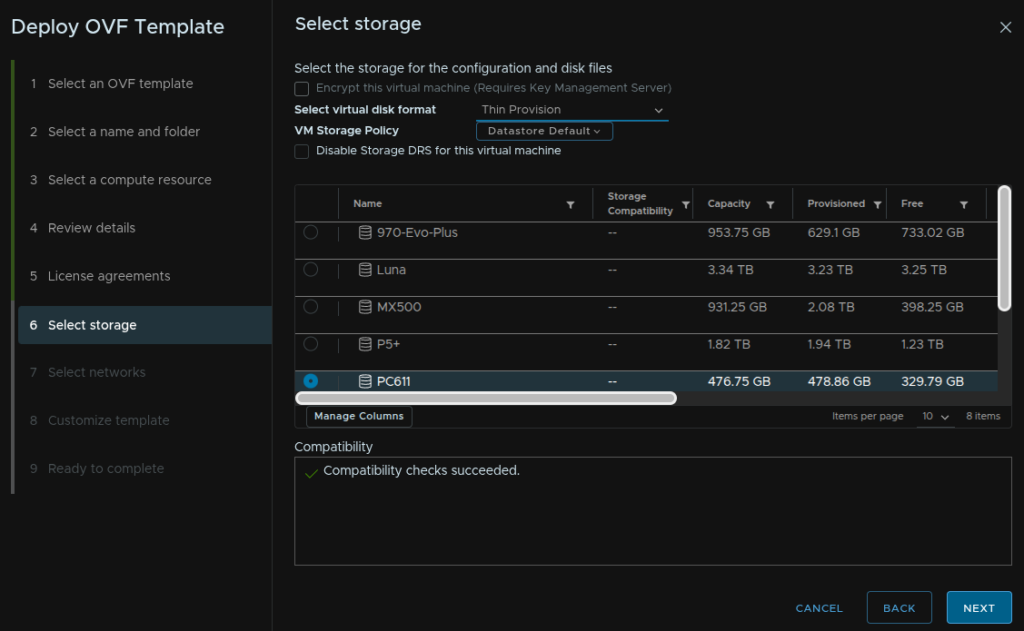
Select the datastore to put the VM and set the provisioning to thin and click Next
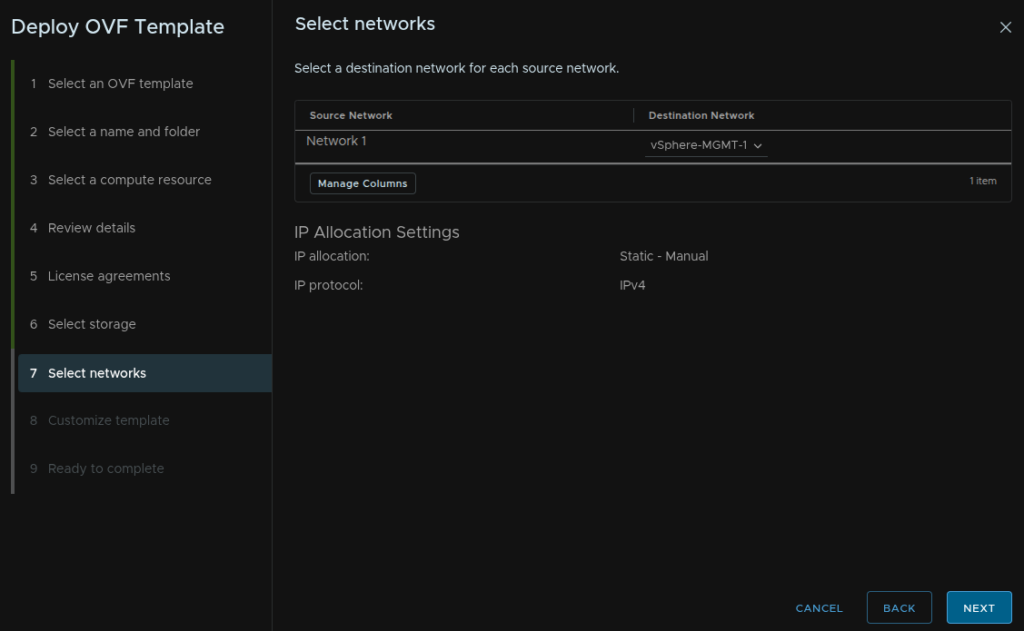
Select the network and click Next
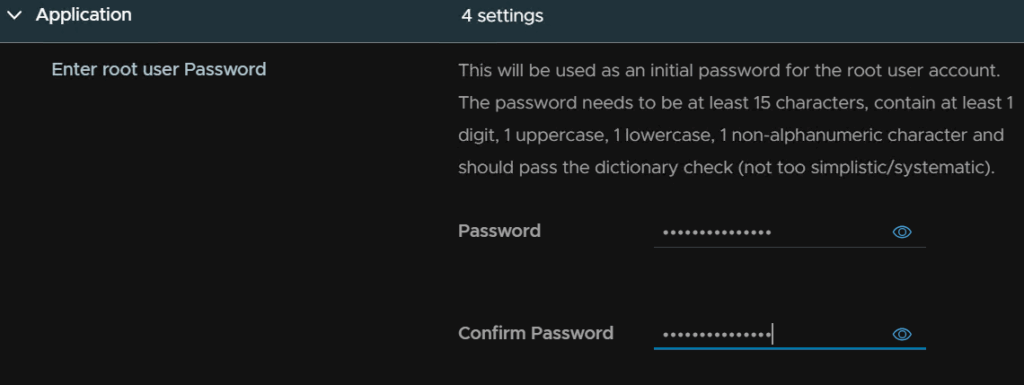
We then need a root password
This needs to be 15 characters long, the only allowed special characters are !@#$%^&*
hen we need one for the admin@local account, this needs to be 12 characters, and the same special character requirement as the root password, as well as a hostname, this needs to be the FQDN, and a NTP server
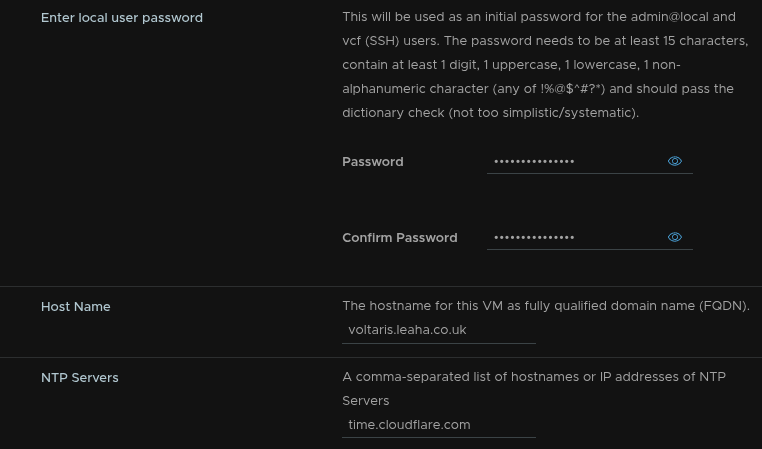
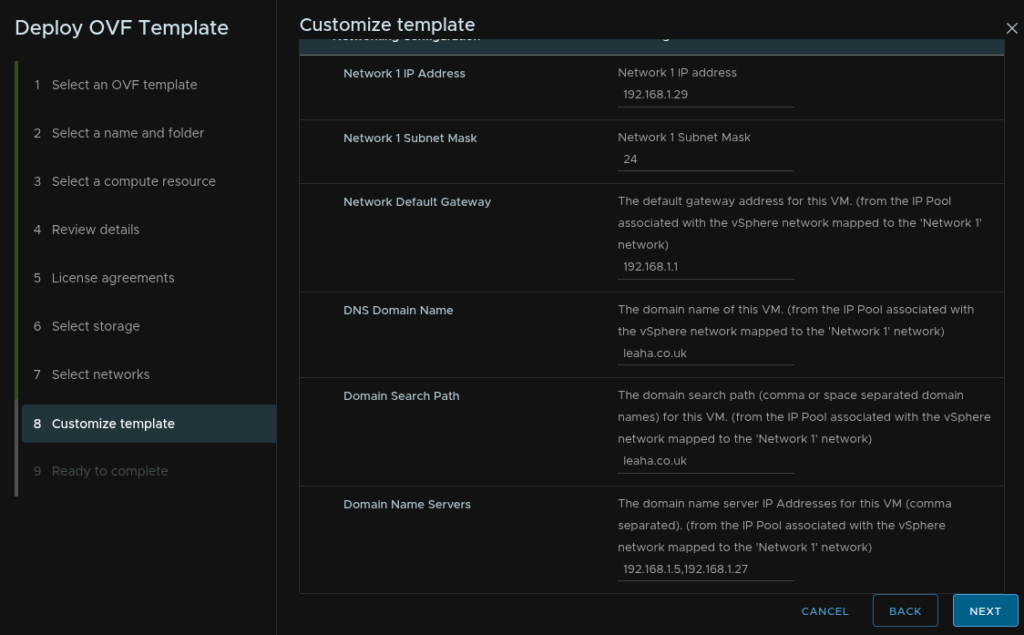
Then add the IP address, subnet masl, gateway, DNS domain, search domain and DNS servers, comma separated, then click Next
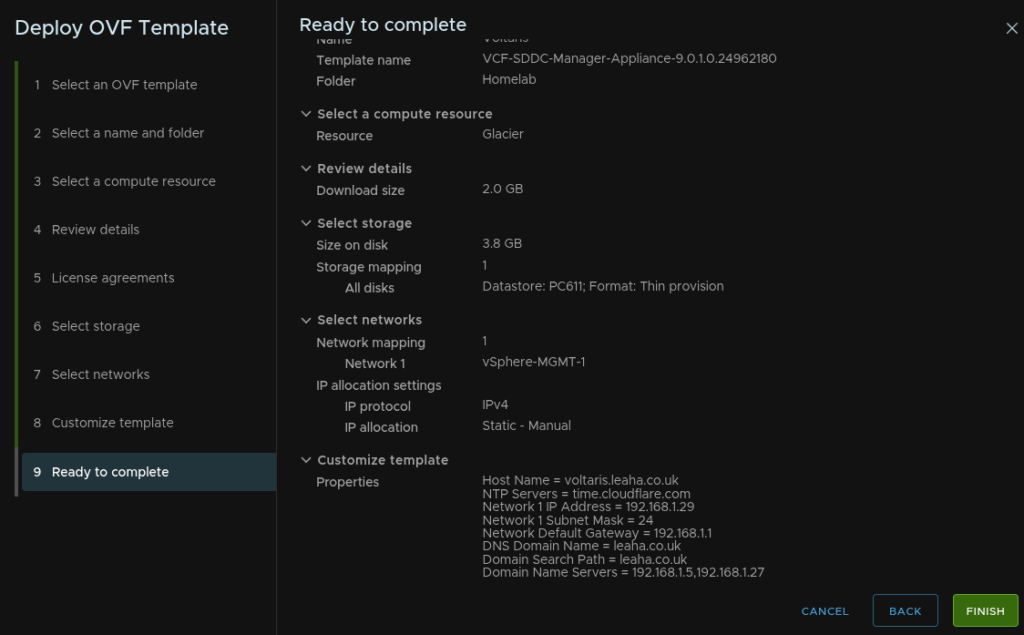
Then click Finish
2.6.2 – Convergence
Its worth noting here, before proceeding you must ensure the vCenter you will be converging is hosted within its own cluster, not on an external cluster/vCenter else where, for example, the vCenter VM must be within the vCenter UIs inventory, if its not this MUST be addressed first, the easiest way to do this is by backing up the configuration and restoring it to a new vCenter hosted within the cluster
Any new appliances deployed through this will need to be have DNS names pre populated so they can be resolved
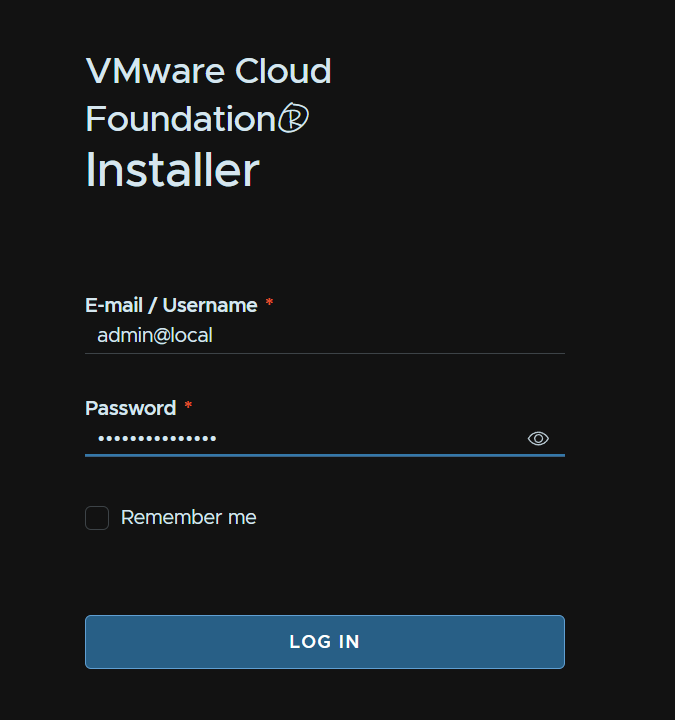
Once the server has booted and loaded, log into the WebUI on
https://fqdn
With the admin@local account
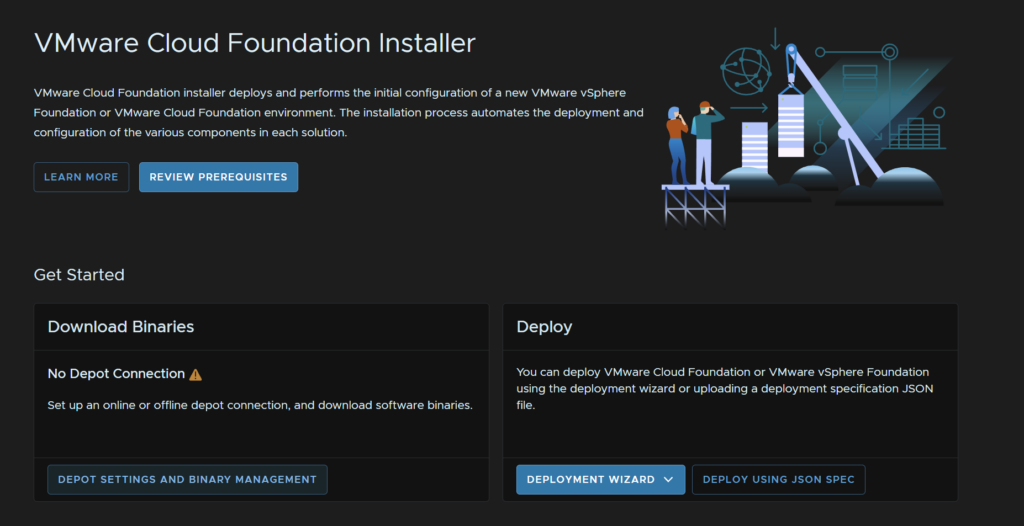
Under Download Binaries click Depot Settings And Binary Management, depending on what you have, you may need this, for example
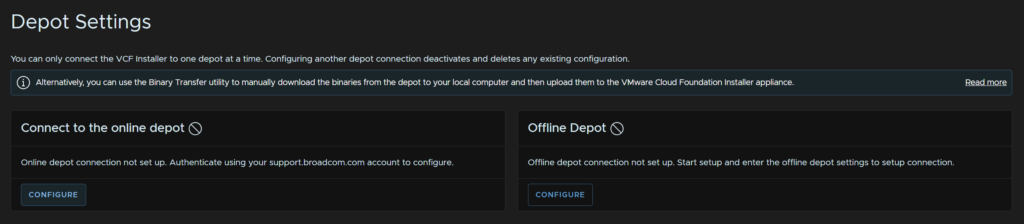
On the Connect To Online Depot Widget, click Configure
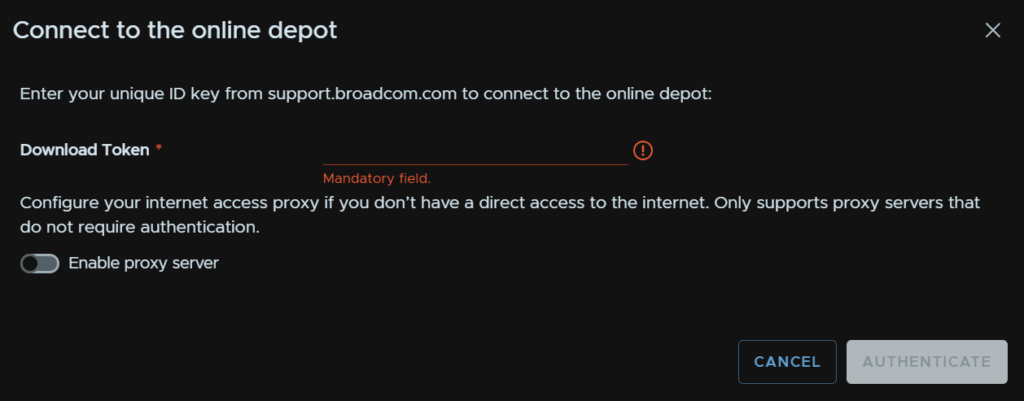
Add your token and click Authenticate
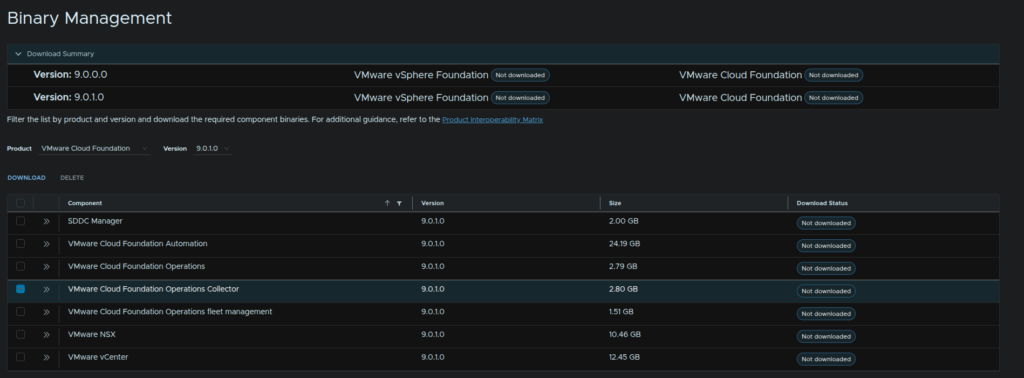
If you dont have VCF Operations, you’ll need to check that and click Download, I do, so I will be skipping this
The component we will need in all scenarios is the Operations Collector, oddly when trying to converge my environment, even if you already have a collector a new one must be deployed
Make sure you have selected the version matching the earlier components, in my case, 9.0.1
Once thats sorted, click return Home in the top left
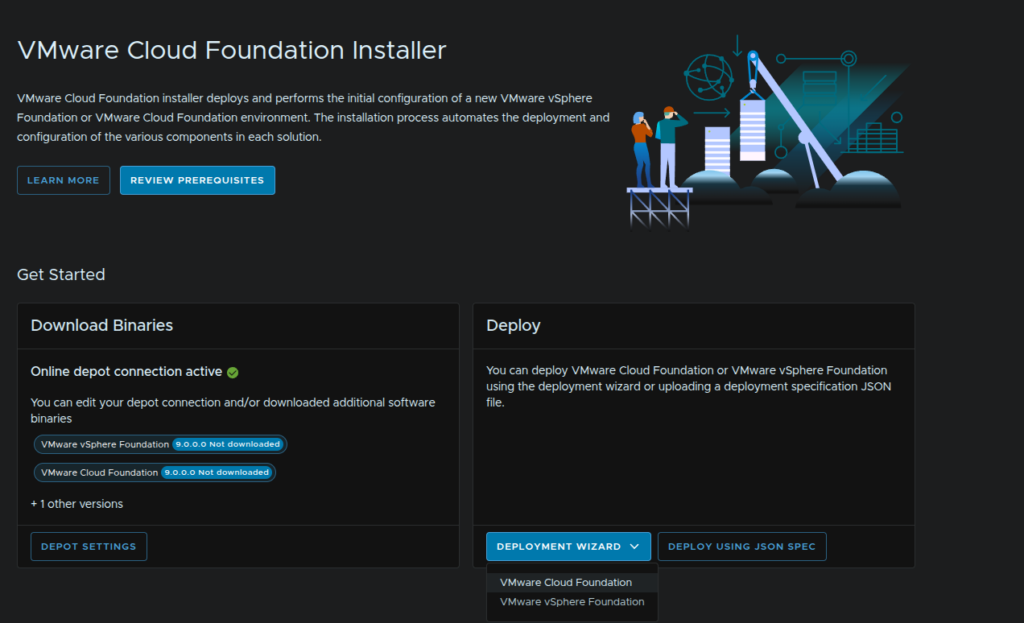
Under the Deploy Widget, click Deployment Wizard/VMware Cloud Foundation
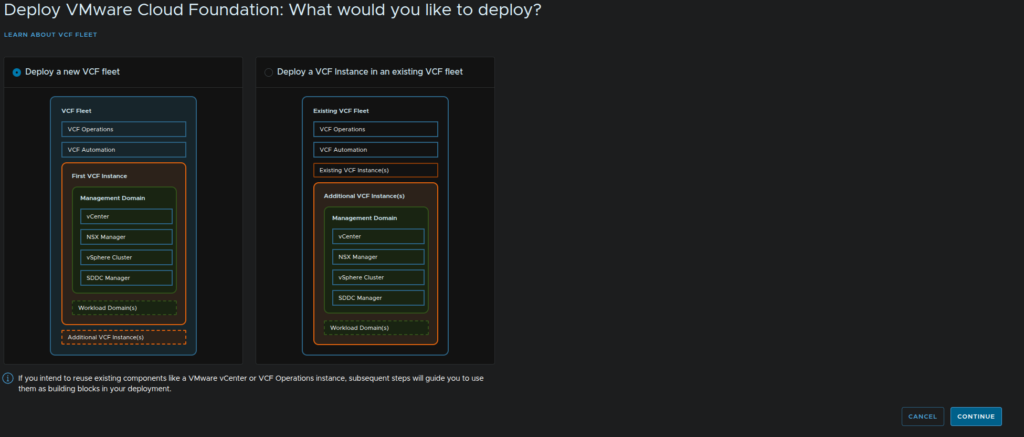
As we dont have any VCF setups, we want to click Deploy A New VCF Fleet, then click Continue
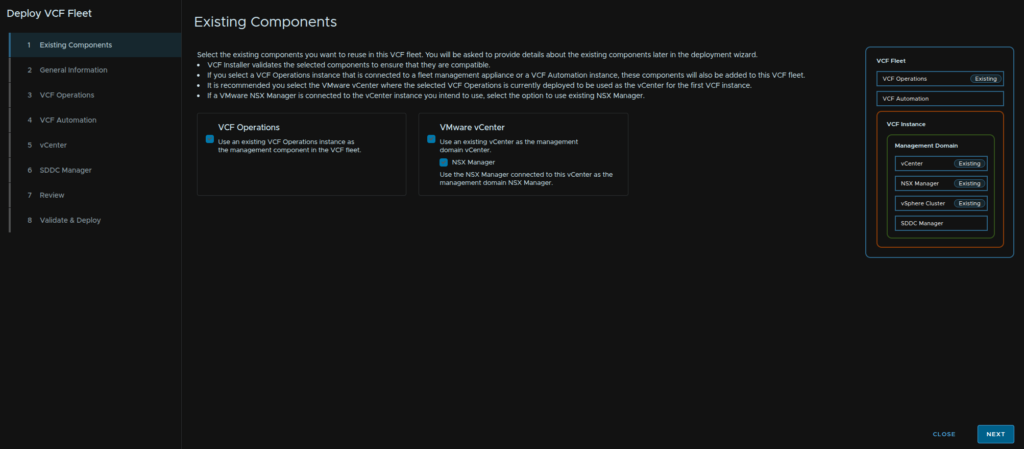
Check the VCF Operations and vCenter box for existing components, as I have NSX I have also checked that, then click Next
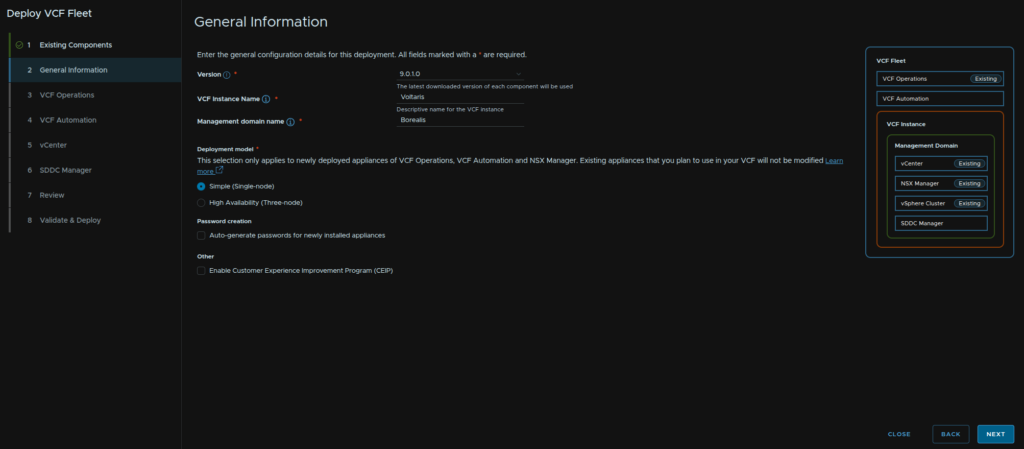
Select the version that matches what you have on the fleet appliances we just upgraded, name the VCF instance, I called it the same as the SDDC Manager appliance, then name the management domain, I used the vCenter name
For the deployment model select what best describes the other appliances, everything for me is single node, your NSX must be a 3 node HA cluster, irrelevant of what you select, then click Next
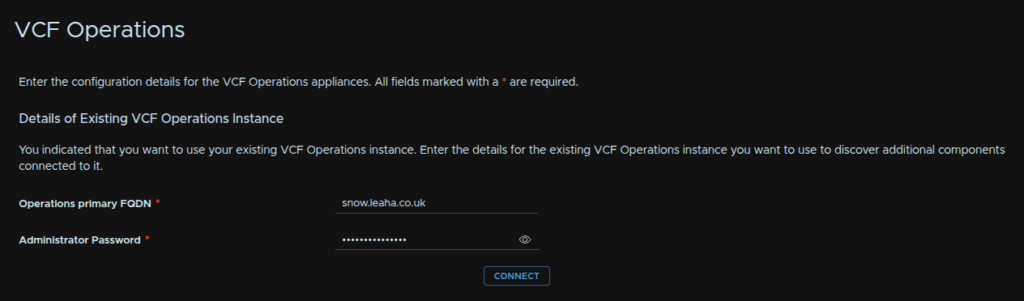
Enter the FQDN of the VCF Operations appliance and its admin password, then click Connect
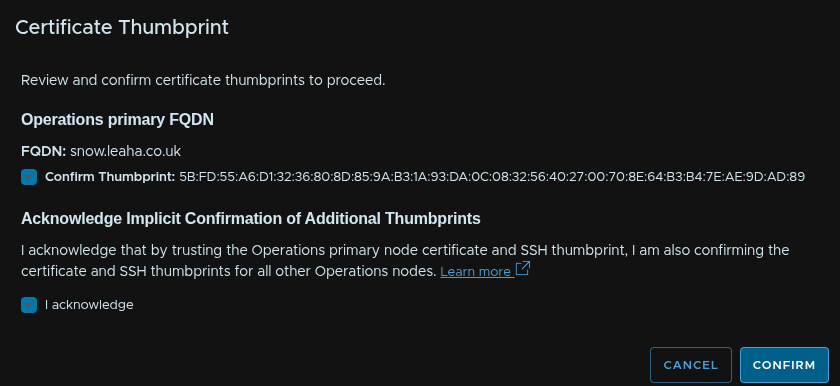
Accept the thumbprint check boxes and click Confirm
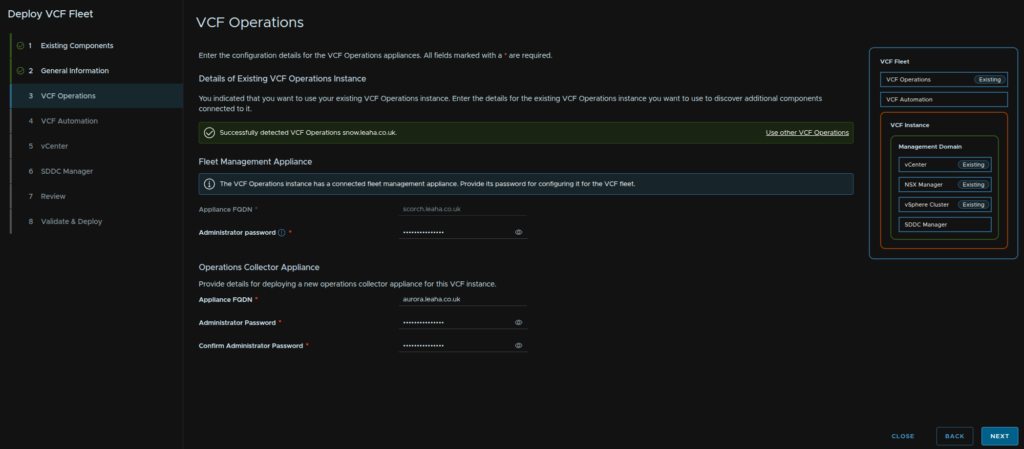
We then need the admin password for the fleet management appliance
And despite having a collector this is requiring a new deployment, so we will need an FQDN, which is setup in DNS, and a complex admin password with the same requirements as before, then click Next
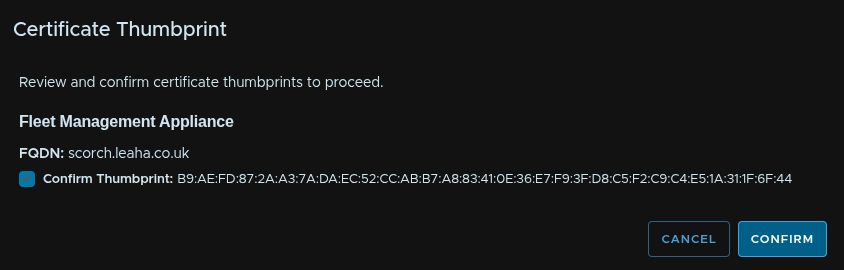
Check the box and click Confirm on the fleet management thumbprint box
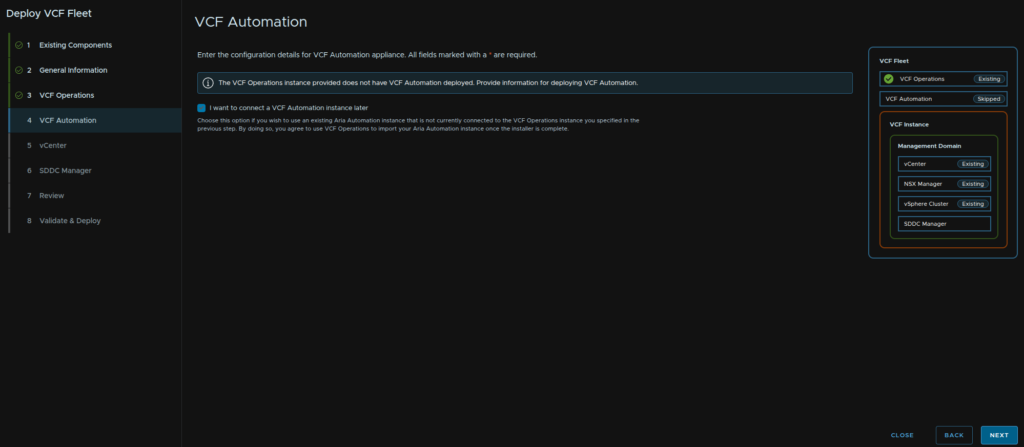
If you have VCF Automation, add the details for it, I dont and I also dont want to deploy one in my homelab, so I am checking the box to connect one later
Then click Next
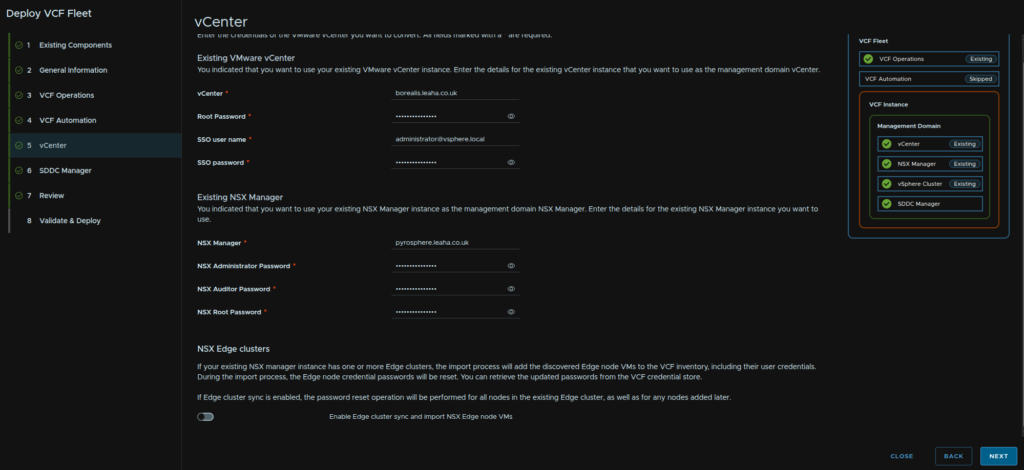
We then need to provide the vCenter FQDN, root password, SSO administrator account, this is normally [email protected], and the password for that account
We then need the NSX Manager VIP FQDN, admin, auditor and root password
We are leaving the Edge Node sync disabled, as this requires NSX on v9 and you see this error, thankfully this should be fixable with an import after NSX is upgraded

When you are ready click Next
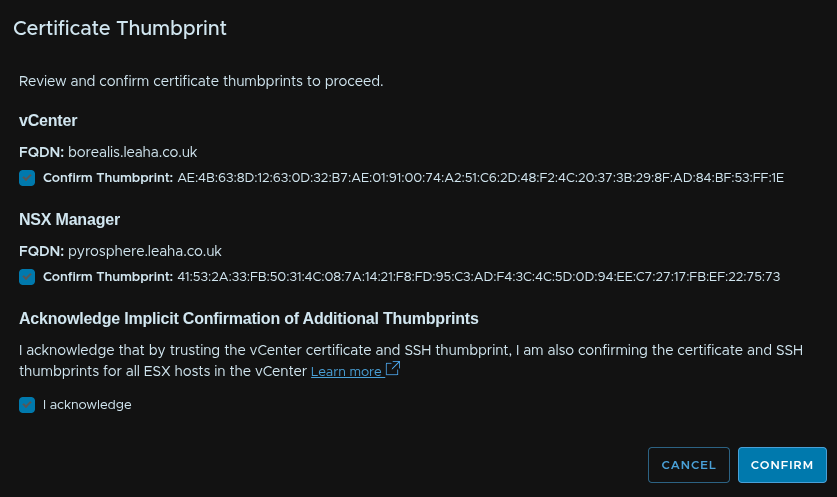
Accept the thumbprints and click Confirm
Enter the password for the SDDC Manager admin@local and click Next
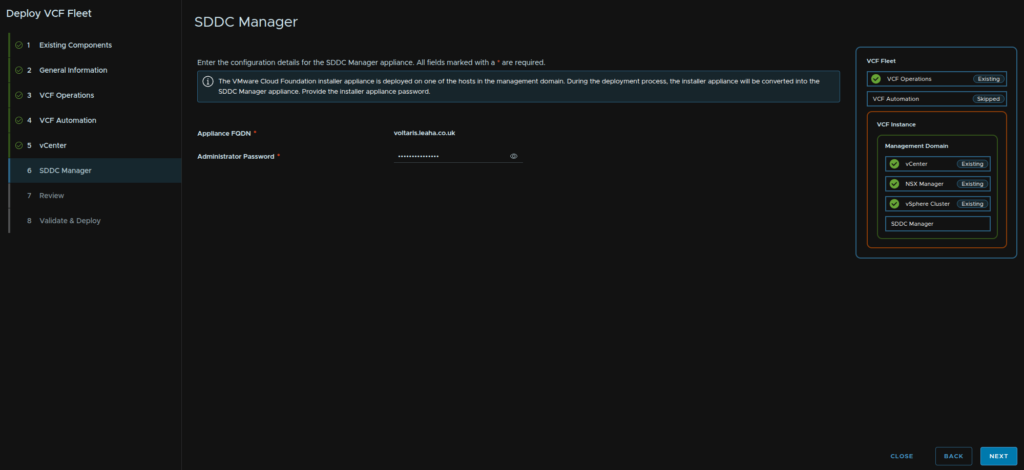
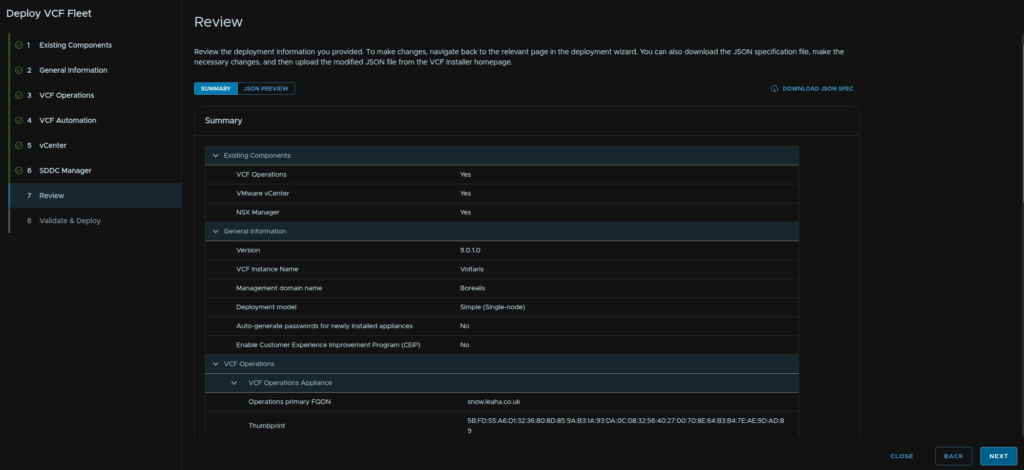
Review the summary and click Next
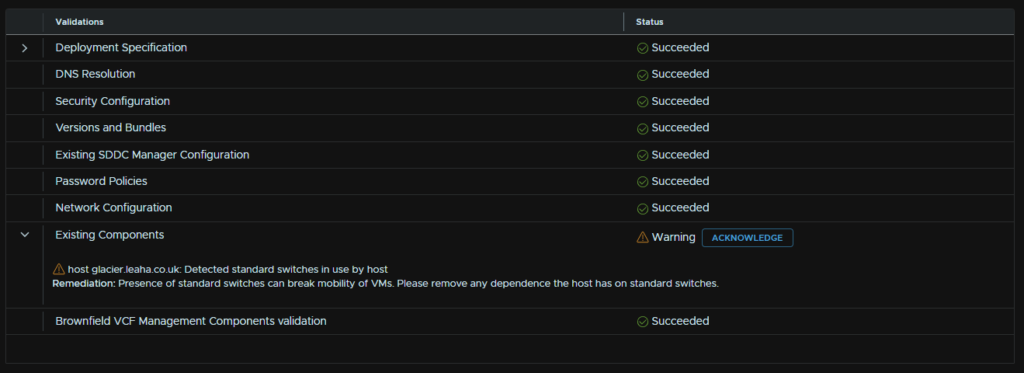
Once you correct any errors, you may see a warning around standard switches
VCF 9 targets a move away from them entirely, so I would recommend converting standard switches to distributed switches, in my case these are for my Veeam SureBackup, so I am going to ignore this and click Acknowledge
For example
Once thats done click Deploy in the bottom right
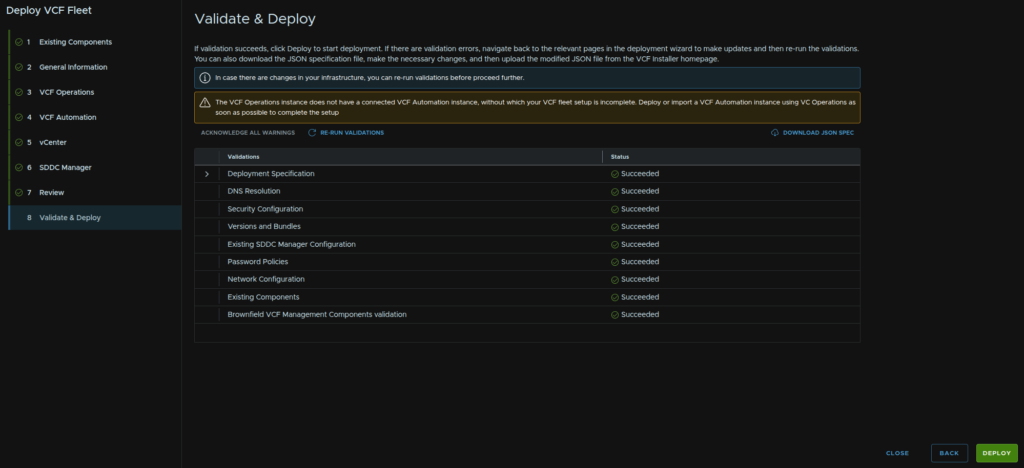
Then we wait for everything to be imported
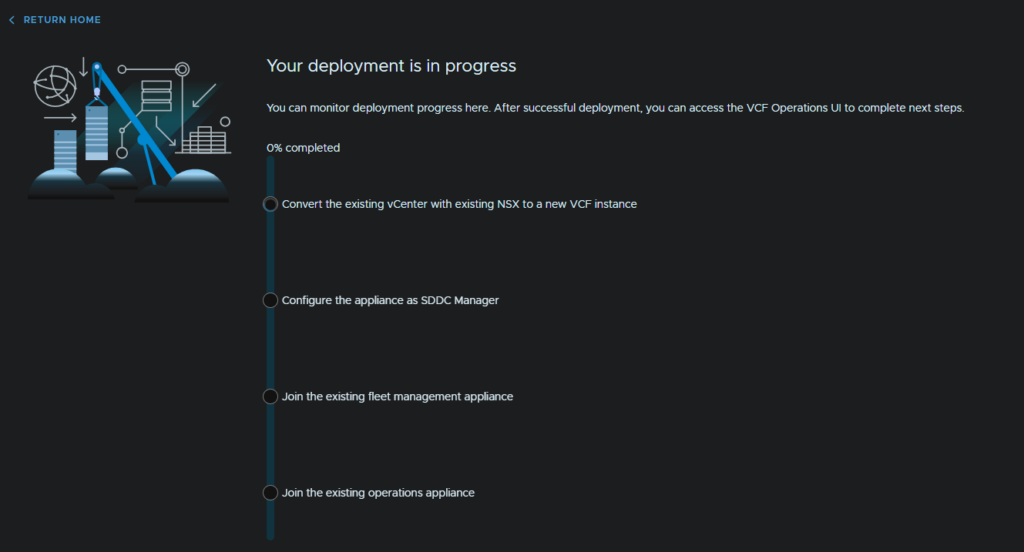
Once thats done we can open the VCF Operations UI
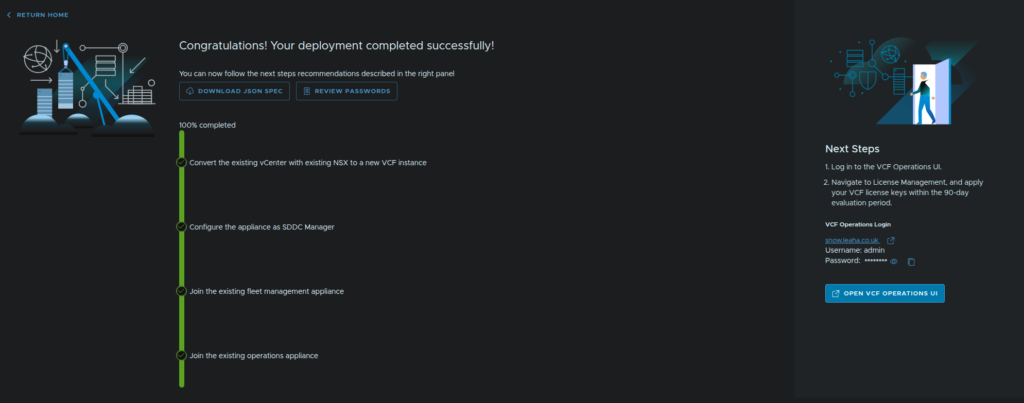
2.7 – NSX
Now we have our environment converged we can start planning the upgrade for the management domain we now have all through VCF Operations
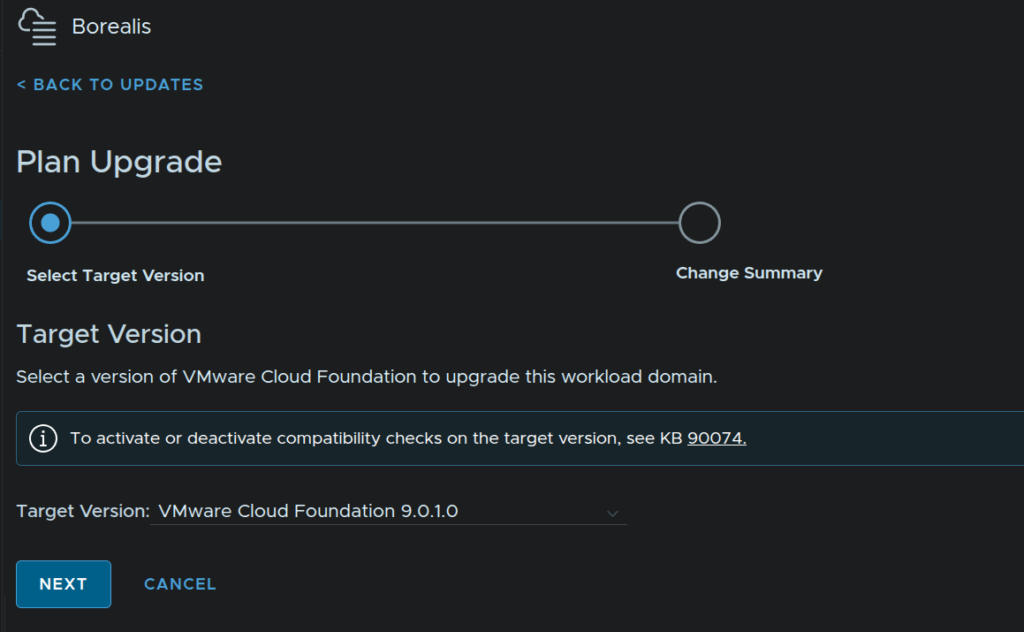
Log into VCF Operations and head to Fleet Management/Lifecycle, expand the VCF Instances and expand our new VCF instance, in my case, Voltaris, then select the new workload domain, in my case, Borealis, scroll down to the Available Updates section and click Plan Upgrade
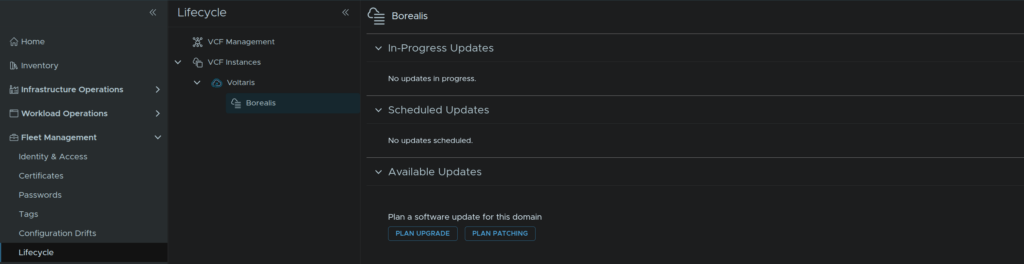
Use the drop down to select the target version, as we upgrade Ops and deployed the installer on 9.0.1, this is what we need to select, then click Next
All product versions should now show their target version as 9.0.1, click Confirm
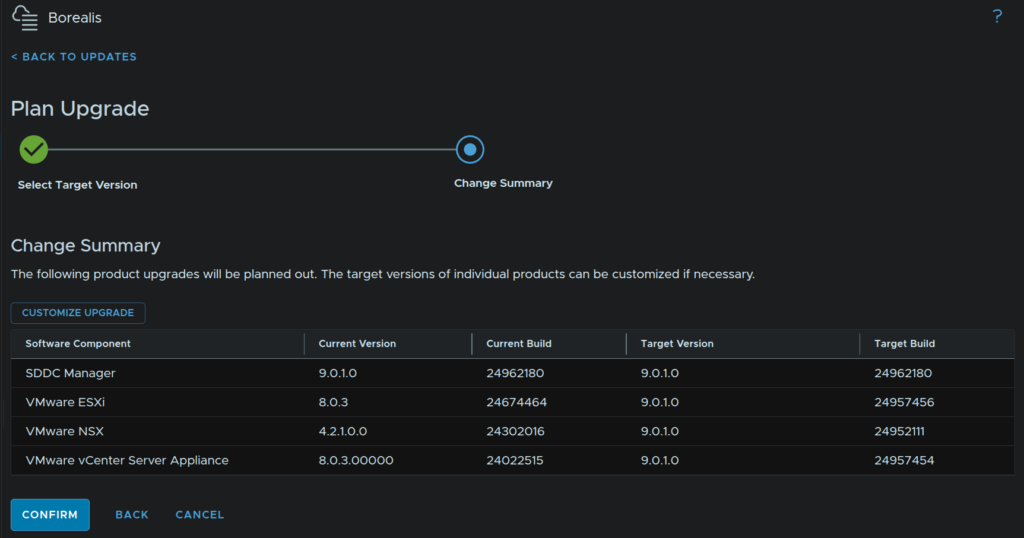
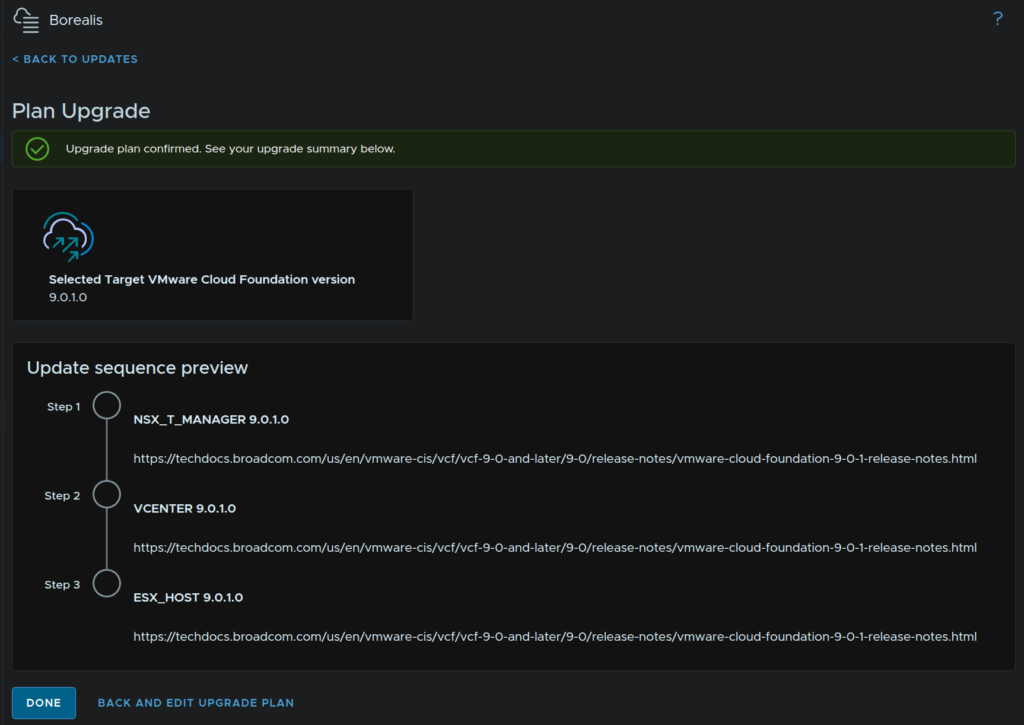
The upgrade plan will be generated, then click Done
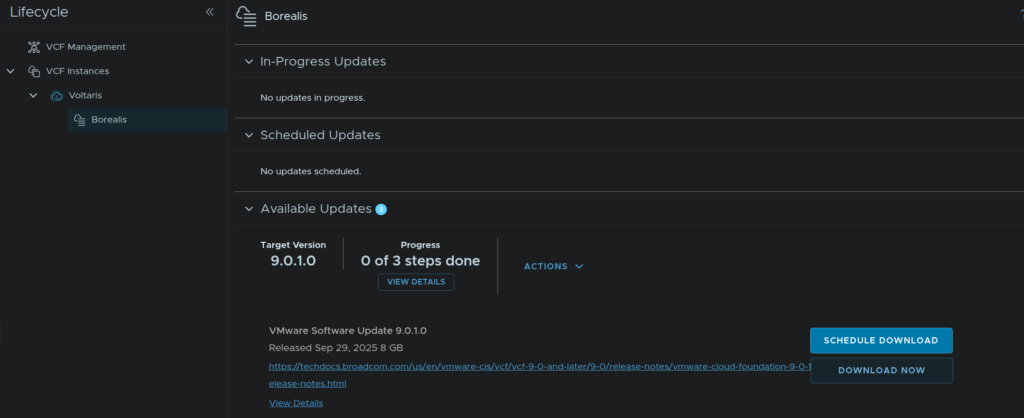
Now click Download Now to get the NSX updates
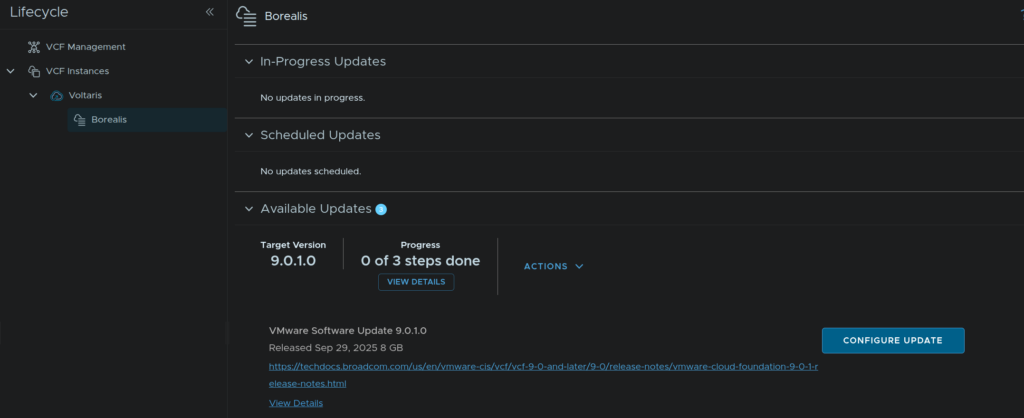
When thats done, click Configure Update
Click Next
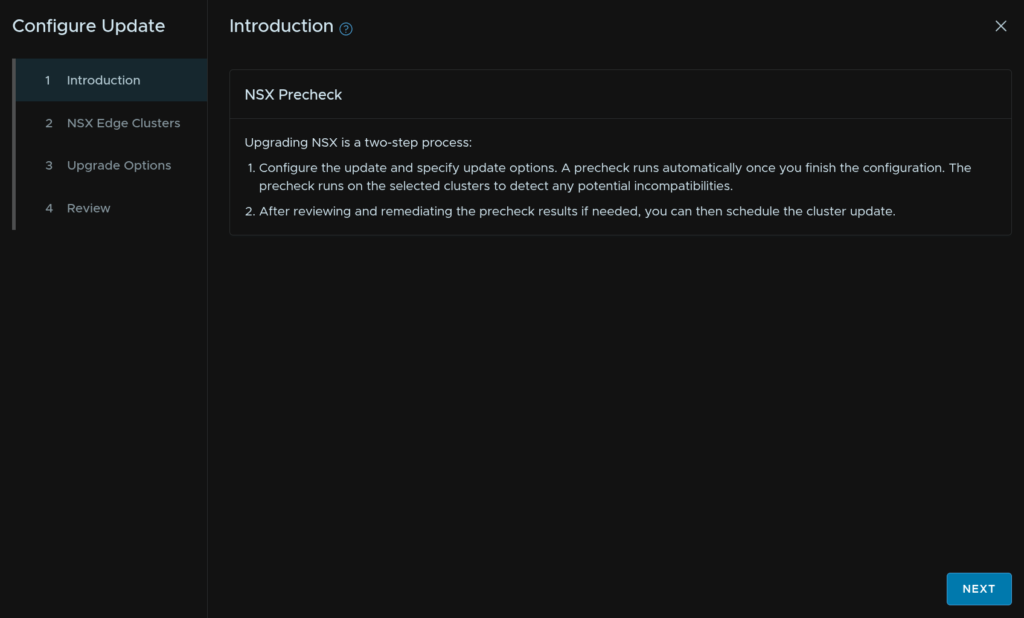
Click the toggle to Enable Edge Cluster Selection, and check all Edge clusters, you’ll most likely have one, maybe two, then click Next
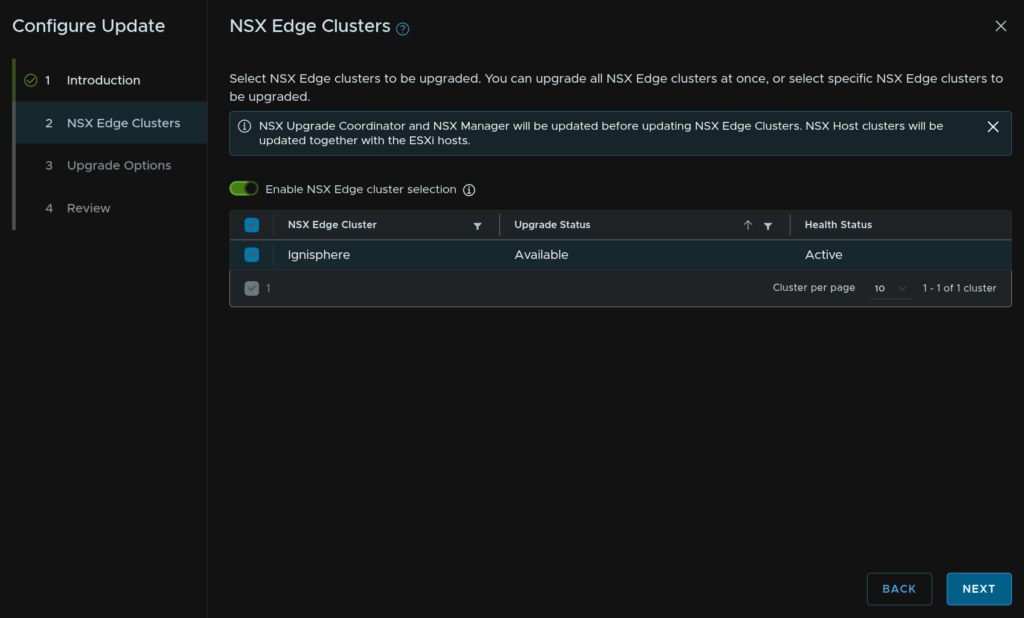
Click Next here, we dont need to check the box to sequentially upgrade NSX clusters, this does all NSX cluster in parallel, but nodes within a cluster sequentially by default
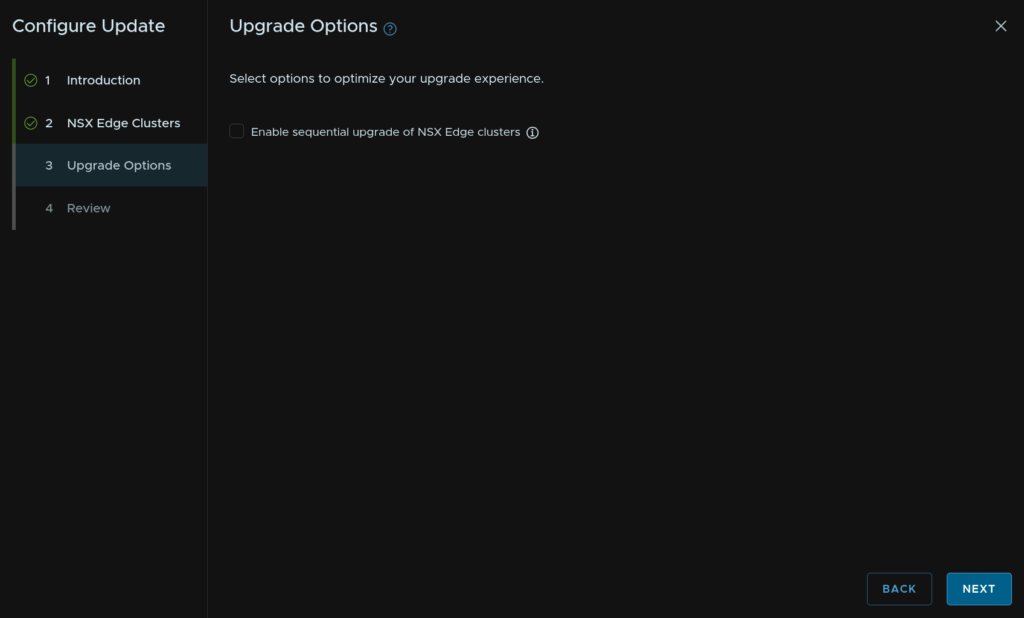
Now click Run Precheck
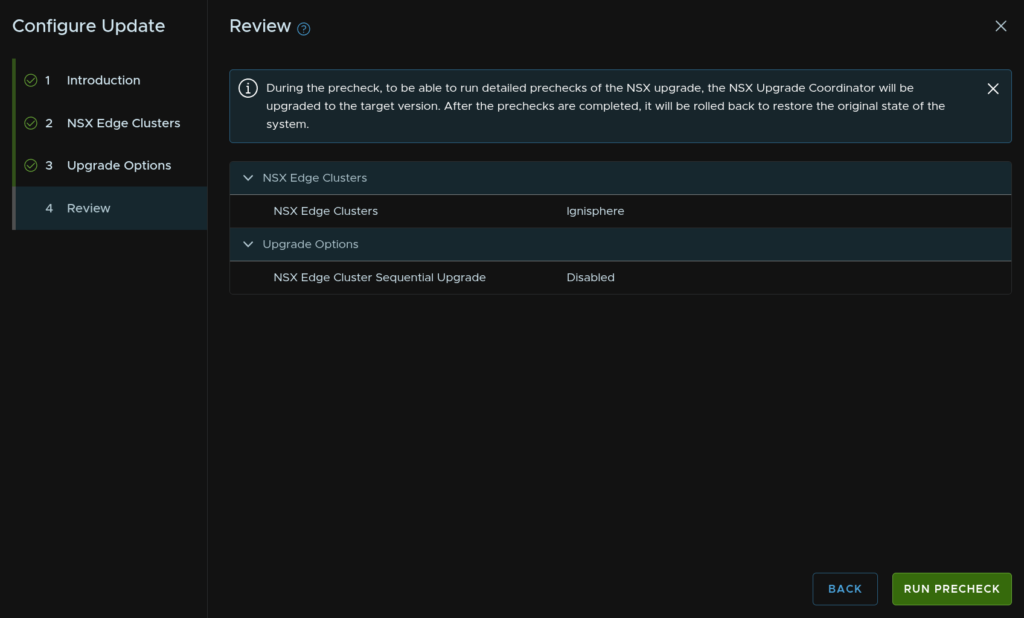
Wait for the precheck to finish
We can click View Details for more information
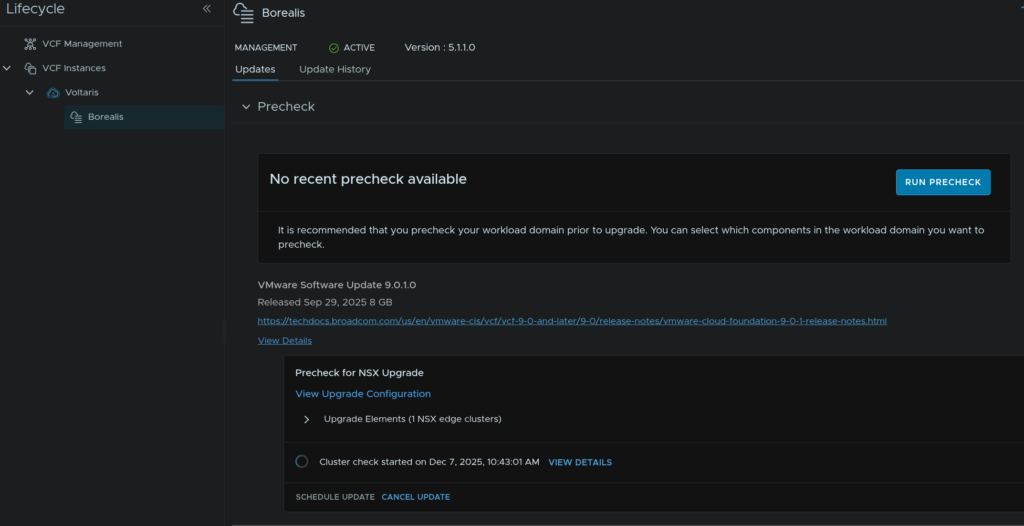
Ensure you have no issues, if you do, they will need resolving
Eg I got some warnings
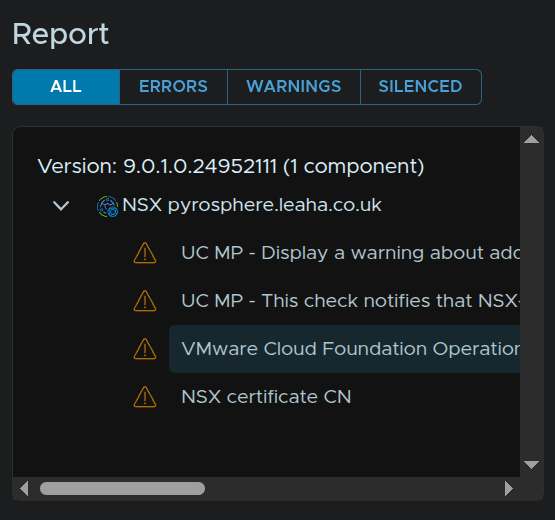
The NSX certificate is using a wildcard, so this should be fine, the UC ones are feature deprecation and arent applicable to me, and the Operations one is complaining about the desired version, it seems to do this, but 9.0.1 is the correct Ops version so I will ignore it
When you are happy, click Back To Updates
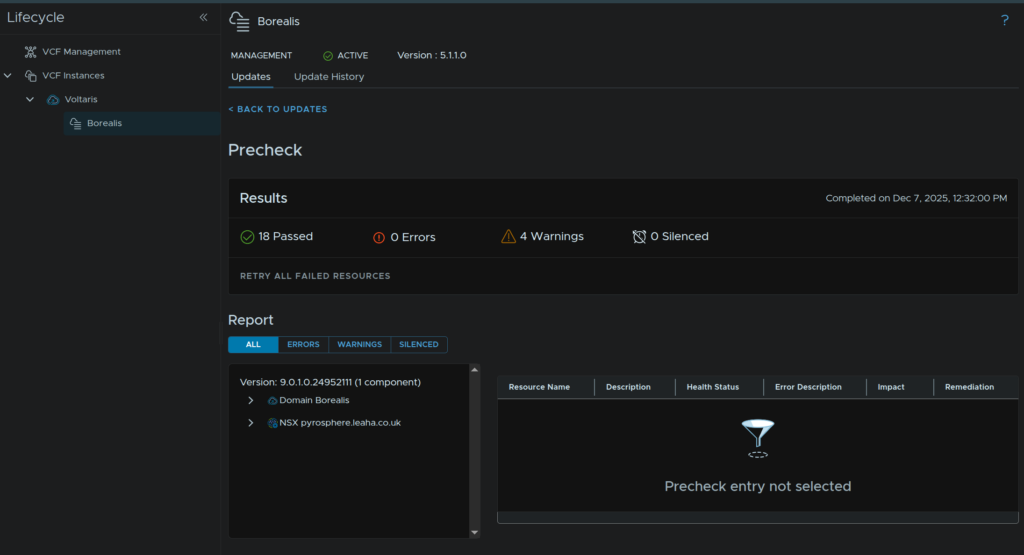
Then click Schedule Update
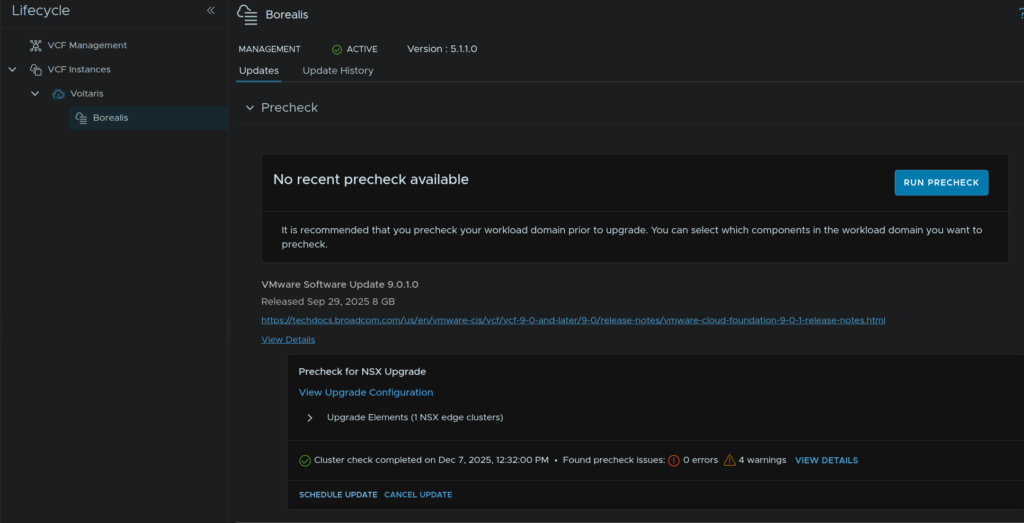
Click Next
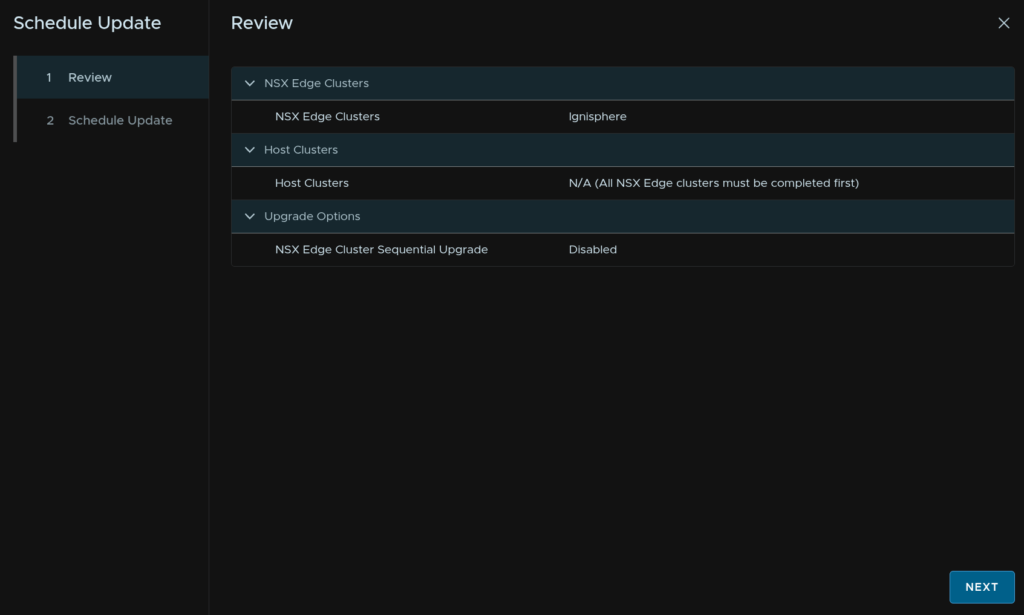
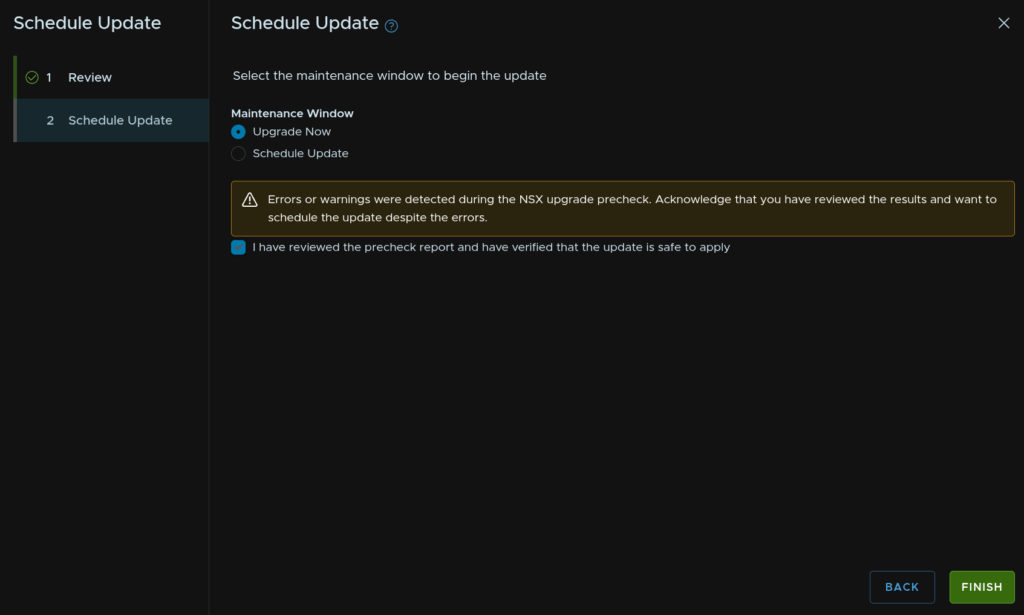
Either upgrade now, or schedule for later, in my case I need to acknowledge the warnings and click Finish
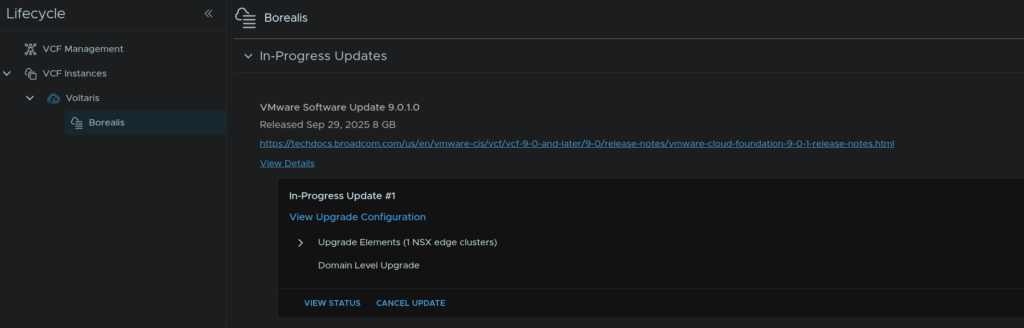
At any point we can click View Status under In Progress Updates to see how its going
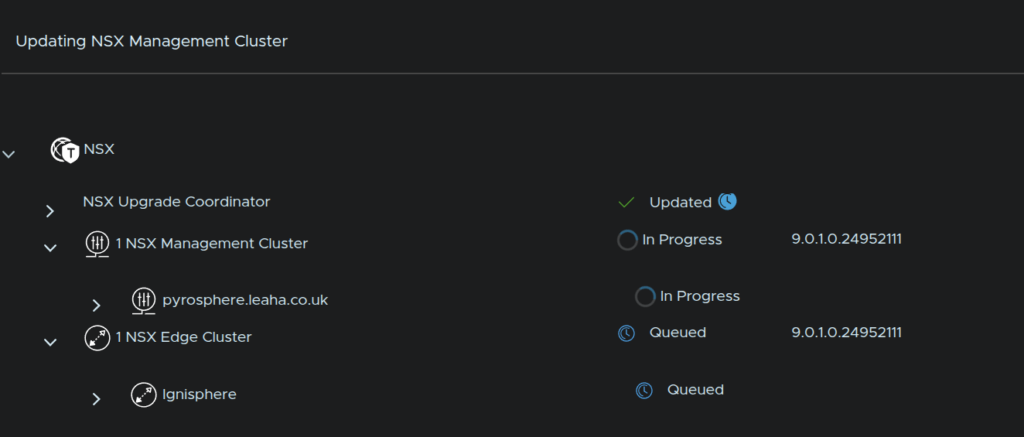
As this is an upgrade to v9, NSX VIBs on ESX are not updated and the compute cluster is skipped
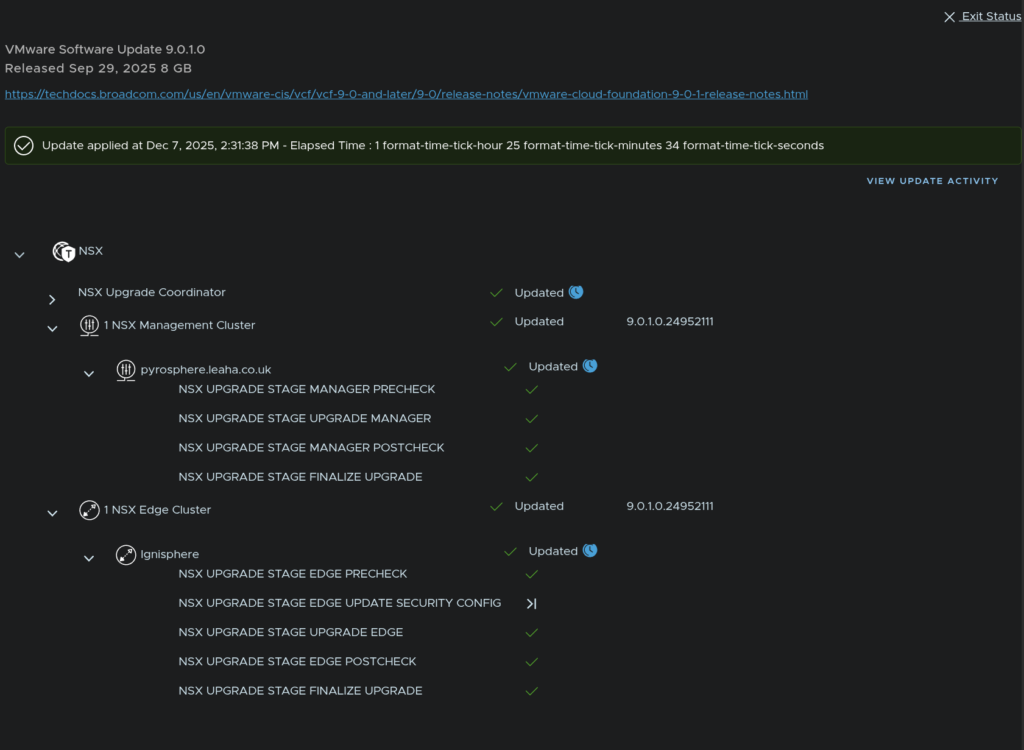
When its done it will look like this, we can use Exit Status in the top right to return
2.8 – vCenter
Now NSX is done, in VCF Ops from Fleet Management/Lifecycle, on our management domain, click Run Precheck
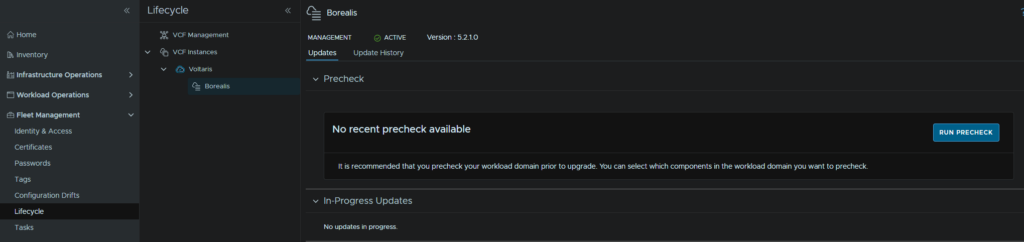
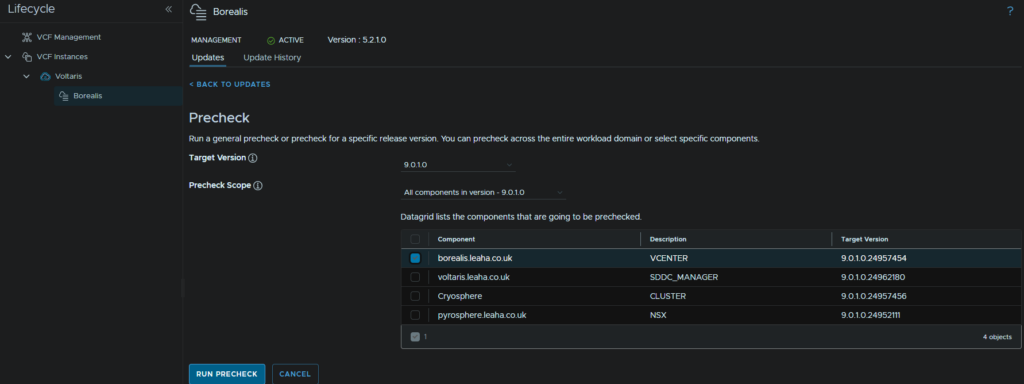
Select the target version, in my case 9.0.1, select the vCenter component and click Run Precheck
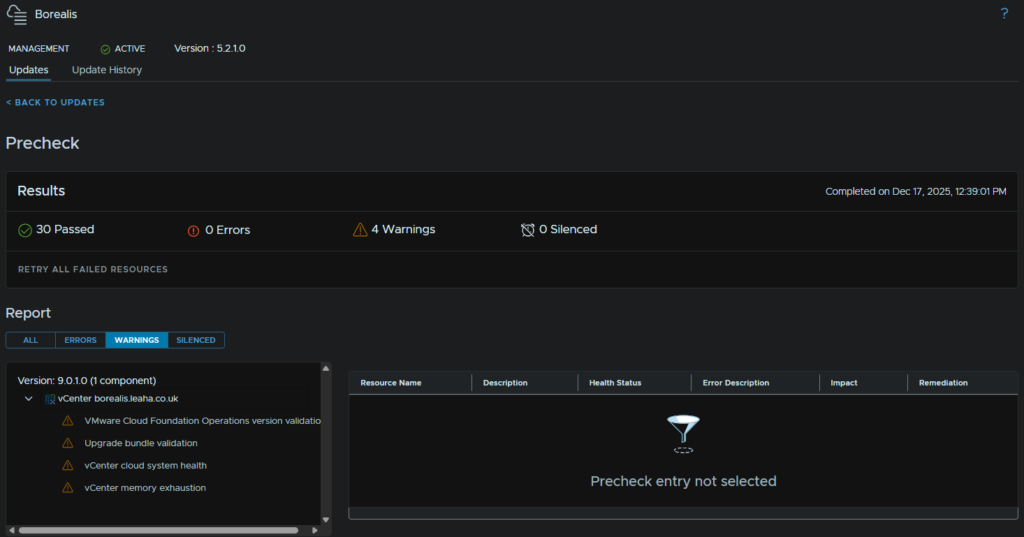
Any errors must be addressed, warning you will need to evaluate, in my case I dont need to worry about the Operations version, as its running 9.0.1
Upgrade bundle may give a warning/error, this is fine, we havent downloaded it yet
The cloud health check we can ignore, and the memory exhaustion for me is due to the vCenter being a tiny size in my lab, so in production you wont see this
Then click Download Now for the latest vCenter Upgrade bundle
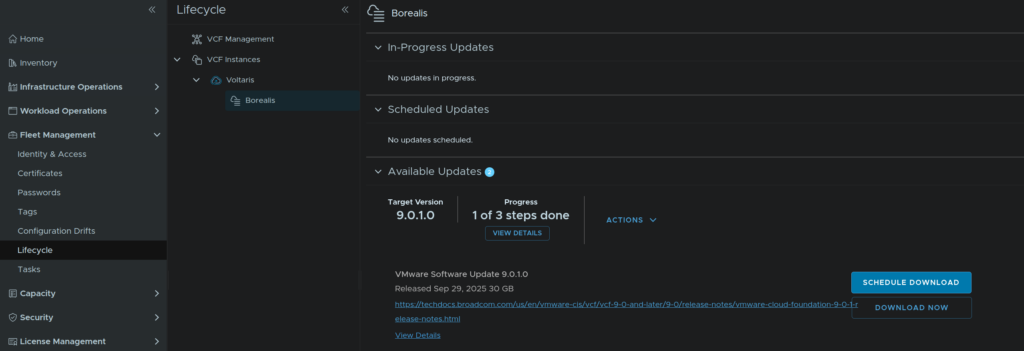
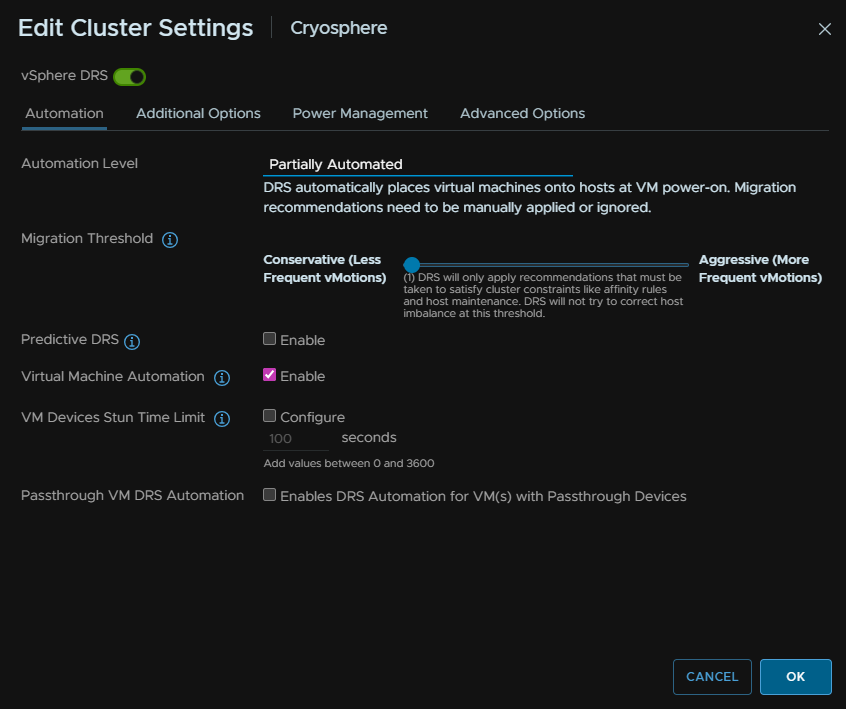
Before continuing, log into vSphere, click the cluster and click Configure/Services/vSphere DRS and then click Edit on the right

Then change the automation level to Partially Automated
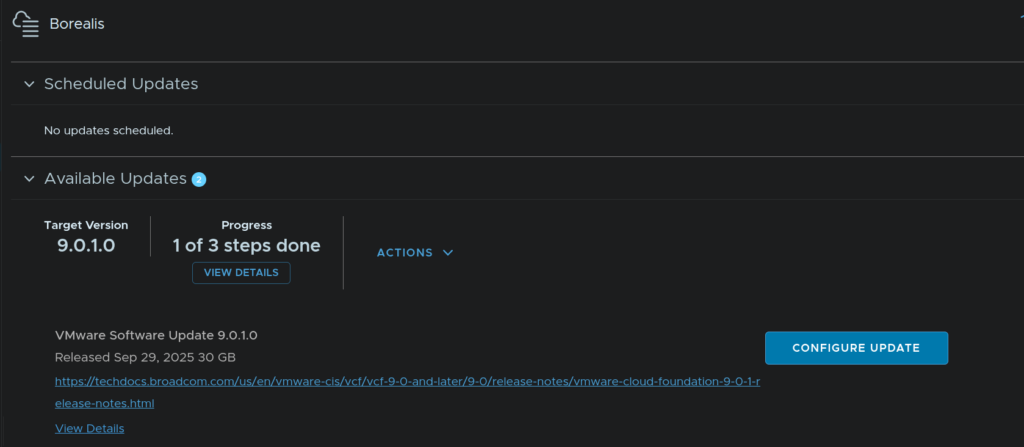
When thats done click Configure Update
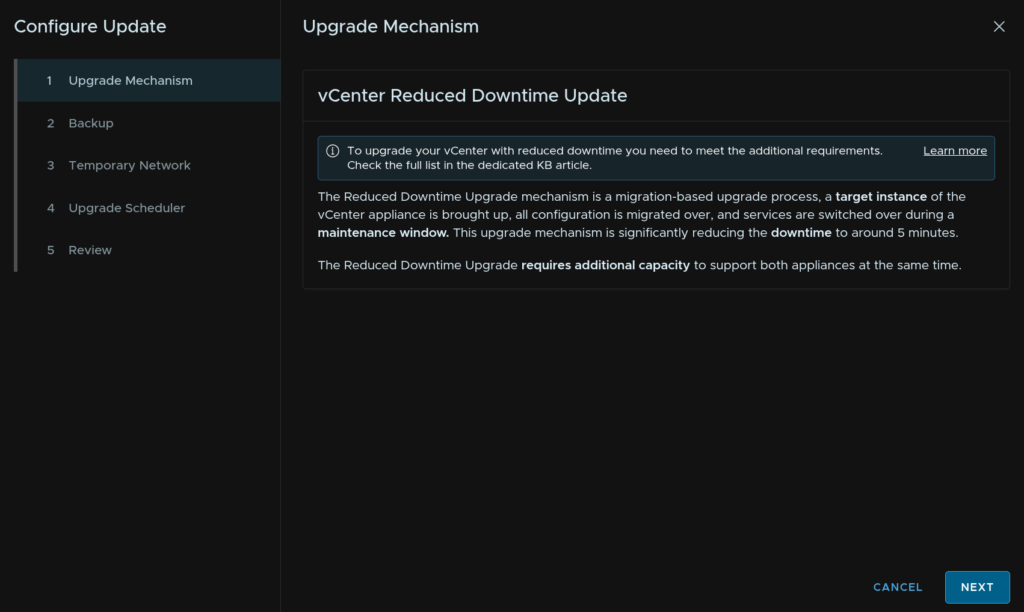
Click Next
You should have vCenter backups configured on a daily schedule, but ensure you have one from the VAMI portal on
https://:5480
Under the Backups section
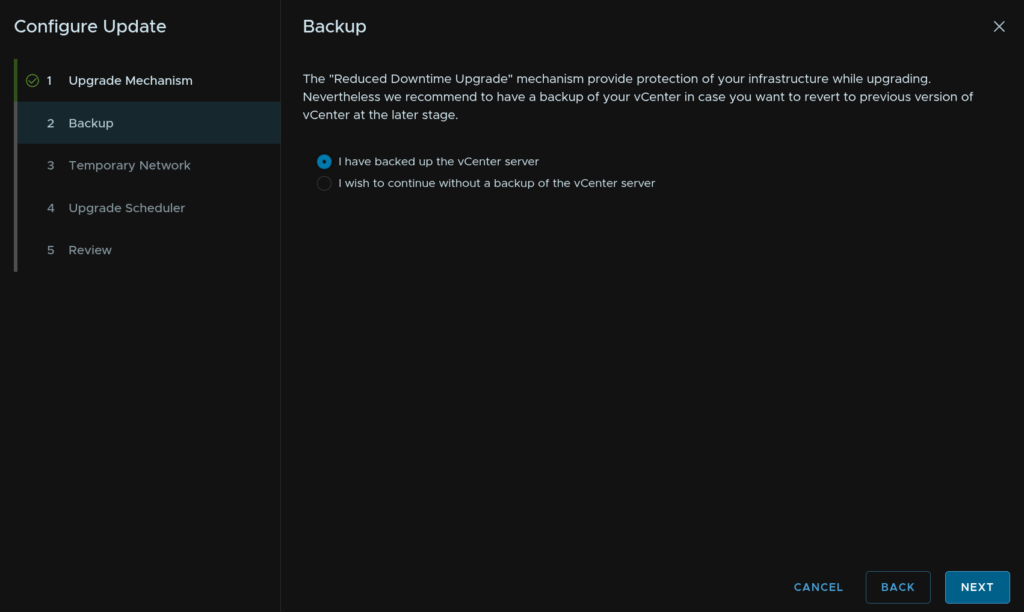
Check the box to say you have one, then click Next
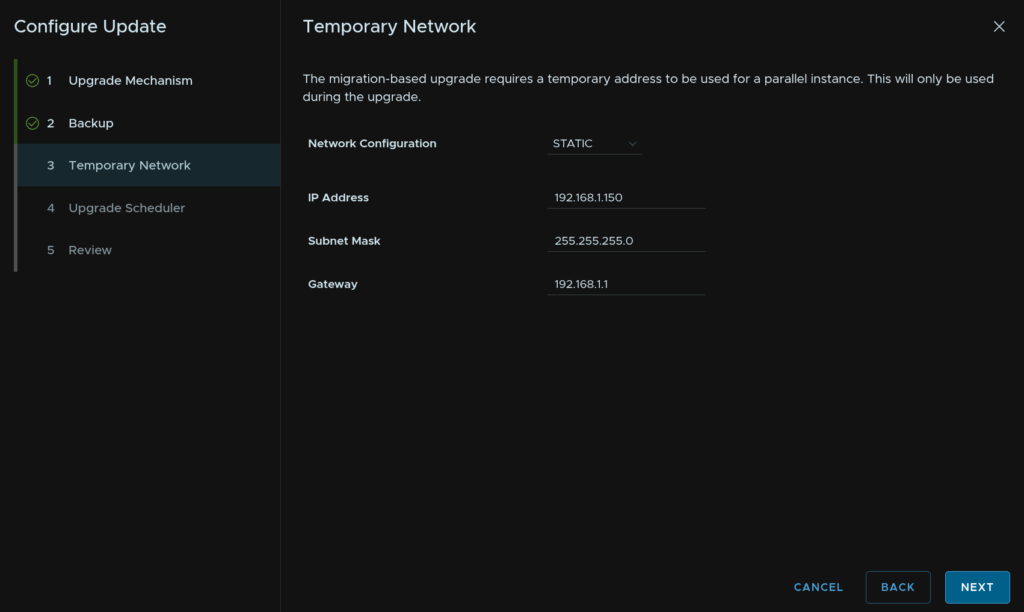
Use the drop down to change the temporary network to Static, and enter a spare IP address on the vCenter network, the subnet mask and gateway, then click Next
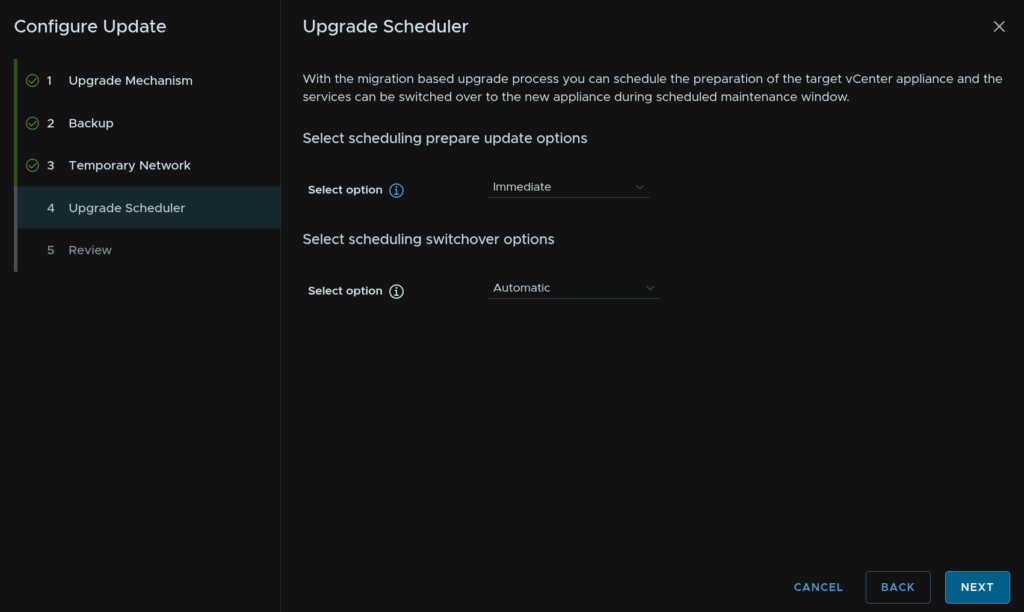
You can schedule this, and the switch over, in my case I want this to occur immediately, so I am using Immediate and Automatic for my options
Then click Next
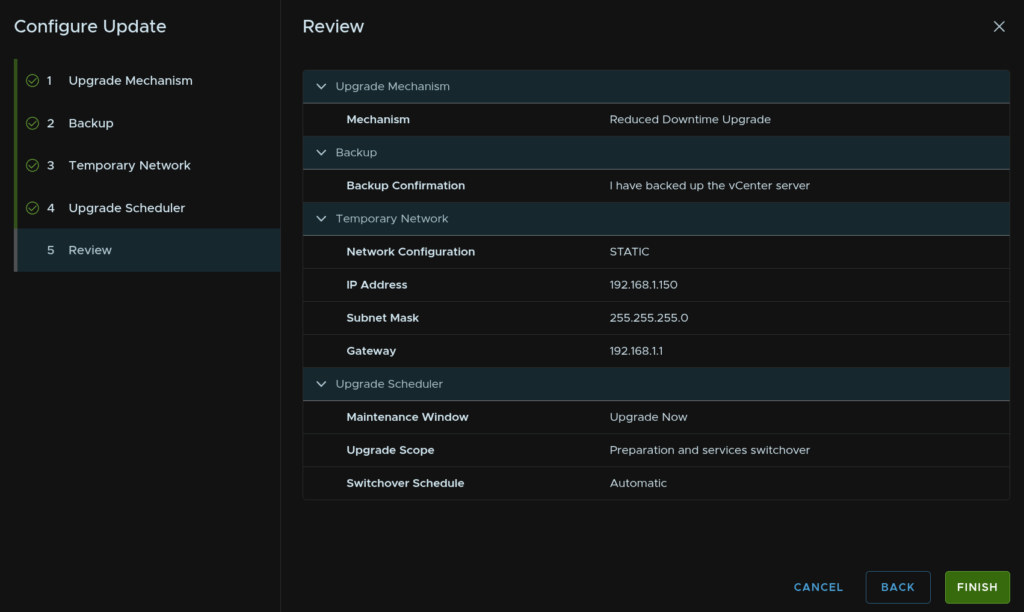
Review the config and click Finish
From the In Progress Updates section we can click View Status to see how the upgrade is going
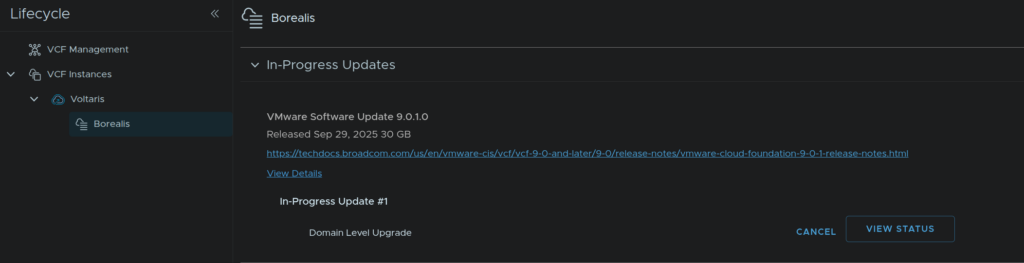
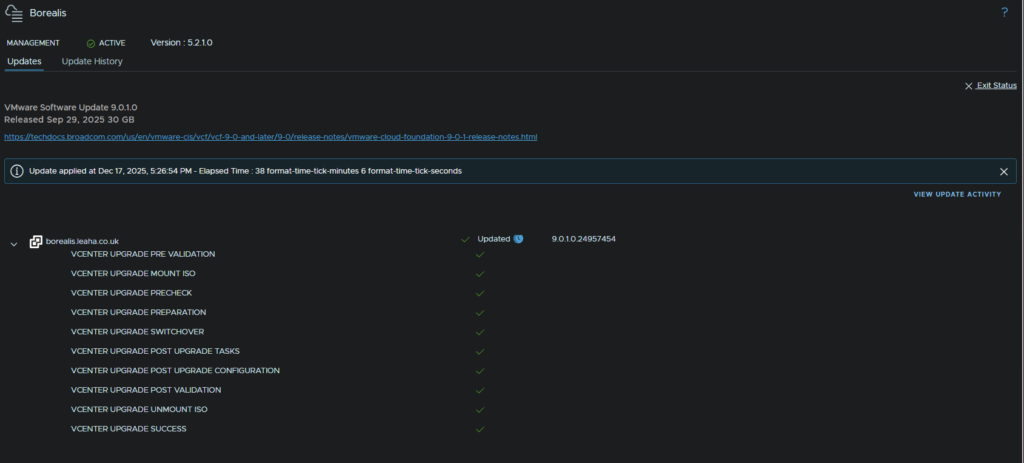
When its done it will look like this
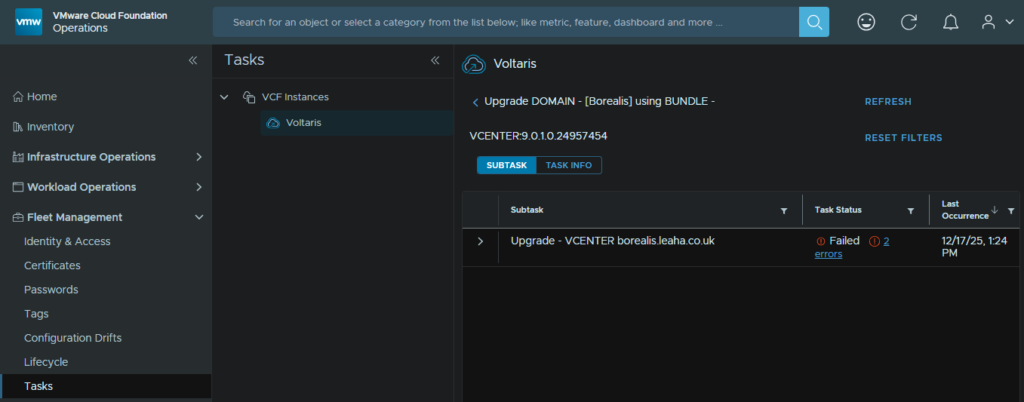
If you get errors like I did at the start, we can see them under Tasks by selecting the SDDC Manage
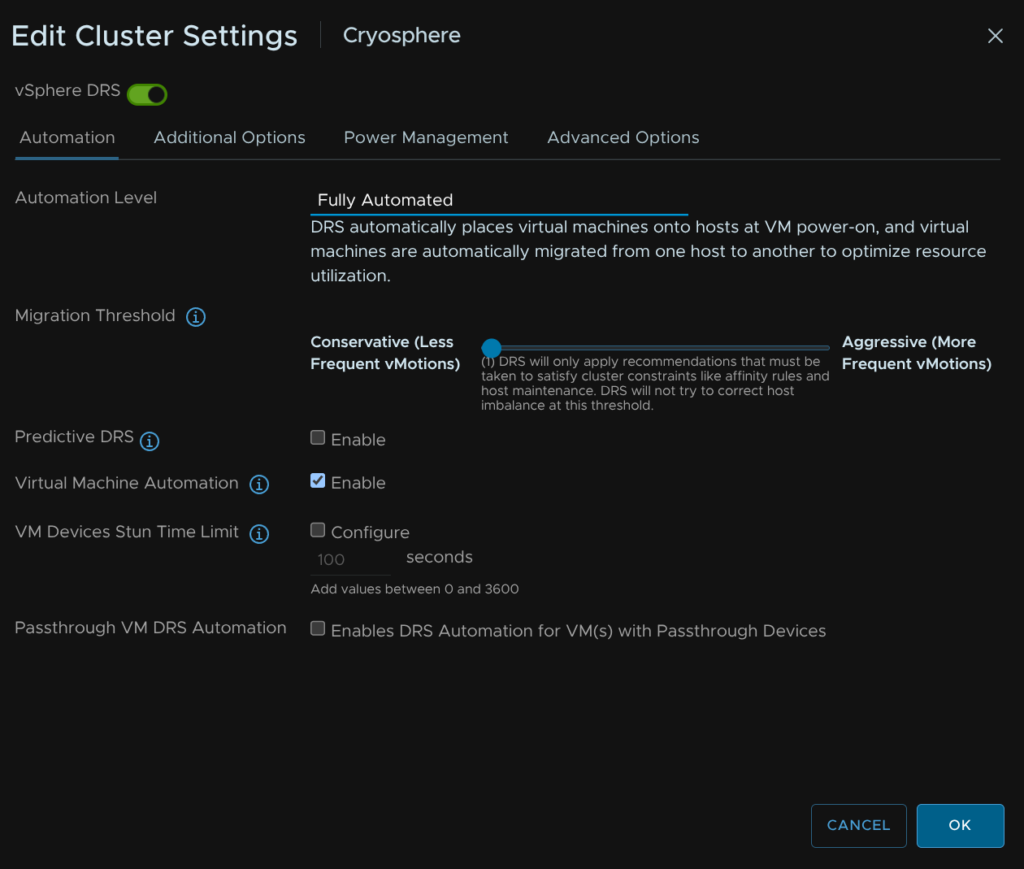
When its all finished, back in vSphere, select the cluster and click Configure/Services/vSphere DRS and click Edit on the right

Set the Automation Level to Fully Automated and click ok
2.9 – Supervisor/Services
I dont have this in my environment so there is nothing on this in this environment, for info about this look at section 1.9 in the full VCF lab, its the same process
2.10 – Firmware
2.10.1 – Preparation
First, take a backup of ESXi, if the host is an ESXi host on the off chance something goes wrong, we’ll need SSH enabling for this
Select the host and head to Configure/System/Services, click SSH and then click Start, we can leave it enabled as when the host is rebooted, it will stay disabled on reboot
SSH into the host and run
vim-cmd hostsvc/firmware/sync_config
vim-cmd hostsvc/firmware/backup_config
This will give an out put of a URL like this
Take the link and edit the ‘*’ for the hostname/IP
So my URL would be
http://lab-vvf8-esxi01/downloads/52d067b1-1d69-2bd2-318b-b90ca6f0a521/configBundle-Lab-VVF8-ESXi01.leaha.co.uk.tgz
If you have an DRS rules that prevent hosts from being put into maintenance, then you may need to disable them
Then place the host thats having the firmware update in maintenance mode to do this right click the host and click Maintenance Mode/Enter Maintenance Mode
For vSAN click Go To Pre Check, this wont be available on a cluster with out vSAN
Then click Pre Check
Ensure the check says the host can enter maintenance mode, there may be errors, but thats fine, then click Enter Maintenance Mode
Ensure the box to migrate powered off and suspended VMs is checked and click ok
For Non vSAN it will just look like this, also ensure the box is checked and click ok
If you have Veeam replication jobs running to DR, this shouldnt cause any issues we powered off VMs are also moved, but you can always wait for running jobs to finish and disable them while patching
2.10.2 – Dell
Its important Dell patches are applied in the right order
- iDRAC
- CPLD – (If Available)
- BIOS
- Everything Else
In OpenManage go to Configuration/Firmware/Driver Compliance
Click Catalog Management
Select your catalog and Check For Update
Ensure any host being updated is in maintenance mode with no active VMs running as reboots are needed for most firmware updates from section 7.1
Go to Devices
Find your host in the list and click it, the IPs are for the iDRAC not the host
Going into Firmware/Drivers we can select the base line for this host using the drop down, ESXi01 and see whats available
Fist, we want to do the iDRAC, so make sure only that is selected and click update like this
Then click Update
You can check running jobs from this icon in the right of OpenManage
This can take 15-20 mins to update, when its done
Then we want to check the CPLD version, OpenManage will not pick up any updates for this, but it will list the version at the bottom
Here we can see my R660 has CPLD 1.2.6
To check the active version Google ‘Dell <Server-Name> Drivers’ and you should see the support page as the first link
Change the OS to Not Applicable, and search for ‘CPLD’, here we can se the latest is 1.2.6, so we dont have one to do
However, if you did have a newer version, you need to log into the iDRAC
This is under Maintenance/System Update, you can upload the CPLD file here by clicking Choose File
Then click Upload
Select the package and click Install And Reboot
In OME, we repeat for the BIOS and click Update
This will reboot the host
Then select the rest and click Update
2.10.3 – HPE
Ensure any host being updated is in maintenance mode with no active VMs running as reboots are needed for most firmware updates from section 7.1
We then need the HPE SPP, we can find this here
We can also search for the server generation and click the link to it
Eg
Click Obtain Software
And sign in with your HPE account
Open the web console in iLO, click the CD icon then CD/DVD/Local *.iso File
And double click the ISO file
Reboot the host OS, momentary press will do this from the left mot icon in the web console, or you can reboot the server from the guest OS
Press F11 here to enter the one time boot menu
Select the iLO virtual Media
Then automatic updates
This can often take ~90 mins to complete and do not interrupt the server, when its done, your host OS will be booted
2.11 – ESX
For updating ESX, this assumes you have updated your vCenter with your download token using the script, and that you already have cluster images, you may need to re add the token URLs with the script post upgrade
I have an article on both the VMware depot changes here
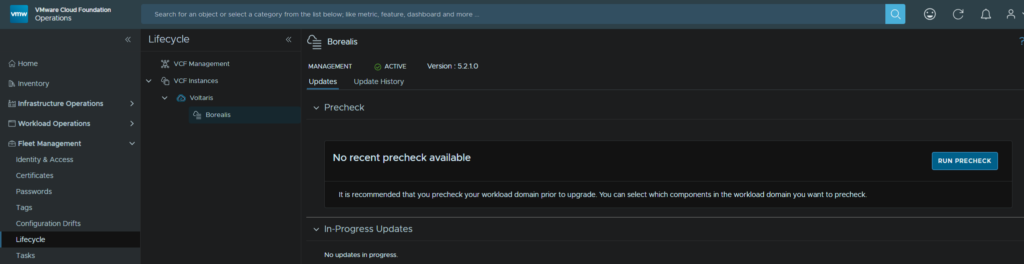
First, back under Fleet Management/Lifecycle under your workload domain we need to click Run Precheck
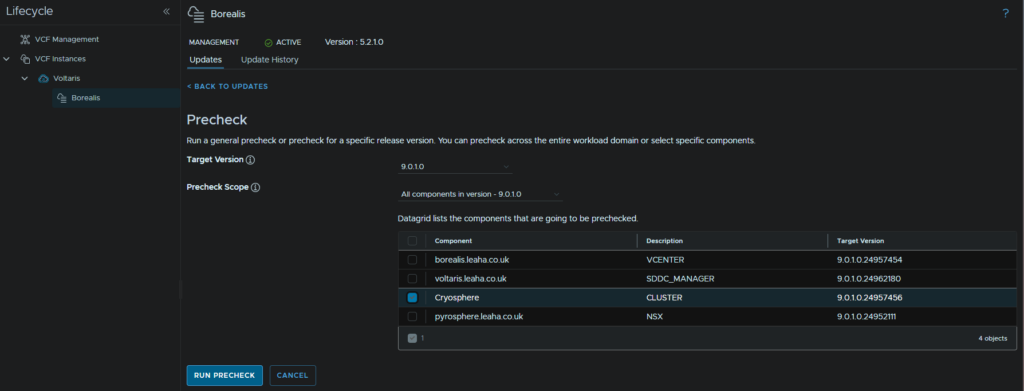
Select the target version and click the cluster component and click Run Precheck
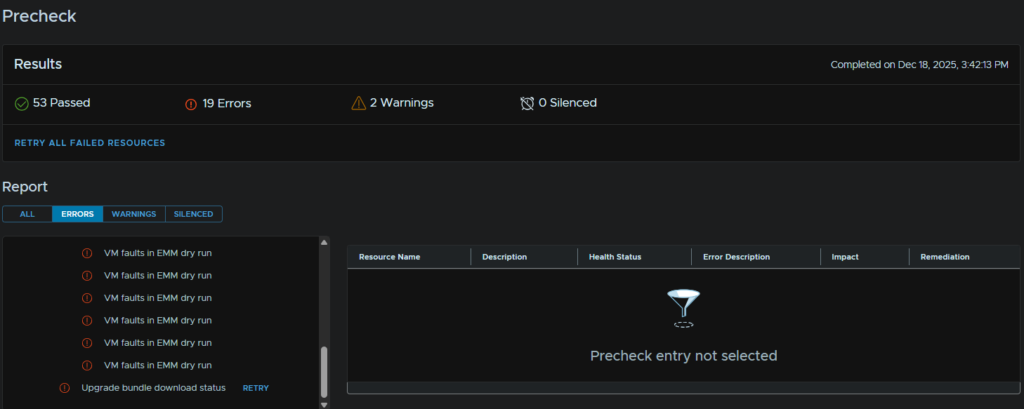
We need to check any errors, we can ignore the upgrade bundle status as we havent downloaded that yet, and in my case I got a load of EMM dry run errors, you wont have these, for me, they are caused by VMs on local storage that cannot be evacuated when the host enter maintenance mode, so I’ll need to manually deal with that
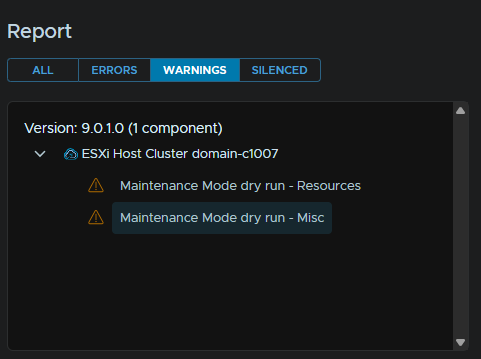
My warnings are also caused by this, so I can ignore this
Click Back To Updates
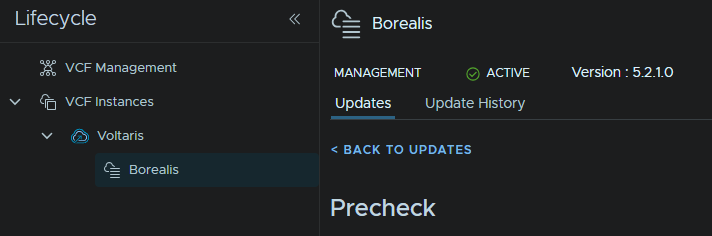
We again need to click Download Now under Available Updates for the management domain
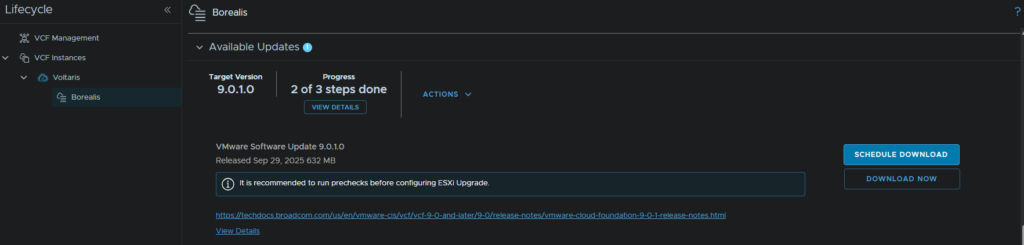
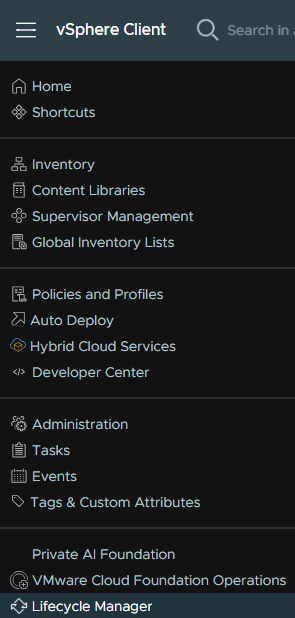
While thats downloading we need to create a cluster image, in vSphere, click the three lines in the top left and click Lifecycle Manager
Under Image Library, click Create Image

Give it a name, I name it in the format ESX– and select the target ESX build from the upgrade plan, in my case, 9.0.1.0
Then click Select under Vendor Addon
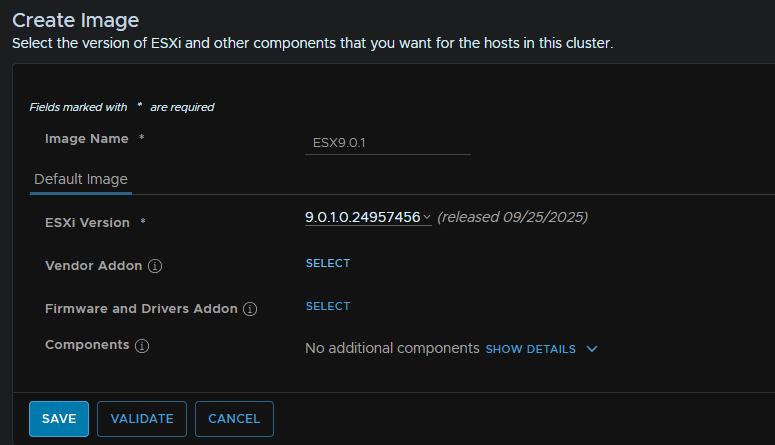
And select the addon that matches your vendor, then click Select
For this cluster, they arent hosts with Vendor addons so I skipped this
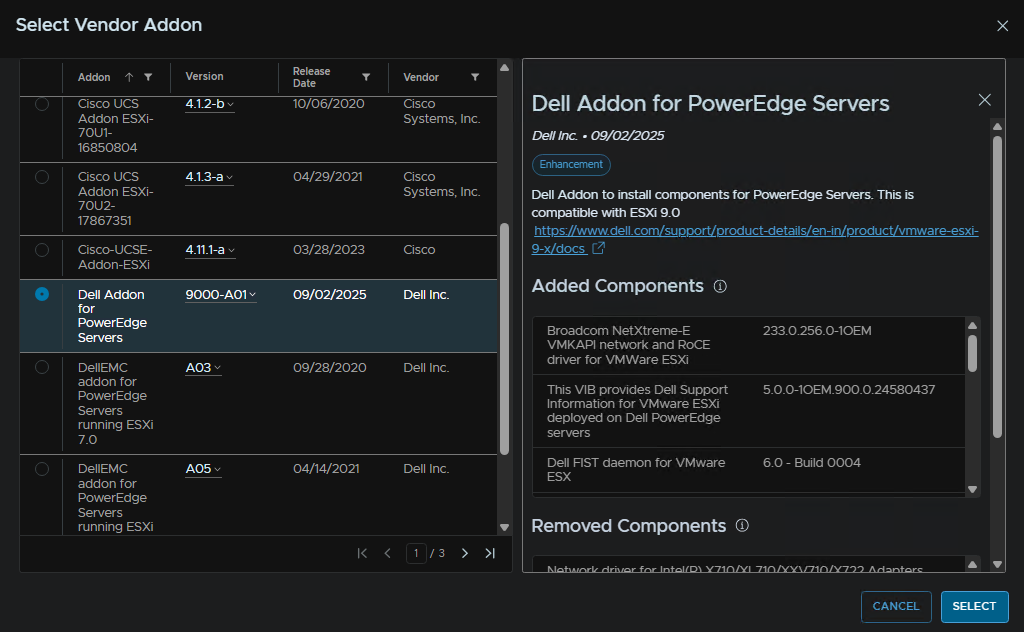
Optionally, we can add the async VMware tools, to add this click Show Details on Components, then click Add Components

The latest 13.0.5 is included in ESX 9.0.1.0 so we dont need to do this for our upgrade path, when you are happy with your image click Validate
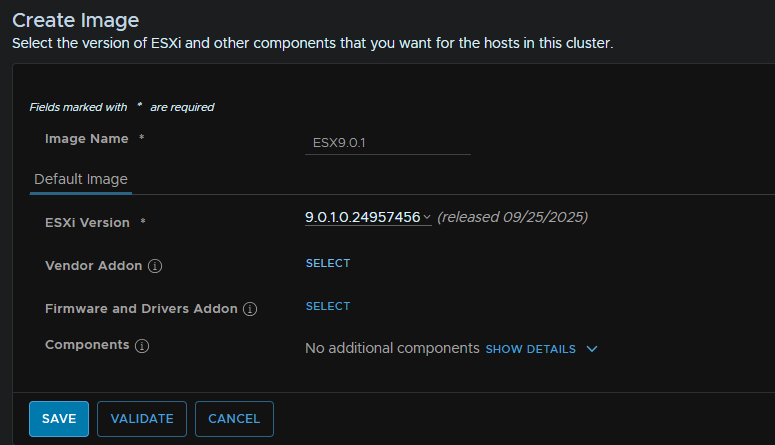
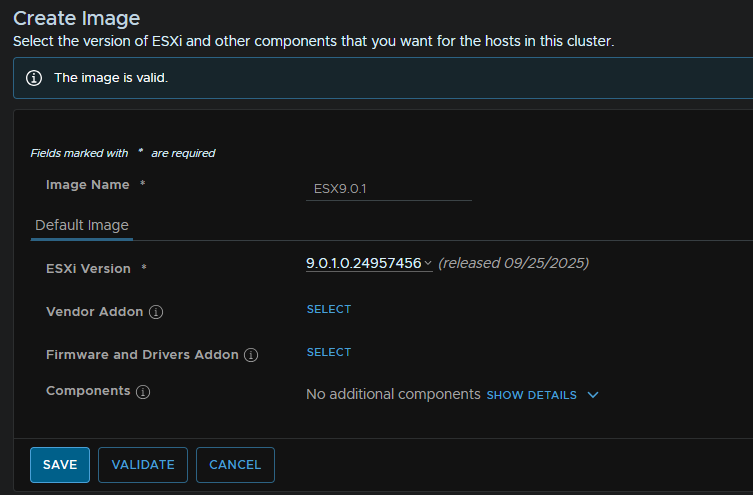
If the image is valid, click Save
Now we need to import the image through VCF Operations, click Fleet Management/Lifecycle and click your VCF Instance, mine is Voltaris, then click Image Management/Import Image
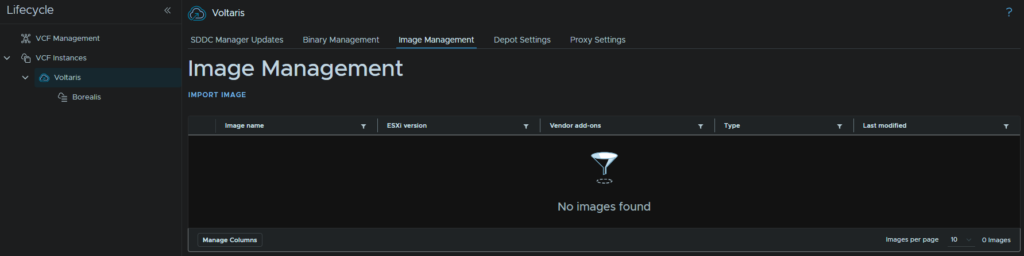
I only have one workload domain, the management domain, so the vCenter is automatically selected, but we should see our new image, click that and click Import
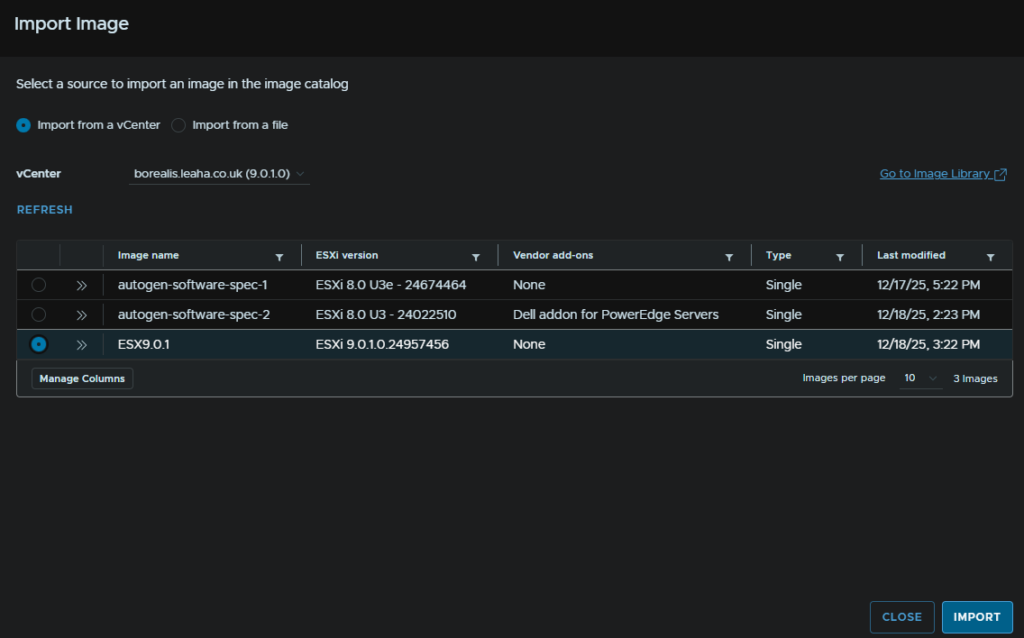
We can see the progress from Fleet Management/Tasks under our VCF instance if needed
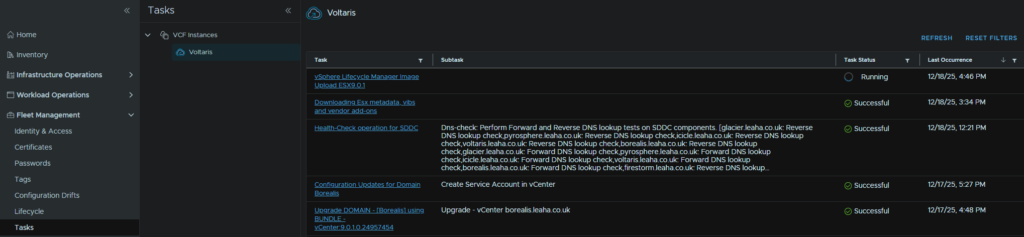
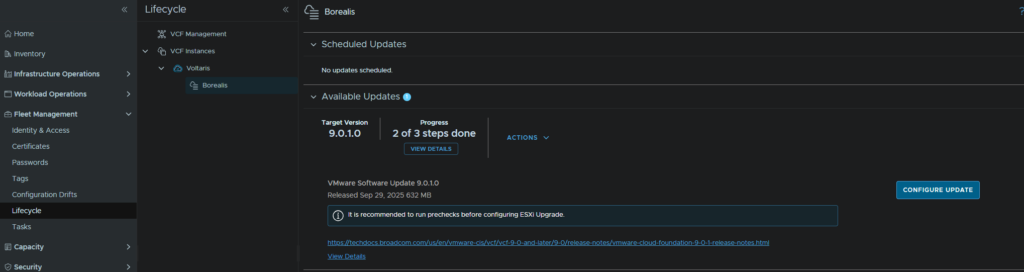
When thats done we can head back to Fleet Management/Lifecycle, select our management Domain and click Configure Update
Click Next
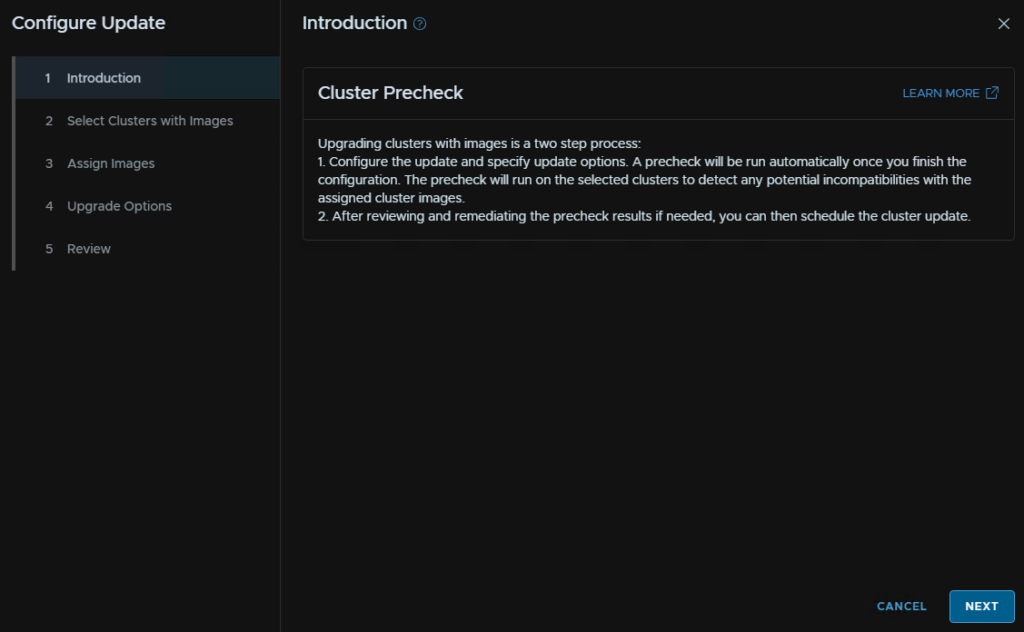
We will want all cluster selected, then click Next
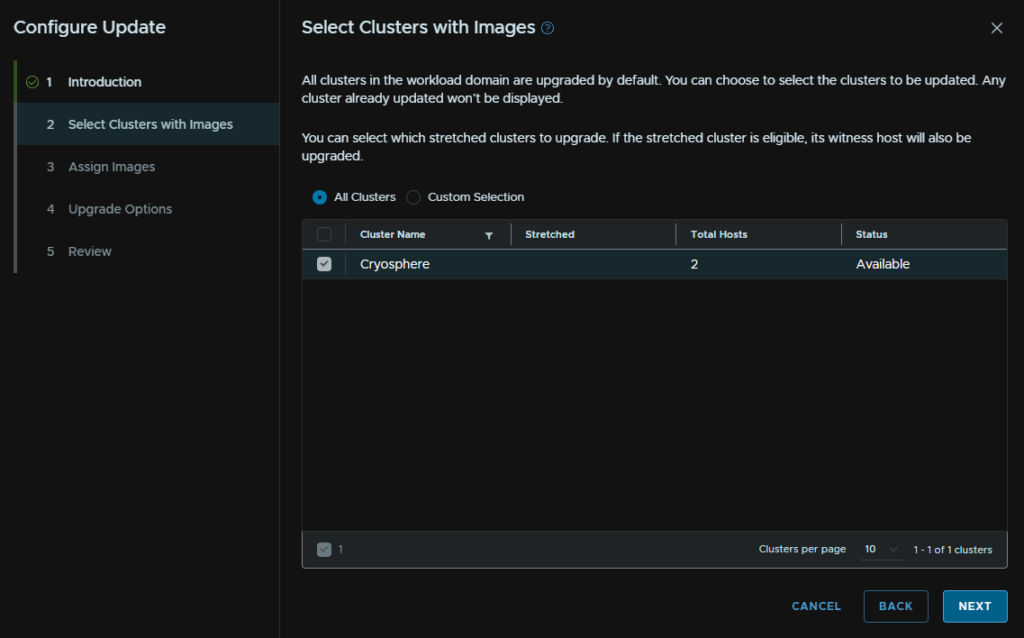
Select your cluster and click Assign Image
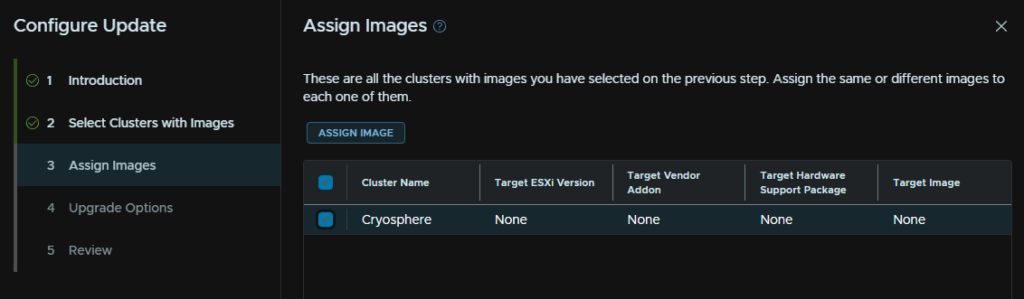
Select our image and click Assign Image
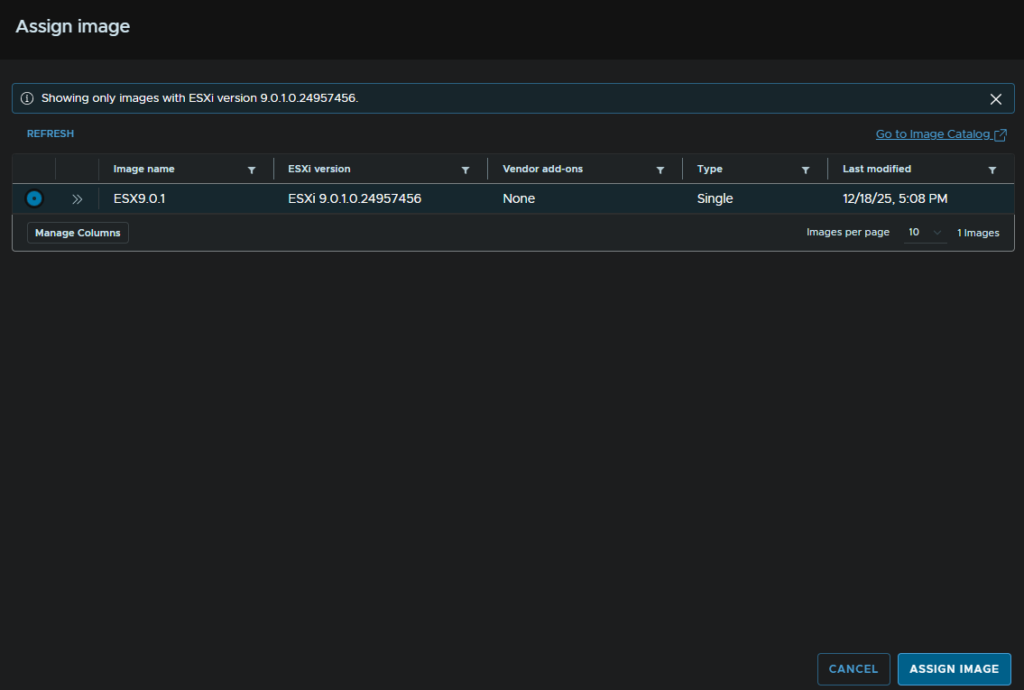
Then click Next
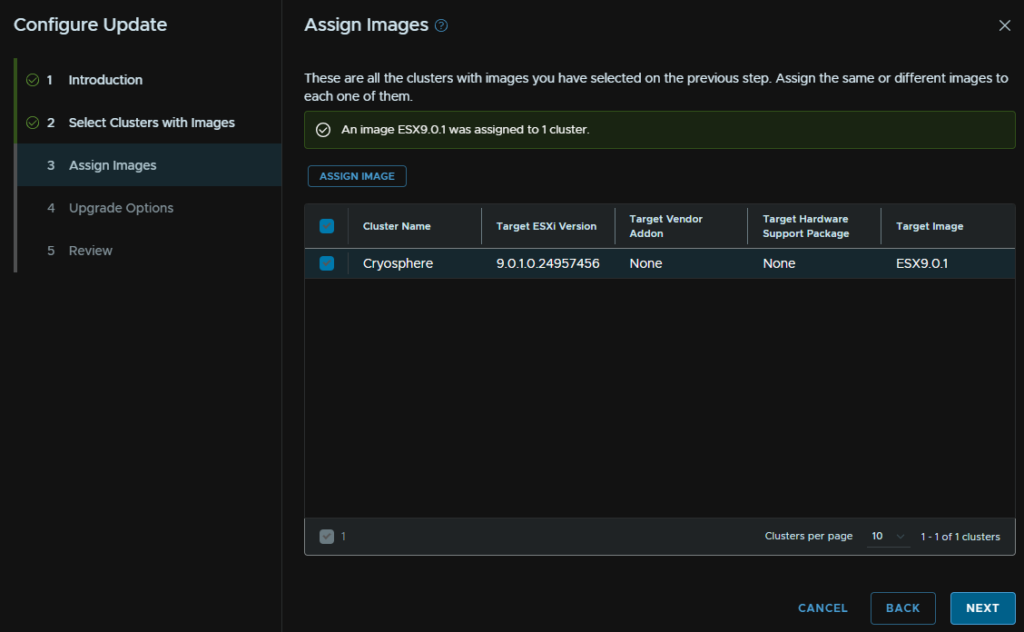
As ESX 9.0.1.0 is not Live Patch eligible, ensure Enforce Live Patch is not checked, and click Next
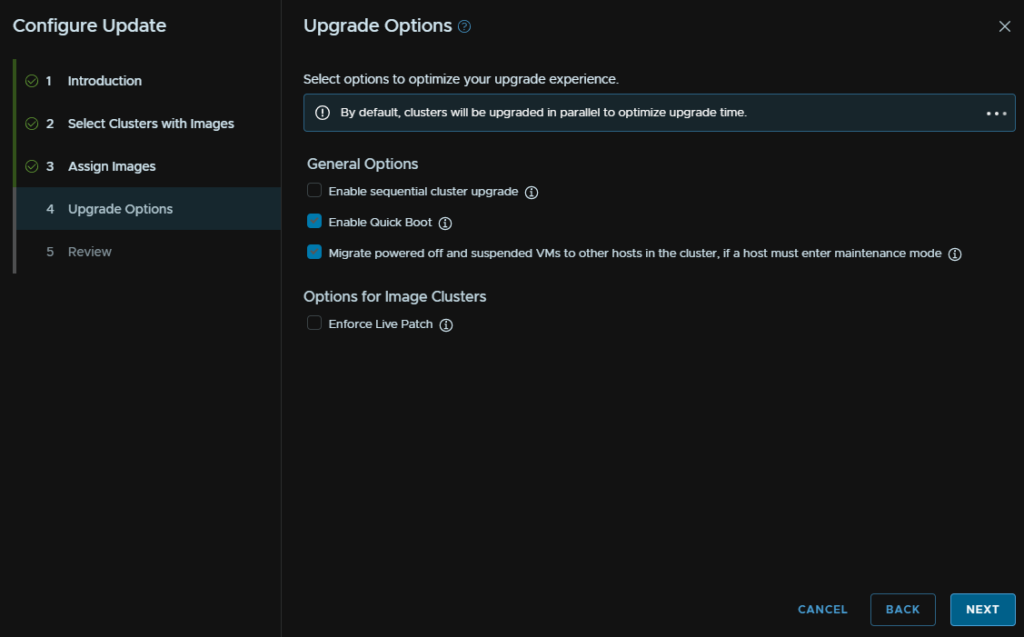
Then click Run Precheck
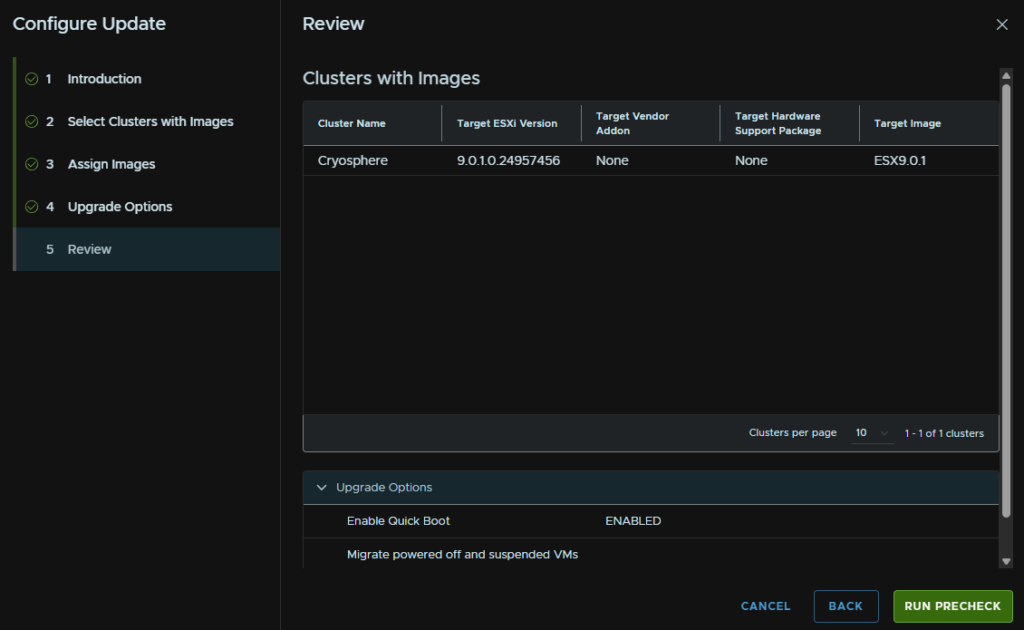
Click View Details to see any warnings, I got quite a lot
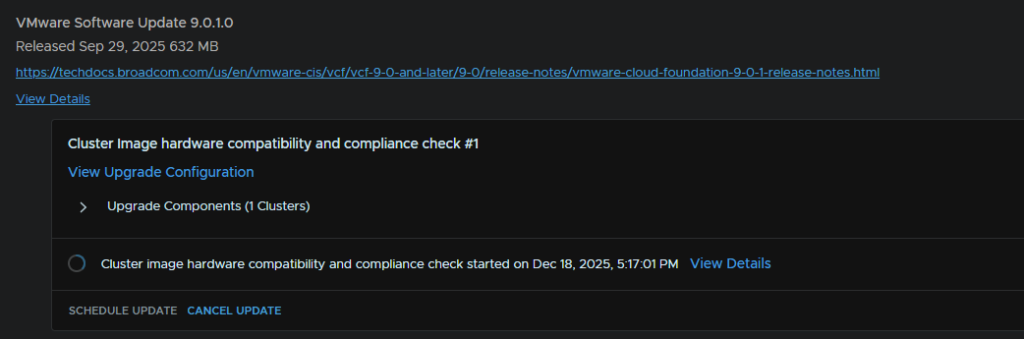
The first warning was for CPU, given one of my hosts is Ryzen based, this is fine, for production environments ensure the CPU is supported on the target release
This was on both hosts
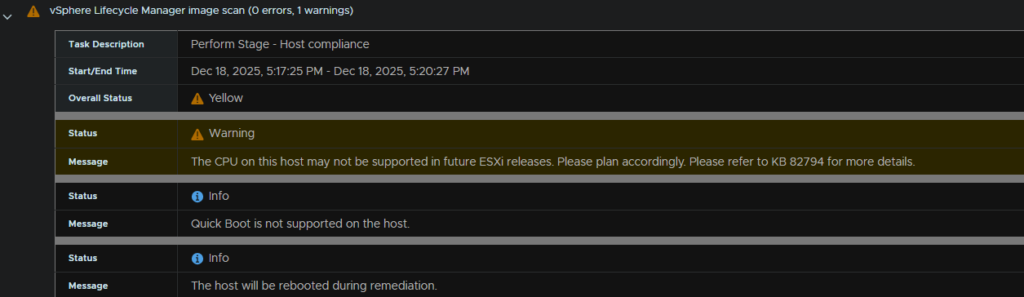
Not too sure what the baseOS warning is for, this is expected and can be ignored
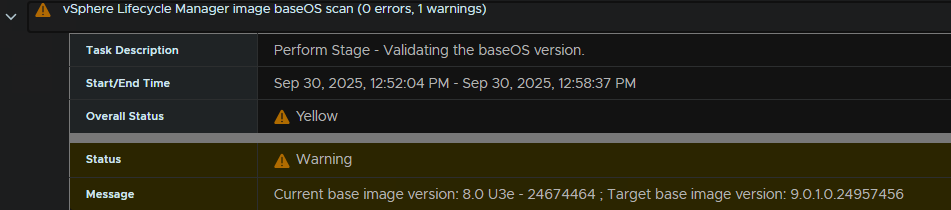
Same for the vendor addon, as you should upgrade this, so this can also be ignored, if you have it, I didnt since I wasnt using a Vendor addon in this case
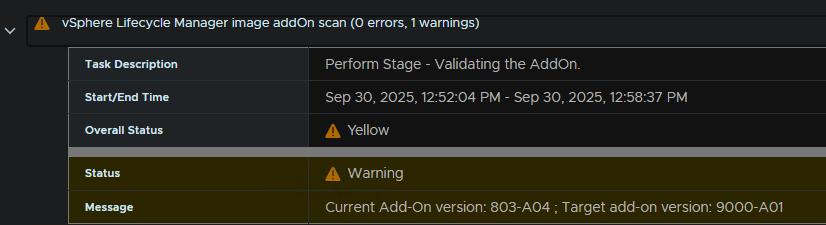
Click Exit Details in the top left when you are happy

Now that I have checked these and am happy to proceed, I am going to click Schedule Update
My red errors are caused by VMs on local storage, in production you likely wont have this, but if you do, these will need powering off, or you will need a fair bit of manual intervention, so I dont recommend this where possible
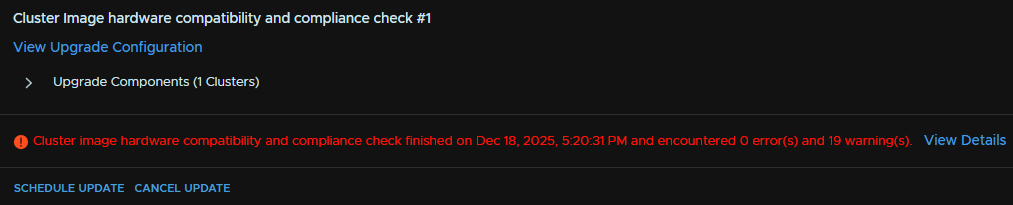
Click Next
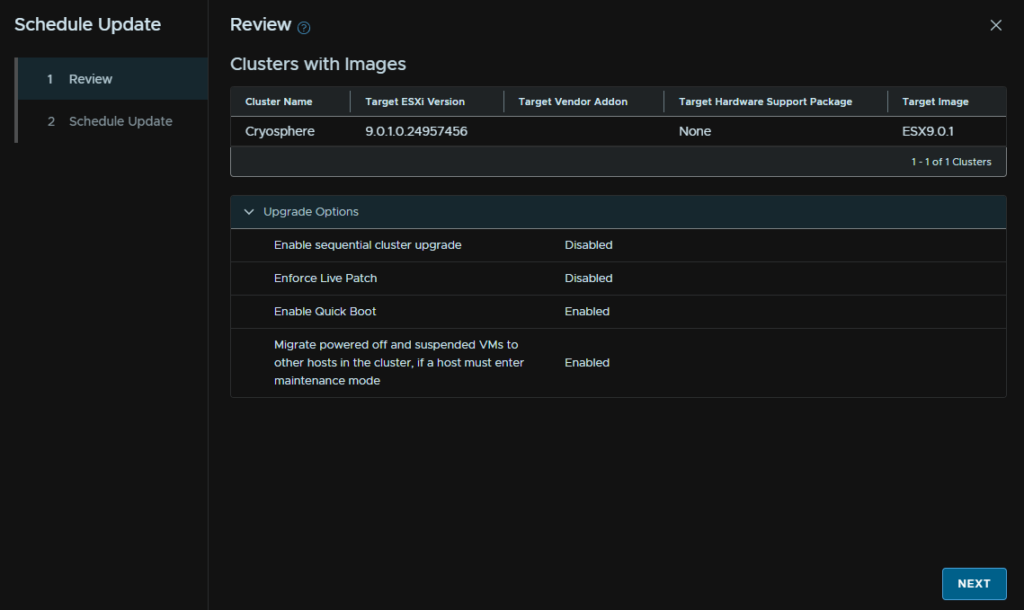
Then select to run the upgrade now or schedule it, and in my case as I have warnings I need to accept the box to acknowledge them and click Finish
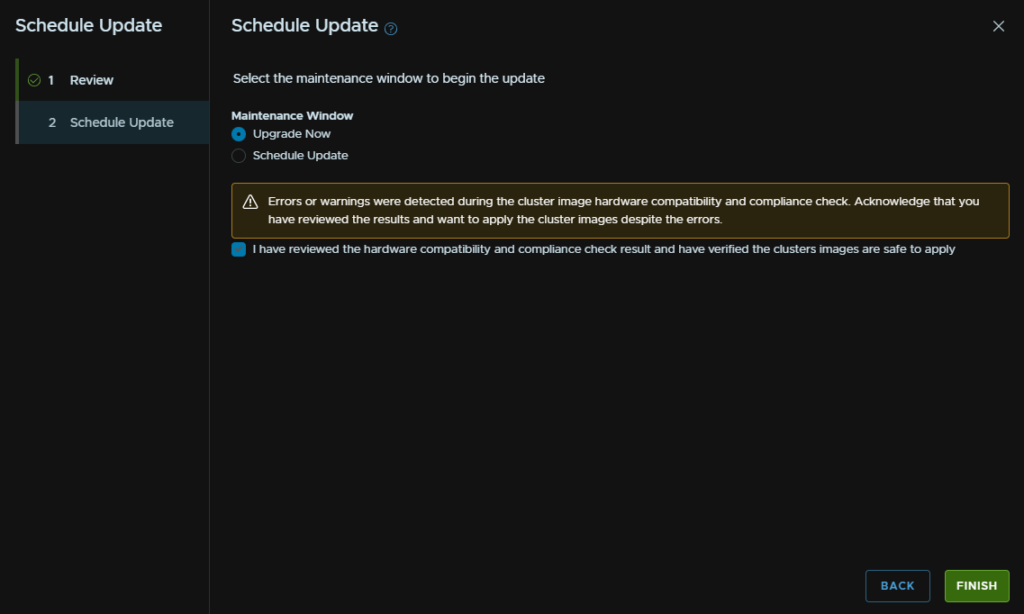
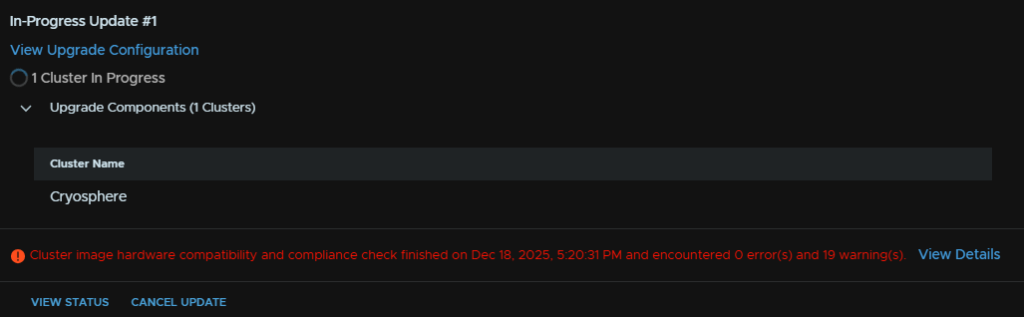
We can view the status on the In-Progress section, you may need to refresh the page, by clicking View Status
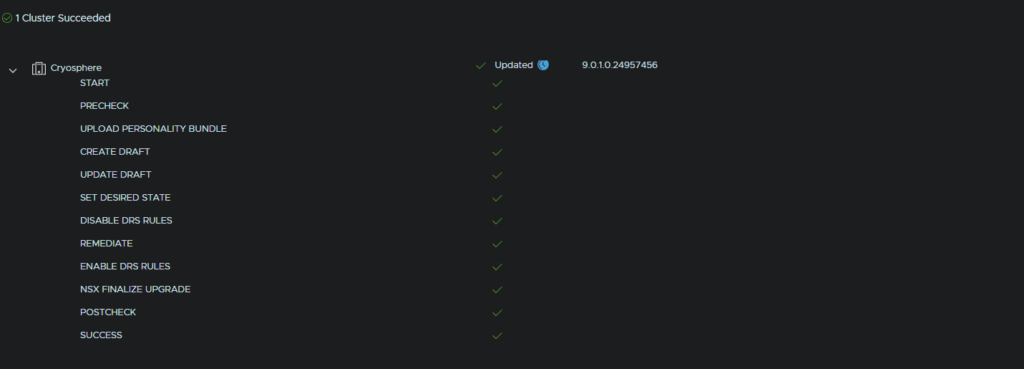
When its done it should look like this
2.12 – vSAN
I dont have vSAN in my environment but the steps here are the same as VVF so the documentation from that guide has been added here for people who have a vSAN cluster
In the Broadcom portal, use the VMware Cloud Foundation Section instead
2.12.1 – Disk Format
After the ESX upgrade the vSAN disk format will need upgrading, select the cluster then head to configure/vSAN/Services then in the top left, click Pre-Check Upgrade
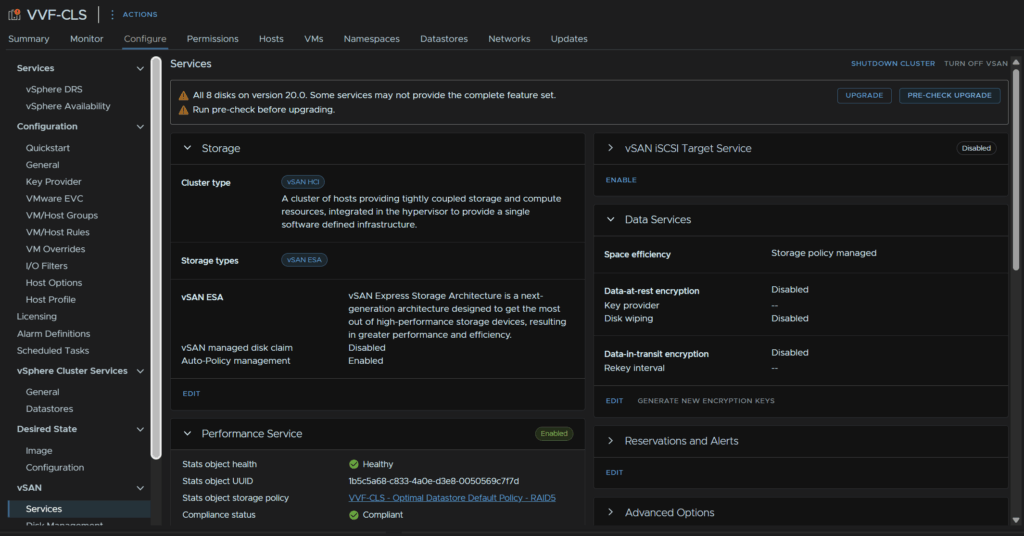
If it says Ready To Upgrade, click Upgrade

Then click Upgrade
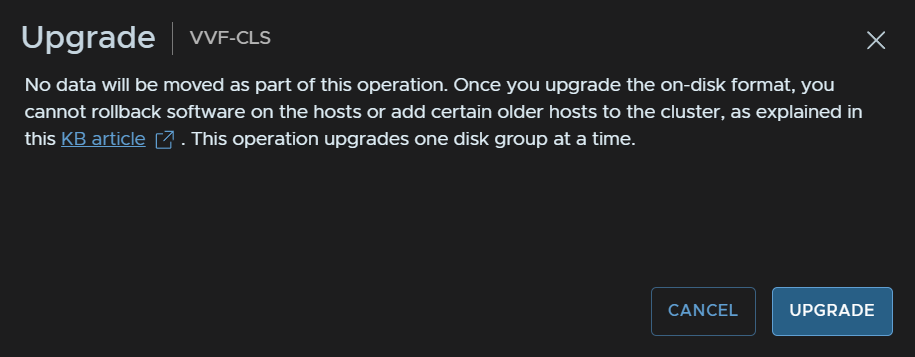
We’ll then get a progress bar we can monitor

When its done it will look like this

2.12.2 – File Services
Select the cluster and head to Configure/vSAN/Services then scroll down to the File Service tab and click Edit/Check Upgrade
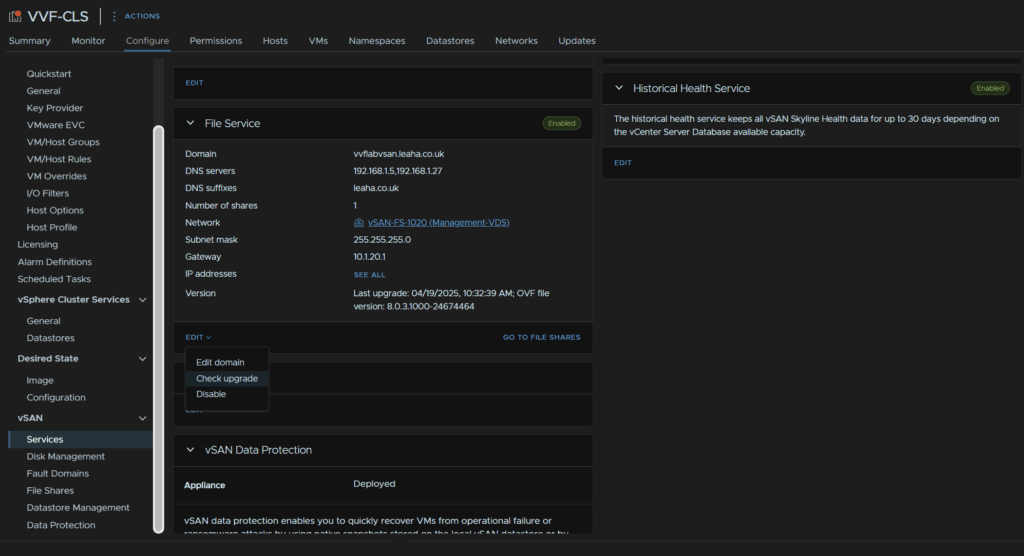
Now this should pick up the latest version from Broadcom’s website but oddly mine wouldnt, so we will be doing this manually from the Broadcom portal
Click My Downloads/VMware vSphere Foundation
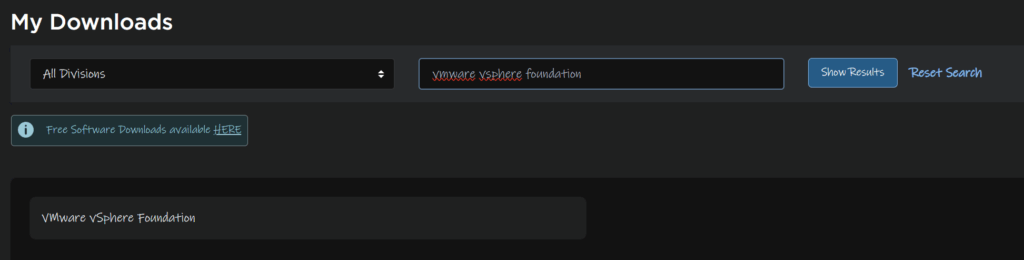
Expand VVF 9 and click the latest release

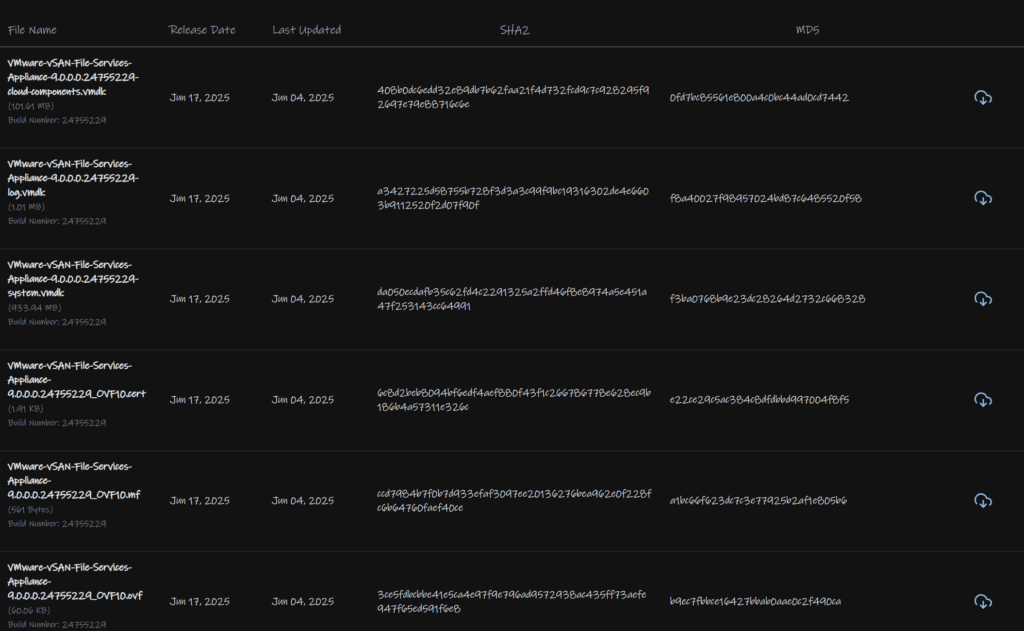
Under VMware vSAN, click View Group

Click Drivers And Tools

Then download all the files here
In the vSphere console, click Browse
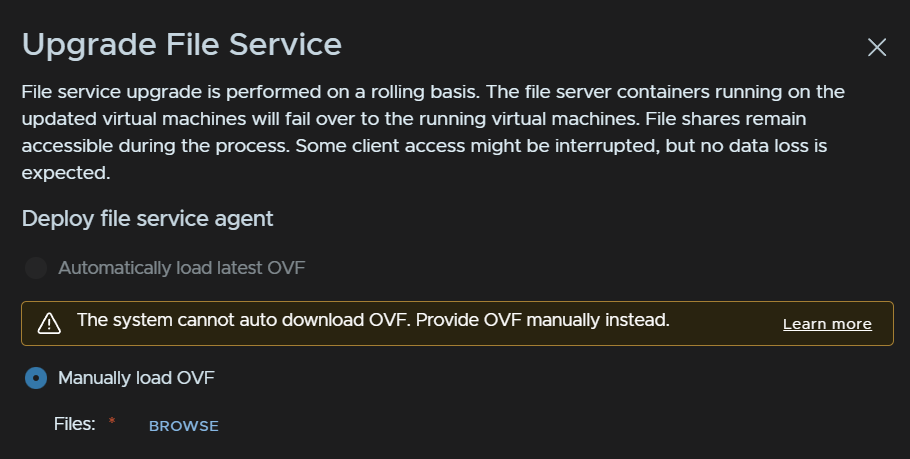
And select all the files you just downloaded, and click Open
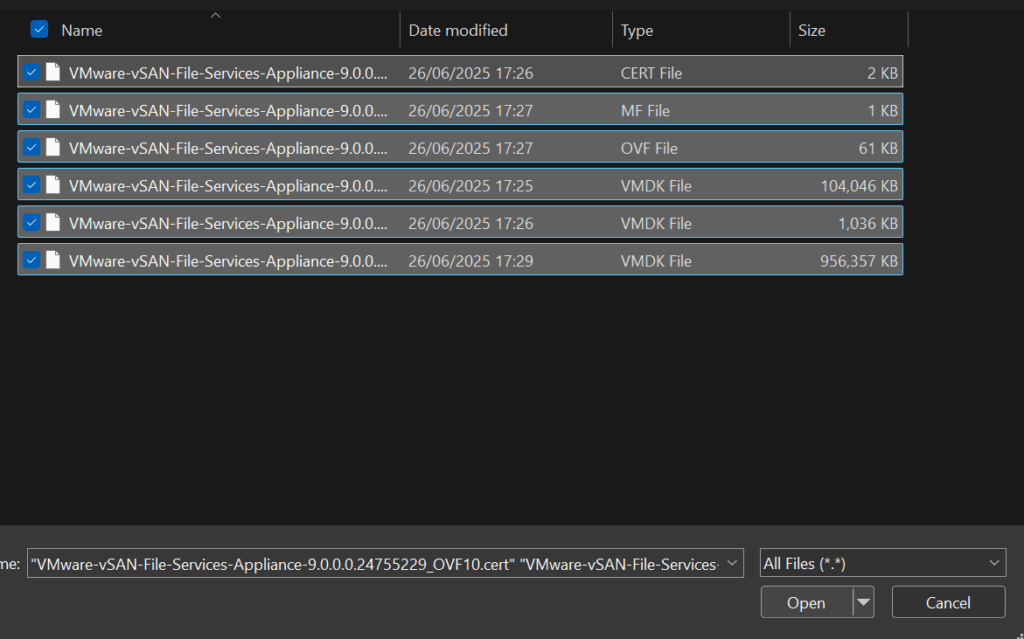
Then click Upgrade
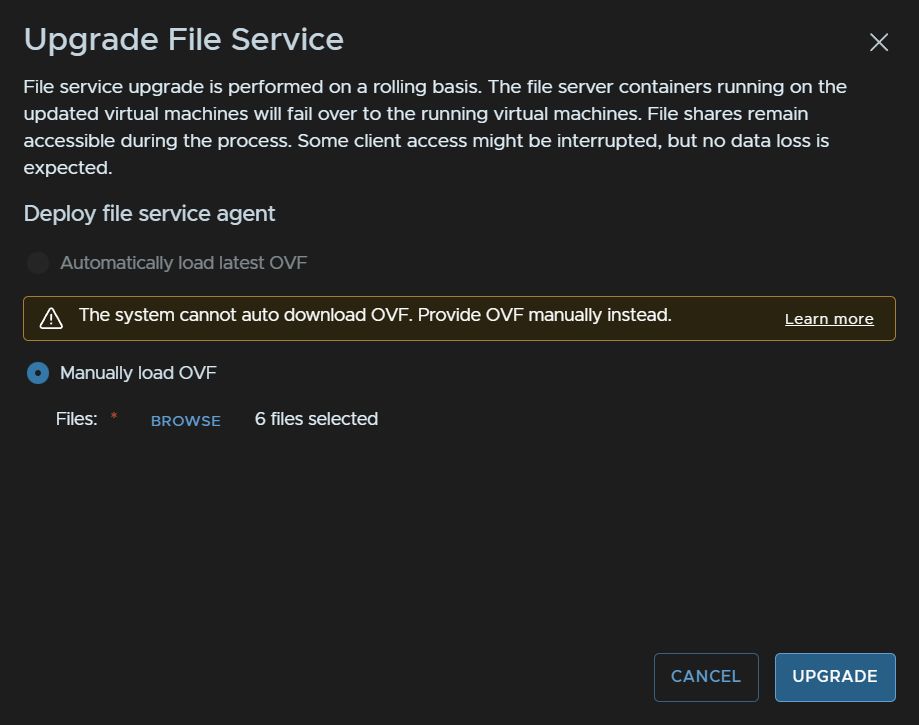
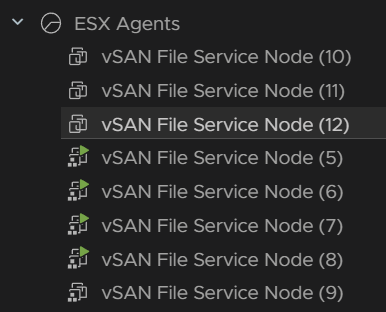
Wait for the progress bar to complete

When thats done it will replace all the file service VMs
2.13 – VCF Ops For Logs
From VCF Ops head to Fleet Management/Lifecycle/VCF Management/Depot Configuration and click Configure on the Online Depot
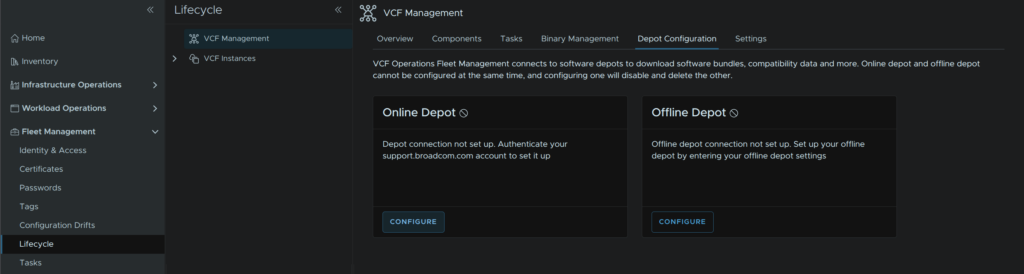
Click the + to add an account to login to the Broadcom portal
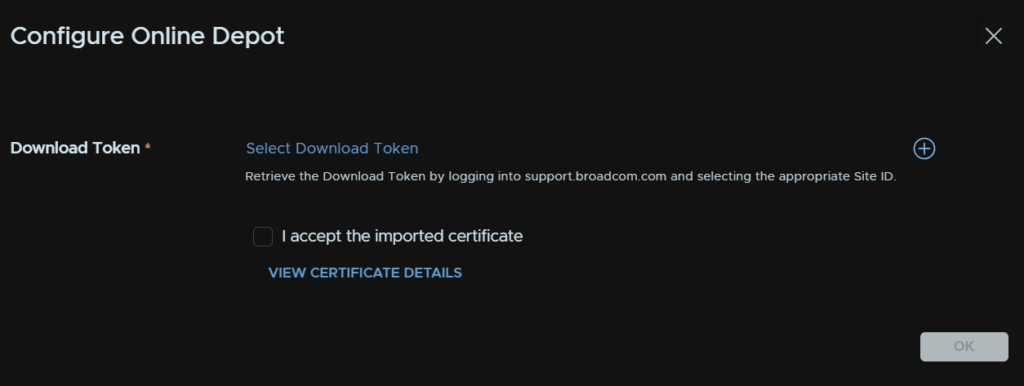
Then add an alias, and put the token in the password fields and click Add
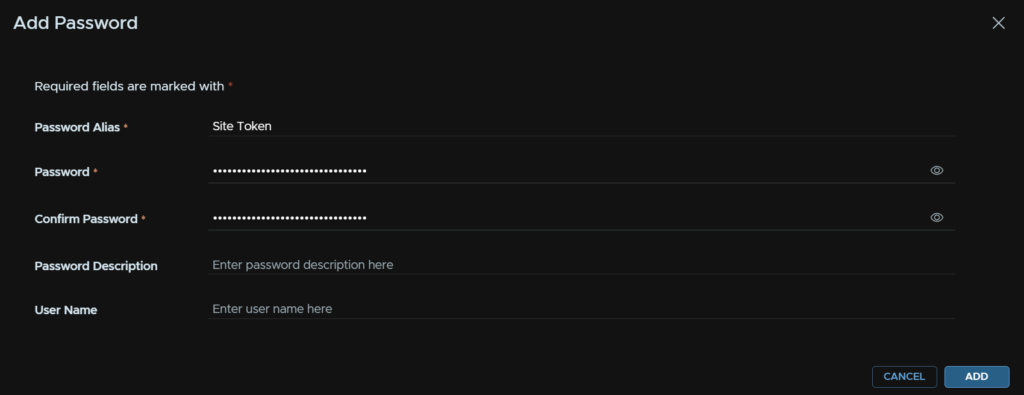
Now click Select Download Token
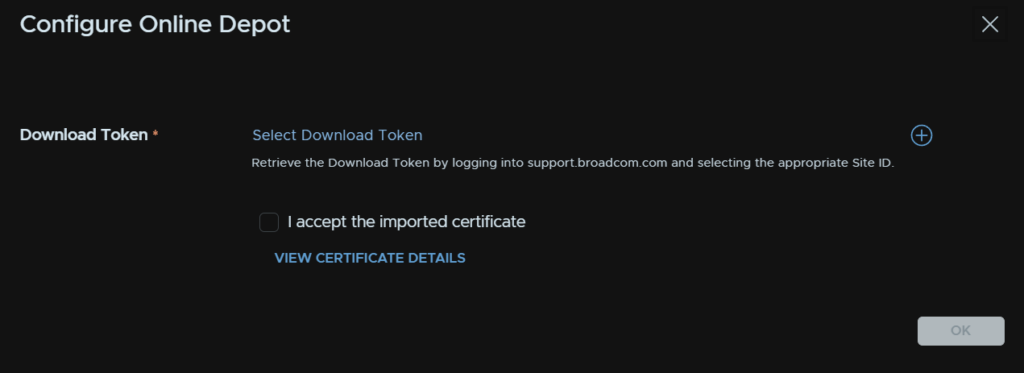
And select the token alias

Accept the certificate and click ok
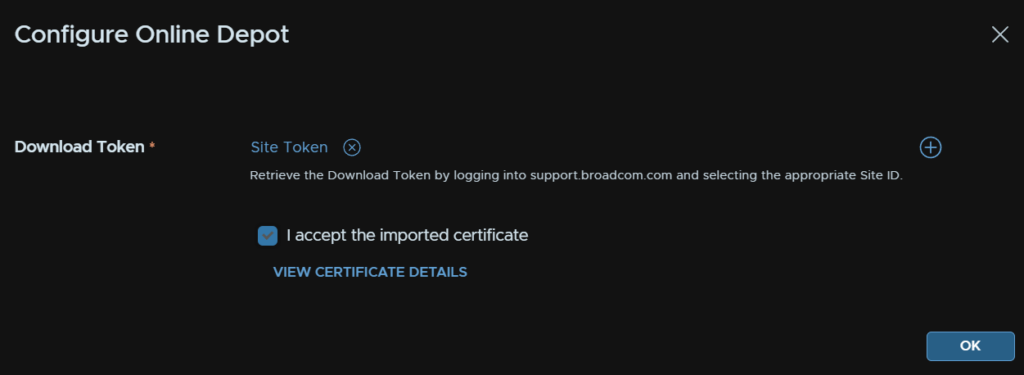
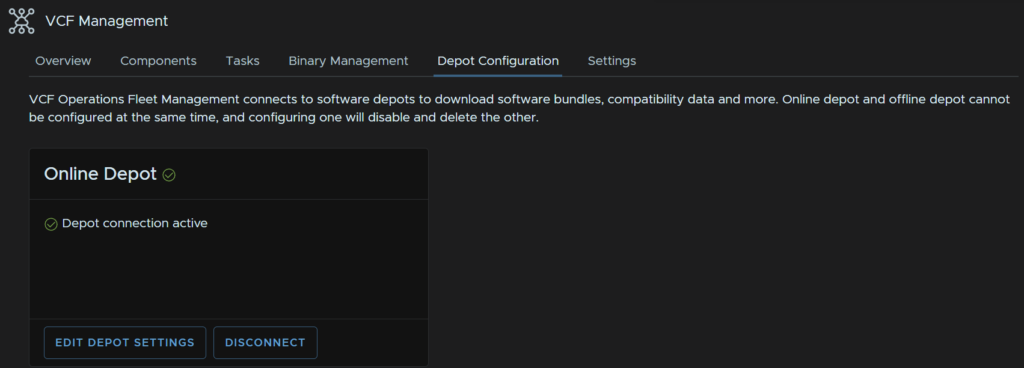
The depot will then show as connected
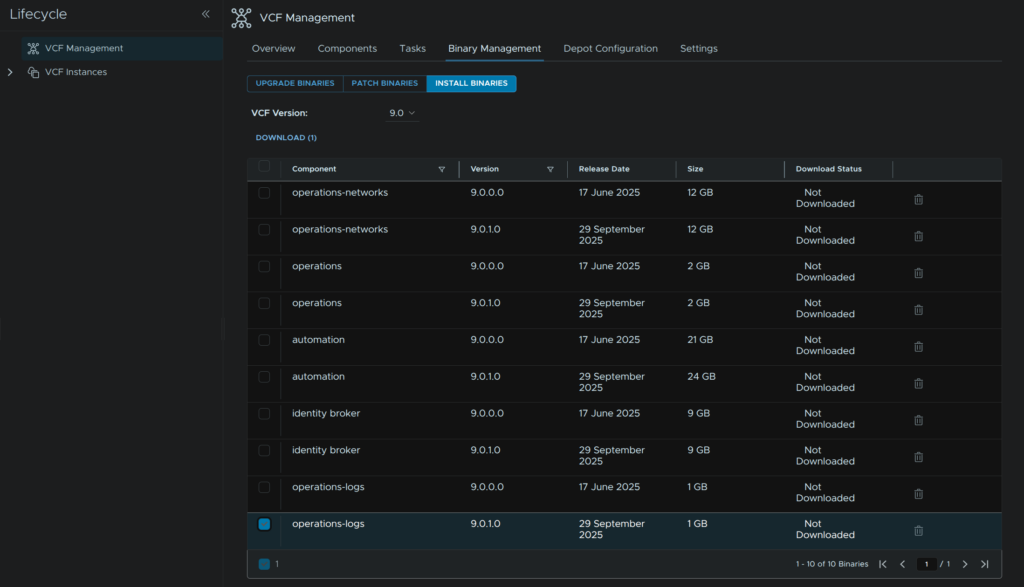
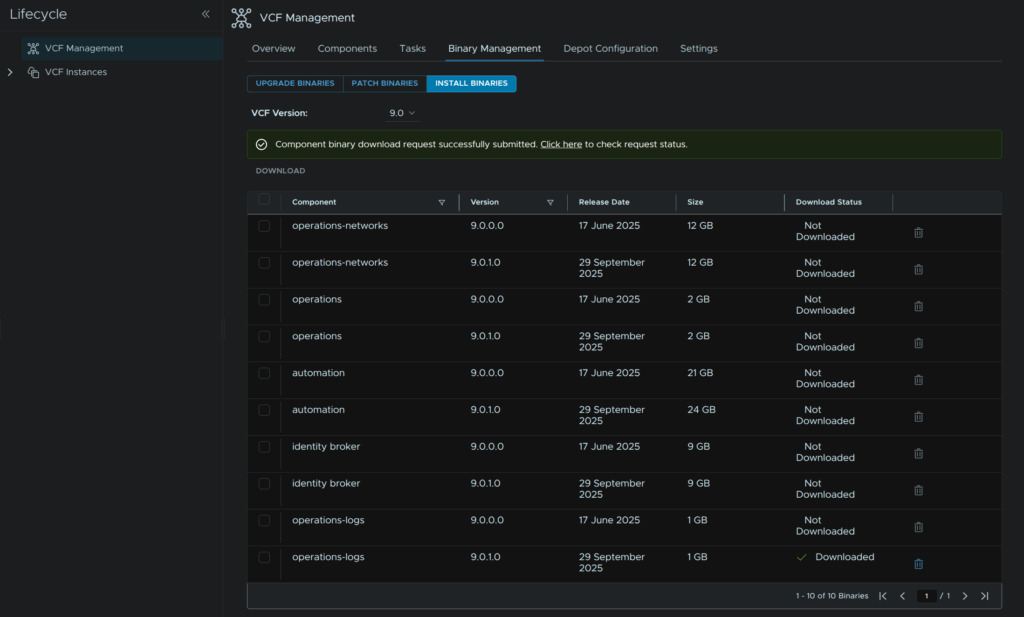
Then click Binary Management/Install Binaries, select the operations-logs binary, then click Download
Wait for that to download, you can also check the progress from the link to the task
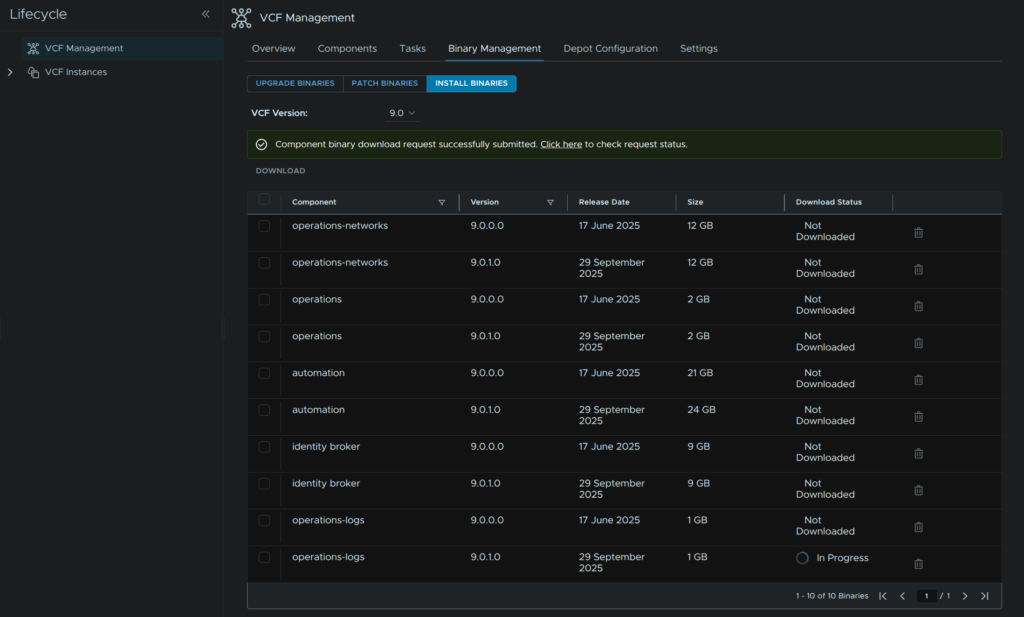
When its done it will say Downloaded
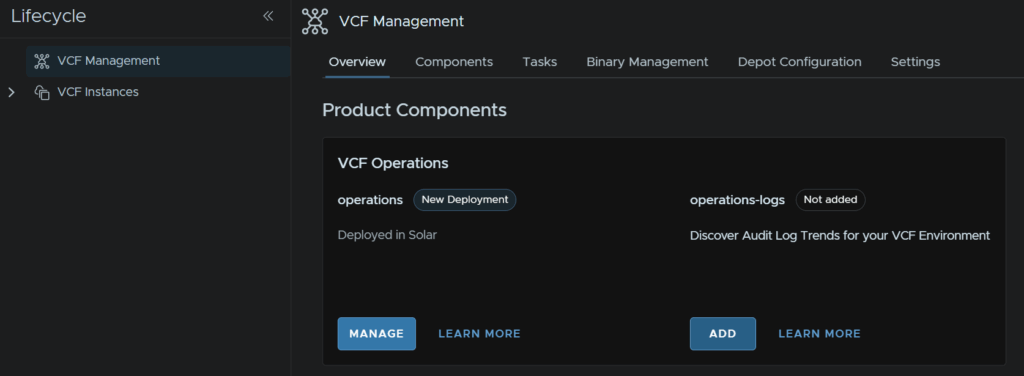
Click Overview, and under operations-logs, click Add
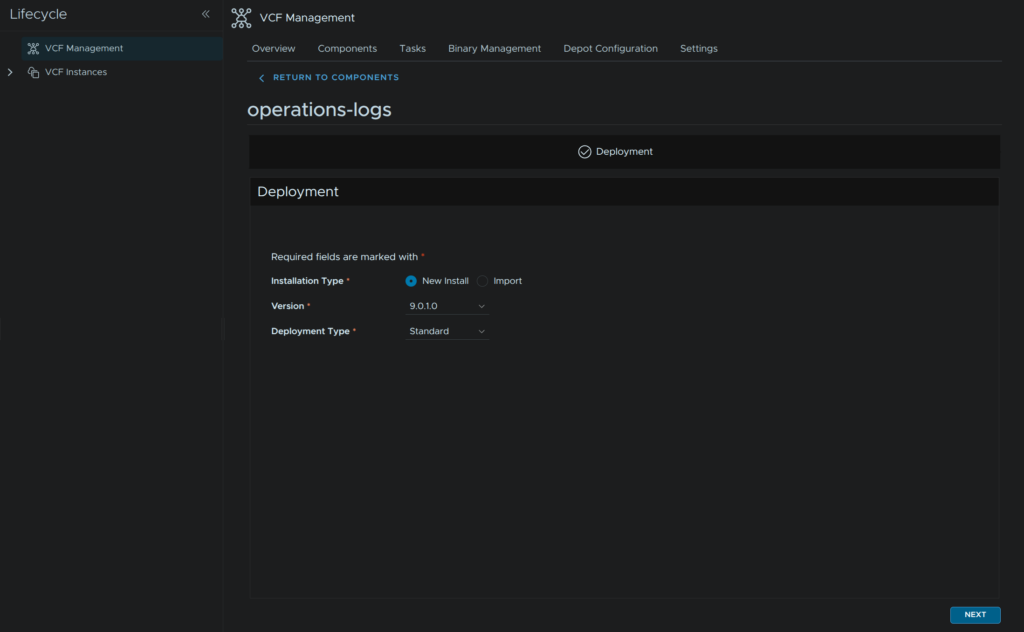
Click New Install, and then for the deployment, unless you have a very large environment, Standard will be fine, then click Next
We then need a certificate, its important we have the hostname registered in DNS
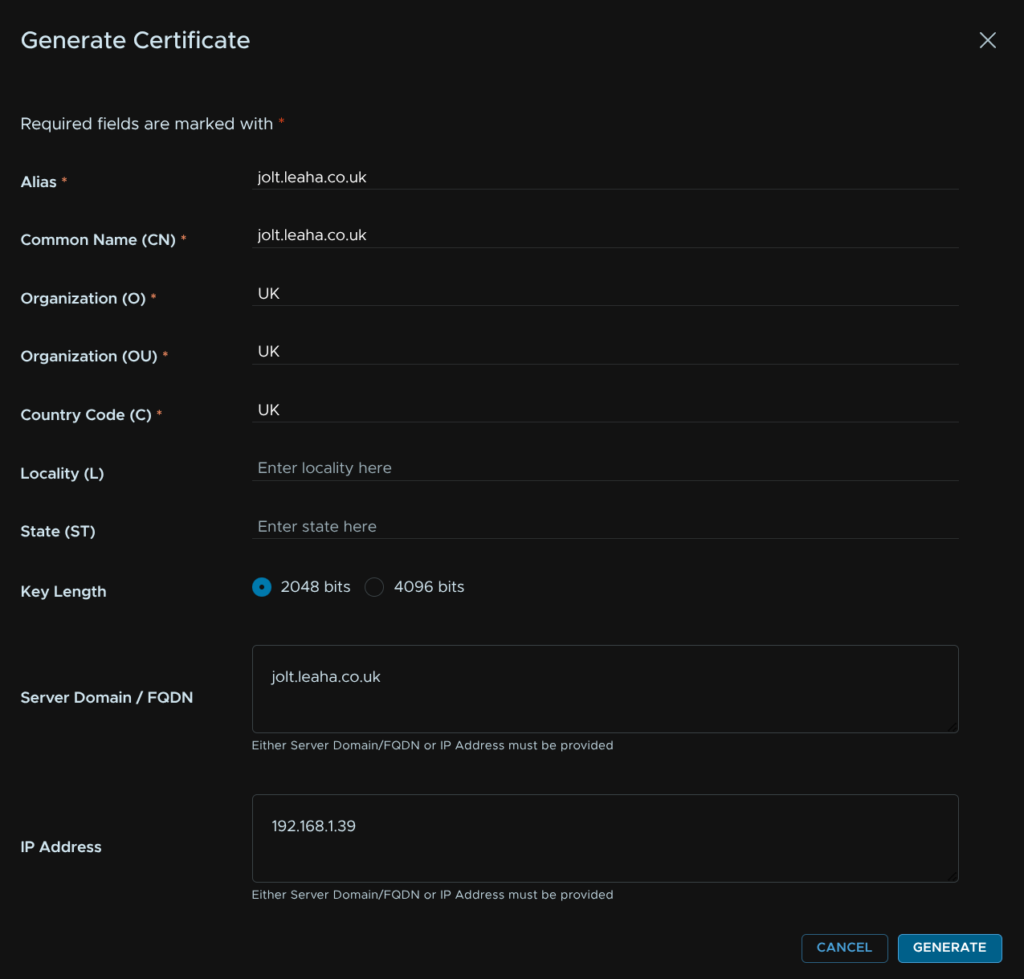
Click the + then Generate certificate
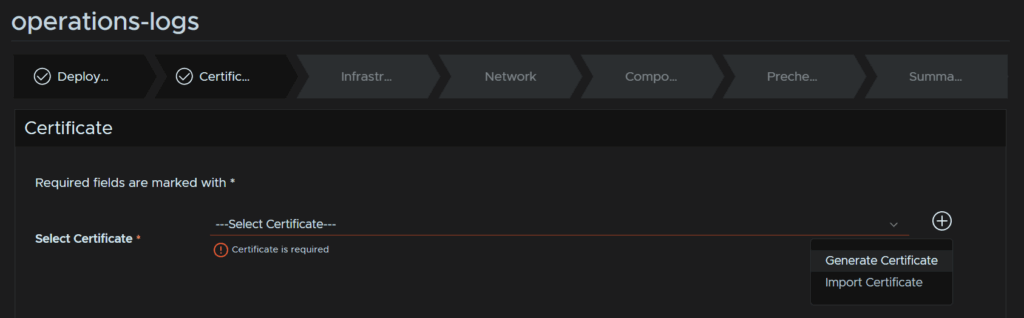
Enter an Alias, this is a friendly name, the CN, O, OU and C dont matter for self signed certificates, what is important is the server FQDN and IP which need to match this server, then click Generate
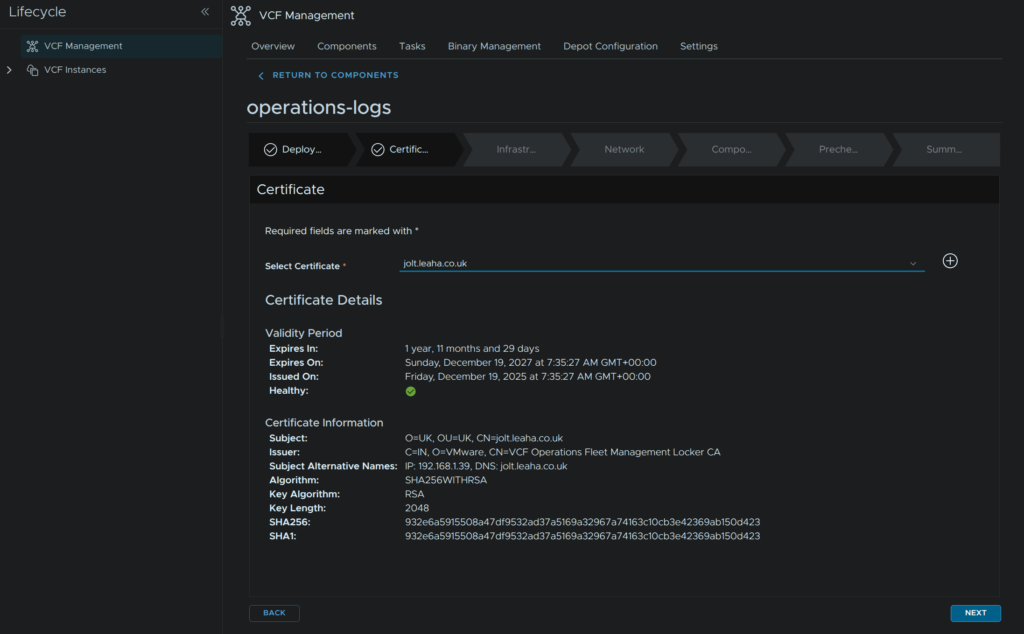
Select the certificate from the drop down and click Next
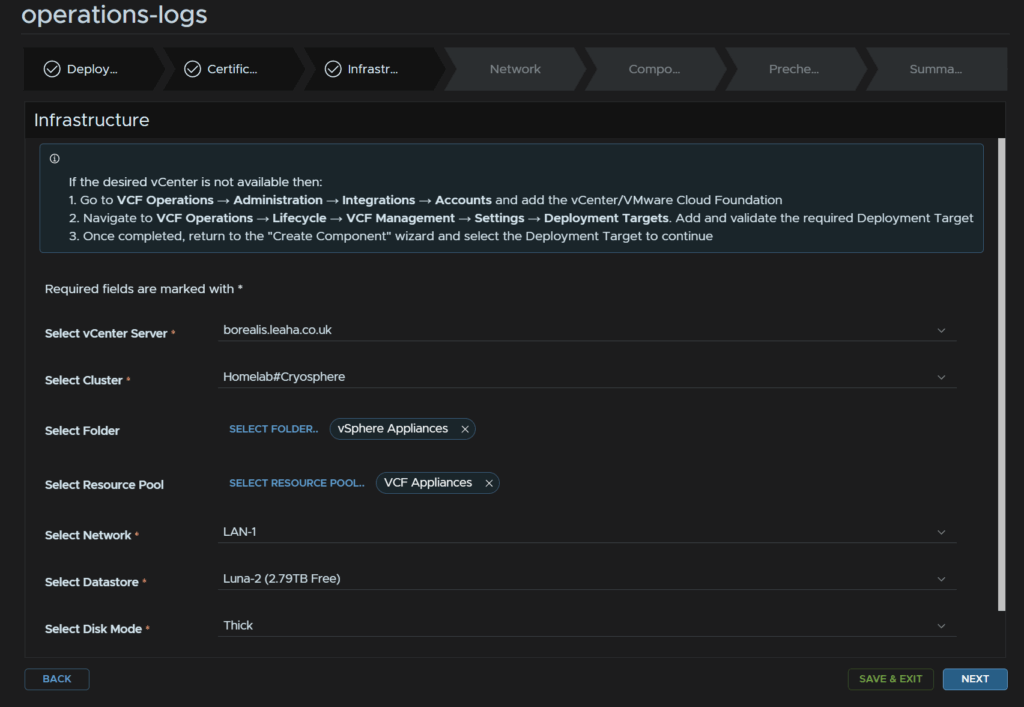
Select the vCenter server, cluster, optionally and folder and resource pool, then the network, datastore and disk mode which wants to be thick, then click Next
Enter the domain and search domain name then click Edit Server Selection
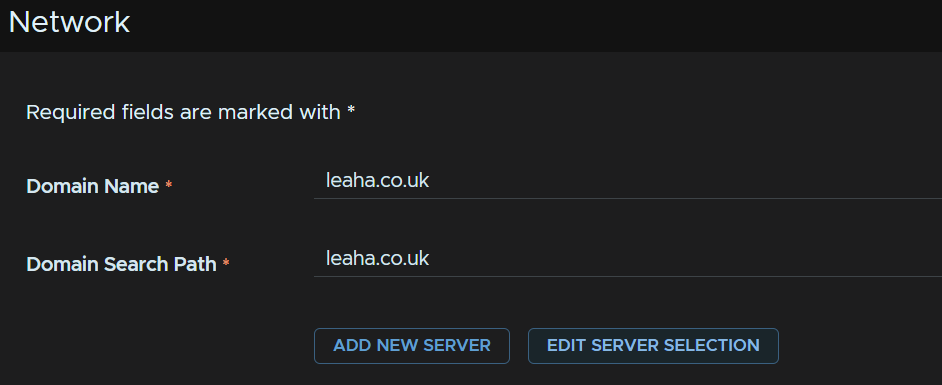
Select the DNS servers and click Next
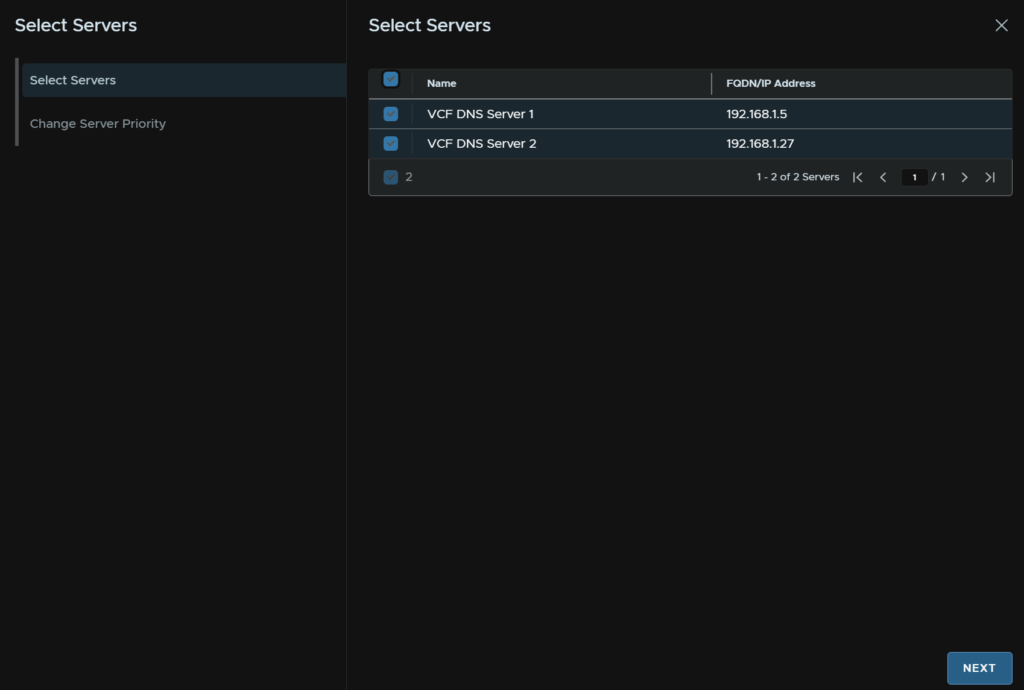
Then click Finish
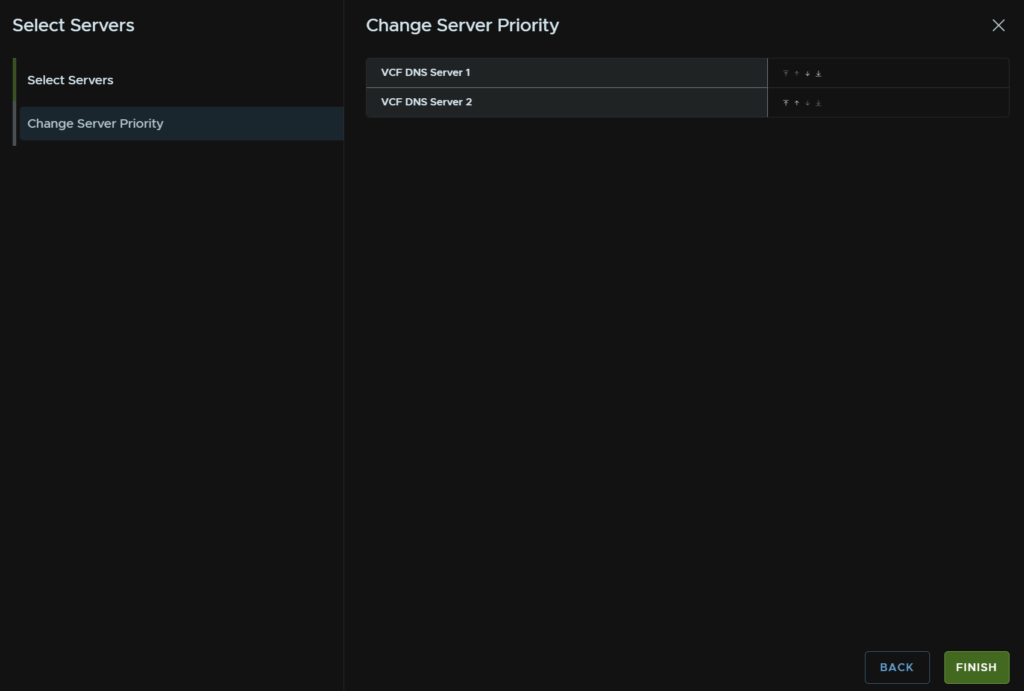
For NTP you can use host time, or an NTP server, I select the latter, if so, click Edit Server Selection

Select the server and click Next
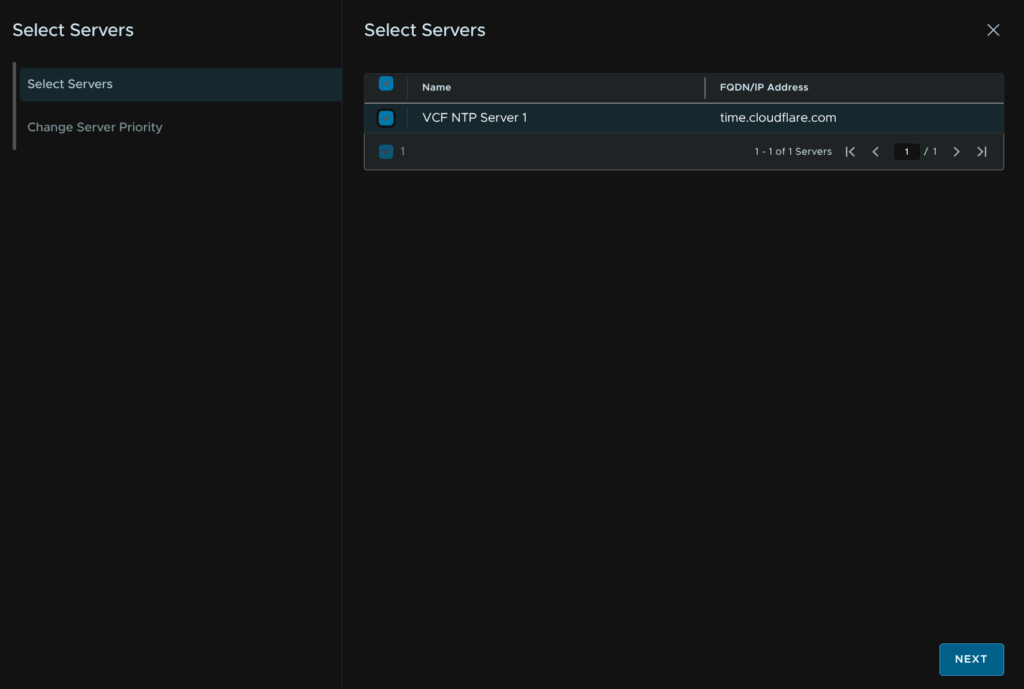
And click Finish
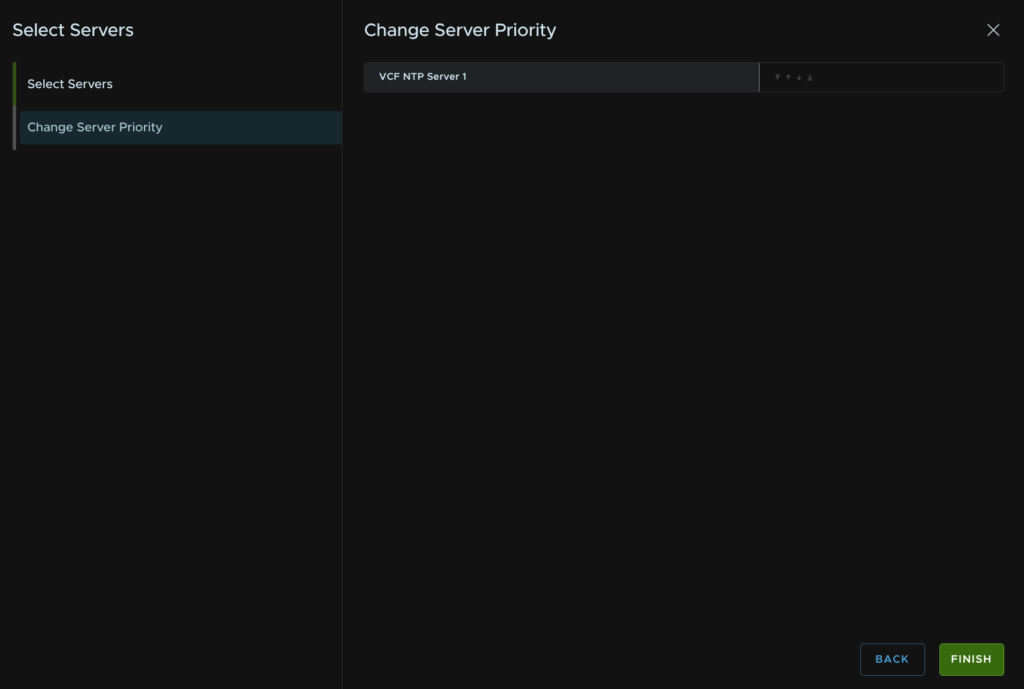
Then enter the gateway and subnet mask and click Next

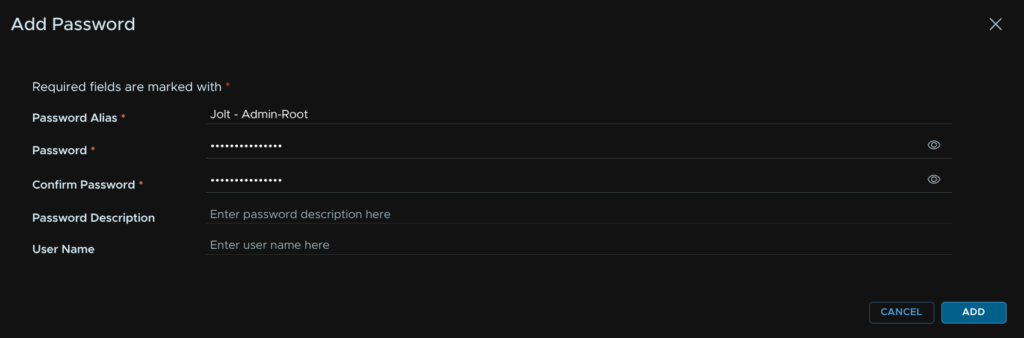
Click Add Password

And add the admin/root password, it should be 15 characters, the only allowed special characters are !@#$%^&*
Then click Add
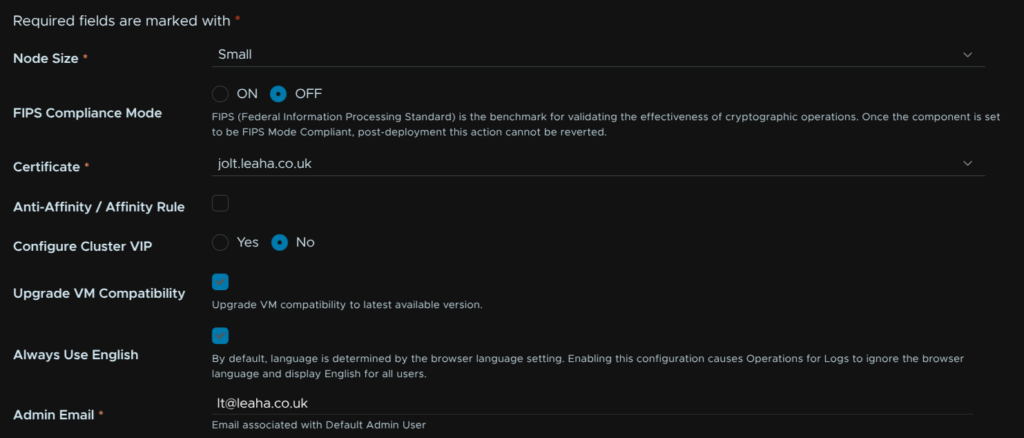
Select the node size, small is ok for me, but medium is a good production fit, I disabled FIPS, the certificate should be auto populated, we can then leave the affinity rules, as we are not doing a cluster select No for a VIP, upgrading VM compatibility isnt needed but can be checked, check the box to always use English, and add an admin email
Click Select Component Password, this will be both the admin and root password

And select the password we just added

NTP should also be pre populated

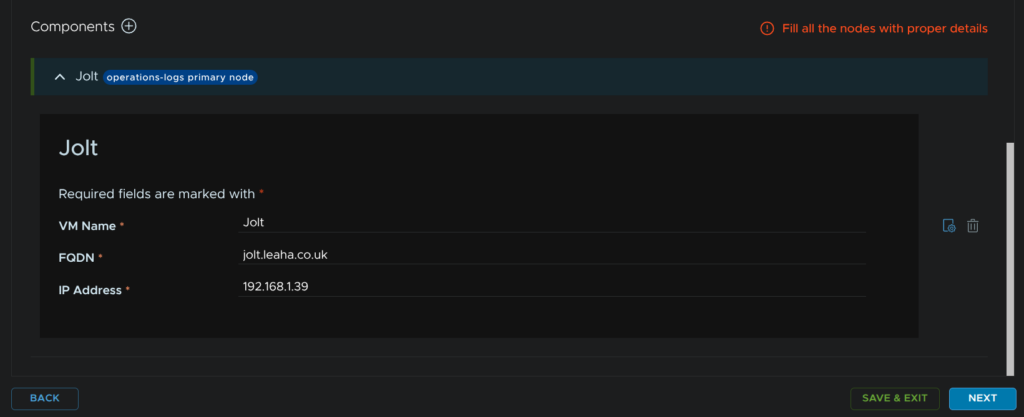
Then at the bottom, enter the VM name, FQDN and IP address and click Next
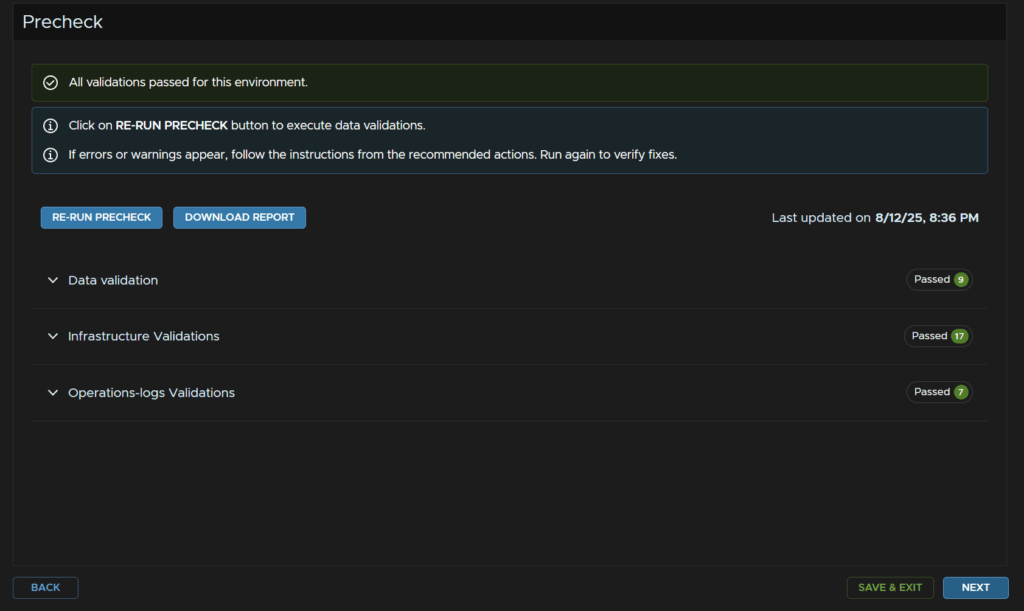
Then click Run Precheck

When thats passed click Next
When you are happy, click Submit
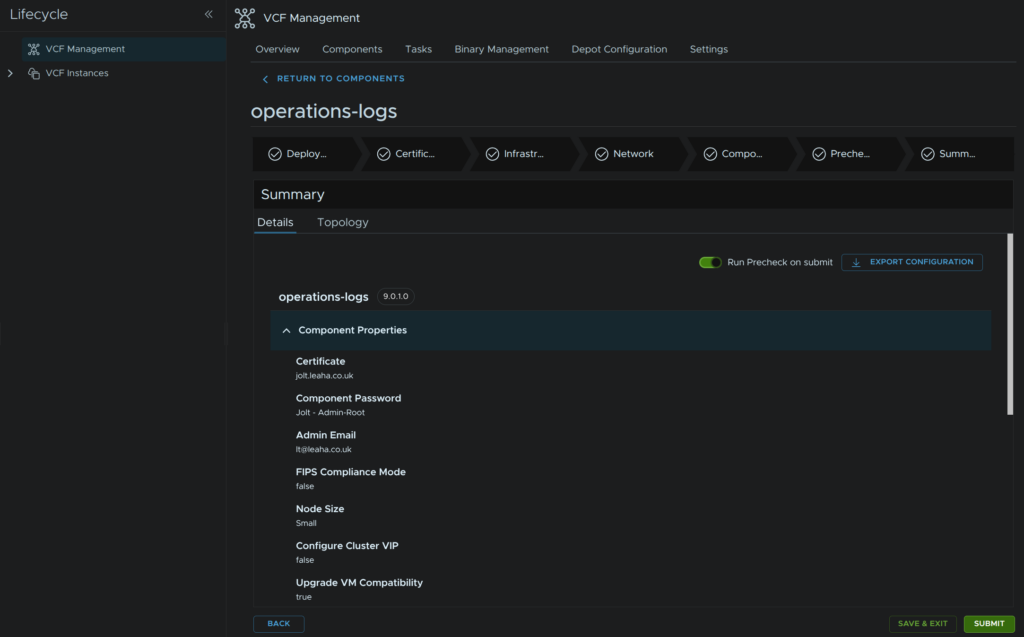
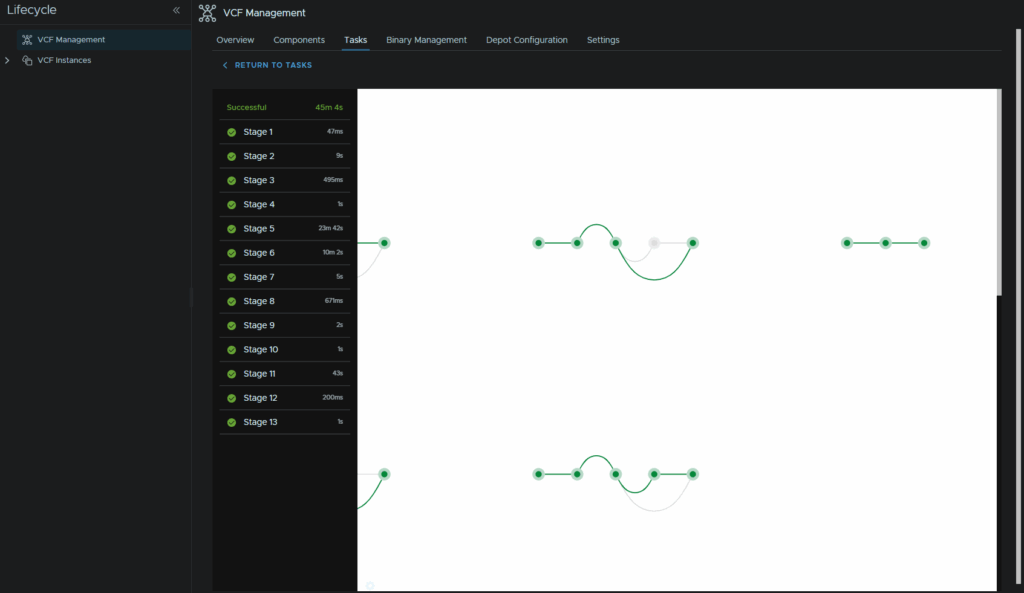
When thats done it should look like this
The last little bit is updating the agents if you have any
Click Management/Agents
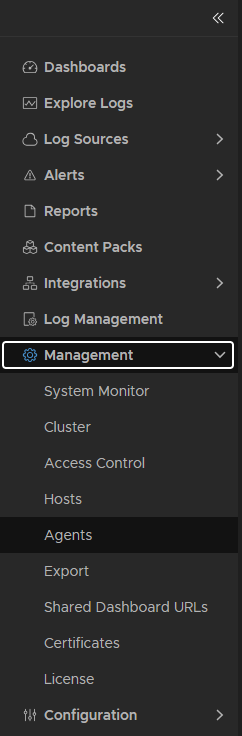
Then enable the toggle for auto updating all agents

This doesnt seem to update Windows agents, the release for v9 is still missing even in 9.0.1 but older 8.18.x agents will continue to work
Now, while deploying this will set integrations up with your SDDC Manager and all systems, this doesnt register the vCenter directly into VCF Ops For Logs as a source, this means while all logs are coming in, it will be stuck in evaluation mode
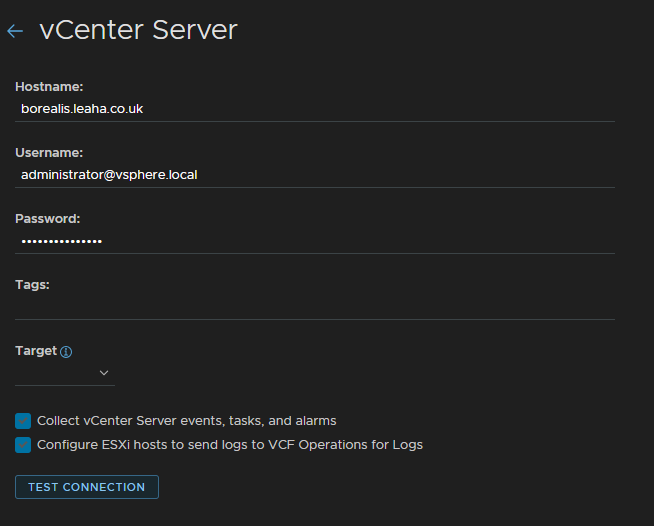
In the VCF Ops For Logs GUI click Integrations/vSphere and click Add vCenter Server
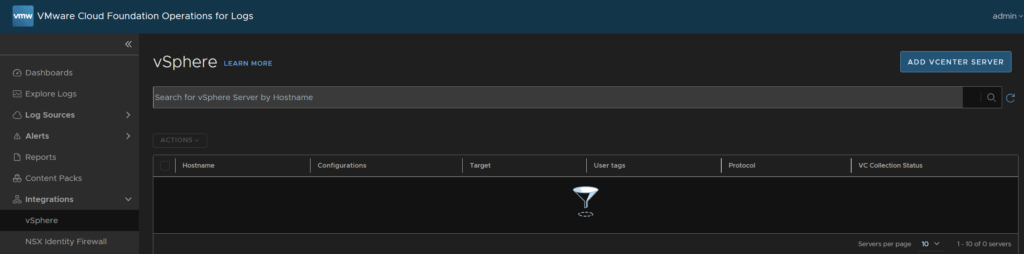
Enter your hostname for the vCenter and an administrator account, I recommend a service account, but I am using the default administrator account
Select the target from the drop down, which is the Log server, make sure both boxes are checked and click Test Connection
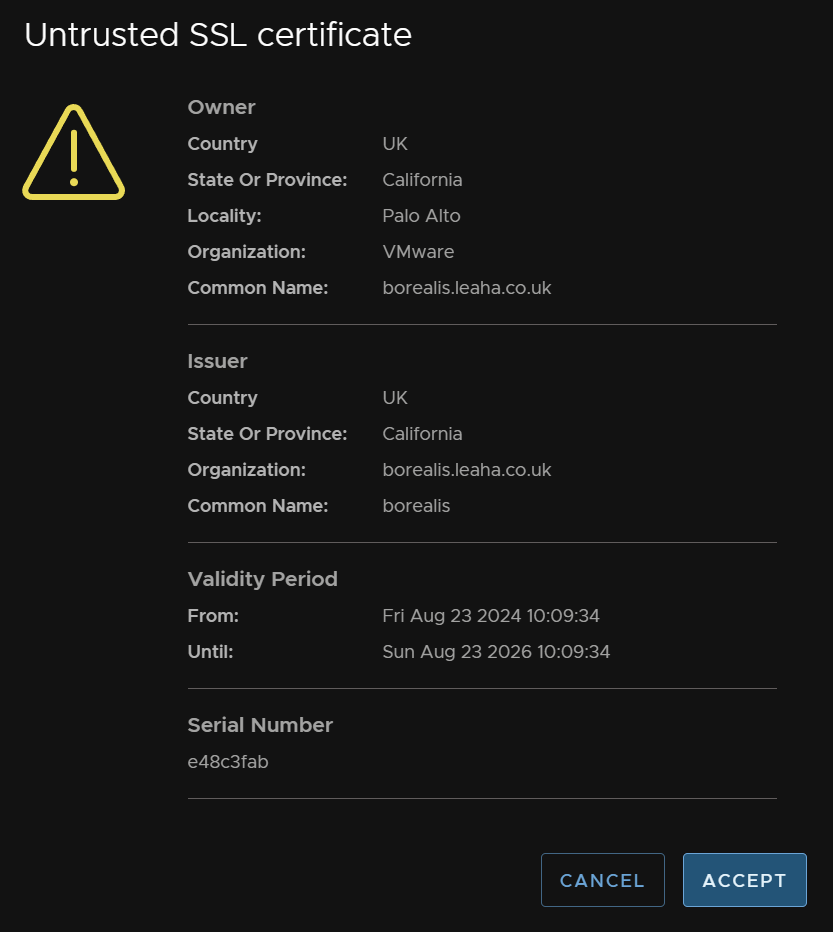
Click Accept on the SSL certificate
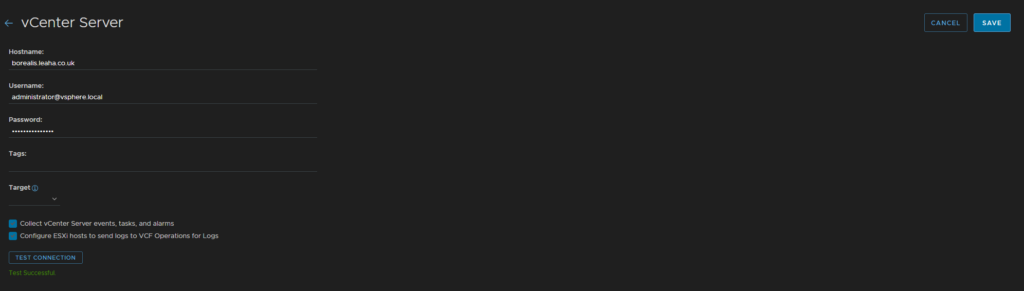
Then click Save
This removes the evaluation licensing mode from the server
Back in VCF Operations head back to Administration/Integrations, expand the VCF integration and on your VCF instance click the three dots and click Edit
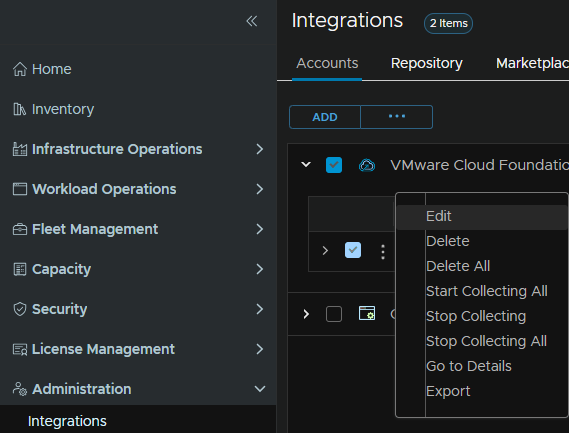
Select the domain and check the box to enable log collection, repeat for additional workload domains and click Save
3 – vSphere 8 Without NSX
This section of the guide assumes you have vSphere, and possibly vSAN, this assumes you do not have any of the Aria suite or other products
The section also covers upgrading to VCF 9 only, additonal components like NSX networking, or VCF Operations For Logs have been excluded, if you need information on deploying them, check out my VCF 9.0.x deployment guide here
Here is a table of everything required that you may not have in your environment, the only things missing are items you will have for this path which is vSphere, its important everything is registered in DNS and this will help with planning
| FQDN | IP Address | Purpose |
| lab-vsphere8-vcfo.leaha.co.uk | 10.1.35.20 | VCF Operations |
| lab-vsphere8-vcfoc.leaha.co.uk | 10.1.35.21 | VCF Operations Collector |
| lab-vsphere8-vcffm.leaha.co.uk | 10.1.35.26 | VCF Fleet Management |
| lab-vsphere8-sddc.leaha.co.uk | 10.1.35.9 | SDDC Manager |
| lab-vsphere8-nsx.leaha.co.uk | 10.1.35.30 | NSX Cluster VIP |
| lab-vsphere8-nsx01.leaha.co.uk | 10.1.35.31 | NSX Manager Node |
Its also worth noting we will need a VLAN for NSX Host TEPs that you wont have had before for me this will be VLAN 1038
3.1 – vCenter
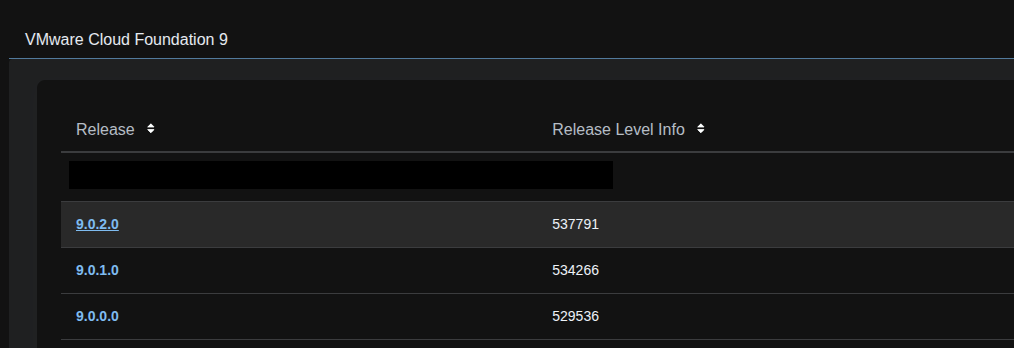
The first thing we need to upgrade is the vCenter, we will need to download the ISO for the latest vCenter release, which is 9.0.2, log into the Broadcom portal and click VMware Cloud Foundation from the downloads section
Then select the target release, in my case 9.0.2
On VMware vCenter click View Group

Then download the ISO and save it

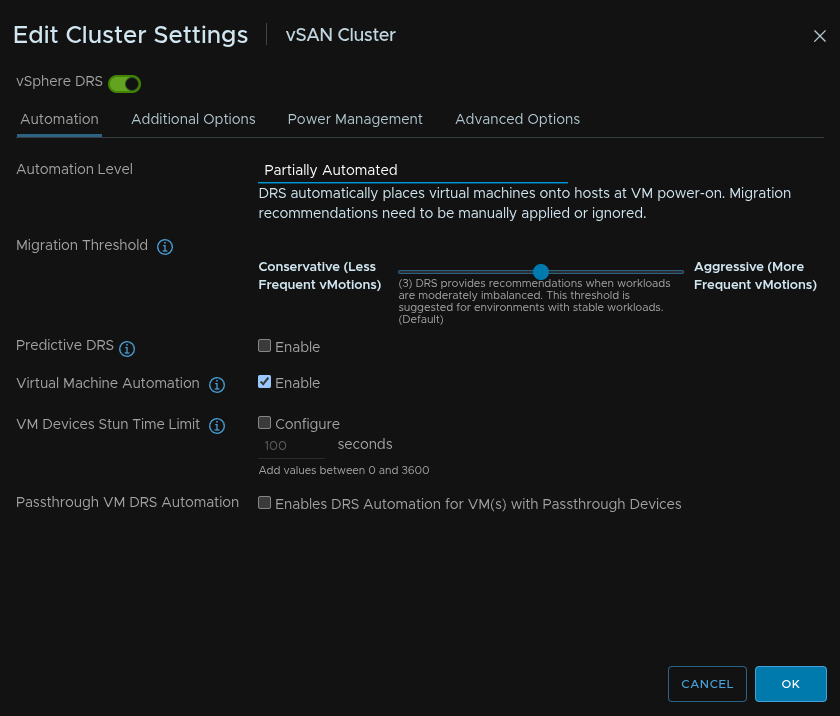
In vSphere click the cluster and click Configure/Services/vSphere DRS/Edit

Set DRS to Partially Automated and click ok
Click the VM in vSphere and look for this widget and note the host down
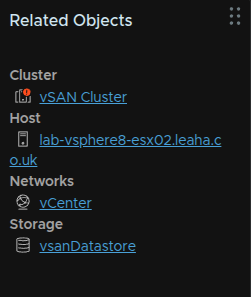
Log into that ESX host and go to Virtual Machines click the vCenter VM and click Shut Down

Right click the vCenter and click Snapshots/Take Snapshot
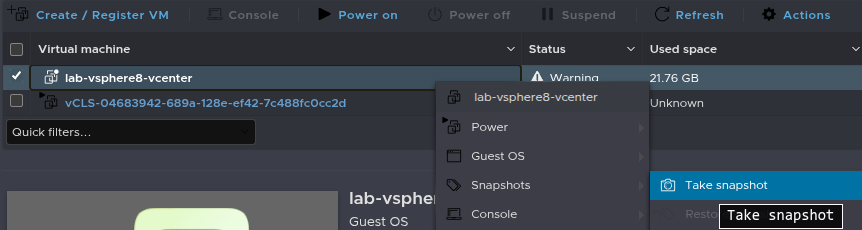
Give it a name and click Take Snapshot
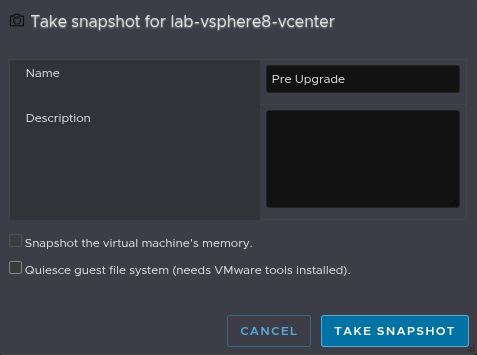
Then click Power On

Now we need to mount this to our vCenter 8 VM, you can upload this to a content library or datastore, I will be using a content library, if you dont have one you can create one very easily, or use a datastore if you prefer
In vSphere click the three lines in the top left and click Content Libraries
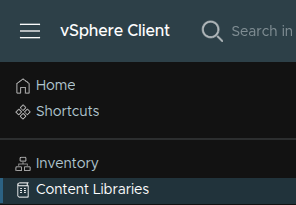
Click your content library, you can click Create if you want a new one
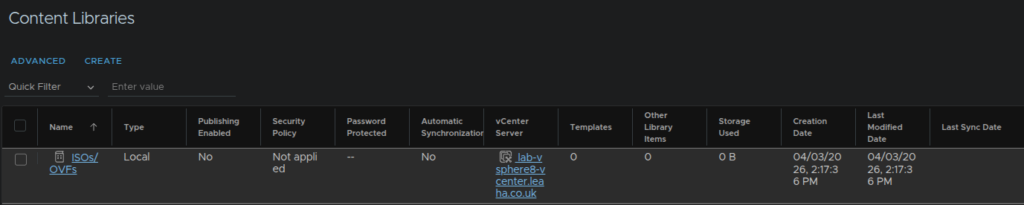
Click Actions/Import Item
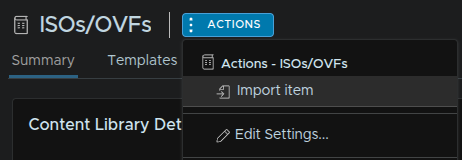
Click Local File and click Upload Files
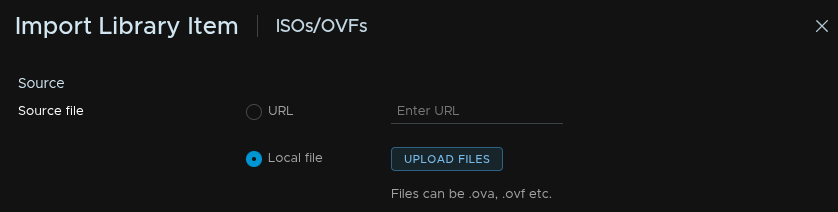
Then find and double click the ISO

And click Import
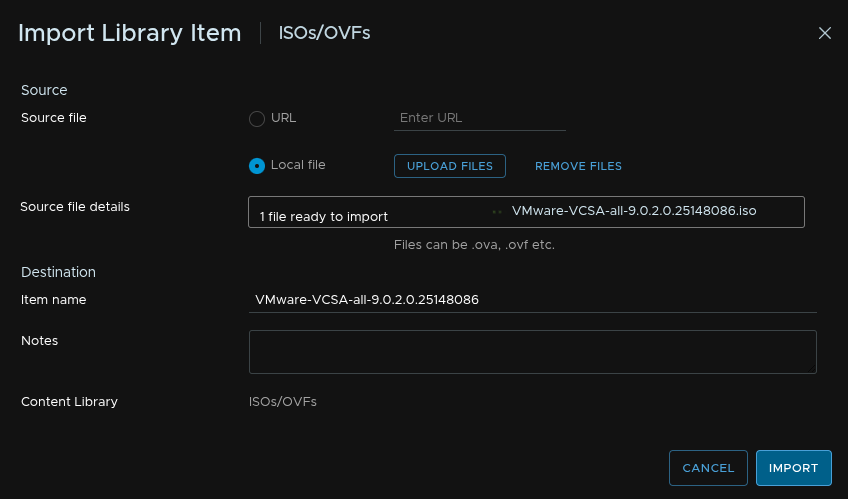
Now thats uploaded, back in the main vSphere menu, click the vCenter VM and click the Edit Settings Icon
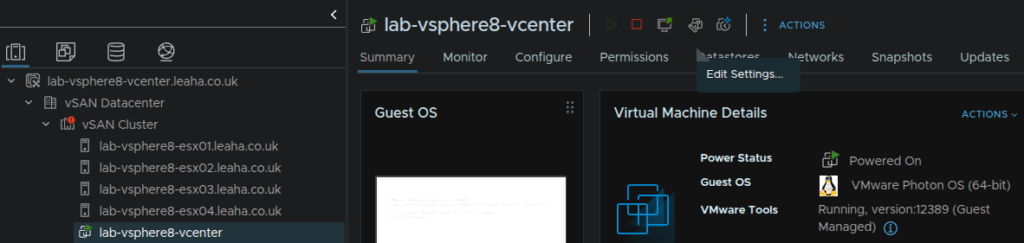
On the CD/DVD drive part click the drop down and select Content Library ISO File, if you uploaded this to a datastore, select that option and browse to it
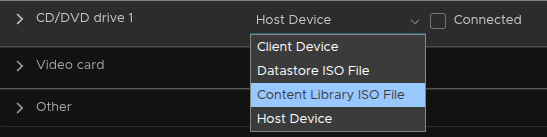
Click your ISO and click ok
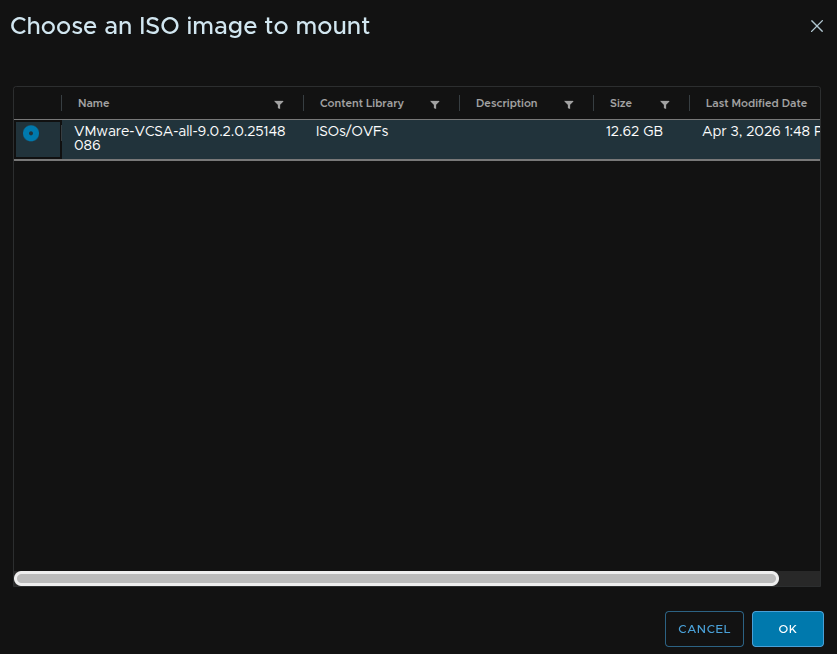
Click the Connected check box and click ok
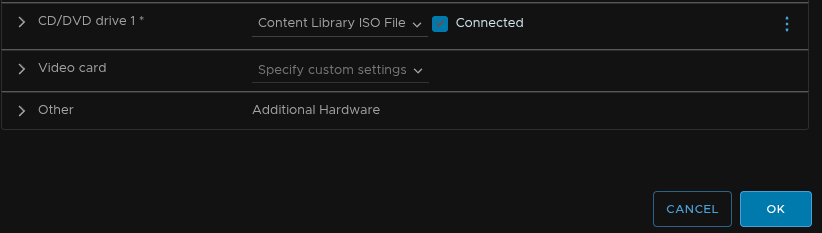
Now on the left, click the vCenter object
Click Updates at the top, which should land you on the vCenter Server/Upgrade tab, here click Next
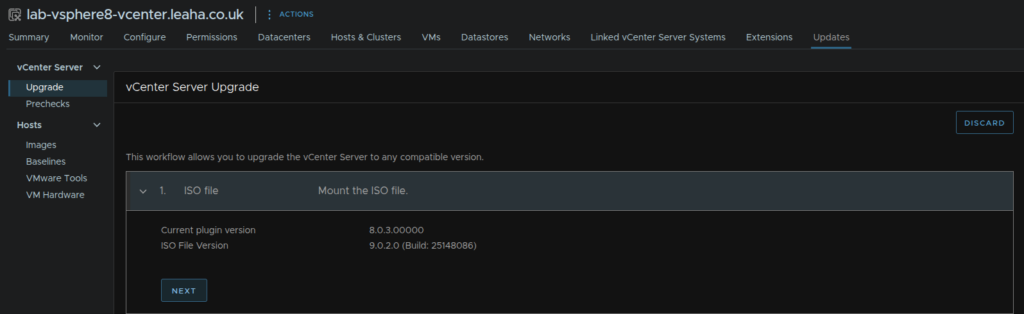
Now you should have a configuration backup scheduled in the VAMI portal, daily, and this guide assumes you do, if not set one up and take one manually now, the VAMI portal can be found at
https://<vcenter-fqdn>:5480
Check the box to say vCenter has been backed up ensuing your time is within 24 hours and click Next
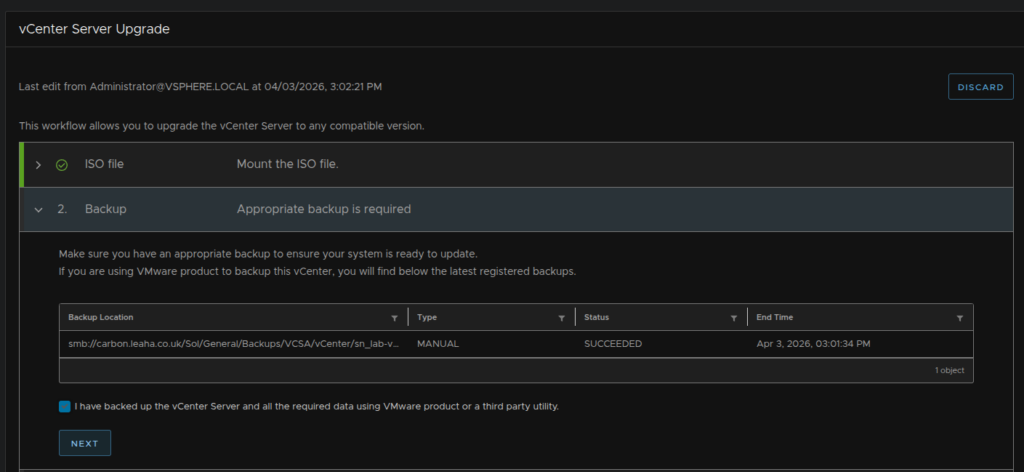
Click Upgrade Plugin

When thats done, you’ll need to click back to the vCenter Server/Upgrade section as its moved below hosts and click Run Pre Check
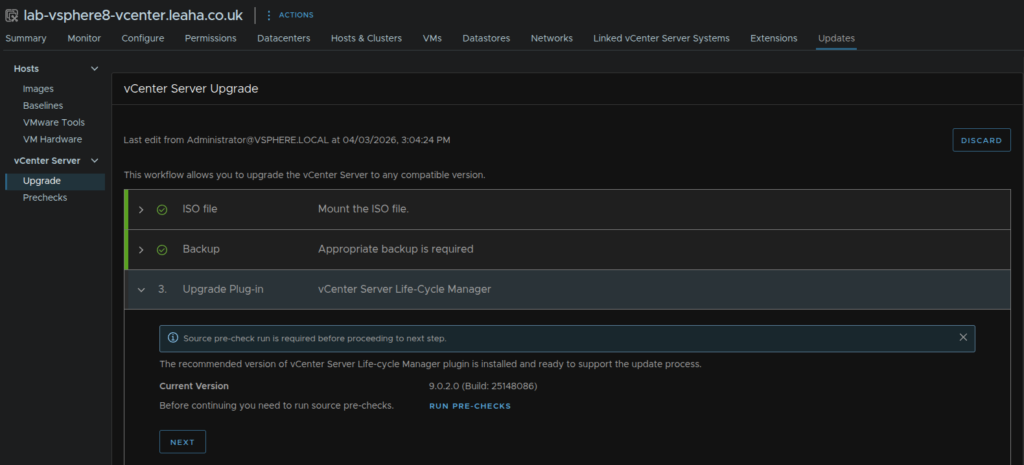
When thats done click Next, you will need to address any warnings
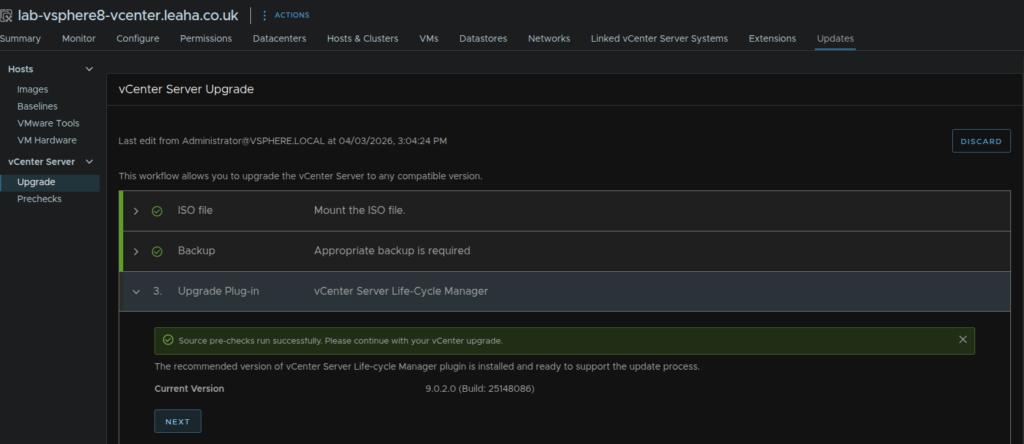
Now click Configure Target Appliance
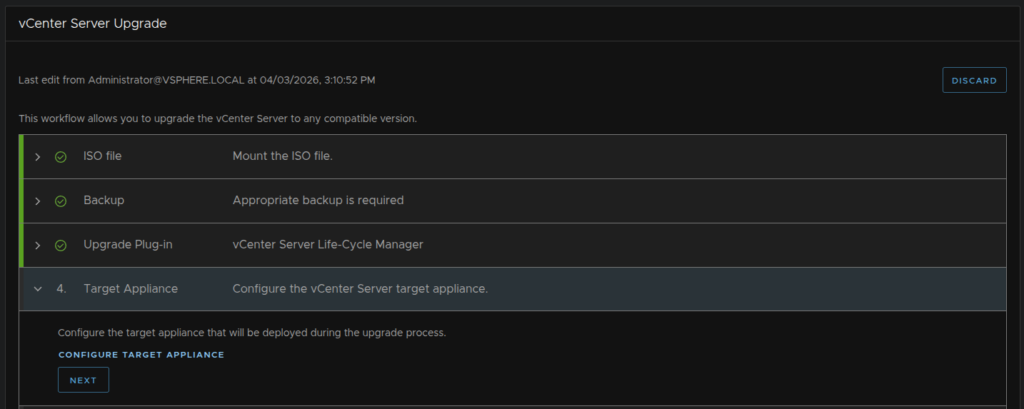
Accept the EULA and click Next
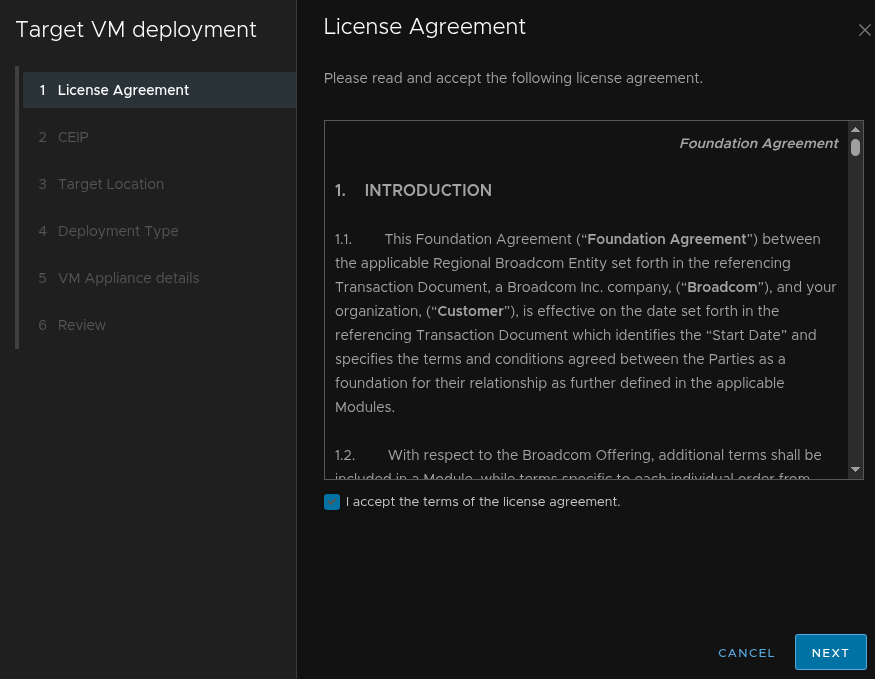
Either opt in or out of the Broadcom CEIP and click Next
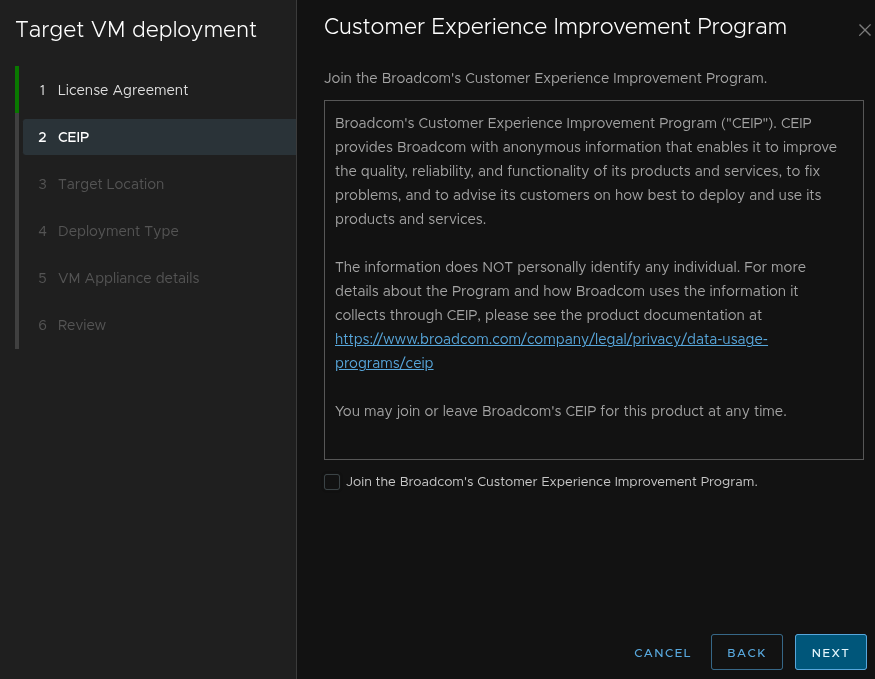
Now, for the source, the vCenter here must be located in cluster it manages for the convergence, as the first vCenter upgraded becomes the management domain
If your vCenter is located within the cluster it manages use the first option to deploy it in the same environment the current vCenter is deployed in
If your vCenter isnt it must be moved in, so use the second option and specify an ESX host thats in the cluster, it must have a standard port group, or ephemeral VDS port group on the same VLAN as the current vCenter
I will be using the first option as this type of vCenter should always be in the same cluster it manages
When you are happy, click Next
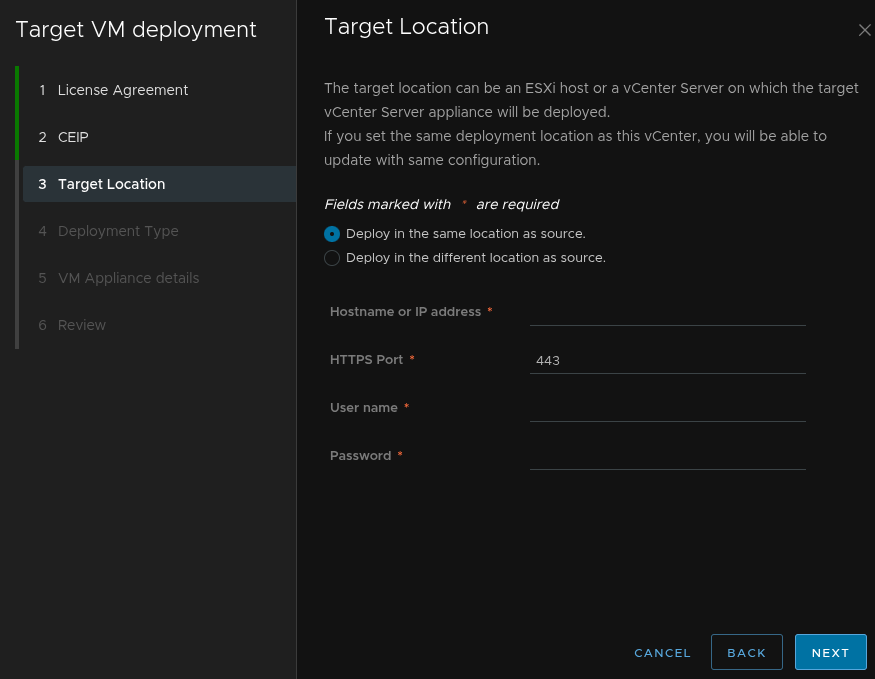
This configuration should match the current vCenter, click Next
Its worth noting, you will get an error here if your vCenter is on a static VDS port group, it mustnt be on one, create a new Ephemeral VDS port group and move it to that
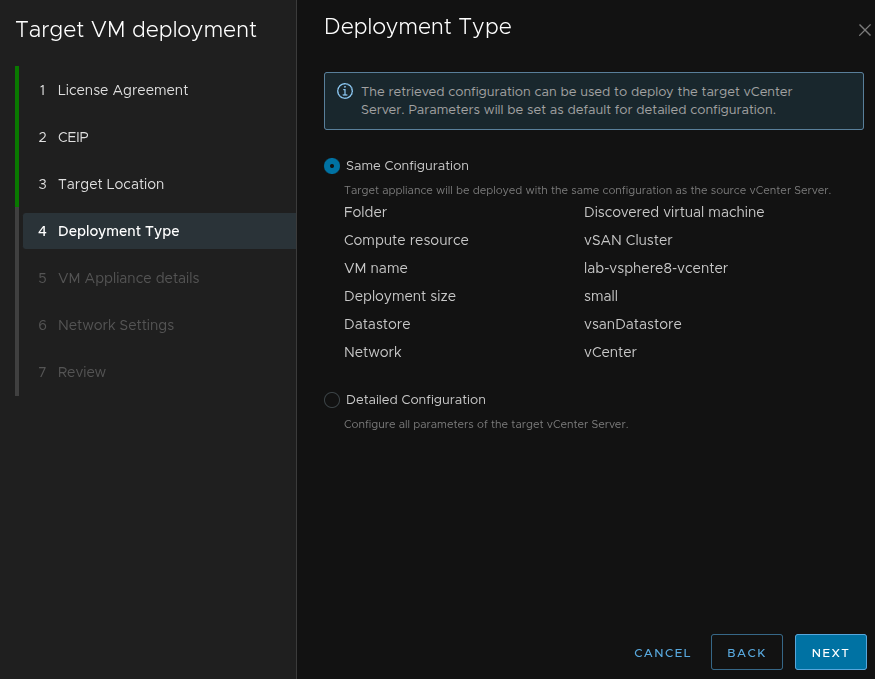
Give the new vCenter a VM name and set a temporary root password, then click Next
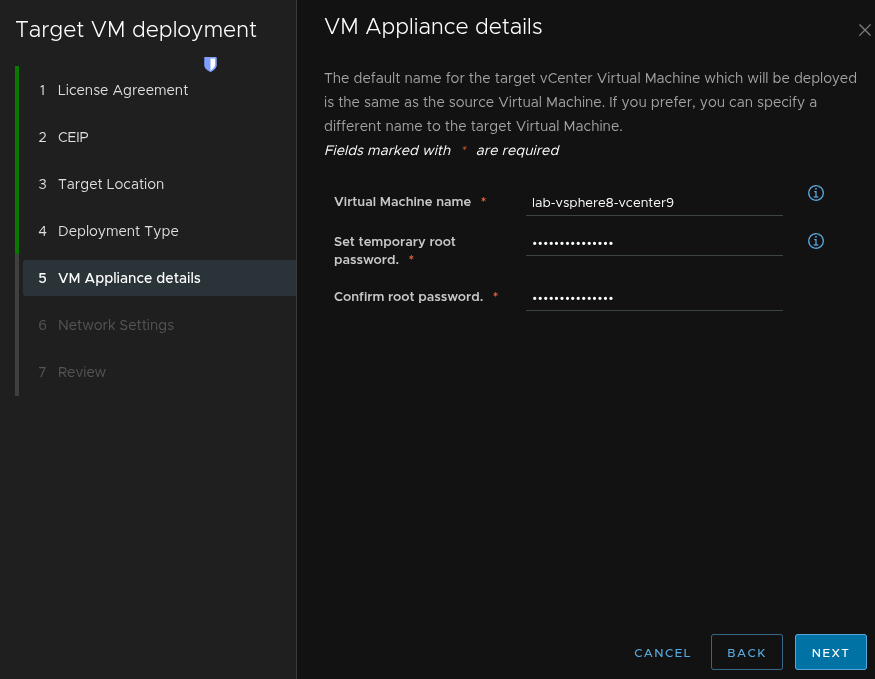
Set the Network Configuration to Manual, then select the port group for Network, we then need an IP, make sure IP Assignment is Static, then provide a temporary IP, thus must be on the same subnet the original vCenter is on, we also need a subnet prefix, gateway and DNS servers, comma separated, then click Next
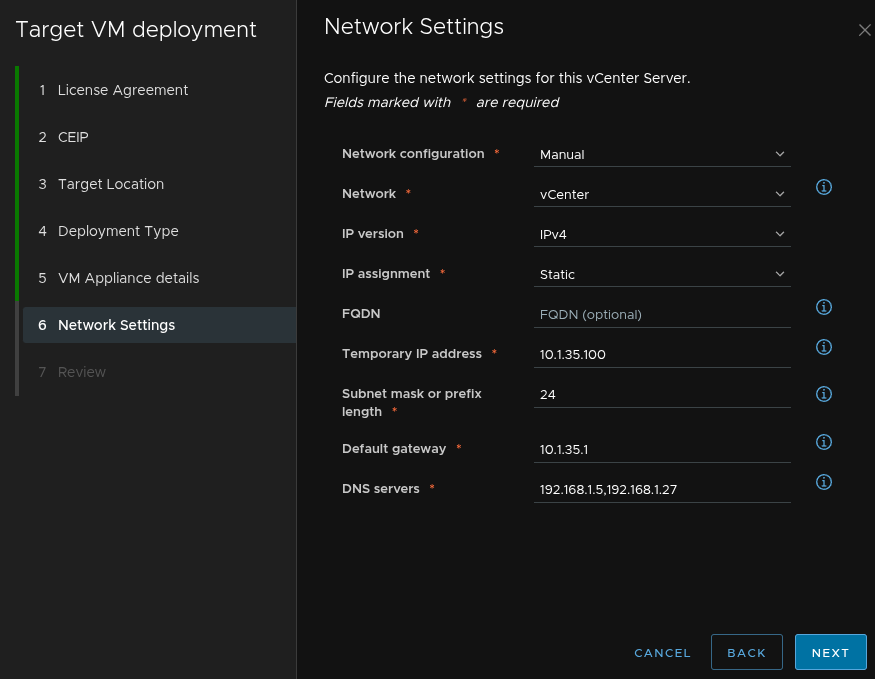
Review the configuration and ensure you are happy with it, then click Finish
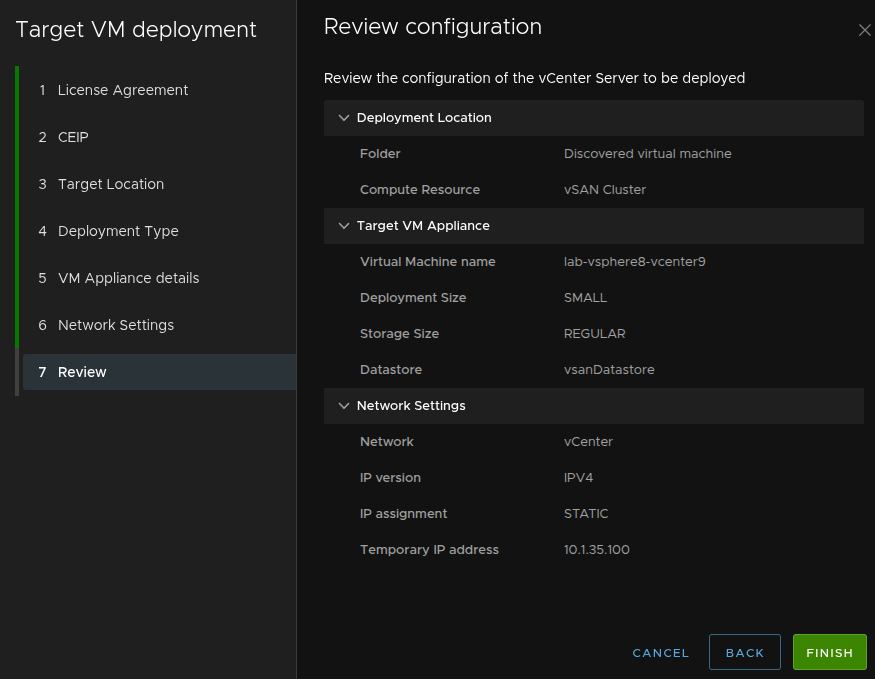
Then click Next
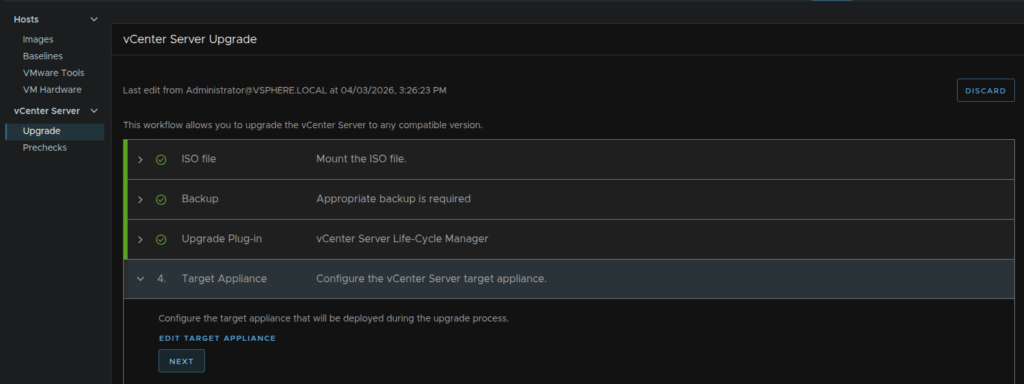
Now click Start Upgrade
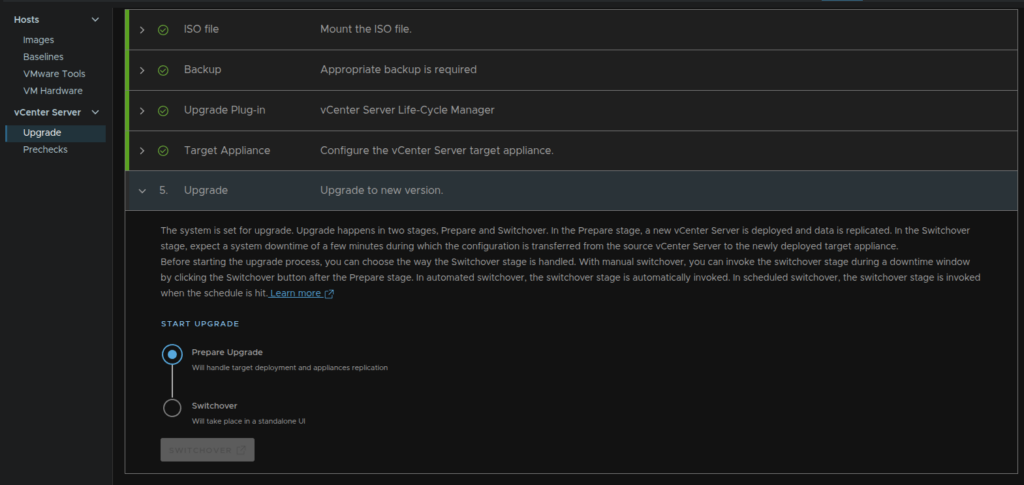
Set the Switchover Execution to Automatic to switch over to the vCenter 9 appliance as soon as its ready to and click Start Upgrade
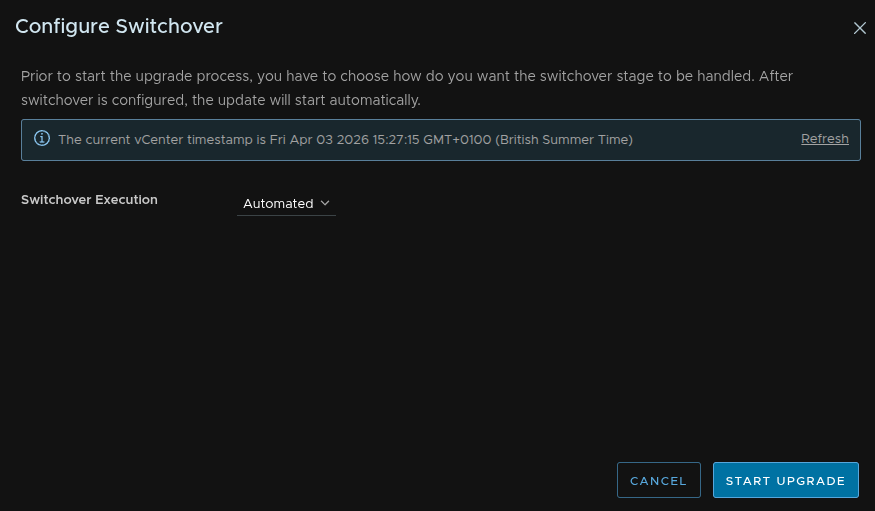
When the switchover is done you will see the vCenter UI look like this and you can open the UI
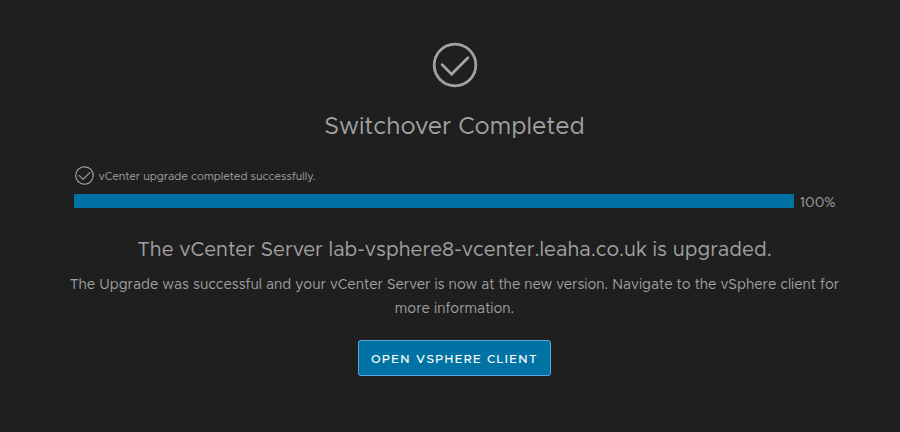
The old vCenter will remain in the environment
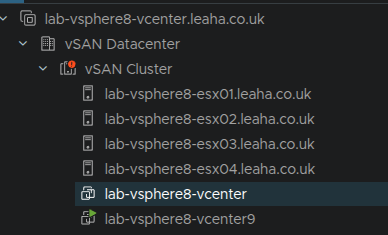
We then need to re enable DRS, click the cluster and click Configure/Services/DRS/Edit

And change Partially Automated back to Fully Automated
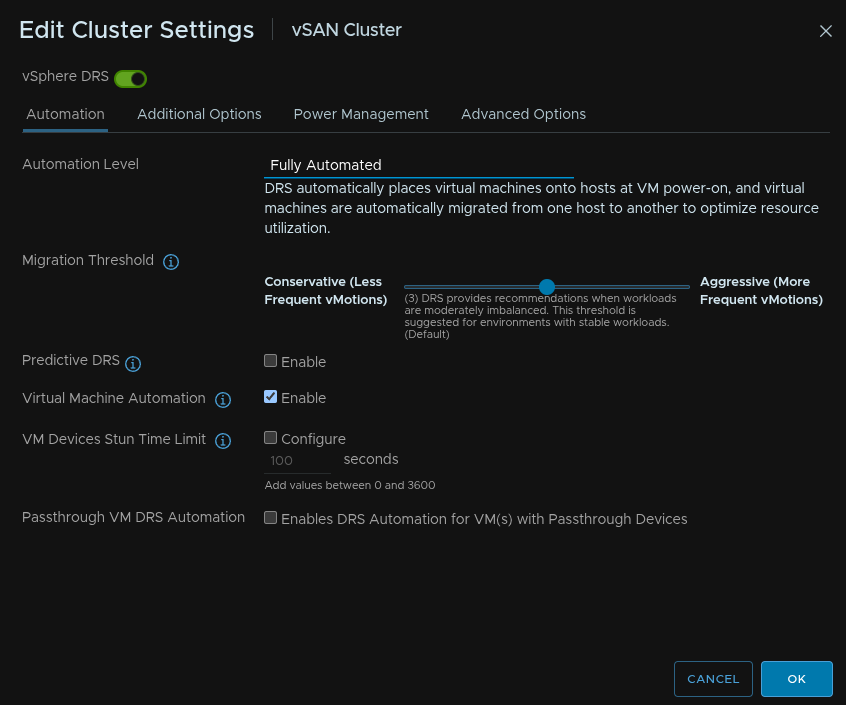
3.2 – ESX
Now we need to upgrade ESX, there should be a cluster image present, so click the cluster and click Updates/Hosts/Image and click Edit on the image
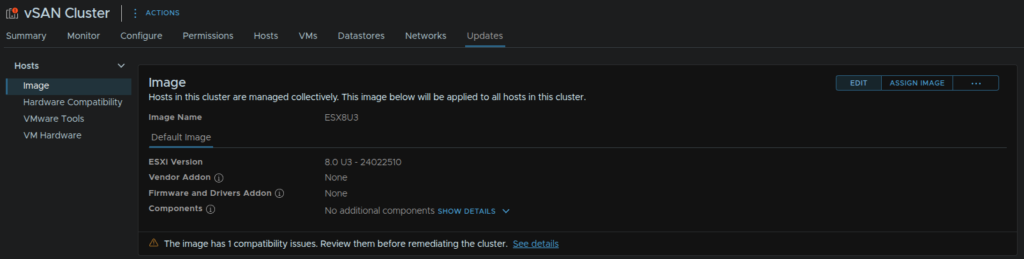
Rename the image if needed and select the ESX version from the drop down as 9.0.2, if you need a vendor addon click Select on that
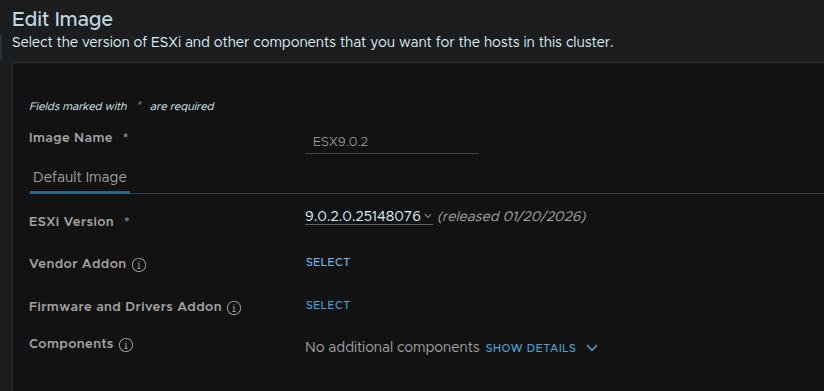
Select the following for Dell
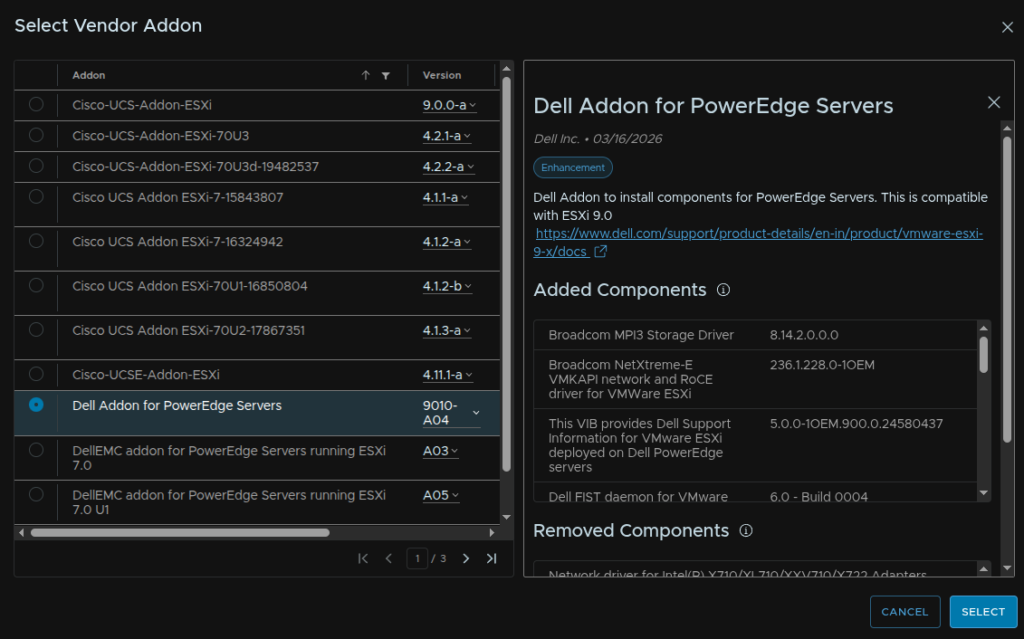
And this for HPE
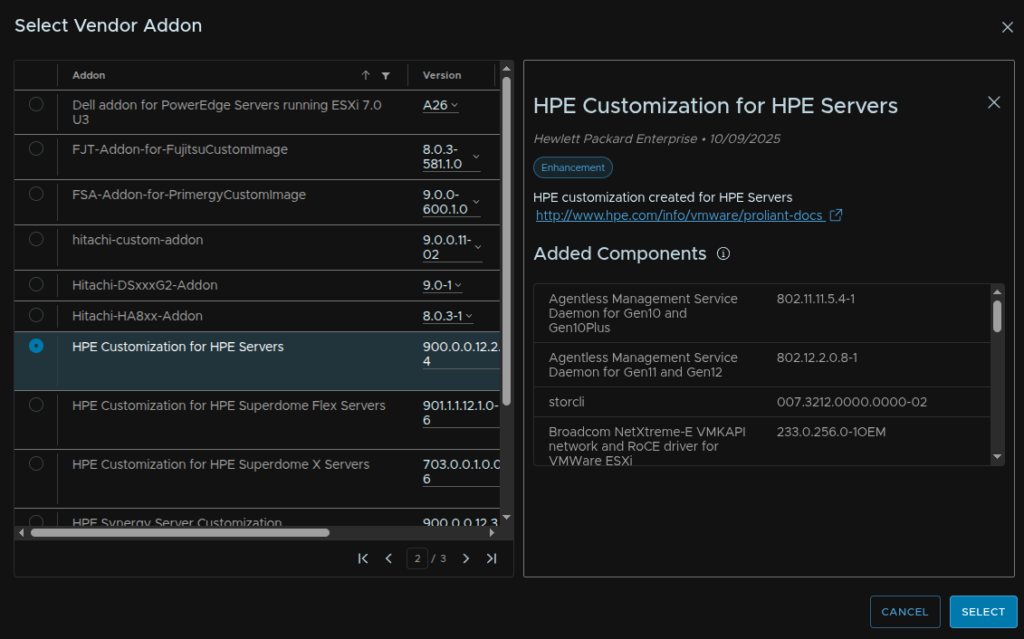
When you are happy click Validate
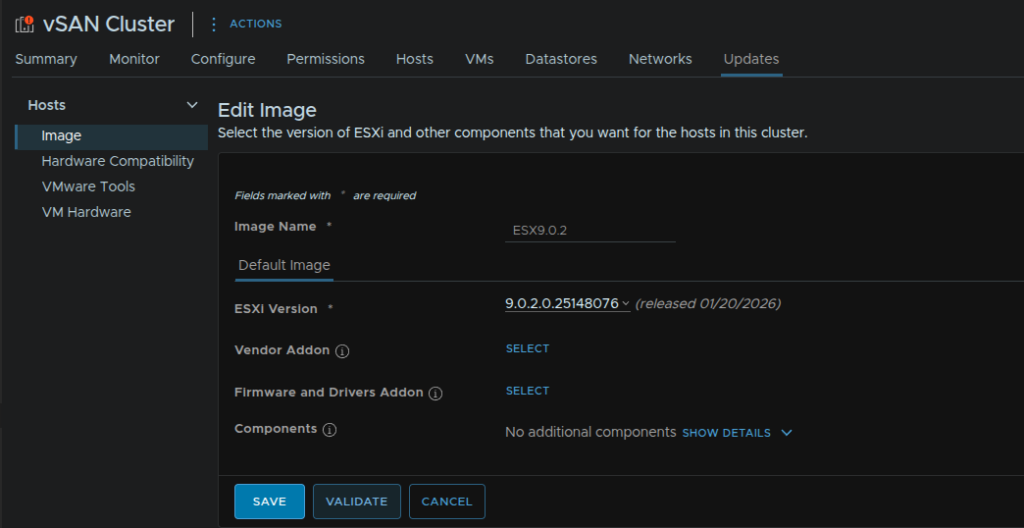
When its valid, click Save
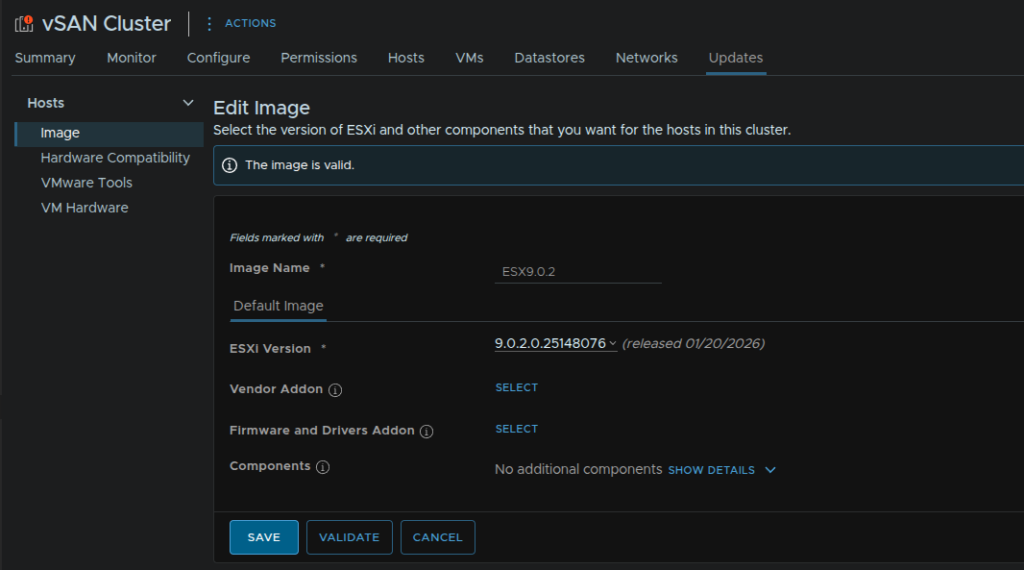
When you are ready click Remediate All
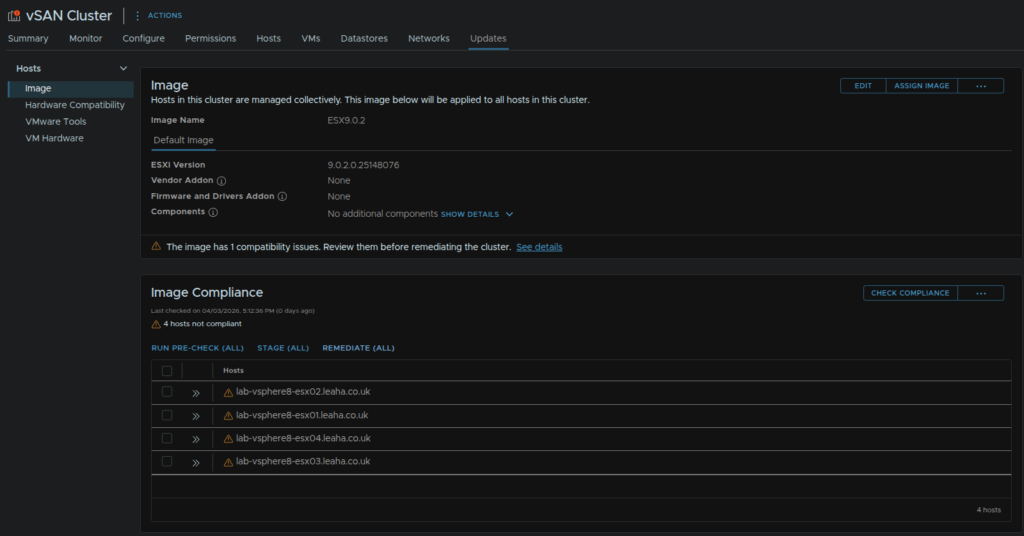
And click Start Remediation
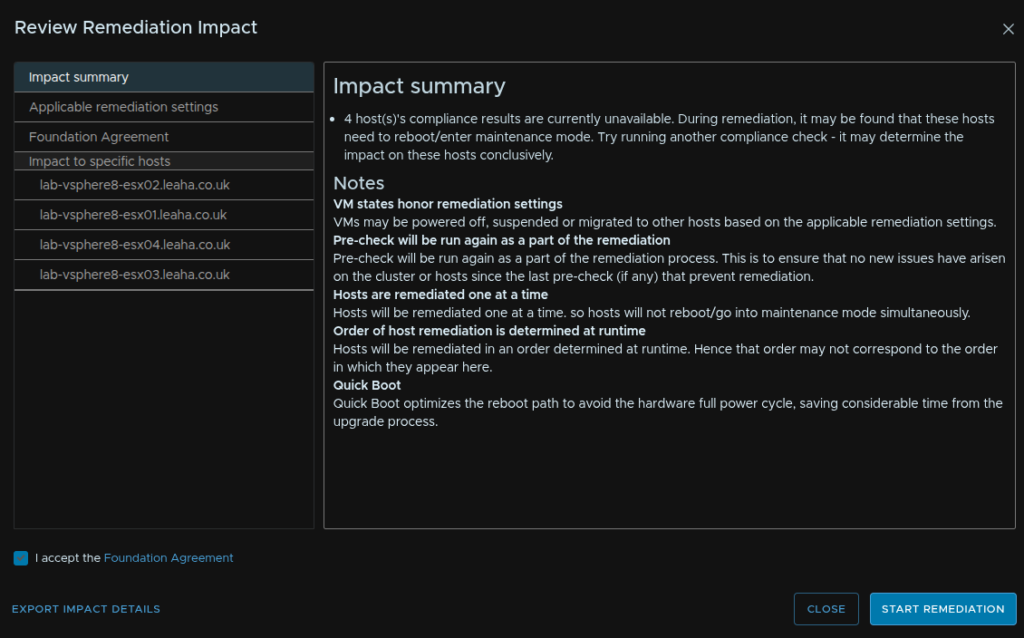
3.3 – vSAN
The disk version needs upgrading after ESX has been done, to start this click the cluster and head to Configure/vSAN/Services and click Pre-Check Upgrade
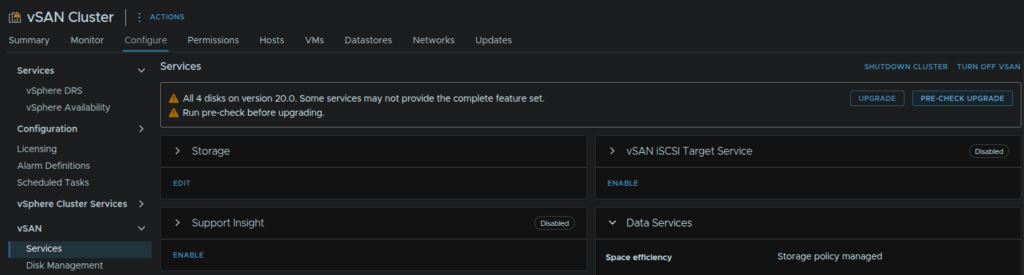
It should say ready to upgrade, click Upgrade
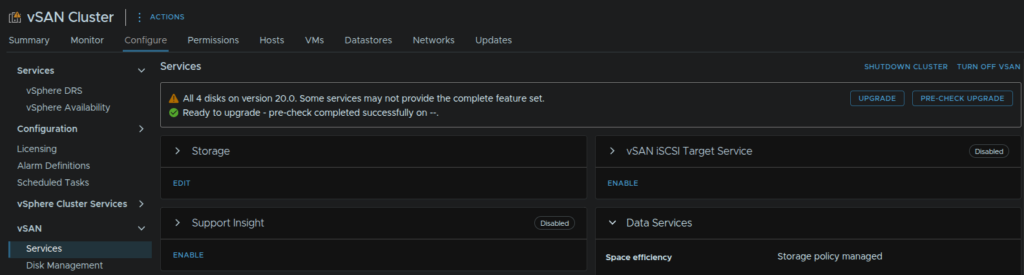
Then click Upgrade again
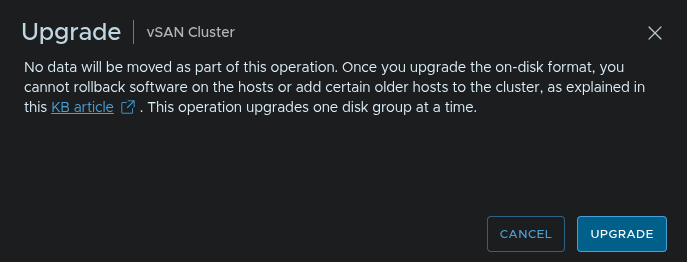
This will take a little while and will run in the background, when its done it will say all disks have been upgraded
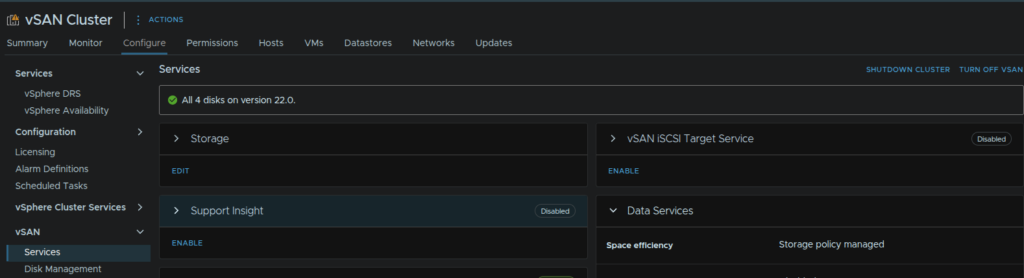
3.4 – VCF Installer
3.4.1 – Appliance Deployment
We need to get the SDDC Manager from the Broadcom portal, click into VMware Cloud Foundation
Then select the target release, in my case 9.0.2
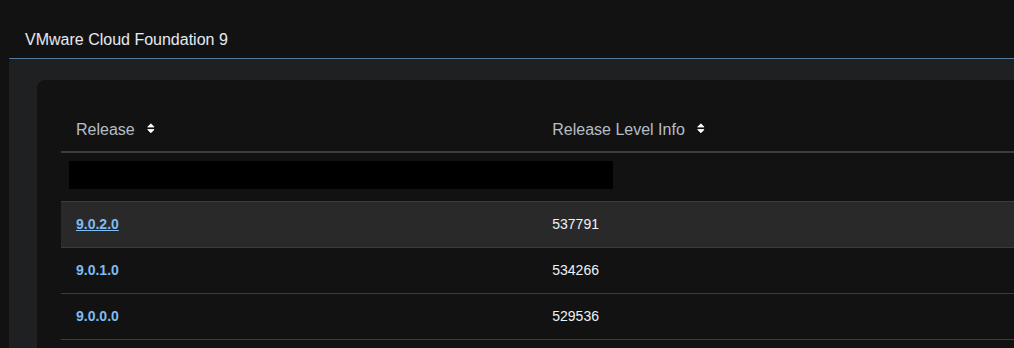
Click View Group on the VMware Cloud Foundation Installer

And download the appliance

In vSphere, right click the cluster and click Deploy OVF Template
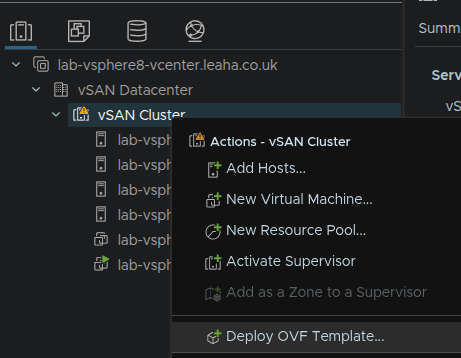
Select Local File then click Upload Files
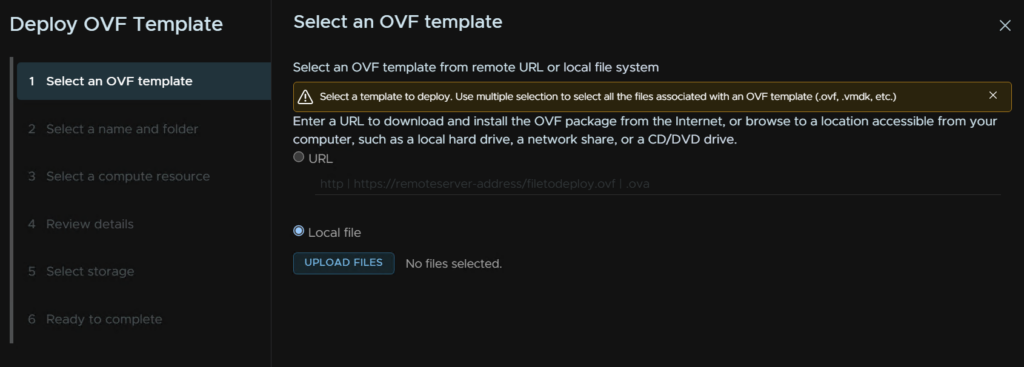
Then double click the SDDC Manager OVA file

Now click Next
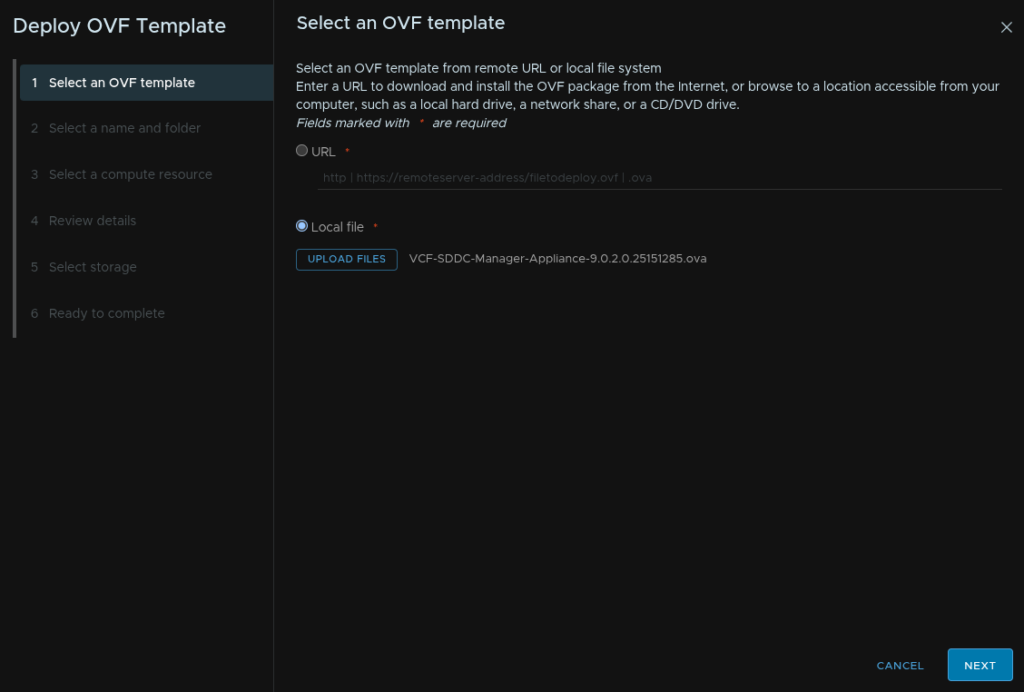
Give the VM a name, and optionally a folder, then click Next
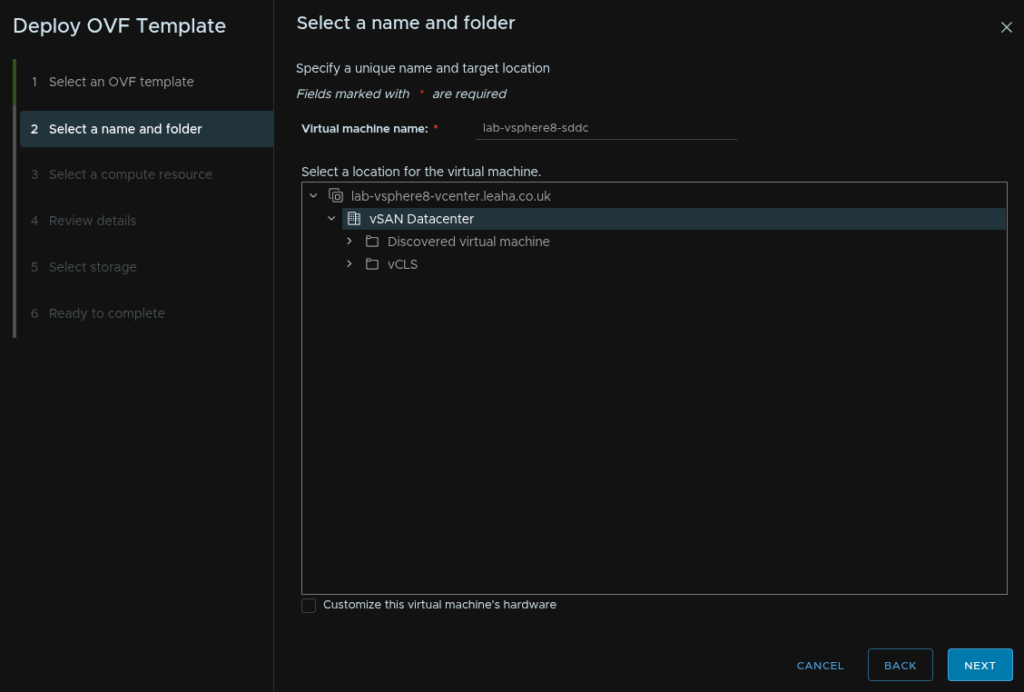
Compute should be populated with our cluster, check the box to automatically power the VM on and click Next
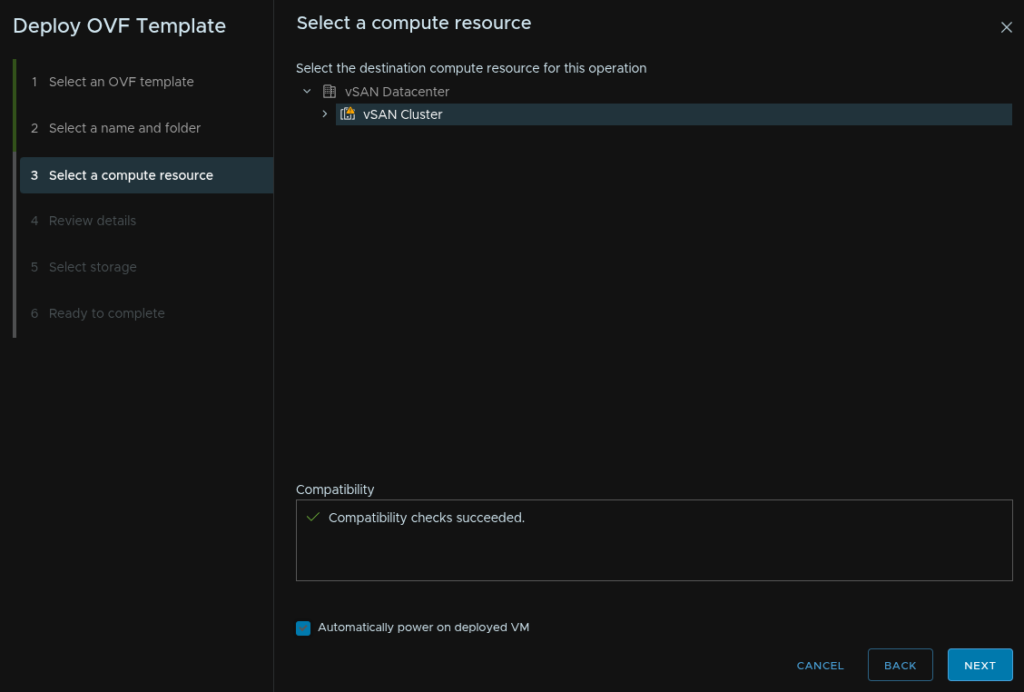
Click next here
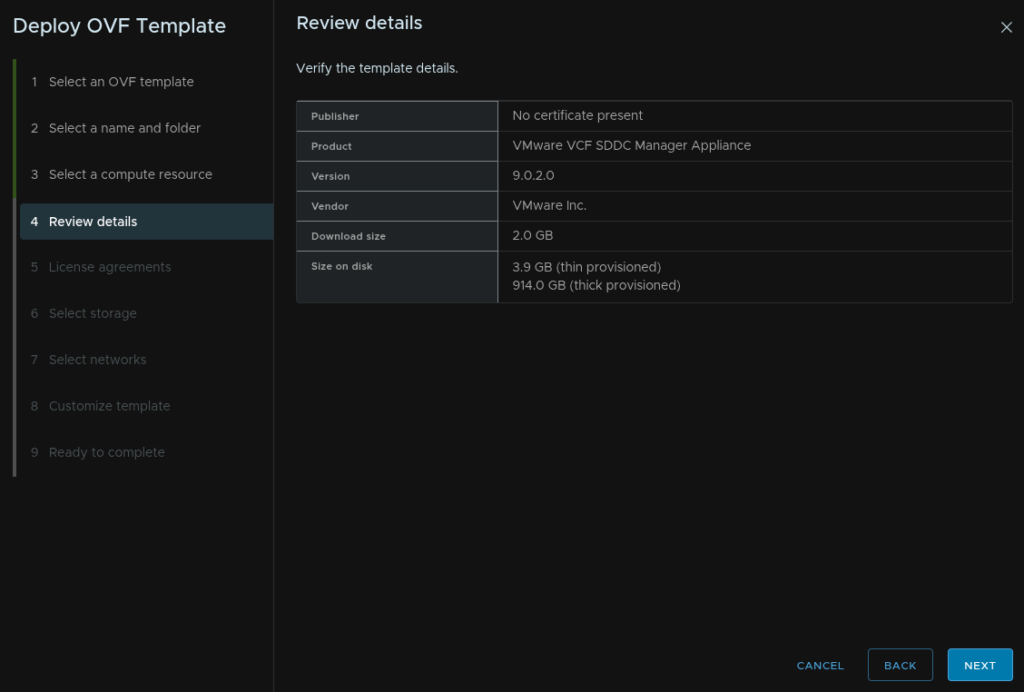
Accept the EULA
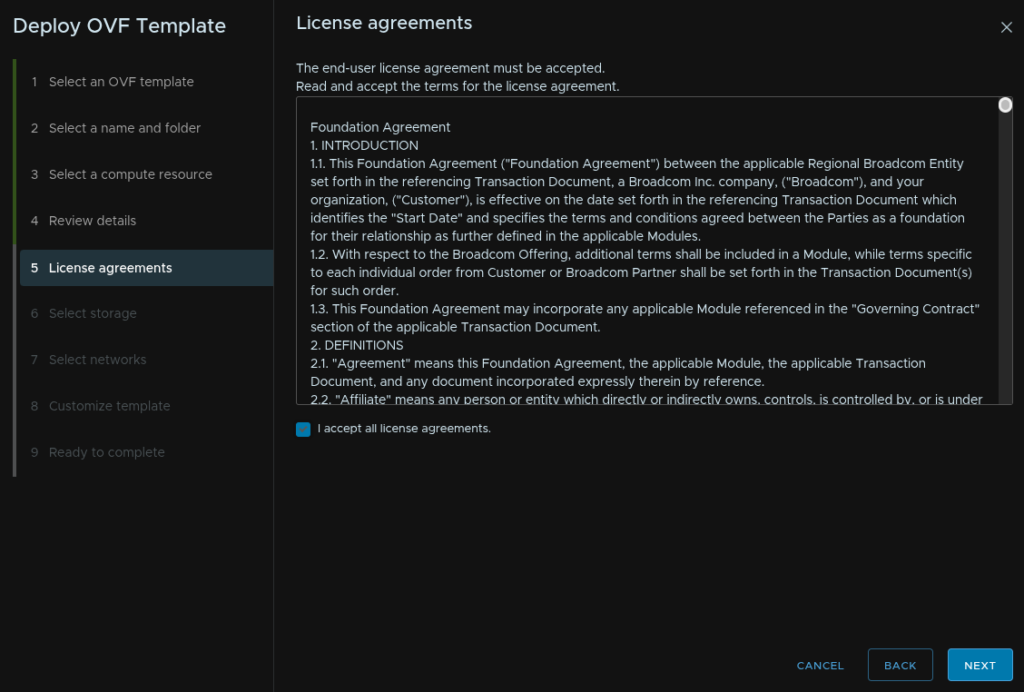
Select the datastore to put the VM and set the provisioning to thin and click Next
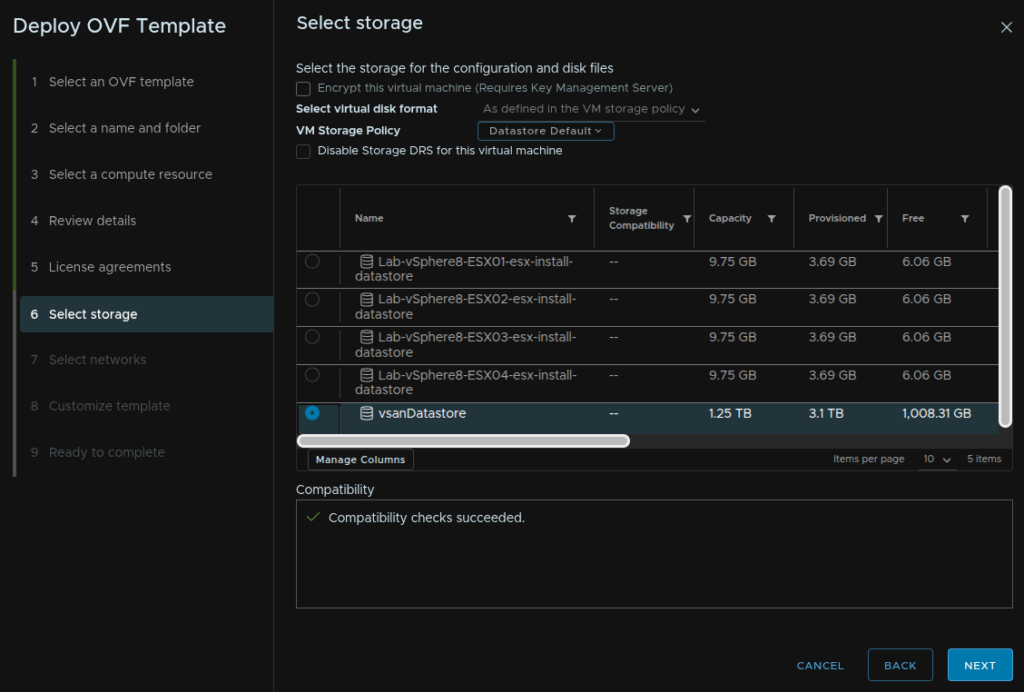
Select the network, this should be the same as the vCenter and click Next
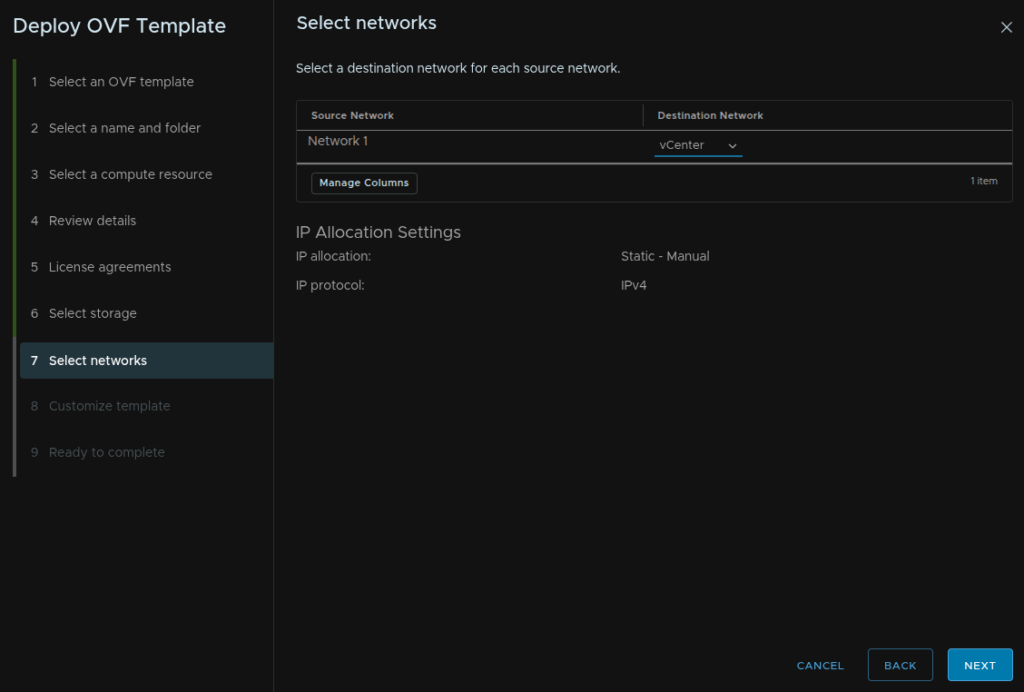
We then need a root password
This needs to be 15 characters long, the only allowed special characters are !@#$%^&*
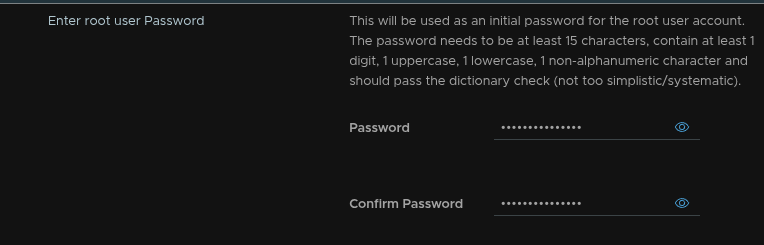
Then we need one for the admin@local account, this needs to be 12 characters, and the same special character requirement as the root password, as well as a hostname, this needs to be the FQDN, and a NTP server
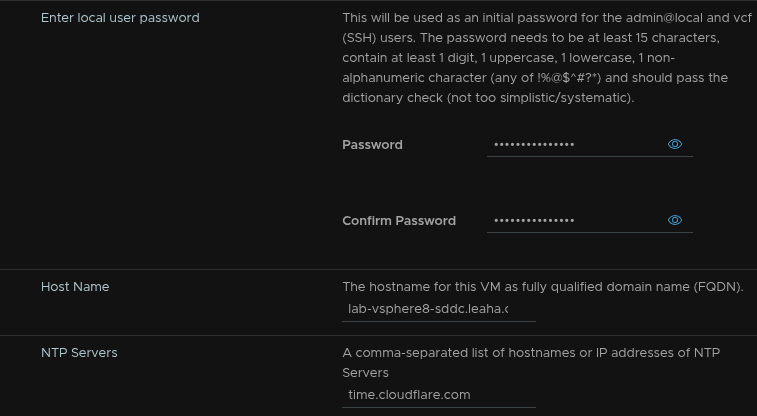
Then add the IP address, subnet mask, gateway, DNS domain, search domain and DNS servers, comma separated, then click Next
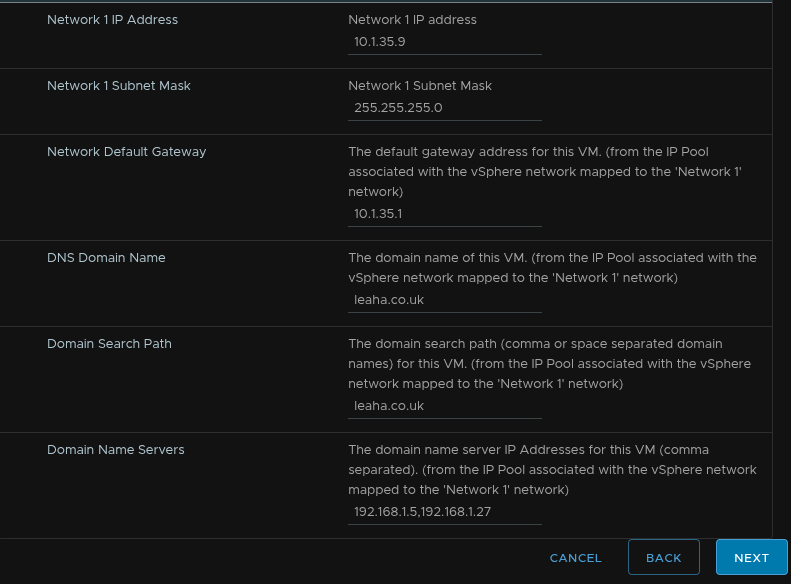
Then click Finish
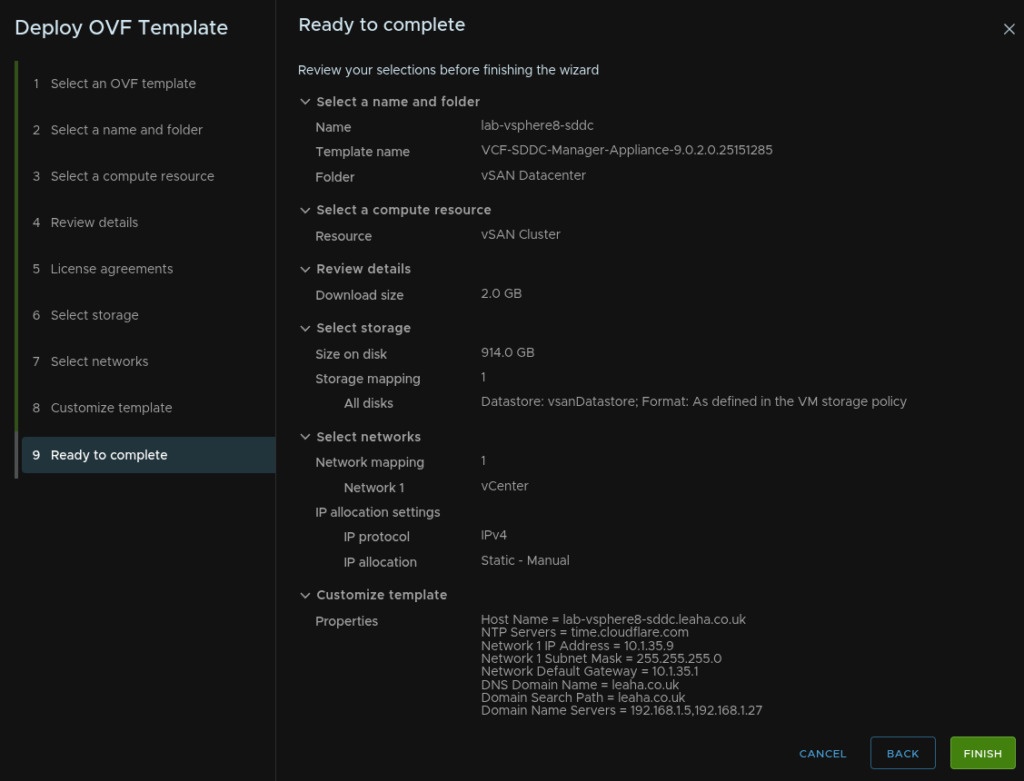
3.4.2 – Convergence
Its worth noting here, before proceeding you must ensure the vCenter you will be converging is hosted within its own cluster, not on an external cluster/vCenter else where, for example, the vCenter VM must be within the vCenter UIs inventory, if its not this MUST be addressed first, the easiest way to do this is by backing up the configuration and restoring it to a new vCenter hosted within the cluster
Any new appliances deployed through this will need to be have DNS names pre populated so they can be resolved
We will be skipping Automation here, this upgrade path assumes you have just vSphere and possibly vSAN, customers using this setup and nothing else are very unlikely to need Automation and it has a massive requirement on CPU and RAM, it can also be deployed later if you do need it
Once the server has booted and loaded, log into the WebUI on
https://fqdn
With the admin@local account
Under Download Binaries click Depot Settings And Binary Management, depending on what you have, you may need this, for example
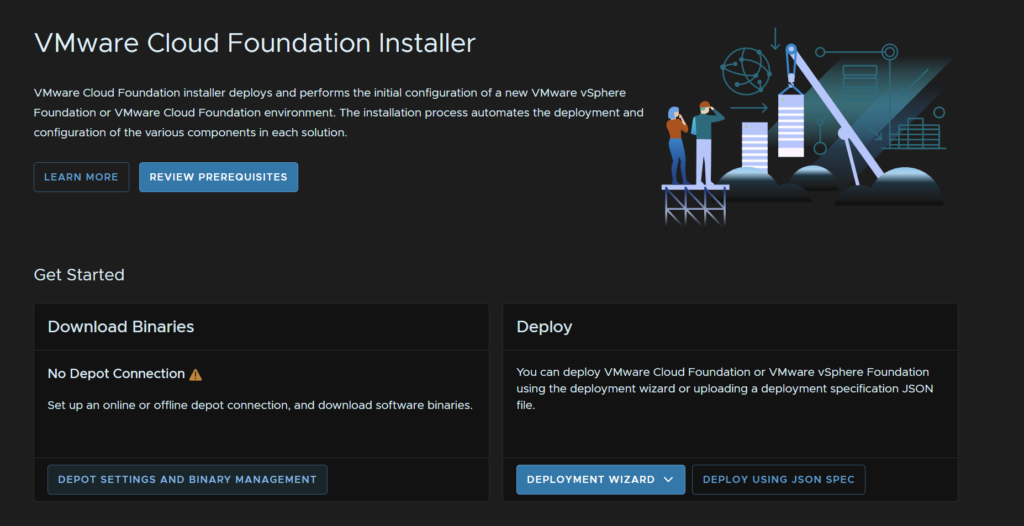
On the Connect To Online Depot Widget, click Configure
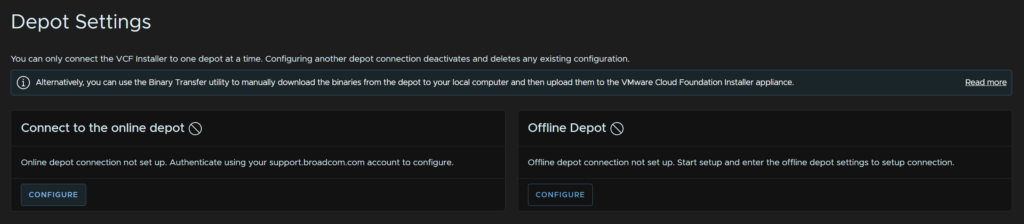
Add your token and click Authenticate
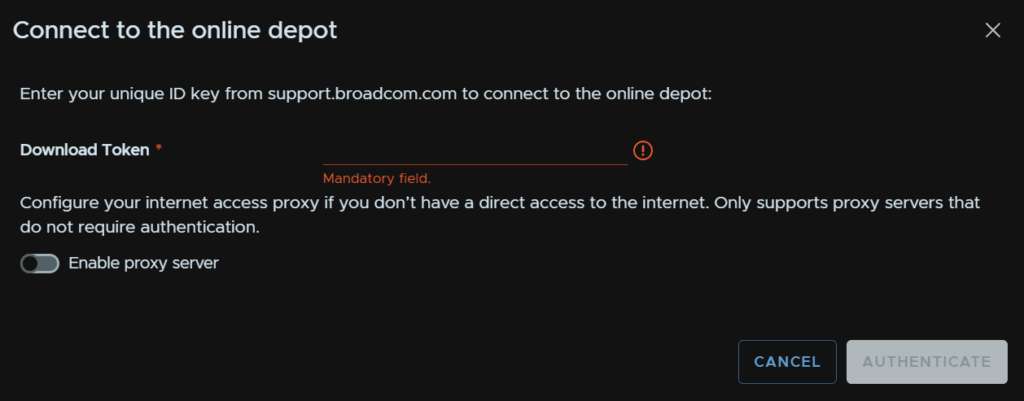
Make sure the version selected is the same version we have upgraded everything else to, in my case 9.0.2, we will want to download everything except the SDDC Manager, vCenter and VCF Automation
Select the below and click Download
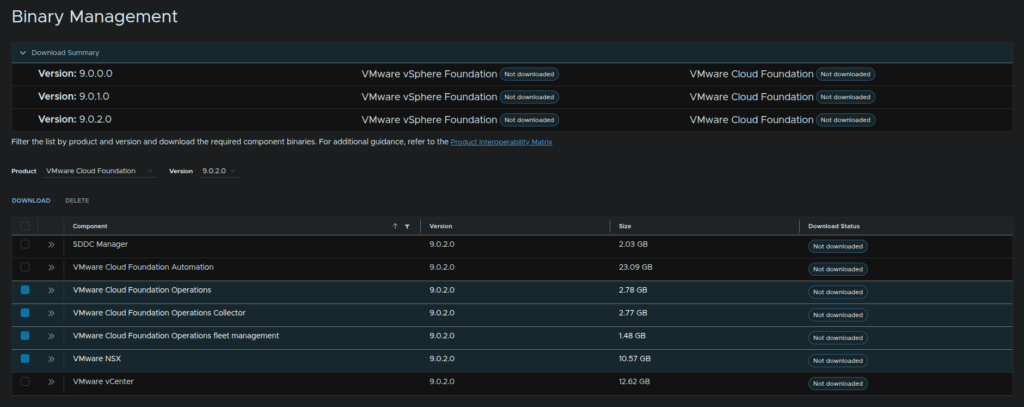
When its done it should look like this
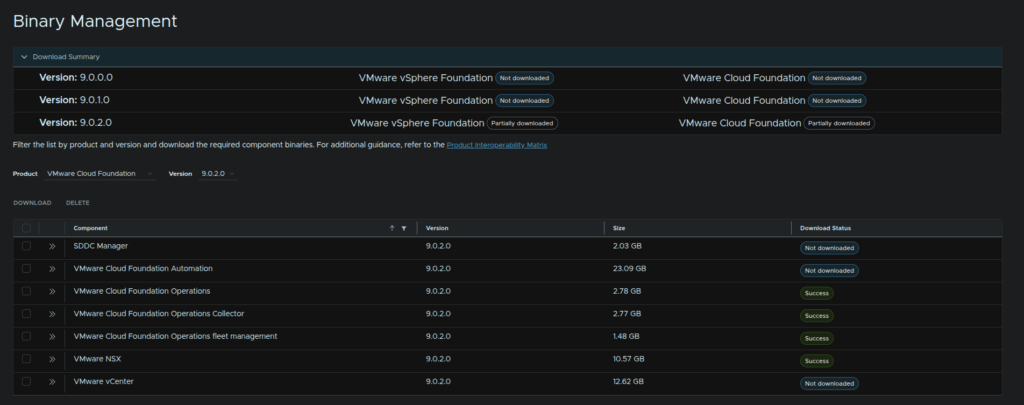
Once thats sorted, click return Home in the top left
Under the Deploy Widget, click Deployment Wizard/VMware Cloud Foundation
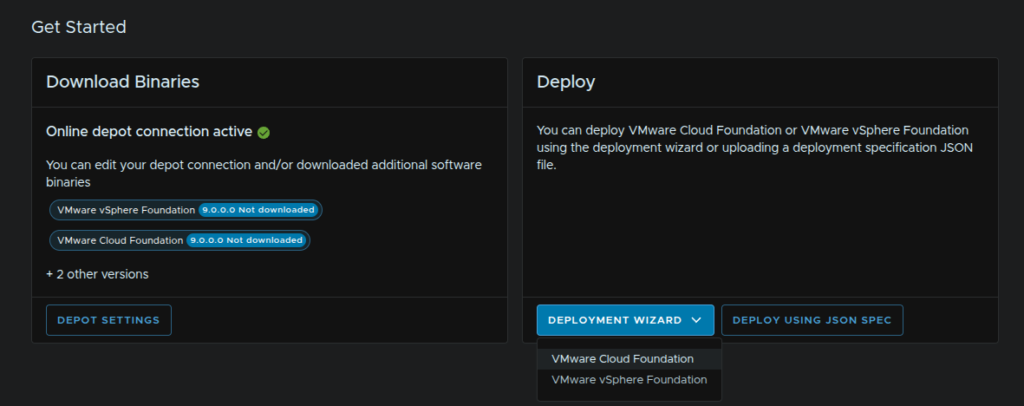
As we dont have any VCF setups, we want to click Deploy A New VCF Fleet, then click Continue
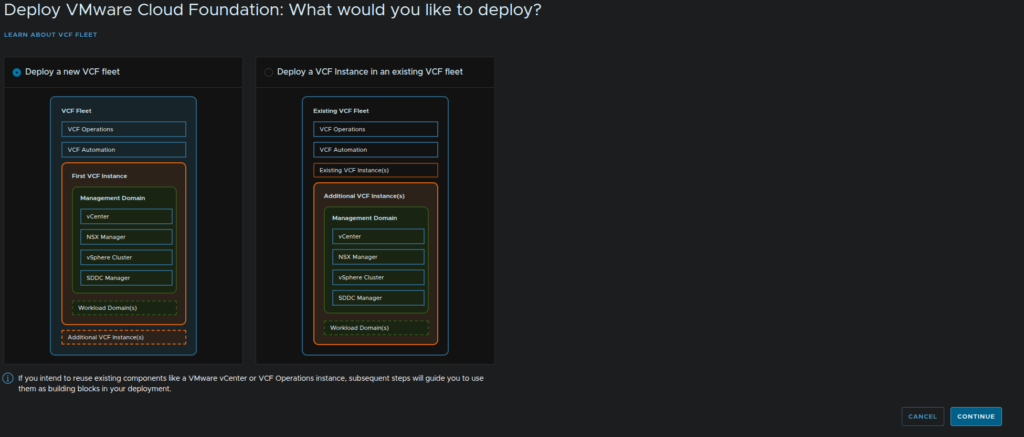
Check the vCenter box for existing components, then click Next
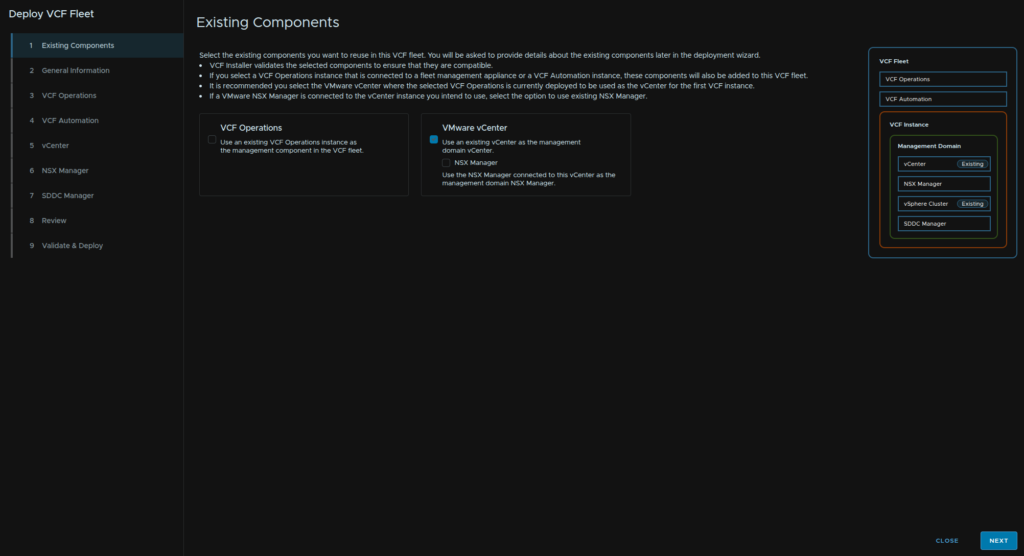
Select the version that matches what you have downloaded, name the VCF instance, I called it the same as the SDDC Manager appliance, then name the management domain, I used the vCenter name
For the deployment model select what best describes the other appliances, everything for me is single node, your NSX should be a 3 node HA cluster, but we can do that later if you want to use NSX
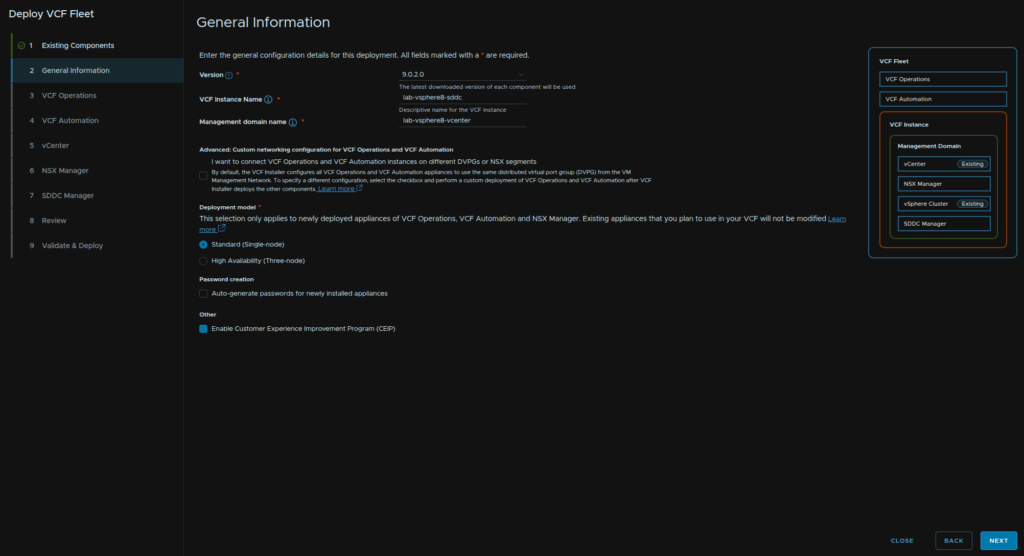
We need to select our Operations node size, then add the FQDN, ensure this is registered in DNS, then add an admin and root passwords meeting the requirements at the start of this section
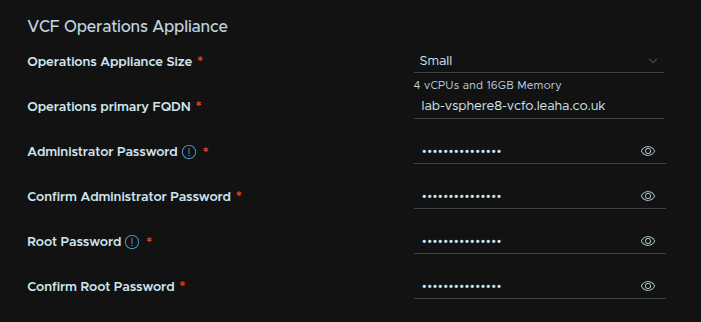
The fleet management appliance needs an FQDN, registered in DNS, then an admin and root password meeting the requirements
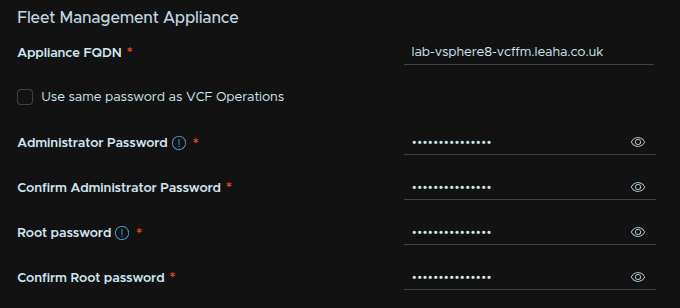
Lastly the collector for operations needs a DNS registered FQDN and a root password meeting the requirements
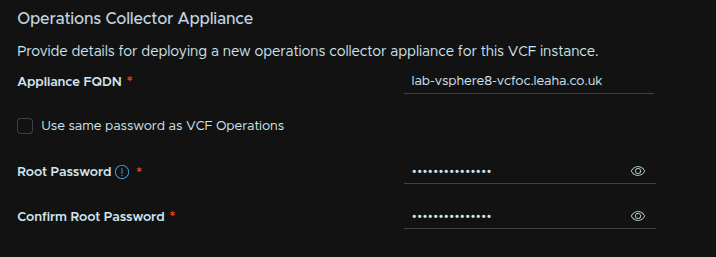
Then click Next in the bottom right
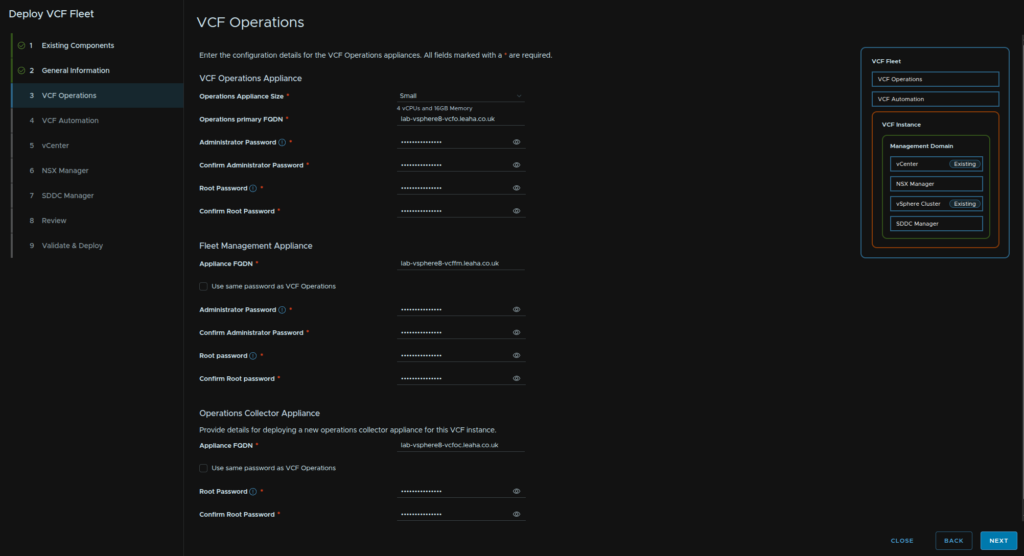
We can then check the box to set Automation up later and click Next
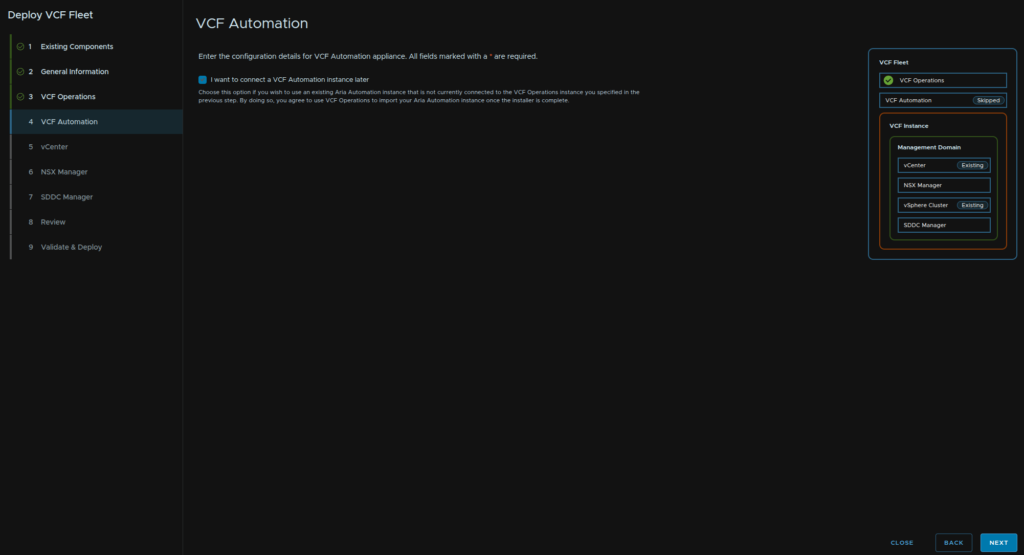
We then need to provide the vCenter FQDN, root password, SSO administrator account, this is normally [email protected], and the password for that account
When you are ready click Next
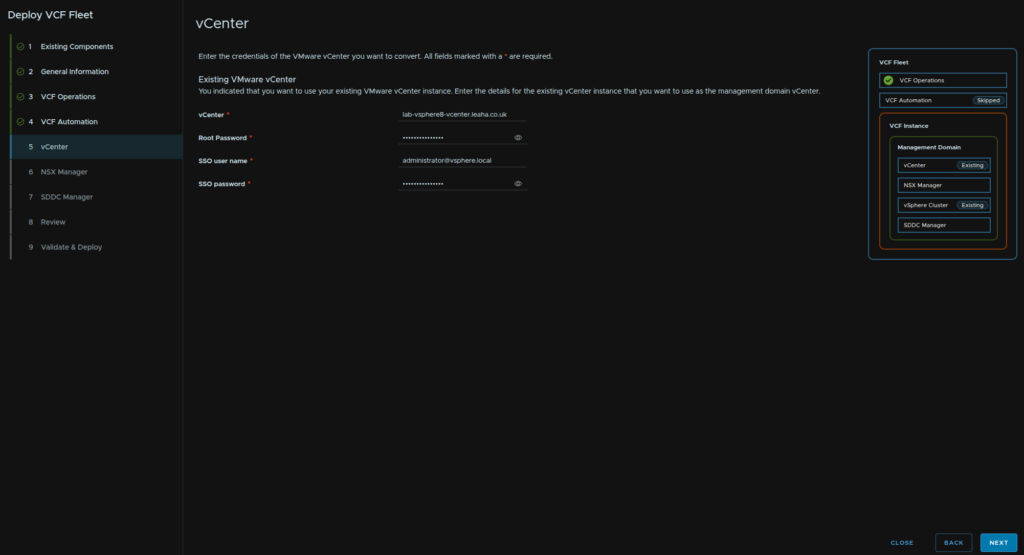
Accept the thumbprint and click Confirm
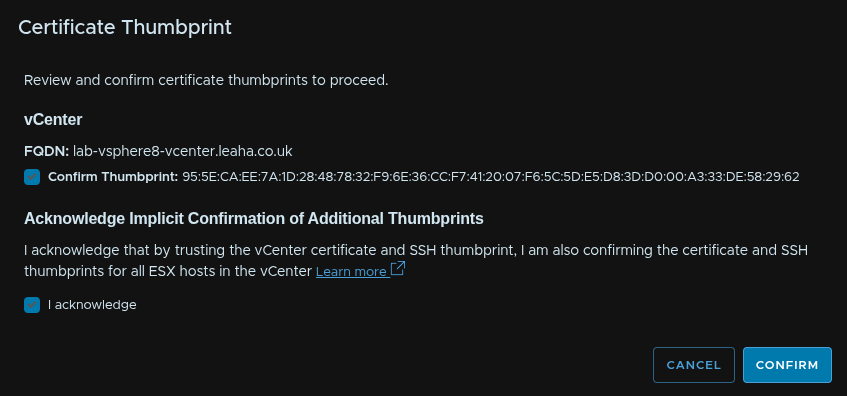
We then need to deploy an NSX manager, Medium will be the right size for this, we need a VIP FQDN and Appliance FQDN which are registered in DNS
Uncheck the toggle to configure NSX using ESX management networking and provide an admin, root and audit password and click Next
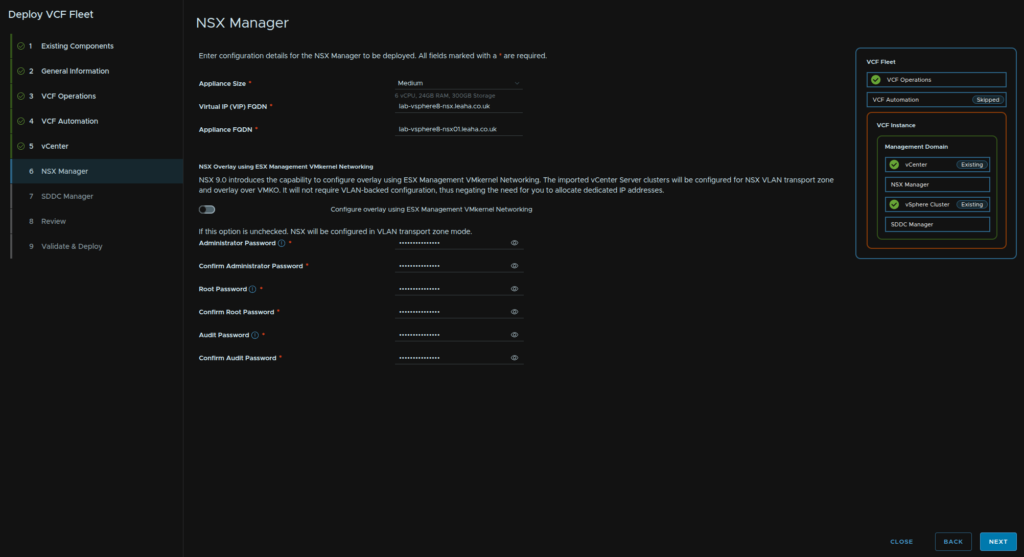
Enter the password for the SDDC Manager admin@local and click Next
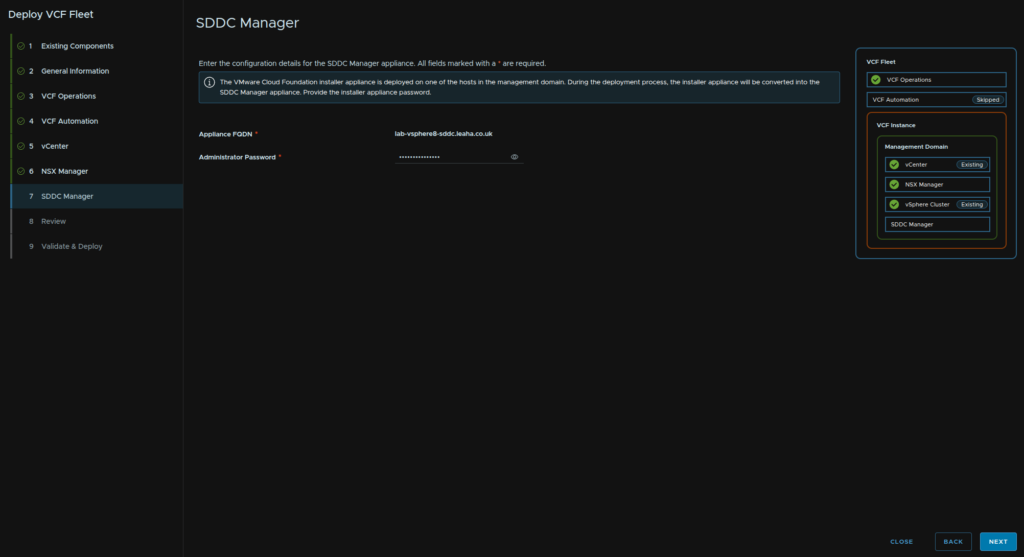
Review the summary and click Next
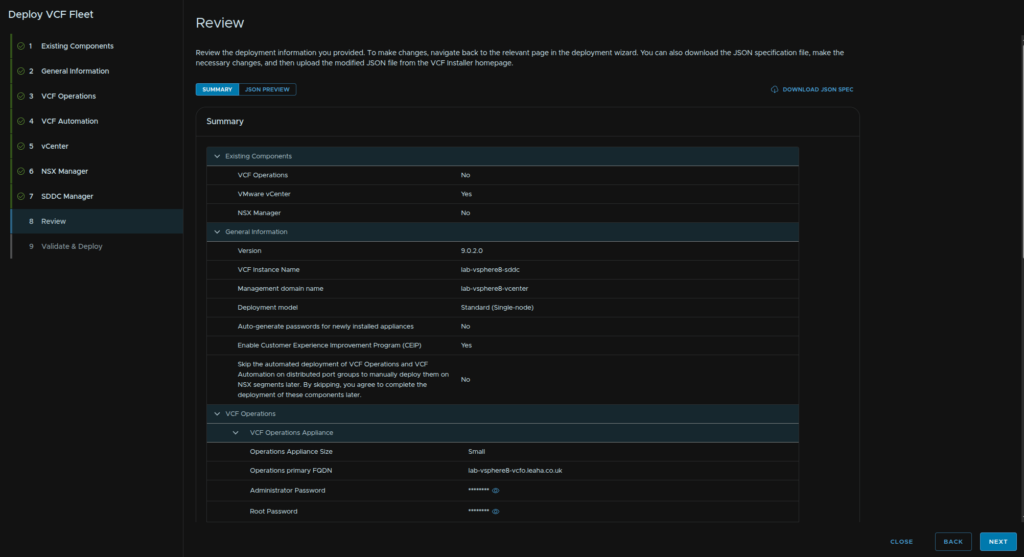
Once you correct any errors, you may see a warning around standard switches
VCF 9 targets a move away from them entirely, so I would recommend converting standard switches to distributed switches, but we can ignore this and click Acknowledge
Info about the evacuation policy can be found in section 5.4.3
For example
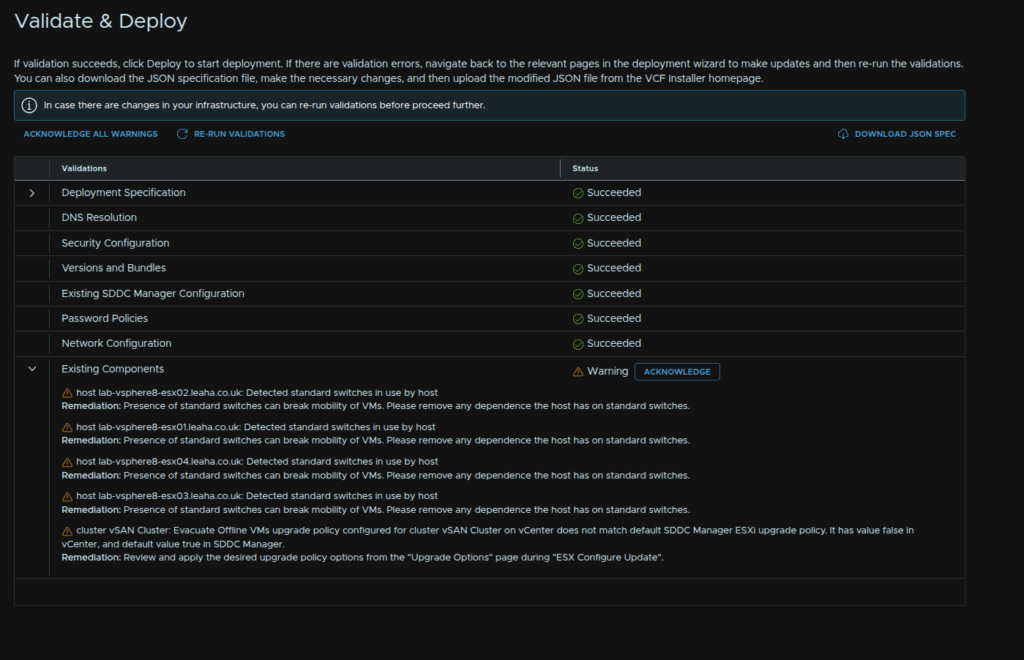
I did get some errors for vCenter being on a Standard Switch, this must be moved to a distributed port group, so if you have this you’ll need an ephemeral port group on a VDS to move the vCenter to, and ensure NTP is configured on all hosts

For the VDS port group
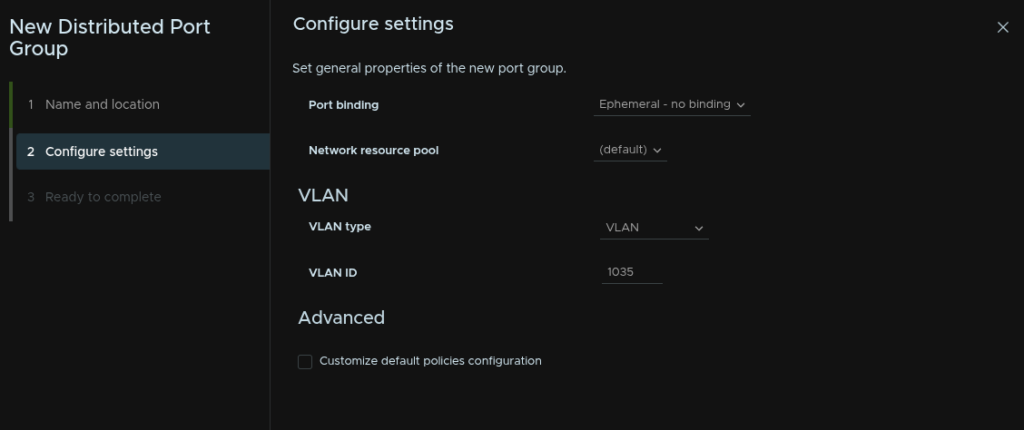
Once thats done click Deploy in the bottom right
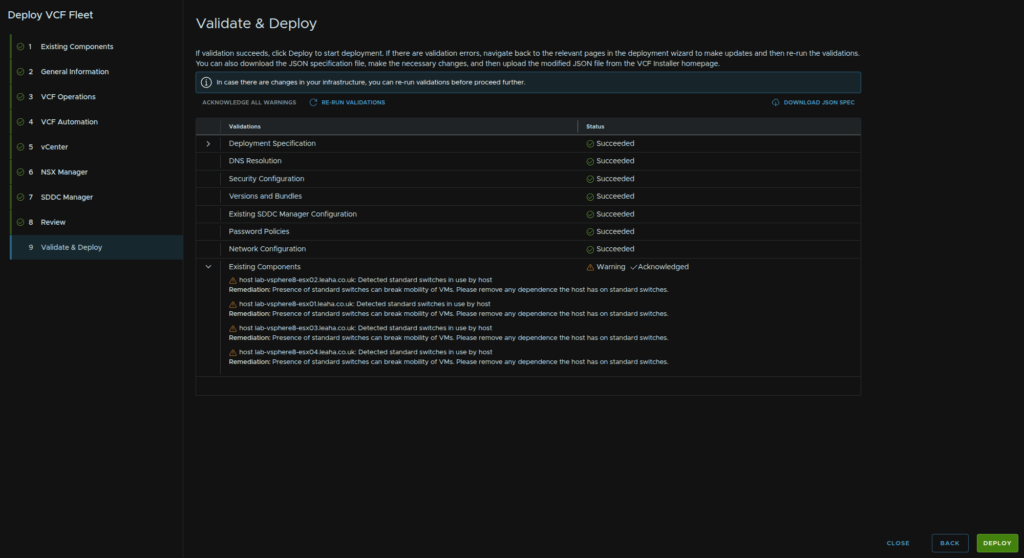
Then we wait for everything to be imported
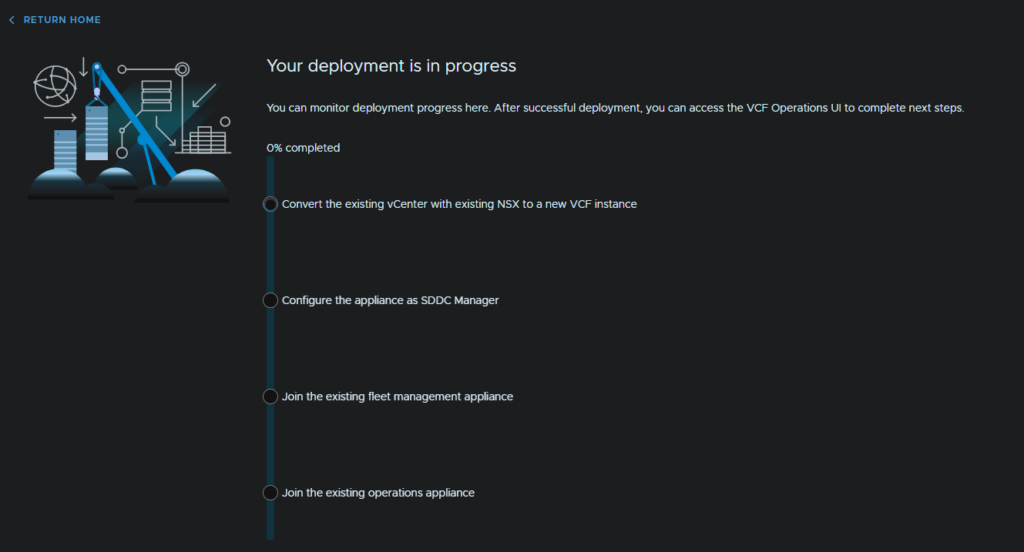
Once thats done we can open the VCF Operations UI
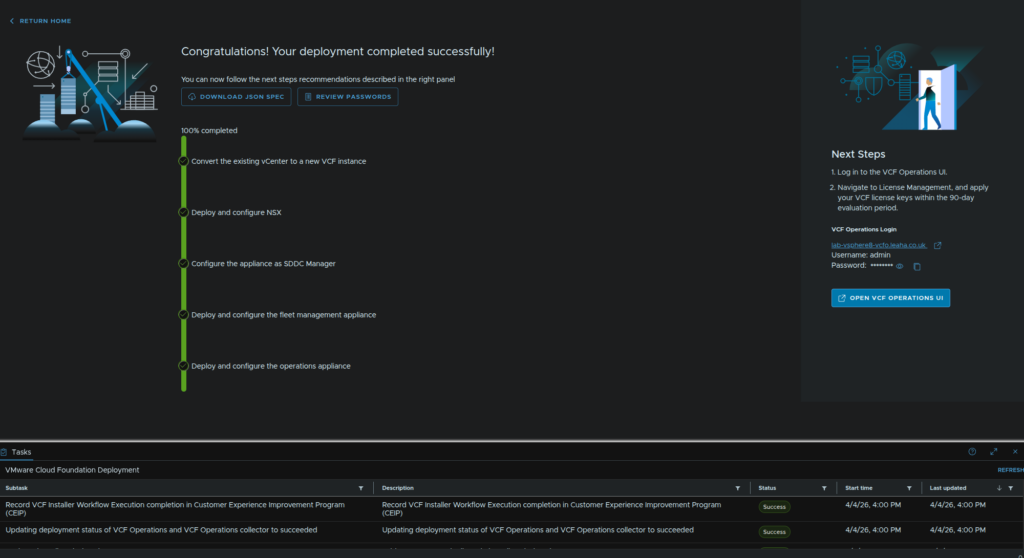
3.5 – NSX Host Deployment
The convergence doesnt properly configure NSX and does a security only profile meaning it cannot be used with NSX overlay networking down the line with the default configuration, at least not to best practices
We will work through configuring NSX correctly so that should you want to utilise NSX down the line you are ready to expand the management cluster and deploy Edge networking nodes
Log into the NSX WebUI with the admin account at
https://<vip-fqdn>
Close this off when you first login by either going through it or clicking Skip
Head to System/Fabric/Hosts check the box for the entire cluster, and click Remove NSX
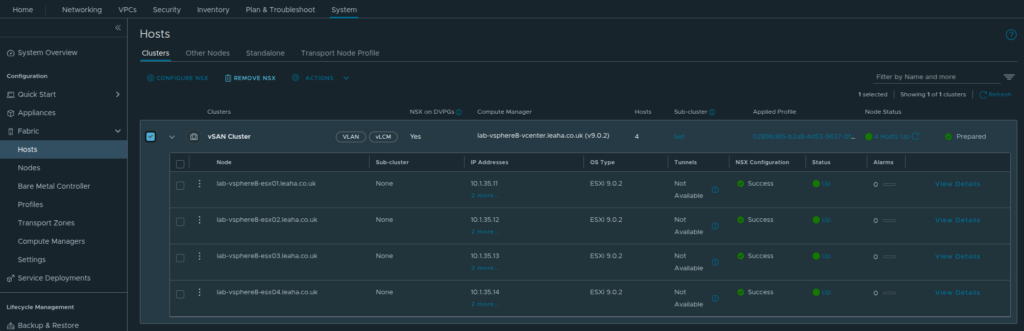
Then click Remove
Now we need a new profile, click Transport Host Profile/Add Transport Node Profile
Give it a name and click Set under Host Switch
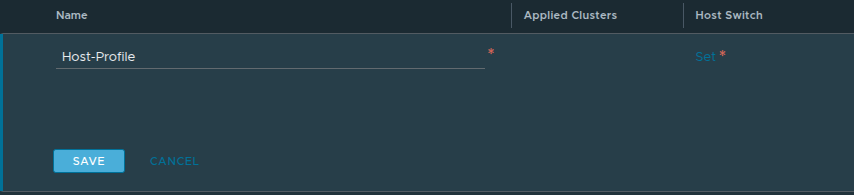
Click Add Host Switch
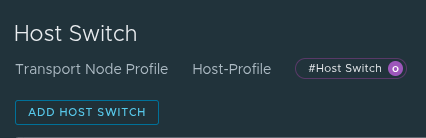
Select the vCenter and which ever VDS does your VM traffic
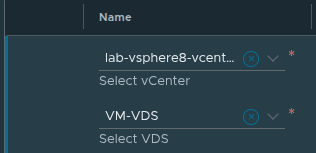
For Transport Zones, the default, nsx-overlay-transport-zone should be selected, but you also need the default nsx-vlan-transport-zone
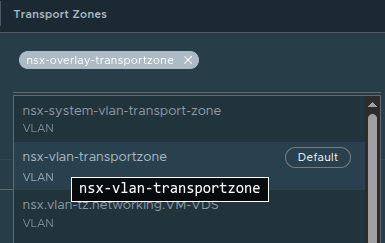
It should look like this
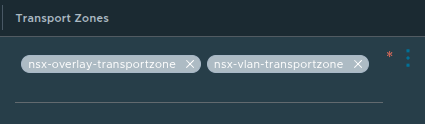
The system will have generated at least 1 uplink profile, it does 1 per VDS, click uplink-profile.1
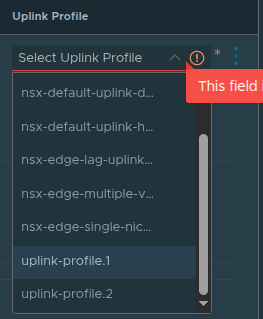
Under IPv4 Assignment, use the drop down to select Use IP Pool
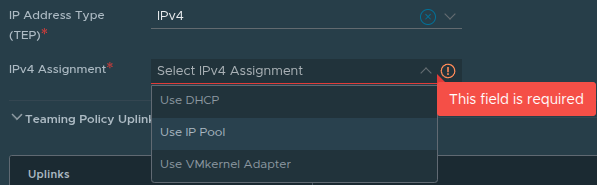
Then on the right, for the pool, click the three dots and click Create New

Give it a name and under subnets click Set
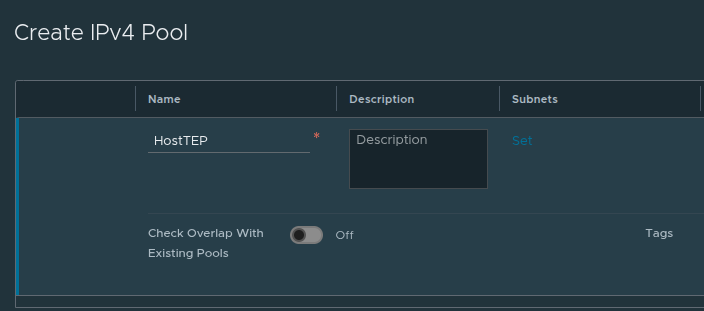
Click Add Subnet/IP Ranges
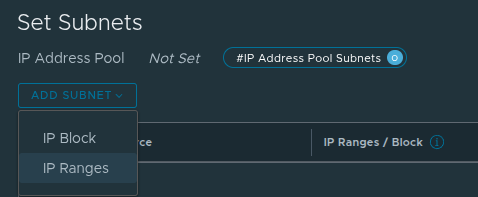
Enter a range of IPs on the VLAN you have for the HostTEP, it needs 2 IPs/Host, enter the address CIDR, gateway, DNS servers/suffix and click Add
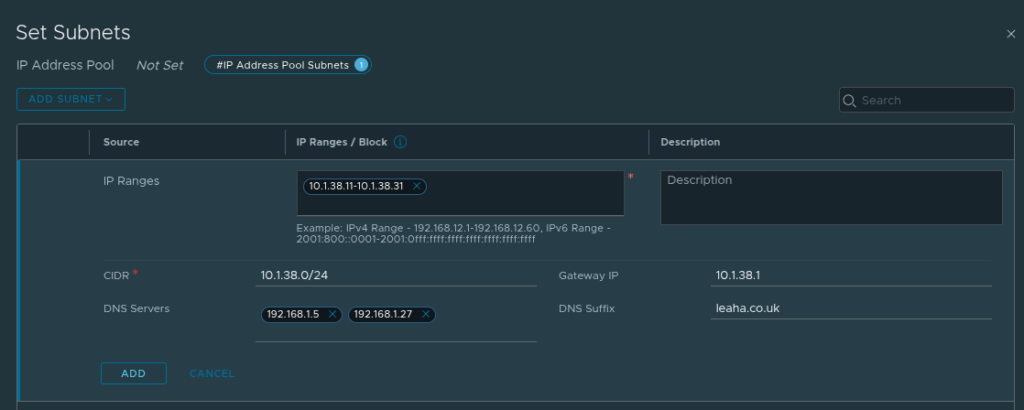
Then click Apply
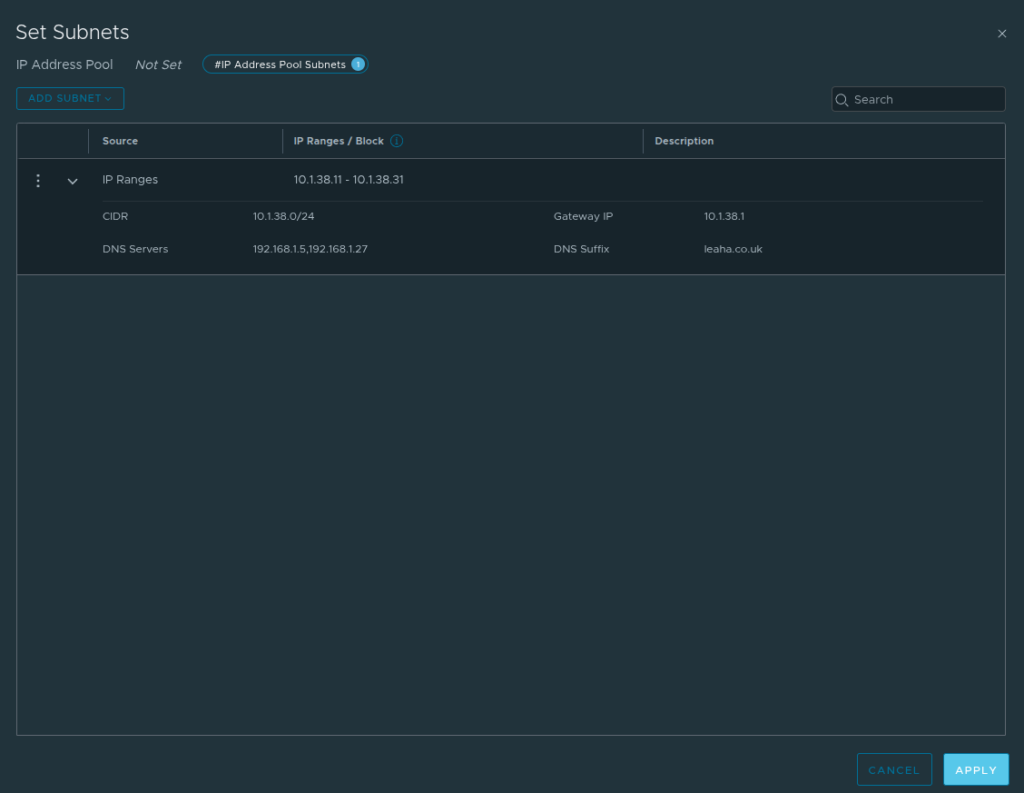
Then add a description, its required and click Save
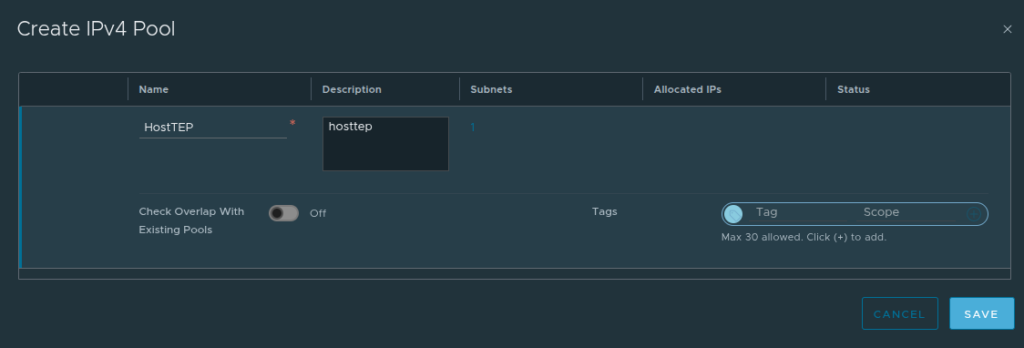
Now select your VDS uplinks to match the NSX switch uplinks, basically match uplink 1 to VDS uplink 1 and the same for uplink 2 and click Add
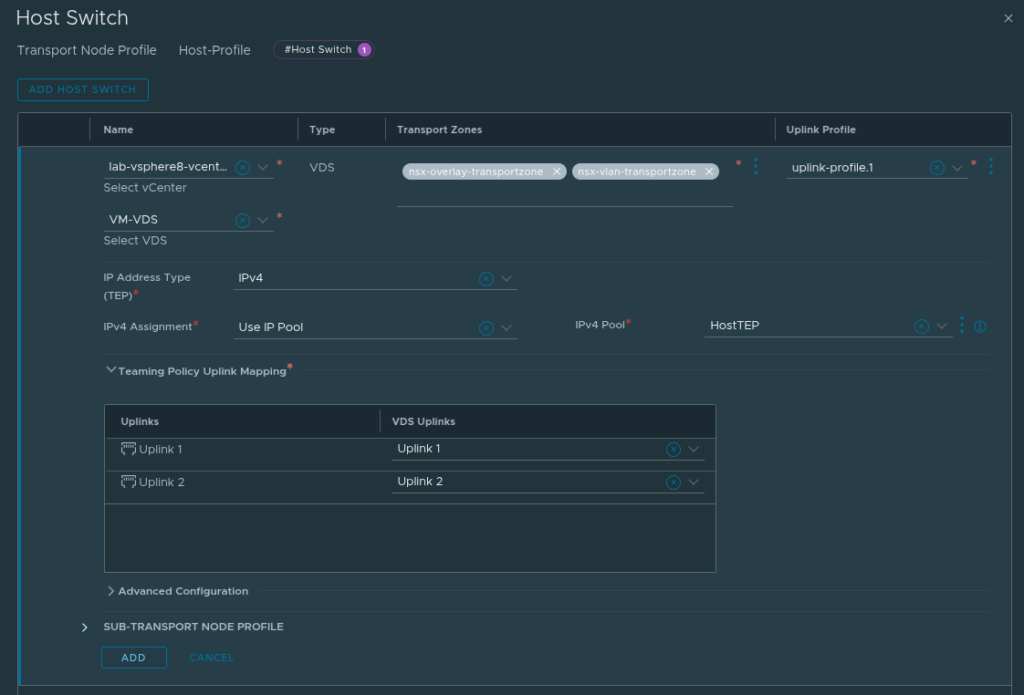
Now click Apply
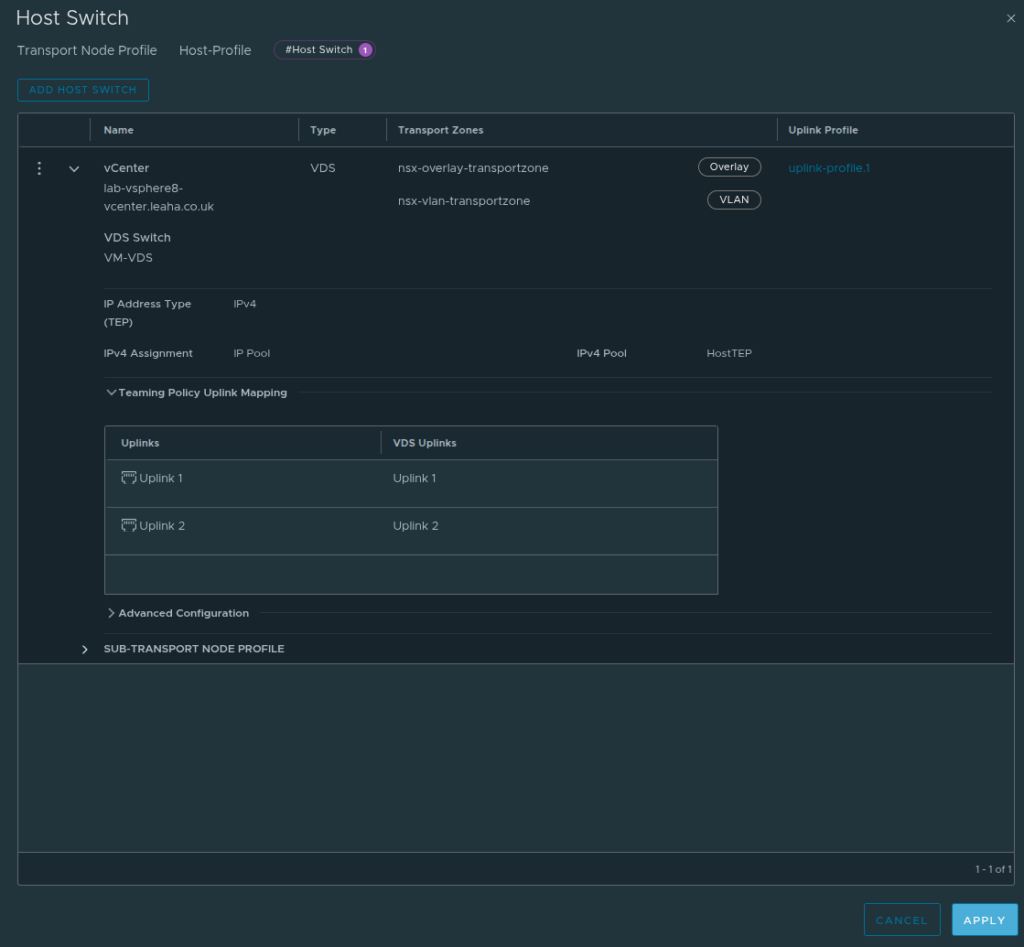
And Save

Now our profile is done, and we have our uplink profile, the uplink-profile.1, we know which profile needs editing for the TEP VLAN
Click System/Fabric/Profiles, fine that profile, click the three dots and click Edit
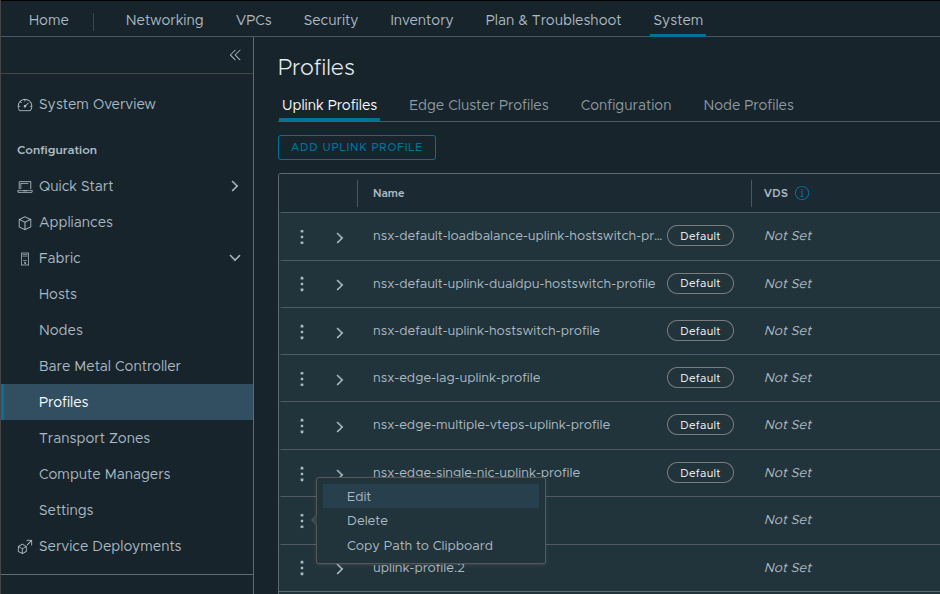
Set the Transport VLAN to match the VLAN for the host TEP IP Pool we set earlier, in my case 1038 and click Save

Back in System/Fabric/Hosts, our cluster will be unconfigured, check the box for the cluster and click Configure NSX
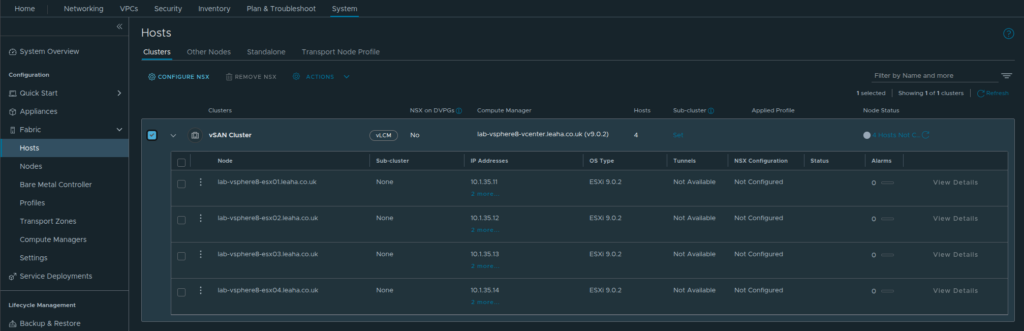
Select our new profile and click Save
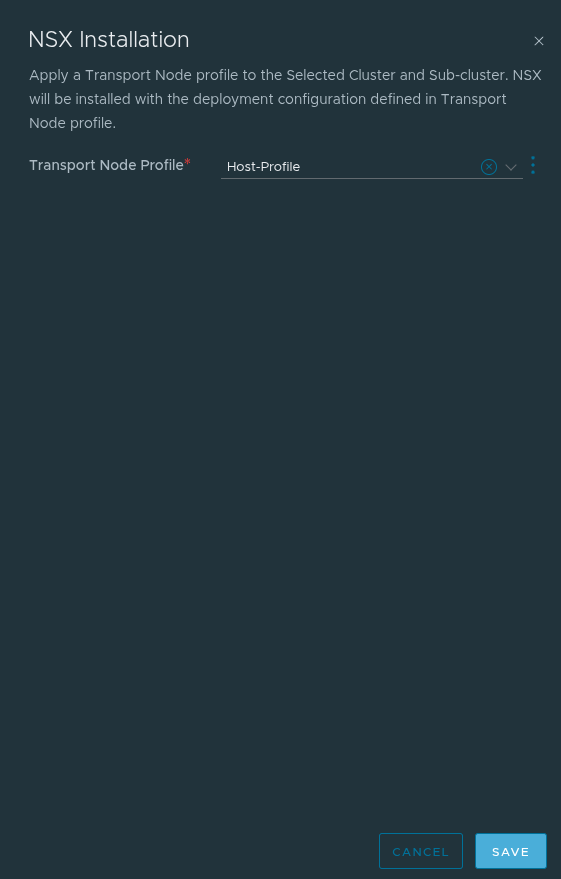
When thats done we should see our hosts fully configured with IPs in our TEP VLAN, 2/host
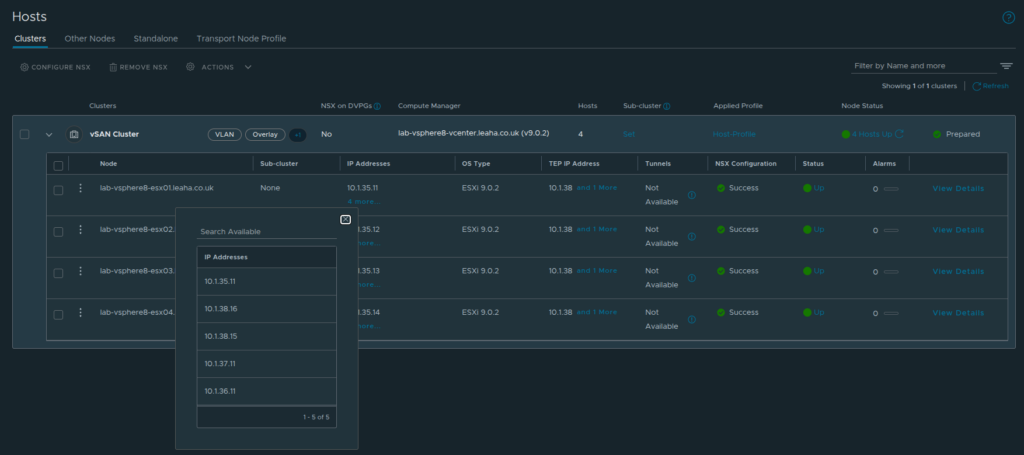
4 – Importing Workload Domains
If you are looking to import a vCenter as a workload domain, then you have probably come down upgrade path 2 or 3 as you wont have had VCF 5.2
If you have come from upgrade path 2, you can import on v8, if you have come down upgrade path 3, you must upgrade vCenter/ESX to v9 first
The vCenter and NSX components will remain hosted within the workload domain, there is no requirement to move them before, and if you deploy NSX because you didnt already have NSX, NSX will also remain in the workload domain, so you end up with a slightly different topology comared to greenfield
4.1 – Migrating ESX Management To VDS
If you have everything on distributed switches you can skip this, just ensure all vSphere management appliances and ESX Management are on Ephemeral ports, not static binded ports, this is very important
Before we begin, we will need to node all connections on a standard switch, most standard switches for ESX management will only have vMotion on them, assuming a 6 NIC configuration
You vSwitch must be able to operate with one uplink removed, and we will start with ESX management, this is because should connectivity be lost, vCenter will roll it back automatically
If your port groups use IP hash, this must be enabled on all VDS port groups else you will loose connectivity
Click the networking tab in vSphere, right click the Datacenter and click Distributed Switch/New Distributed Switch
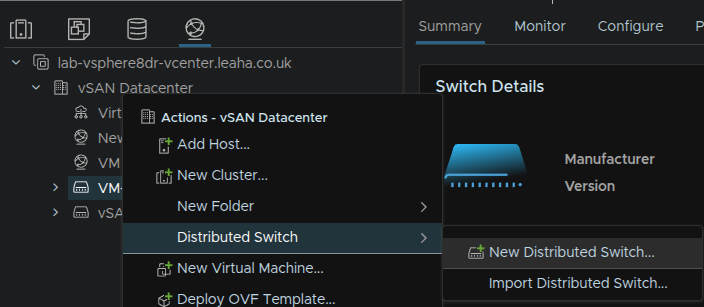
Give it a name and click Next
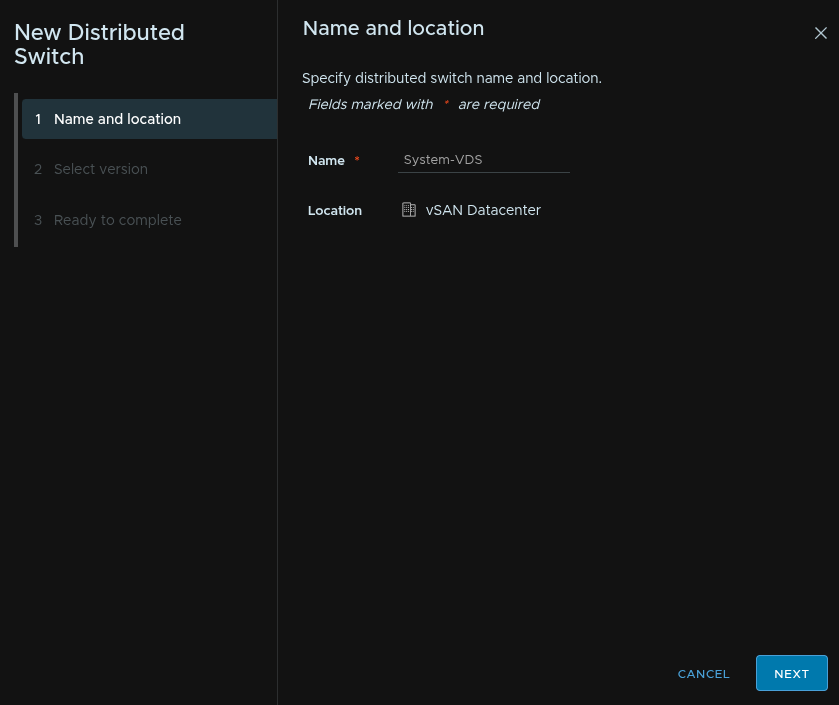
Select the version you want, this cannot be downgraded, and click Next
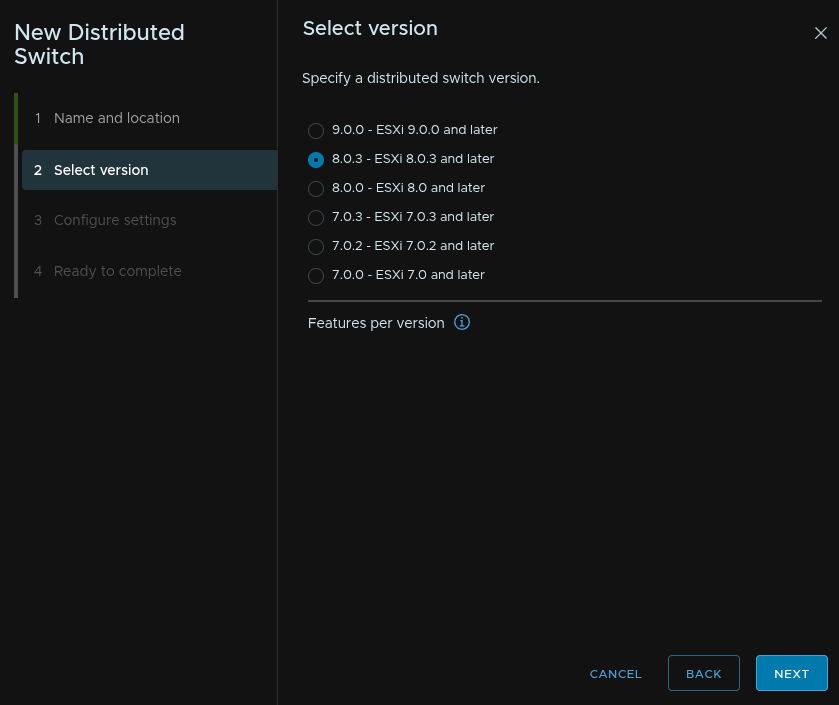
Set the number of uplinks to 2, and uncheck the box to create a default port group and click Next
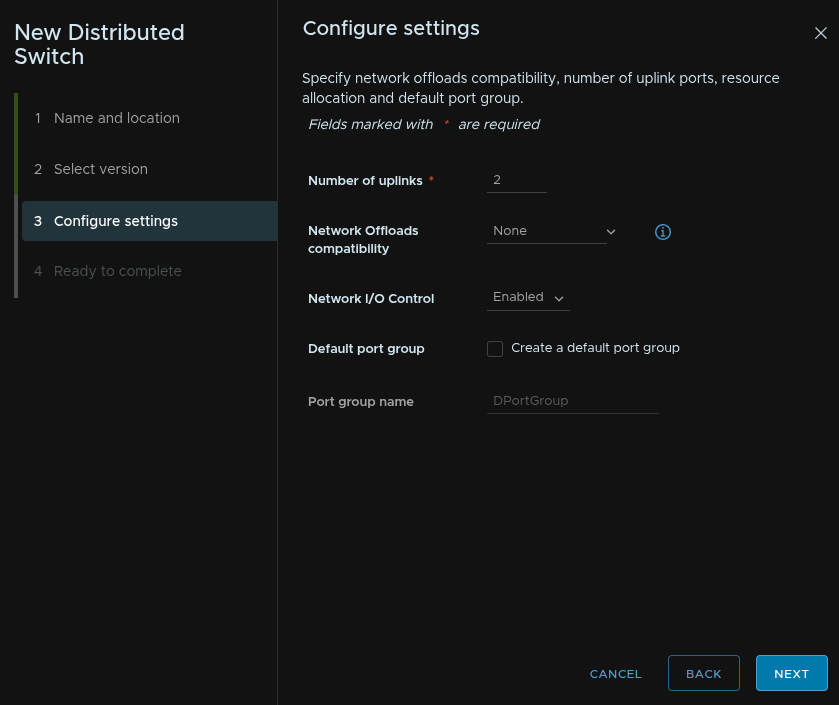
Then click Finish
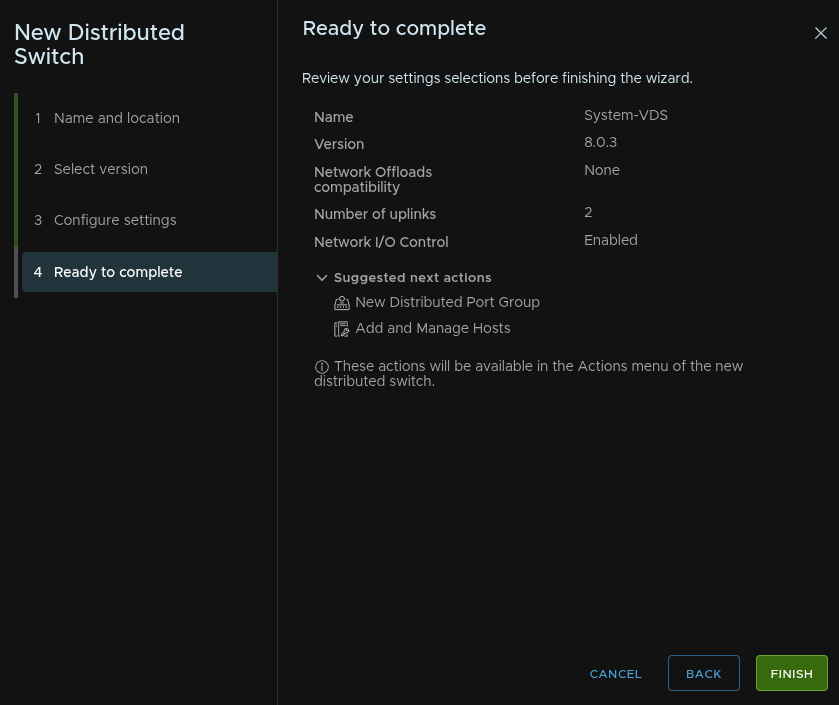
Right click the VDS and click Distributed Port Group/New Distributed Port Group
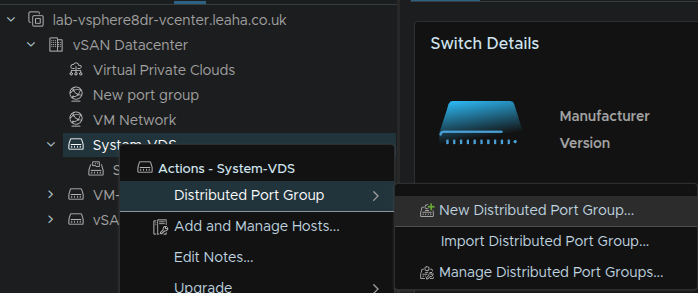
Give it a name for ESX Management and click Next
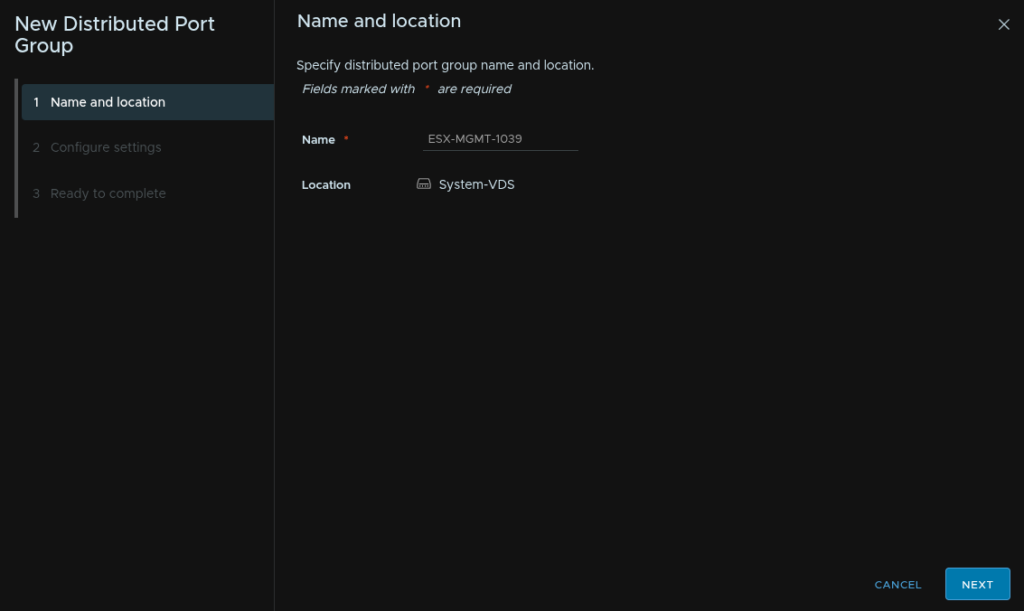
Set the port binding to Ephemeral, VLAN Type to VLAN, and VLAN ID to the VLAN ID for your management, this will match the existing Management Network VLAN, check the box to customise default policies configuration and click Next
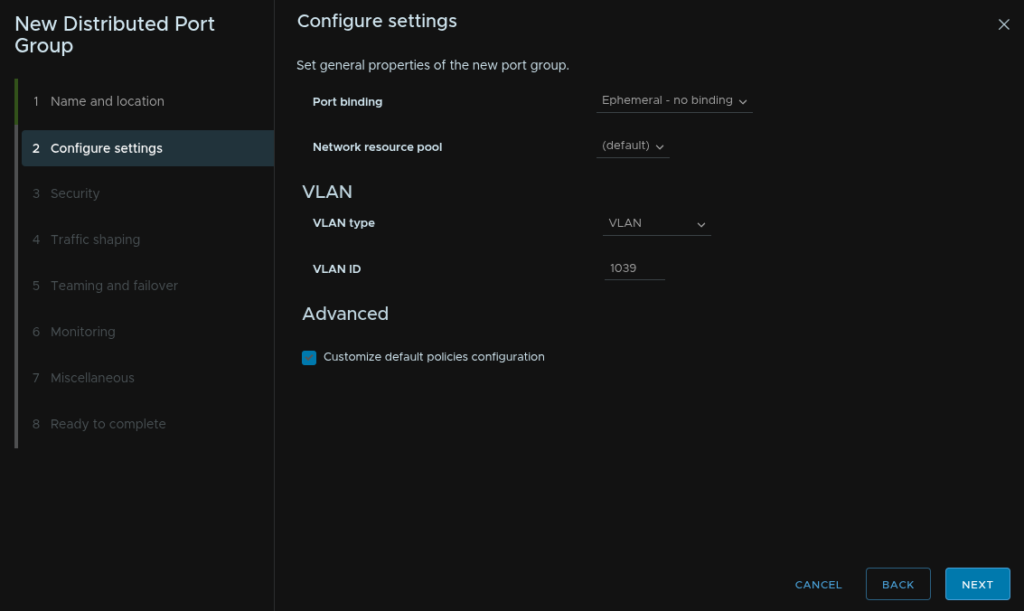
Click Next until you get to section 5, and use the drop down to change the load balancing to what you need in your environment, this is often LACP if you have port channels/LAGs, This must match the configuration of your standard vSwitch, when you are happy click Next until you hit the end
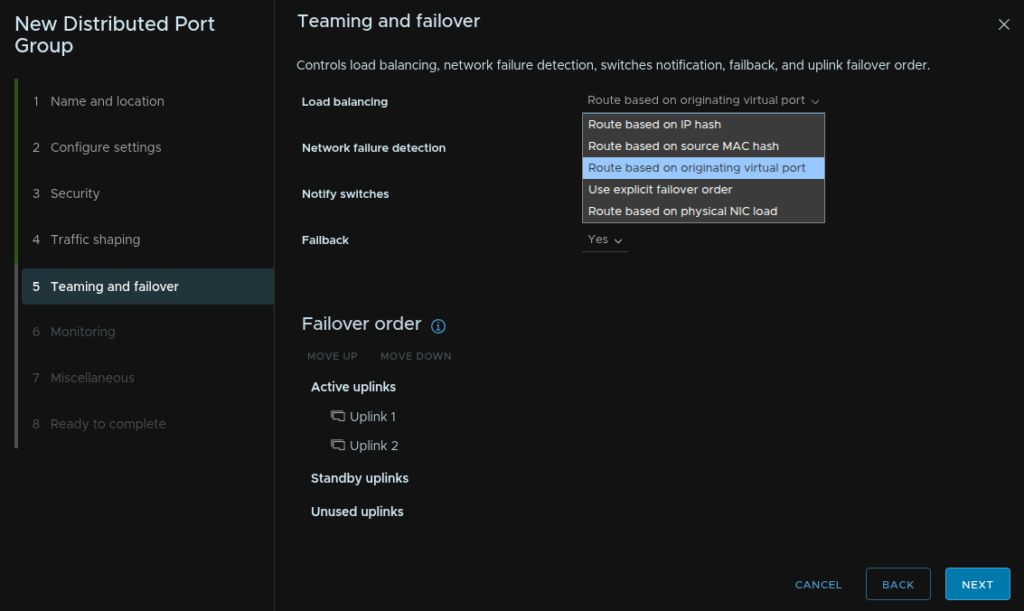
And click Finish
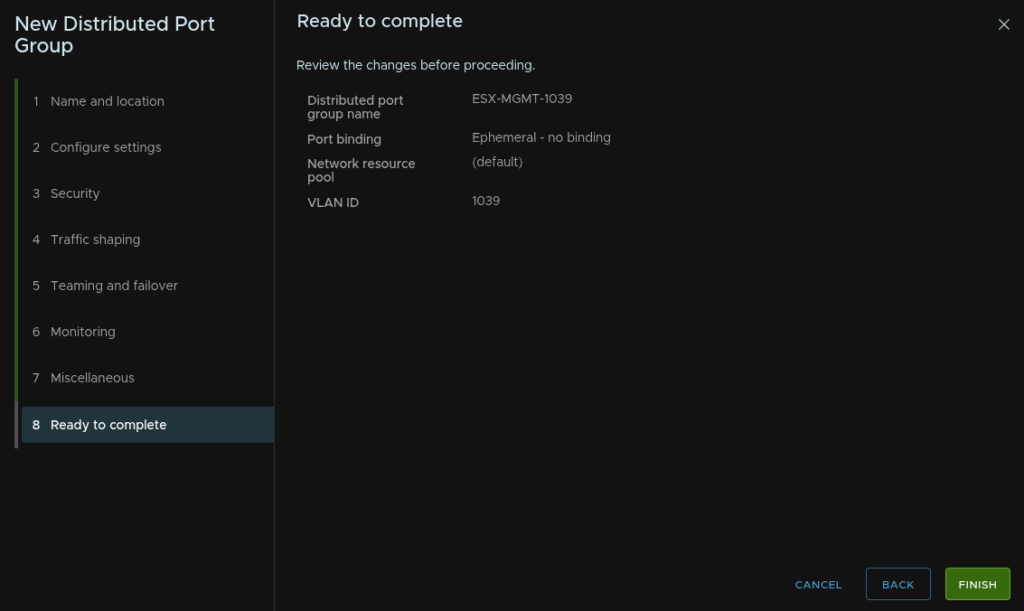
Repeat for the vMotion port group but use Static Binding, not Ephemeral, and also repeat for any additional port groups you may need
Then right click the VDS and click Settings/Edit Settings
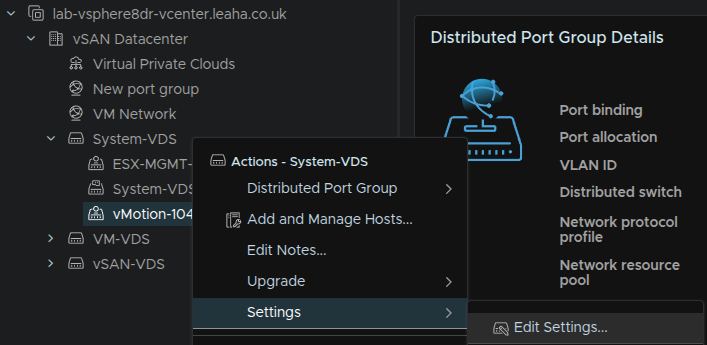
And set the MTU to 9000 then click ok
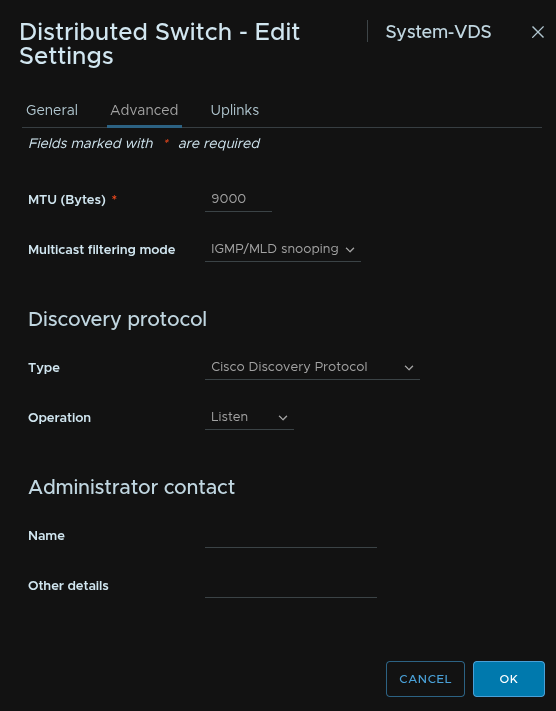
Lets test our first host, right click it and click Maintenance Mode/Enter Maintenance Mode
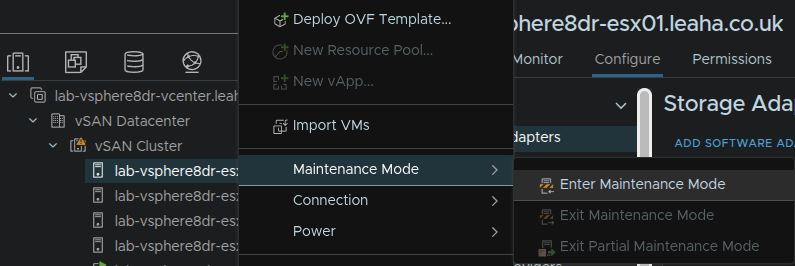
Then click ok
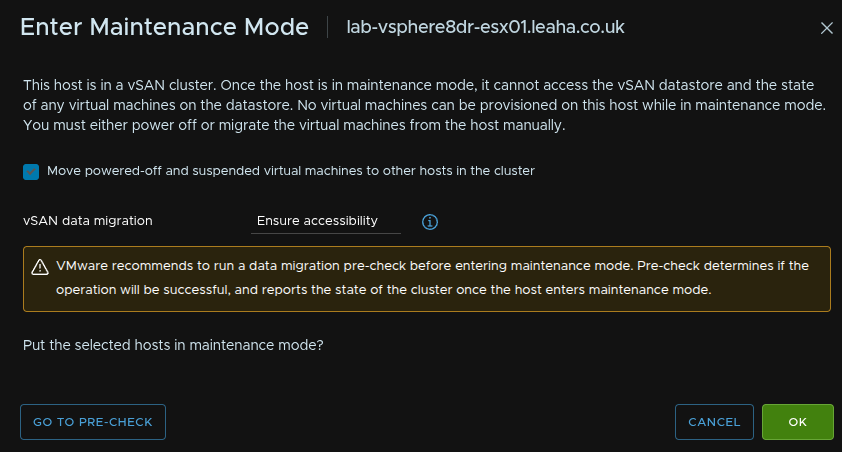
And click ok again
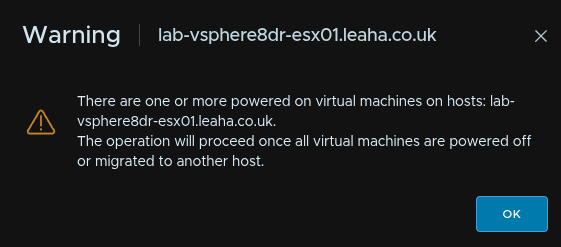
We are doing this so we can test on a single host, if this impacts management connectivity, we are doing this on the blank host, if this works, assuming all other configurations are equal, we can do the others while they are live
Click our maintenance mode host and click Configure/Networking/Virtual Switches, then expand our vSwitch and click Management Physical Adapters
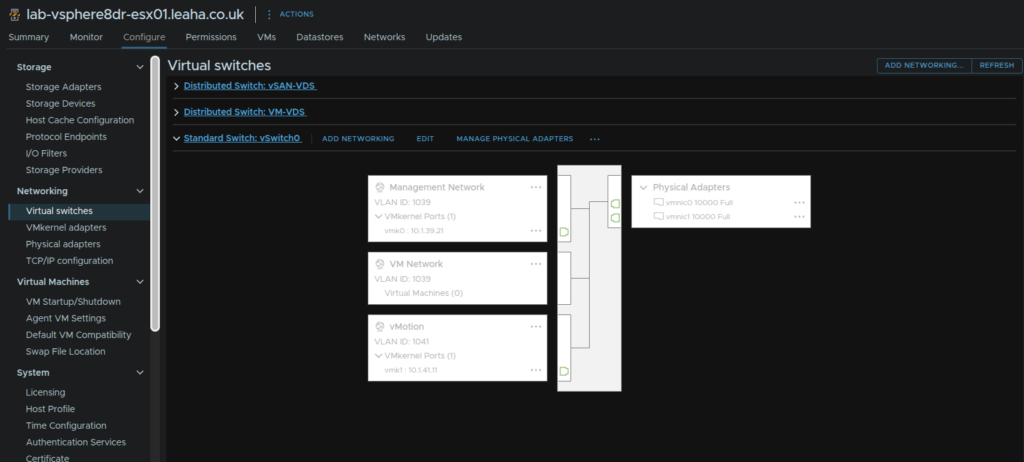
Move one of the active adapters into unclaimed, and node the adapter, in my case VMNIC1 and click ok
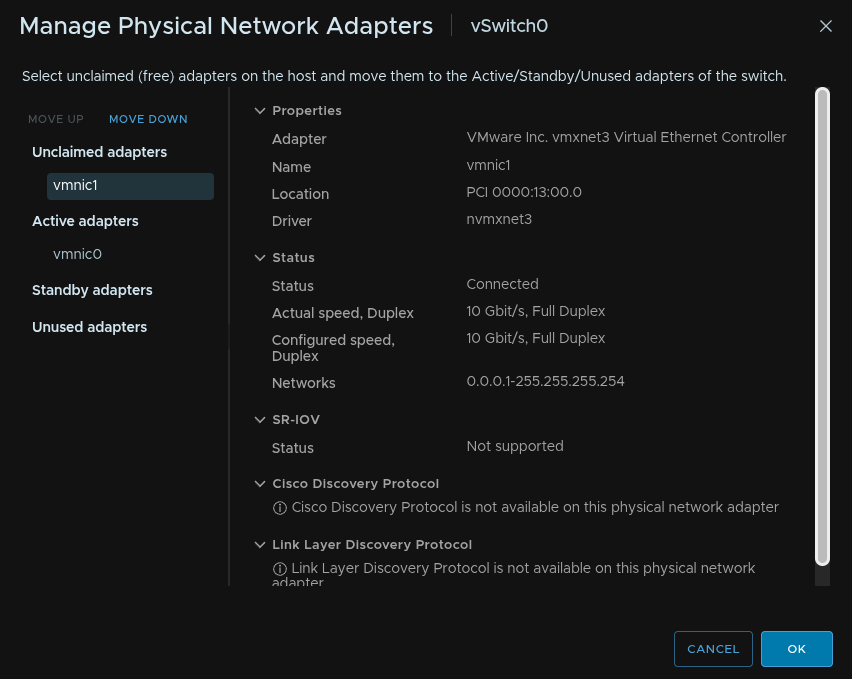
If you see the Physical Adapters shrink by one, everything has worked and connectivity hasnt dropped
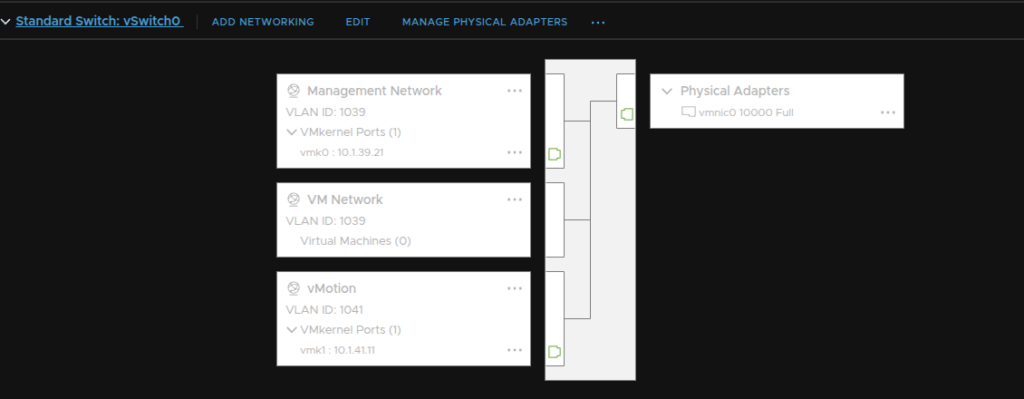
Back in the networks tab, right click our VDS, and click Add And Manage Hosts
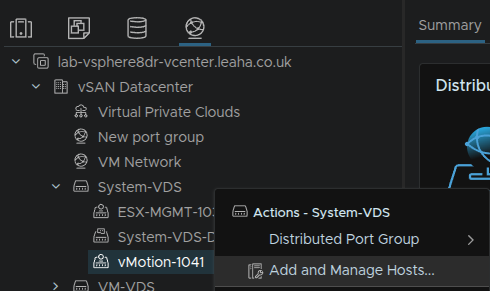
Click Add Hosts and click Next
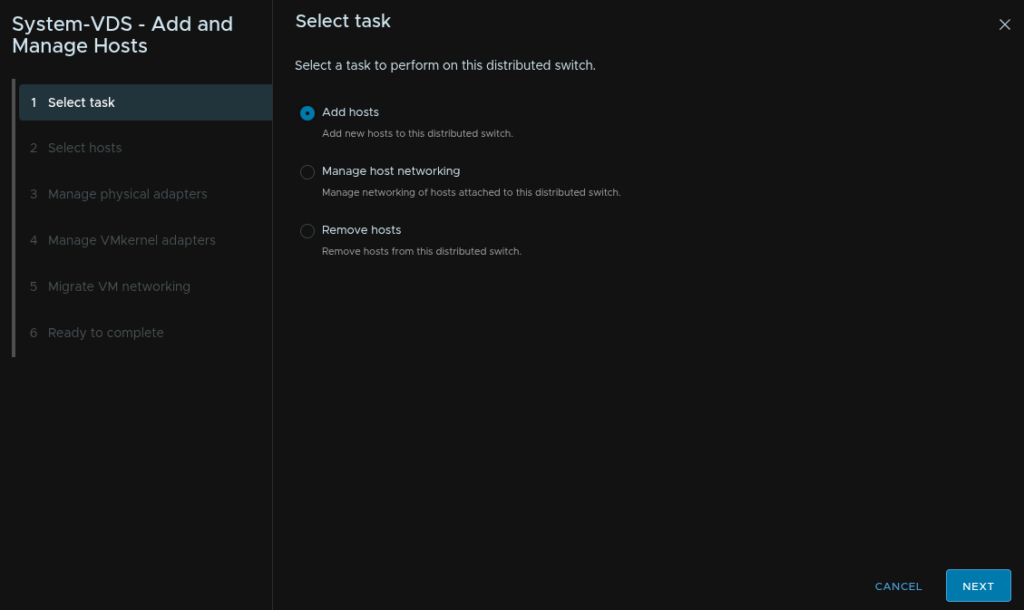
Select our host we edited earlier and click Next
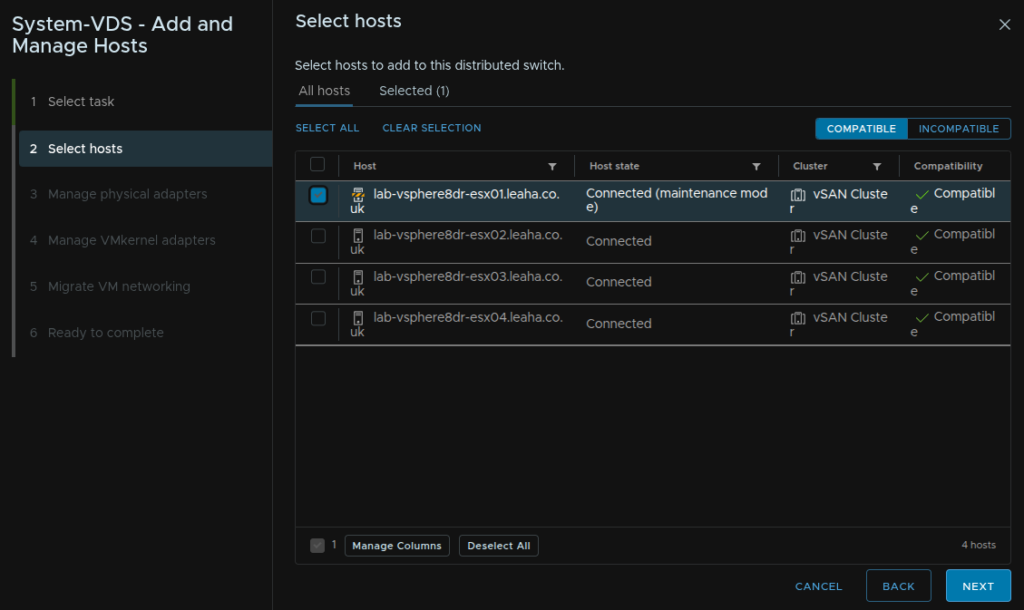
Assign the unused VMNIC to an uplink and click Next
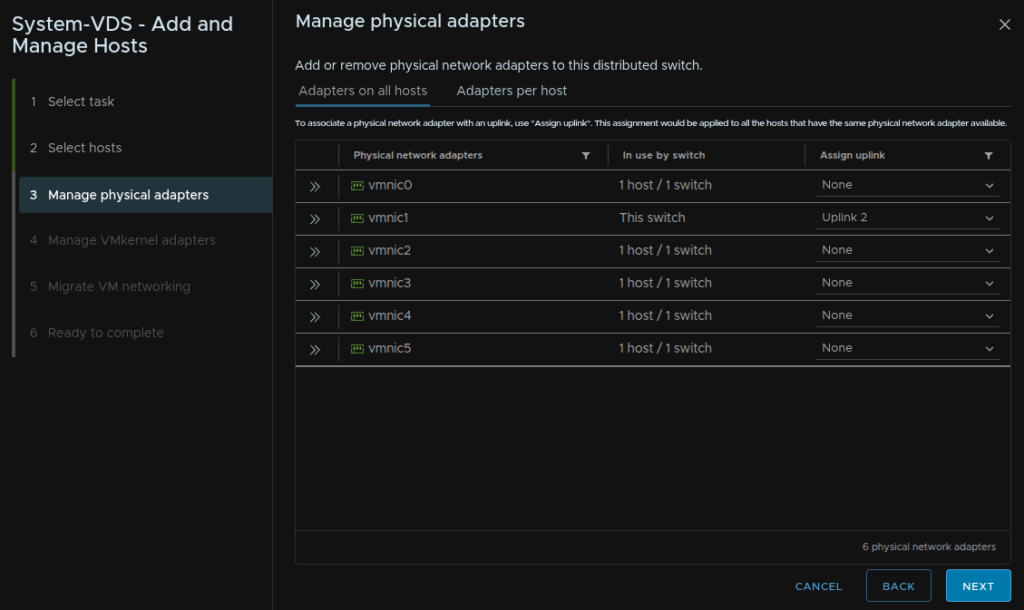
On VMK0 click Assign Port Group
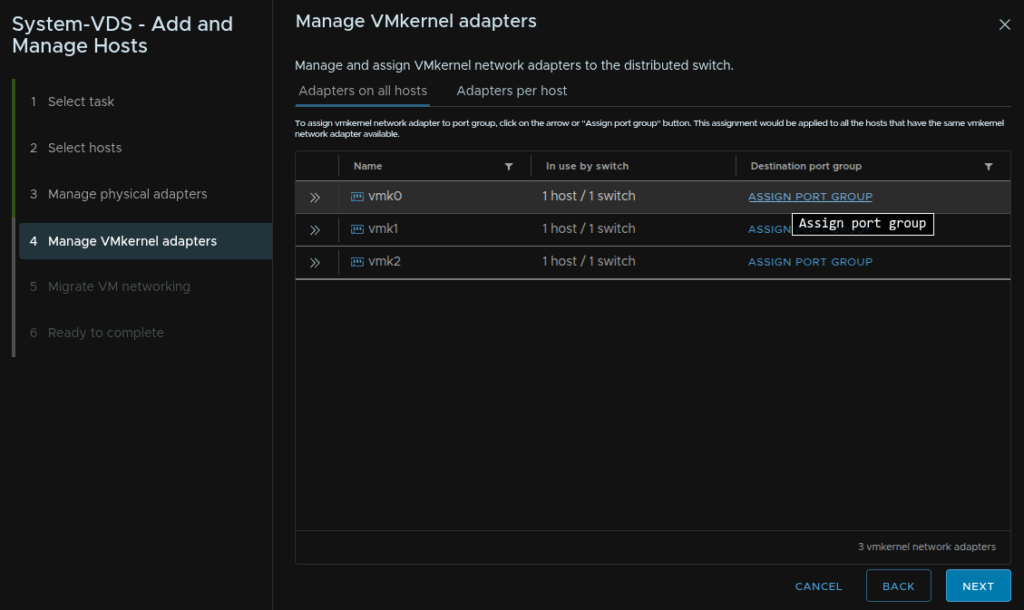
And click Assign on the ESX Management port group
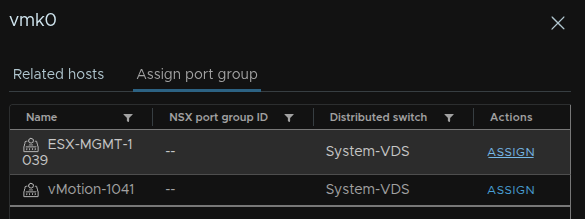
Repeat for vMotion, mine is VMK1
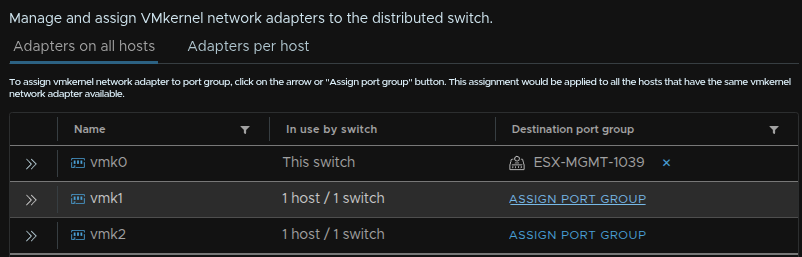
Assigning it to the vMotion port group, then click Next
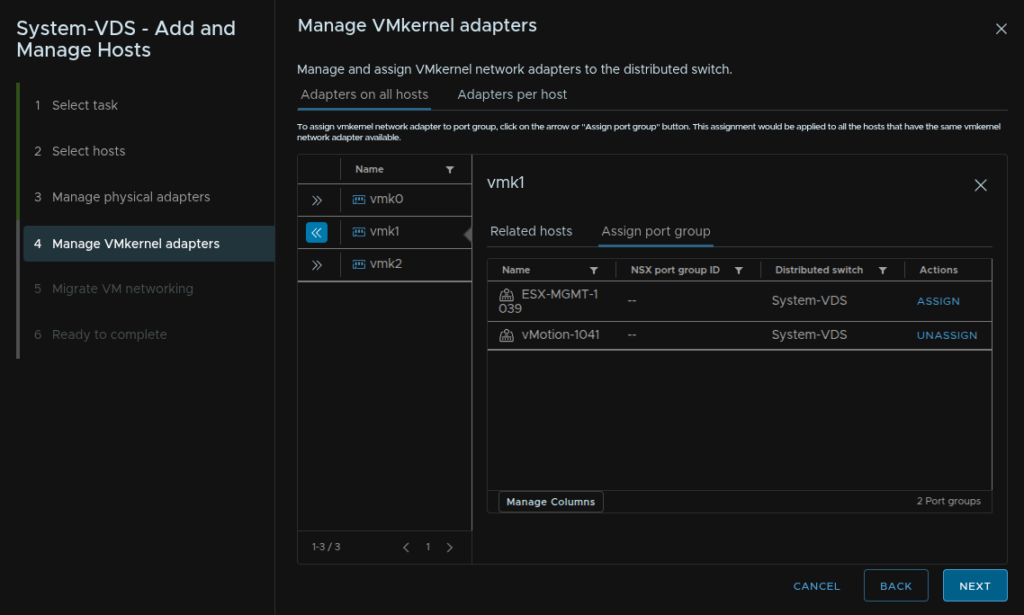
Click Next
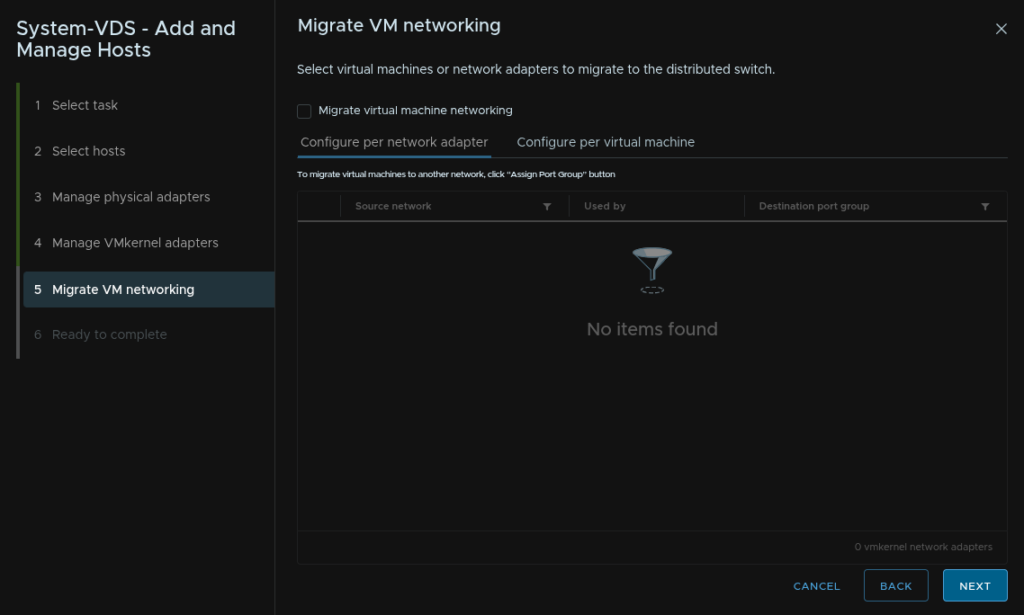
And click Finish
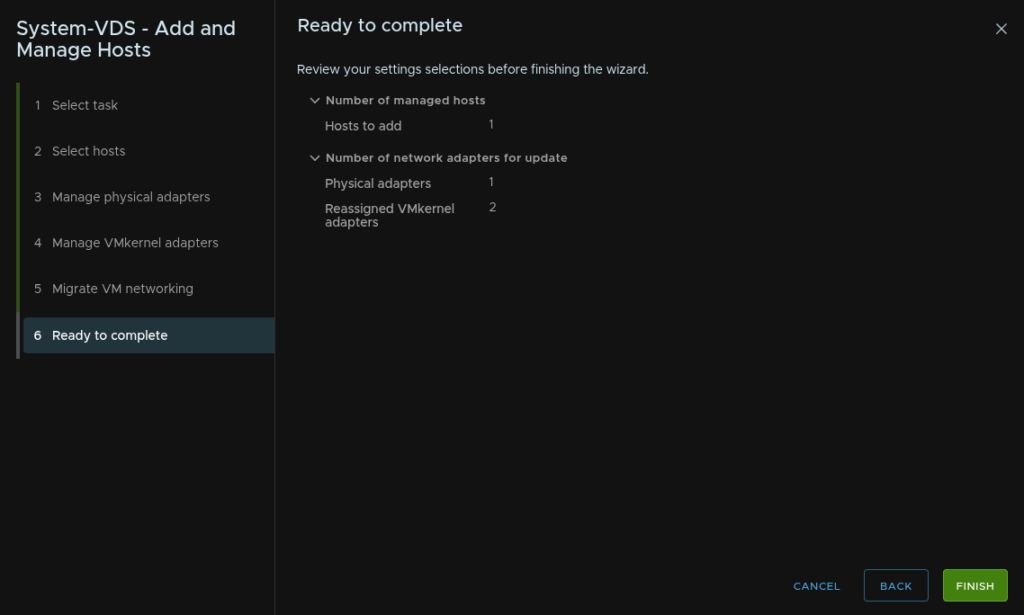
Give it 10-15 mins and ensure all connectivity is fine, if so, right click the VDS again and click Add And Manage Hosts
Click Add Manage Host Networking and click Next
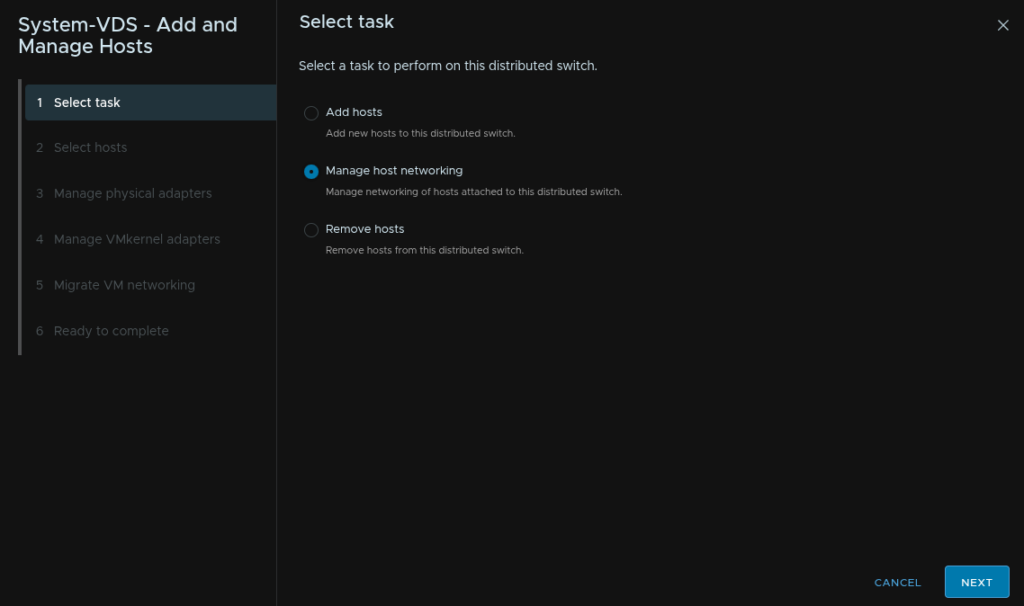
Select our Host
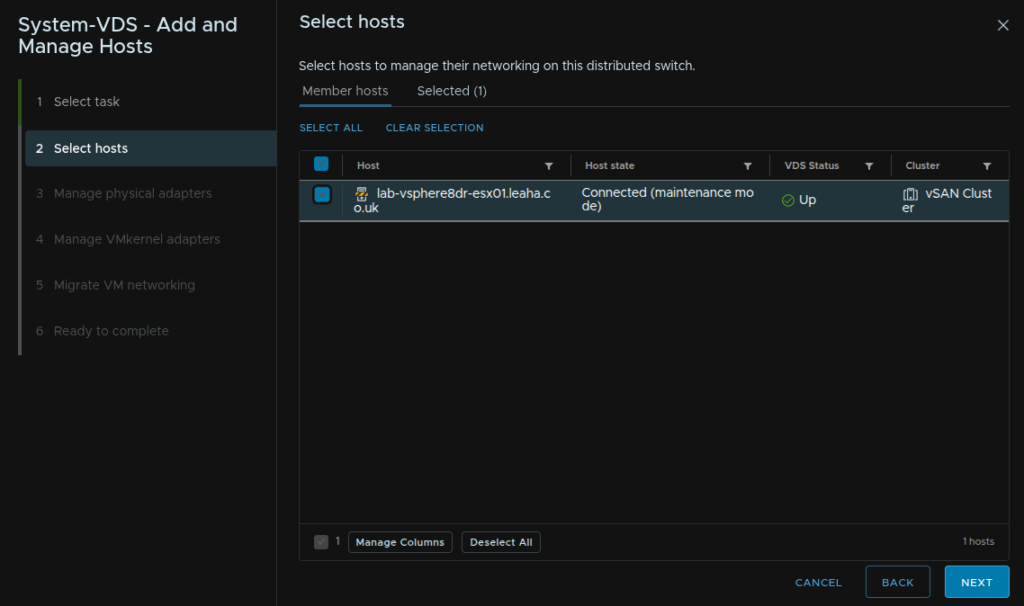
And assign the other VMNIC adapter thats on the now empty standard switch, it will have the other uplink, and click Next
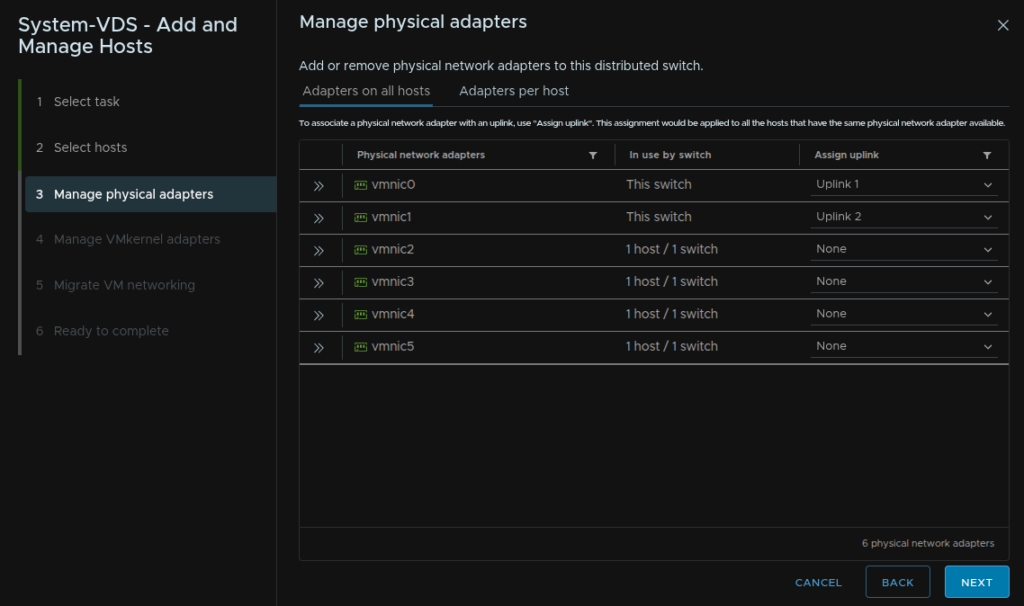
Click Next
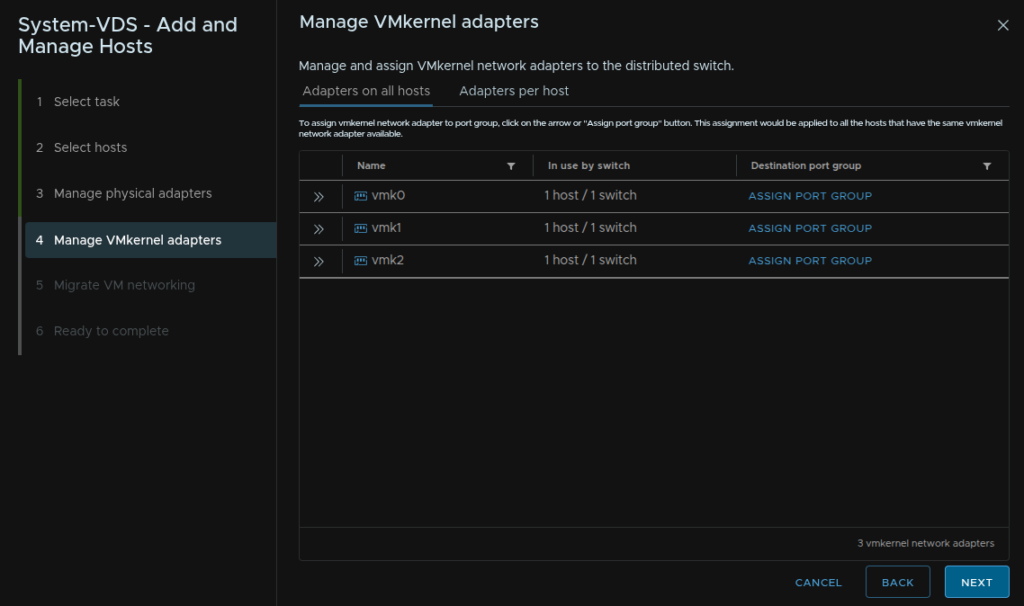
Click Next again
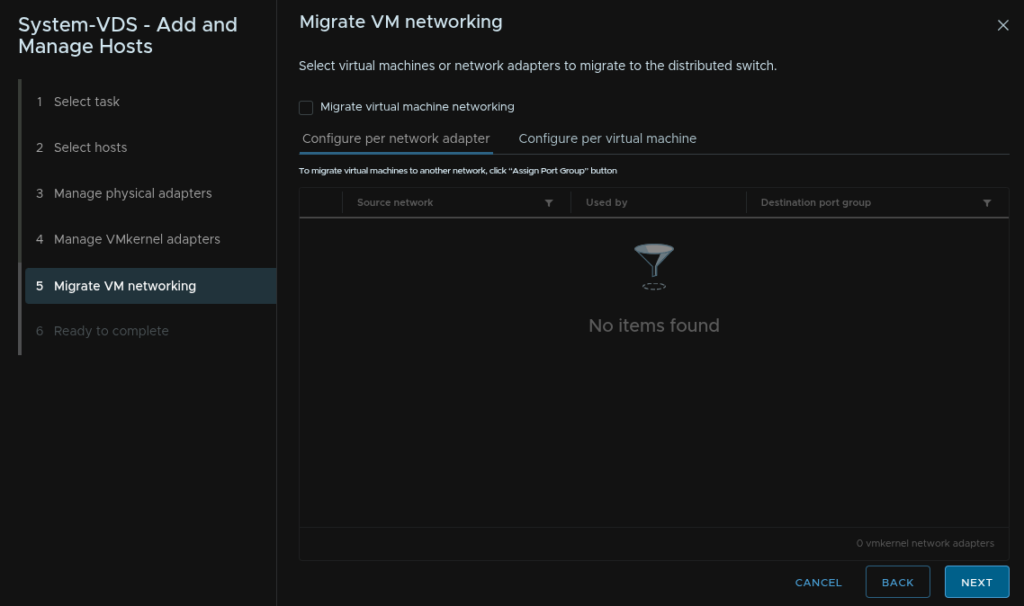
Then click Finish
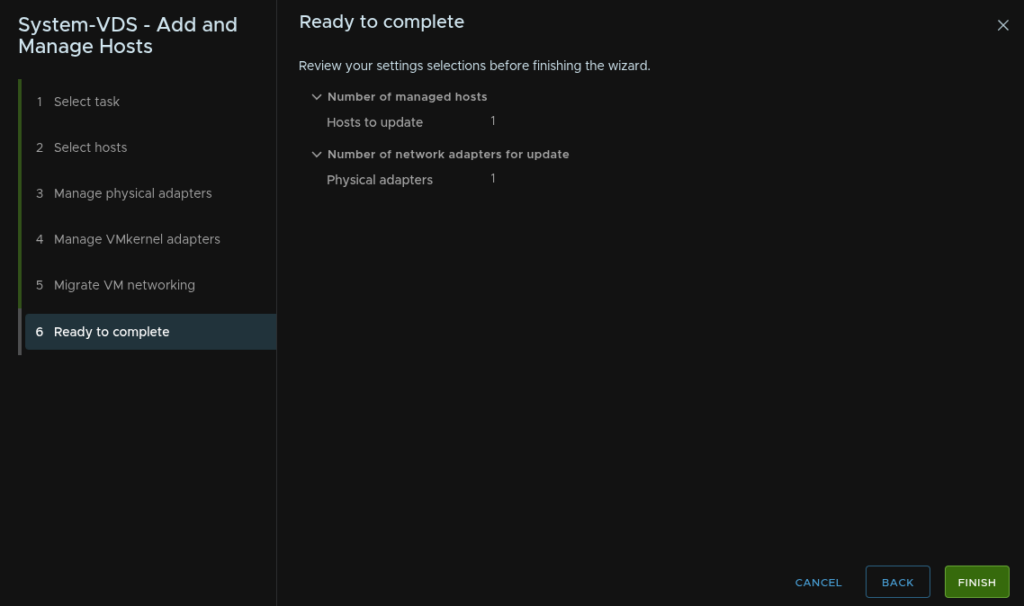
Once connectivity is ensured to still be fine, repeat on all remaining hosts
4.2 – Importing The vCenter
Log into VCF Operations on
https://vcf-ops-fqdn>
Then click Inventory/Detailed View

Select the VCF instance from the inventory drop down and click Add Workload Domain/Import A vCenter
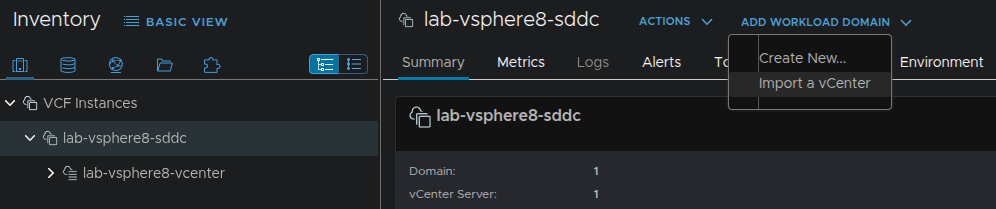
Enter a name for the Domain in VCF Operations, I recommend the hostname of the vCenter, there is a 20 character limit, then click Next
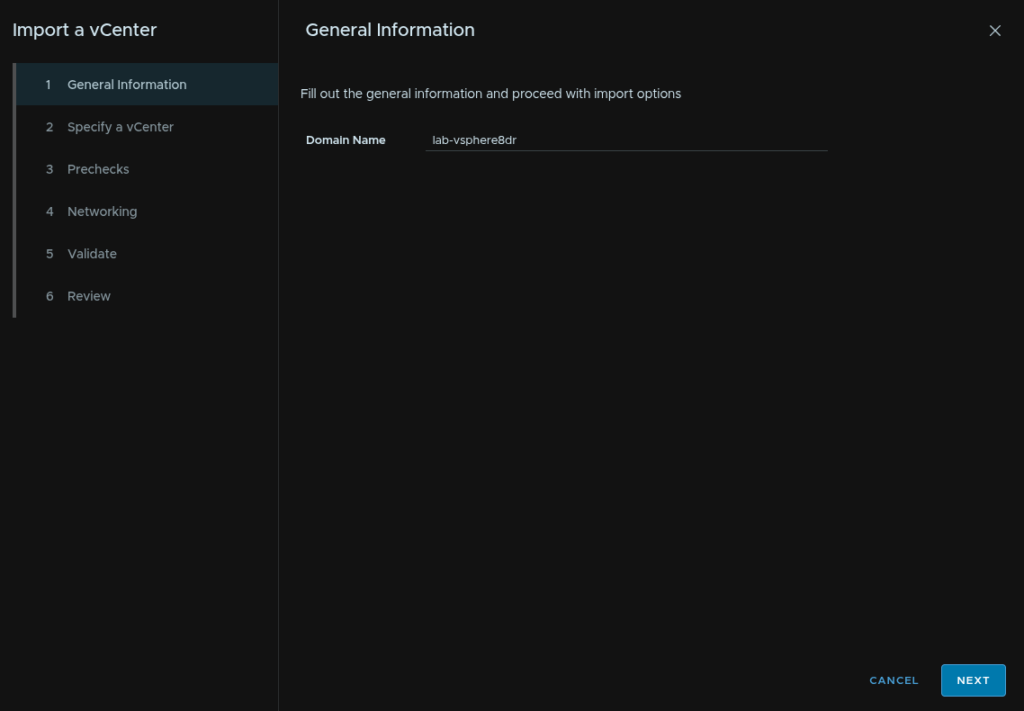
Select the radio button to Specify an External vCenter, then enter the FQDN, root password, [email protected] username, password, and disable the toggle for the vCenter being connected to NSX, if it isnt, as mine doesnt have one, then click Next
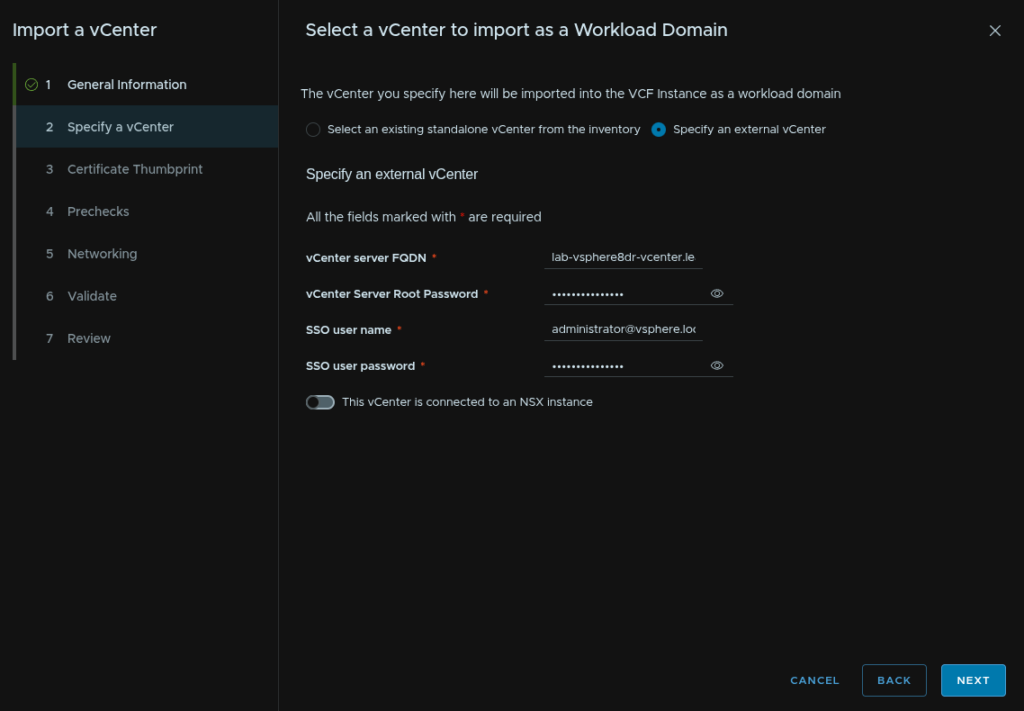
Confirm the thumbprints with the check boxes and click Next
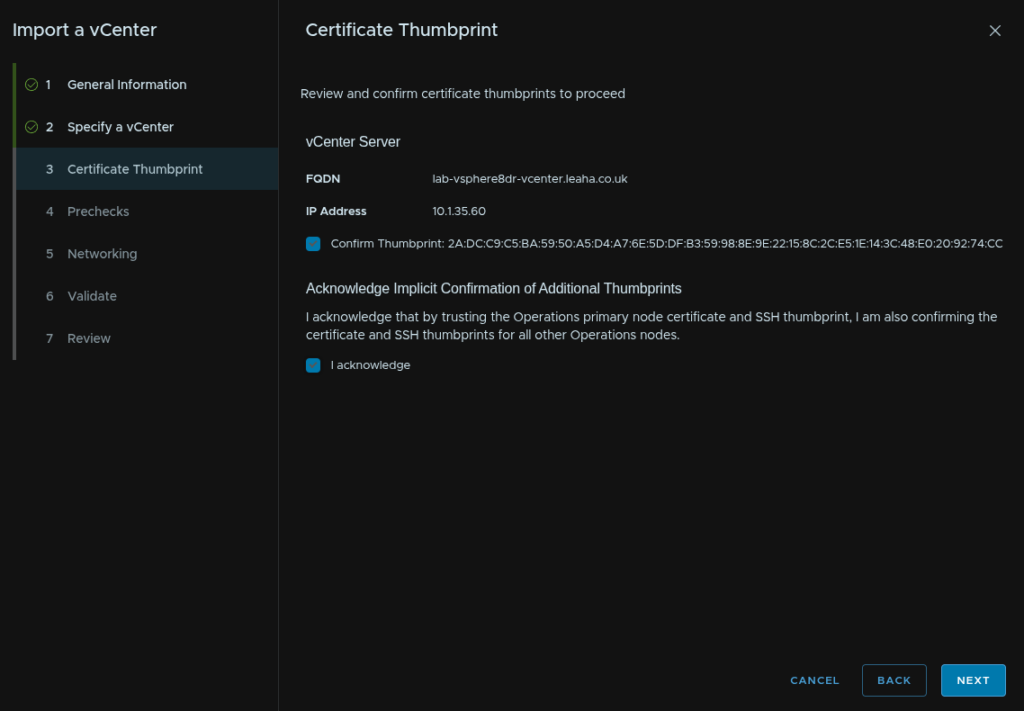
Wait for the prechecks to run, we will need to address any errors, when all are passed, mine didnt have an errors since its been relocated, click Next
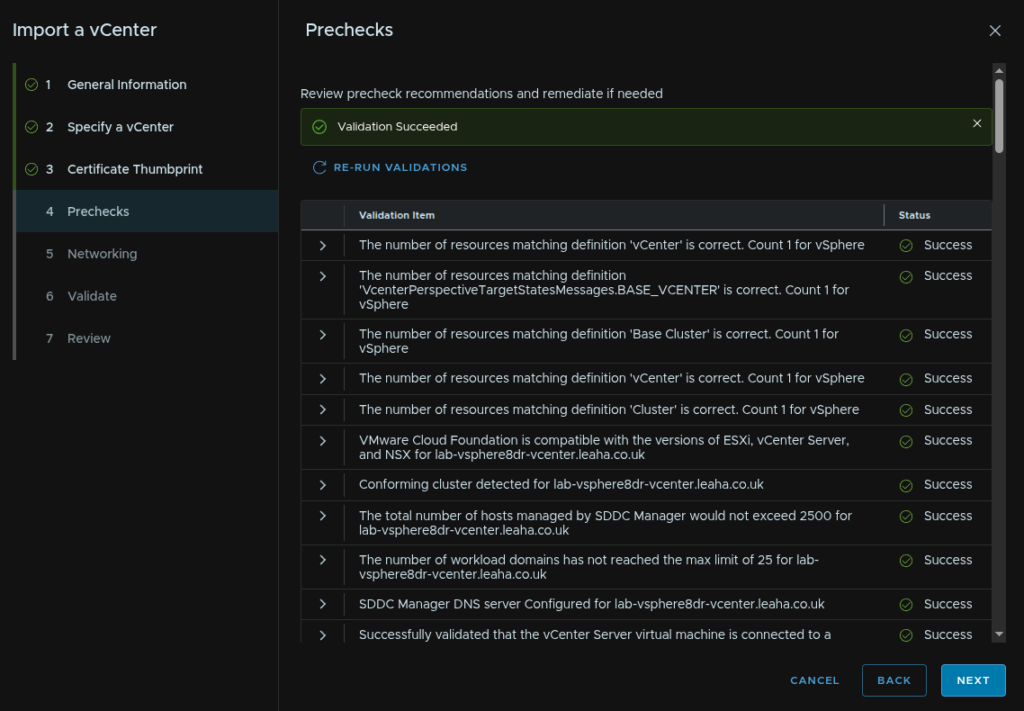
We must deploy a new NSX instance, we will need two FQDNs registered in DNS one for the VIP and another for the appliance, while a three node cluster is required, if you dont plan to use it, stick with a single node deployment, it can be expanded later if needed
If you are doing to use it do a cluster deployment size and plan for two additional FQDNs registered in DNS
While this does give us the option to join an existing NSX instance, and you seem to be able to select the management domain NSX instance, VCF 9 topology says workload domains may not share an NSX instance with the management domain so I dont recommend doing this
If you are adding a second workload domain, you may join this to the first workload domains NSX instance, but be aware of the sizing, a medium NSX manager can only support two vCenters, if you plan to add more than two workload domains to a single NSX instance, use the large Appliance Size
The network for the NSX instance will need to be the same as the network the management NSX instance is on, the network we just migrated the workload domain vCenter too
For me, I selected to create a new NSX instance as this is my first workload domain, I set the size to Single NSX Manager Appliance as I wont be using NSX right away, I used a medium size as I wont be adding more than two workload domains to this NSX instance, added an FQDN for the VIP and appliance, the toggle for NSX Overlay Over ESX Management is needed, and this requires that management networks are on VDS networking, if they are on standard switches they will need to be migrated
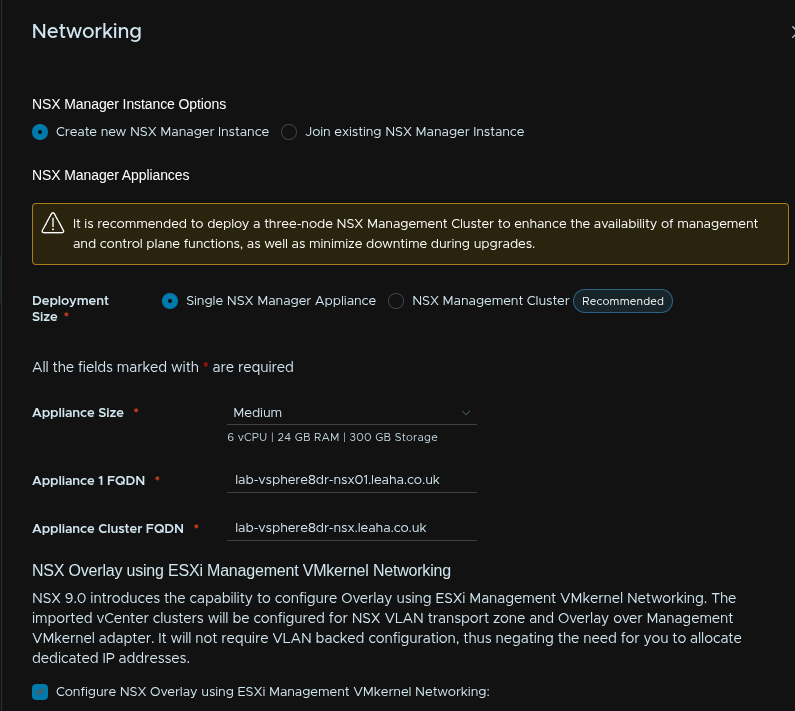
I also unchecked the box to auto generate passwords and input my own following the requirements listed at the top of the article, then click Next
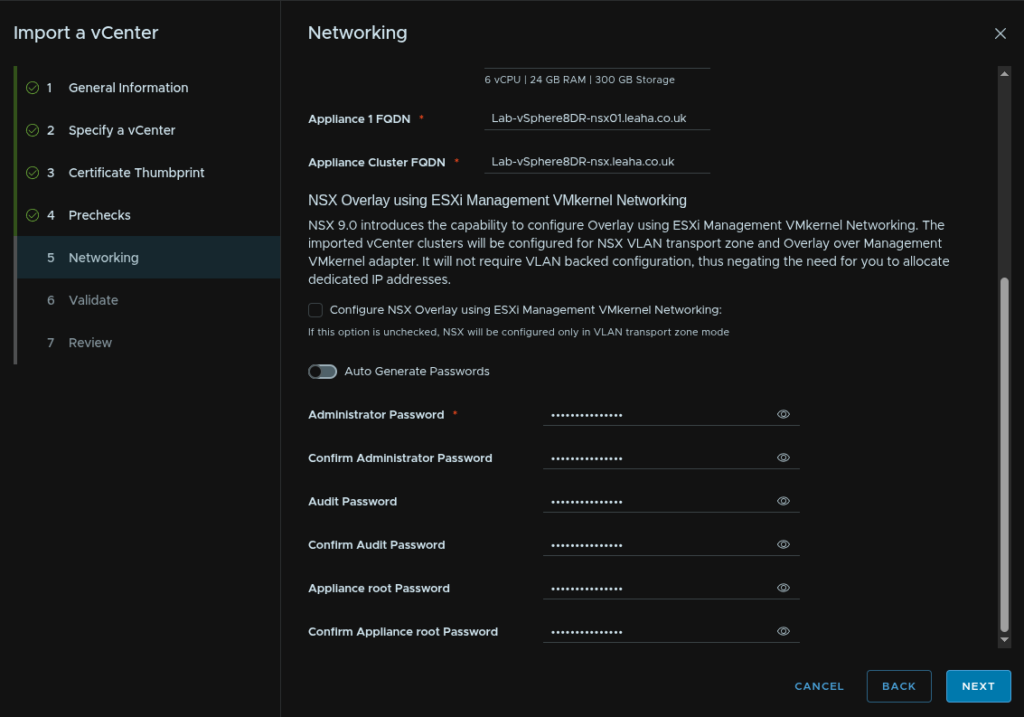
Wait for the validation to complete
The NSX binaries should be in the SDDC Manager still, assuming you are doing this before the post upgrade steps
When those have run successfully, click Next
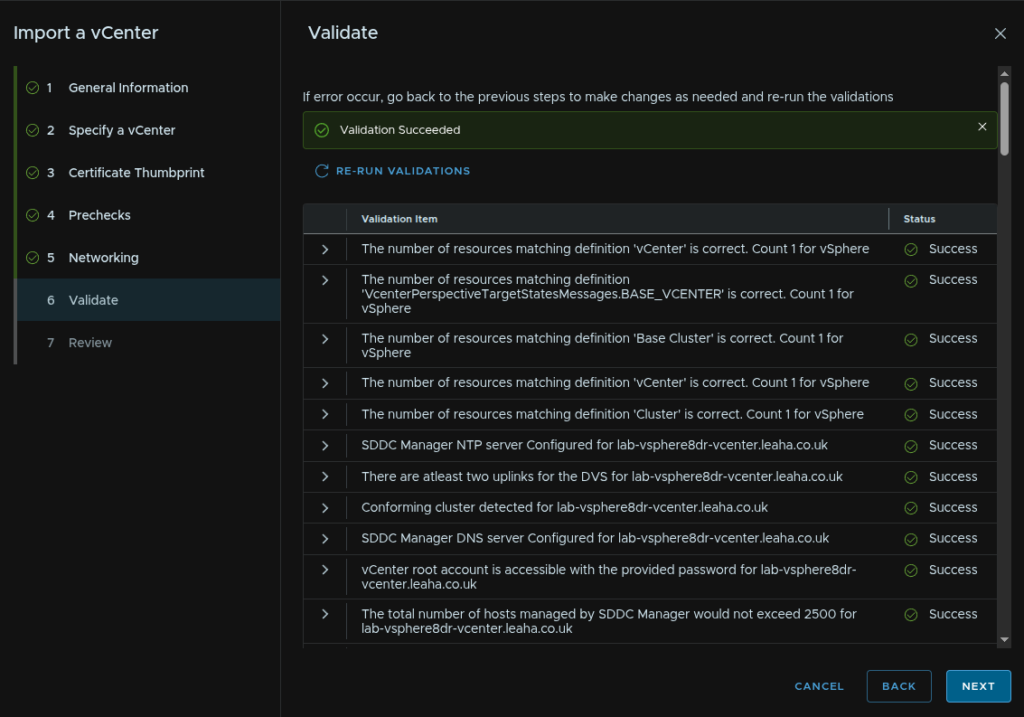
And click Finish
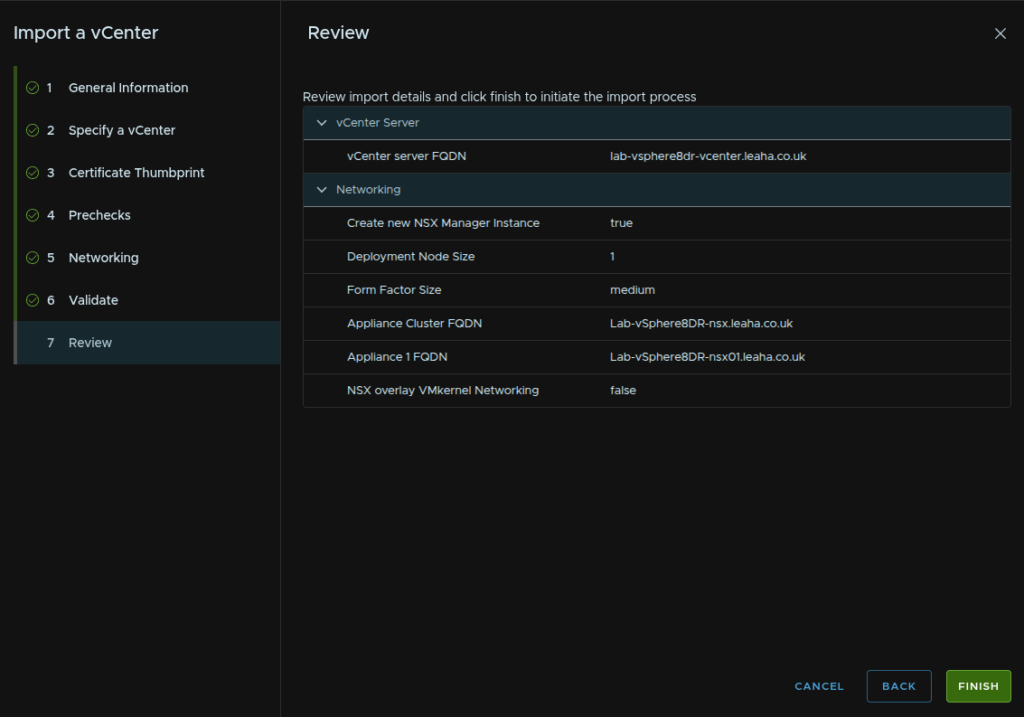
Its worth noting, as we are joining this to an NSX instance, we will need to repeat the steps in section 3.5
5 – Post Upgrade Steps
This sections covers post deployment steps for all paths, various names or IP schemes may not match your upgrade path
5.1 – VCF Ops Plugin
Now we have everything upgraded we need to make sur ethe plugin is added to vCenter properly
Head to Administration/Integrations, expand the SDDC Manager instance, and click the three dots on your SDDC Manager, the click Edit
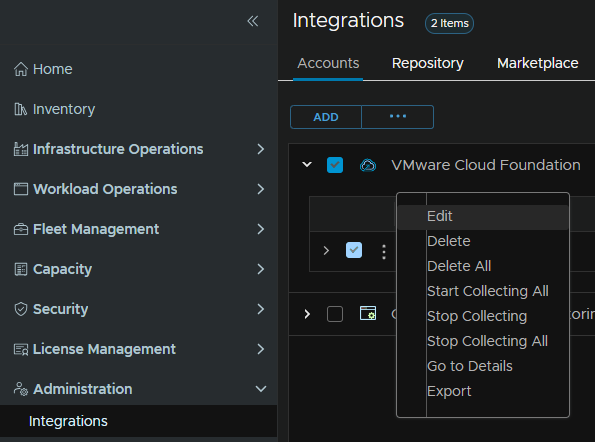
You may see the physical data center is missing, you can optionally add that in from the drop down, if you have one from before
What we need to click on is Manage Integration at the bottom
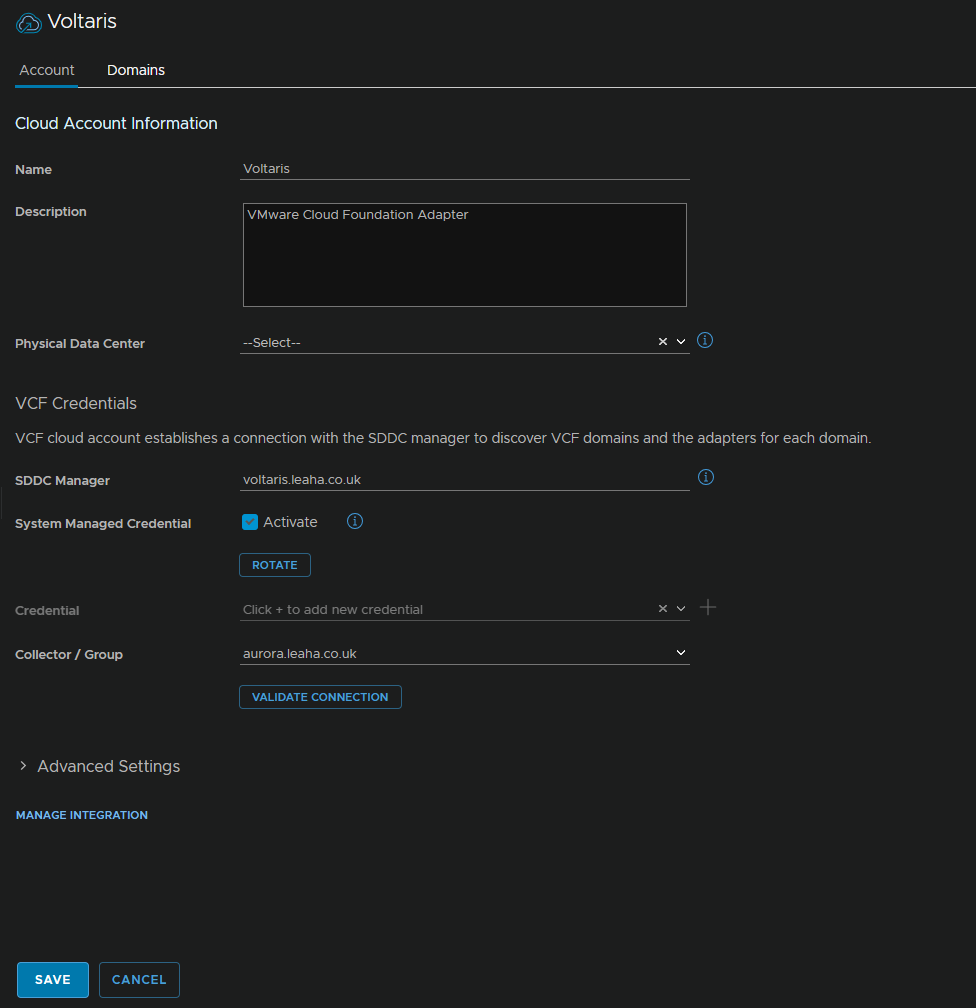
Disable the toggle and click Save
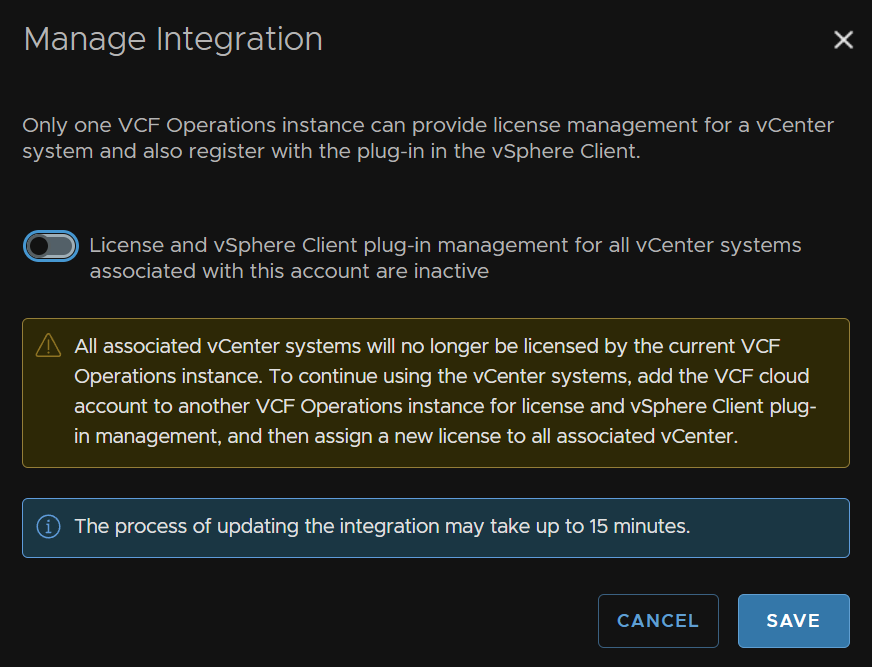
Then click Save at the bottom
This will remove the plugin from vCenter

Edit the instance again, and under manage Integration re enable the toggle and click Save
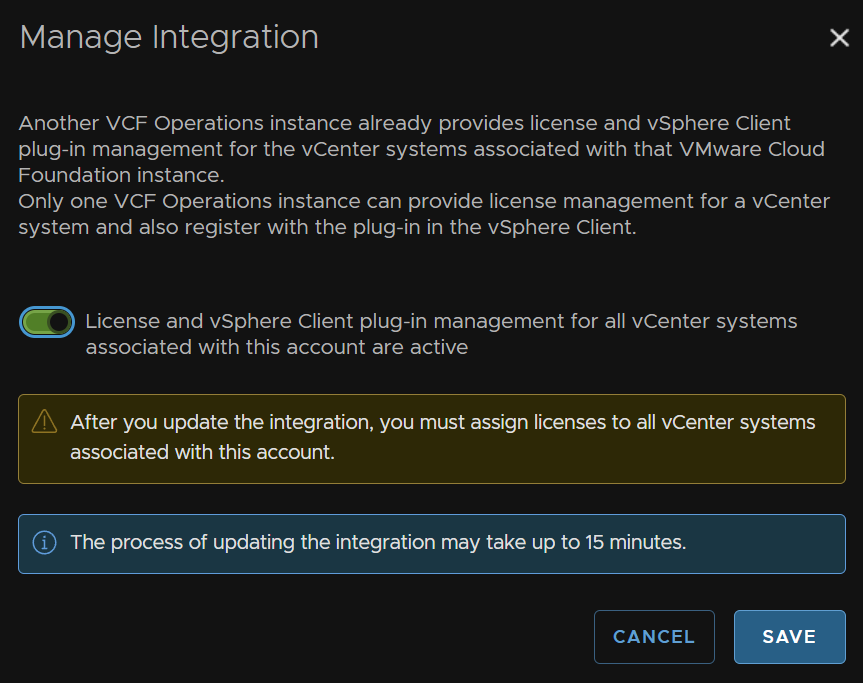
This will push the plugin back which will be the new version 9 one we need

5.2 – Licensing
Licensing is no longer handled by Keys in vCenter, rather through VCF Ops and the Broadcom Business Services
If you have an active subscription then youre licenses should show up here
Under License Management/Licenses
To set this up click License Management/Registration
Now we will assume you have internet connectivity and will do a connected registration, on the Connected Widget, click Start Registration
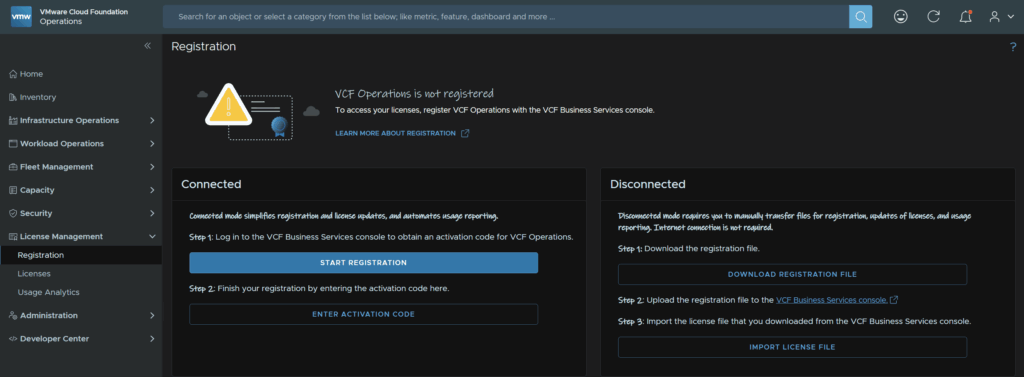
This will prompt you to log into the Broadcom portal, you will need licensing permissions in your Broadcom portal for your organisation
On the default loaded page, enter a display name for the license and click Save And Next in the bottom right
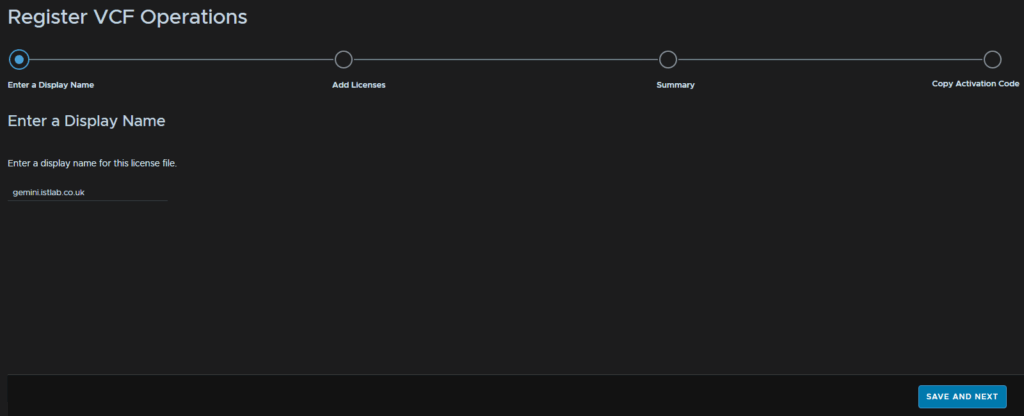
Select your license, I am selecting my VCF license and vSAN, then click Save And Next
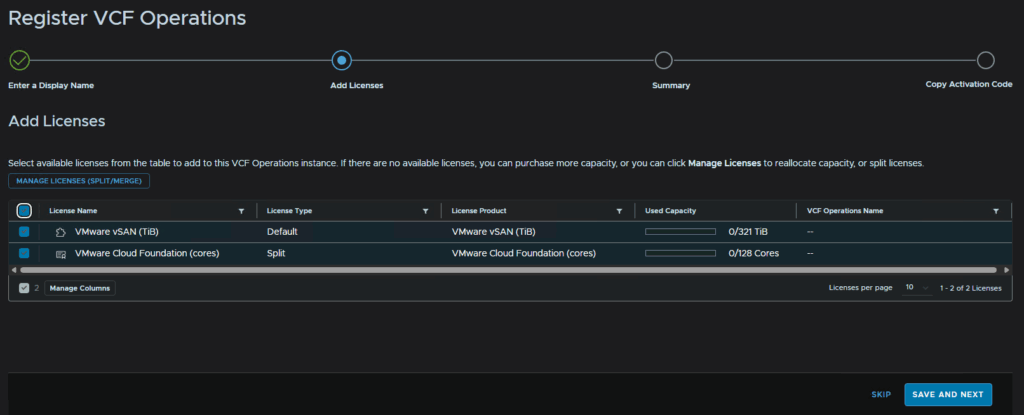
Then click Next
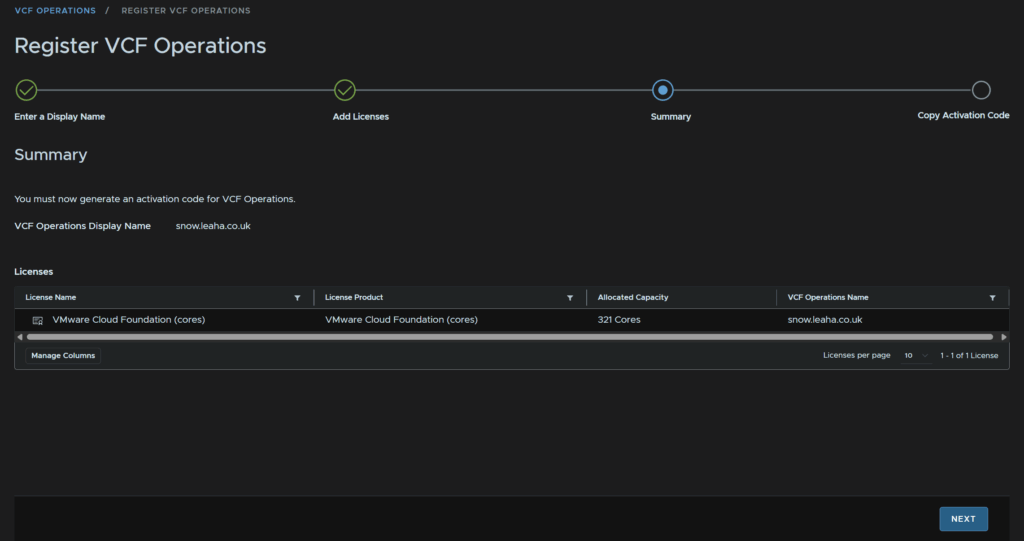
Click Copy next to the activation code
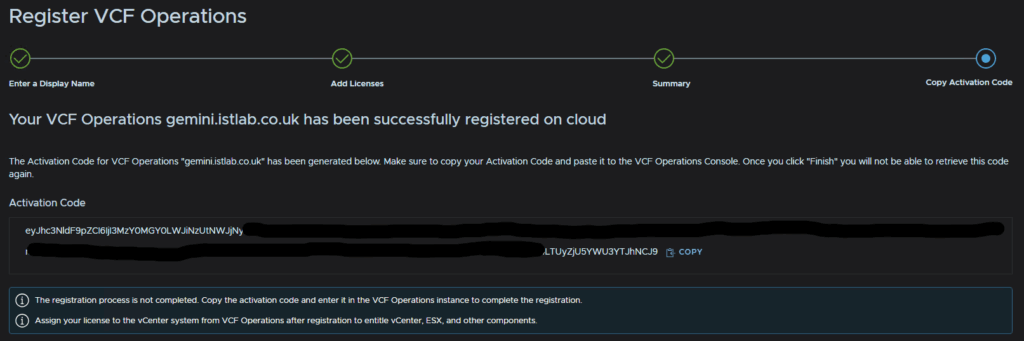
In VCF Ops click Enter Activation Code
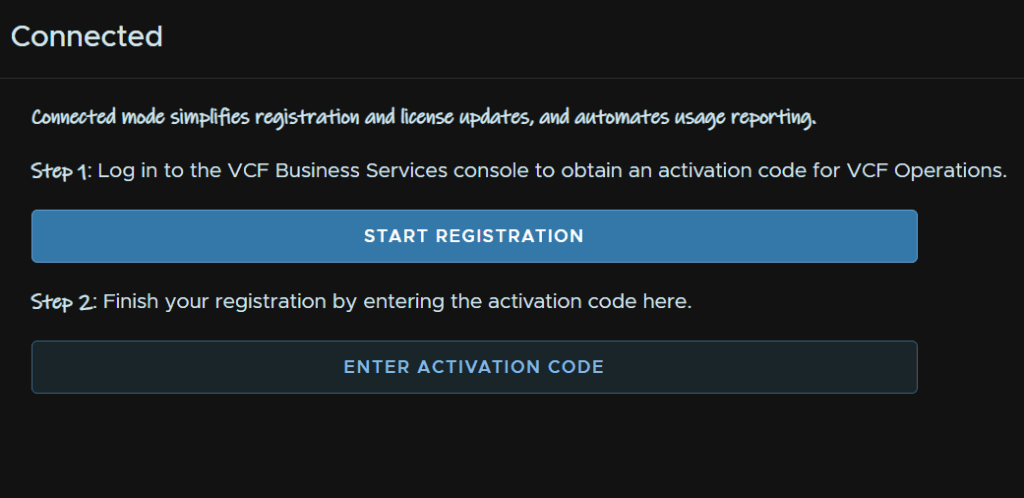
Then click Activate
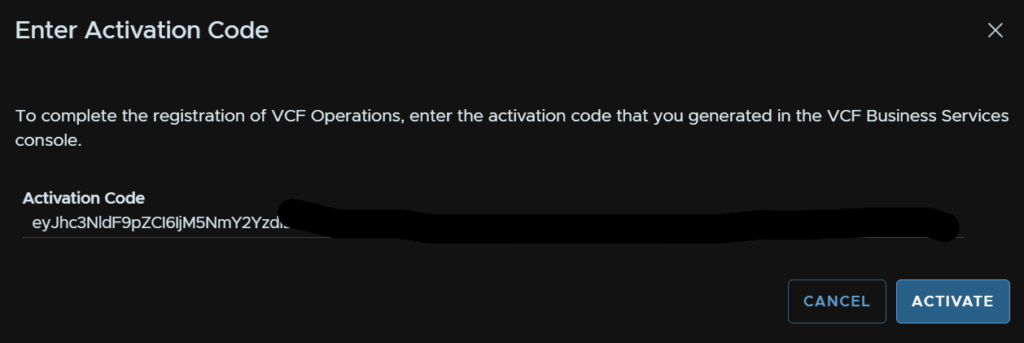
Now we can head to License Management/Licenses, click our vCenter in VCF Ops, mine is called VCF_istlab-vcf and click Assign Primary License
If yours doesnt show up here, check out the bottom in section 1.13 and changing the SDDC manager integration as this will be needed
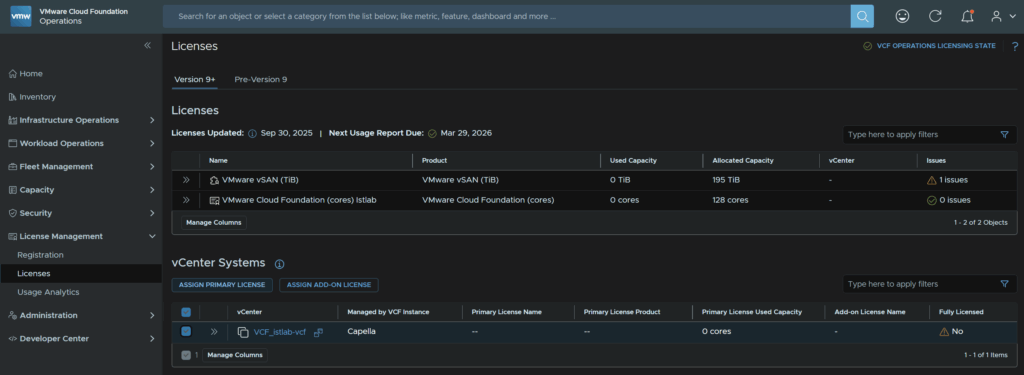
Select our license and click Assign

Wait for it to be applied

We need to also click Assign Add On License for vSAN

Select the vSAN license and click Assign

We can then see our cluster is fully licensed and we can see the usage
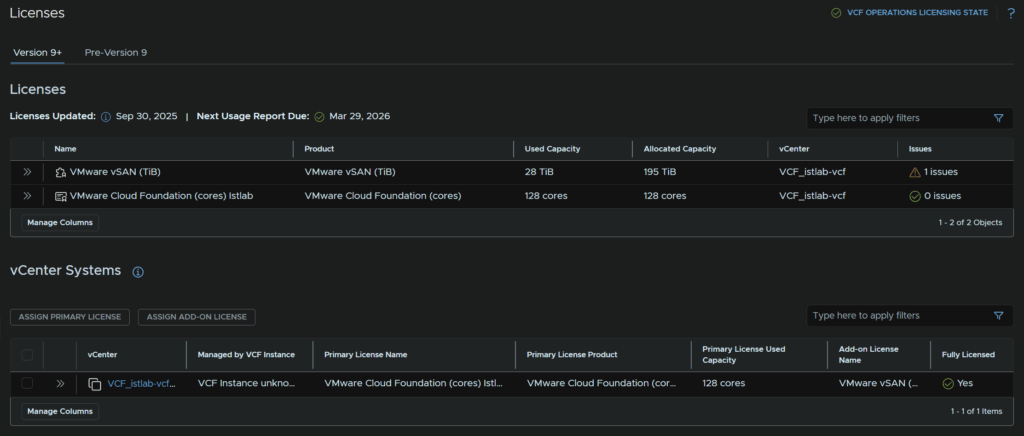
Its worth noting the vDefend licenses arent here and need to be applied directly to NSX, you can get the keys from your entitlements like with VCF 5.2 licenses
Then in NSX, from System/Settings/Licenses, we can click Add License and copy the keys over
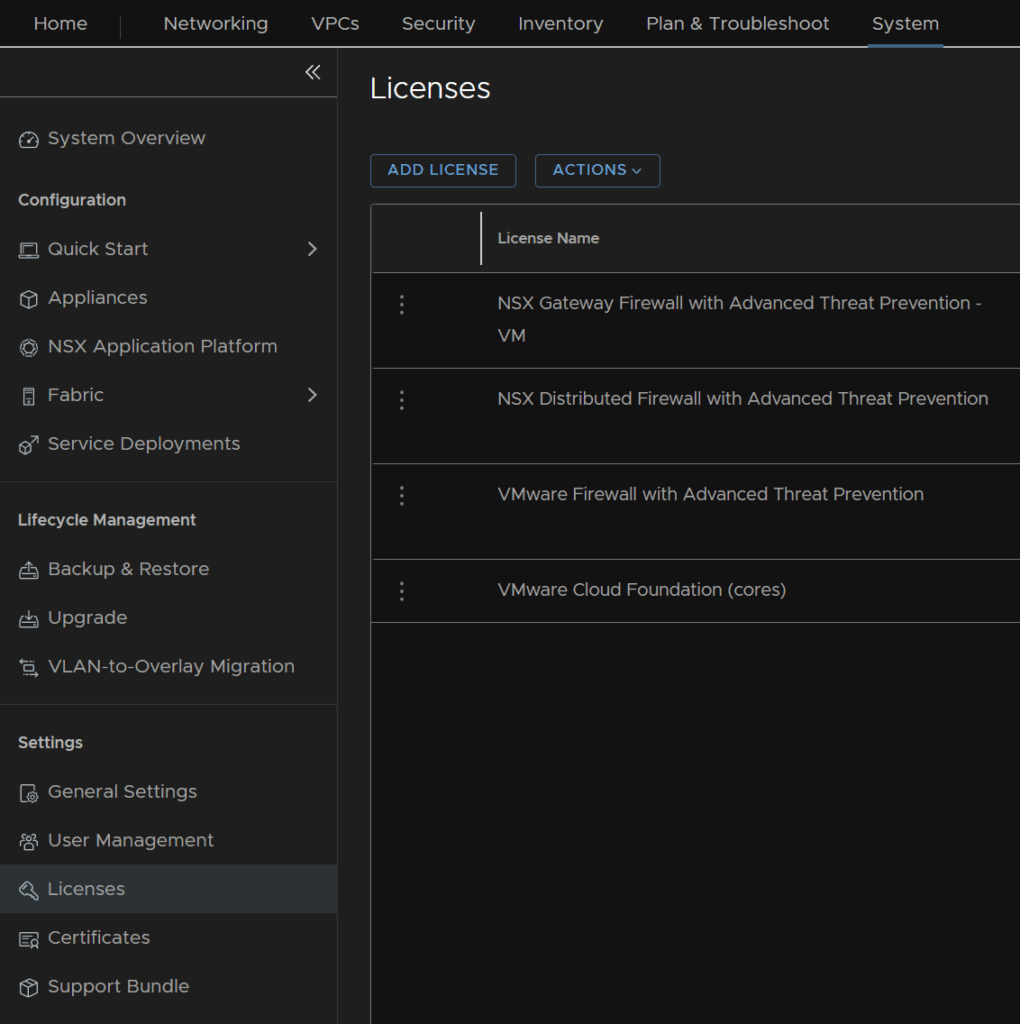
5.3 – Backups
First we want to verify the vCenter backup schedule is running, to access this go to
https://vcenter-fqdn:5480
And check under backups its still configured and running
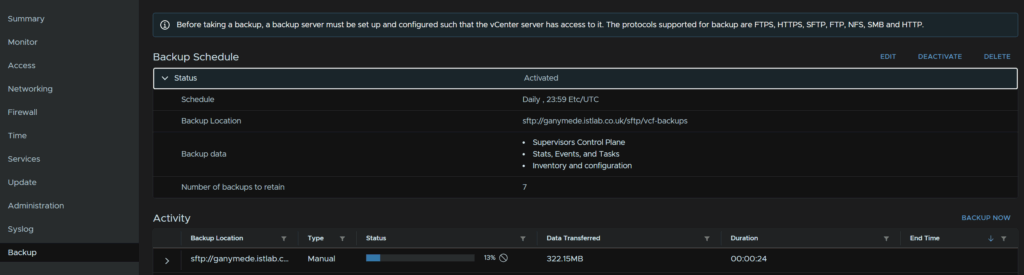
We then need check the SDDC backups are still fine from the 5.x deployment
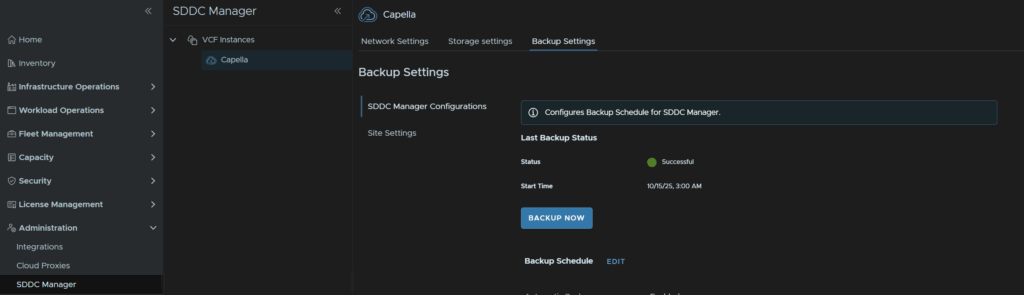
Lastly we need some backups for the fleet management servers, click Fleet Management/Lifecycle/VCF Management
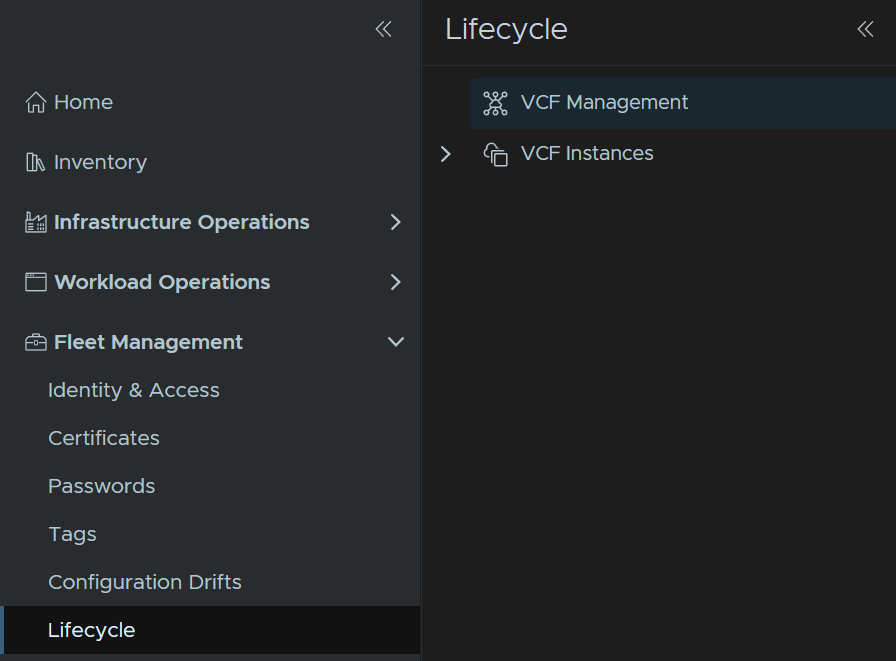
Click Settings/SFTP Settings, then add your backup server IP, I tried the FQDN but got resolution issues on internal K8S pods so I recommend using the IP, port 22, SFTP protocol, username, I recommend a service account, and click the + to add a password
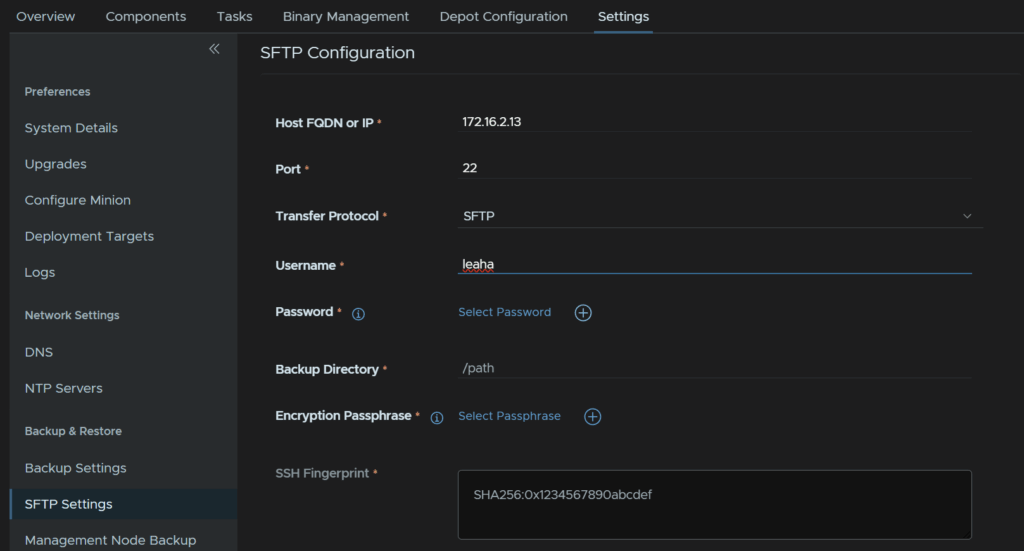
Add an alias, a friendly name, then the password and click Add
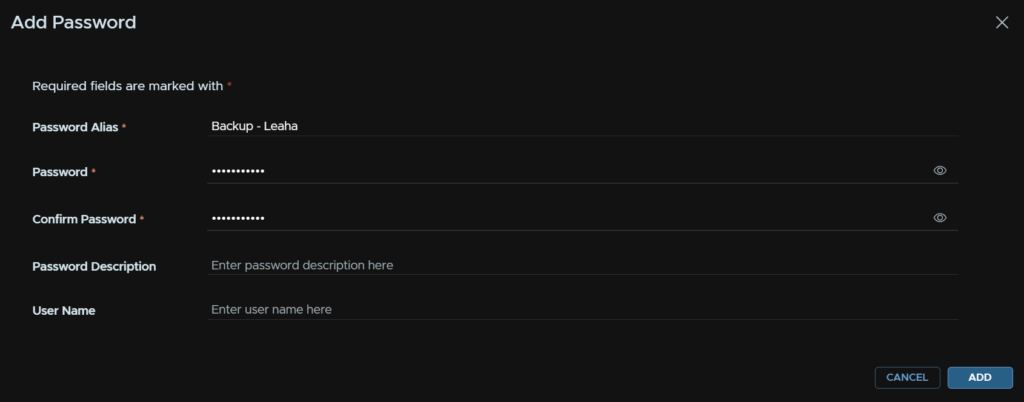
Click Select Password

And select the password

Enter the directory to save the backups on the SFTP server, then click the + for a passphrase
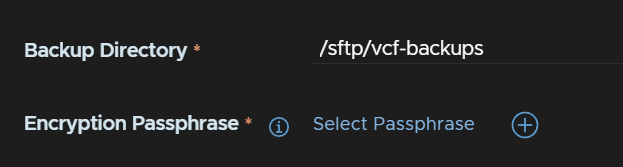
Enter an alias, the password, and click Add
The passphrase should be 15 characters, the only allowed special characters are !@#$%^&*
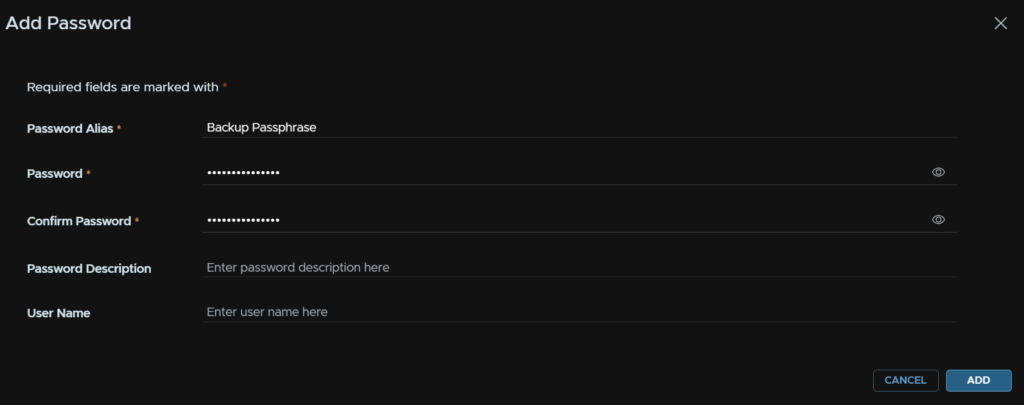
Then click Select Passphrase

And select the password

Then click Fetch Fingerprint

And click Save
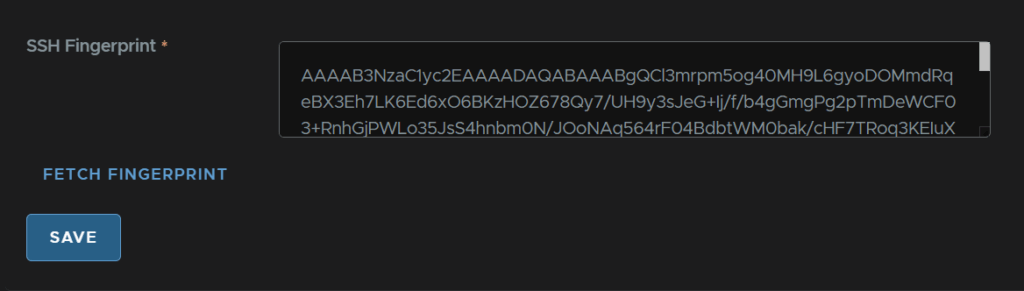
This will trigger an SFTP server update

We can then configure a schedule for the automation and fleet management appliances
In Settings/Backup Settings click Edit on VCF Automation
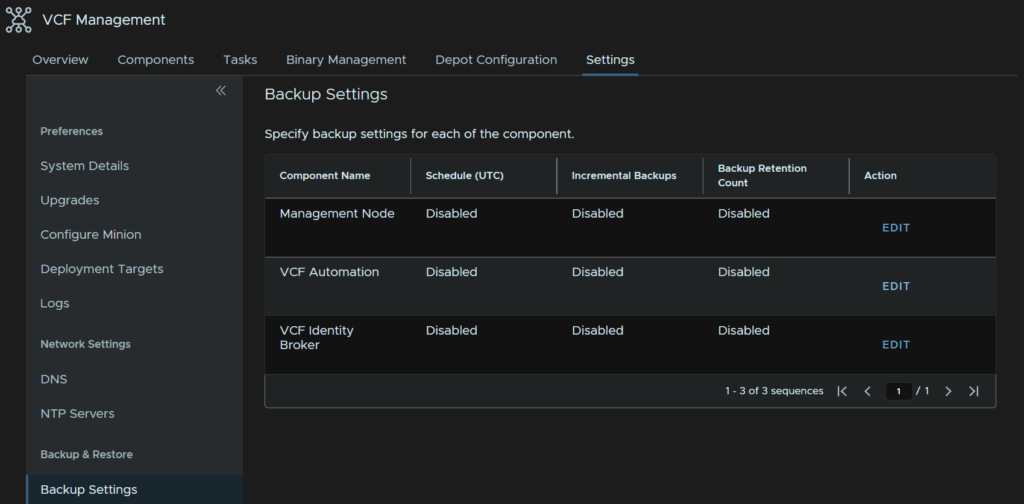
Set a time for a daily backup and enable the retention policy, 7 days is plenty and click Save
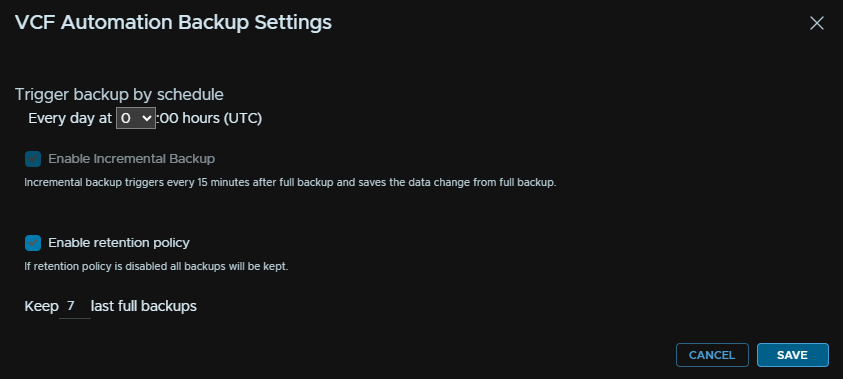
It should look like this
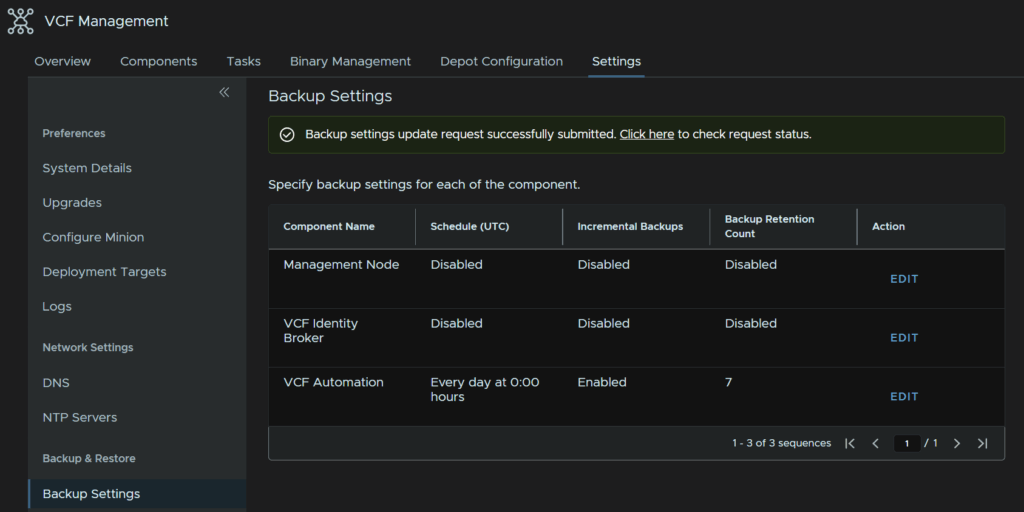
Unfortunately the config backups for fleet management are stored locally and oddly dont follow the SFTP setup, so I recommend also backing it up with your backup provider with the other VMs below
For VCF Automation to test that works, head to Components and click the automation component
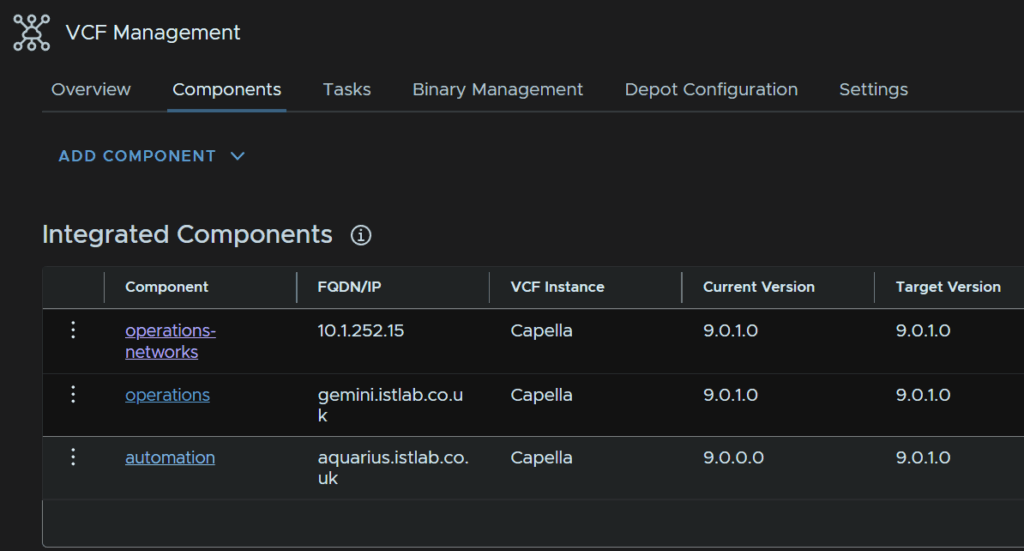
Click the three dots, then Backup And Restore/Backup
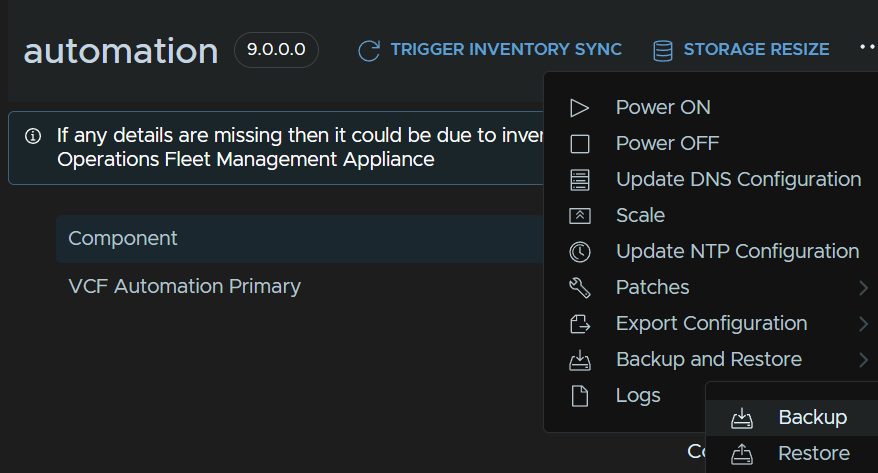
Check the box and click Confirm
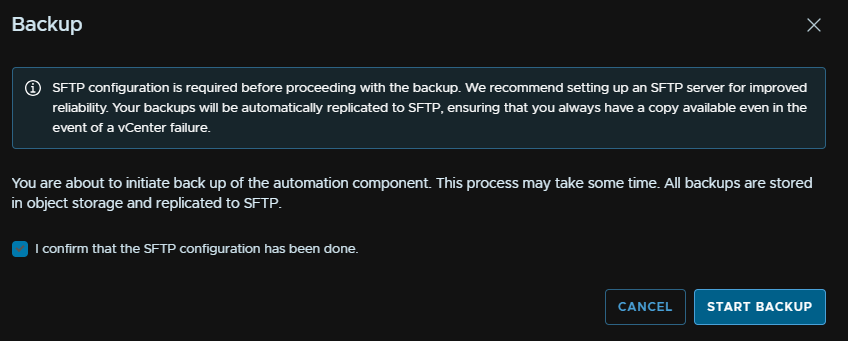
For VMs to backup with your backup software that arent covered by these, you’ll need to add
- VCF Ops For Networks
- Fleet Management
- VCF Ops
- VCF Ops Collector
- VCF Ops For Logs
5.4 – Setting Fleet Management Logging
If you do not have VCF Operations For Logs, this can be skipped
Fleet Management needs to be configured to backup to VCF Ops For Logs to set this up, head to Fleet Management/Lifecycle/VCF Management/Settings/Logs
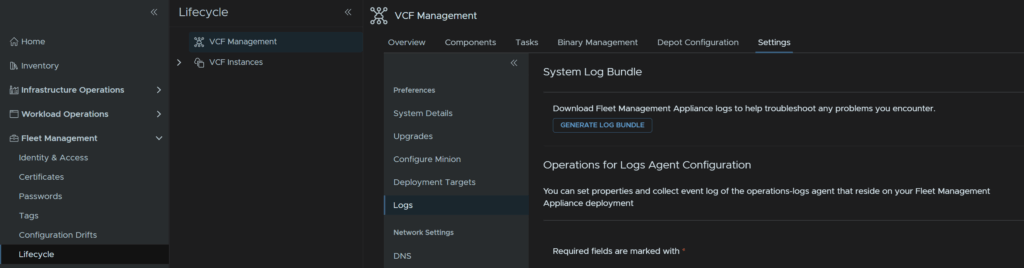
Enter the log server FQDN, the port needs to be 9543,protocol needs to be CFAPI, then enable SSL, accept any and click Save
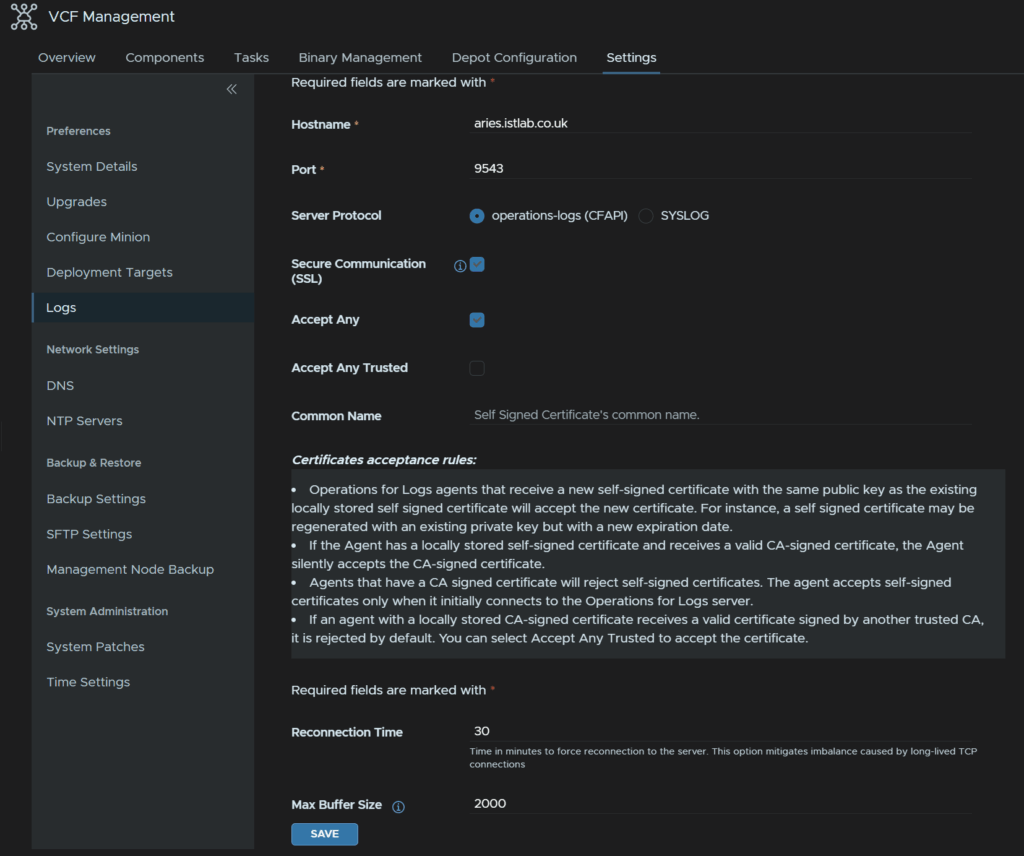
5.5 – vCLS Retreat Mode
In vCenter 9 vCLS is deprecated and its recommended to put this into retreat mode, this will not effect DRS functionality which used to use this
To do this, click your cluster, then click configure/vSphere Cluster Services and click Edit vCLS Mode

Select Retreat Mode and click ok
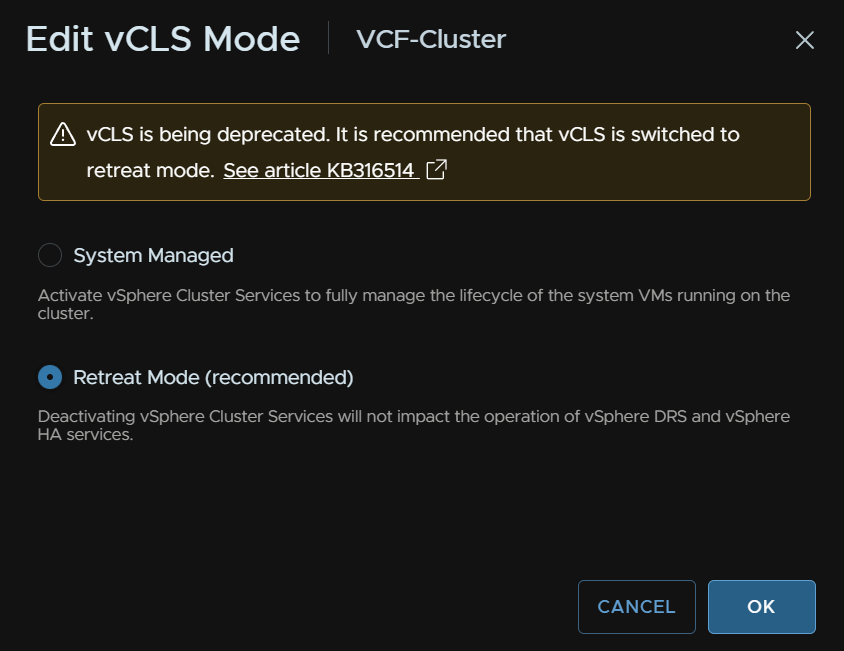
5.6 – Adding SDDC Admins
Admins who can access the SDDC UI, which is currently deprecated and due to be fully migrated to VCF Ops, is managed by the default SDDC Admins group in vSphere
To add users, in vSphere, click the three lines in the top left and click Administration
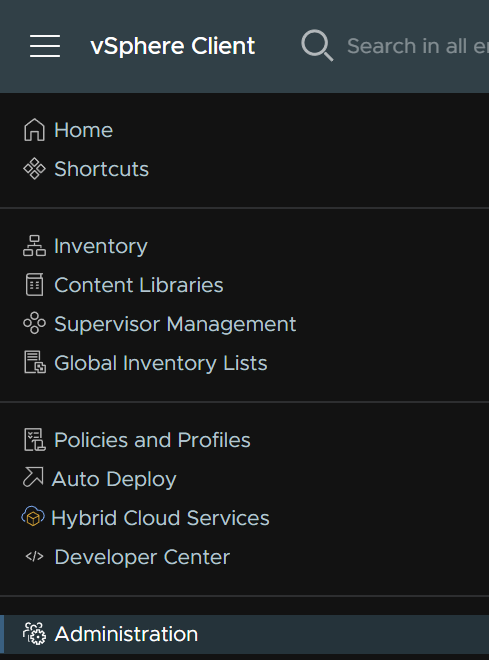
Click Single Sign On/Users And Groups, then click the Groups tab, on the second page, click SDDCAdmins
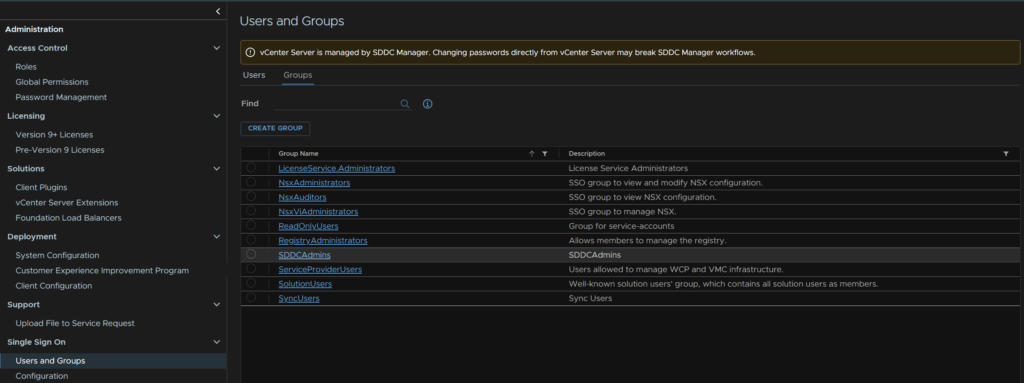
Click Edit
Search and add any users and click Save
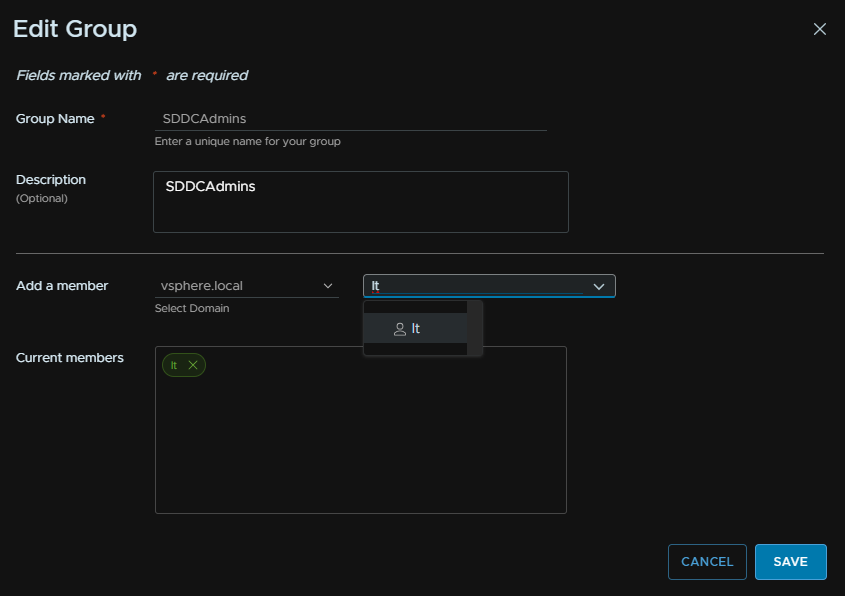
Alternatively, login into the SDDC Manager UI on
https://fqdn/ui
Head to Administration/Single Sign On and click + User Or Group
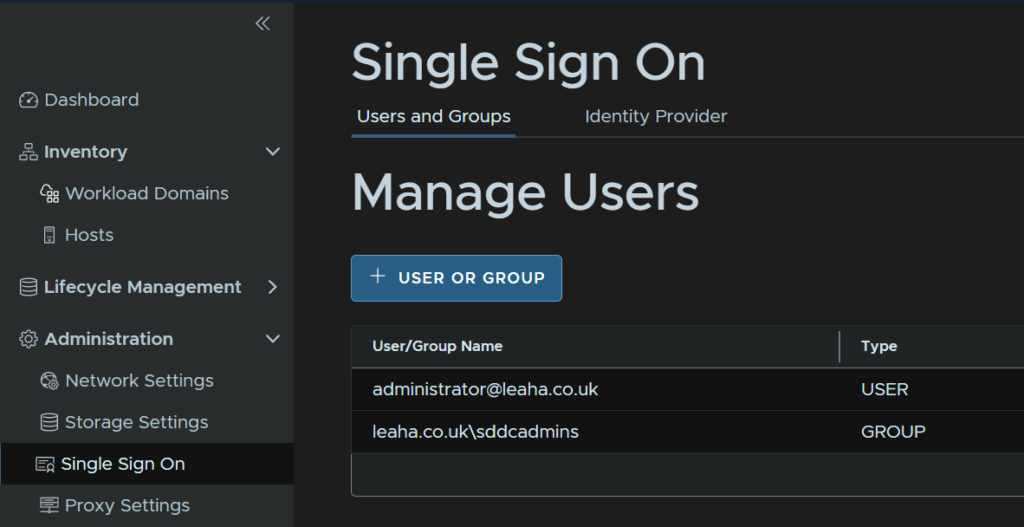
We can select the vSphere domain, likely vsphere.local, mine however, is leaha.co.uk, you can then search for the Administrators group and select the role Admin and click Add
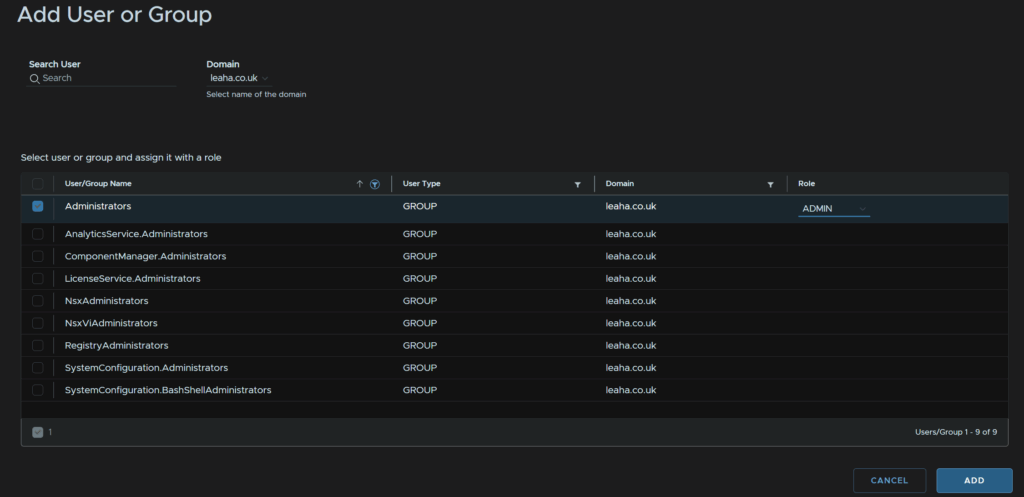
Now the group is added, all vSphere admins have permissions to the SDDC Manager
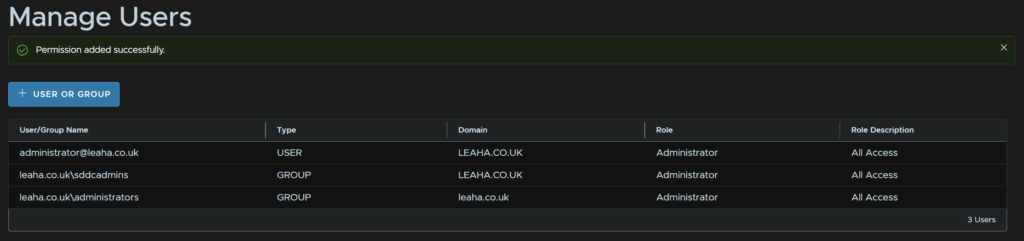
5.7 – Configuring Fleet Management
Before we can install the remaining components we need to configure the fleet management depot, to do this, from VCF Operations, head to Fleet Management/Lifecycle/VCF Management/Depot Configuration and click Configure on the Online Depot widget
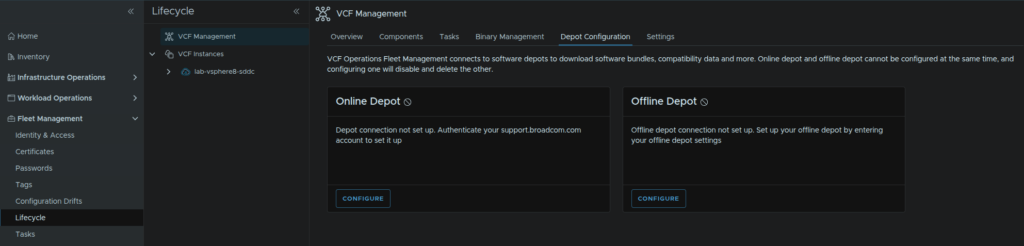
Click the + icon
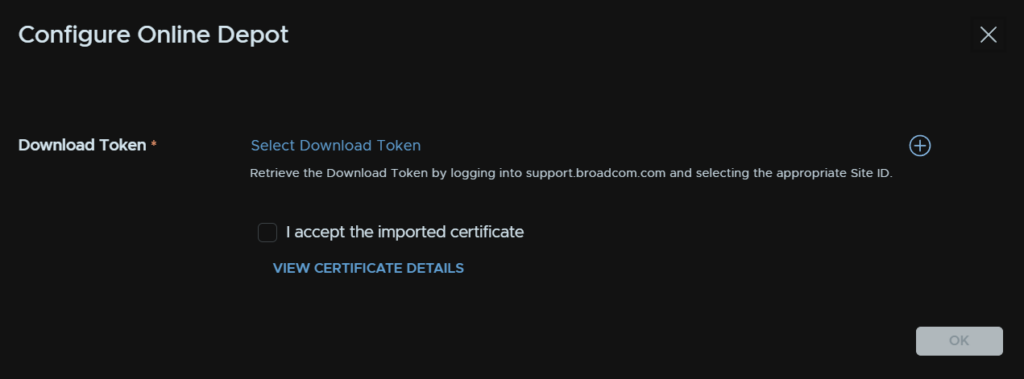
Give the token a name, and in the password fields, enter the token, then click Add
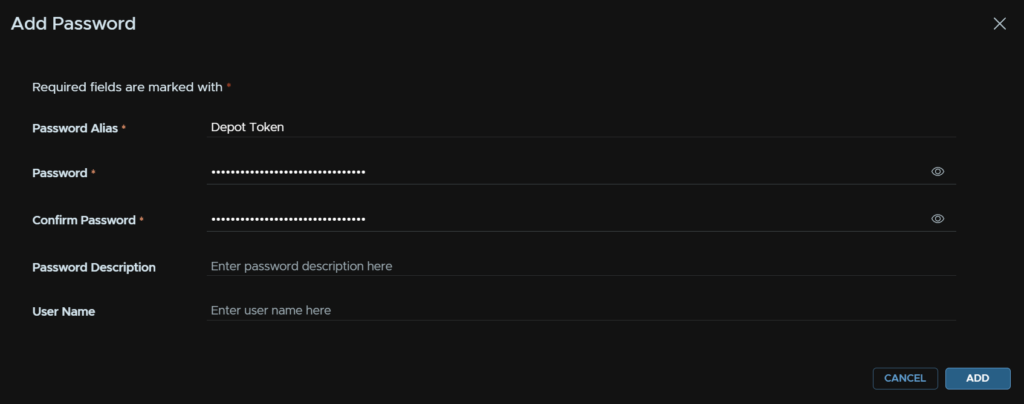
Now click Select Download Token
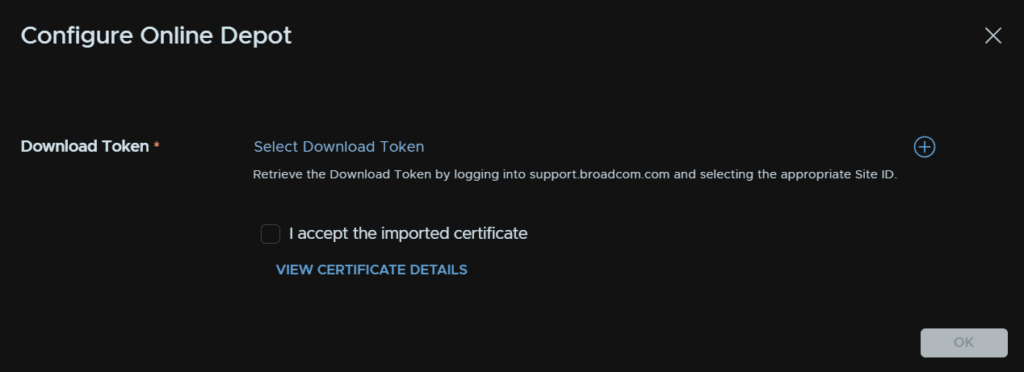
Click the newly created credential
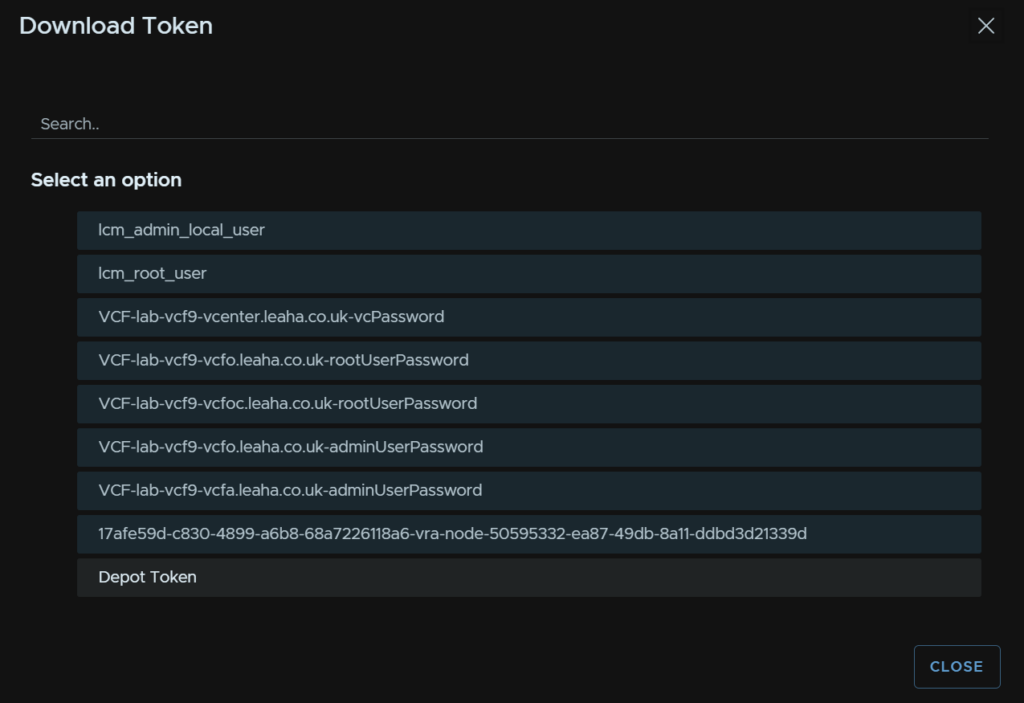
Check the box to accept the depot certificate and click ok
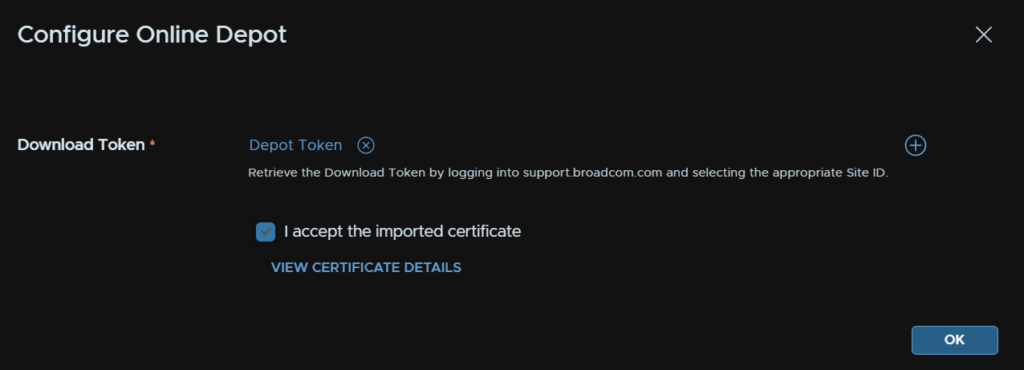
It should then look like this
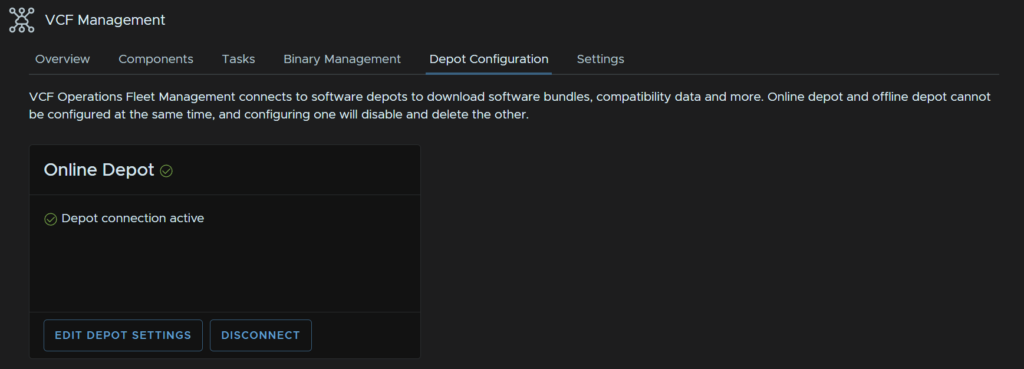
5.8 – Binary Cleanup
Now we have deployed and upgraded everything we need, we can remove the old binaries so they arent taking up space
From VCF Ops, head to Fleet Management/Lifecycle, expand and select your VCF Instance and click Binary Management, then select all Downloaded Binaries and click Delete Download
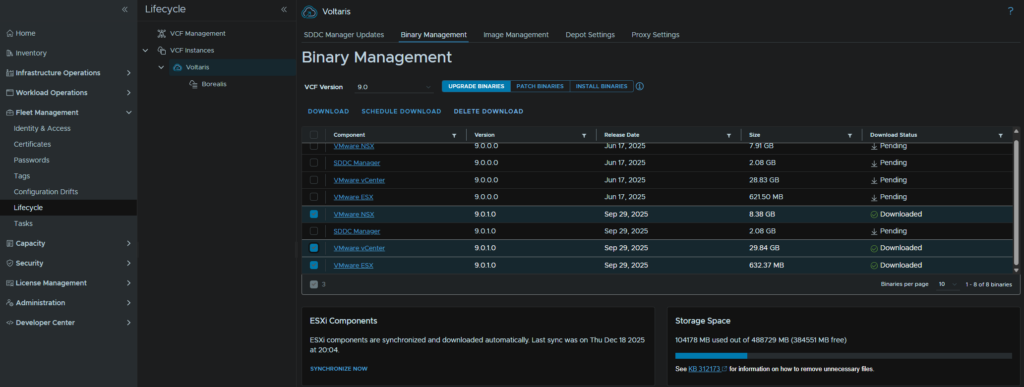
Now head to VCF Management/Bunary Management and repeat for Upgrade Binaries and Install Binaries, as I only had VCF Operations For Logs to install here, thats my only one, you’ll need to click the trashcan icon
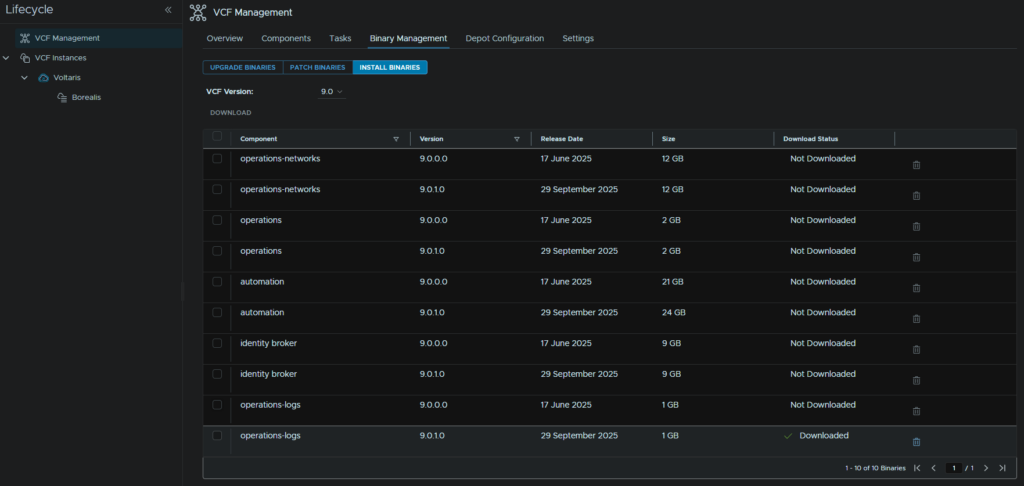
6 – Errors
6.1 – VCF Operations
6.1.1 – Error LCMCOMMON30007
I noticed an error here for the cloud proxy for SSH credentials not working
LCMCONNON30007
Click Retry
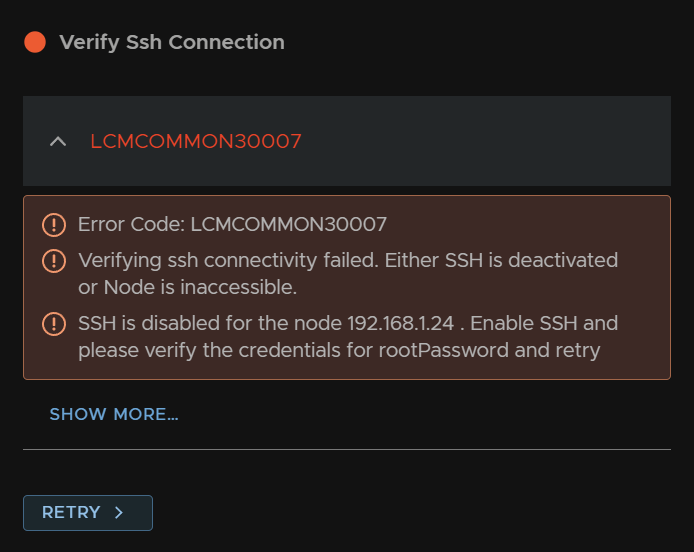
Click the X and remove the default selected password
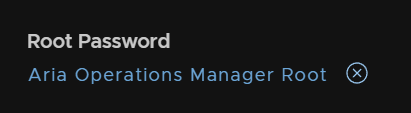
Click Select Root Password for the cloud proxy we added in the Operations Collector Prep sections
And select the root password we just added
Then click submit
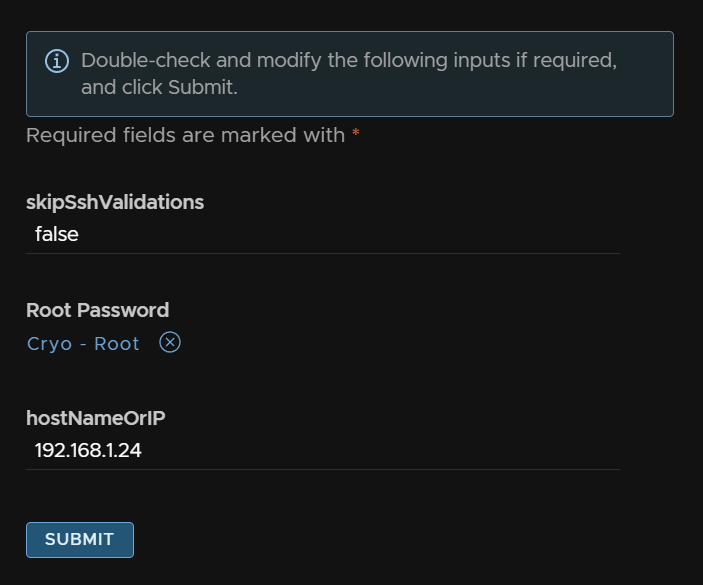
Later during the upgrade I saw it again
I had to click Retry after a few mins as the proxy was rebooting, and change the password used like above
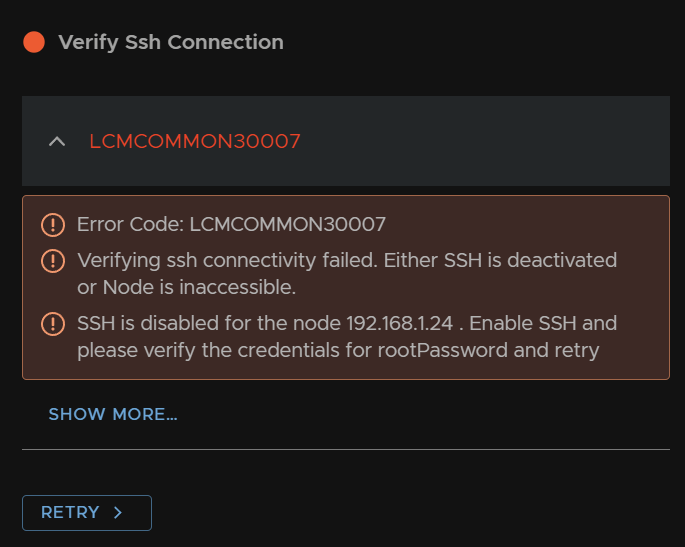
6.1.2 – Error LCMVROPSYSTEM25056
You may get an error for SSH being disabled on the Operations appliance
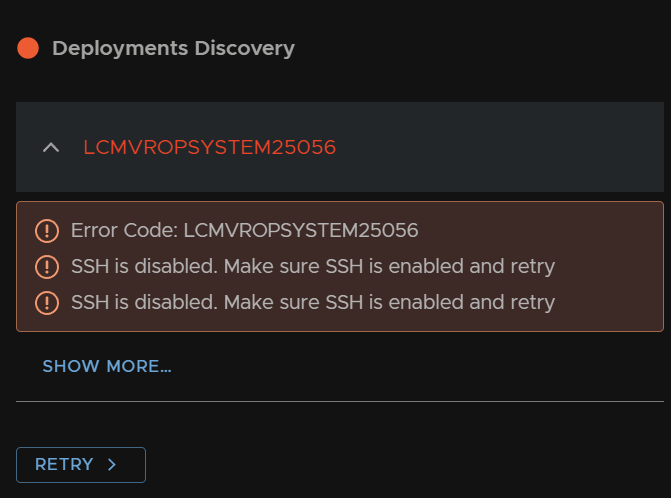
You need to log into VCF Operations on
https://fqdn/admin and re enabled SSH on the right, then click Retry and then Submit
An example from another environment
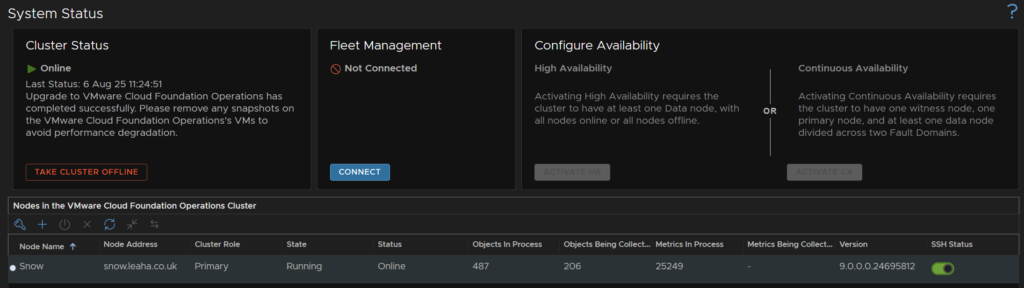
Then head back and click Upgrade again, but this time then click Proceed, depending on the stage you encounter this at
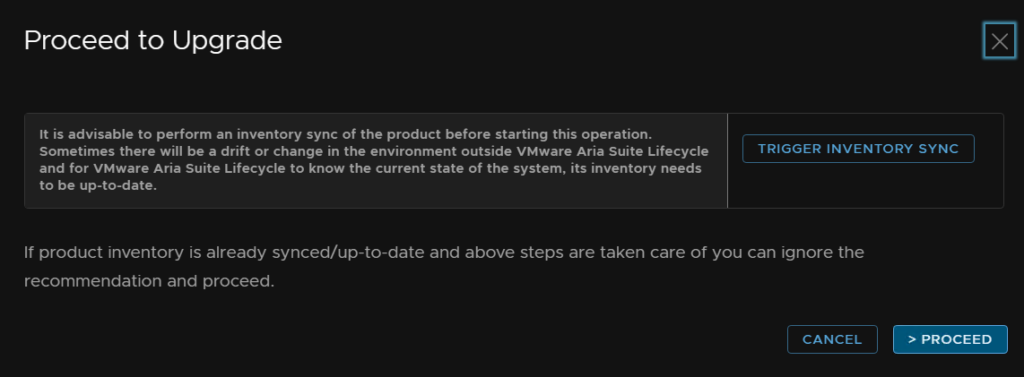
6.2 – VCF Automation
6.2.1 – Error LCMVSPEHRECONFIG1000095
Its worth noting I saw this error, when trying, due to a DNS replication, the fleet management server, Capricorn, wasnt registered in the secondary DNS server, fixing that cleared this issue on a retry, LCMVSPEHRECONFIG1000095
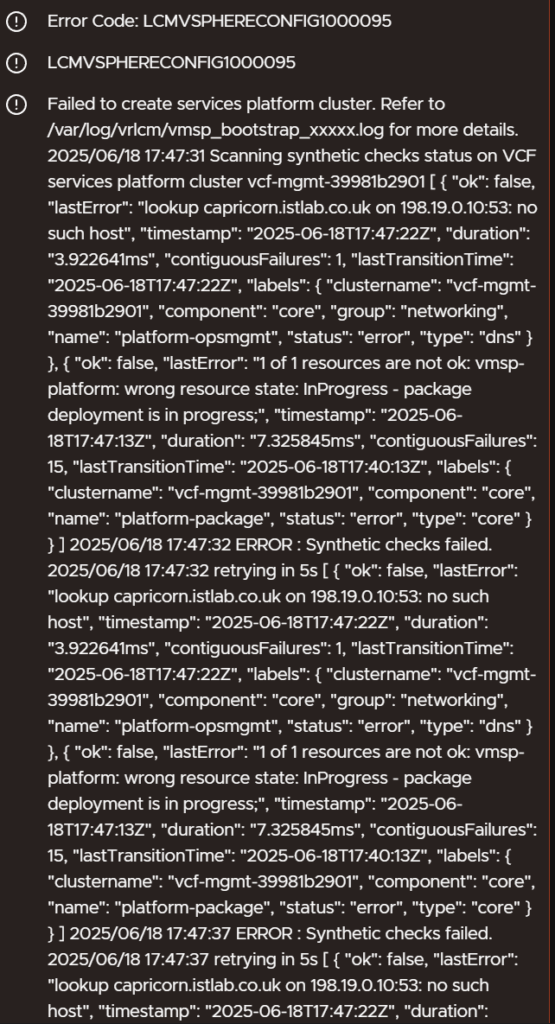
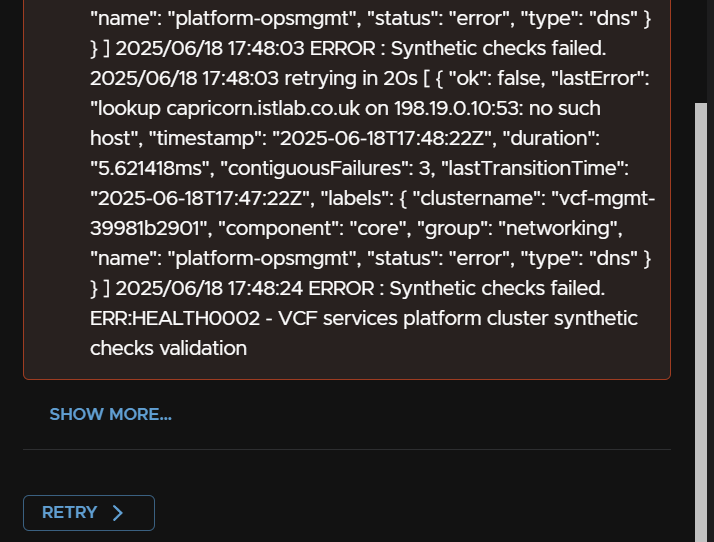
6.2.2 – Error LCMVMSP10006
I then got this error which wouldnt clear on another environment
I shut the newly deployed VM down, reverted the snapshot on the old Aria Automation appliance, booted it up
Then removed it from fleet management, re added to Aria LCM and restarted the import process and upgrade process and it didnt error again, so not 100% what caused this and why it wouldnt resolve
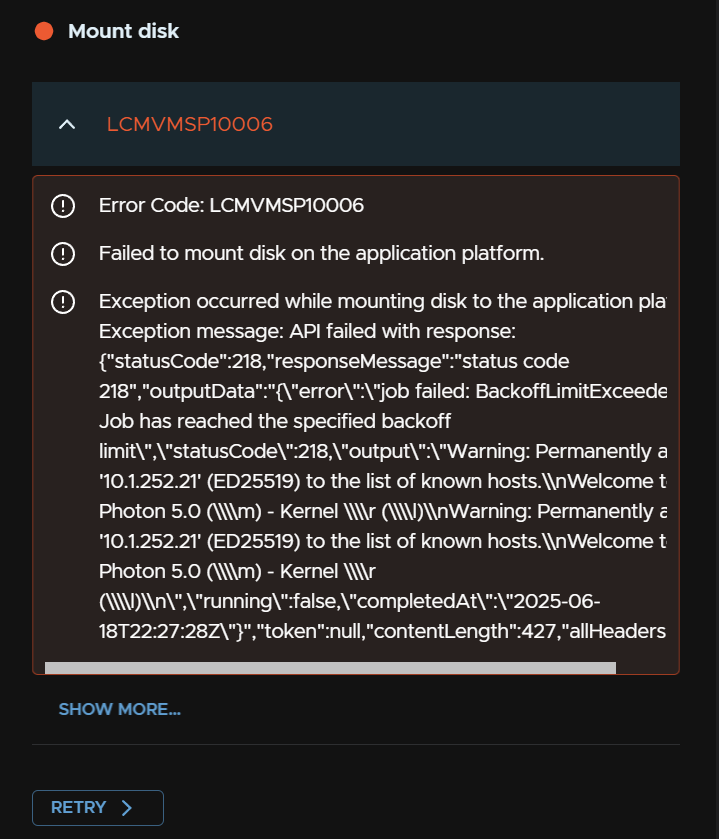
6.2.3 – Error LCMVMSP10035
I noticed the Fleet Management backup job to set this up was failing with this error code, LCMVMSP10035, see section 5.2.3
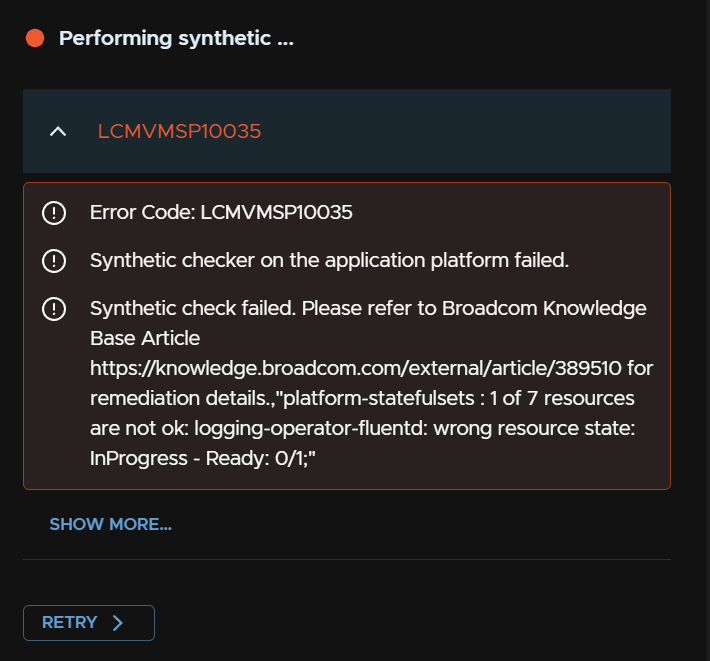
After a lot of troubleshooting K8S on the automation appliance the fluentd pod wasnt starting, which was the service thats not ready
The PVC backing this called the vSphere datacenter name explicitly, so as I renamed it after automation was upgraded it was causing this issue, changing the name back and restarting the appliance fixed this problem
6.3 – VCF Operations For Networks
6.3.1 – Error LCMVRNICONFIG90045
I waited a couple mins and clicked retry
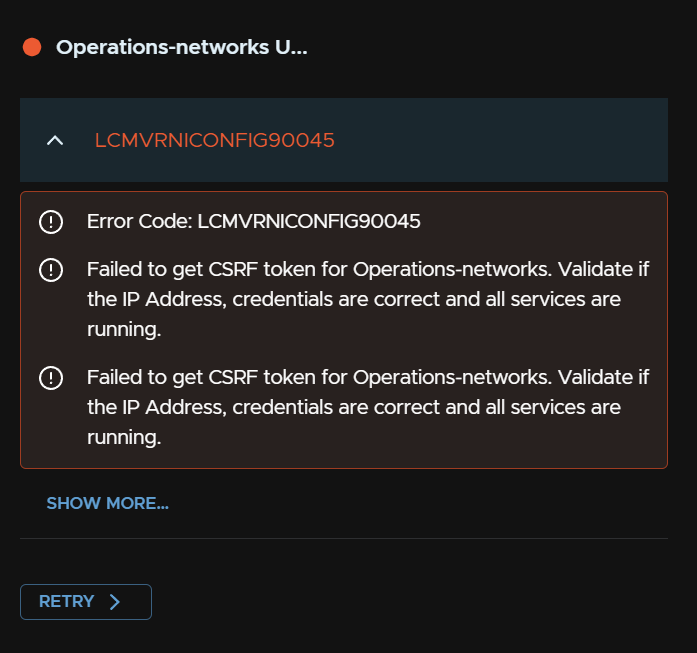
Then submit without changing anything
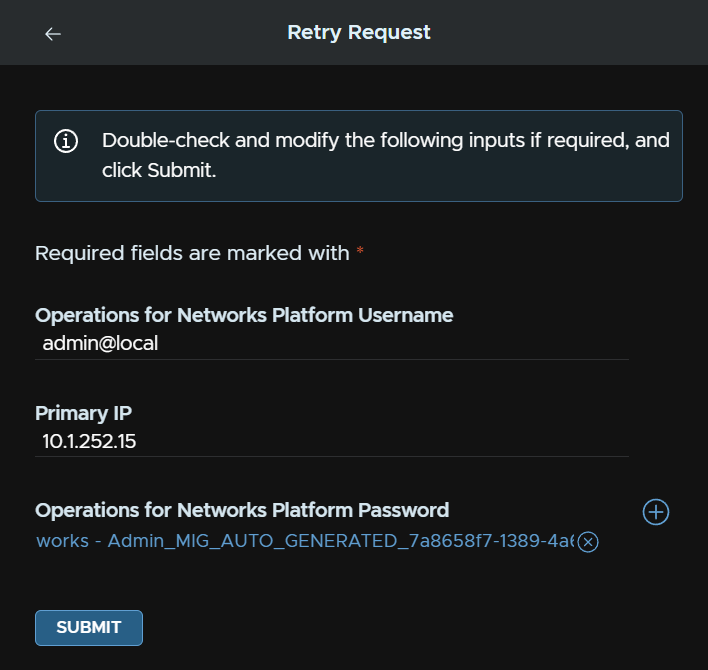
This fixed this error, it mentioned services not running so I imagine as this occurred right after the reboot it was waiting for a few services to finish starting
6.4 – SDDC Manager Convergence
These errors/warnings are not applicable to section 1
6.4.1 – vCenter Root Password Not Long Enough
You may see this error for the vCenter root password not being long enough

To change this, log into the VAMI portal, as root, at
https://vcenter-fqdn:5480
Under Administration, click Change on the right
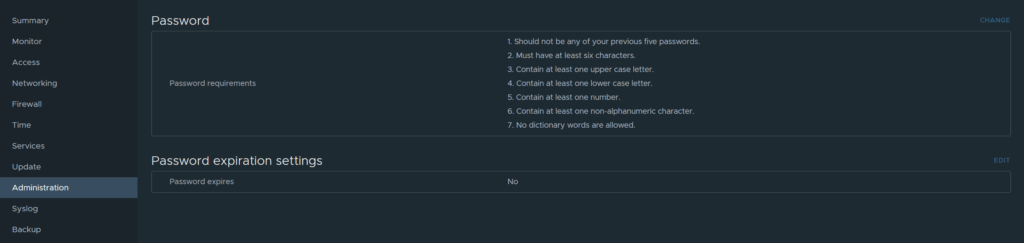
Enter the current password, and set the new one thats long enough and click Save
Click back to the vCenter step on the left and enter the new root password, then step 7, Review on the left
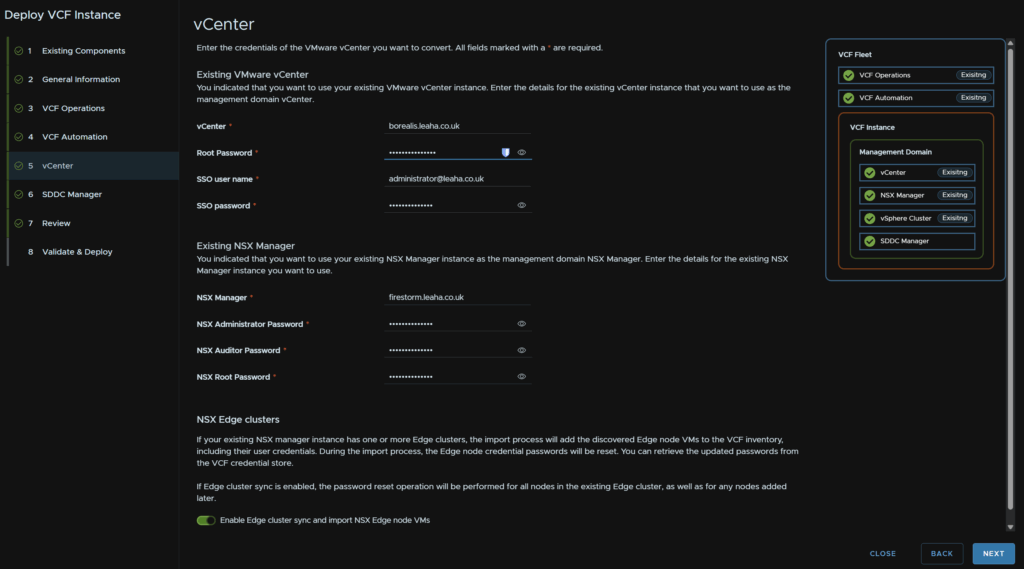
And click Next again to re run the pre checks
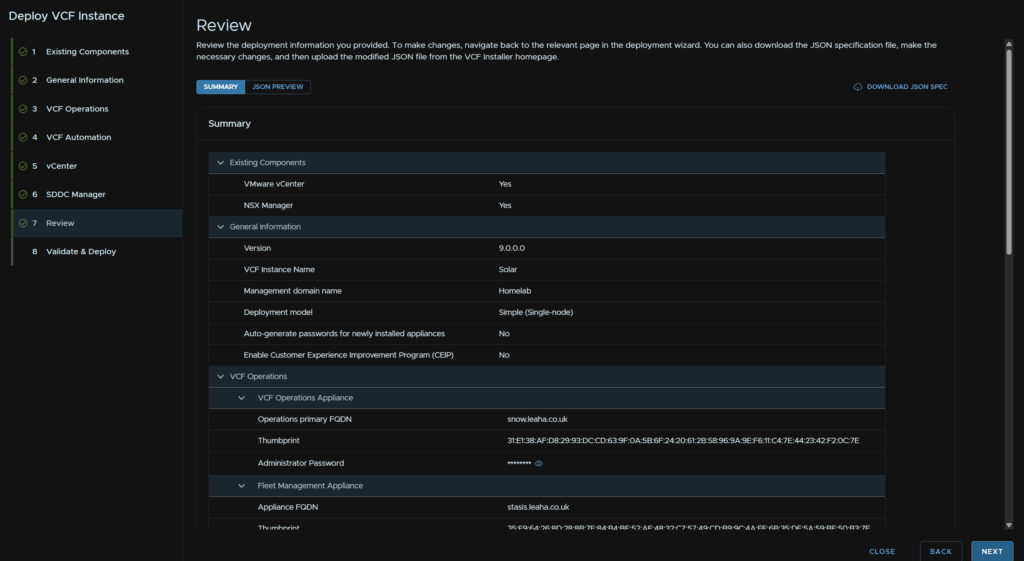
6.4.2 – NSX Certificate Doesnt Match Subject Alternative Names
You may see something like this for certificate issues

This here is from a typo on my NSX manager when I first deployed it, meaning the subject alternative name doesnt match properly
Here the solution is to replace the certificate for whatever this is erroring on
In NSX head to System/Settings/Certificates, select all that match the subject alternative name mismatch, in this case the typo, click Actions/Replace Certificate and use a self signed certificate
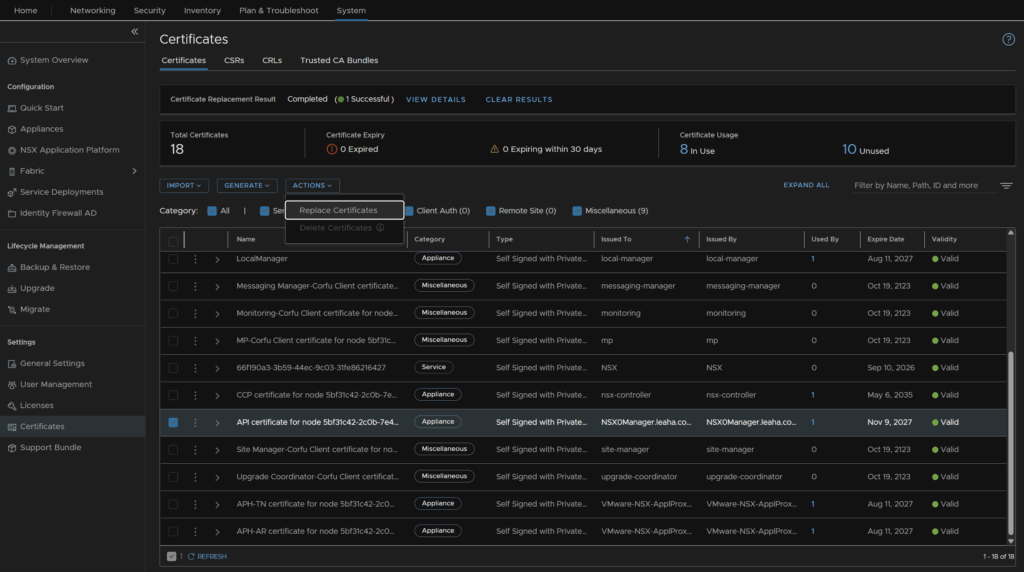
Click Generate Self Signed Certificate
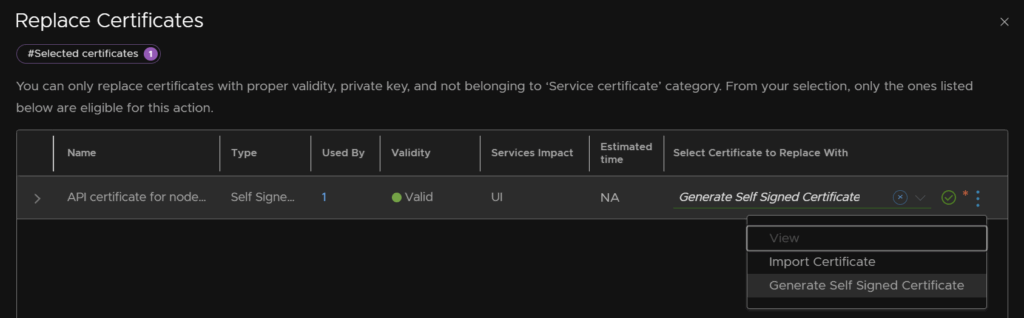
Add a Common Name, and Name, using the NSX Manager FQDN, if you have a HA cluster use the VIP FQDN, the only other two bits that are important are the subject alternative names, for DNS use the FQDN, and under IP add the IP address, you will want to add all cluster FQDNs/IPs in for clusters setups including the VIP, then click Save
One thing of note is I missed of the VIP FQDN/IP here and it should have been added which is why this screenshot doesnt look quite right
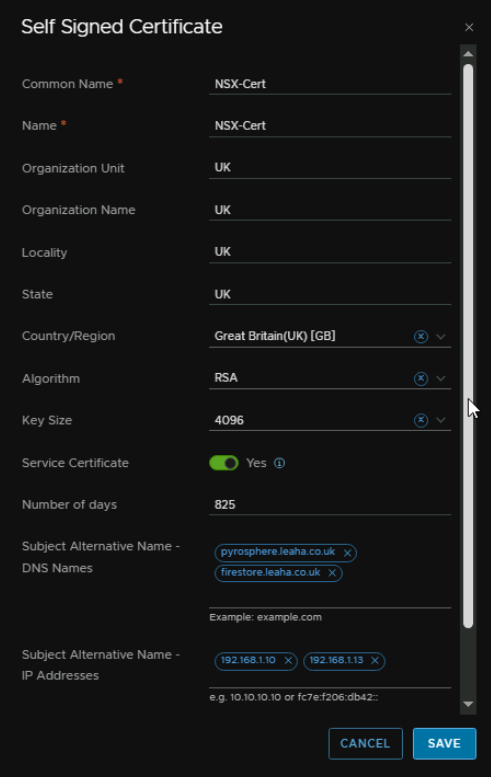
Then click Save
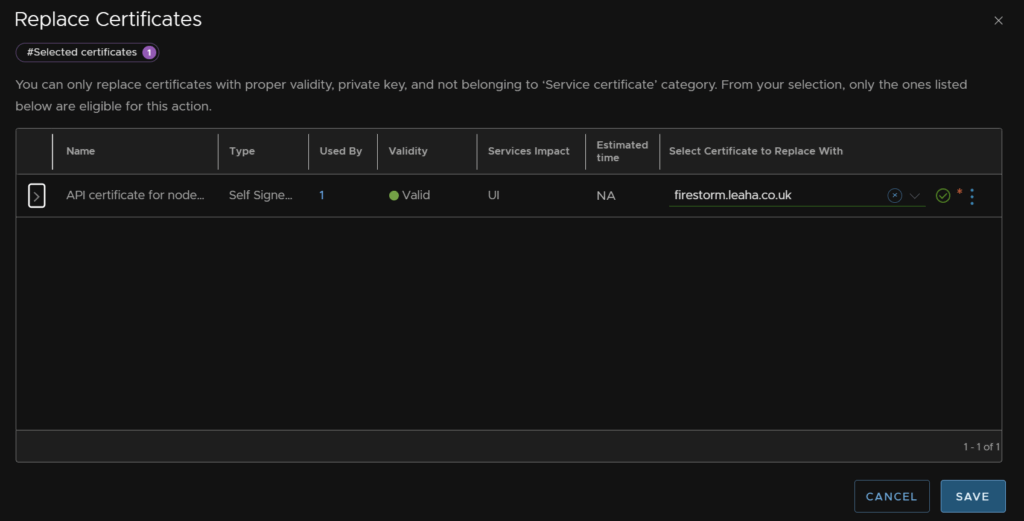
And click Yes here
In the SDDC Manager, click to step 5 vCenter, edit the NSX Manager FQDN to literally anything else thats valid, it will of course error as this FQDN isnt the NSX Manager, thats fine, dismiss it, re enter the FQDN and click Next, this will make it get the certificate again
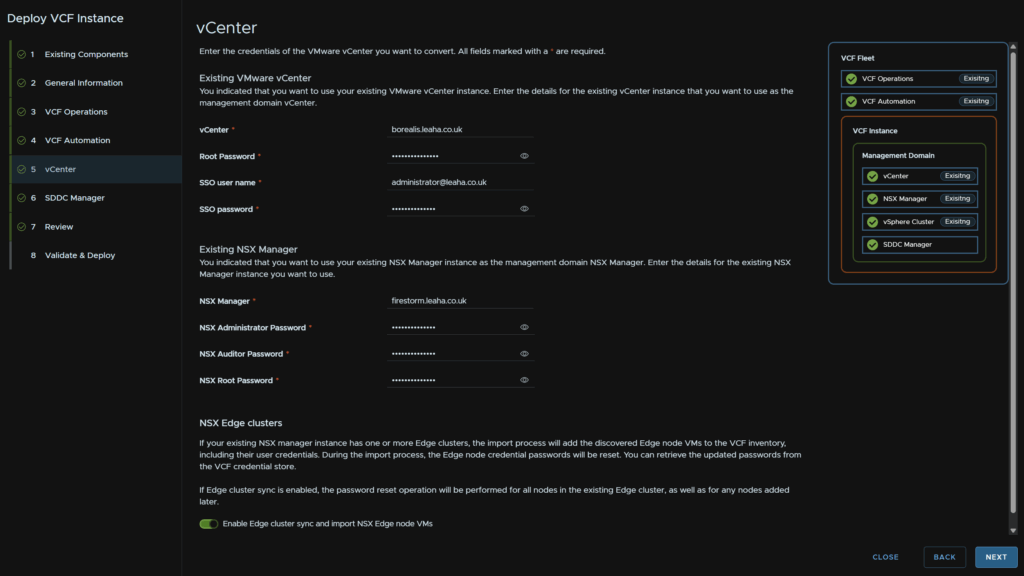
Accept the thumbprint and click Confirm
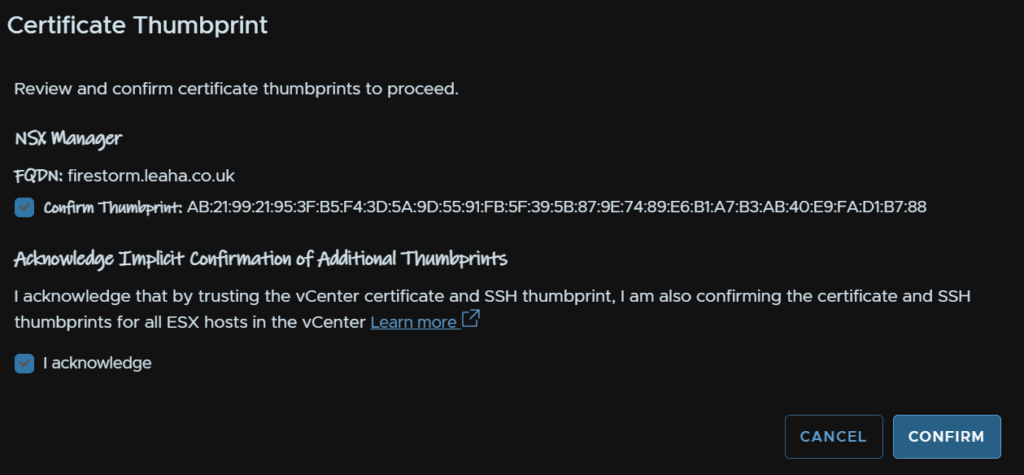
Click back to Validate And Deploy and click Re Run Validation
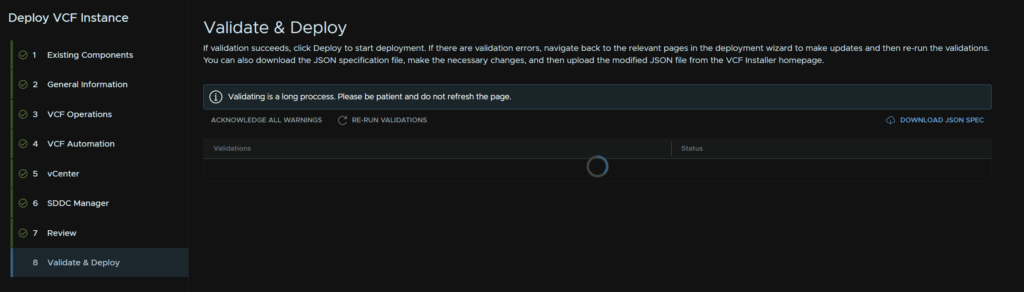
6.4.3 – Evacuate Offline VMs Upgrade Policy Configured
You may see an error that looks like this

This is set in the cluster image settings in Lifecycle Manager and does want correcting
In vSphere, click the three lines in the top left and click Lifecycle Manager
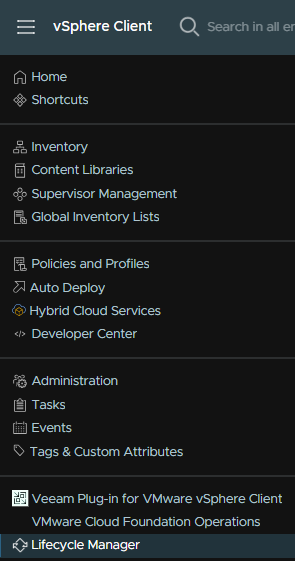
Head to Settings/Cluster Lifecycle/Images and click Edit on the right
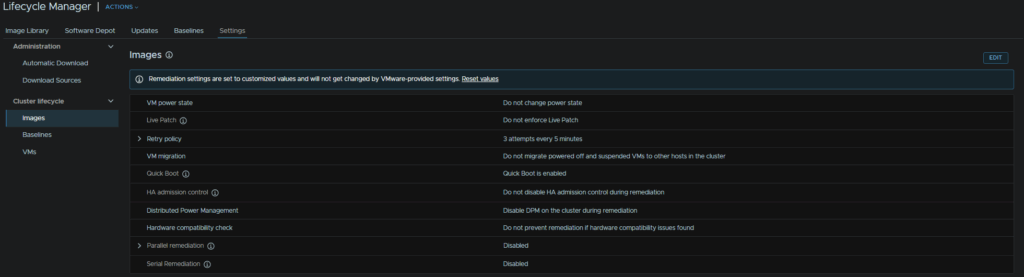
Check the box for migrate powered off and suspended VMs to other hosts in the cluster, if a host must enter maintenance mode, and click Save
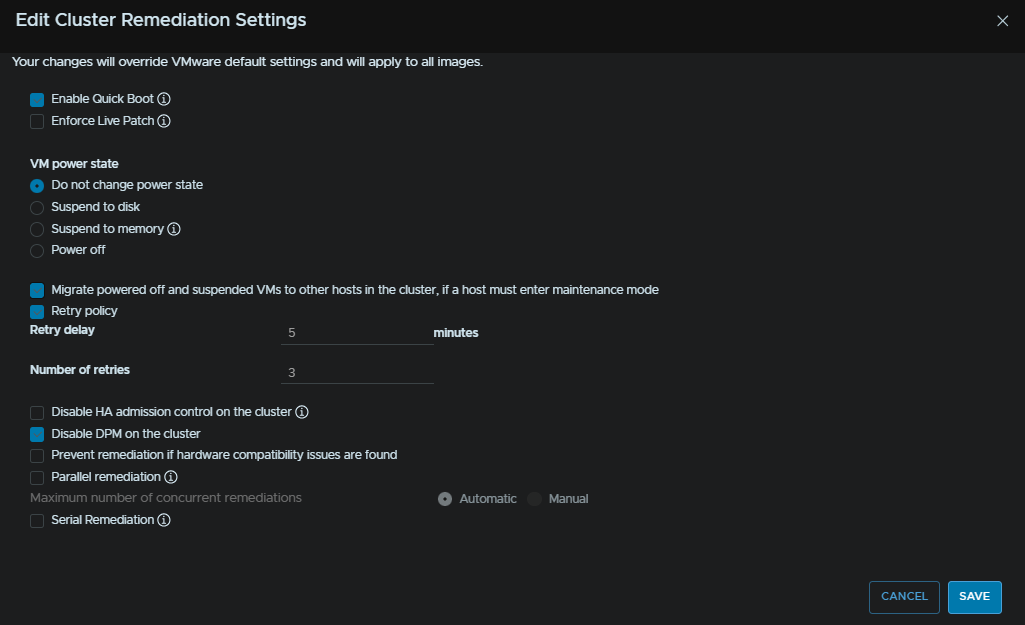
6.4.4 – Cant Connect To Fleet Management Appliance
I got this error due to not deploying my fleet management appliance correctly, this error has been correct in section 2.3 so you are unlikely to see this, however, even with correct credentials the SDDC checks can fail to connect to it due to the certificate name not matching
So if you need to redeploy a new fleet management appliance, make sure you put the fqdn in the hostname field in the OVF template
6.5 – NSX
6.5.1 – NSX UC Rollback failed as UC is not upgraded
I encountered this and re running the prechecks fixed this, Broadcom also have a KB on this which you can find here, the only thing I would say is do NOT initiate the upgrade from NSX, start the upgrade from VCF Operations
6.6 – vCentrer
6.6.1 – Failed To Find The Source vCenter
You may notice an error like this when trying to upgrade
Failed to find the source vCenter in the managing vCenter
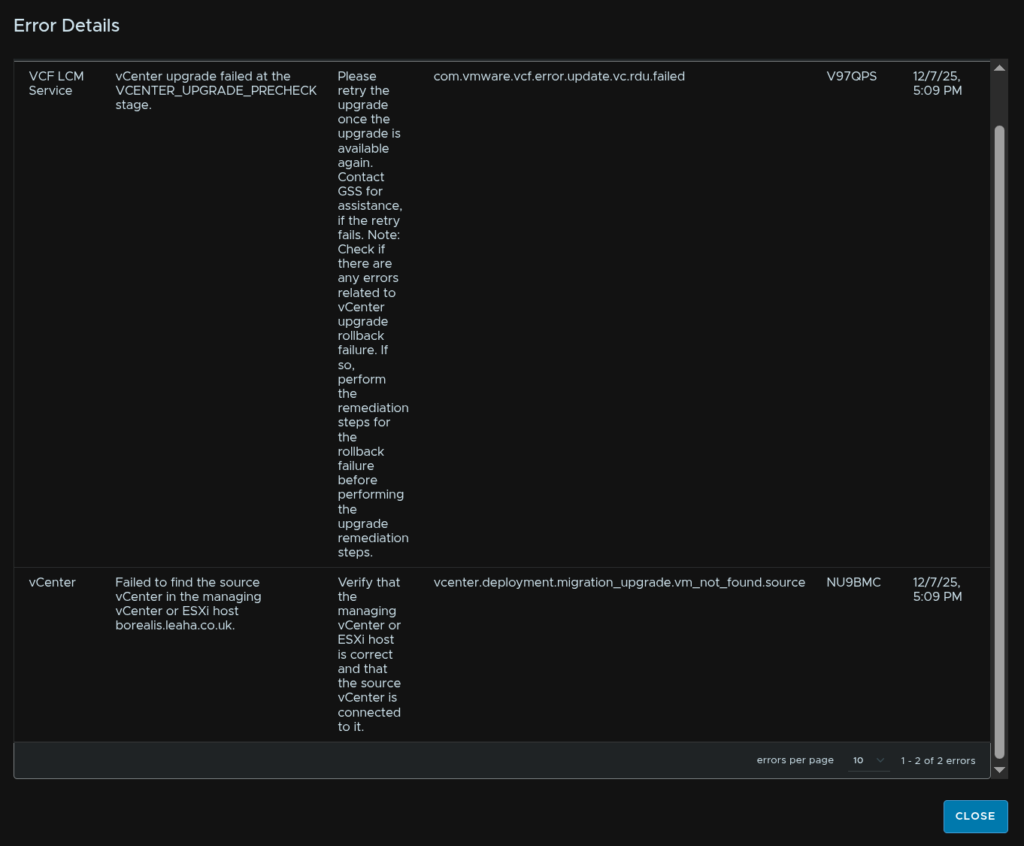
I am not too sure how this happened in my environment, but the fix for this is pretty simple
First you need the configuration backup of the vCenter, then shut the vCenter down and delete it from the ESX host, it should be gone from the datastore as well
Restore the vCenter using the ISO for the exact same version, and follow the restore wizard pointing it to your backup configuration
Then, download a copy of the FixHostKeys.sh script from Broadcom’s KB here

Connect to the SDDC Manager using WinSCP and the vcf account, same password as admin@local
And move the script to the home directory, the default loaded place in WinSCP
SSH to the SDDC manager as the vcf account
Switch to the root user with
su rootYou should be the in the directory
/home/vcf
And you can check the python file is there with
ls -lTo fix the key issue run
python fixHostKeys.py --resourceType < VCENTER | NSX_T_MANAGER | ESXI | NSXT_EDGE >Where the resource type is for the appliance that was restore, I used VCENTER like so
python fixHostKeys.py --resourceType VCENTERThis should pick up your domains, I only have a management domain, so I entered 0
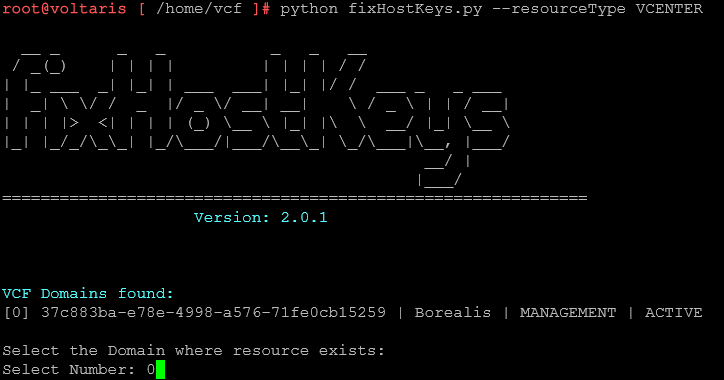
And this should fix it
However, I got this error oddly
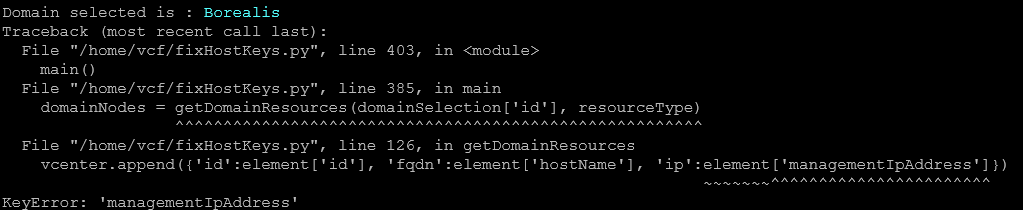
We can use the appliance fqdn instead with this command
python fixHostKeys.py --node <server-fqdn>So my vCenter, laniakea.istlab.co.uk was the appliance I restored, so I ran
python fixHostKeys.py --node borealis.leaha.co.ukAnd this fixed my keys
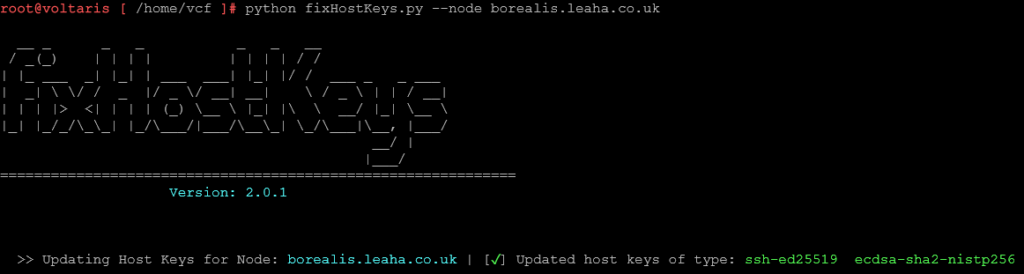
Once its been fixed, reboot the SDDC manager with
reboot -fAnd it should come back up ready, so retry the vCenter upgrade from before
6.7 – ESX
6.7.1 – VM Faults In EMM Dry Run
This is caused by VMs that cannot be migrated by DRS when the host enters maintenance mode, this does not include DRS affinity rules as they are disabled during the upgrade
These errors will not prevent you from continuing, and are often caused by VMs on local storage, you can power them off, or take manual action during the upgrade to move them or power them off
In production this is almost always due to SQL nodes running pinned to hosts on local storage, so the manual action is when DRS elects a host to place into maintenance mode, you must move or power off the VM, give its going to be in an SQL always on cluster, drain the VM and power it off
You can view the host going into maintenance mode only from the vCenter by clicking the cluster and heading to Updates
6.8 – VCF Operations For Logs
6.8.1 – Error LCMVMSP10026
An error I encountered was LCMVMSP10026, error occurred while pushing capabilities to VMSP, the logs for this can be found on the fleet management server under
/var/log/vrlcm/vmware_vrlcm.log
The issue here is one of your servers is in fleet management but offline so it cant finish the workflow to configure those appliances to log to VCF Ops For Logs
In my case this was the VCF Automation server as I keep that off when I am not using it in my lab due to the massive amount of resources it wants
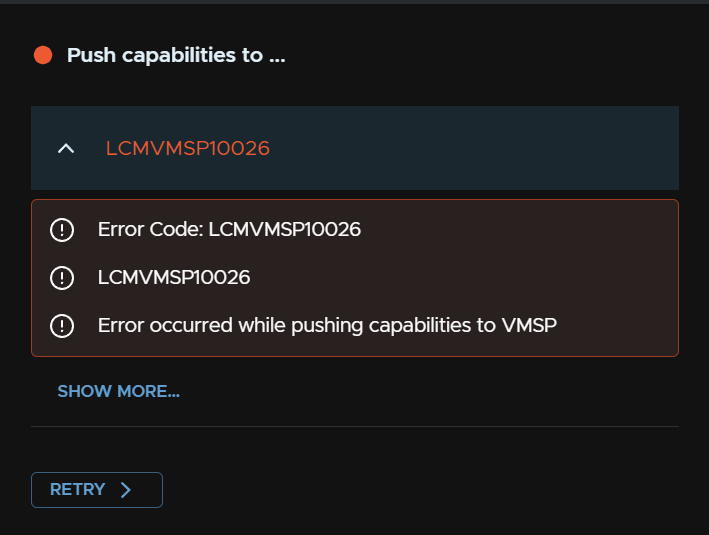

I’m scenario 3 (Enterprise Plus, VCSA, ESXi and vSAN) and looking at upgrading to 9 over the upcoming Holiday break… collecting as much info as possible since this is not a simple upgrade like 6-7 and 7-8 were…
would definitely kick the tires on your guide if it’s available by then
When you say holiday, when are you planning to start this?
I need to rebuild my lab this weekend and add some updates and improvements to scenario 3, and we are doing more adoption stuff at work, so this might be a good time to look at getting scenario 3 fast tracked
Thanks for your valuable work. This is great stuff!